
How to Turn On Hisense TV Without Remote: Every Method
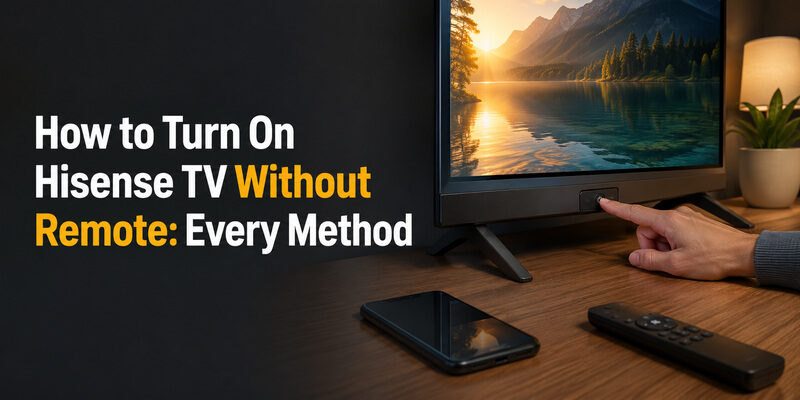
You can turn on a Hisense TV without a remote by pressing the physical power button on the TV itself, usually located on the back panel, bottom edge, or underside near the power cord.
That physical button is the most reliable answer, but it’s only the starting point. Once the TV is on, you’ll still want to change inputs, reach the settings menu, connect to Wi-Fi, and eventually turn the set back off — and each of those is possible without a remote too, using either the button panel or a phone.
This guide covers how to turn on Hisense TV without remote using the built-in controls, then walks through every follow-up task the button panel and a phone app can handle so a missing remote doesn’t leave the TV stuck.
The exact button layout varies by model, so a couple of the steps below include a fallback in case your TV uses a single joystick control instead of separate buttons.
Whichever method fits your model, how to turn on Hisense TV without remote is a solved problem once you know where the button is and how to connect a phone — this guide covers both.
How to Turn On Hisense TV Without Remote Using the Power Button
The fastest way to turn on Hisense TV without remote is the physical power control built into the set. Nearly every Hisense TV has one, though its exact form and location differ between models. Before assuming you need any workaround at all, it’s worth spending a minute locating this button, because it makes every other no-remote task easier once you know where it is.
Where the Power Button Is Located
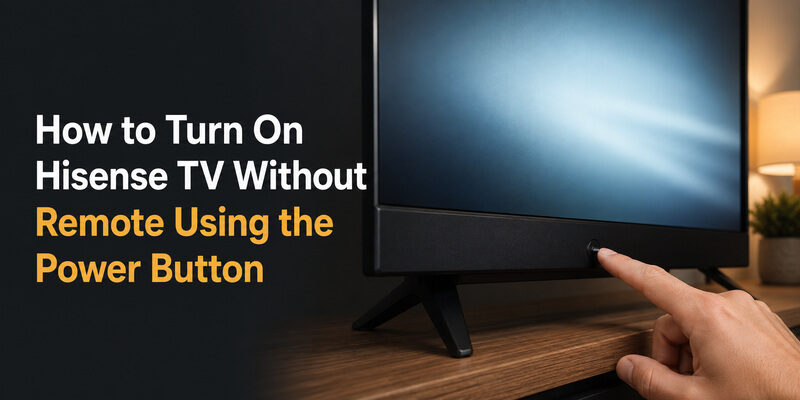
Check three places in this order: the center-back of the TV near the cable connections, the bottom-right edge as you face the screen, and the underside directly beneath the Hisense logo. On many models the button sits slightly recessed, so it’s often easier to feel than to see.
If you run your finger along the bottom edge and the lower-back panel, you’ll usually find either a single clickable button or a small joystick nub — one of those is your power control.
Single Button vs. Joystick Control
A single-button design does one thing with a short press: it powers the TV on or off. A joystick-style control does more — a straight press powers the TV on, while pushing it up, down, left, or right navigates once the TV is running.
Knowing which type your TV has matters for every later step in this guide, since the joystick handles menu navigation that a single button can’t. If your model only has a single power button, you’ll rely more on the phone-app method described further down. Either way, the button is how you turn on Hisense TV without remote — the difference only affects what you can do afterward, not the initial power-on itself.
What to Do If Pressing the Button Does Nothing
If the button doesn’t respond at all, confirm the TV is actually receiving power before assuming the button is broken. Check that the power cord is firmly seated at both the TV and the wall outlet, and try a different outlet to rule out a dead socket.
A completely unresponsive TV with a securely connected power cord points to a power-supply issue rather than a remote problem, and that’s worth confirming before you spend time on any of the no-remote workarounds below. In other words, if you can’t turn on Hisense TV without remote even using the physical button, the problem is almost certainly power-related and not something a phone app or joystick will solve.
Download LG TV RemoteHow to Change Input on Hisense TV Without Remote
Turning the TV on is only useful if it’s showing the right source. Switching inputs is one of the most common reasons people need to control a Hisense tv without remote, and the method depends on your button type.
Input control is a close cousin of how to turn on Hisense TV without remote: both rely on the same physical controls, so learning one makes the other easy.
Using the Joystick to Switch Inputs
With a joystick control, press it straight in once while the TV is on to bring up a small on-screen menu that usually includes Input or Source as an option. Push the joystick up or down to move through the list, then press straight in again to select the input you want.
This is the closest a button-only setup gets to full remote-style navigation, and it handles the hisense tv how to change input without remote question on most modern models.
This same joystick is central to how to turn on Hisense TV without remote and to nearly every menu task afterward.
Using Separate Buttons to Switch Inputs
On models with separate physical buttons, look for one labeled Input, Source, or Menu. Pressing it cycles through available sources — HDMI 1, HDMI 2, antenna, and so on — one press at a time, so keep pressing until the source you want appears.
Separate buttons make input switching simple, though they don’t add anything to how to turn on Hisense TV without remote beyond the power press itself.
Switching Inputs From a Phone Instead
If the button panel is awkward to reach or your model lacks a dedicated input button, a phone app connected to the TV can switch sources with a single tap. This is covered in detail in the phone-control section below.
A phone app rolls input switching, power, and how to turn on Hisense TV without remote into one screen, which is why it’s the smoothest option overall.
💡 Discover Helpful Guides: Hisense TV Remote App: Control Your Hisense TV From Your Phone
How to Reach the Settings Menu on Hisense TV Without Remote
Getting into settings without a remote is straightforward on joystick models and more limited on single-button models, so the approach depends on your hardware.
Reaching settings uses the same tools as how to turn on Hisense TV without remote, so if you’ve managed the power-on you’re already most of the way there.
Opening Settings With the Joystick
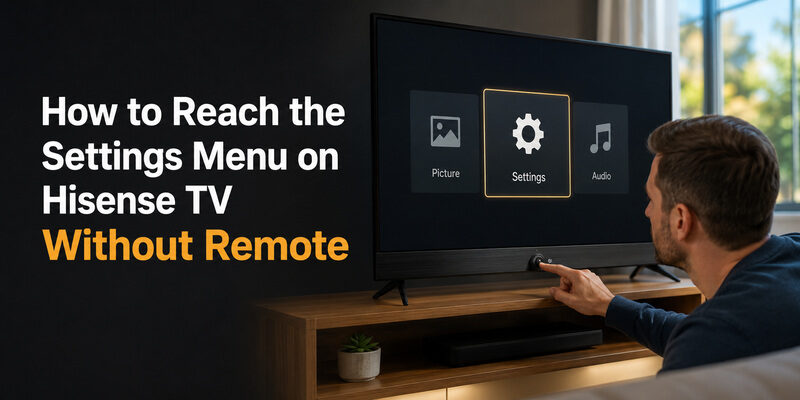
Press the joystick straight in to open the quick menu, then navigate to the gear or Settings icon. From there you can reach picture, sound, network, and system options the same way you would with a remote, just more slowly.
This answers the common how to go to settings on hisense tv without remote question for the majority of current models, since the joystick doubles as a directional pad.
Anyone comfortable with the joystick has effectively solved how to turn on Hisense TV without remote and can reach every setting from there.
Reaching Settings on a Single-Button Model
A single power button can’t navigate menus on its own. On these models, the practical path to the hisense tv settings menu without remote is a phone app connected over Wi-Fi, which mirrors full remote navigation including the settings menu.
On these sets, a phone app is the practical companion to how to turn on Hisense TV without remote, since the single button can’t navigate on its own.
📘 Find the Right Guide: Hisense TV Remote Batteries: Size, Replacement, Drain, and Fixes
How to Connect Hisense TV to Wi-Fi Without Remote
Connecting to Wi-Fi is the step that unlocks phone control, so it’s worth getting right. There are two realistic paths depending on whether your TV can navigate its own menus.
Wi-Fi Setup Using the Joystick
If your TV has a joystick control, open Settings, navigate to Network, select your Wi-Fi name, and enter the password using the on-screen keyboard. Entering a password one joystick-nudge at a time is tedious but works, and it fully answers the how to connect hisense tv to wifi without remote question.
Take your time on the password screen — a single wrong character means starting the entry over, which is far more frustrating with a joystick than with a remote’s number pad. Double-check each character before moving to the next.
Getting online is the step that makes how to turn on Hisense TV without remote sustainable, because it unlocks phone control.
Using a Wired Ethernet Connection
If joystick text entry is impractical, plug an Ethernet cable directly from your router into the TV’s LAN port. A wired connection often connects automatically with no menu navigation at all, which is the fastest way to get a single-button TV online.
Once the TV is on the network by cable, you can then use a phone app to finish any wireless setup if you’d rather switch to Wi-Fi later.
Ethernet is the shortcut here, and it pairs neatly with how to turn on Hisense TV without remote on models that are awkward to navigate by joystick.
When You Have No Remote and No Wi-Fi Yet
The trickiest situation is needing to use a hisense tv without remote or wifi at the same time — for example, a factory-fresh TV with no remote in the box. Here the button panel or joystick is your only option for initial navigation, since a phone app needs the TV to already be on a network. Get the TV onto Wi-Fi (or Ethernet) first using the physical controls, and phone control becomes available afterward.
This is the one case where how to turn on Hisense TV without remote genuinely requires the physical controls first, since a phone app can’t reach an offline TV.
Understanding the Service Button on Hisense TVs
Some Hisense models have a small recessed hole labeled Service near the ports, and it’s a frequent source of confusion for anyone trying to operate a Hisense tv without remote.
The short answer to what is the service button on hisense tv without remote: it is a factory and repair port, not a normal power or menu control. It’s intended for technicians, and pressing it with a pin does not turn the TV on or open a user-facing menu. Don’t rely on it as a substitute for the power button — stick with the actual power control and the phone-app methods in this guide instead.
None of this changes how to turn on Hisense TV without remote: the power button and a phone app remain your only real tools, and the service port is a distraction from both.
📖 Read More Guides: Hisense TV Code for Universal Remote: Verified Codes and Programming Steps
How to Use a Hisense TV Without a Remote via Phone App
Once the TV is on and connected to the same network as your phone, an app becomes the most complete way to use a Hisense tv without remote — it restores nearly everything the physical remote did.
For a lost or broken remote, this is the method most people settle on, because it answers how to turn on Hisense TV without remote and restores full control in a single app.
What a Phone App Can Control
A connected phone app handles power, volume, input switching, full menu navigation, and app launching, which covers essentially every daily task. For single-button TV models, this is the difference between a barely-usable set and a fully controllable one.
This is why the phone-app route is the real long-term answer for anyone who needs to know how to turn on Hisense TV without remote regularly rather than just once. A joystick works in a pinch, but tapping a familiar phone screen is far closer to the original remote experience.
Setting Up the Remote TV App
The Remote TV App connects to a Hisense TV over the same Wi-Fi network and turns a phone into a full-featured replacement remote. Install it on your phone, make sure both devices are on the same network, and select your TV when it appears in the app.
It’s the most practical long-term answer to how to turn on Hisense TV without remote for anyone whose remote is lost or broken rather than just temporarily misplaced. Once it’s set up, you rarely need the physical button again except after a full power-off. to control the TV without waiting for a replacement remote.
When the App Won’t Work
A phone app can’t help with the very first power-on if the TV is fully off and the app has never connected before — the TV must be on and networked for the app to reach it. In that one situation, fall back to the physical power button, then use the app for everything afterward.
It’s a genuine limitation worth understanding upfront: no software can turn on Hisense TV without remote from a completely cold, disconnected state. The button handles that first moment; the app handles everything from there.
That single cold-start limitation aside, a phone app answers how to turn on Hisense TV without remote more completely than any physical button ever could.
📖 Read More Guides: How to Open Hisense TV Remote Safely for Batteries, Cleaning, or Repair
How to Turn Off a Hisense TV Without a Remote
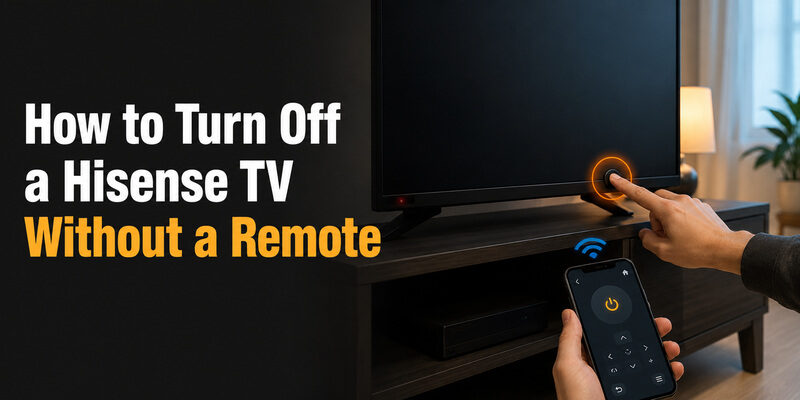
Turning the set off is the mirror image of turning it on. A single short press of the physical power button powers the TV down on both single-button and joystick models.
If you’re already using a phone app, the app’s power button does the same thing wirelessly. And for the answer to how to turn off hisense tv without remote when you can’t reach the button at all, unplugging the TV at the wall is a last-resort option that won’t harm the set, though it’s not something to do dozens of times a day.
One practical note: if you turn the TV off at the wall, the next time you want to turn the set back on you’ll need the physical button again, since a fully unplugged TV drops off the network until it’s powered back up. Knowing how to turn on Hisense TV without remote by hand matters most in exactly this scenario, so a short press of the power button is almost always better than unplugging when you have the choice.
Tips for Living Without a Remote Long-Term
If your remote is gone for good and you’re not replacing it right away, a few habits make daily use much smoother.
Keep the TV on the Network
The single most useful habit is leaving the TV connected to Wi-Fi and avoiding full power-offs at the wall. As long as the TV stays networked, a phone app can wake and control it, and you almost never need to physically reach the set. This effectively removes the daily friction of having to turn on Hisense TV without remote by hand.
Staying networked is the single best way to make how to turn on Hisense TV without remote a non-issue day to day.
Set Up the App on More Than One Phone
Installing the Remote TV App on a second household phone or tablet means the TV stays controllable even when one device is out of the house or out of battery. It’s a small step that prevents a repeat of the original lost-remote problem.
A backup device means how to turn on Hisense TV without remote is covered even when your main phone is unavailable.
Know Your Button Layout by Heart
Even with a phone app as the primary control, memorizing where the physical power button sits pays off for the one moment the app can’t cover — the cold power-on. Being able to find the button by feel in a dim room means you can always turn on Hisense TV without remote as a fallback.
Muscle memory for the button means how to turn on Hisense TV without remote is always within reach, even on the rare occasions the app can’t help.
🗺️ Browse How-To Guides: Hisense Remote Control Manual: Buttons, Pairing, Apps, and Troubleshooting
Troubleshooting No-Remote Control Problems
A few recurring issues come up when controlling a Hisense TV without a remote. This table maps the most common ones to a quick fix.
Most no-remote headaches trace back to one of these four causes, and none of them make how to turn on Hisense TV without remote impossible — they just point you to the right fix.
| Problem | Likely Cause | Fix |
| Button press does nothing | No power reaching the TV | Reseat the power cord and test a different outlet |
| Can turn on but can’t navigate | Single-button model with no joystick | Use a phone app over Wi-Fi for menu control |
| Phone app can’t find the TV | TV and phone on different networks | Put both devices on the same Wi-Fi network |
| Stuck on wrong input | No dedicated input button | Use the joystick quick menu or a phone app to switch source |
Can a Remote TV App Fully Replace a Hisense Remote?
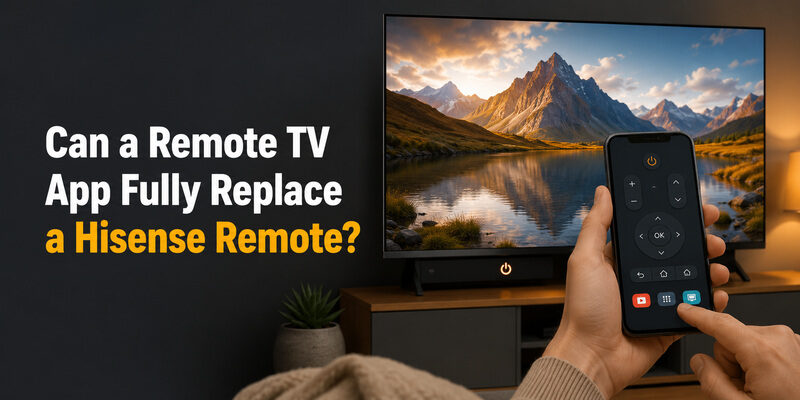
For everyday use, yes — once the TV is on and networked, the Remote TV App covers power, volume, navigation, input, and app launching, which is everything most people use a remote for.
The one thing no app can do is the very first cold power-on of a fully-off TV that has never connected to the app before; that always needs the physical button. Past that single moment, a phone app is a complete stand-in, and it’s the reason a lost remote no longer has to mean an unusable TV. If your remote is gone for good, this is a more convenient fix than repeatedly reaching behind the set for the power button.
Put simply, the app covers how to turn on Hisense TV without remote and everything after it, with the sole exception of the very first cold power-on.
FAQs About Using a Hisense TV Without a Remote
Can I use my phone to turn on a Hisense TV without a remote?
A phone app can turn the TV on only if the TV is already networked and the app has connected before; some models also support wake-on-network. For a truly cold, never-connected TV, the physical power button is still required for the first power-on, after which the app can turn on Hisense TV without remote every time going forward.
Is there a free way to control a Hisense TV without a remote?
Yes. The physical button panel is free and built in, and the Remote TV App is free to install and provides full control once the TV is on the same Wi-Fi network as your phone.
How do I connect a Hisense TV to Wi-Fi without a remote?
Use the joystick control to navigate to Settings > Network and enter your password, or plug in an Ethernet cable for an automatic wired connection that skips menu navigation entirely.
What is the service button on a Hisense TV for?
It’s a factory and repair port for technicians, not a user control. It does not turn the TV on or open a normal menu, so it isn’t a workaround for a missing remote.
Can I change the input on a Hisense TV without a remote?
Yes. Use the joystick quick menu or a dedicated Input/Source button on the TV, or switch sources with a single tap in a connected phone app.
Final Thoughts
Knowing how to turn on Hisense TV without remote starts with locating the physical power button, but the full picture is bigger: joystick models can navigate menus and switch inputs on their own, while single-button models lean on a phone app for anything beyond power.
Get the TV onto Wi-Fi or Ethernet first, then let the Remote TV App handle everything a physical remote used to do. With that setup in place, a lost or broken remote becomes a minor inconvenience rather than a reason the TV sits unused.
The one habit worth keeping is leaving the TV networked so you rarely have to turn on Hisense TV without remote by hand — after that first button press, the app takes over and the missing remote stops being a problem at all.
Download LG TV Remote