
Hisense Roku TV Remote App: Setup and Free Options
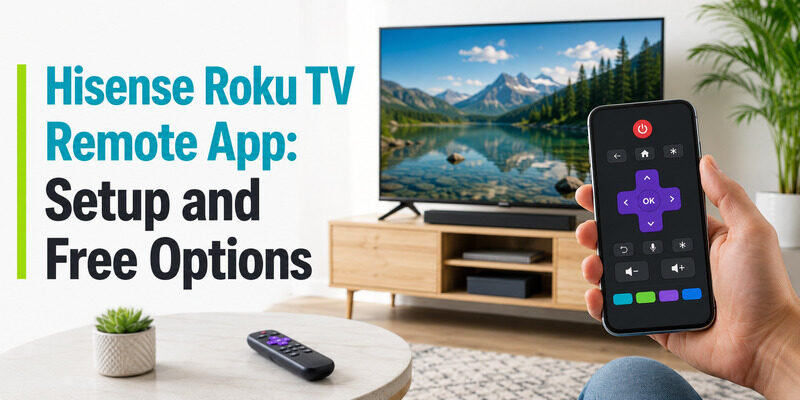
The Hisense Roku TV remote app is simply a Roku remote app connected to a Hisense Roku TV — any Roku-compatible app works, because the TV runs the Roku platform underneath the Hisense brand.
That means you don’t need a special Hisense-only app. The official Roku app, or a free alternative like the Remote TV App, controls a Hisense Roku TV completely over Wi-Fi.
This guide explains how the Hisense Roku TV remote app works, how to set it up free, how it compares to apps for other Roku TV brands like Vizio and JVC, and which apps work with older Roku 3 and Roku 4 devices.
Whether your Hisense remote is lost or you just prefer your phone, an app has you covered at no cost.
How the Hisense Roku TV Remote App Works
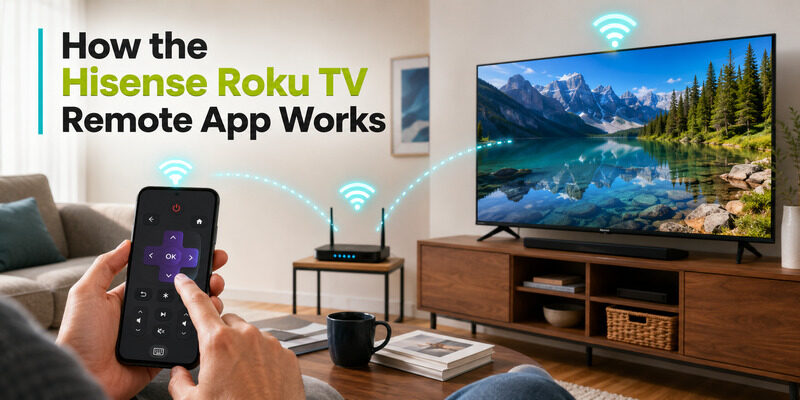
A Hisense Roku TV remote app controls the TV over your home Wi-Fi network rather than infrared. Because a Hisense Roku TV runs Roku’s software, any Roku remote app treats it exactly like any other Roku TV.
This is the key insight: there’s no separate Hisense-branded remote app you must hunt down. The Hisense Roku TV remote app is really just a Roku remote app pointed at your Hisense set, connecting over the same network your phone is on.
Why No Hisense-Specific App Is Needed
Because the Roku platform handles the remote functions, the brand on the bezel doesn’t matter. A Hisense Roku TV remote app and a TCL Roku remote app are the same app connected to different TVs, which simplifies things considerably.
This is genuinely convenient, because it means you never have to search for the ‘right’ branded app or worry that a generic Roku app won’t recognize your Hisense set. If it’s a Roku TV, the app works.
What It Controls
It covers power, volume, navigation, and app launching, plus extras like a keyboard and private listening on the official app. For daily use it fully replaces the physical Hisense Roku remote.
In practice, the only thing it can’t do is the very first cold power-on of a fully-off TV that isn’t on the network yet, which still needs the physical button.
Download TV Remote AppHow to Set Up the Hisense Roku TV Remote App
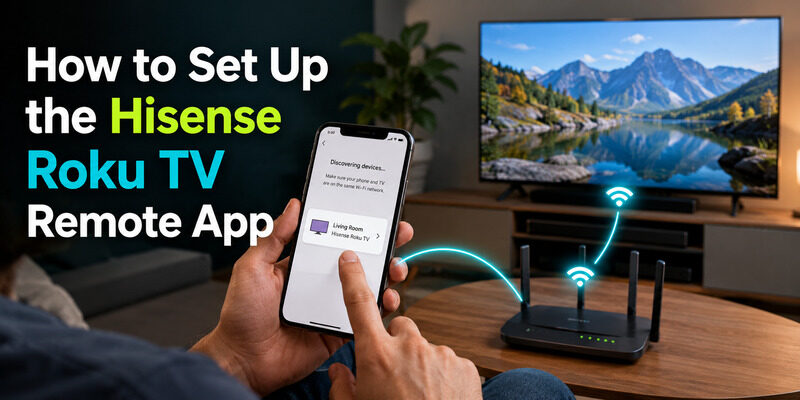
Setup takes about a minute. The only firm requirement is that your phone and the Hisense Roku TV share the same Wi-Fi network.
Step 1: Download an App
Download a Roku remote app from your phone’s app store to use as your Hisense Roku TV remote app. The official Roku app and the Remote TV App are both free and work identically on a Hisense set.
There’s no reason to sideload from an unofficial source, since the legitimate apps are free in the official stores and safer to install from there.
Step 2: Connect to the Same Network
Ensure your phone and the Hisense Roku TV are on the same Wi-Fi network. A network mismatch is the top reason the app can’t find the TV, so this step matters most.
If your router splits its 2.4GHz and 5GHz bands into separate network names, put both your phone and the TV on the same one, as they can otherwise act like different networks.
Step 3: Select Your Hisense Roku TV
Open the app, let it scan, and select your Hisense Roku TV when it appears. The on-screen remote is ready in seconds, and it works just like the physical remote.
If more than one Roku device appears in the list, the app usually labels them by room or device name so you can pick the correct Hisense set.
Is the Hisense Roku TV Remote App Free?
Yes. The direct answer to whether a hisense roku tv remote free option exists is that both the official Roku app and reputable alternatives are free for core control.
So the app won’t cost you anything to handle power, volume, navigation, and app launching. Some apps offer optional paid extras, but the essentials are free, which makes trying one an easy, no-risk decision.
Apps for Other Roku TV Brands
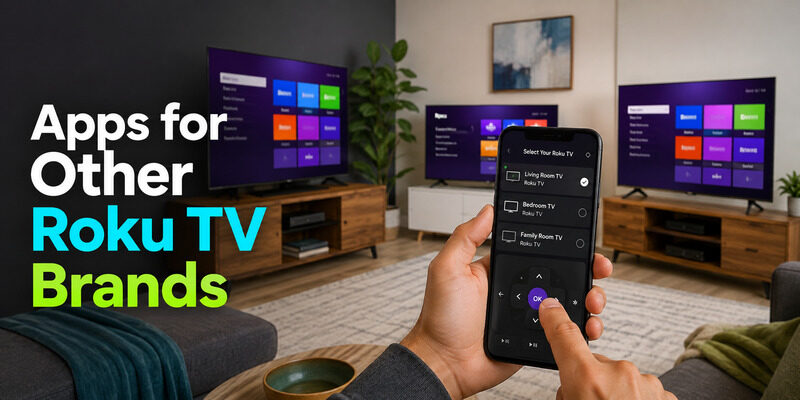
Because all Roku TVs share the same platform, the same principle applies to every brand. Here’s how a few common ones work, all using the same kind of app as the Hisense Roku TV remote app.
Vizio Roku TV Remote App
A vizio roku tv remote app is the same Roku remote app connected to a Vizio-branded Roku TV. There’s no Vizio-exclusive app required — any Roku-compatible app works, exactly as with the Hisense app.
So a household with both a Hisense Roku TV and a Vizio Roku TV can control both from one app, switching between them without any extra setup.
JVC Roku TV Remote App
A jvc roku tv remote app follows the same pattern. A JVC Roku TV accepts any Roku remote app over Wi-Fi, so the setup and features match the Hisense one precisely.
This cross-brand consistency is one of the quiet strengths of the Roku platform — learn the app once and it works everywhere.
A Note on LG Roku Codes
People sometimes search lg roku tv remote codes, but note that LG mostly uses its own webOS platform rather than Roku. If you have an actual Roku TV of any brand, the app approach works; for a non-Roku LG TV, you’d need a universal remote with LG codes instead.
Using the App With Older Roku Devices
Beyond Roku TVs, the same apps work with standalone Roku streaming players, including older models.
Roku 3 Remote App
A roku 3 remote app is just a Roku remote app connected to a Roku 3 streaming player. The Roku 3 supports app control over Wi-Fi, so the same app you’d use for a Hisense set works with it too.
That longevity is handy, since the Roku 3’s original physical remote can be hard to replace years after the device launched.
Roku 4 Remote App
Similarly, a roku 4 remote app is the same app connected to a Roku 4. These older players remain controllable by the current Roku apps, which keeps them usable even if their physical remotes are long lost.
Keeping a phone app installed effectively future-proofs an older Roku against the day its remote finally gives out.
Troubleshooting the Hisense Roku TV Remote App
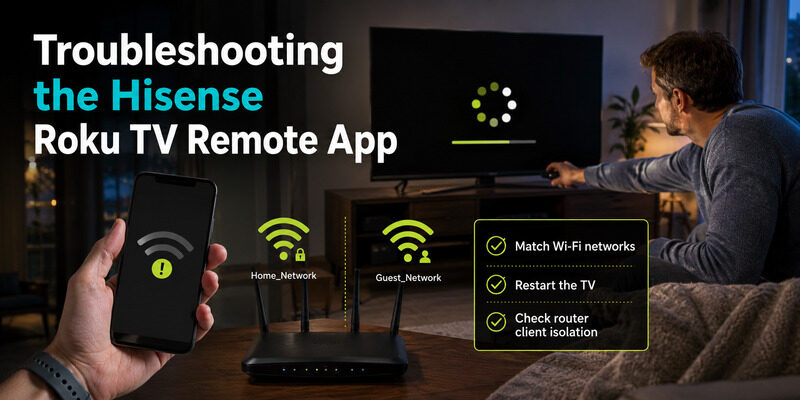
If the app can’t connect to your Hisense Roku TV, the cause is almost always the network. These steps resolve most issues.
Confirm the Same Wi-Fi Network
Double-check that your phone and the Hisense Roku TV are on the identical network. Guest networks and separate frequency bands are the usual culprits when the app won’t connect.
This single check resolves the large majority of connection problems, so always verify it before trying anything more involved.
Restart the App and TV
Close and reopen the app, then power-cycle the Hisense Roku TV by unplugging it for 10 seconds. A fresh start clears a stale connection, which fixes many sudden drops.
Check Router Isolation
Some routers block devices from talking to each other via a client-isolation setting. If nothing else works, disabling it usually restores the link between your phone and the Hisense Roku TV.
Why an App Beats Hunting for a Replacement Remote
When a Hisense Roku remote is lost or broken, the app is faster and cheaper than buying a replacement. It’s free, instant, and always on the phone in your pocket.
There’s no waiting for shipping, no code to program, and nothing new to lose. For many people the app becomes a permanent solution rather than a stopgap, since it does everything the physical remote did and adds a keyboard and private listening on top.
Keeping the App Working Long-Term
A little upkeep keeps a Hisense Roku TV remote app reliable over time, so you rarely have to troubleshoot it twice.
Keep the App Updated
Update the app when new versions appear so your Hisense Roku TV remote app stays compatible with Roku platform changes. An outdated app is the occasional cause of a remote that suddenly stops connecting after a TV firmware update.
Stay on a Stable Network
Because a Hisense Roku TV remote app works over Wi-Fi, a stable home network keeps control responsive. If the app feels laggy, a quick router restart clears congestion on a busy network.
Install It on More Than One Phone
Putting the app on a second household phone means the TV stays controllable even when one device is out of the house. It’s a small step that prevents a repeat of the lost-remote problem entirely.
Get a Free Hisense Roku TV Remote App
If you want a clean, free Hisense Roku TV remote app that also covers your other TVs, the Remote TV App is a strong pick. It connects over Wi-Fi, handles full control, and works across brands.
It turns your phone into a complete Hisense Roku remote at no cost, with fast text entry and nothing to misplace. to control your Hisense Roku TV from your phone. A dedicated overview is also at .
FAQs About the Hisense Roku TV Remote App
Is there a special app for a Hisense Roku TV remote?
No special app is needed. Any Roku remote app — the official Roku app or a free alternative like the Remote TV App — controls a Hisense Roku TV, since it runs the Roku platform.
Is the Hisense Roku TV remote app free?
Yes. The official Roku app and reputable alternatives are free for core control of a Hisense Roku TV. Only optional extras in some apps are paid.
How do I connect the app to my Hisense Roku TV?
Install a Roku remote app, ensure your phone and the TV are on the same Wi-Fi network, open the app, and select your Hisense Roku TV. Control is available within seconds.
Does the same app work for Vizio or JVC Roku TVs?
Yes. Any Roku remote app works with any Roku TV regardless of brand, including Vizio and JVC Roku TVs, because they all run the Roku platform.
Can I control an older Roku 3 or Roku 4 with the app?
Yes. The current Roku remote apps work with older Roku 3 and Roku 4 streaming players over Wi-Fi, so they stay controllable even without their original remotes.
Final Thoughts
The Hisense Roku TV remote app is just a Roku remote app connected to your Hisense set — no special download required, free to use, and set up in about a minute over Wi-Fi. The same principle covers Vizio, JVC, and other Roku TV brands, plus older Roku 3 and Roku 4 players.
When your Hisense Roku remote is lost or broken, the app is faster and cheaper than a replacement. Install the Remote TV App and your phone becomes a full Hisense Roku remote you’ll never misplace.
Download TV Remote App