
Android Remote TV: Complete Guide to Control Any Smart TV From Android
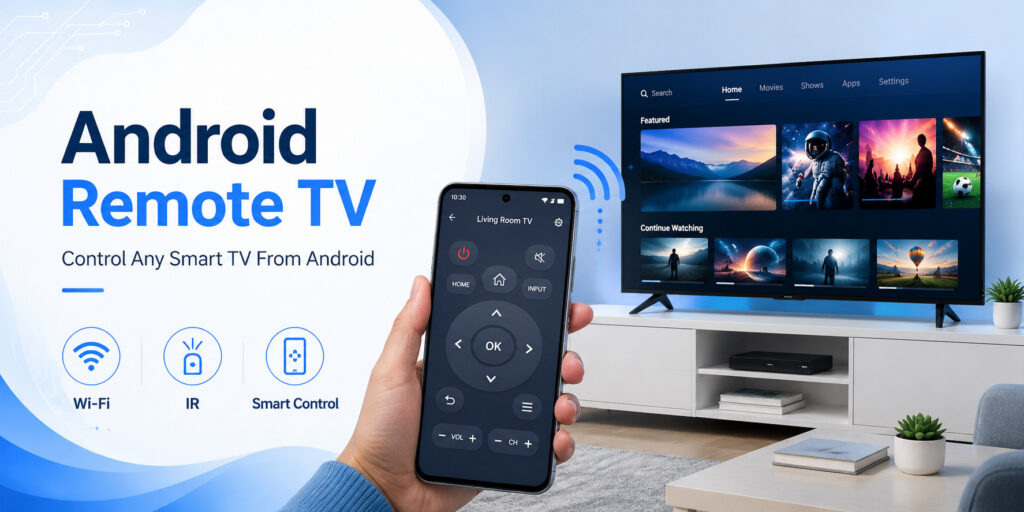
Losing a television remote is no longer the inconvenience it once was. For many households, an Android phone can now perform most of the everyday functions of a traditional remote control. An Android remote tv solution can help users power compatible televisions, change channels, control volume, navigate streaming apps, type with a smartphone keyboard, and access frequently used controls without searching around the living room for a physical remote.
The idea is particularly useful in homes with several televisions. Instead of keeping a different controller for every screen, users may be able to manage several devices from one phone. Depending on the television and remote application, the connection can operate through the local Wi-Fi network, infrared hardware, Bluetooth, or a combination of technologies.
However, not every Android remote tv setup works in exactly the same way. Some televisions support official manufacturer applications. Others rely on universal remote applications. Certain older TVs require infrared signals, while many newer smart televisions communicate over Wi-Fi.
Compatibility therefore matters more than simply installing the first application labeled as a universal remote.
This guide explains the technologies behind smartphone television control, how to connect an Android device to popular Smart TV platforms, what to consider before installing an APK, and how to troubleshoot common pairing issues. It also explores how an Android remote tv app can become more useful than a conventional plastic remote in everyday situations.
Whether your original controller is missing, damaged, running out of batteries, or simply across the room, understanding how an Android remote tv system works can make controlling your entertainment setup significantly easier.
What Is an Android Remote TV and Why Use One?
An Android remote tv is a software-based television controller that allows an Android smartphone or tablet to perform actions normally handled by a physical TV remote. Instead of pressing buttons on a dedicated controller, users interact with an interface displayed on their mobile device.
Turning a Smartphone Into a TV Controller
The most basic applications provide familiar buttons such as power, mute, volume up, volume down, channel navigation, directional controls, home, back, and menu.
More advanced apps may provide additional controls depending on the television platform. These can include:
- Touchpad navigation
- Numeric keyboards
- Text input
- Streaming app shortcuts
- Input source switching
- Media playback controls
- Channel lists
- Device discovery
- Multiple television profiles
- Screen mirroring shortcuts
- Casting controls
An Android remote tv can therefore offer a more flexible interface than a basic physical controller.
For example, typing a movie title with arrow buttons on a traditional remote can be frustrating. A smartphone application may allow the user to type the same search phrase using the Android keyboard.
Why People Replace Their Physical Remote
There are several practical reasons to use an Android phone as a remote.
The most obvious is a missing controller. A remote can easily disappear between sofa cushions, under furniture, or in another room. If a compatible application is already configured, the phone becomes an immediate backup.
Damaged buttons are another common reason. Volume, power, and navigation buttons receive frequent use and may eventually stop responding.
Battery problems can also be avoided. Smartphones still need charging, of course, but users generally keep them powered throughout the day.
An Android remote tv may also be useful for households with several television brands. Instead of keeping four controllers near the sofa, users can potentially access several compatible televisions from one application.
This does not mean smartphone remotes completely replace physical controllers in every situation. Some televisions require initial network configuration before Wi-Fi remote functions are available. A physical remote may still be necessary during first-time TV setup.
Once everything is connected, however, an Android remote tv becomes a convenient everyday alternative.
Download TV Remote APPHow Android Remote TV Apps Communicate With a Television
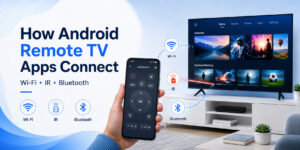
Before choosing a remote application, it helps to understand how the phone communicates with the television. Most solutions use Wi-Fi, infrared, Bluetooth, or platform-specific network protocols.
Wi-Fi Remote Control
Wi-Fi is the most common connection method on modern Smart TVs.
The phone and television usually need to be connected to the same home network. The application scans the network, detects compatible televisions, and asks the user to select one.
The television may then display a pairing request or numeric code.
After authorization, the Android remote tv application sends commands through the local network.
Wi-Fi control has several advantages. The phone does not need to point directly at the television, and users may be able to control a TV from anywhere within normal network range.
It can also support more complex commands such as text input or content navigation.
However, Wi-Fi remote control depends on network availability. If the television disconnects from Wi-Fi, the application may temporarily stop working.
Infrared Remote Control
Traditional TV remotes commonly use infrared light to transmit commands.
Some Android smartphones have included an infrared blaster capable of reproducing these signals. On supported devices, an Android remote tv application can send commands to a television without relying on the home network.
The phone generally needs to be pointed toward the television, similar to a conventional controller.
Infrared can be especially useful with older TVs that do not have Wi-Fi capabilities.
The limitation is smartphone hardware. Many modern Android phones do not include built-in infrared transmitters. Installing an application cannot create infrared functionality if the required hardware is absent.
Bluetooth and Platform-Specific Connections
Some television platforms and streaming devices also use Bluetooth during pairing or control.
In other cases, manufacturers use their own network protocols. This explains why one universal application may support a television while another cannot discover the same model.
When an Android remote tv fails to connect, the cause is often compatibility rather than a problem with the phone itself.
Understanding the communication method makes choosing the correct application much easier.
Explore Articles
Roku TV Remote App for Android: Complete Setup and Troubleshooting Guide
How to Set Up an Android Remote TV Step by Step
The exact process varies between manufacturers, but most Wi-Fi-based applications follow a similar setup sequence.
Step 1: Check the Television Connection
First, confirm that the television is connected to the home network.
Open the TV network settings and verify that Wi-Fi or Ethernet is active.
For many applications, the Android phone must be connected to the same local network. A phone using mobile data while the television is connected to home Wi-Fi may not detect the TV.
Once both devices share the same network, open the Android remote tv application.
Step 2: Allow Device Discovery
The application may request permissions required to locate compatible devices on the network.
Permission wording varies depending on Android version and application design.
After permissions are granted, start the device scan.
A list of available televisions may appear. Select the correct TV according to its name, model, room label, or network identifier.
Step 3: Complete TV Pairing
Many Smart TVs display a confirmation message when a new phone attempts to connect.
Choose Allow or Accept on the television.
Some models display a PIN instead. Enter this code in the Android remote tv interface.
Pairing prevents random devices on the same network from controlling the television without authorization.
Step 4: Test Basic Commands
After pairing, test several simple functions:
- Volume up
- Volume down
- Mute
- Home
- Directional navigation
- Back
- Play and pause
Do not immediately assume the connection is broken if the power button does not work. Power behavior can vary between television models because some TVs reduce network activity while switched off.
If navigation and volume controls work, the Android remote tv connection itself is probably functioning correctly.
Step 5: Save the Device
If the application supports multiple TVs, rename the television according to its location.
For example:
Living Room TV
Bedroom TV
Office TV
Guest Room TV
This becomes especially useful when several televisions from the same manufacturer appear with similar default names.
A properly configured Android remote tv should reconnect much faster during future sessions because the initial pairing has already been completed.
Android Remote TV Compatibility Across Different TV Brands
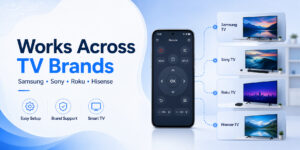
One of the biggest misconceptions about universal remote applications is that every application works with every television.
In reality, compatibility depends on both software and hardware.
Smart TV Platforms Matter
Modern televisions run different operating systems and manufacturer platforms. Each may expose remote-control functions differently.
An Android remote tv application therefore needs to understand the communication protocol used by the target device.
Some apps specialize in one ecosystem, while others combine support for several brands.
Before installing an application, check whether it specifically lists your television manufacturer or operating system.
Common platforms encountered by Android users include:
- Android TV
- Google TV
- Roku TV
- Samsung smart television platforms
- Sony Smart TVs
- Hisense televisions
- LG televisions
- Fire TV devices
- Apple TV devices
- Other manufacturer-specific Smart TV systems
Model Year Can Affect Support
Two televisions carrying the same brand name may behave differently if they were released several years apart.
A newer model might support network discovery while an older version only accepts infrared commands.
This is why an Android remote tv app that works perfectly with one Samsung television may not necessarily work with every Samsung model ever produced.
The same principle applies to other manufacturers.
Universal Versus Brand-Specific Apps
Brand-specific applications are generally designed around a known television ecosystem. Universal remote applications attempt to support several manufacturers from one interface.
Neither approach is automatically better.
If you own one television, a compatible manufacturer-focused solution may provide straightforward setup.
If your home contains televisions from several companies, an Android remote tv application with broader compatibility may be more convenient.
Users should therefore evaluate compatibility according to their actual devices rather than choosing an application purely because it has the word “universal” in its name.
Explore Articles: Hisense TV Remote App for Android: Setup Guide A-Z
Using Android Remote TV With Sony and Samsung TVs
Sony and Samsung televisions are common examples of why brand-specific compatibility should be checked before installing a remote application.
Sony TV Control From Android
Users searching for a sony tv remote app for android are usually trying to accomplish one of two things: replace a missing physical controller or gain easier smartphone navigation.
Many modern Sony televisions use smart television platforms that can communicate through the local network.
When supported, the Android remote tv setup process generally involves connecting the television and phone to the same network, scanning for the device, and authorizing the connection on the television.
Certain Sony models may also work with platform-based applications depending on the operating system running on the TV.
Older Sony televisions without smart network control may require infrared.
Therefore, users should check the exact TV model before assuming a Wi-Fi application will work.
Samsung TV Control From Android
Searches for a samsung tv remote app android solution follow the same basic principle.
Samsung Smart TVs may allow compatible smartphones to communicate through the home network. Depending on the application and television generation, users can access navigation, playback, volume, and other functions.
An Android remote tv application designed for Samsung devices may detect the television automatically once both devices are connected to the same Wi-Fi network.
The television might display a permission request when the phone connects for the first time.
Accepting this request establishes the trusted relationship between the devices.
When Universal Apps Make More Sense
Imagine a home containing a Sony television in the bedroom and a Samsung television in the living room.
Installing separate applications is one solution. Using a compatible universal Android remote tv is another.
A multi-brand application can be particularly useful when the user frequently switches between rooms.
The important point is that universal support should be verified for both models. Brand logos or broad marketing claims do not always guarantee compatibility with every generation of television.
Controlling Roku, Hisense, and Other Smart TVs From Android
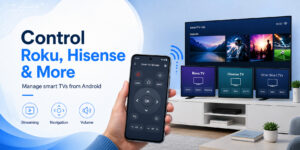
Smart television ecosystems such as Roku and Hisense introduce additional options for Android users.
Roku TV Remote Functions
Someone searching for a roku tv remote app for android will typically want network-based control of a Roku television or Roku streaming environment.
Once the Roku device and smartphone share the same local network, a compatible application may detect the television and provide familiar controls.
Navigation is especially important because Roku interfaces rely heavily on directional input.
An Android remote tv interface can reproduce the directional pad while also providing additional smartphone conveniences depending on the application.
If discovery fails, verify that both devices are using the same router and that network settings are not isolating connected devices from one another.
Guest Wi-Fi networks sometimes restrict communication between devices.
Hisense TV Remote Options
Users looking for a hisense tv remote app for android should first determine which operating system their television uses.
Hisense sells televisions across different software ecosystems depending on model and region. As a result, there is no single connection method that applies to every Hisense television.
Some models may use Google TV or Android TV functionality. Others may use different platforms.
The operating system is often more important than the brand label when selecting an Android remote tv application.
Check the television’s Settings or About menu to identify the software platform.
Other Television Brands
The same strategy works for TCL, Philips, Sharp, Xiaomi, and other Smart TV manufacturers.
Identify:
- The exact television model.
- The operating system.
- Whether network remote control is supported.
- Whether infrared is required.
- Which applications explicitly support the device.
An Android remote tv should be selected based on these factors rather than downloading several random applications and testing them individually.
This approach saves time and also reduces the number of unnecessary apps installed on the phone.
Google TV, Android TV, and Streaming Device Remote Control
Android-based television platforms are particularly relevant because they share a close relationship with the Android smartphone ecosystem.
Google TV and Android TV
A person searching for a google tv remote app for android is usually looking for an easy way to navigate a Google TV interface without relying exclusively on the physical controller.
Network-based remote functionality can be particularly useful for text input.
Instead of slowly selecting individual letters with directional buttons, users may be able to enter searches using their phone keyboard.
An Android remote tv can therefore be valuable when searching streaming catalogs, entering account information, or navigating menus.
Android TV devices can offer similar possibilities depending on device software and application support.
Streaming Boxes and Dongles
The television itself is not always the device being controlled.
Many households use external streaming equipment connected through HDMI. In that case, the smartphone remote may communicate with the streaming box instead of directly controlling the TV’s operating system.
Understanding this distinction helps troubleshoot unexpected behavior.
For example, an Android remote tv might successfully navigate a streaming device while being unable to change the television’s picture settings.
That does not necessarily mean the application is malfunctioning. It may simply be controlling a different device.
Apple TV From Android
The phrase apple tv remote android represents a slightly different use case because Apple TV belongs to another device ecosystem.
Third-party Android applications may offer control possibilities for certain configurations, but users should carefully check compatibility before relying on them.
Features can vary significantly between applications.
When dealing with cross-platform control, avoid assuming that every function available from an official controller will automatically be available through an Android application.
An Android remote tv works best when the app, television platform, and network configuration are all explicitly compatible.
Explore Articles: Download a Remote TV App for Android: Control Your TV With Your Phone
Free Apps, APK Files, and Safe Android Remote TV Downloads
Remote applications are widely available, but users should distinguish between legitimate app-store downloads and APK files obtained from external websites.
Finding Free Remote Apps
Many users specifically search for a free tv remote app android because replacing a basic controller should not necessarily require an expensive subscription.
Free applications may provide core functionality such as:
- Volume control
- Directional navigation
- Home and back buttons
- Media playback
- Device pairing
Some applications may offer optional paid features or advertising.
Before installing an Android remote tv, check what features are included in the free version.
A free download does not always mean every feature is available without payment.
Downloading From Trusted Sources
Queries such as download remote tv for android and download remote tv android often lead users to a mixture of official stores, third-party APK sites, and promotional pages.
Whenever possible, obtaining software through a trusted application marketplace provides a simpler security model and automatic update support.
Users should check the developer name, reviews, permissions, update history, and app description before installation.
Understanding APK Searches
An android tv remote apk is simply an Android application package distributed as an APK file rather than installed directly through a store.
Likewise, users searching for an android remote control apk may encounter versions hosted on third-party websites.
APK files are not automatically dangerous. Android applications themselves use APK-based packaging. The risk comes from not knowing whether a third-party file has been modified.
A malicious copy of an Android remote tv application could request unnecessary permissions or contain unwanted code.
For most users, installing from a reputable official source is the easier option.
If an APK is necessary, verify that it comes from the software developer or another source you genuinely trust.
Avoid downloading several versions from unknown websites simply because one promises additional premium features for free.
Useful Android Remote TV Features Beyond Basic Navigation
Replacing volume and navigation buttons is only the beginning. Smartphone control can provide conveniences that physical television remotes often cannot match.
Smartphone Keyboard Input
Text entry is one of the strongest reasons to use an Android remote tv.
Imagine searching for a long movie title with an on-screen keyboard. Using directional buttons to select twenty characters can take considerable time.
With compatible remote software, the Android keyboard may allow much faster typing.
This can help when:
- Searching YouTube
- Searching streaming platforms
- Entering Wi-Fi information
- Typing usernames
- Searching television settings
- Entering browser addresses
Not every application supports text input on every television, so compatibility still matters.
Touchpad Navigation
Some remote applications convert part of the smartphone screen into a touch-sensitive navigation area.
Instead of repeatedly tapping directional arrows, users swipe across the display.
For certain television interfaces, this can make an Android remote tv feel more natural than a traditional controller.
Multiple Device Profiles
A universal application may save several televisions.
For example:
Living Room – Samsung
Bedroom – Sony
Kitchen – Roku TV
Office – Google TV
Switching between profiles can be faster than searching for separate physical controllers.
Media Controls
Playback controls such as play, pause, rewind, and fast-forward are especially useful for streaming.
Some apps also provide shortcut buttons for commonly used television functions.
Casting and Screen Tools
A remote TV app may combine remote-control functionality with other Smart TV features such as casting or screen mirroring.
These are separate technologies, however.
A remote command tells the television what to do. Casting sends media to another screen. Mirroring duplicates a device display.
An Android remote tv application may provide several of these tools in one interface, but users should understand that compatibility for one feature does not guarantee compatibility for all of them.
How to Fix Android Remote TV Connection Problems
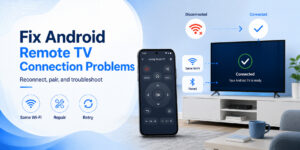
Remote applications are simple when everything works correctly, but network discovery problems are common.
Fortunately, many issues can be solved with a few basic checks.
Confirm Both Devices Use the Same Network
This should be the first troubleshooting step.
If the television is connected to HomeWiFi and the phone is connected to GuestWiFi, the devices may not be able to communicate.
Even if both networks come from the same router, guest networks often isolate devices for security reasons.
Reconnect both devices to the same primary network and reopen the Android remote tv application.
Turn Off Mobile Data Temporarily
Some Android phones may prioritize mobile connectivity in certain situations.
Temporarily disabling mobile data can help determine whether network routing is interfering with device discovery.
Keep Wi-Fi enabled.
Restart the Application
Close the remote application completely and reopen it.
If the television was recently connected to Wi-Fi, the app may need to perform another discovery scan.
Restart the Television
A Smart TV is essentially a networked computer.
Occasionally its networking software may stop responding correctly.
Restarting the television can restore local device discovery and allow the Android remote tv to reconnect.
Restart the Router
If several household devices are experiencing connection problems, the router may be responsible.
Restarting it can resolve temporary network issues.
Remember that both the television and smartphone will need time to reconnect afterward.
Check Pairing Permissions
Some TVs allow users to view previously authorized remote devices.
If a connection was rejected during initial setup, the television may remember that decision.
Open the television’s device, network, mobile, or external-control settings and check whether your phone appears in the authorized or blocked-device list.
Remove the old entry if necessary and pair the Android remote tv again.
Update the Application and TV Software
Compatibility can change as Smart TV platforms receive updates.
If a previously working remote suddenly stops connecting, check for updates on both sides.
Check the Power State
Some televisions limit network connectivity while fully powered off.
In that situation, an Android remote tv may control the television normally when it is awake but may not be able to turn it on from a complete shutdown state.
This behavior depends on the TV model and settings.
Look for options related to network standby, quick start, mobile power-on, remote start, or similar functions.
Remove VPN Interference
A VPN primarily affects internet routing, but certain configurations may also complicate local network communication.
If your television cannot be discovered, temporarily disconnecting the VPN can help determine whether it is related to the problem.
Once the Android remote tv begins working again, you can adjust the network configuration accordingly.
Security and Privacy When Using a TV Remote App
Remote-control applications interact with devices inside your home network, which makes app selection important.
Users should think about permissions and privacy instead of automatically accepting every request during installation.
Review Application Permissions
A simple Android remote tv usually needs some ability to discover and communicate with devices.
However, a television remote generally should not require unrestricted access to unrelated personal information.
Permission requirements vary by Android version, so context matters.
Before granting access, ask whether the requested permission makes sense for the app’s function.
Verify the Developer
Applications with nearly identical names can appear in search results.
Check:
- Developer identity
- App description
- Update information
- User feedback
- Privacy information
- Official website references when available
This is particularly important when installing software outside a major app marketplace.
Pair Only on Trusted Networks
Avoid pairing television controls while connected to unfamiliar shared networks.
Home networks are usually the intended environment for an Android remote tv.
Hotels, dormitories, offices, and public Wi-Fi networks may contain many devices and can use configurations that prevent or complicate local discovery.
Pay Attention to Pairing Requests
If your TV suddenly displays a remote-control authorization request when you are not pairing a device, reject it.
A pairing confirmation exists specifically to prevent unknown phones on the same network from gaining control.
Be Careful With Modified APKs
Modified applications advertised as unlocked, premium, or ad-free may not be identical to the original software.
Even when an Android remote tv appears to work normally, modified code could perform additional background actions.
Downloading software from trusted sources greatly reduces this uncertainty.
Convenience is useful, but a remote application does not need to become a security risk. Basic installation hygiene is usually enough to keep smartphone TV control straightforward.
How to Choose the Best Android Remote TV App
There is no single remote application that is automatically best for every household.
The best choice depends on the television, smartphone, network, and features the user actually needs.
Start With Compatibility
Before considering design or extra features, verify that the application supports your TV.
Write down the television brand and model number.
Then determine its operating system.
An Android remote tv designed specifically for that ecosystem is more likely to connect reliably than an app chosen only because it appears near the top of search results.
Decide Whether You Need One TV or Many
For one television, a dedicated solution may be perfectly adequate.
For a house containing several brands, look for universal control and saved device profiles.
This is where an Android remote tv can replace a collection of physical remotes.
Choose Wi-Fi or Infrared
If your television is modern and network-enabled, Wi-Fi control is generally the most flexible option.
If the TV is older but your smartphone includes an IR blaster, infrared may provide basic control without network pairing.
Some users may benefit from an application supporting both.
Prioritize the Controls You Actually Use
A huge feature list is not necessarily better.
For everyday television use, the most important controls are usually:
- Power
- Volume
- Mute
- Directional pad
- Home
- Back
- Play and pause
- Keyboard input
If an Android remote tv handles these functions reliably, it may be more useful than an overloaded app containing dozens of features you never touch.
Evaluate the Interface
Remote controls need to be easy to operate without constant attention.
Large buttons, clear spacing, recognizable icons, and a predictable layout are useful.
Volume and navigation controls should not be hidden several menus deep.
Remember that the application may often be used while watching television in a dim room. A cluttered interface can become frustrating quickly.
Check Reconnection Speed
Initial pairing matters, but daily reconnection is even more important.
A good Android remote tv should recognize previously paired televisions without requiring the complete setup procedure every time it launches.
Consider Ads and Premium Features
Free applications can be perfectly adequate, but advertising models vary.
Some apps show occasional ads while others place interruptions between frequent actions.
Decide whether the free experience remains practical for everyday use.
Paying for a remote application can make sense if you use it every day and the paid version removes meaningful limitations, but basic TV control should remain the main consideration.
Android Remote TV for Everyday Entertainment
Smartphone remote control becomes most valuable when it fits naturally into everyday behavior.
People already carry their phones around the house. Turning that same device into a controller removes the need to locate another object before watching television.
When the Physical Remote Is Missing
This remains the simplest use case.
Instead of searching every sofa cushion, launch the Android remote tv, select the television, and continue watching.
If you frequently lose your controller, configuring the application before the next incident is worthwhile. Waiting until the remote disappears can create a problem if the television is not already connected to Wi-Fi.
When Several People Share a Television
A smartphone remote can also serve as a secondary controller.
One person can keep the physical remote while another uses the phone when needed.
This is useful when adjusting volume or pausing content without passing one controller around the room.
Bedrooms and Secondary TVs
Physical remotes for secondary televisions are especially easy to misplace because those TVs may be used less frequently.
An Android remote tv gives users a backup that is normally already in their pocket.
Travel and Temporary Setups
Smartphone remotes can sometimes be useful while traveling, but compatibility is less predictable.
Hotel televisions may restrict network control, block settings, or operate on isolated networks.
Therefore, users should not assume an Android remote tv will control every television encountered while traveling.
Accessibility and Easier Input
Some users simply find touchscreen controls easier.
Large smartphone buttons may be easier to identify, while keyboard input can dramatically simplify searching.
Because interfaces vary, users should experiment with several layouts and choose the one that feels most comfortable.
Final Thoughts: Is Android Remote TV Worth Using?
For most Smart TV owners, keeping an Android remote tv configured as a backup is worthwhile even if the original television controller still works.
The biggest advantage is convenience. A smartphone is already nearby in many everyday situations, so opening a remote application can be faster than locating a physical controller.
Modern Wi-Fi television control can handle far more than volume changes. Depending on compatibility, users may navigate menus, search with a smartphone keyboard, manage playback, switch between devices, and access additional Smart TV tools.
The most important factor is choosing software designed for the correct television platform.
Sony, Samsung, Roku, Hisense, Google TV, Android TV, and other ecosystems do not all communicate in exactly the same way. A reliable Android remote tv therefore depends on matching the application to the television rather than assuming every universal remote supports every device.
Users should also be careful when downloading APK files from third-party websites. Official and trusted sources are generally easier to verify and maintain.
If an app cannot find the television, start with the basics: confirm both devices are on the same network, check pairing permissions, restart the television, and verify that the model supports network-based remote control.
Once correctly configured, an Android remote tv can become more than an emergency replacement for a missing controller. It can provide faster text input, easier device switching, convenient media controls, and one central interface for managing entertainment devices around the home.
For households with several Smart TVs, the convenience becomes even clearer. Instead of remembering which controller belongs to which screen, one compatible application can potentially organize multiple televisions on the same smartphone.
A physical remote will still have advantages. It works instantly, requires no application launch, and often remains functional even when the home network is unavailable. But the two options do not need to compete.
The most practical setup is often to keep both.
Use the physical controller when it is nearby and use an Android remote tv whenever the remote is missing, inconvenient, or too limited for tasks such as text entry.
As televisions become increasingly connected, smartphone control is becoming a natural extension of the Smart TV experience. Choosing a compatible application, setting it up correctly, and understanding how it communicates with the television can turn an Android phone into a dependable everyday entertainment controller.
Download TV Remote APP