
Samsung TV Remote App: Best Free Option for iPhone and Android
A samsung tv remote app can solve several everyday problems at once. It can help when the physical remote is lost, the SolarCell controller is charging, a family member has taken the remote to another room, or typing a long password with directional buttons feels unnecessarily slow.
The strongest starting point is SmartThings, Samsung’s official mobile application. Samsung explains that users can open SmartThings, select a compatible television or projector, and access an on-screen remote. The controls shown depend on the connected model. SmartThings is published by Samsung Electronics on Google Play and the Apple App Store, which makes its developer identity easy to verify.
The article also explains when a third-party samsung tv remote app may be useful, how to avoid hidden subscriptions, and how SmartThings can act as a virtual controller for The Freestyle projector. The goal is to help you choose one reliable solution rather than install several look-alike apps.
1. What Is the Best Samsung TV Remote App?
For a supported Samsung Smart TV, Smart Monitor, Odyssey Ark, or projector, SmartThings is generally the best samsung tv remote app to try first. It is developed by Samsung, supports Samsung account integration, and can control multiple compatible devices from one application.
The best free samsung tv remote app should meet several standards:
- The developer can be verified.
- The app clearly explains its device requirements.
- Core remote controls do not require an unexpected trial.
- Pairing uses the television’s approval or PIN process.
- The application receives current security and compatibility updates.
- Support instructions are available from the manufacturer.
SmartThings meets these standards more consistently than a generic app using Samsung branding in its title. The official Google Play listing says SmartThings can connect, monitor, and control Samsung Smart TVs and other smart-home devices. The official App Store listing names Samsung Electronics Co., Ltd. as the provider.
A samsung tv remote app is not always a complete replacement for the physical controller. Initial TV setup, factory resets, network recovery, service menus, and certain button combinations may still require the TV Controller or a compatible physical remote.
📖 Read More Samsung TV Guides: Remote Samsung Smart TV: Complete Control Guide
2. Why SmartThings Is the Official Free Choice
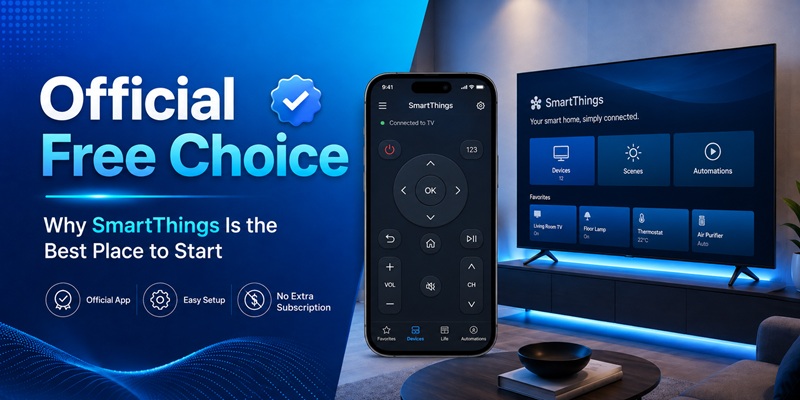
SmartThings is the official samsung tv remote app because it is part of Samsung’s connected-device platform. After a compatible television or projector is added, Samsung instructs users to open Menu, choose All devices, select the device, and use the on-screen remote.
Samsung promotes SmartThings as one application for connecting, controlling, and automating supported products. The platform can also manage compatible lights, speakers, appliances, sensors, and other smart-home products, so the television remote is one part of a larger system.
For users looking for a free samsung tv remote app no subscription, SmartThings is the logical first download. The application is available through official stores without a separate remote-control subscription. Store or account conditions can change, so users should still review the current listing in their own country before installation.
The official samsung tv remote app should therefore be identified by the developer name, not merely by its icon or title.
3. Which Samsung TVs, Phones, and Projectors Are Compatible?
Compatibility is the most important limit of any samsung tv remote app. SmartThings supports many Samsung Smart TVs and projectors, but the precise controls vary by device, model year, region, mobile operating system, account, and network configuration. Samsung explicitly notes that the available on-screen remote options depend on the selected product.
Before downloading, check:
- The television or projector has SmartThings or network-control support.
- The mobile phone can install the current SmartThings version.
- The phone and TV can join the same local Wi-Fi during registration.
- You can approve the connection on the TV or enter its pairing PIN.
- The television software and SmartThings app are current.
The current App Store listing may require a recent iOS version, while Android requirements can differ by region and app release. For example, Samsung’s 2026 Australian support page lists Android 10 or later with at least 3 GB of RAM for its documented setup. Always use the official store page on the actual phone as the final compatibility check.
A search for samsung tv remote app free iphone should lead to the SmartThings listing published by Samsung Electronics Co., Ltd. A search for free samsung tv remote app ios should be checked the same way.
For Android users, the free samsung tv remote app android option is also SmartThings. Its official Google Play package is com.samsung.android.oneconnect.
The samsung tv remote app is most useful when the television is already connected to the home network. If the TV is completely offline, the app may not discover it until you use the built-in TV Controller, Ethernet, or a physical remote to restore connectivity.
📖 Read More Samsung TV Guides: Button on Samsung TV: Complete Control and Remote Guide
4. How to Download the App Safely on iPhone and Android
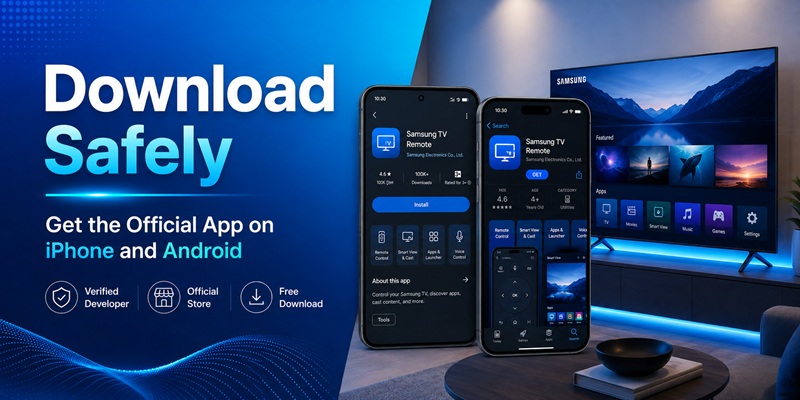
A safe samsung tv remote app free download should begin in Google Play, the Galaxy Store, or Apple’s App Store.
Android Download Steps
- Open Google Play.
- Search for SmartThings.
- Confirm the developer is Samsung Electronics Co., Ltd.
- Confirm the package is com.samsung.android.oneconnect.
- Review the latest permissions, compatibility, and update date.
- Tap Install.
- Open the app and sign in with a Samsung account.
The Google Play listing identifies SmartThings as Samsung’s application for connecting and controlling Samsung Smart TVs and other compatible devices.
iPhone and iPad Download Steps
- Open the App Store.
- Search for SmartThings.
- Confirm Samsung Electronics Co., Ltd. is the provider.
- Review the current iOS or iPadOS requirement.
- Tap Get.
- Allow Local Network, Bluetooth, and other relevant permissions when requested.
- Sign in with a Samsung account.
The official App Store listing identifies Samsung Electronics as the provider and describes Samsung Smart TV control among the platform’s functions.
Search phrases such as samsung tv remote download free or samsung tv remote app free download may return sponsored third-party results before SmartThings. Do not identify the official samsung tv remote app by search position.
A legitimate samsung tv remote control app free option should not ask users to disable Play Protect, install a configuration profile from an unknown website, or purchase a subscription before confirming that the TV is compatible.
Prefer a dedicated TV remote interface? If your Samsung TV is already connected to the network, you can also try a compatible Remote TV App for everyday controls such as navigation, volume, playback, and input switching. Download it from the official store and verify compatibility with your TV before pairing.
Download TV Remote App📖 Read More Samsung TV Guides: How to Control a Samsung TV With Your Phone Without WiFi
5. How to Connect the App to a Samsung TV
After installing the samsung tv remote app, connect the phone and television to the same private Wi-Fi network.
Use this setup flow:
- Turn on the Samsung TV.
- Open SmartThings.
- Sign in with the intended Samsung account.
- Tap Add device or the plus icon.
- Choose TV and then Samsung.
- Select the TV when it appears.
- Approve the request on the television or enter the displayed PIN.
- Assign the TV to the correct SmartThings location and room.
- Open All devices and select the television.
- Open the remote interface.
Samsung’s official instructions confirm that selecting a registered television or projector opens an on-screen remote.
The samsung tv remote app may fail to connect when the phone uses guest Wi-Fi, a VPN blocks local discovery, the TV is registered in another location, or the approval prompt expires.
For a reliable setup:
- Use the same Wi-Fi name on both devices.
- Keep Bluetooth enabled during discovery.
- Disable a VPN temporarily.
- Keep the phone close to the TV during registration.
- Accept the TV prompt quickly.
- Update the TV and app before repeating setup.
After pairing, close and reopen the samsung tv remote app. Confirm that the device remains listed and reconnects after normal standby.
Get Samsung Remote TV App6. What Can the Mobile Remote Actually Control?
The controls available in the samsung tv remote app vary by product. Samsung’s current support page says the on-screen remote options depend on the selected TV or projector.
Typical functions may include:
- Power
- Directional navigation and Select
- Home and Back
- Volume and mute
- Channel controls
- Source or input selection
- Playback
- Number and color keypad
- App access
- Keyboard input
- Voice or microphone functions on supported devices
The samsung tv remote app can be more convenient than a physical remote for entering passwords, searching for content, and switching between multiple registered devices.
SmartThings can also connect the television to routines. A movie routine might dim supported lights and turn on the TV, while a bedtime routine might turn off the screen and other connected devices. Samsung markets SmartThings as a system for controlling and automating compatible devices in one place.
The mobile samsung tv remote app does not guarantee access to service menus, specialist gaming combinations, every accessibility shortcut, or factory-reset setup. Keep the original remote or another compatible controller available.
7. Free Official App vs Third-Party Remote Apps
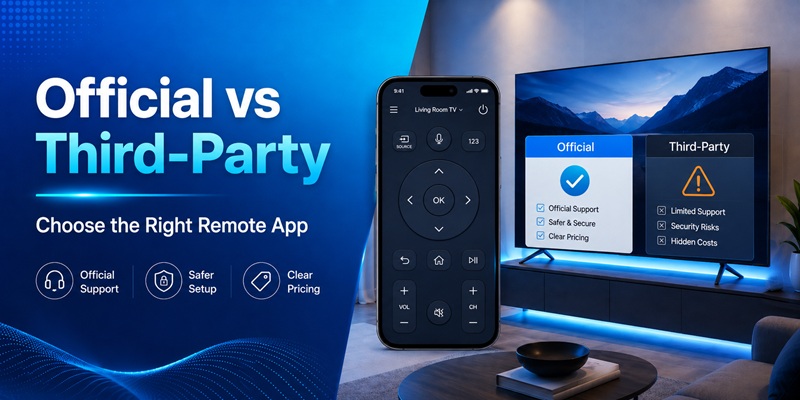
The official SmartThings remote and third-party applications may look similar but differ in trust, pricing, compatibility, and privacy.
| Option | Strengths | Main limitations |
| SmartThings | Official developer, TV control, routines, smart-home integration | Requires supported device and Samsung account setup |
| Third-party Wi-Fi app | Alternative layouts, widgets, extra shortcuts | Ads, trials, subscriptions, and model support vary |
| Infrared remote app | Can work offline on supported phones | Requires a physical IR blaster |
| Physical replacement remote | Reliable during network failures | Must match the model and may cost money |
The best free tv remote app for samsung is normally SmartThings when the TV is compatible. The phrase “best” should be based on verified developer identity and dependable controls, not the number of promotional features in a store description.
A third-party remote can be reasonable when it offers a specific function SmartThings does not provide, such as a particular widget or watch interface. Test the free controls before accepting any paid trial.
The phrase samsung tv remote for free can be misleading when an application is free to install but requires payment for power, volume, or navigation. Review the subscription page and cancellation terms carefully.
For users seeking a samsung tv remote app free iphone or free samsung tv remote app android, SmartThings remains the most defensible starting point because Samsung publishes and supports it on both platforms.
📖 Read More Samsung TV Guides:Samsung 4K Remote: Setup, Compatibility, and Replacement Guide
8. Can SmartThings Replace a Samsung Freestyle Remote?
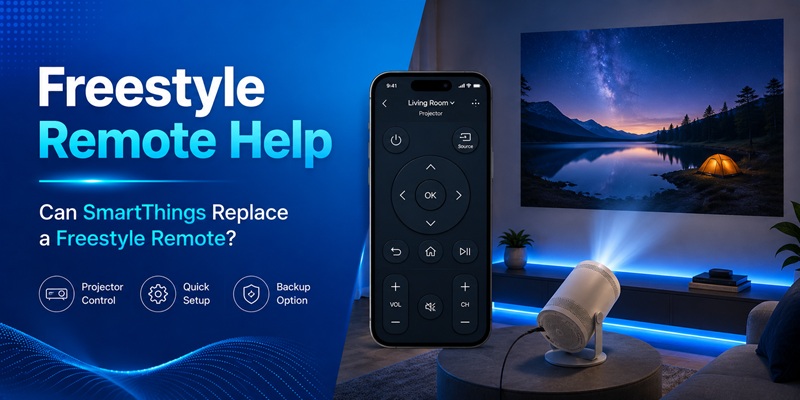
SmartThings can act as a virtual remote for a compatible Samsung Freestyle projector after the projector has been added to the app.
Samsung’s Freestyle support page instructs users to turn on the projector, open SmartThings, select the projector, and tap Projector Remote if the virtual controller does not appear automatically.
This makes SmartThings a practical temporary solution when a samsung freestyle remote replacement has not yet arrived.
However, the projector must be powered on and connected before the phone remote can be useful. If the projector is offline or has been factory-reset, a physical controller may still be required.
Samsung also sells or supports replacement controllers and provides general guidance for obtaining a replacement remote for a TV, Smart Monitor, or projector. The company recommends using an authorized source and matching the accessory to the device.
The Freestyle’s Smart Remote normally pairs automatically. If it does not, Samsung instructs users to point it toward the projector and hold Return and Play/Pause for three seconds. The Freestyle remote can also be charged through USB-C.
Get Samsung Remote TV App9. How to Fix Connection and Remote Problems
When SmartThings cannot find the TV, work through the likely causes instead of installing several alternatives.
Check the Network
Connect the phone and TV to the same private Wi-Fi network. Avoid guest networks, which may isolate connected devices.
Check Power and Standby
Turn the TV on with its built-in Controller or physical remote. A device that is fully offline may not appear in SmartThings.
Check Permissions
Allow Nearby Devices, Bluetooth, Local Network, and other relevant permissions. The exact labels differ between Android and iOS.
Restart the System
- Close SmartThings.
- Restart the phone.
- Power-cycle the television.
- Restart the router.
- Wait for the TV to reconnect.
- Open SmartThings and scan again.
Check the Account and Location
Confirm that the TV and phone use the intended Samsung account and SmartThings location. Remove duplicate or stale device cards if necessary.
Update Software
Install the current SmartThings version and update the television firmware.
If the mobile remote controls the TV only after someone turns it on manually, check whether mobile power-on or network standby is supported and enabled on that model.
If the physical remote also fails, Samsung provides troubleshooting and reset guidance. Recent SolarCell remotes may be reset and then paired again, but the button combination can vary by controller generation. Use the model-specific support instructions.
10. Frequently Asked Questions and Final Recommendation
Is SmartThings Free to Use as a Samsung Remote?
SmartThings is available from official mobile stores and does not require a separate TV-remote subscription for its standard supported controls. Review the current regional store listing before installation.
Can I Use the App on Both Android and iPhone?
Yes. SmartThings is available on Google Play and the Apple App Store. Mobile operating-system requirements can change, so check the current listing on your device.
Does the Phone Need to Be on the Same Wi-Fi as the TV?
The phone and television generally need to share the same local network during discovery and registration.
Can the App Turn the TV On?
Some compatible televisions support mobile power-on or network wake. Support depends on the model and standby settings.
Can I Use the App Without Wi-Fi?
SmartThings normally relies on network connectivity. An infrared app can work offline only when the Android phone has a real IR blaster and a compatible code profile.
Is SmartThings the Best Free Option?
For a compatible Samsung TV or projector, SmartThings is the best free samsung tv remote app to try first because Samsung publishes it and provides official setup documentation.
Can It Replace The Freestyle Remote?
It can provide a virtual projector remote after The Freestyle is connected in SmartThings. A physical samsung freestyle remote replacement is still valuable for offline setup and recovery.
Final Recommendation
Use this order:
- Download SmartThings from an official store.
- Verify Samsung Electronics as the developer.
- Connect the phone and TV to the same Wi-Fi.
- Add the TV and approve the pairing request.
- Test power, volume, Home, Back, navigation, and input.
- Keep a physical remote or TV Controller available.
- Consider a third-party app only for a specific missing feature.
- Avoid hidden trials and unverified APK files.
The best option is the one that is official, compatible, transparent about its limitations, and reliable during everyday use.
For most supported Samsung televisions and projectors, SmartThings is the strongest no-subscription choice. It combines a mobile remote with account-based device management, routines, and smart-home controls while keeping the developer and support source easy to verify.
Get Samsung Remote TV App