
Samsung TV Remote App Android: Complete Download and Setup Guide
A lost or damaged television remote can quickly become a frustrating problem. Simple actions such as adjusting volume, switching HDMI inputs, opening streaming apps, or entering account information become much harder when the physical controller is unavailable.
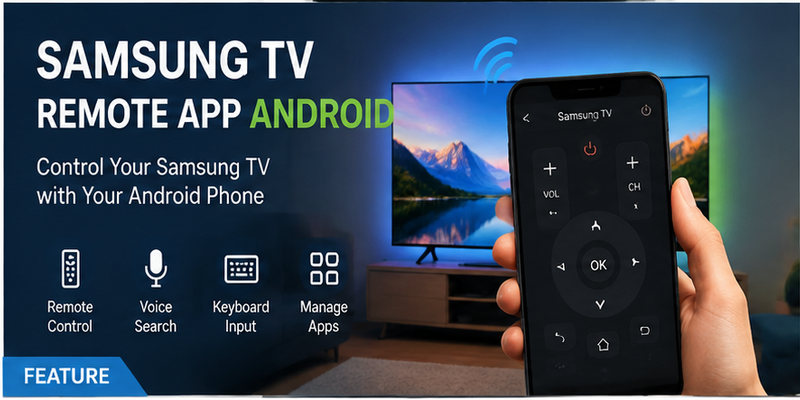
For Samsung Smart TV owners, an Android smartphone can provide a practical alternative. A samsung tv remote app android solution allows users to control many everyday TV functions directly from their phone without immediately buying a replacement remote.
However, choosing the correct application is important. Samsung televisions support different technologies depending on the model, operating system, and production year. Some TVs work through Samsung SmartThings, while others may support additional mobile-control features through Samsung’s connected-device ecosystem.
A reliable samsung tv remote app android should provide more than basic buttons. A good mobile remote should offer:
- Stable connection
- Easy setup
- Compatible device support
- Secure permissions
- Clear pricing information
- Useful everyday controls
This guide explains how Android remote solutions work, which apps are worth using, how to download safely, how to connect your smartphone, and how to fix common problems when your phone cannot find the TV.
1. What Is Samsung TV Remote App Android and How Does It Work?
A samsung tv remote app android is a smartphone application that turns an Android device into a virtual controller for a Samsung Smart TV.
Instead of pressing buttons on a physical remote, users interact with controls displayed directly on their phone screen.
Modern Samsung televisions usually communicate with mobile devices through the local network. The connection commonly works like this:
Android Phone → WiFi Router → Samsung Smart TV
This is different from traditional infrared remotes, which send commands directly toward the television sensor.
Because mobile apps communicate digitally, they can provide additional features beyond standard buttons.
A smartphone remote can help users:
- Navigate menus
- Adjust volume
- Switch inputs
- Search content
- Type text faster
- Open applications
- Control connected smart devices
For example, searching for a movie title using a traditional remote requires selecting each letter manually. With an Android phone, users can simply type the search phrase using their phone keyboard.
This makes smartphone control especially useful for Samsung TVs that are used mainly for streaming platforms such as Netflix, YouTube, Disney+, and other smart applications.
How Android Phones Connect to Samsung Smart TV
Most Samsung mobile remote solutions require the phone and television to be connected to the same WiFi network.
The basic setup process usually follows these steps:
- Install a compatible Android remote application.
- Connect the phone and Samsung TV to the same WiFi.
- Open the application.
- Select the television.
- Approve the connection request.
- Start using the virtual remote.
During the pairing process, Samsung TVs may display a confirmation message or require a PIN.
This verification protects users from unauthorized devices controlling their television.
A successful connection depends on several factors:
| Requirement | Why It Matters |
| Same WiFi network | Allows phone and TV communication |
| Updated TV software | Improves compatibility |
| Correct permissions | Enables device discovery |
| Supported TV model | Provides remote features |
| Stable router connection | Prevents delays and disconnects |
If the Android phone cannot find the television, the problem is usually related to network settings rather than the remote application itself.
Common causes include:
- Phone connected to mobile data
- TV connected to another WiFi network
- Guest WiFi restrictions
- Disabled permissions
- Outdated software
A good samsung tv remote app android setup starts with making sure both devices can communicate correctly.
Why Use a Phone Instead of a Physical Samsung Remote?
A physical Samsung remote is still useful, but using a smartphone provides several advantages.
The biggest benefit is convenience. Most people always have their phone nearby, while a television remote can easily disappear under furniture or stop working because of battery problems.
A mobile remote is especially helpful when:
- The original remote is lost
- Batteries are empty
- Buttons stop responding
- A replacement remote has not arrived yet
Faster Searching and Typing
Smart TVs require text input more often than before.
Users frequently need to enter:
- Movie titles
- YouTube searches
- WiFi passwords
- Account information
Typing with a traditional remote can be slow because users must move through letters one by one.
A smartphone keyboard makes the process much faster.
This is one of the biggest reasons users continue using a samsung tv remote app android even after they find their original controller.
Better Smart TV Navigation
A smartphone provides additional interaction methods, including:
- Touch controls
- Keyboard input
- Voice features
- Faster app access
For users who spend most of their time inside streaming applications, a mobile remote can feel more convenient than a traditional controller.
Backup Control Solution
A phone-based remote also works as a backup.
Common situations include:
- Remote battery failure
- Broken buttons
- Lost controller
- Delayed replacement purchase
Installing a reliable application before problems happen can save time when the physical remote is unavailable.
However, a smartphone does not completely replace every remote function.
Users may still need a physical controller for:
- Factory reset
- Initial TV setup
- Offline recovery
- Certain hardware-specific actions
The best approach is often using both:
- Physical remote for setup and emergency situations
- Android remote app for daily convenience
📖 Read More Samsung TV Articles: How to Control a Samsung TV With Your Phone Without WiFi
2. Best Samsung TV Remote Apps for Android Users
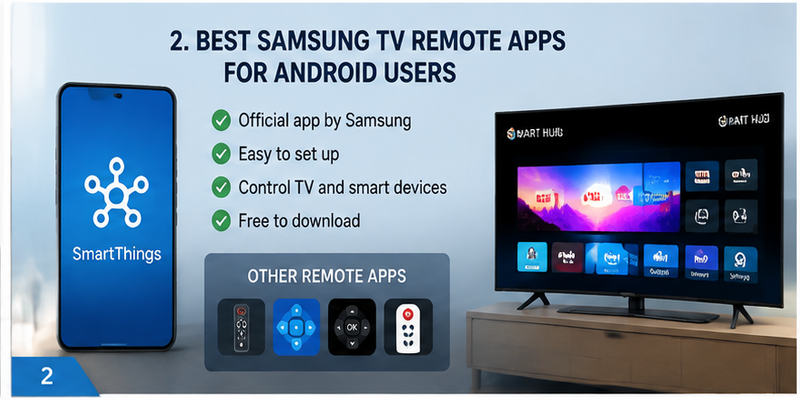
Choosing the best samsung tv remote app android depends on your television model and the features you need.
Some users only require simple controls such as volume and navigation, while others want keyboard input, smart-home integration, and advanced device management.
The main options include official Samsung solutions and third-party applications.
| App Type | Best For | Advantages | Limitations |
| SmartThings | Samsung Smart TVs | Official Samsung ecosystem | Requires compatible TV and setup |
| Third-party remote apps | Basic replacement | More interface choices | Ads and subscriptions possible |
| Universal remote apps | Multiple devices | Controls different brands | May lack Samsung-specific features |
SmartThings: Samsung’s Official Remote Solution
SmartThings is the most reliable starting point for many Samsung Smart TV owners.
Samsung develops SmartThings as a connected-device platform that allows users to manage compatible products, including televisions, from a mobile device.
The application can provide access to:
- TV remote controls
- Device management
- Smart-home routines
- Connected devices
- TV settings
For users searching for a samsung tv remote control app free, SmartThings is usually the first option to consider because it comes directly from Samsung.
The biggest advantage of an official solution is reliability.
Users can verify:
- Developer identity
- Compatibility information
- Update history
- Security details
- Official support documentation
SmartThings is also designed to work with Samsung’s broader ecosystem.
For example, users may connect:
- Samsung TV
- Samsung soundbar
- Smart lighting
- Other compatible devices
into one connected environment.
However, SmartThings availability depends on:
- TV model
- Region
- Software version
- Account settings
Not every Samsung television supports every mobile feature.
Third-Party Samsung Remote Apps
Third-party applications are another option for Android users.
These apps may offer:
- Different button layouts
- Larger controls
- Widgets
- Universal device support
- Additional customization
They can be useful for users who want a simpler remote interface.
However, users should evaluate them carefully before installation.
Important factors include:
| Factor | Why Check It |
| Developer | Confirms who created the app |
| Reviews | Shows real user experience |
| Permissions | Protects privacy |
| Subscription details | Avoids unexpected payments |
| Compatibility list | Prevents connection problems |
Some apps advertise themselves as free but require payment for important functions such as:
- Unlimited usage
- Removing ads
- Advanced controls
- Multiple devices
A trustworthy application should clearly explain which features are included without payment.
Choosing the Right Remote App for Your TV Model
The correct application depends on your Samsung television.
Before downloading any app, check:
| Check | Why It Matters |
| TV model number | Determines compatibility |
| Production year | Older models may differ |
| Operating system | Affects available features |
| Network connection | Required for most apps |
| Region | Some features vary |
Do not choose an application only because the name includes “Samsung Remote.”
A similar name does not guarantee official support.
The best samsung tv remote app android solution is the one that matches your exact television and provides reliable daily control.
📖 Read More Samsung TV Articles: Samsung Remote Control Smart: Connected Device Hub Guide
3. How to Download Samsung TV Remote App Android Safely
Searching for a samsung tv remote app android solution can return many different applications.
The safest approach is checking the application before installation instead of choosing the first search result.
A reliable remote application should have:
- Clear developer information
- Recent updates
- Real user reviews
- Transparent pricing
- Explained permissions
Check the Official Developer Before Installing
Developer identity is one of the easiest ways to evaluate an application.
Before downloading, check:
- Who published the app?
- Is there official support information?
- Does the developer provide contact details?
- Are compatible devices listed?
Some third-party applications use Samsung-related names or images but are not developed by Samsung.
A similar title does not automatically mean the app is official.
Users should verify the developer before trusting the application with device access.
Review Permissions and Free Features
A television remote application normally requires permissions related to communication.
Common permissions include:
- Network access
- Nearby devices
- Bluetooth
- Device discovery
Be careful if an application requests unrelated permissions such as:
- Contacts
- Messages
- Call history
- Personal documents
These permissions are usually unnecessary for controlling a TV.
Users should also check pricing details.
Some applications are free to install but charge for:
- Unlimited remote usage
- Premium layouts
- Removing advertisements
- Additional device support
A reliable samsung tv remote app android option should clearly explain what users receive for free and what requires payment.
Whether you’ve misplaced your remote or simply prefer using your phone, our Samsung TV Remote App provides everything you need for convenient TV control.
Download Samsung TV Remote App4. How to Connect Android Phone to Samsung TV Remote
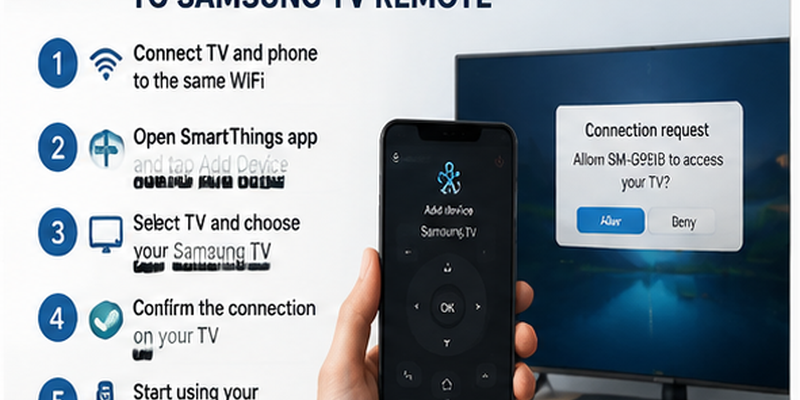
After installing the correct application, the next step is connecting your Android phone to the Samsung Smart TV.
This process is important because a samsung tv remote app android solution does not work like a traditional infrared remote. Instead of pointing the phone toward the screen, the application communicates with the television through the local network.
A successful setup requires:
- Samsung TV turned on
- Android phone connected to WiFi
- TV connected to the same network
- SmartThings installed
- Samsung account signed in
- Required permissions enabled
Samsung’s SmartThings platform allows compatible mobile devices to discover and control Samsung televisions after registration. The exact remote functions available depend on the TV model and software version.
Connect Samsung TV and Phone to the Same WiFi
The first step is making sure both devices are connected correctly.
On your Samsung TV:
- Open Settings.
- Select Connection or Network.
- Check the current WiFi network.
On your Android phone:
- Open WiFi settings.
- Connect to the same network.
- Disable VPN temporarily if enabled.
A common reason users cannot connect is that the devices are technically online but cannot communicate.
For example:
| Device | Connection |
| Android phone | Home WiFi |
| Samsung TV | Guest WiFi |
Both devices may access the internet, but the router may block communication between them.
Avoid:
- Guest networks
- Public WiFi
- Networks with device isolation enabled
For the best experience, use the same private home network.
Add Your TV in SmartThings Step by Step
After connecting both devices, add your Samsung TV.
The general setup process is:
- Open SmartThings.
- Sign in with your Samsung account.
- Tap Add Device.
- Select TV.
- Choose Samsung.
- Select your television.
- Approve the connection request on the TV.
- Complete registration.
Some Samsung TVs display a PIN code during setup. Enter this code on your Android phone to confirm the connection.
This verification prevents unknown devices from controlling your television.
After successful registration:
- Open SmartThings.
- Go to Devices.
- Select your TV.
- Open the remote interface.
Your phone can now work as a mobile controller.
Test Remote Functions After Pairing
After connecting, test the important controls.
A good samsung tv remote app android setup should allow you to use:
| Function | Purpose |
| Power | Turn TV on/off when supported |
| Volume | Adjust sound |
| Home | Open Smart Hub |
| Back | Return to previous menu |
| Navigation | Move through options |
| Input | Switch HDMI sources |
| Keyboard | Enter text faster |
If only some buttons work, the problem may be related to TV compatibility rather than the application.
For example:
- Volume works but apps cannot open
- Navigation works but power does not
- Keyboard works but voice search is unavailable
These differences are normal because Samsung TV models support different levels of mobile control.
📖 Read More Samsung TV Articles: Samsung 4K Remote: Setup, Compatibility, and Replacement Guide
5. Features You Can Use With Samsung Android Remote App
A modern samsung tv remote app android provides more than basic remote buttons.
Because smartphones include touchscreens, keyboards, microphones, and powerful connectivity, they can improve the overall Smart TV experience.
Control Volume, Power, and Navigation
The most important purpose of a mobile remote is replacing everyday physical buttons.
A Samsung Android remote can commonly provide:
- Volume adjustment
- Mute control
- Navigation arrows
- Home access
- Back button
- Input switching
These functions cover most daily television activities.
For example, imagine changing from a streaming app to a game console.
Using a physical remote:
- Find the controller.
- Press Home.
- Navigate through menus.
- Select the HDMI source.
Using a mobile remote:
- Open the app.
- Tap Home.
- Open Source.
- Select the HDMI input.
This makes smartphone control much faster for frequent users.
Use Phone Keyboard and Voice Search
One of the strongest advantages of a samsung tv remote app android solution is text input.
Traditional remotes are not designed for typing.
Searching:
“Best action movies”
or entering:
can become frustrating with directional buttons.
A smartphone keyboard solves this problem.
Users can type directly from their Android device and send the information to the TV.
This is especially useful for:
- YouTube searches
- Streaming applications
- Samsung account login
- WiFi passwords
Voice search is another useful feature on supported Samsung TVs.
Users can search content by speaking instead of typing.
Voice availability depends on:
- TV model
- Language
- Region
- Samsung account
- Supported assistant features
Manage Apps and Smart TV Functions
Samsung Smart TVs are used mainly for applications and connected services.
A mobile remote can make app management easier.
Common actions include:
- Opening streaming apps
- Browsing Smart Hub
- Switching between services
- Controlling connected devices
Some Samsung users also connect their TV with other smart-home products.
For example:
- TV
- Soundbar
- Smart lights
- Smart speakers
can be managed through the Samsung ecosystem.
This is one advantage of using an official samsung tv remote control app free solution because it can integrate with other Samsung devices.
Enjoy fast pairing and reliable performance with a Samsung TV Remote App. Access essential remote functions, launch streaming apps, and control your TV from anywhere in the room.
Download Samsung TV Remote App6. Can Samsung TV Remote App Android Work Without WiFi?
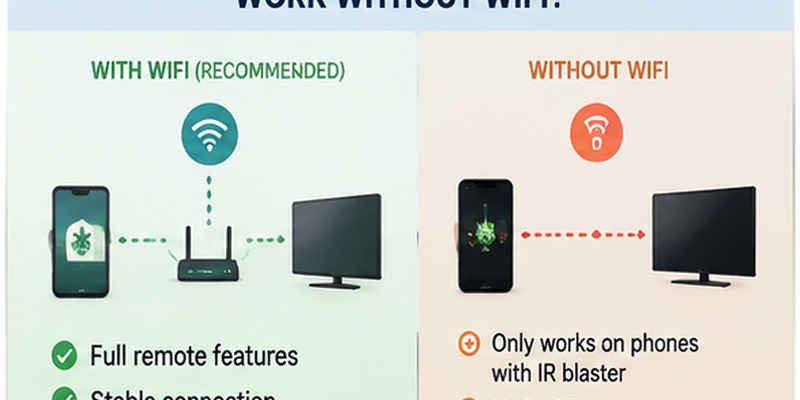
Many users ask whether a samsung tv remote app android solution can work without WiFi.
The answer depends on the phone hardware and TV model.
Most modern Samsung remote applications require WiFi because they communicate through the local network.
The normal connection is:
Android Phone → Router → Samsung TV
Without this connection, the app usually cannot discover or control the television.
Using Infrared Android Phones
Some older Android smartphones include infrared (IR) hardware.
These phones can send traditional remote signals directly to the television.
The connection becomes:
Android Phone → Infrared Signal → Samsung TV
Advantages:
- Works without WiFi
- Does not require TV network access
- Useful for basic control
Limitations:
- Most modern phones do not include IR hardware
- Smart features are unavailable
- Limited button support
Infrared solutions may control:
- Power
- Volume
- Channels
- Input
However, they usually cannot provide:
- Keyboard typing
- Voice search
- Smart Hub navigation
- App control
What to Do When Samsung TV Is Offline
If your Samsung TV is not connected to the internet, try these recovery methods.
Use Physical Remote
The original remote can restore:
- WiFi connection
- Network settings
- Account access
Use TV Controller Button
Many Samsung TVs include a physical controller button underneath the frame.
Depending on the model, it can provide basic navigation.
Connect Ethernet
If available:
- Connect Ethernet cable from router to TV.
- Wait for network connection.
- Open SmartThings.
- Register the television.
- Complete WiFi setup.
Use Temporary Replacement Remote
A basic replacement controller can help restore network access before returning to mobile control.
A remote TV app is useful, but it cannot always solve a completely offline television problem without another way to access network settings.
📖 Read More Samsung TV Articles: Samsung TV Remote App: Best Free Option for iPhone and Android
7. Samsung TV Remote App Not Working? Common Fixes
Even after installation, some users experience connection problems.
When a samsung tv remote app android solution stops working, check the following steps.
Check Network and Permissions
The first thing to verify is the network connection.
Confirm:
- Phone and TV use the same WiFi
- VPN is disabled
- Router allows device communication
- SmartThings has required permissions
On Android, check:
- Nearby devices permission
- Bluetooth permission
- Network access
Without these permissions, the app may not detect your television.
Restart Devices and Reconnect
A simple restart can solve many connection problems.
Follow this order:
- Close the remote application.
- Restart Android phone.
- Turn Samsung TV off.
- Unplug TV power for 30 seconds.
- Restart router if needed.
- Open the application again.
This refreshes the network connection.
Update SmartThings and TV Software
Compatibility problems often happen because one device is outdated.
Update:
Android Phone
- SmartThings app
- Android system
- Google Play services
Samsung TV
- TV firmware
- Smart Hub software
After updating, restart both devices and try pairing again.
8. Samsung Remote App vs Physical Remote: Which One Is Better?
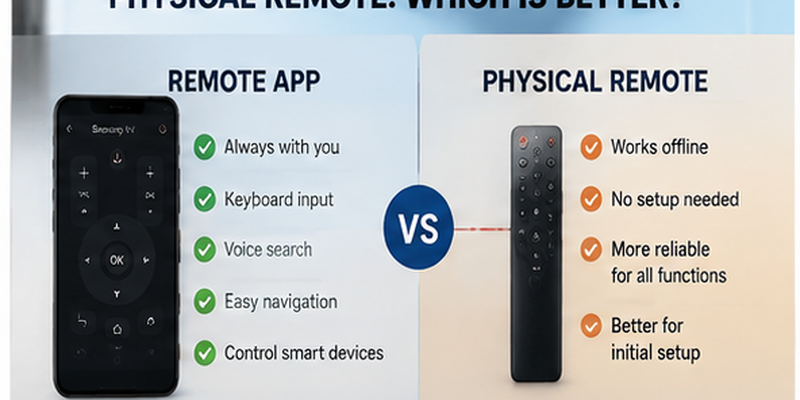
A smartphone remote is convenient, but it does not completely replace a physical Samsung controller.
The best choice depends on how you use your television.
| Option | Advantages | Limitations |
| Physical Samsung Remote | Works offline, reliable | Can be lost or damaged |
| Android Remote App | Keyboard, convenience, backup | Requires network |
| Universal Remote | Controls multiple devices | Limited Samsung features |
| Infrared App | Works without WiFi | Requires IR hardware |
Advantages of Mobile Remote Apps
A mobile remote provides several benefits:
Always Available
Your phone is usually nearby.
Faster Searching
Keyboard input makes searching much easier.
Smart Features
Mobile apps can provide:
- Voice search
- Touch controls
- App management
- Device integration
Backup Control
A mobile remote helps when:
- Batteries die
- Remote disappears
- Buttons stop working
When You Still Need the Original Remote
A physical controller remains useful for:
- First-time setup
- Factory reset
- Offline recovery
- Certain advanced settings
The best approach is combining both:
- Physical remote for emergency situations
- Android app for daily convenience
9. Frequently Asked Questions About Samsung TV Remote Apps
Is Samsung TV Remote App Free?
Samsung provides free mobile-control options through its ecosystem. However, some third-party applications may include paid features or subscriptions.
Always check the application details before installation.
Can Android Control Samsung TV Without Remote?
Yes, if the television supports mobile control and has network access.
An Android phone can replace many daily remote functions.
Why Cannot My Phone Find Samsung TV?
Common causes include:
- Different WiFi networks
- Disabled permissions
- VPN interference
- Unsupported TV model
- Outdated software
A samsung tv remote app android solution is one of the easiest ways to control a Samsung Smart TV without relying only on a physical controller.
The recommended setup is:
- Install a trusted remote application.
- Connect phone and TV to the same WiFi.
- Complete pairing.
- Test navigation, volume, keyboard, and app controls.
- Keep the original remote as a backup.
For users searching for a samsung tv remote app android, the safest approach is choosing a reliable application, checking compatibility, and avoiding apps with unclear permissions or hidden subscription costs.
A good mobile remote does more than replace lost buttons. It makes controlling your Samsung Smart TV faster, easier, and more convenient every day.
Control your Samsung Smart TV effortlessly with your smartphone. Connect over Wi-Fi to navigate menus, adjust volume, switch channels, and manage playback all without the original remote.
Download Samsung TV Remote App