
Samsung 4K Remote: Setup, Compatibility, and Replacement Guide
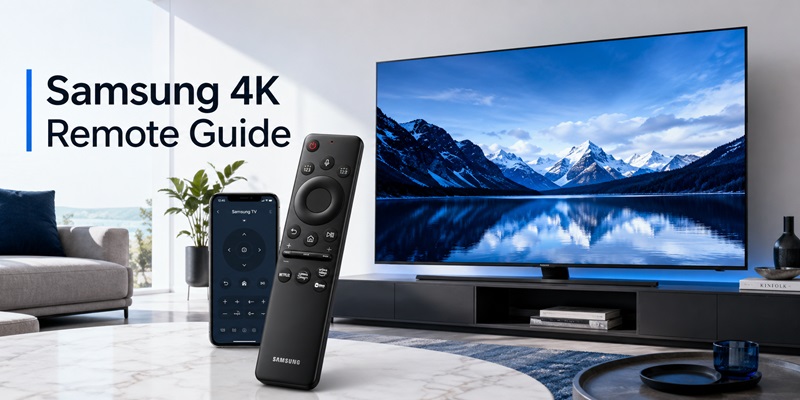
A samsung 4k remote may look like a simple accessory, but choosing the correct controller can become confusing. Samsung 4K televisions use several remote designs, including traditional infrared controllers, Bluetooth Smart Remotes, rechargeable SolarCell Remotes, universal remotes, and phone-based SmartThings controls.
The right samsung 4k remote depends on the complete television model number, production year, product series, country, and supported features. Two Samsung televisions with the same screen size may use different remotes. One may include voice control and Bluetooth pairing, while another may rely mainly on infrared commands and standard batteries.
A modern controller can do much more than turn the television on. Depending on compatibility, it may open Smart Hub, launch streaming services, control volume, search by voice, operate a soundbar, switch HDMI inputs, navigate a Fire TV Stick, or control a Blu-ray player. Samsung’s One Remote and Anynet+ systems are designed to extend control to compatible HDMI-connected devices.
This guide explains how to select the correct samsung 4k remote, pair it with your TV, control external devices, use SmartThings as a backup, and solve common connection or battery problems. A dependable samsung 4k remote setup should give you easy everyday control without assuming that every Samsung 4K television uses the same controller.
1. What Is a Samsung 4K Remote and Why Does Compatibility Vary?
The phrase samsung 4k remote describes a controller used with a Samsung television that displays 4K resolution. It does not identify one universal product or part number.
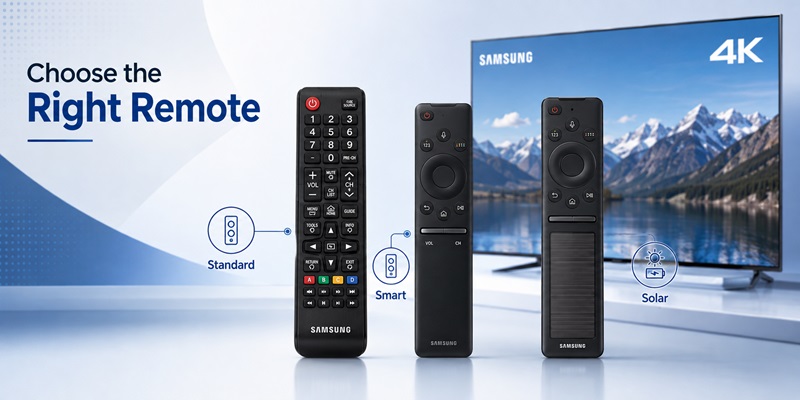
A basic samsung 4k remote normally communicates through infrared. These controllers often include a full number keypad, channel buttons, source selection, menu controls, playback buttons, and several dedicated functions. They usually need to be pointed toward the infrared sensor on the TV.
A samsung 4k smart tv remote is generally more compact. It may include a circular navigation pad, Home, Back, Play/Pause, volume and channel rockers, voice input, and streaming-service shortcuts. Power can use infrared while menu navigation and voice functions communicate through Bluetooth.
This difference explains why a controller may turn on the television but fail to open menus. The power command may still reach the TV through infrared even though the Bluetooth connection has been lost.
Recent Samsung televisions may include a SolarCell controller. The built-in battery can collect energy from indoor or natural light, while USB-C provides faster charging. Samsung states that compatible SolarCell remotes normally pair automatically after the TV is turned on. When automatic pairing fails, users can hold Return and Play/Pause together while pointing the controller toward the television.
Therefore, a samsung 4k remote should be chosen by matching the TV model, controller technology, and required features rather than simply checking whether the product description contains “Samsung” and “4K.”
2. How to Identify the Correct Remote for Your Samsung 4K TV
Before buying a samsung 4k remote, locate the complete television model code. You can usually find it on the label attached to the rear panel, the original packaging, the purchase invoice, or the About This TV section in the settings menu.
Samsung recommends using the television model number to identify the exact controller that originally came with the product. Replacement remotes can have similar appearances but different Bluetooth, voice, charging, and shortcut capabilities.
The best samsung 4k remote search process is:
- Record the complete TV model number.
- Identify the original remote model when possible.
- Check whether the TV used an infrared, Smart, or SolarCell controller.
- Decide whether voice control is required.
- Confirm Bluetooth pairing support.
- Check the charging or battery method.
- Compare the shortcut-button layout.
- Read the seller’s supported-model list.
- Choose a seller with a clear return policy.
A samsung 4k tv remote original provides the highest chance of retaining every feature, including voice commands, Bluetooth operation, SolarCell charging, and model-specific shortcuts.
A low-cost remote for samsung 4k tv may still provide power, volume, channels, input selection, Home, and menu navigation. However, it may use only infrared and may not support the microphone, Bluetooth, or advanced Smart Hub functions.
A samsung 4k remote selected only by screen size can be misleading. A 43-inch television from one series may have a different original controller from another 43-inch model released during the same year.
When comparing products, check the part number and supported television models instead of relying only on the image of the controller.
Explore Articles: Samsung Remote Control Volume: How to Use It and Fix Common Problems
3. How to Pair and Use a Samsung 4K Smart Remote
A new or disconnected samsung 4k remote may connect automatically when you turn on the television and press a button. If the automatic process does not work, use the standard Samsung pairing procedure:
- Turn on the television using its built-in controller button if necessary.
- Stand close to the TV.
- Point the controller toward the Samsung logo or TV sensor.
- Press and hold Return and Play/Pause simultaneously.
- Keep holding both buttons for at least three seconds.
- Release them after a connection message appears on the screen.
Samsung currently lists this combination for compatible Smart and SolarCell controllers.
After pairing, test the samsung 4k remote gradually. Press Home to open the main interface. Use the directional pad to move between apps and settings. Press the volume rocker inward to mute, and move the channel rocker up or down to change channels.
People searching how to use samsung 4k tv remote should also understand its secondary menus. On many compact controllers, the 123 or Settings button opens an on-screen keypad and quick settings. This replaces many physical buttons found on older full-size remotes.
The exact layout varies, but a samsung 4k tv smart remote may provide:
- Power
- Home
- Back
- Play/Pause
- Directional navigation
- Voice or microphone input
- Volume and mute
- Channel controls
- Streaming shortcuts
- On-screen number entry
If the samsung 4k remote turns the television on but cannot navigate, repeat the Bluetooth pairing process. If pairing continues to fail, charge the SolarCell model or install new batteries in a standard remote.
Unplugging the television briefly and repeating pairing can also resolve a temporary connection problem. Samsung recommends power-cycling the TV when normal pairing attempts fail.
Learning the difference between infrared and Bluetooth functions makes the samsung 4k remote easier to troubleshoot without replacing a controller that is still working.
Turn your smartphone into a Samsung Remote Control in just a few taps. Connect over Wi-Fi and enjoy smooth navigation, volume control, channel switching, and media playback without the original remote.
Get the App NowExplore Articles: Samsung Remote Control Smart: Connected Device Hub Guide
4. Which Remote Works with Samsung Crystal UHD 43-, 55-, and 65-Inch TVs?
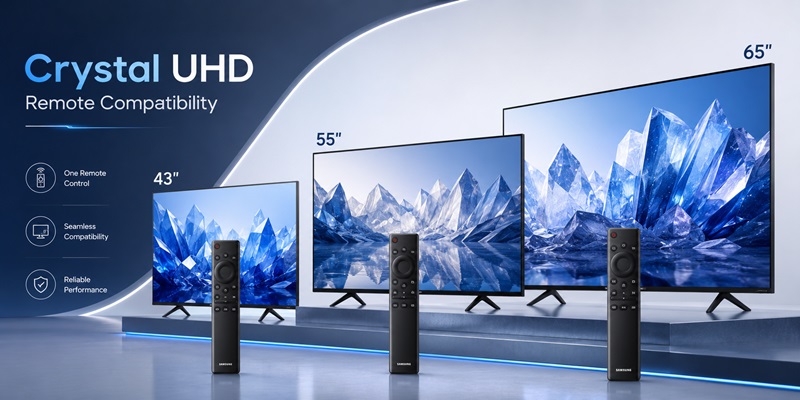
For Crystal UHD televisions, the correct samsung 4k remote still depends on the complete model code. Crystal UHD is a large product family that includes several generations, sizes, and regional versions.
The phrase samsung crystal 4k remote may refer to a standard infrared controller, a Bluetooth Smart Remote, or a SolarCell model. Samsung notes that remote specifications and detailed features can differ by television model and region.
A samsung crystal 4k tv remote should therefore be checked for:
- Compatible television model numbers
- Infrared or Bluetooth operation
- Voice-control support
- Standard batteries or rechargeable battery
- USB-C charging
- Solar panel
- Streaming shortcuts
- Pairing requirements
For a samsung 43 crystal uhd 4k smart tv remote, do not rely only on “43 inch” in the product title. Compare the television model code and original controller part number.
The same rule applies when buying a samsung 55 crystal uhd 4k smart tv remote or samsung 65 crystal uhd 4k smart tv remote. Screen size helps narrow the search but does not prove compatibility.
A samsung 4k remote for a 43-inch Crystal UHD television may have fewer buttons than an inexpensive infrared replacement while still offering more advanced features. Compact Smart Remotes use on-screen controls, voice input, and Bluetooth rather than providing a dedicated button for every function.
A samsung 43 inch smart tv 4k remote listing should clearly state the supported series or model numbers. A samsung 4k tv 43 inch remote that promises compatibility with every Samsung TV may provide only basic infrared control.
The same caution applies to a samsung 43 inch 4k tv remote control sold by a third party. Check whether it supports full smart functions or only common TV commands.
Explore Articles: Download the Samsung TV Remote App: Control Your Samsung TV From Your Phone
5. How to Use a Samsung TV Remote with Fire TV Stick 4K
People searching how to use samsung tv remote to control firestick 4k generally need to enable HDMI-CEC. Samsung calls its HDMI-CEC system Anynet+.
Anynet+ allows supported HDMI-connected devices to receive commands through the television’s controller. These commands may include navigation, playback, power, and source switching.
To use a samsung 4k remote with Fire TV Stick 4K:
- Connect the Fire TV Stick to a TV HDMI port.
- Connect the Fire TV Stick to stable USB power.
- Open Settings or All Settings on the Samsung TV.
- Select Connection or General, depending on the TV year.
- Open External Device Manager.
- Enable Anynet+ (HDMI-CEC).
- Open Settings on the Fire TV Stick.
- Enable HDMI-CEC Device Control.
- Return to the Fire TV HDMI input.
- Test navigation, Select, Back, and playback.
Samsung’s current instructions for Fire TV equipment direct users to enable Anynet+ before completing third-party remote configuration.
If the samsung 4k remote can select the Fire TV input but cannot navigate its interface, open Samsung Universal Remote Setup. Select the connected-device category, choose the correct HDMI port, and test the proposed control profile.
A samsung 4k remote may handle ordinary navigation and playback while leaving Alexa-specific voice functions to the original Fire TV controller or Alexa application.
When CEC causes the television or Fire TV Stick to turn on unexpectedly, review the automatic power and source controls on both devices. Disabling one unwanted power feature is often better than turning off Anynet+ completely.
6. How to Control a Samsung 4K Blu-ray Player and Other HDMI Devices
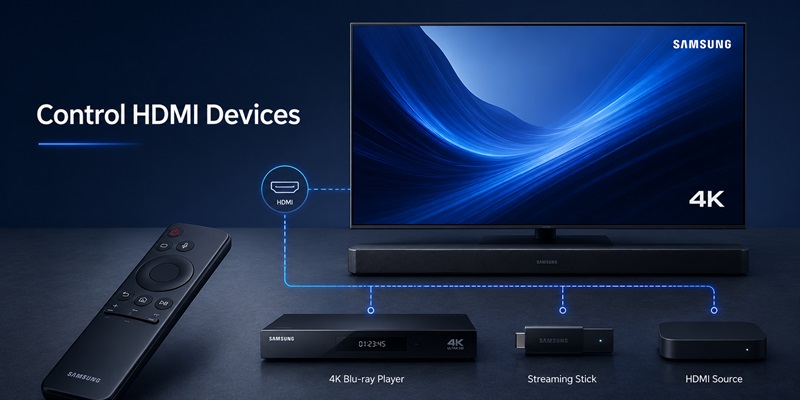
A samsung 4k remote can often operate basic functions on a compatible HDMI-connected Blu-ray player. This may reduce the need to keep several controllers on the coffee table.
A dedicated samsung 4k blu ray player remote is designed specifically for the disc player, but the Samsung TV controller may handle navigation, playback, power, and menu selection through Anynet+ or Universal Remote Setup.
Use this process:
- Connect the Blu-ray player to the television with HDMI.
- Enable Anynet+ on the Samsung TV.
- Enable HDMI-CEC on the player when available.
- Select the Blu-ray player’s HDMI input.
- Test navigation, Play/Pause, Back, and power.
- If functions are missing, open Universal Remote Setup.
- Add a Blu-ray player and select the appropriate brand or profile.
- Repeat the on-screen control test.
Samsung’s universal remote guidance includes Blu-ray players among HDMI-connected devices that may be controlled by the television remote. Available commands still depend on the connected product and selected profile.
If the samsung 4k remote handles basic playback but cannot eject the disc, select subtitles, or access specialist menus, keep the original player controller available.
The samsung 4k remote is most effective for frequently used commands rather than replacing every advanced button on every external device.
Similar steps can be used with compatible soundbars, receivers, set-top boxes, streaming players, and game consoles. Samsung states that Anynet+ can control supported HDMI-CEC devices, although not every external product supports every function.
7. How to Turn On and Control a Samsung 4K TV Without the Remote
When the physical samsung 4k remote is missing, use the controller button built into the television.
The answer to how to turn on samsung 4k tv without remote is usually to locate the button at the bottom center or bottom-right area of the TV frame. Its exact position and design vary by model.
Samsung states that pressing or long-pressing the center Controller button can turn on supported TVs. When the television is already on, short presses may move through the control menu and a long press may select the highlighted item.
SmartThings can then become a mobile samsung 4k remote for a compatible network-connected television.
To use SmartThings:
- Install SmartThings on the phone.
- Connect the phone and TV to the same Wi-Fi.
- Sign in to a Samsung account.
- Add the Samsung television.
- Approve the connection request on the TV.
- Open the TV device page.
- Select the on-screen remote controls.
SmartThings supports control of registered Samsung televisions and other compatible connected devices.
A mobile samsung 4k remote is useful while the physical controller is lost, charging, or being replaced. It can also make text entry and app searches easier.
For some recent televisions, the built-in Controller menu can display a Mobile Remote option or QR code. Samsung’s instructions for selected 2025 models explain how the TV button can display a QR code for connecting a phone.
A remote TV app cannot solve every situation. A factory-reset television, disconnected network, or unapproved phone may still require the TV Controller button or a physical remote.
8. Original, Replacement, and Universal Samsung 4K Remotes Compared
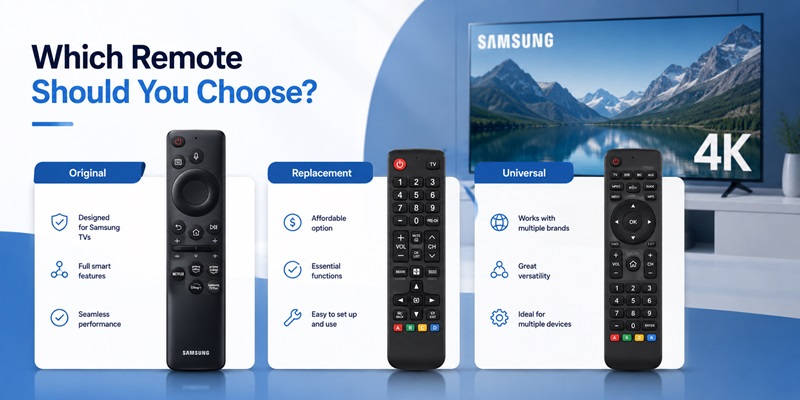
The correct samsung 4k remote depends on whether you prioritize complete functionality, low cost, multi-device control, or immediate access.
Original Samsung Remote
An original remote for samsung 4k smart tv is the safest option for retaining Bluetooth pairing, voice input, SolarCell charging, streaming shortcuts, and model-specific functions.
Samsung advises searching for an exact replacement using the TV’s model number.
Third-Party Replacement
A replacement remote for samsung 4k smart tv is often less expensive. Many third-party models use standard Samsung infrared commands and work without complicated pairing.
However, they may not support:
- Bluetooth
- Voice input
- Solar charging
- USB-C charging
- Model-specific shortcuts
- Advanced connected-device control
Universal Remote
A universal samsung 4k remote may control the television, soundbar, streaming player, and set-top box. Samsung says many third-party universal controllers work with Samsung televisions when the product clearly lists Samsung compatibility.
A samsung 4k ultra hd tv remote from another model may provide basic infrared commands, but voice and Bluetooth support are not guaranteed.
SmartThings
SmartThings provides immediate mobile access when the TV is already connected and registered. It is a useful backup but depends on the network, account, permissions, and device approval.
Choose the controller based on your priorities:
- Original remote for full functionality
- Basic replacement for affordable TV control
- Universal remote for several devices
- SmartThings for mobile control and temporary recovery
9. How to Fix a Samsung 4K Remote That Is Not Working
Troubleshoot the samsung 4k remote in a fixed order before purchasing a replacement.
1. Check the Battery or Charge
Install fresh batteries in a standard infrared controller. For a SolarCell model, place the rear panel under light or connect USB-C.
Samsung states that the SolarCell battery level can be viewed through the Remote Control menu on supported TVs.
2. Pair the Remote Again
Point the controller at the television and hold Return plus Play/Pause for at least three seconds.
3. Restart the Television
Unplug the TV for approximately 30 seconds. Reconnect it, turn it on using the built-in Controller button, and repeat pairing.
4. Test Infrared Transmission
For a traditional controller, open a phone camera and point the remote emitter toward the lens. Press and hold Power.
A visible flashing light suggests that the controller is transmitting infrared. Samsung recommends this test when diagnosing standard non-Smart remotes.
5. Remove Obstructions
Clean the transmission window and the TV sensor. Move decorative items, soundbar edges, or other objects that may block the infrared path.
6. Separate TV and HDMI Problems
If the samsung 4k remote controls the TV but not the Fire TV Stick, Blu-ray player, console, or soundbar, check Anynet+ and Universal Remote Setup. The controller itself may be working correctly.
Replace the samsung 4k remote only after confirming that the batteries, pairing, sensor path, and television controls are working normally.
Samsung also recommends checking for stuck buttons when a television changes source or volume unexpectedly.
10. Frequently Asked Questions and Final Recommendations
Are All Samsung 4K Remotes Interchangeable?
No. Many Samsung infrared controllers can perform basic functions across several TVs, but Bluetooth, voice, SolarCell, and shortcut capabilities depend on model compatibility.
Samsung notes that an older infrared remote may still provide power, volume, channel, and menu control even when full Smart Remote functionality is unavailable.
Which Samsung 4K Remote Should I Buy?
Choose a samsung 4k remote that lists your exact TV model number. Use the original part number when you need voice, Bluetooth, and SolarCell features.
Can a Samsung 4K TV Remote Control Fire TV Stick 4K?
Yes, on compatible setups. Enable Anynet+ on the Samsung television and HDMI-CEC Device Control on Fire TV. Use Universal Remote Setup if navigation remains incomplete.
Can It Control a Samsung Blu-ray Player?
Yes, selected playback and navigation functions may work through Anynet+ or Universal Remote Setup. Advanced player functions may still require the original controller.
Can I Use a 55-Inch Remote on a 65-Inch TV?
Possibly for basic infrared functions, but screen size does not determine complete compatibility. Compare the TV model and remote part numbers.
Can SmartThings Replace the Physical Remote?
SmartThings can control a registered compatible television. Initial network setup, factory resets, and approval prompts may still require the built-in TV Controller or physical remote.
How Do I Turn the TV On Without Any Remote?
Locate the Controller button under the bottom center or lower-right edge of the television. Press or long-press it according to the model’s control design.
Final Recommendation
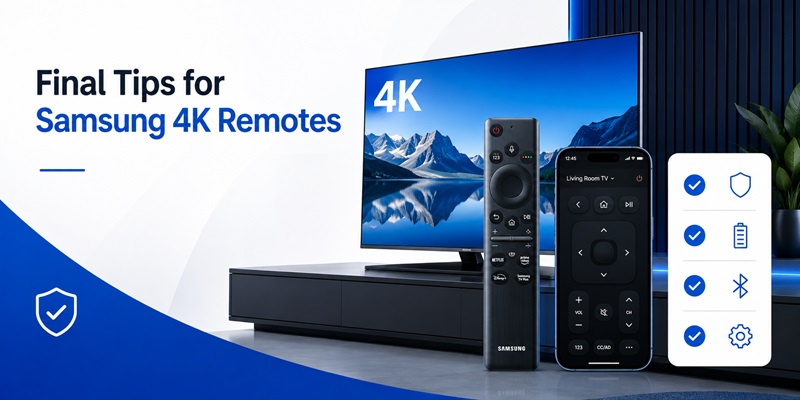
The best samsung 4k remote is the controller that matches the television’s exact model and the functions you regularly use.
Start by recording the complete model code. Identify whether the original controller was infrared, Bluetooth Smart Remote, or SolarCell. Use Return and Play/Pause to restore pairing, and enable Anynet+ for compatible HDMI devices.
Keep a samsung 4k remote backup plan:
- Physical original or replacement controller
- SmartThings configured on a phone
- TV Controller button located in advance
- Anynet+ enabled for supported external devices
- TV and remote model numbers recorded
With this setup, the samsung 4k remote can provide reliable control for the television, Crystal UHD interface, Fire TV Stick 4K, Blu-ray player, soundbar, and other compatible entertainment devices.
Control your Samsung Smart TV anytime with a simple and reliable remote app. Pair your device in minutes and access all the essential remote functions from one place.
Get the App Now