
Samsung Remote Control Smart: Connected Device Hub Guide
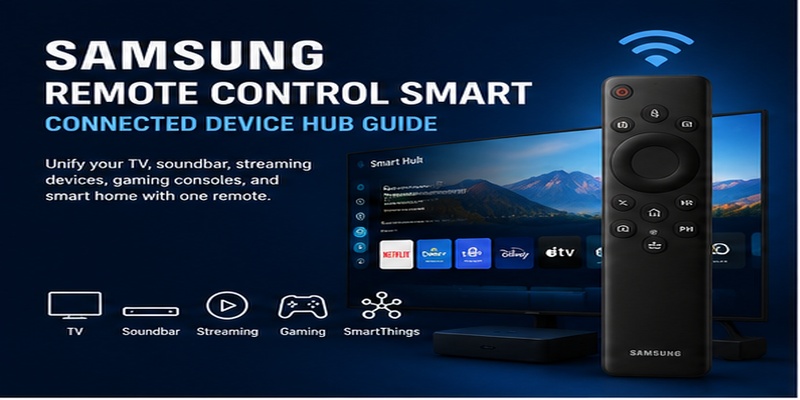
Most remote guides focus on pairing, replacing batteries, or buying a new controller. This article takes a narrower approach. It explains how samsung remote control smart features can turn the television remote into the command layer for a complete entertainment and smart-home setup.
On a compatible Samsung TV, the remote can open Smart Hub, switch HDMI sources, control soundbar volume, navigate selected streaming boxes, manage media playback, trigger voice commands, and work alongside SmartThings. The phone can also become a companion controller when the physical remote is unavailable.
A useful samsung remote control smart system is not created by enabling every available feature. It is created by deciding which device controls audio, which source should open automatically, which equipment should power on together, and which tasks are better handled by the physical remote, voice assistant, or phone.
Samsung’s current support pages confirm that Universal Remote Setup can configure compatible external devices, Anynet+ can pass commands to HDMI-CEC equipment, and SmartThings can display an on-screen television remote on a phone.
The goal of this samsung remote control smart guide is therefore different from a basic remote tutorial. A carefully planned samsung remote control smart system should reduce repeated menu navigation rather than add more complexity. It focuses on connected-device control, automation, voice shortcuts, HDMI behavior, and advanced troubleshooting without repeating battery and replacement advice covered in broader remote articles.
Before changing advanced settings, record the current HDMI names, audio output, Anynet+ status, and SmartThings room. This small preparation makes it easier to reverse a change if the system starts switching sources or controlling the wrong speaker.
In a household with several users, the samsung remote control smart layout should also be tested by someone who did not configure it. If that person can open the main apps, change audio, and return to live TV without help, the samsung remote control smart design is simple enough for daily use.
1. What Makes Samsung Remote Control Smart a Connected-Device Hub?
A traditional infrared remote usually sends one-way commands to one device. A samsung remote control smart setup can combine infrared, Bluetooth, Wi-Fi, HDMI-CEC, device profiles, and cloud-connected SmartThings services.
The physical Smart Remote handles direct television actions such as Home, Back, navigation, volume, channels, and voice input. Smart Hub organizes applications, inputs, search, and connected devices. Anynet+ sends compatible commands through HDMI. Universal Remote Setup identifies selected equipment and maps suitable controls. SmartThings adds phone access and routines.
This layered design explains why one button may work while another does not. Power may use infrared, voice may require Bluetooth and an internet connection, soundbar volume may travel through HDMI-CEC, and a cable-box guide button may depend on the correct Universal Remote profile.
The first principle of samsung remote control smart troubleshooting is to identify the active control layer. If the TV responds but the streaming box does not, the physical remote is probably paired correctly and the problem is more likely related to Anynet+ or Universal Remote Setup.
Samsung describes Anynet+ as its HDMI-CEC system for controlling compatible HDMI-connected equipment with the TV remote. SmartThings can separately display a mobile remote after the TV has been added as a device.
Thinking in layers makes samsung remote control smart easier to configure, expand, and repair without resetting the entire television.
Get the App Now>>> Explore Articles: How to Control a Samsung TV With Your Phone Without WiFi
2. How One Remote, Universal Remote, and Anynet+ Work Together
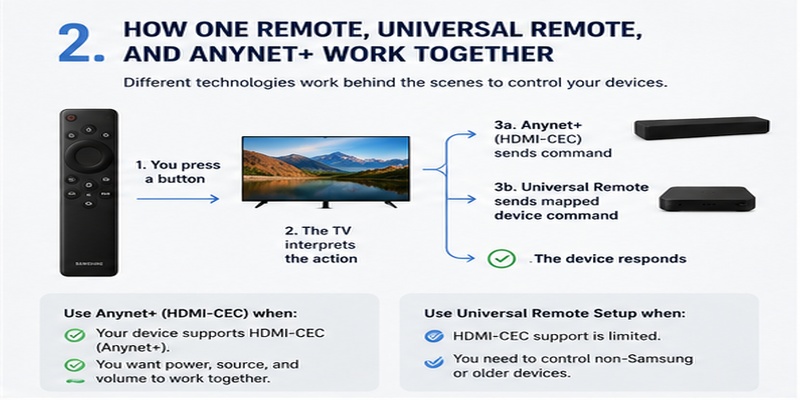
One Remote, Universal Remote, and Anynet+ are related, but they are not the same feature.
One Remote describes Samsung’s simplified physical controller concept. It provides common television controls and access to supported connected equipment through one compact layout.
Universal Remote Setup is an on-screen process. Current Samsung instructions generally direct users to Home or Connected Devices, then Universal Remote or Setup, where they choose a new device, select its type, and complete control tests. Menu wording depends on the TV year and region.
Anynet+ is Samsung’s name for HDMI-CEC. It allows compatible HDMI devices to exchange power, playback, source, and audio commands. Samsung’s 2026 guidance lists soundbars, Blu-ray players, and gaming consoles among the equipment that may be controlled this way.
A well-planned samsung remote control smart sequence works like this:
- You press a button on the Smart Remote.
- The TV interprets the action.
- Anynet+ sends an HDMI command, or Universal Remote sends a mapped device command.
- The external equipment responds.
Use Anynet+ when the connected device supports HDMI-CEC. Use Universal Remote Setup when automatic detection is incomplete, navigation fails, or a set-top box needs brand-specific controls.
The best samsung remote control smart configuration may use both methods. HDMI-CEC can handle power and volume while Universal Remote Setup supplies guide, number, or navigation commands.
3. How to Build a One-Remote Entertainment System
A samsung remote control smart one-remote system should be designed around the devices used every day: television, soundbar, receiver, streaming player, console, set-top box, or disc player.
Start by deciding which device handles audio. When supported, connect the soundbar or receiver to the HDMI eARC or ARC port. Connect other sources to the TV or receiver according to their video and audio requirements.
Next, rename every input clearly. Names such as “PlayStation,” “Cable,” “Apple TV,” and “Soundbar” improve source selection and voice commands. Vague names such as “HDMI 2” make samsung remote control smart actions harder to remember.
Enable Anynet+ on the TV and HDMI-CEC on each external device. Manufacturers use different names for CEC, so inspect the external device settings instead of assuming it is enabled.
Then open Universal Remote Setup for equipment that is not fully controlled automatically. Choose the device category and brand, select the correct HDMI port, and test power, navigation, playback, volume, and channel functions.
Samsung’s One Remote materials describe control of compatible consoles, satellite services, Blu-ray players, and home-cinema products through one controller.
Finally, test the complete power sequence. Turn everything off, wait, and power the system on again. A stable samsung remote control smart setup should start the intended equipment and select the correct source without repeated manual corrections.
Keep original device remotes nearby until every essential action has been verified.
Get the App Now>>> Explore Articles: Remote Samsung Smart TV: Complete Control Guide
4. How to Use Samsung Remote Control Smart with SmartThings
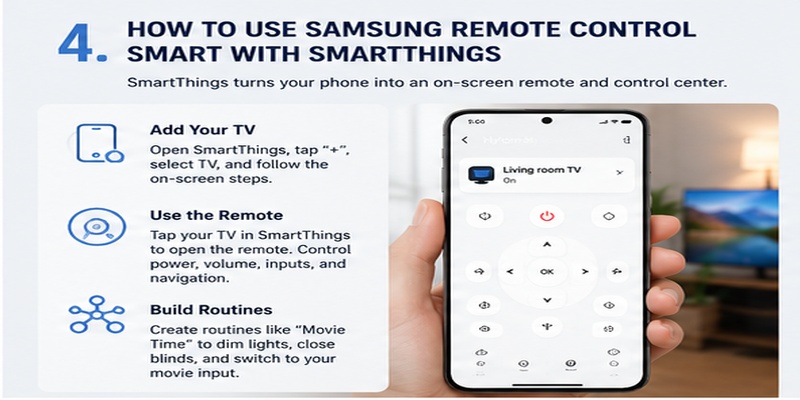
SmartThings expands samsung remote control smart beyond the physical controller. In practice, samsung remote control smart works best when the phone handles text and routines while the physical remote handles instant navigation.
SmartThings allows the phone to control the TV and connects television actions with compatible lights, plugs, speakers, appliances, sensors, and routines.
Samsung’s current instructions say to open SmartThings, choose Menu, tap All devices, and select the TV or projector. An on-screen controller then appears, with available options varying by model.
During setup, connect the phone and television to the same network and sign in to the correct Samsung account. Add the TV, approve the connection request on screen, and place it in the correct SmartThings location or room.
Use the phone for tasks that are slower on the physical remote. Typing search phrases, entering passwords, switching devices, and launching routines are good examples. On supported models, Mobile Remote shortcuts or widgets can also provide faster access.
A movie routine might dim compatible lights and turn on the TV. A gaming routine might change lighting and prepare the console input. A bedtime routine might turn off the TV and selected smart-home devices.
This is where samsung remote control smart becomes more than entertainment control. The television becomes part of a room-level automation system.
The secondary phrase samsung smart control is often used for the physical remote, but SmartThings provides the broader connected-home layer. The two work best as complementary tools rather than substitutes.
>>> Explore Articles: Download the Samsung TV Remote App: Control Your Samsung TV From Your Phone
5. How to Use Voice Control for TV and Smart-Home Actions
Voice commands can shorten multi-step samsung remote control smart tasks. A voice-enabled samsung remote control smart setup is especially useful for repeated actions such as opening apps or changing inputs.
Instead of opening several menus, users can request an application, channel, volume change, source, setting, content search, or SmartThings action.
Samsung currently provides setup guidance for Bixby and, on supported models and regions, Alexa. Users select the assistant under Voice settings, complete account setup, and speak while holding the microphone button on the remote.
Useful command categories include:
- Open an application or search for content.
- Change the channel, volume, or input.
- Open Settings, Smart Hub, or accessibility features.
- Control compatible SmartThings lights, plugs, blinds, or scenes.
- Start a named routine.
Samsung’s Bixby materials state that connected SmartThings devices can be managed by voice and include examples such as changing TV channels or switching off connected lights.
Improve recognition by giving devices clear names. “Floor Lamp,” “Living Room TV,” and “Soundbar” work better than duplicate names such as “Device 1.”
If voice stops responding, check the TV network, microphone setting, remote pairing, and background noise. Samsung’s current troubleshooting guidance highlights these areas.
Voice should enhance samsung remote control smart, not make the system dependent on one assistant. Keep manual controls available for privacy-sensitive actions and network outages.
6. How to Optimize Soundbars, Consoles, and Streaming Devices
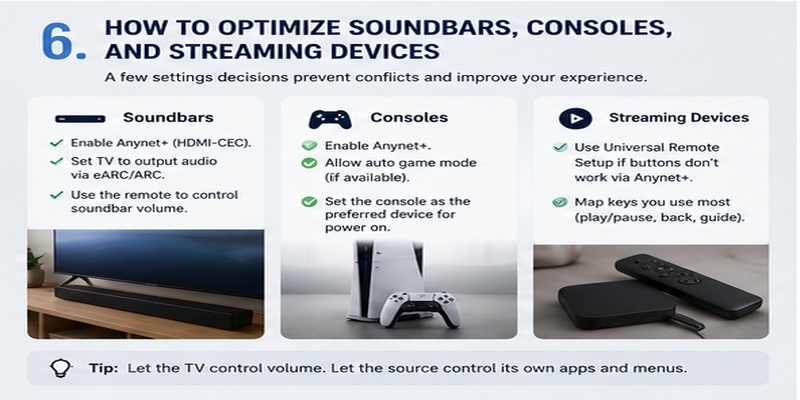
Different devices need different control paths. A reliable samsung remote control smart setup treats each category separately, because samsung remote control smart cannot use the same protocol for every source.
Soundbars and Receivers
Use HDMI eARC or ARC when supported. Enable Anynet+ and select the correct TV sound output. Test volume, mute, power synchronization, and standby behavior.
If both optical and HDMI control are active, commands may become inconsistent. Use one main audio-control path whenever possible.
Streaming Players
Streaming boxes often support Anynet+ for navigation, playback, source switching, and power. If the TV changes to the source but the directional pad does not work, run Universal Remote Setup and choose the correct device profile.
Game Consoles
HDMI-CEC may start the television and select the console input automatically. Media-navigation functions may work, but gameplay still requires the console controller.
Disable automatic input switching if background updates repeatedly wake the console and interrupt viewing.
Set-Top Boxes
Cable and satellite equipment may need Universal Remote Setup for Guide, channel, number, playback, and power commands. Test these functions before storing the provider remote.
Samsung continues to provide Universal Remote instructions for connected devices, including OTT boxes and game consoles.
The strongest samsung remote control smart system covers the frequent actions used every day. It does not need to reproduce every specialist button from every original remote.
7. How to Use the Mobile Remote as a Companion Controller
The phone remote is useful even when the physical controller works. SmartThings can provide an on-screen remote after the TV is registered, and Samsung notes that the controls shown depend on the model.
Use the phone for keyboard entry, long searches, source selection, quick volume changes, and SmartThings routines. A remote TV app can also be useful when someone else has the physical controller or when the remote is across the room.
The physical remote remains better for tactile navigation, immediate volume changes, and use without unlocking a phone. The mobile controller is better for text, automation, and accessing a list of connected devices.
This division of tasks makes samsung remote control smart more efficient than trying to replace the physical remote completely.
Expect limitations. The phone requires the correct Samsung account, permissions, network, and SmartThings location. If the TV is offline or has been factory-reset, the application may not restore initial network access.
Some mobile controls also differ from the physical remote. Voice, pointer movement, number entry, accessibility shortcuts, and gaming-related functions can vary.
Use the phone as a companion and backup, not as the only recovery method for the television.
8. How to Fix Advanced Device-Control Conflicts
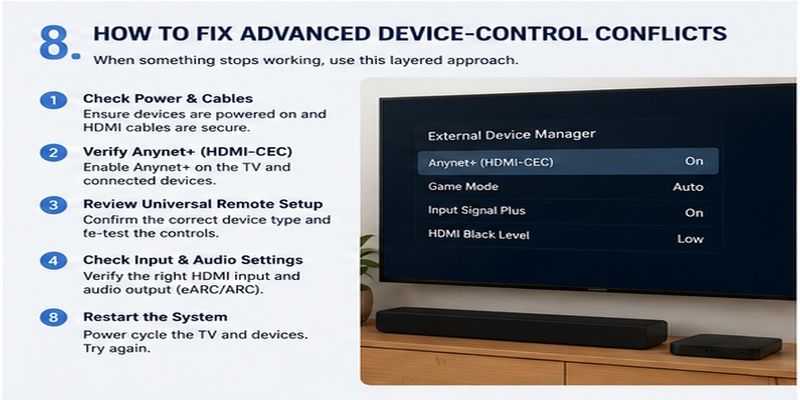
If the television responds but external equipment behaves unpredictably, the physical remote may not be the problem. The cause is more likely HDMI-CEC conflict, an incorrect device profile, duplicate control paths, or automatic wake behavior.
The TV Changes Inputs by Itself
Identify which HDMI device is waking. Disable automatic source switching or HDMI-CEC on that device if integrated control is unnecessary.
Volume Controls the Wrong Device
Check the TV sound-output setting and confirm the soundbar or receiver is connected to ARC/eARC. Remove duplicate optical and HDMI control paths when possible.
Navigation Works but Power Does Not
Repeat Universal Remote Setup and test the power profile. Confirm that Anynet+ is enabled on both the TV and external device.
One Device Breaks Control of Another
Disconnect the newest HDMI device, restart the TV, and reconnect devices one at a time. This can reveal equipment that is taking over the HDMI-CEC bus.
Samsung explains that Anynet+ depends on compatible HDMI-CEC equipment and correct setup.
A reliable reset order for samsung remote control smart is useful because samsung remote control smart conflicts are easier to isolate one device at a time:
- Turn off the TV and external devices.
- Disconnect HDMI cables.
- Restart the TV alone.
- Confirm the Smart Remote works.
- Enable Anynet+.
- Reconnect the audio device first.
- Add sources one at a time.
- Repeat Universal Remote Setup only where required.
- Test SmartThings last.
This isolates the failing control layer without immediately factory-resetting the TV.
9. How to Improve Privacy, Accessibility, and Daily Shortcuts
Advanced control should remain secure and easy to use.
Review microphone and voice-assistant settings. Voice functions require network access, and supported TVs may include physical or software microphone controls. Samsung notes that voice availability differs by model.
Choose whether voice wake should remain active. Press-to-talk through the remote provides more deliberate activation than an always-listening wake phrase.
Protect purchases and account changes with PINs or confirmation settings. Review which household members and phones can access the television through SmartThings, and remove old devices that no longer need control.
Use accessibility shortcuts for captions, voice guidance, high contrast, and other supported functions. Voice commands can also reduce menu navigation for users who find small text difficult.
Customize the Home screen by moving common applications and sources to convenient positions. Clear organization reduces the number of button presses and makes samsung remote control smart feel faster without changing hardware. This simple organization often improves samsung remote control smart more than adding another automation.
Use consistent names across the television, SmartThings, and voice assistant. The same room and device names reduce automation and voice errors.
Finally, keep the original remotes and physical TV controls available. Smart systems depend on software, accounts, networks, and HDMI communication. Manual controls provide a recovery path when those layers fail.
10. Frequently Asked Questions and Final Recommendations
Is Samsung Smart Control the Same as One Remote?
The names may describe different generations or product lines, but both generally refer to simplified Samsung controllers for smart-TV navigation and selected connected-device control. Match the remote to the TV model rather than assuming identical features.
Can Samsung Remote Control Smart Operate a Soundbar?
Yes, when the soundbar and TV support the selected control method. HDMI ARC/eARC with Anynet+ is usually the most integrated option.
Can It Control a Game Console?
It may handle power, source switching, and selected media functions through HDMI-CEC. It does not replace the console’s game controller.
Why Does a Streaming Box Turn On the TV?
HDMI-CEC allows a connected device to request power and source changes. Disable that device’s automatic power or source option if the behavior is unwanted.
Can I Control the TV from My Phone?
Yes. Add a compatible TV to SmartThings and open its device page to access the mobile controller.
Is Universal Remote Setup Better Than Anynet+?
They perform different jobs. Anynet+ uses standardized HDMI-CEC commands, while Universal Remote Setup adds device-specific control profiles.
Why Do Only Some Buttons Work?
Different commands can use infrared, Bluetooth, HDMI-CEC, Wi-Fi, or a Universal Remote profile. The missing action may not be supported by the active control path.
Final Recommendation
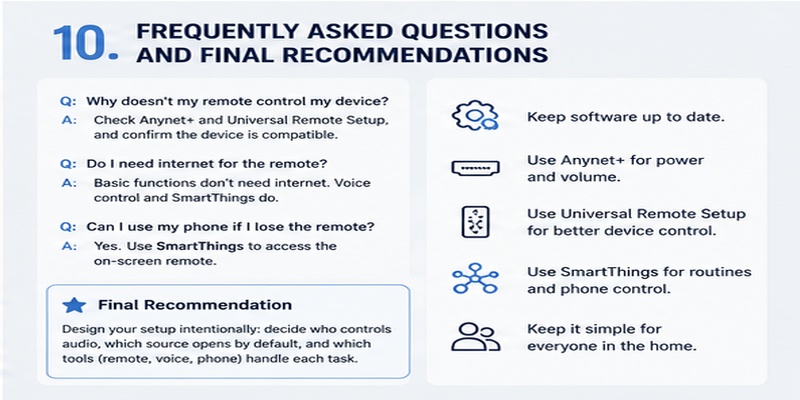
The best samsung remote control smart system uses the physical Smart Remote for fast navigation, Anynet+ for compatible HDMI equipment, Universal Remote Setup for devices requiring a profile, and SmartThings for phone access and routines.
Use voice control for repeatable actions. Give every source and device a clear name. Connect the audio system through ARC or eARC. Disable automatic source changes on devices that wake unexpectedly.
Keep the setup simple enough for every household member to understand. A smaller, stable system is more useful than a complex automation that fails unpredictably.
Final checklist:
- Enable Anynet+ only where integrated control is useful.
- Configure Universal Remote Setup for incomplete devices.
- Rename inputs and SmartThings devices.
- Test power, audio, source, and standby separately.
- Use SmartThings as a companion controller.
- Review microphone, account, and purchase settings.
- Keep original device remotes as recovery tools.
- Add HDMI devices one at a time after a conflict.
- Update TV and device software periodically.
When these elements work together, samsung remote control smart becomes a practical command center for entertainment, connected devices, voice actions, and smart-home routines.
Control your Samsung Smart TV anytime with a simple and reliable remote app. Pair your device in minutes and access all the essential remote functions from one place.
Get the App Now