
How to Control Samsung TV With Phone Without WiFi
Losing the physical remote becomes even more frustrating when the home router is offline. You may open SmartThings expecting the virtual remote to appear, only to discover that the phone cannot find the television. Understanding how to control samsung tv with phone without wifi requires identifying what type of connection is still available.
A Samsung Smart TV remote app normally communicates with the television through a shared local network. If your router is working but the internet is down, the app may still communicate locally. If there is no home Wi-Fi, a mobile hotspot can create a replacement network. An Android phone with a built-in infrared blaster may also control the television directly without Wi-Fi.
When no local network or infrared hardware is available, you may need the TV Controller button, a USB keyboard, or a compatible replacement remote. This guide explains every practical method for how to control samsung tv with phone without wifi, including IR control, hotspot setup, SmartThings limitations, and offline alternatives.
1. Can You Control a Samsung TV With a Phone Without WiFi?
Yes, but the answer depends on what “without Wi-Fi” means. There are several different situations, and each one requires a different solution for how to control samsung tv with phone without wifi.
The Internet Is Down, but the Router Still Works
Wi-Fi and internet access are not the same thing. Your router can continue creating a local network even when the internet service is unavailable.
If the phone and Samsung TV remain connected to that router, SmartThings or another compatible Remote TV App may still send local commands. Online streaming, account services, and content recommendations may not work, but basic remote functions can remain available.
Home Wi-Fi Is Unavailable, but You Can Create a Hotspot
A mobile hotspot can replace the home router temporarily. The television and the phone running the remote app must connect to the same hotspot.
In many cases, the easiest arrangement uses two mobile devices:
- Phone A creates the hotspot.
- Phone B connects to that hotspot and runs SmartThings.
- The Samsung TV also connects to Phone A’s hotspot.
This method can solve how to control samsung tv without remote or wifi when the home network is unavailable but you can still create a temporary local network.
There Is No Local Network at All
Without a router, hotspot, or other shared network, Wi-Fi remote apps have no path to the television. Cellular data alone does not let SmartThings send local commands directly to the TV.
An Android phone with an IR blaster may still work because it sends infrared commands directly to the television. Otherwise, use the TV’s physical button, a keyboard, or a replacement remote.
Therefore, the best answer to can i control my tv with my phone without wifi is yes only when the phone has infrared hardware or both devices can join another shared network.
2. Check What Your Phone and Samsung TV Support
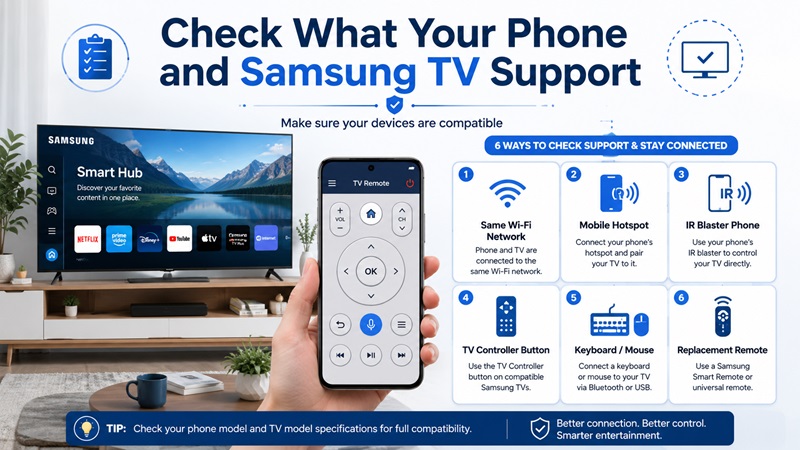
Before attempting how to control samsung tv with phone without wifi, check the capabilities of both devices. This helps you avoid installing an app that cannot communicate with your television.
| Your situation | Recommended method | Shared Wi-Fi required? | Key limitation |
| Router works but internet is down | SmartThings on the local network | Yes | Online content may be unavailable |
| Home router is unavailable | Mobile hotspot and SmartThings | Yes, through hotspot | Often easier with two phones |
| Android phone has an IR blaster | Infrared remote app | No | Requires line of sight |
| TV is completely offline | TV Controller button | No | Basic control only |
| TV accepts USB input | USB keyboard or mouse | No | Support varies by model and app |
| You have a compatible physical remote | Replacement or universal remote | No | Smart features may be limited |
| Phone has no IR and TV has no network | Mobile app cannot connect directly | No | Use TV controls or accessories |
Check Whether Your Phone Has an IR Blaster
An IR blaster is physical hardware that transmits infrared signals. It cannot be added by downloading an application.
To check your phone:
- Review its official specifications.
- Look for an infrared emitter on the top edge.
- Check whether the phone includes a built-in remote application.
- Search the exact phone model with the phrase “IR blaster.”
Many modern Android phones do not include infrared hardware. iPhones do not have a built-in IR blaster.
A Remote TV App that advertises infrared control will not work if the phone lacks the transmitter.
Check Your Samsung TV Model
Find the model number on the label behind the television or in the About menu. Use it to check support for:
- SmartThings
- USB keyboards and mice
- Bluetooth accessories
- Network standby
- Mobile power-on
- Physical TV Controller buttons
The TV Controller button is often positioned under the center of the screen, near the lower-right edge, or on the back panel.
Knowing these details makes how to control samsung tv without remote and wifi much easier because you can immediately identify which backup controls are available.
3. How to Control a Samsung TV Without WiFi Using an IR Blaster
An infrared-capable Android phone provides the most direct method for how to control samsung tv with phone without wifi. It behaves like a traditional remote and does not require a router, internet connection, Samsung account, or pairing code.
How Infrared Phone Control Works
The phone transmits an infrared command toward the Samsung TV’s sensor. The television responds in the same way it would respond to a physical remote.
You need:
- An Android phone with an IR blaster
- A trusted infrared remote app
- A Samsung TV command profile
- A clear line of sight to the TV sensor
Set Up the Infrared Remote App
Follow these steps:
- Confirm that the phone includes an IR blaster.
- Open Google Play or the phone’s built-in remote application.
- Install a trusted infrared remote app if necessary.
- Select TV as the device category.
- Select Samsung as the brand.
- Point the top of the phone toward the television.
- Press the Power button in the app.
- Confirm whether the TV responds.
- If it does not respond, try the next Samsung command profile.
- Save the profile that provides the best control.
Test:
- Power
- Volume
- Mute
- Channel
- Input
- Menu
- Directional navigation
- OK or Select
- Back
This is often the simplest answer to how to control tv with phone without remote samsung when the phone includes the necessary infrared hardware.
Limitations of Infrared Control
An infrared phone remote may not provide every smart feature.
Common limitations include:
- The phone must point toward the TV.
- Voice search may not work.
- The phone keyboard may not send text.
- SmartThings automations are unavailable.
- App shortcuts may be limited.
- The TV cannot be controlled from another room.
- Obstructions can block the signal.
- Advanced Bluetooth remote features may be missing.
Different Samsung TVs may use slightly different command profiles. If Power works but Input or Menu does not, test another profile.
For users researching how to control samsung tv without remote and wifi, IR is highly practical but only when the phone has real infrared hardware.
4. How to Use a Phone Hotspot When Home WiFi Is Unavailable
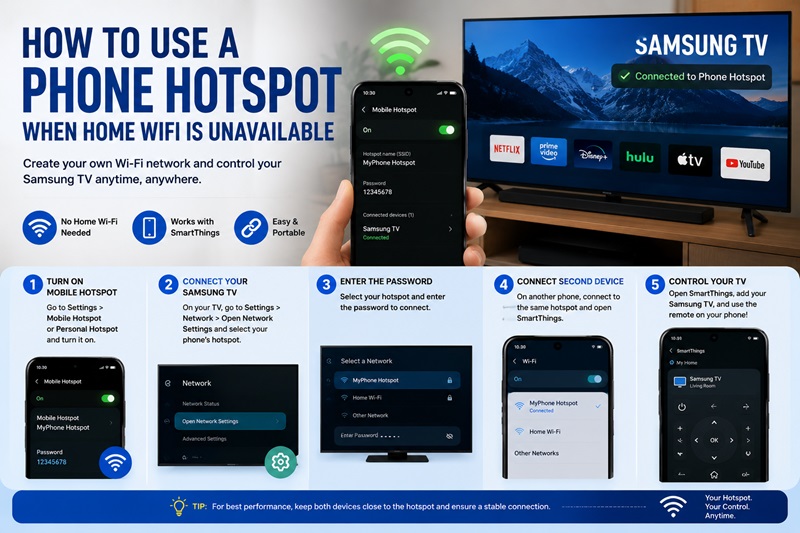
A hotspot provides another solution for how to control samsung tv with phone without wifi. Although the home router is unavailable, the hotspot creates a new Wi-Fi network that the television and remote phone can share.
What You Need
Prepare:
- A phone or hotspot device that can share mobile data
- A second phone or tablet for SmartThings
- The hotspot name and password
- A way to open Network Settings on the TV
- SmartThings installed on the remote phone
A two-device setup is generally more reliable because the device providing the hotspot does not also need to discover and control the TV.
Connect the Samsung TV to the Hotspot
On Phone A:
- Open Settings.
- Select Mobile Hotspot or Personal Hotspot.
- Set a network name and password.
- Turn on the hotspot.
On the Samsung TV:
- Use the TV Controller button, keyboard, or available remote.
- Open Settings > Connection > Network.
- Choose Open Network Settings.
- Select Wireless.
- Choose Phone A’s hotspot.
- Enter the password.
- Wait for the connection to complete.
On Phone B:
- Connect to Phone A’s hotspot.
- Open SmartThings.
- Tap Add Device if the television is not already listed.
- Select the Samsung TV.
- Accept the connection prompt on the television.
- Open the virtual remote.
This setup provides a practical answer to how to control samsung tv without remote or wifi because the hotspot substitutes for the missing home network.
Can One Phone Provide the Hotspot and Remote?
Some phones may support both tasks, but local device discovery can be unreliable while the same device hosts the hotspot.
Results depend on:
- Phone model
- Android or iOS version
- Hotspot networking behavior
- SmartThings version
- Samsung TV model
Using two devices is more dependable:
- One creates the network.
- One acts as the remote.
Recreate the Old Network
If the TV automatically reconnects to an old Wi-Fi network, you may recreate that network by giving the hotspot the same name and password. This can help the TV connect without navigating Network Settings.
After the TV connects, place the remote phone on the same hotspot and open SmartThings.
This method can be valuable when learning how to control samsung tv with phone without wifi after replacing a router or moving the TV.
5. How to Control a Samsung TV Without a Remote or WiFi
When the TV is completely offline and the phone lacks infrared hardware, use physical input methods. These options can help you turn on the television, change inputs, or reconnect it to a network.
Use the TV Controller Button
Samsung televisions usually include a physical controller button or joystick.
Its location may be:
- Under the center of the screen
- Under the Samsung logo
- Near the lower-right corner
- On the rear panel
Depending on the model, the button may provide:
- Power
- Volume
- Channel
- Source
- Menu navigation
- Selection
A single press may open the control menu, while directional movements or repeated presses choose different commands.
This is the most reliable starting point for how to control samsung tv without remote and wifi because it does not require any accessory or network.
Connect a USB Keyboard
A wired USB keyboard may help you navigate menus and enter a Wi-Fi password.
Try these keys:
- Arrow keys for navigation
- Enter for selection
- Escape for Back
- Function keys, depending on the TV
- Letter and number keys for text entry
Connect the keyboard to a USB port on the TV or One Connect Box.
Support varies across apps and settings screens, but a keyboard can be especially useful when you need to reconnect the television to Wi-Fi.
Connect a USB Mouse
A USB mouse may provide pointer control in selected Samsung TV interfaces.
Use it to:
- Open settings
- Choose network options
- Select apps
- Browse supported screens
Not every TV menu supports mouse input.
Use a Bluetooth Keyboard or Mouse
Bluetooth accessories can work on compatible Samsung TVs, but pairing them may require initial menu control.
A device that was already paired may reconnect automatically. Otherwise, use the TV Controller button or USB keyboard to open Bluetooth settings.
Use a Replacement Remote
A compatible Samsung remote is the most dependable long-term solution.
Options include:
- Original Samsung remote
- Compatible Samsung Smart Remote
- Universal infrared remote
- Replacement remote designed for the TV model
A basic universal remote can control Power, Volume, Input, and Menu. Voice or Bluetooth functions may require an original-style Smart Remote.
These alternatives solve how to control samsung tv without remote or wifi when mobile control is not possible.
6. Why SmartThings Usually Cannot Work Without a Shared Network
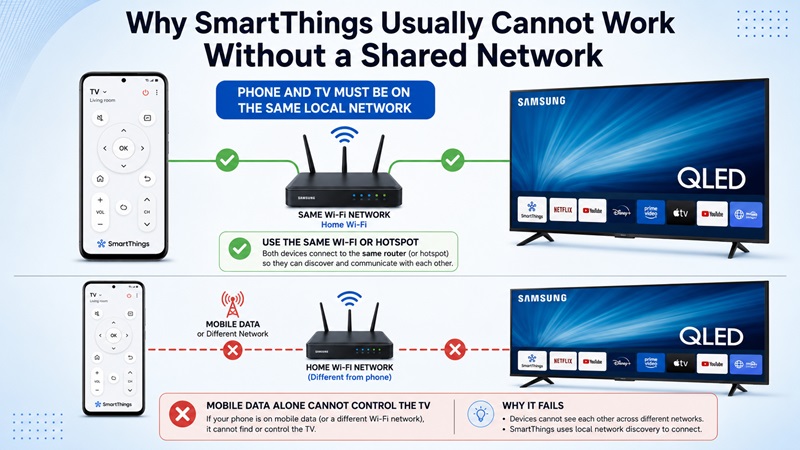
SmartThings is designed to communicate with compatible Samsung TVs through a shared network. This is why how to control samsung tv with phone without wifi cannot normally be solved by opening SmartThings over cellular data.
The phone and television generally need to be:
- Connected to the same Wi-Fi network
- Connected to the same router, even if the TV uses Ethernet
- Discoverable on the local network
- Allowed to communicate through the router
- Signed into the appropriate Samsung account when required
Mobile data connects the phone to the internet, but it does not automatically place the phone on the TV’s local network.
Why Bluetooth Is Not Always Enough
Bluetooth or Bluetooth Low Energy may assist with device discovery or setup on selected models, but the full SmartThings remote usually depends on network communication.
Bluetooth alone may not provide:
- Full navigation
- App control
- Keyboard input
- Source selection
- Network-based power control
- SmartThings automations
What SmartThings Can Do on a Shared Network
Once connected, SmartThings may provide:
- Power control on supported TVs
- Volume and mute
- Channel controls
- Directional navigation
- Home and Back
- Source selection
- App access
- Keyboard input
- Device status
- Smart-home automation
For the best how to control samsung tv with phone without wifi result, create a hotspot or restore a local router connection before relying on SmartThings.
A universal Remote TV App has the same basic limitation when it uses Wi-Fi: the phone and TV need a local path to each other.
7. What to Do When Your Phone Cannot Control the Samsung TV
If your chosen method fails, use the symptoms to identify the cause.
| Problem | Likely cause | Recommended fix |
| SmartThings cannot find the TV | Phone and TV use different networks | Connect both to the same router or hotspot |
| TV is completely offline | No local connection exists | Use the TV Controller button |
| IR app does nothing | Phone has no IR blaster | Use a hotspot or physical remote |
| IR controls only Power | Wrong or partial Samsung profile | Try another IR profile |
| TV cannot join the hotspot | Incorrect password or Wi-Fi band | Re-enter details or try 2.4 GHz |
| SmartThings disconnects | Hotspot or network is unstable | Restart all devices |
| Keyboard does not respond | TV screen does not support input | Try another USB port or physical remote |
| TV turns on but smart controls fail | Infrared supports only basic commands | Connect SmartThings to a shared network |
Restart the Phone and TV
Restarting clears temporary discovery and connection problems.
- Close the remote app.
- Restart the phone.
- Power cycle the Samsung TV.
- Restart the router or hotspot.
- Reconnect both devices.
- Open the app again.
Check App Permissions
SmartThings or another remote application may require:
- Nearby Devices
- Local Network
- Bluetooth
- Location on selected Android versions
- Wi-Fi access
Open the app permissions and allow the functions necessary for device discovery.
Confirm the Same Network
Check the complete network name on both devices.
Avoid:
- Guest Wi-Fi
- Public Wi-Fi
- Isolated IoT networks
- Different hotspots
- VPN connections that block local discovery
If the TV uses Ethernet, the phone must connect to Wi-Fi on the same router.
Try a 2.4 GHz Hotspot
Some television models may have difficulty detecting a hotspot operating only on 5 GHz.
Open hotspot settings and select 2.4 GHz when available. Then scan for the network again on the TV.
Confirm TV Compatibility
Older Samsung TVs may not support full SmartThings remote control. Check the model documentation before repeatedly reinstalling the app.
If the phone lacks IR and the TV cannot join a shared network, a mobile application cannot directly solve how to control tv with phone without remote samsung. Use physical controls or a replacement remote.
8. Choose the Best Samsung TV Control Method for Your Situation
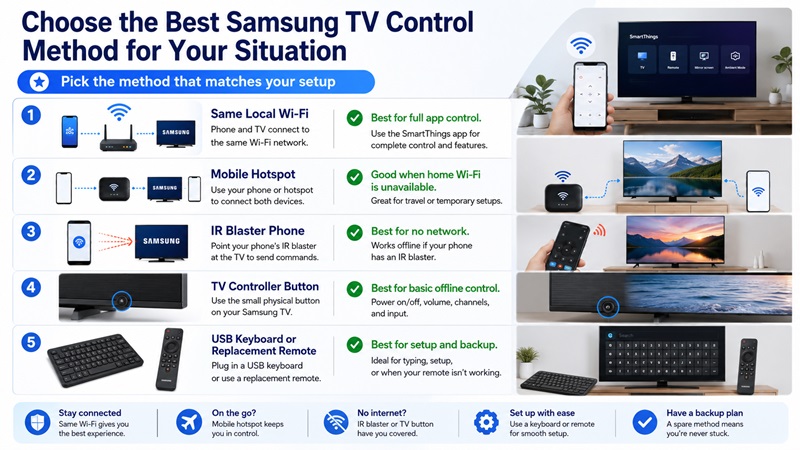
The right solution for how to control samsung tv with phone without wifi depends on the available network and hardware.
| Situation | Best control method |
| Router works but internet is unavailable | SmartThings on the local network |
| Home router is unavailable, but two phones are available | Hotspot plus SmartThings |
| Android phone includes an IR blaster | Infrared remote app |
| TV is fully offline | TV Controller button |
| You need to enter a Wi-Fi password | USB keyboard |
| You need complete smart functions | SmartThings through a shared network |
| Phone has no IR and no network is available | Replacement remote |
| Several TV brands need one controller | Compatible Remote TV App |
An IR-capable Android phone is the easiest option when no network exists. It provides basic remote commands without Wi-Fi, but it may not include voice, keyboard, or smart-home features.
A mobile hotspot is better when you need the complete SmartThings interface. Connect the TV and remote phone to the same hotspot, then approve the pairing request.
When neither IR nor a shared network is available, use the TV Controller button to power on the television and open its menu. A USB keyboard can then help reconnect the TV to a hotspot or router.
The most important rule for how to control samsung tv with phone without wifi is that a Wi-Fi remote still needs some type of shared local network. “Without home Wi-Fi” can be solved with a hotspot. “Without any network” requires infrared or physical controls.
Once the TV is connected, a compatible Remote TV App can provide navigation, volume, keyboard input, playback controls, and app shortcuts.
