
Control Samsung TV With Phone: Complete iPhone and Android Guide
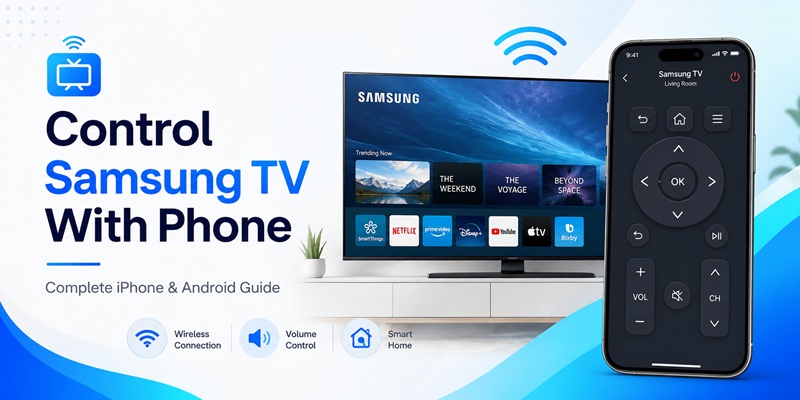
A missing physical remote does not have to interrupt your viewing. With the correct setup, you can control samsung tv with phone and use the touchscreen for power, navigation, volume, channels, source selection, playback, search, and other everyday functions.
Samsung’s official solution is SmartThings. After a compatible television or projector has been added to SmartThings, selecting the device opens an on-screen remote. The precise controls displayed depend on the product and its current software.
This guide explains the complete process rather than showing only where the Remote icon is located. You will learn how to control samsung tv with phone, install SmartThings safely, connect an iPhone or Android device, approve the pairing request, use the main controls, wake a supported television from standby, and solve common discovery problems.
SmartThings is available through Google Play and Apple’s App Store. Both official listings identify Samsung Electronics as the developer and explain that SmartThings can connect to Samsung Smart TVs and other compatible smart-home devices.
The instructions apply to both major mobile platforms, but compatibility can depend on the television model, country, Samsung account, network and software version. A phone may not replace the physical controller during a factory reset or when the television has lost all network access.
Follow the sections in order. The quickest way to control samsung tv with phone is to prepare the network, install the official application, register the TV and only then troubleshoot advanced functions.
1. What You Need Before You Control Samsung TV With Phone
Prepare the television, phone, Samsung account and local network before pairing. Most connection failures happen because the TV is offline, the phone is connected to another network or the registration request cannot be approved.
To control samsung tv with phone, you generally need:
- A compatible Samsung Smart TV, Smart Monitor or projector
- A supported iPhone, iPad or Android phone
- The current SmartThings application
- A Samsung account
- The phone and TV connected to the same private Wi-Fi network during setup
- Access to the television screen to approve registration or read the PIN
- Bluetooth and the necessary local-device permissions enabled
Samsung’s current setup instructions tell users to turn on the TV, open SmartThings, add the device and enter the PIN shown on the television. The mobile remote is available only after the television has been registered in SmartThings.
Avoid guest Wi-Fi. A guest network may allow the phone and TV to access the internet while preventing them from communicating directly with one another.
Compare the complete Wi-Fi name shown on both devices before you try to control samsung tv with phone. If your router creates separate 2.4 GHz and 5 GHz networks, place both devices on the same network during registration.
Temporarily disable a VPN if the TV does not appear. A VPN can change how the phone routes traffic and interfere with local-device discovery.
Keep the phone connected to Wi-Fi and turn off automatic mobile-data switching during setup. If the phone abandons a weak Wi-Fi connection, the SmartThings remote may suddenly display the television as offline.
You should also locate the TV’s built-in Controller button. It can turn on the television when the original remote is missing. Its position varies, but it is commonly located underneath the lower frame or near a lower corner.
Once these requirements are ready, you can control samsung tv with phone without testing multiple unrelated remote applications.
Explore our step-by-step guides on connecting your phone to a Samsung TV, fixing remote connection issues, screen mirroring, and troubleshooting common Smart TV problems.
Download Remote TV App📚 Explore More Articles: Samsung TV Remote App: Best Free Option for iPhone and Android
2. How to Install SmartThings on iPhone and Android
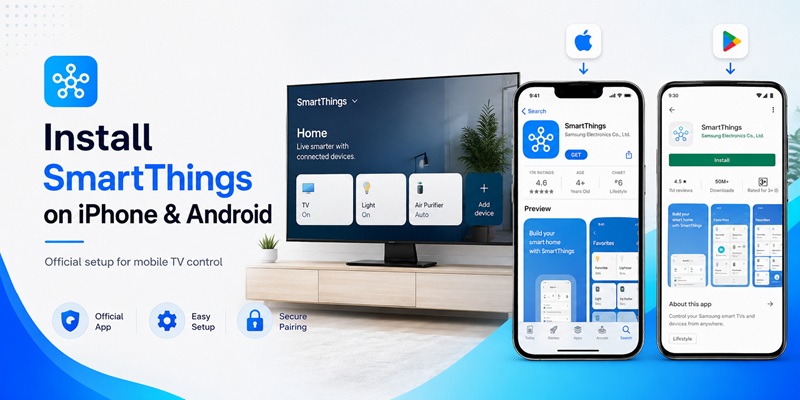
Install SmartThings only from an official application store. This reduces the risk of downloading an imitation app with hidden subscriptions, misleading branding or unnecessary permissions.
Install SmartThings on iPhone
To use an iPhone as the television remote:
- Open Apple’s App Store.
- Search for SmartThings.
- Confirm the provider is Samsung Electronics Co., Ltd.
- Review the current iOS requirement.
- Tap Get.
- Open the application.
- Sign in or create a Samsung account.
- Allow Local Network, Bluetooth and relevant notification permissions.
Samsung provides a dedicated guide for installing SmartThings on iPhone and confirms that the app supports iPhones as well as Galaxy and other Android devices. The official App Store page also identifies Samsung Electronics as the provider.
The phrase apple smartthings samsung tv can cause confusion because SmartThings is developed by Samsung, not Apple. However, Samsung officially distributes the application through Apple’s App Store for compatible iPhones and iPads.
Install SmartThings on Android
The official samsung tv remote app for android is SmartThings:
- Open Google Play.
- Search for SmartThings.
- Confirm Samsung Electronics Co., Ltd. is the developer.
- Confirm the package is com.samsung.android.oneconnect.
- Tap Install.
- Open the application and sign in.
- Grant Nearby Devices, Bluetooth, Location or network permissions when requested.
Google Play describes SmartThings as an application for connecting and controlling Samsung Smart TVs, appliances, speakers and many other compatible products.
Do not identify the official application only by its icon. Third-party products may use a television image, Samsung-related wording or a similar remote-control interface.
Verify the developer, store listing and subscription information before installation. SmartThings itself does not require a separate paid TV-remote subscription for its supported mobile controls.
After installation, move close to the television and keep SmartThings open. The application may automatically display a nearby-device registration prompt.
Using the official app is the safest way to control samsung tv with phone on both mobile platforms.
👉 Read More Guides: How to Control a Samsung TV With Your Phone Without WiFi
3. How to Add a Samsung TV to SmartThings Step by Step
The television must be registered before you can control samsung tv with phone.
Automatic Registration
- Turn on the Samsung TV.
- Connect the phone and television to the same Wi-Fi.
- Open SmartThings.
- Wait for the nearby-device pop-up.
- Tap Add or Connect.
- Enter the PIN shown on the television if requested.
- Choose the SmartThings location and room.
- Tap Done.
Samsung explains that SmartThings can automatically detect a nearby Samsung Smart TV and ask the user to enter the PIN displayed on the screen.
Manual Registration
If no pop-up appears:
- Open SmartThings.
- Tap the plus icon.
- Select Add device.
- Choose TV.
- Select Samsung.
- Select the correct television.
- Approve the request on the TV or enter the displayed PIN.
- Assign the television to a location and room.
- Finish registration.
After registration, open Menu or Devices, choose All devices, and select the television. Samsung states that an on-screen controller should then appear.
If several Samsung TVs are available, rename them clearly:
- Living Room TV
- Bedroom TV
- Office TV
- Gaming TV
Clear names make it easier to control samsung tv with phone without sending commands to the wrong television.
Test the connection immediately:
- Open Home.
- Press Back.
- Move through the menu.
- Change the volume.
- Open Source.
- Test playback.
- Open the application list.
Close SmartThings and reopen it. The television should remain registered. If SmartThings requests a new PIN every time, remove the device card and repeat the setup.
A properly completed registration should let you control samsung tv with phone without pairing the devices again during every viewing session.
4. How to Control Samsung TV With iPhone
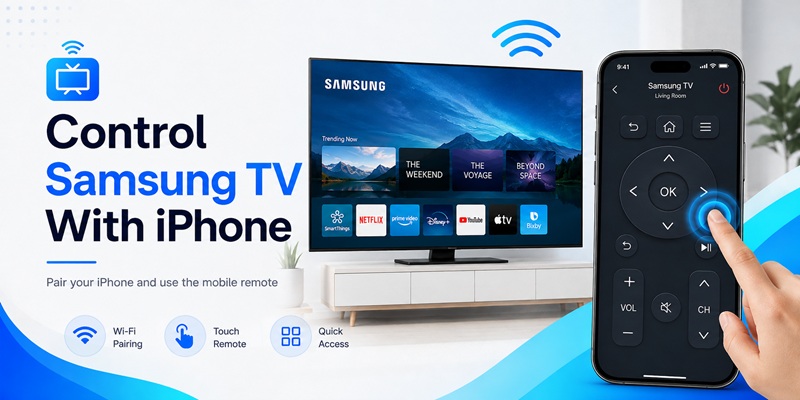
Once registration is complete, the iPhone can become a touchscreen Samsung remote:
- Open SmartThings.
- Tap Devices or Menu.
- Choose the correct SmartThings location.
- Select the Samsung television.
- Tap Remote if the full controller does not appear automatically.
- Allow the mobile-remote permission prompt.
- Use the on-screen controls.
Samsung’s current guidance confirms that iOS phones can access the SmartThings mobile remote. The App Store listing also states that SmartThings can connect to Samsung Smart TVs.
Depending on the television, the iPhone remote may include:
- Power
- Home
- Back
- Directional navigation
- Select or OK
- Volume and mute
- Channel controls
- Source
- Applications
- Number and color keypad
- Search
- Phone keyboard
- Voice functions
Samsung explicitly states that the options available on the mobile remote vary according to the connected television or projector.
Users searching how to connect iphone to samsung tv remote can use this quick checklist:
- Install SmartThings from Apple’s App Store.
- Sign in with a Samsung account.
- Enable Local Network and Bluetooth.
- Connect the iPhone and TV to the same Wi-Fi.
- Add the TV in SmartThings.
- Enter the PIN or approve the request.
- Select the television and open Remote.
Do not confuse remote control with AirPlay. AirPlay sends compatible content or mirrors a device screen. SmartThings provides television-control buttons.
Both features can be useful, but they solve different problems. To control samsung tv with phone on iOS, keep the TV saved in Favorites or in an easily accessible SmartThings room.
🔍 View More Samsung Tips: Samsung TV Remote Control Online: Safe Control Guide
5. How to Control Samsung TV With Android Phone
After pairing, use the Android SmartThings interface:
- Open SmartThings.
- Tap Devices.
- Select the room containing the television.
- Tap the TV device card.
- Open Remote.
- Expand the remote if it initially appears in a collapsed view.
- Use the touchscreen controls.
Samsung’s current support documentation states that the television card can provide Power On/Off, Content Search, Remote and Apps. The Remote section can include Channel, Volume, Home and Settings.
Android users can use the phone keyboard for searches, passwords and account entry. They may also switch inputs, launch applications, adjust sound and create SmartThings routines.
Some Galaxy phones provide quick device-control panels or SmartThings shortcuts. Availability depends on the phone model and its current One UI version.
Keep Android connected to the intended Wi-Fi network. Adaptive connectivity features can switch the phone to mobile data when Wi-Fi becomes weak, causing the television to appear offline.
For reliable everyday access, add the TV to SmartThings Favorites. This reduces the number of taps needed to control samsung tv with phone.
An Android phone with a real IR blaster may also support a separate infrared application. However, most current phones do not include traditional infrared transmitters, and SmartThings remains Samsung’s official network-based solution.
With the television saved in Favorites, it becomes much faster to control samsung tv with phone whenever the physical remote is unavailable.
6. How to Use Every Important Mobile Remote Control
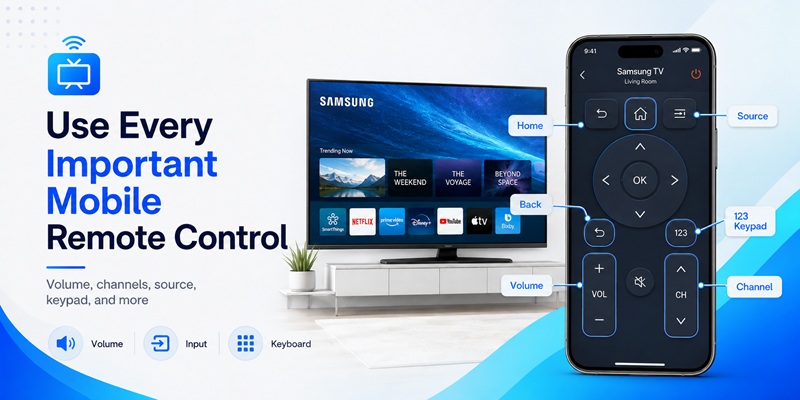
Understanding the mobile interface makes it faster to control samsung tv with phone.
Samsung’s current support instructions list Power On/Off, Content Search, Remote and Apps on the television device card. They also identify Channel, Volume, Home and Settings as functions within the Remote section.
Directional Pad and Select
Use the arrows or touch area to move through menus. Tap the center button to select the highlighted item.
This control works across Smart Hub, Settings, applications and connected-device menus.
Home and Back
Home opens the primary Samsung TV interface.
Back returns to the previous screen or closes the current panel.
Volume and Mute
Use the volume buttons to raise or lower sound. Tap Mute to silence the television or connected audio system.
If the TV is connected to a compatible soundbar through HDMI-CEC, the mobile volume control may adjust the external audio device.
Channels and Guide
Channel controls work mainly with live television, antenna or compatible cable sources. Guide access may appear on supported models.
Source or Input
Source allows you to switch between:
- Live TV
- HDMI ports
- Game consoles
- Streaming devices
- Blu-ray players
- Cable boxes
Number and Color Keypad
Open the 123 panel for channel numbers, PINs and colored function keys.
Search, Keyboard and Applications
One of the strongest reasons to control samsung tv with phone is faster typing. Use the mobile keyboard for searches, email addresses, Wi-Fi passwords and account logins.
The television card may also provide direct app and content-search access.
Voice
Microphone functions depend on the TV, phone, account, permissions, language and country.
The mobile controller may not reproduce every specialist physical-button combination. Keep a compatible remote for service menus, unusual gaming shortcuts and offline recovery.
For normal viewing, however, SmartThings provides the primary controls needed to control samsung tv with phone.
📖 Read Related Articles: Download the Samsung TV Remote App: Control Your Samsung TV From Your Phone
7. How to Turn On a Samsung TV From Your Phone
Some supported televisions can be woken from standby, allowing you to control samsung tv with phone before the screen is already on.
Samsung’s June 24, 2026 instructions provide this general setup:
- Add the television to SmartThings.
- Open the television settings.
- Navigate to General.
- Open Network.
- Select Mobile & Remote Control.
- Enable Power On with Mobile.
- Confirm the setting and restart if prompted.
Menu names can vary by model. Similar settings may be called:
- Power On with Mobile
- IP Remote
- Mobile Device Manager
- Network Standby
To test the feature:
- Turn the TV off normally.
- Wait approximately 30 seconds.
- Keep the phone connected to the same Wi-Fi.
- Open SmartThings.
- Select the television.
- Tap Power.
If SmartThings works only after someone turns on the screen manually, the registration is probably correct. The remaining issue relates to standby networking or mobile wake.
Power-on can fail when:
- The model does not support mobile wake.
- Power On with Mobile is disabled.
- The router has changed.
- The TV disconnects from Wi-Fi in deep standby.
- Energy-saving settings block network wake.
- The television is unplugged.
- SmartThings is using the wrong account or location.
Do not make mobile wake the only way you control samsung tv with phone. Keep access to the physical TV Controller or a compatible remote for network outages and factory resets.
8. How to Fix SmartThings When It Cannot Find or Control the TV
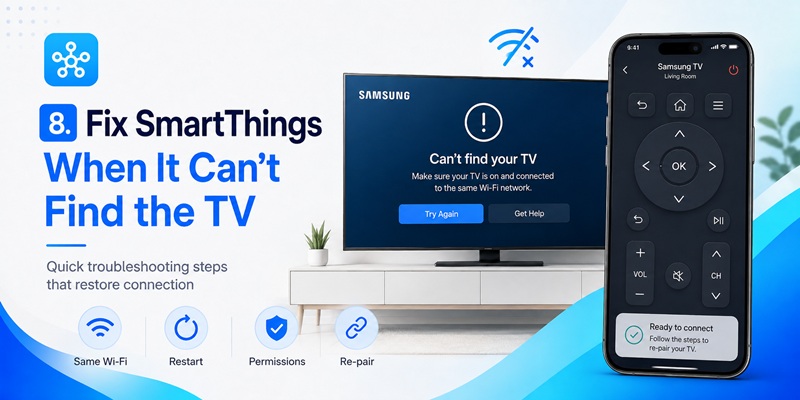
If you cannot control samsung tv with phone, work through these fixes in order.
Confirm the TV Is On
Turn on the television with the physical remote or built-in TV Controller. An offline TV may not appear during initial registration.
Confirm the Same Wi-Fi Network
The phone and TV should use the same private local network. Avoid guest Wi-Fi.
Samsung’s current setup materials require the phone and television to share the same Wi-Fi during registration.
Enable Bluetooth and Permissions
On iPhone, enable:
- Local Network
- Bluetooth
- Notifications when required
On Android, allow:
- Nearby Devices
- Bluetooth
- Location
- Relevant network permissions
Disable VPN and Mobile-Data Switching
Turn off the VPN temporarily and keep the phone connected to Wi-Fi during discovery.
Restart the System
Use this order:
- Force-close SmartThings.
- Restart the phone.
- Power-cycle the television.
- Restart the router.
- Wait for the television to reconnect.
- Open SmartThings and scan again.
Update the Software
Update both SmartThings and the Samsung TV firmware.
Check the Account and Location
Confirm that the phone uses the Samsung account and SmartThings location where the television is registered.
Remove Duplicate Devices
Delete stale or duplicated TV cards. Add the television again and use a fresh PIN.
Test Another Phone
If another device can control samsung tv with phone, the original phone probably has a permission or network configuration problem.
If no phone can connect, focus on the television and router.
Once the connection is repaired, close and reopen SmartThings to confirm that you can control samsung tv with phone without repeating registration.
9. SmartThings Remote vs Screen Mirroring, Casting, and Third-Party Apps
Several phone-to-TV features are frequently confused with remote control.
SmartThings Mobile Remote
Use SmartThings when you need to control samsung tv with phone. It provides control buttons, device management and supported routines.
Screen Mirroring
Screen mirroring displays the phone screen on the television.
Samsung says Smart View mirroring can be accessed after connecting a compatible mobile device to the TV through SmartThings.
Casting
Casting sends selected video, music or photos from a compatible application to the television.
AirPlay
AirPlay streams or mirrors compatible content from an Apple device. It is separate from the SmartThings remote controller.
Third-Party Remote Apps
A third-party remote TV app may offer:
- Alternative interfaces
- Widgets
- Watch controls
- Infrared support
- Extra shortcuts
However, it may also contain:
- Advertising
- Automatically renewing subscriptions
- Unclear TV compatibility
- Unrelated permissions
- Limited free controls
Use SmartThings first. Use AirPlay, Smart View or casting for sharing content. Install a third-party remote only when it solves a specific missing need.
The official application remains the strongest starting point to control samsung tv with phone because Samsung publishes and documents it for both iPhone and Android.
10. Final Setup Checklist and Frequently Asked Questions
Use this checklist to complete the setup:
- Install SmartThings from an official app store.
- Verify Samsung Electronics as the developer.
- Sign in with a Samsung account.
- Turn on the TV.
- Connect the phone and TV to the same Wi-Fi.
- Enable Bluetooth and local-device permissions.
- Select Add device.
- Choose TV and Samsung.
- Approve the request or enter the PIN.
- Open the TV device card.
- Select Remote.
- Test Home, Back, volume, source and navigation.
- Enable Power On with Mobile when supported.
- Add the television to Favorites.
- Keep the physical TV Controller accessible.
- Update SmartThings and the television regularly.
Can I Control Samsung TV With iPhone?
Yes. Install SmartThings, add the TV and open its mobile remote. Samsung officially supports SmartThings on iPhone.
Can I Control Samsung TV With Android Phone?
Yes. Google Play identifies SmartThings as Samsung’s application for controlling Samsung Smart TVs and other compatible devices.
Does the Phone Need the Same Wi-Fi?
The phone and television normally need the same local network during initial registration and local remote use.
Can SmartThings Turn the TV On?
Some Samsung televisions support Power On with Mobile when network wake is enabled.
Can I Control an Offline Television?
Usually not through SmartThings. Use the TV Controller, Ethernet or a physical remote to restore network access.
What Is the Difference Between SmartThings and AirPlay?
SmartThings provides remote control and connected-device management. AirPlay sends or mirrors compatible content from an Apple device.
Can Several Phones Control the Same TV?
Multiple household members may access devices in a shared SmartThings location when they have the necessary permissions. Device sharing and available controls can depend on the account and location setup.
Final Recommendation
The most reliable way to control samsung tv with phone is to install SmartThings, keep both devices on the same Wi-Fi, approve the pairing PIN and save the television in Favorites.
Use the phone for navigation, typing, content search, volume, channels, applications and source selection. Keep a physical remote or the built-in TV Controller for factory resets, offline recovery and specialist controls.
Whether you’re using Android or iPhone, Remote TV App makes it simple to manage your Samsung Smart TV anytime without a physical remote.
Get Started Now