
Samsung TV Remote Control Online: Safe Control Guide
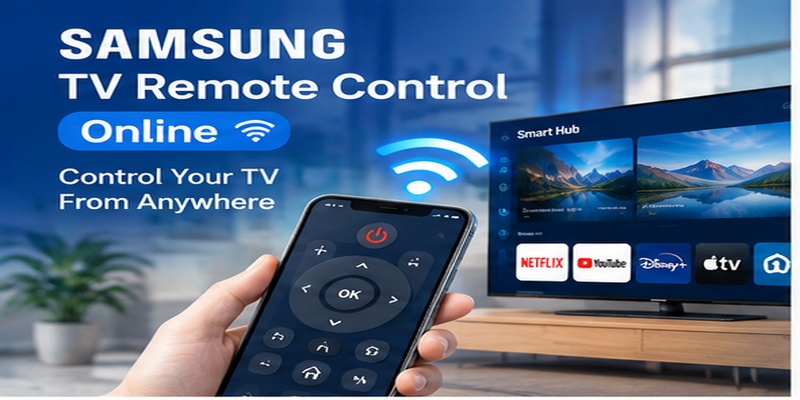
Losing a television remote often creates an immediate problem. You may still be able to turn on the TV using its physical power button, but changing inputs, entering passwords, opening streaming services, or adjusting detailed settings becomes difficult. This is why many users search for a samsung tv remote control online solution that can work from a phone, tablet, or computer.
However, the phrase “online remote” can be confusing. Some websites claim to control televisions directly from a browser, while others simply provide remote-control layouts that do not connect to a real TV. There are also mobile applications that request unnecessary permissions, show excessive advertising, or fail to support the user’s television model.
The safest approach is usually to use Samsung’s official SmartThings platform. On compatible televisions, SmartThings can display an on-screen controller that handles common actions such as power, volume, channel navigation, source selection, and media controls. Samsung states that the available controls vary by device and television model.
A useful samsung tv remote control online setup is not necessarily a public webpage that controls the TV from anywhere. In most homes, it is a trusted mobile controller connected through SmartThings, the same Samsung account, and the home network.
This guide explains what online television control really means, how to set it up, which features are available, and what to do when the connection fails. It also explains the difference between everyday remote applications and Samsung’s professional support tools.
1. What Does Samsung TV Remote Control Online Actually Mean?
The term samsung tv remote control online can describe several different control methods. Understanding the difference helps you avoid downloading an application that cannot communicate with your television.
The most common meaning is a mobile controller that communicates with a Samsung Smart TV through Wi-Fi. Instead of transmitting infrared signals like a traditional remote, the phone sends commands through the television’s network connection.
A second meaning is account-based control through SmartThings. Once a compatible television has been added to SmartThings, the user can open its device page and access the available remote controls. Samsung describes SmartThings as a platform for connecting, controlling, and automating compatible smart devices from one application.
A third meaning is a browser-based remote. These websites may display buttons resembling a television remote, but a normal web browser cannot automatically control every Samsung television. The browser needs a supported communication method, an authorized local-network connection, or a separate device that passes commands to the TV.
Therefore, a page labeled samsung remote control online should not automatically be considered an official or compatible controller. Some pages are demonstrations, remote-code databases, advertisements, or interfaces designed for a specific television platform.
A fourth meaning is remote technical support. Samsung offers Remote Service or Remote Management in supported regions. With the user’s permission, a trained support representative may remotely view and diagnose certain television problems through a secure connection. This is different from a household remote application.
For most users, samsung tv remote control online should mean one of the following:
- An official SmartThings mobile controller.
- A compatible third-party phone controller on the local network.
- A remote application using an infrared-equipped phone.
- An authorized Samsung support session.
- A smart-home platform connected to the television.
The correct option depends on the TV model, network status, phone capabilities, and whether the television was configured before the physical remote became unavailable.
Explore Articles: Samsung Remote Control Smart: Connected Device Hub Guide
2. Can You Control a Samsung TV Directly from a Web Browser?
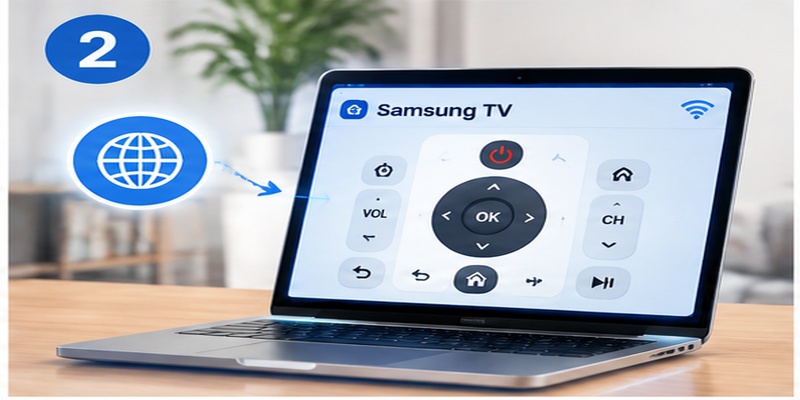
Many people expect samsung tv remote control online to work like an online form: open a website, select a television, and press a button. In practice, direct browser control is usually more complicated.
A public webpage should not be able to control nearby televisions without permission. If any website could discover and operate a TV automatically, other people on the network could potentially change channels, open applications, or interrupt playback.
A legitimate browser controller generally needs at least one of these elements:
- A television interface that supports browser connections.
- A local server or companion program.
- An authorized SmartThings integration.
- A hardware hub connected to the television.
- A previously approved network pairing.
- An infrared transmitter attached to the computer or phone.
Without one of these control paths, an online page may only simulate remote buttons.
This is why the official SmartThings application is normally more reliable than a random samsung remote control online webpage. SmartThings can identify compatible devices associated with the user’s location and Samsung account. Once the television is selected, an on-screen remote appears with controls supported by that model.
A browser solution may still be useful in specialized environments. For example, a home-automation dashboard might provide television controls through an authorized integration. A developer may also build a local control interface for compatible equipment. These systems require configuration and should not be confused with instant public remote websites.
Be cautious when a website claims that its samsung tv remote control online tool can control every Samsung television without pairing, software, account access, or local-network approval. That claim is unlikely to represent a normal secure control process.
Before using a browser-based option, verify:
- Who created the service?
- Does it explain how the connection works?
- Does it request your Samsung account password directly?
- Does it install unexpected software?
- Does it require payment before checking compatibility?
- Can you remove the television from the service afterward?
For everyday control, a phone with SmartThings is usually the simpler choice.
Explore Articles: Download the Universal Remote App for Samsung TV: Easy Setup Guide
3. How to Set Up Samsung TV Remote Control Online with SmartThings
SmartThings is the main official path for creating a samsung tv remote control online system on a compatible television.
Samsung’s current instructions generally direct users to open SmartThings, select Menu or Devices, open All devices, and choose the television. The on-screen controller then appears. Available buttons can differ by model, region, and software version.
Step 1: Prepare the Television
Turn on the television and confirm that it is connected to the internet. If the TV has never been connected to Wi-Fi, you may need its physical control button, a compatible replacement remote, or a wired Ethernet connection to complete the initial setup.
Open the television’s network settings and verify that it is connected to the intended home network. Avoid guest networks because they may prevent devices from communicating with one another.
Step 2: Prepare the Phone
Install SmartThings from the official application store. Sign in with the Samsung account you want to use for the television.
Connect the phone to the same Wi-Fi network as the TV during initial setup. Turn on Bluetooth if SmartThings requests it for device discovery.
Step 3: Add the Television
Open SmartThings and select the option to add a device. Choose Samsung, select TV, and allow the application to search for nearby compatible televisions.
When the television appears, select it and follow the on-screen instructions. A permission message or PIN may appear on the TV. Approve the request to complete the connection.
Step 4: Open the Mobile Controller
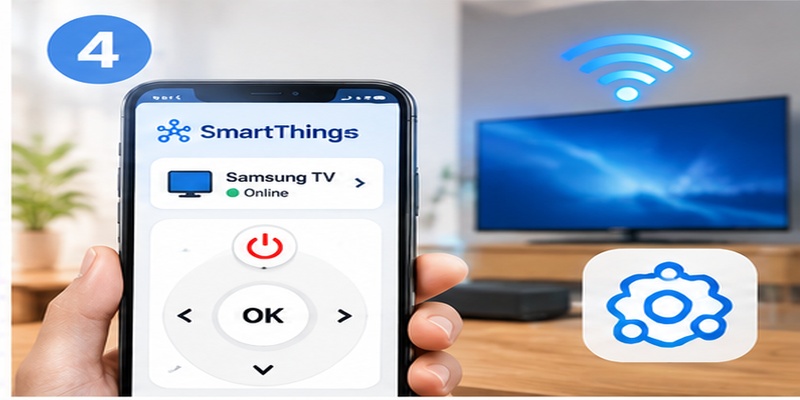
After the device has been added, open its SmartThings page. The samsung tv remote control online interface should appear.
Depending on the model, the interface may include:
- Power control.
- Volume adjustment.
- Channel navigation.
- Directional controls.
- Home and Back buttons.
- Source selection.
- Playback controls.
- Application shortcuts.
- Numeric input.
- Search or keyboard entry.
Samsung notes that the exact controls depend on the connected device.
Step 5: Test Essential Functions
Test power, navigation, volume, source selection, and application launching separately. Do not assume that every function works because the directional pad responds.
A properly configured samsung tv remote control online system should reconnect without repeating the complete setup each time. If the television repeatedly disappears, check the SmartThings location, Samsung account, network isolation, and power-saving settings.
Explore Articles: Download the Samsung TV Remote App: Control Your Samsung TV From Your Phone
4. How to Control Samsung TV When the Physical Remote Is Missing
A missing physical remote is one of the main reasons people need samsung tv remote control online access. The best recovery method depends on the television’s current state.
When the TV Is Already Connected to SmartThings
Open SmartThings, select the television, and use the mobile controller. This is the easiest situation because the account, network, and permission process has already been completed.
You can usually navigate menus, adjust sound, select a source, and launch applications from the phone.
When the TV Is on Wi-Fi but Not Added to SmartThings
Open SmartThings and search for a nearby Samsung television. If the TV is discoverable, it may appear during the add-device process.
The television might display an approval message. Use its physical control button if the model allows that button to confirm the request. Control-button designs and locations differ among models.
When the TV Is Not Connected to Wi-Fi
A Wi-Fi-based samsung tv remote control online solution may not work yet. The TV needs a network connection before the phone can communicate with it.
Possible recovery options include:
- Connect an Ethernet cable from the router to the television.
- Use the physical TV controller to open network settings.
- Use a compatible Samsung replacement remote.
- Try another compatible Samsung TV remote.
- Use an infrared remote application if the phone has an IR transmitter.
- Connect a USB keyboard or mouse if supported by the television.
Samsung’s replacement-remote guidance notes that another compatible Samsung remote may perform basic actions such as power, volume, channel changes, and menu access.
When the Television Was Factory-Reset
After a factory reset, the TV may no longer remember its Wi-Fi network, SmartThings registration, or account settings. A samsung tv remote control online application cannot always complete the earliest setup screens.
Use a physical control method first. Once the TV is online and linked to SmartThings, the phone controller can become the main backup.
When Someone Else Has the Physical Remote
A mobile controller can operate as a companion rather than an emergency replacement. One person may use the remote while another uses the phone to enter text, select content, or manage connected devices.
A well-prepared household should configure samsung tv remote control online access before the original remote disappears.
5. Which Samsung TV Functions Can Be Controlled Online?
The available samsung tv remote control online features depend on the TV model, application version, network status, and connected equipment.
Samsung states that SmartThings can commonly control functions such as channels, volume, sources, and other standard television actions.
Power
Power control may work when the television is on. Turning the TV on from standby can depend on network standby settings, SmartThings registration, router behavior, and model support.
If the television completely disconnects from Wi-Fi while off, the phone may not be able to wake it.
Navigation
The on-screen directional pad can normally move through Smart Hub, applications, menus, and settings. Home, Back, and Select controls make the mobile interface useful for regular viewing.
Text Entry
Text input is one of the biggest advantages of samsung tv remote control online control. Typing a search phrase or account name on a phone is usually faster than selecting letters with a directional pad.
Password entry should still be handled carefully, especially if the phone is shared.
Volume
The mobile interface can send volume-up, volume-down, and mute commands. However, the actual response depends on the selected sound output.
If the TV is connected to a soundbar or receiver, volume commands may be passed through HDMI-CEC, ARC, eARC, Bluetooth, optical control, or a configured universal remote profile.
Channels and Sources
Compatible controllers can change channels and switch between connected HDMI sources. Clearly naming inputs such as “Game Console,” “Cable,” and “Streaming Box” makes source selection easier.
Playback
Play, pause, fast-forward, and rewind may work inside supported applications and connected media devices. Results vary because external boxes may require HDMI-CEC or a device-specific control profile.
Smart-Home Routines
SmartThings can connect the television with compatible lights, plugs, sensors, and routines. Samsung describes SmartThings as an application for controlling and automating supported devices from one platform.
This broader integration is what separates a basic remote interface from a complete samsung tv remote control online setup.
6. How to Fix Samsung Remote Control Volume Problems
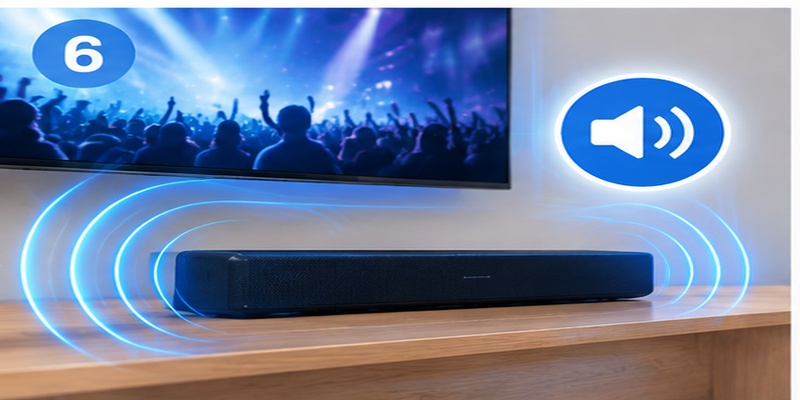
Volume is one of the most frequently used controls, so a failure can make samsung tv remote control online feel unreliable even when navigation works.
A samsung remote control volume problem is not always caused by the remote. The television may be sending sound to an external speaker, soundbar, receiver, or Bluetooth device that uses a different control method.
Confirm the Active Sound Output
Open Settings, select Sound, and check Sound Output. Determine whether the TV is using its internal speakers, a soundbar, an HDMI receiver, optical audio, or Bluetooth.
Samsung recommends checking the sound output and testing the external device when volume behavior is incorrect.
Test the TV Speakers
Temporarily select TV Speaker. Try adjusting the volume through SmartThings.
If samsung tv remote control online volume control works with the TV speakers but not the soundbar, the mobile controller is connected correctly. The problem is probably between the television and the audio device.
Check HDMI ARC or eARC
When using a compatible soundbar or receiver, connect it to the television’s ARC or eARC HDMI port. Enable HDMI-CEC settings on both devices.
Samsung calls its HDMI-CEC system Anynet+. It allows compatible equipment to exchange selected power, source, playback, and audio commands.
Avoid Duplicate Audio Paths
Do not use optical and HDMI audio control simultaneously unless the equipment requires it. Duplicate paths can make volume indicators and device responses inconsistent.
Restart the Complete Audio Chain
Turn off the television and audio device. Disconnect power briefly, reconnect the HDMI cable, and restart both devices.
Test samsung tv remote control online volume before reconnecting other HDMI sources.
Compare the Physical and Mobile Controls
Test the phone, the original remote, and the soundbar remote separately. This reveals whether the issue affects the television, SmartThings, or only one controller.
If samsung remote control volume commands work from the physical remote but not the phone, refresh the SmartThings device connection. If neither remote controls the soundbar, review audio output and HDMI-CEC settings.
7. Samsung Service Remote Control vs Consumer Remote Options
The phrase samsung service remote control can refer to more than one tool, which sometimes creates confusion.
One meaning is Samsung Remote Service. This is an authorized support process in which a Samsung technician remotely accesses a compatible television after the user requests assistance and provides permission.
Samsung explains that Remote Support can allow trained technicians to view the television remotely, perform diagnostics, adjust settings, update software, manage Smart Hub, or help resolve configuration problems. Availability and procedures vary by region.
This professional service is different from samsung tv remote control online access used for daily viewing. Remote Service is intended for technical assistance, not for changing channels from another room.
Another meaning is a technician-style service remote. These controls may open advanced menus that are not intended for normal household use.
Changing values inside a hidden service menu can affect panel settings, regional configuration, calibration, networking, or other essential television functions. Incorrect changes may create problems that are difficult to reverse.
For everyday use, choose:
- The original Samsung Smart Remote.
- SmartThings.
- A compatible replacement remote.
- A trusted universal remote.
- A reputable remote TV app.
- Samsung’s official Remote Service when technical assistance is necessary.
Do not use a technician remote simply because normal picture or sound settings are difficult to find. Standard user menus provide safer controls for brightness, audio output, channels, applications, accessibility, and connected devices.
When requesting samsung service remote control assistance, contact Samsung through an official support channel. A representative may ask you to open Remote Management and provide a temporary PIN. Samsung’s support documentation describes a permission-based process in which the user contacts Samsung Care and follows instructions to establish the session.
8. How to Fix Online Remote Connection and Pairing Problems
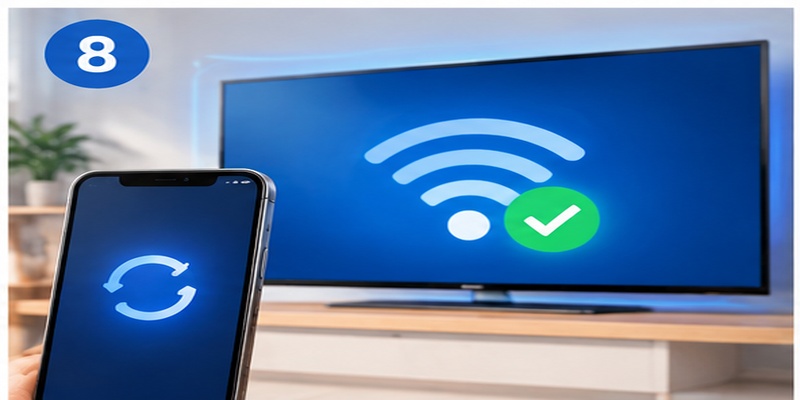
When samsung tv remote control online does not connect, troubleshoot the system in layers rather than repeatedly reinstalling applications.
Confirm That the Television Is Online
Open a streaming application or check Network Status on the TV. The television must have a working connection before Wi-Fi remote commands can reach it.
Put Both Devices on the Same Network
During setup, connect the television and phone to the same main Wi-Fi network. Guest networks often isolate connected devices.
If the router uses separate 2.4 GHz and 5 GHz names, temporarily place both devices on the same band while adding the TV.
Check the Samsung Account
Confirm that SmartThings is signed into the intended Samsung account. Open the correct SmartThings location and room.
A TV added to one account or location may not appear correctly in another.
Approve the Connection Request
Watch the television screen during pairing. A permission request or PIN may appear. Without approval, the samsung tv remote control online interface may remain unavailable.
Restart the Devices
Restart the phone, television, and router. Samsung’s remote troubleshooting guidance commonly recommends power cycling the television and repairing the physical remote when connection problems occur.
Remove and Re-Add the Television
Delete the TV from SmartThings only after simpler steps fail. Add it again and approve the new connection request.
Remember that removing the television may affect routines, room assignments, and shared access.
Check Application Permissions
Allow SmartThings to use the local network, Bluetooth, and nearby-device permissions required by the phone’s operating system.
A third-party remote TV app may also need local-network permission, but it should not require access to unrelated contacts, photos, messages, or financial information.
Update Software
Update SmartThings, the phone’s operating system, and the television firmware through official update settings.
After each change, test one samsung tv remote control online function at a time. Begin with navigation, then volume, power, input selection, and connected-device controls.
9. Privacy and Security Tips for Online Samsung TV Control
Any samsung tv remote control online tool that communicates through accounts and networks should be configured carefully.
Use Official Application Sources
Download SmartThings or other controllers from the official application store. Avoid modified application packages and download pages that imitate Samsung branding.
Review the Publisher
Confirm the developer name before installing a samsung remote control online application. Similar names and logos do not prove that a product is made by Samsung.
Limit Permissions
A television controller may reasonably need local-network, Bluetooth, or nearby-device access. It should not automatically need your contacts, call history, private documents, or precise location.
Deny permissions that do not relate to the stated function.
Protect the Samsung Account
Use a unique password and enable available account-security options. Remove unknown devices and review which household members can access the SmartThings location.
Avoid Entering Credentials on Remote Websites
Do not enter a Samsung password into an unfamiliar samsung tv remote control online webpage. A legitimate third-party integration should clearly explain its authorization process.
Review Shared Access
SmartThings can support shared household control. Remove former residents, old phones, and devices that no longer need access.
Secure the Home Network
Use a strong Wi-Fi password and current router security. Update router firmware when available.
A secure network reduces the chance that an unknown local device can discover or communicate with the television.
End Support Sessions Properly
During an official Remote Service session, follow the technician’s instructions and end the session when troubleshooting is complete. Never provide a Remote Management PIN to someone who contacted you unexpectedly.
The safest samsung tv remote control online configuration gives access only to trusted people, devices, and services.
Download on the App Store10. Frequently Asked Questions and Final Recommendations
Is There an Official Samsung TV Remote Control Online?
Samsung’s official consumer solution is generally the SmartThings mobile controller rather than a universal public webpage. After a compatible TV is added to SmartThings, its device page can display an on-screen remote.
Can I Control My Samsung TV from a Laptop?
A laptop usually needs a compatible integration, local control program, hardware hub, or home-automation platform. Opening a random website is not enough to control every television.
For most users, a phone or tablet provides a more practical samsung tv remote control online experience.
Can SmartThings Turn On a Samsung TV?
It may be able to wake compatible televisions that remain available on the network during standby. Support depends on the model, settings, and network behavior.
Does an Online Remote Work Without Wi-Fi?
A Wi-Fi controller normally requires the television and phone to have a valid network connection. An infrared phone or physical remote can work without Wi-Fi, but many modern phones do not include an IR transmitter.
Can I Use the Phone Before the TV Is Connected to the Internet?
Usually not through SmartThings. First connect the TV using its physical controls, Ethernet, a compatible remote, or another supported input device.
Why Does Volume Work but Navigation Fail?
Volume and navigation may use different control paths. Volume could be passed through HDMI-CEC while navigation requires a correct external-device profile.
Why Does Navigation Work but Power-On Fail?
The TV may disconnect from the network during standby. Review network standby, power-saving, router, and model-specific settings.
Is a Browser Remote Better Than SmartThings?
A browser interface may suit a custom home-automation system, but SmartThings is generally easier for normal Samsung TV control because it provides an official device-registration process.
Can an Online Remote Control a Soundbar?
It may control soundbar volume when the television and soundbar are configured through HDMI ARC, eARC, Anynet+, Bluetooth, or another supported connection.
Should I Buy a Replacement Remote?
Buy a replacement when you need reliable control during Wi-Fi outages, initial setup, factory resets, or account problems.
A physical controller and samsung tv remote control online access work best as complementary options.
Final Recommendation
The most dependable setup combines an official physical remote with SmartThings. Configure the phone while the original remote is still available, test all essential controls, and keep the TV connected to a stable home network.
Use samsung tv remote control online for navigation, text entry, applications, channels, sources, and routine control. Use the physical remote for immediate operation, initial setup, and recovery when the network is unavailable.
Avoid websites that promise instant control without explaining pairing or authorization. Do not confuse an everyday remote application with Samsung Remote Service or a technician service menu.
Before relying on the mobile controller, complete this checklist:
- Add the TV to the correct SmartThings account.
- Place the television in the correct home and room.
- Test navigation, power, volume, and sources.
- Verify the selected audio output.
- Review local-network and Bluetooth permissions.
- Remove old phones and unknown household members.
- Keep a compatible physical remote available.
- Update the television and SmartThings periodically.
- Use official support for unresolved technical problems.
- Never share a Remote Management PIN unexpectedly.
When configured securely, samsung tv remote control online becomes more than an emergency replacement. It provides faster text input, convenient mobile navigation, connected-device access, and smart-home integration without forcing the household to depend on a single physical controller.
Turn your smartphone into a Samsung Remote Control in just a few taps. Connect over Wi-Fi and enjoy smooth navigation, volume control, channel switching, and media playback without the original remote.
Download on the App Store