
Samsung Remote Control Volume: How to Use It and Fix Common Problems
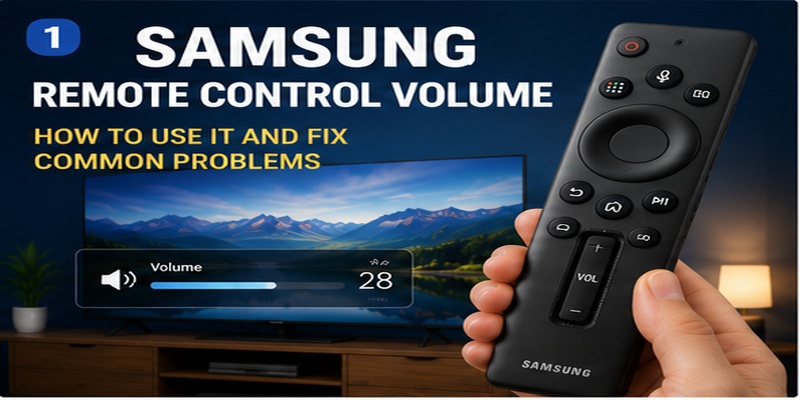
The volume button on a Samsung Smart Remote works differently from the controls found on many traditional TV remotes. Instead of separate Volume Up and Volume Down keys, newer models usually have one rocker-style button that can be moved or pressed in several ways.
To adjust the Samsung remote control volume, move the VOL button upward to make the TV louder or downward to make it quieter. Press the button inward once to mute or unmute the television. If you press and hold it, the TV may open the Accessibility Shortcuts menu instead of changing the sound.
When the volume control stops responding, the issue may come from the remote, its batteries, the TV’s audio settings, or a connected soundbar. This guide explains how the Samsung remote control volume button works, how to troubleshoot common problems, and how to control the television without the original remote.
How Does the Samsung Remote Control Volume Button Work?
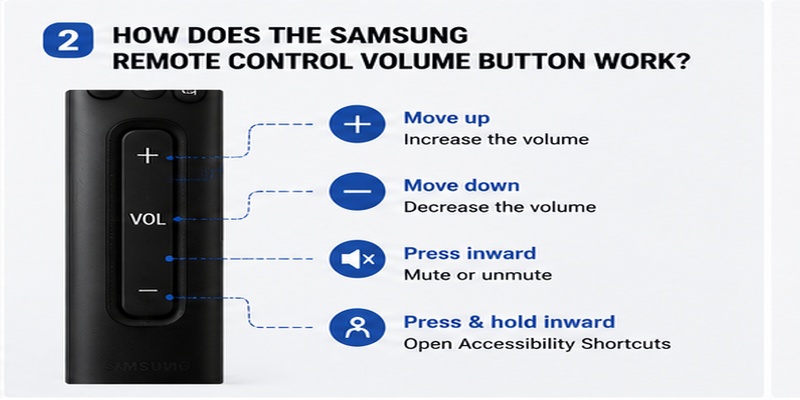
Most newer Samsung Smart Remotes include a narrow rocker-style button labeled VOL. The button performs different actions depending on whether you move it upward, move it downward, press it inward, or hold it.
Understanding these actions is the first step toward using the Samsung remote control volume correctly.
Increase the volume
Move the VOL button upward to increase the sound level.
You do not normally press the upper section inward. Instead, tilt or move the entire rocker toward the top of the remote. A short movement raises the volume slightly, while holding the button upward may continue increasing the sound on supported models.
Decrease the volume
Move the same button downward to lower the volume.
Hold it in the downward position when you need to reduce the sound more quickly. Release the button when the volume reaches a comfortable level.
Mute or unmute the TV
Press the Volume button straight inward once to mute the television.
Press it again to restore the sound. This action is different from moving the rocker downward. If the TV becomes silent when you are trying to lower the volume, you may have pressed the button inward accidentally.
Open Accessibility Shortcuts
Pressing and holding the Volume button inward may open the Accessibility Shortcuts menu. Depending on the TV model, this menu can include Voice Guide, Caption Settings, High Contrast, and other accessibility features.
If this menu appears while you are adjusting the Samsung remote control volume, the remote is probably not defective. Close the menu and move the rocker upward or downward instead of holding it inward.
Explore Articles: How to Control a Samsung TV With Your Phone Without WiFi
Where Is the Volume Button on a Samsung Remote?
The position and design of the volume control depend on the type of remote supplied with the television.
On a Samsung Smart Remote, look for a long vertical button marked VOL. It is normally located in the lower half of the remote, often beside a similar rocker used for changing channels.
The VOL button commonly supports four actions:
- Move upward to increase the volume
- Move downward to decrease the volume
- Press once to mute or unmute
- Press and hold to open Accessibility Shortcuts
A traditional Samsung infrared remote may have separate VOL+, VOL-, and MUTE buttons. Press the plus button to raise the sound and the minus button to lower it.
Samsung monitors, projectors, and older TVs may use different layouts. Check the labels printed on the device rather than relying only on the position of each button.
How to Adjust Samsung TV Volume Step by Step
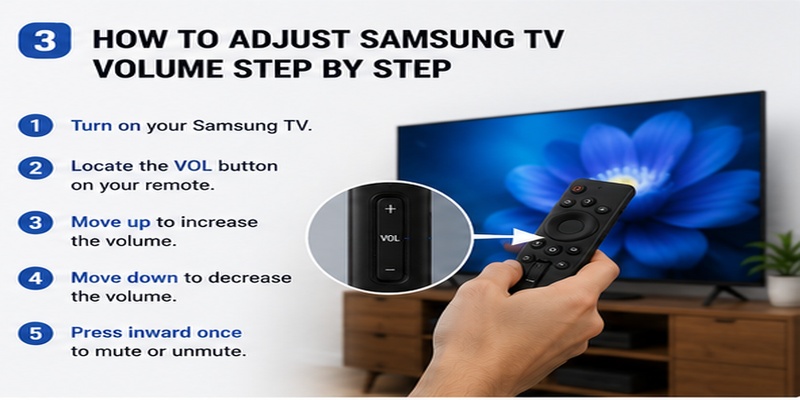
Follow these steps to adjust the Samsung remote control volume with a modern Smart Remote:
- Turn on the Samsung TV.
- Point the remote toward the television.
- Locate the rocker button labeled VOL.
- Move the button upward to increase the sound.
- Move it downward to decrease the sound.
- Press it inward once to mute the TV.
- Press it inward again to unmute.
With a traditional Samsung remote, press VOL+ to make the TV louder and VOL- to make it quieter.
When learning how to remote control Samsung TV functions beyond volume, use the directional pad to navigate menus. Press Home to access apps and settings, Return to go back, and the center Select button to confirm an option.
The exact interface and button layout may vary according to the remote model, TV generation, software version, and region.
Get the App NowWhy Is My Samsung Remote Control Volume Not Working?
An unresponsive button does not always mean the remote is broken. A Samsung remote control volume problem can be caused by several different issues:
- Weak or incorrectly installed batteries
- A discharged SolarCell Remote
- Dirt or residue around the Volume button
- Lost Bluetooth pairing
- A temporary TV software error
- An incorrect Sound Output setting
- A soundbar that manages its volume independently
- Disabled HDMI-CEC or Anynet+
- Physical damage inside the remote
Observe what appears on the TV screen when you use the control.
If the volume indicator appears but the actual sound does not change, the remote is probably sending the command successfully. In that case, check the TV’s audio output, soundbar, receiver, or external speaker.
If no volume indicator appears, focus first on the remote’s power, buttons, and connection to the TV.
Explore Articles: Samsung TV Remote Control Online: Safe Control Guide
How to Fix Samsung Remote Control Volume Problems
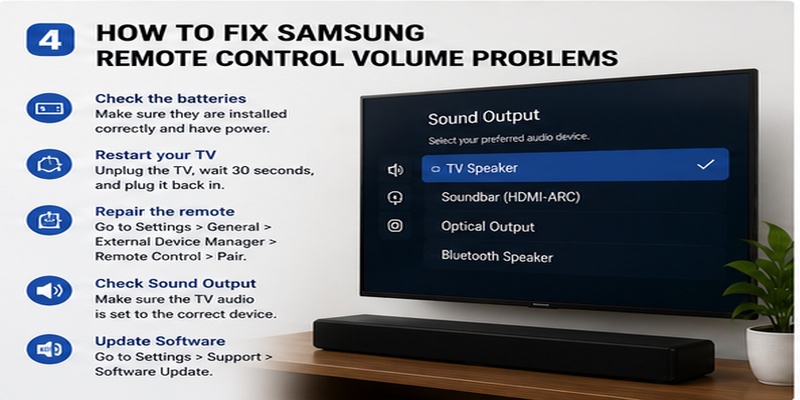
Work through the following solutions in order. Test the Samsung remote control volume after each step so you can identify which action resolves the problem.
1. Check whether the Volume button is stuck
Move the Volume button upward and downward several times. Then press and release it gently.
The button should move freely and return to its normal position. If it feels stiff, uneven, or partially pressed, dirt may be trapped around the edges.
Use a clean microfiber cloth to wipe the remote. A soft, dry brush can help remove dust from narrow gaps.
Do not spray cleaning liquid directly onto the remote. Avoid inserting pins, knives, or other sharp metal objects around the button because they may damage the switch or circuit board.
2. Replace or check the batteries
For a remote powered by replaceable batteries:
- Open the battery compartment.
- Remove the existing batteries.
- Check the positive and negative markings.
- Insert a fresh matching pair.
- Close the compartment and test the volume.
Do not mix old batteries with new ones. Avoid combining different battery types or brands in the same remote.
For a SolarCell Remote, place the solar panel where it can receive light. Some models can also be charged through a USB-C port. Charging methods vary, so check the instructions for your exact remote model.
3. Restart the Samsung TV
A temporary software issue can prevent the TV from processing remote commands correctly.
Turn off the TV and disconnect it from the power outlet. Wait approximately 30 to 60 seconds, then reconnect the power and turn the TV back on.
After the television finishes starting, test the Samsung remote control volume again.
A power cycle can help when the volume control becomes delayed, freezes after switching apps, or stops working even though other buttons still respond.
4. Pair the Smart Remote again
Newer Samsung Smart Remotes use Bluetooth for many functions. If the connection is lost, the power button may continue working through infrared while other controls behave inconsistently.
For many current Samsung Smart Remotes:
- Turn on the television.
- Stand close to the TV.
- Point the remote toward its sensor.
- Press and hold Return and Play/Pause together.
- Keep holding the buttons for at least three seconds.
- Release them when the pairing message appears.
Pairing combinations can differ on older remotes. Check the product manual if your remote does not have the same buttons.
Once the connection is restored, test the Samsung remote control volume before changing any other settings.
5. Check the Sound Output setting
Open the television’s sound settings. A common menu path is:
Home > Settings > All Settings > Sound > Sound Output
Confirm that the selected output matches the speakers you want to use. Common options include:
- TV Speaker
- HDMI receiver
- Soundbar
- Optical audio device
- Bluetooth speaker
For example, if the TV is configured to use an optical sound system while you expect to hear the built-in speakers, the on-screen volume indicator may not match the sound you hear.
Menu names may vary depending on the TV model and software version.
6. Test another control method
Try adjusting the volume with the physical TV Controller or the SmartThings app.
If another method controls the sound correctly, the original remote is likely causing the problem. If neither method changes the sound, investigate the TV’s Sound Output setting or connected audio equipment.
This comparison helps determine whether the Samsung remote control volume issue comes from the remote or from the television itself.
Download Samsung Remote ControlSamsung Remote Volume Not Working With a Soundbar
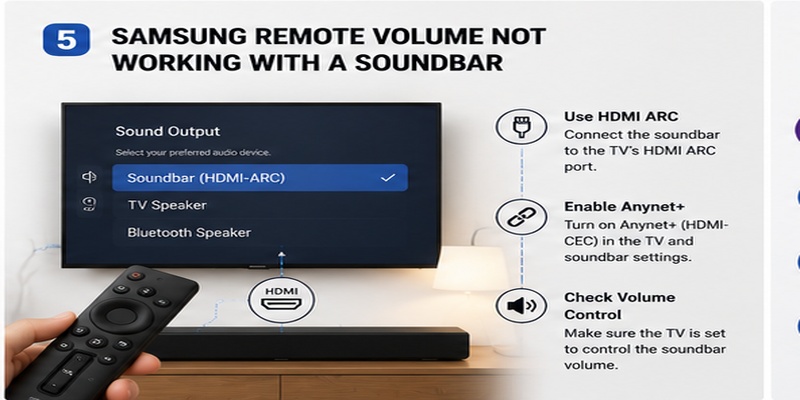
A soundbar can cause confusion because the TV may receive a volume command without successfully passing it to the external audio device.
First, open Sound Output and confirm that the correct soundbar is selected.
Check the HDMI ARC or eARC connection
For the most integrated setup, connect the soundbar to the HDMI port on the TV labeled ARC or eARC.
The soundbar must also use its ARC-compatible HDMI port. A regular HDMI input may not support the expected volume-control features.
Check that the cable is inserted securely at both ends. If the connection remains unstable, try a different compatible HDMI cable.
Enable Anynet+
Samsung calls its HDMI-CEC feature Anynet+. This technology allows compatible HDMI devices to exchange power, input, playback, and volume commands.
A common setting path is:
Settings > All Settings > Connection > External Device Manager > Anynet+ (HDMI-CEC)
Turn Anynet+ on and restart both the TV and soundbar. After they reconnect, test the Samsung remote control volume.
Understand optical and Bluetooth limitations
An optical cable can transfer digital sound, but it may not provide the same integrated controls as HDMI-CEC. Some optical setups require users to adjust the soundbar with its own remote.
Bluetooth speakers also vary. Some accept volume commands from the television, while others maintain a separate volume level.
If the TV’s volume bar moves but the soundbar does not respond, use the soundbar remote or switch to HDMI ARC/eARC when possible.
How to Use a Samsung Galaxy Phone as a Remote
A phone can replace the physical remote when it is lost, charging, or damaged. Through SmartThings, a compatible phone can function as a Samsung Galaxy remote control for the television.
To connect it:
- Connect the phone and Samsung TV to the same Wi-Fi network.
- Open the SmartThings app.
- Sign in to a Samsung account if requested.
- Select the TV from the device list or add it as a new device.
- Approve the connection request shown on the television.
- Open the on-screen remote interface.
- Use Volume Up, Volume Down, Mute, Home, Back, and navigation controls.
SmartThings is also useful for diagnosing a Samsung remote control volume problem. If the phone adjusts the sound normally but the physical remote does not, the issue is probably related to the remote’s battery, pairing, or button mechanism.
If the TV does not appear in SmartThings, confirm that both devices are on the same Wi-Fi network. Restart the app and television, then try adding the TV again.
Can You Control Roku With a Samsung Remote?
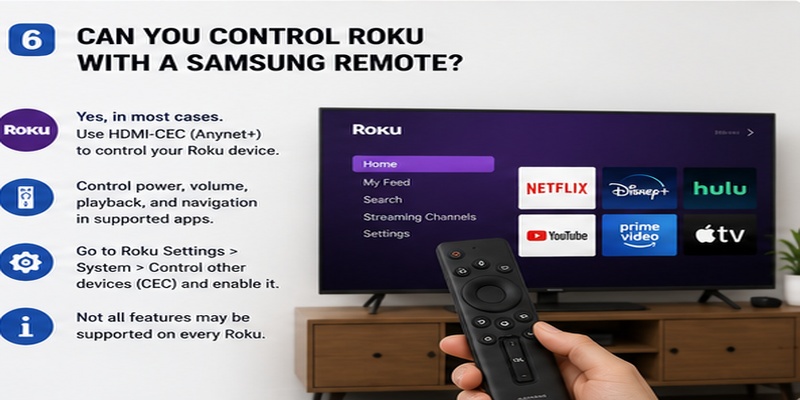
It may be possible to control Roku with Samsung remote buttons when the streaming player is connected to the television through HDMI.
Compatibility depends on the Roku model, Samsung TV, remote generation, and HDMI-CEC support. Some setups allow basic navigation, while others support only power or input switching.
To test the connection:
- Connect the Roku player directly to an HDMI port on the TV.
- Turn on the television and Roku.
- Enable Anynet+ in the Samsung TV settings.
- Select the Roku HDMI input.
- Test the directional pad, Select, Return, and playback buttons.
The Roku remote may still be required for voice search, private listening, pairing, shortcut buttons, or advanced device settings.
Using a Samsung remote with Roku should not affect the normal Samsung remote control volume unless the TV changes its audio output when switching to the Roku input.
Get the App NowUsing a Samsung M7 Remote Control
The Samsung Smart Monitor M7 combines monitor functions with a smart entertainment platform. Its remote can usually manage power, apps, source selection, playback, navigation, and built-in speaker volume.
If your Samsung M7 remote control cannot adjust the sound, check whether the monitor is using its internal speakers or an external Bluetooth or HDMI device.
Restart the monitor, check the remote’s power, and reconnect it if necessary. Also verify that the expected audio device is selected in the monitor’s sound settings.
Different M7 generations may ship with different remote models. Before purchasing a replacement, find the complete monitor model code printed on its label or displayed in its settings.
A remote that looks similar may support basic functions without providing full compatibility.
Samsung Remote Control Disassembly: Should You Open It?
Basic Samsung remote control disassembly may seem like a solution when the Volume button is physically stuck, but opening the device should be a last resort.
Samsung remotes do not all use the same enclosure. Depending on the model, the remote may contain:
- Plastic retaining clips
- Rechargeable batteries
- Solar charging components
- A microphone
- Bluetooth hardware
- Delicate ribbon connections
- A compact circuit board
Opening the wrong area can break the case, damage the charging system, disconnect the microphone, or void the warranty.
Start with external cleaning, battery replacement, charging, resetting, and pairing. These steps resolve many Samsung remote control volume problems without opening the device.
If the remote has been exposed to liquid or has a broken internal switch, professional repair or replacement is usually safer than following a general disassembly tutorial.
How Much Is a Samsung TV Remote Control?
People asking how much is Samsung TV remote control should expect the price to vary according to the model, features, region, seller, and product condition.
A basic infrared remote is generally less complex than a Bluetooth Smart Remote with voice control, a rechargeable battery, or SolarCell technology.
Before buying a replacement, check:
- The complete television model number
- The original remote part number
- Bluetooth or infrared compatibility
- Voice-control support
- Battery or SolarCell power
- App shortcut compatibility
- The seller’s return policy
Do not choose a remote only because it looks similar to the original. Two models can have nearly identical designs while supporting different televisions or smart functions.
After pairing the replacement, test the Samsung remote control volume, navigation pad, power button, voice features, and app shortcuts before discarding the packaging.
When Should You Replace the Remote?
Consider replacing the remote when:
- The Volume button remains stuck after external cleaning
- Fresh batteries do not restore normal operation
- The remote repeatedly loses its Bluetooth connection
- The case or button mechanism is physically damaged
- The remote has been exposed to liquid
- SmartThings controls the television but the physical remote does not
- Another compatible remote works without problems
A replacement is especially reasonable when the Samsung remote control volume is the only function that consistently fails after pairing and resetting.
Check whether the remote or TV is still under warranty before purchasing a new one.
Frequently Asked Questions
How do I turn up the volume on a Samsung Smart Remote?
Move the rocker-style VOL button upward. Move it downward to lower the sound. This is the standard Samsung remote control volume action on many modern Smart Remotes.
How do I mute my Samsung TV?
Press the Volume button inward once. Press it again to unmute the sound.
Why does the Accessibility menu appear when I press Volume?
You are probably pressing and holding the button inward. Release it and move the rocker upward or downward instead.
Why does the volume bar appear without changing the sound?
The TV may be sending sound to a soundbar, receiver, optical device, or Bluetooth speaker that controls its volume separately. Check Sound Output, HDMI ARC/eARC, and Anynet+.
Why does my Samsung remote turn on the TV but not control the volume?
The power command may work through infrared even when the Bluetooth connection has been lost. Pair the Smart Remote again and test the Samsung remote control volume after the connection is restored.
Can I control my Samsung TV without the original remote?
Yes. Use the TV Controller located on the television or connect the TV to SmartThings on a compatible phone.
Can any Samsung remote control my TV?
Many Samsung remotes can perform basic functions on multiple models, but Bluetooth pairing, voice control, shortcuts, and smart features depend on compatibility.
Why will my Samsung remote not control the soundbar?
The soundbar may be connected to the wrong port, Anynet+ may be disabled, or the selected Sound Output may be incorrect. HDMI ARC or eARC generally provides better integrated volume control than a standard optical connection.
Final Thoughts
Using the Samsung remote control volume is simple once you understand how the rocker button works. Move it upward to raise the sound, move it downward to lower the sound, and press it inward once to mute or unmute the TV.
When the control does not respond, begin with the easiest fixes. Check the button, replace or charge the batteries, restart the television, and pair the remote again. If the on-screen volume indicator responds but the sound does not change, inspect the Sound Output, soundbar connection, and Anynet+ settings.
SmartThings provides a useful alternative while troubleshooting or waiting for a replacement. Before opening or buying a new remote, identify the exact TV, monitor, and remote model to avoid damage or compatibility problems.
With the correct button action and audio configuration, most Samsung remote control volume issues can be resolved without replacing the television or its connected sound system.
Control your Samsung Smart TV anytime with a simple and reliable remote app. Pair your device in minutes and access all the essential remote functions from one place.
Get the App Now