
Remote Samsung Smart TV: Complete Control Guide
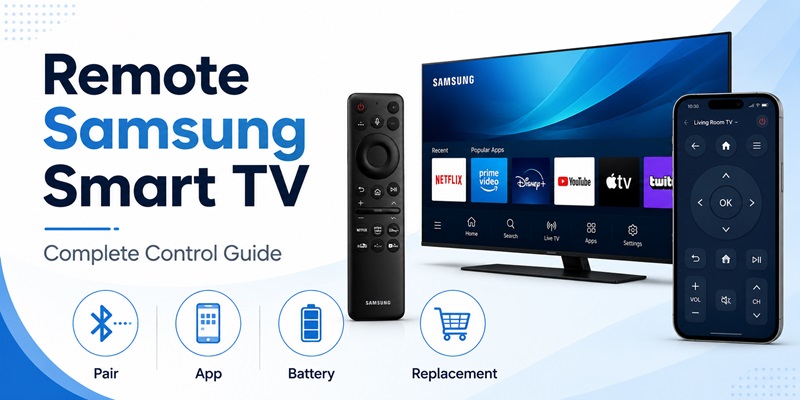
A remote samsung smart setup can involve more than one type of controller. Depending on the television model and year, you may have a traditional infrared remote, a Bluetooth-enabled Samsung Smart Remote, a rechargeable SolarCell Remote, the SmartThings mobile application, or a compatible universal controller.
Choosing the correct option can become confusing when the original controller is lost, damaged, unpaired, or no longer holding a charge. A search for a remote for samsung smart tv may return products that look similar but offer different buttons, voice assistants, wireless technologies, and model compatibility.
A good remote samsung smart solution should control the basic television functions and provide access to the smart features you use. These may include power, volume, channels, inputs, streaming applications, voice control, the Samsung Home screen, connected devices, and accessibility options.
Samsung currently allows compatible televisions to be controlled through the SmartThings application. It also sells and supports physical Smart Remotes, including rechargeable SolarCell models. Replacement controllers are available through Samsung, authorized parts providers, and third-party manufacturers.
This complete guide explains how to identify, pair, charge, replace, and troubleshoot a remote samsung smart controller. It also covers phone control, universal remotes, battery problems, and the best way to select a replacement for your exact television.
1. What Is a Remote Samsung Smart TV Setup?
The phrase remote samsung smart generally describes any controller used with a Samsung Smart TV. The controller may communicate through infrared, Bluetooth, Wi-Fi, or a combination of technologies.
A traditional infrared controller sends commands directly toward the TV sensor. It normally needs a clear line of sight. Power, volume, channel, number, menu, and input buttons may work immediately without a pairing process.
A Samsung Smart Remote usually combines infrared with Bluetooth. Bluetooth supports features such as voice control and allows the controller to communicate without being pointed directly at the screen. The remote must be paired with the television before all features work.
Newer SolarCell Remotes include a rechargeable internal battery instead of standard disposable batteries. The solar panel on the rear can collect energy from indoor or outdoor light, while a USB-C port provides faster charging when the battery is low.
A phone can also become a samsung smart tv remote control through SmartThings. Once a compatible television has been added to SmartThings, selecting it in the application opens an on-screen controller. Available controls vary by device.
The best remote samsung smart setup depends on what you need:
- Use the original Smart Remote for full model-specific functionality.
- Use SmartThings when the physical controller is unavailable.
- Use a replacement remote when the original is lost or damaged.
- Use a universal controller when you want to manage several devices.
- Use a basic infrared remote when you only need essential TV controls.
Before buying a remote for a samsung smart tv, locate the TV model number. It is usually printed on the rear label and may also appear under Settings, Support, or About This TV. The model number is more reliable than the screen size or product family name.
Explore Articles:
How to Control a Samsung TV With Your Phone Without WiFi
2. Which Samsung Smart TV Remote Type Do You Have?
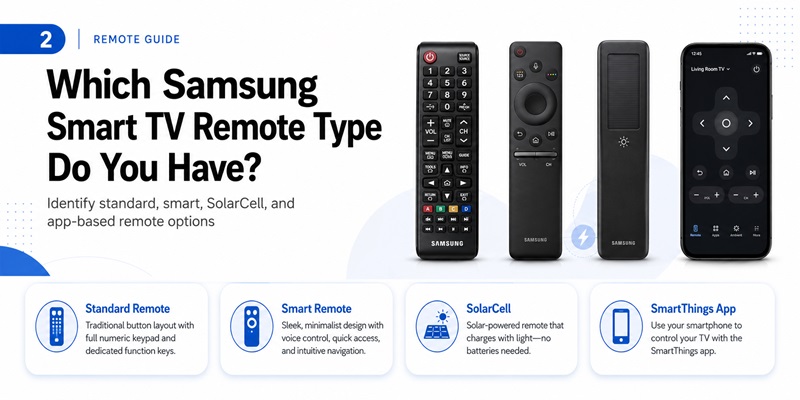
Identifying the controller is an important part of any remote samsung smart setup. Samsung has released several remote styles, and the correct battery, reset, and pairing procedure may vary.
Standard Infrared Remote
A standard controller usually has many dedicated buttons, including a number keypad, source button, channel controls, volume controls, menu options, and colored function buttons.
This type of remote samsung smart controller generally uses replaceable batteries. It communicates mainly through infrared, so it must be pointed toward the sensor on the television.
If only the power button works after a battery change, check whether the controller is a Smart Remote that also requires Bluetooth pairing.
Samsung Smart Remote or One Remote
The smart remote samsung tv design usually has fewer buttons than a standard controller. It commonly includes a circular navigation pad, Home, Back, Play/Pause, volume and channel rockers, and a voice button.
Samsung’s One Remote concept is designed to simplify control of the television and selected external devices. Exact buttons vary by model year and region.
A samsung smart control remote may use both infrared and Bluetooth. Power may continue working through infrared even when the Bluetooth connection has been lost. If navigation or voice commands stop working, pair the controller again.
SolarCell Remote
Many newer televisions include a SolarCell Remote. It has an internal rechargeable battery, a solar panel on the back, and a USB-C charging port.
For normal light charging, place the controller with its back facing upward so that the solar panel receives light. For a faster charge, connect a USB-C cable to the port on the bottom. Samsung notes that a low charge may cause slow responses or inconsistent operation.
Do not try to open a SolarCell model to install disposable batteries. The internal samsung smart remote battery is designed to be recharged.
SmartThings Phone Remote
The samsung smart remote app option is SmartThings. It can be installed on compatible Android and iOS devices. After the television has been added, open SmartThings, select All devices, and choose the TV to display the phone controller.
The phone option is useful when the physical remote samsung smart tv device is lost, charging, or temporarily unavailable.
Control your Samsung Smart TV anytime with a simple and reliable remote app. Pair your device in minutes and access all the essential remote functions from one place.
Download Samsung Remote Control3. How to Pair a Samsung Smart Remote with Your TV
A newly purchased, reset, or disconnected remote samsung smart controller may need to be paired before navigation and voice functions work.
In many cases, the controller pairs automatically when you turn on the TV and press a button. If automatic pairing does not happen, use the manual process.
Standard Pairing Method
- Turn on the Samsung television.
- Stand close to the TV.
- Point the Smart Remote toward the television sensor.
- Press and hold Return and Play/Pause together.
- Continue holding the buttons for at least three seconds.
- Release them when the pairing message appears.
Samsung currently lists Return and Play/Pause as the common pairing combination for compatible Smart Remotes and SolarCell Remotes.
If the remote samsung smart controller does not pair, charge it or replace its batteries before repeating the process. Move other Bluetooth devices away temporarily and restart the television.
Reset Before Pairing
Reset steps differ by controller generation. Samsung support pages describe reset combinations that may include holding Return with Enter, Voice, or another function button. Because button layouts differ, check the guide for your exact remote model before resetting it.
After resetting the control remote samsung smart tv device, repeat the Return and Play/Pause pairing process.
When Only Power Works
The power command often uses infrared. Other Smart Remote functions may use Bluetooth. Therefore, a controller that turns the screen on but cannot navigate menus may simply be unpaired.
Try pairing again instead of immediately buying a samsung remote for smart tv replacement.
Explore Articles:
Download the Universal Remote App for Samsung TV: Easy Setup Guide
4. How to Use SmartThings as a Samsung TV Remote
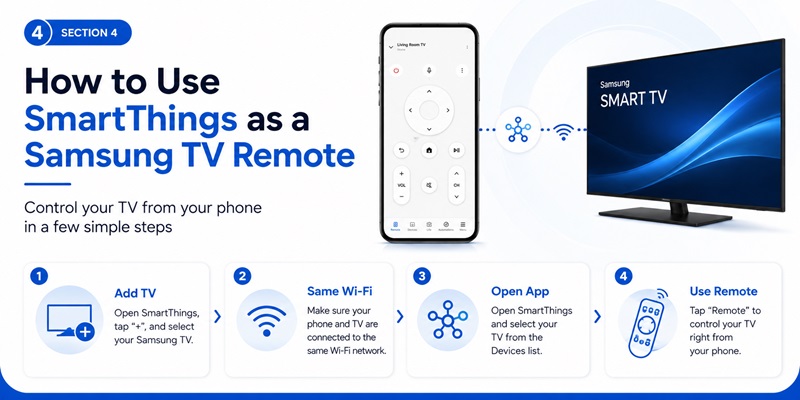
SmartThings can turn a compatible phone into a remote samsung smart controller. It is particularly useful when the physical remote is missing or its battery is empty.
Add the Television to SmartThings
- Connect the phone and TV to the same Wi-Fi network.
- Install or update SmartThings.
- Sign in with a Samsung account.
- Open the application and tap Add device.
- Select TV and choose Samsung.
- Select the television when it appears.
- Approve the connection request on the TV.
- Complete any PIN or account verification shown.
Once the television is registered, open SmartThings, choose Menu, select All devices, and tap the TV. Samsung says an on-screen controller should then appear.
The exact controls available in the remote samsung smart tv app depend on the television. Typical options may include:
- Power
- Volume
- Channel
- Navigation
- Home
- Back
- Source or input
- Application shortcuts
- Search or keyboard entry
The SmartThings option can serve as a convenient remote TV app, but it should not be your only recovery method. Initial network setup, factory resets, router changes, and account prompts may still require a physical controller.
When SmartThings Cannot Find the TV
Check that both devices use the same network and that the phone has local-network or nearby-device permission. Turn on the television manually and restart SmartThings.
If the TV was previously added to another Samsung account or household, remove the old registration or confirm that you are using the correct SmartThings location.
A phone-based remote samsung smart solution normally depends on Wi-Fi. It cannot discover an offline television unless another supported connection method is available.
5. Original, Replacement, and Universal Samsung Remotes Compared
When the original controller is unavailable, you may choose an original replacement, a compatible third-party replacement, a universal remote, or SmartThings.
Original Samsung Remote
A samsung smart tv remote original is designed for a particular television or related model group. It offers the best chance of supporting voice control, Bluetooth, SolarCell charging, shortcuts, accessibility buttons, and model-specific features.
Original controllers are usually more expensive than simple third-party models, but they reduce uncertainty. Samsung recommends using the television model number when ordering a replacement.
Compatible Replacement Remote
A replacement remote for samsung smart tv may be manufactured by Samsung or an independent company. Some replacements reproduce only infrared commands and do not provide Bluetooth voice control.
A basic replacement remote samsung smart tv product can still be useful when you only need power, menu, navigation, channel, and volume functions.
Before purchasing, check:
- Supported TV model numbers
- Infrared or Bluetooth operation
- Voice-control support
- SolarCell or replaceable batteries
- Pairing requirements
- Streaming shortcut buttons
- Return policy
A samsung smart remote replacement that looks identical to the original may still use a different technology. Verify the product description rather than relying on appearance.
Universal Remote
A universal remote control for samsung smart tv can be useful when you want one controller for the television, streaming player, sound system, or cable box.
Some universal models use Samsung infrared codes and work immediately after programming. Others offer Bluetooth or smart-home integration.
A universal remote for samsung smart tv may not support every voice, pointer, or Smart Hub function. Confirm feature support before purchasing.
When choosing a universal remote for a samsung smart tv, verify that the product supports the exact model or Samsung code family. Do not assume that “Samsung compatible” means every button will work.
A universal remote samsung smart tv controller is a practical backup, but the original or SmartThings may still be better for advanced features.
6. How to Check, Replace, or Charge the Remote Battery
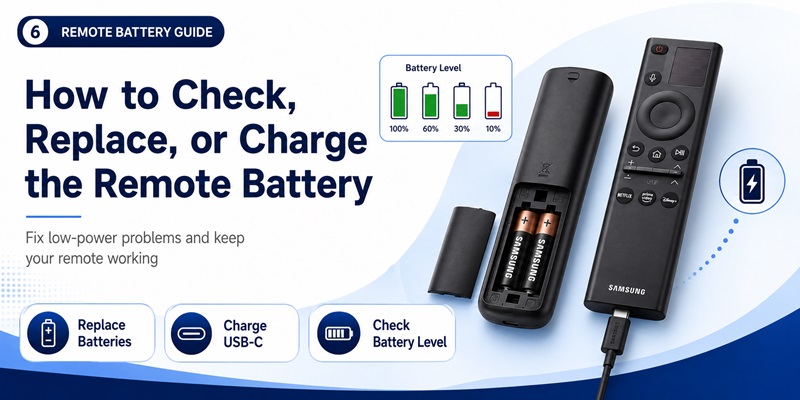
Battery problems are a common cause of delayed responses, failed pairing, and intermittent operation in a remote samsung smart setup.
Standard Replaceable Batteries
For a standard controller:
- Slide or remove the rear battery cover.
- Remove the old batteries.
- Check the required type and orientation.
- Install a matching new pair.
- Replace the cover.
- Test the remote near the TV.
Do not mix old and new batteries or different battery types. If the controller still fails, remove the batteries, wait briefly, reinstall them, and pair the remote again.
The correct samsung smart tv remote battery type is printed inside the battery compartment or in the product manual.
SolarCell Battery
A SolarCell controller uses an internal rechargeable samsung smart remote battery. Place its rear solar panel under indoor light or near natural light when it is not in use.
For faster charging:
- Locate the USB-C port at the bottom.
- Connect a compatible USB-C cable.
- Connect the other end to a TV USB port or suitable charger.
- Wait until the charging indicator turns off or the battery reaches an adequate level.
Samsung says USB-C charging is the faster option when the internal battery is critically low.
On supported televisions, the battery level may be available under:
Settings > All Settings > General & Privacy > Power and Energy Saving > Available Remote Battery
Menu wording can vary by model and software version.
If the remote samsung smart controller works only while connected to USB-C or loses power immediately after charging, contact Samsung support or use a compatible replacement.
7. How to Fix a Samsung Smart Remote That Is Not Working
When a remote samsung smart controller stops working, troubleshoot it in a logical order before replacing it.
Step 1: Check the Television
Confirm that the TV has power. Try the physical power button on the television. Unplug the TV for approximately one minute, reconnect it, and turn it on again.
If the TV does not respond to its own button, the issue may not involve the remote.
Step 2: Check Power or Charge
Replace standard batteries or charge the SolarCell controller with USB-C. A low battery can cause slow or intermittent commands.
This should be the first check when a samsung remote for smart tv not working problem begins gradually.
Step 3: Test the Infrared Signal
Many phone cameras can display the infrared light from a standard controller. Open the camera, point the remote emitter toward it, and press a button. A flashing light on the camera image suggests that the remote is transmitting infrared.
This test does not confirm that Bluetooth functions are working.
Step 4: Pair the Remote Again
Point the controller toward the TV and hold Return and Play/Pause for at least three seconds. Wait for the pairing message.
A tv remote samsung smart tv device that powers the television but cannot open Home may simply need to be paired again.
Step 5: Reset the Controller
Follow the reset process for your particular model, then pair it again. Samsung’s procedures vary by Smart Remote generation, so use the model-specific support instructions.
Step 6: Remove Interference
Move wireless routers, game controllers, Bluetooth speakers, and other transmitters away from the television temporarily.
Clean the TV sensor area and remove objects blocking it. If a samsung remote control smart tv device works only at a very short distance, weak batteries, infrared obstruction, or wireless interference may be involved.
Step 7: Use SmartThings Temporarily
If the TV is already connected to SmartThings, use the phone controller while troubleshooting the physical remote.
When none of these fixes restores the remote samsung smart controller, use the TV model number to locate the correct replacement.
No need to buy a replacement. Use the Samsung Remote Control app to power your TV, browse apps, adjust settings, and enjoy convenient control from your phone.
Download Samsung Remote Control8. How to Control External Devices with a Samsung Remote
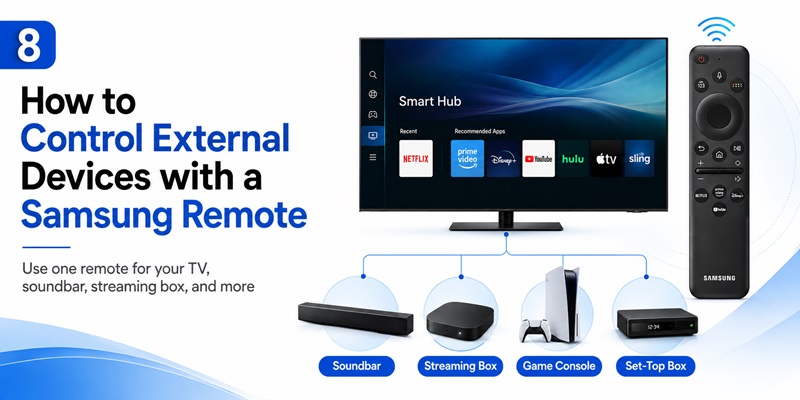
A remote samsung smart controller may also operate compatible cable boxes, streaming players, Blu-ray players, soundbars, or game systems.
Samsung televisions may provide Universal Remote Setup through the Connected Devices area. Menu names vary, but the process typically includes:
- Open the Home screen.
- Navigate to Connected Devices.
- Select Universal Remote Setup.
- Choose the external-device category.
- Select the brand or service provider.
- Follow the on-screen tests.
- Confirm that power, navigation, or channel commands work.
Samsung documents Universal Remote Setup as an option for configuring selected external devices.
A samsung smart hub remote can therefore simplify access to content from several sources. However, compatibility depends on the external device, HDMI connection, region, and TV software.
Enable HDMI-CEC, called Anynet+ on Samsung televisions, when supported. It may allow the remote samsung smart controller to send commands through HDMI to connected equipment.
A remote control for samsung smart tv may control the TV successfully while failing with an older cable box. In that case, repeat the external-device setup or use the external device’s original controller.
>>>Explore Articles: Download the Samsung TV Remote App: Control Your Samsung TV From Your Phone
9. How to Choose the Correct Replacement Remote
The safest way to choose a remote samsung smart replacement is to start with the TV model number rather than the screen size.
Samsung recommends finding the model number on the rear label or in the settings menu, then using it to identify the correct accessory through Samsung, a service center, or an authorized retailer.
Check the Required Features
Decide whether you need:
- Bluetooth pairing
- Voice control
- Solar charging
- USB-C charging
- Number buttons
- Streaming shortcuts
- Smart Hub or Home control
- External-device control
- Accessibility shortcuts
A low-cost samsung remote for smart tv may provide basic infrared commands but omit voice functionality.
Match the Remote Model
When possible, check the model number printed inside the battery compartment or on the rear of the original controller.
Compare the product images, model number, supported television list, and button layout. A physically similar remote samsung smart device may not be fully compatible.
Check Whether Pairing Is Required
Standard infrared replacements may work immediately. Bluetooth Smart Remotes normally require pairing.
If the replacement instructions do not mention pairing or voice control, it may be an infrared-only model.
Buy from a Reliable Source
Prefer Samsung, an authorized parts source, or a retailer with clear compatibility information and a return policy.
Avoid listings that promise full support for every Samsung TV without giving model details. A genuine-looking samsung remote control smart tv listing may still be an independent replacement.
10. Frequently Asked Questions and Final Recommendations
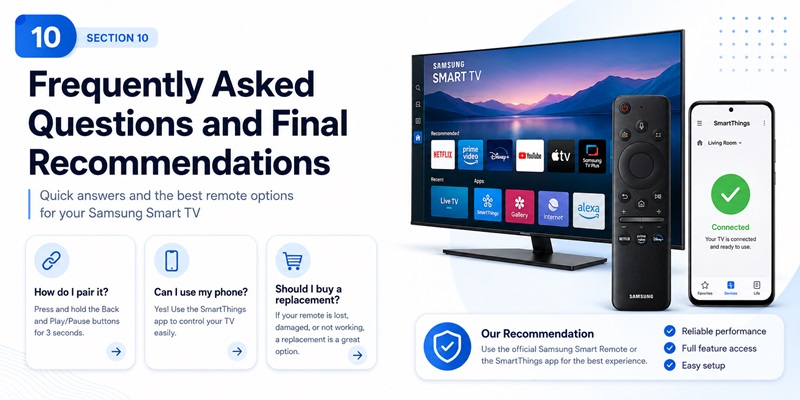
Can I Use My Phone as a Samsung Smart TV Remote?
Yes. Add a compatible television to SmartThings, select it under All devices, and use the on-screen controller. Available options vary by TV.
This is the most convenient mobile remote samsung smart option.
How Do I Pair a Samsung Smart Remote?
Turn on the TV, point the controller toward it, and hold Return and Play/Pause together for at least three seconds. Release the buttons when the pairing message appears.
Why Does Only the Power Button Work?
The power command may use infrared while navigation and voice functions use Bluetooth. Pair the remote samsung smart controller again.
Can I Use a Universal Remote?
Yes, if it supports Samsung televisions or the correct Samsung infrared codes. Advanced functions such as voice input may not be available.
How Do I Charge a SolarCell Remote?
Place the rear solar panel under indoor or natural light, or connect a USB-C cable for faster charging.
Should I Buy an Original or Third-Party Replacement?
Choose an original controller when you need full Bluetooth, voice, SolarCell, or model-specific functionality. A third-party replacement can be sufficient for basic infrared control.
Can One Samsung Remote Control Other Devices?
Many Samsung TVs provide Universal Remote Setup for compatible external devices. Results vary by equipment and connection type.
What Is the Best Remote Samsung Smart Option?
For daily use, start with the original Smart Remote supplied with the TV. Use SmartThings as a mobile backup. Choose a model-matched replacement if the original is lost or damaged, and use a universal controller when you need to operate several devices.
A reliable remote samsung smart setup should include:
- A correctly paired physical remote
- Charged or fresh batteries
- SmartThings configured as a backup
- The TV model number recorded
- A replacement source identified
- Universal Remote Setup configured when needed
The best remote samsung smart choice is not simply the cheapest controller. It is the option that supports the television model, connection technology, and features you actually use.
By identifying the remote type, pairing it correctly, maintaining its battery, and keeping SmartThings available, you can build a dependable remote samsung smart setup for everyday viewing and future troubleshooting.
Turn your smartphone into a Samsung Remote Control in just a few taps. Connect over Wi-Fi and enjoy smooth navigation, volume control, channel switching, and media playback without the original remote.
Get the App Now