Free Samsung TV Remote App Android: Download and Control Your TV
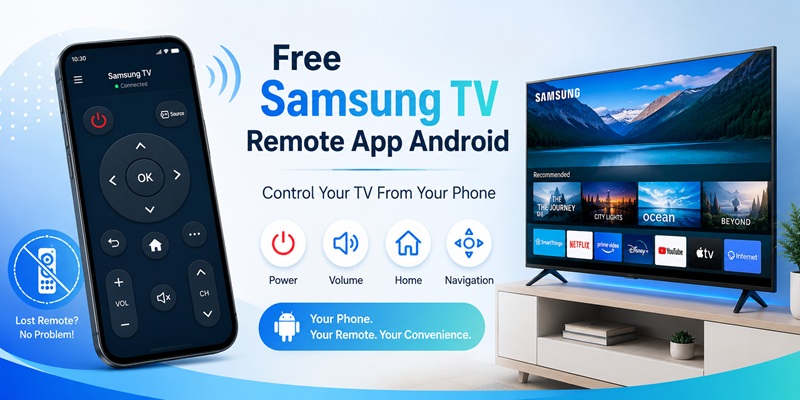
Losing a television remote can stop a normal viewing session immediately. You may need to reduce the volume, switch from a game console to a streaming app, enter a password, or simply turn the screen off. A free samsung tv remote app android solution lets a compatible phone become a practical controller without waiting for a replacement remote.
The official starting point is SmartThings, Samsung’s mobile app for connected TVs, appliances, and smart-home devices. Samsung says SmartThings can display an on-screen remote for a registered television, with available controls depending on the model. The official Android listing is published by Samsung Electronics and includes support for Samsung Smart TVs.
A free samsung tv remote app android setup can provide power, volume, channels, input selection, Home, Back, navigation, app access, keyboard entry, and other functions on supported televisions. It is especially useful when the original remote is lost, damaged, charging, or across the room.
However, installing the app is only the first step. The phone and television must be compatible, the TV must be added to SmartThings, and the devices need a working network connection during registration. Some functions, particularly turning on a television from standby, also depend on the model and TV settings.
This guide follows the fastest customer journey: identify the official app, install it safely, connect the television, open the mobile remote, fix discovery problems, and keep a backup plan for offline situations.
By the end, you will know whether a free samsung tv remote app android option can replace the main functions of your physical controller. A well-configured free samsung tv remote app android option should also reconnect quickly after normal standby.
🔵 Read More Samsung TV Guides: Samsung Remote Control Smart: Connected Device Hub Guide
1. Lost Your Samsung Remote? Use Your Android Phone Now
When the physical controller disappears, the quickest response is to turn on the TV using its built-in Controller button and open SmartThings on the phone.
Samsung currently recommends SmartThings as a way to control compatible TVs when the original remote is unavailable. The mobile remote can change channels, adjust volume, change sources, and access other normal television controls.
A free samsung tv remote app android option works best when the television has already been connected to the home Wi-Fi network. If the TV is offline, the app may not be able to discover it until you restore the network connection with the TV Controller button, Ethernet, or another physical remote.
Use this emergency sequence:
- Turn on the Samsung TV with its physical button.
- Connect the Android phone to the same home Wi-Fi.
- Install or open SmartThings.
- Sign in with a Samsung account.
- Add the television if it is not already registered.
- Approve the connection on the TV or enter the displayed PIN.
- Open the device card and select Remote.
- Test Home, Back, volume, and navigation.
This is faster than trying several independent applications that may require subscriptions or may not support the TV model. The free samsung tv remote app android approach also keeps the setup tied to Samsung’s official support flow.
A free samsung tv remote app android setup should solve the immediate problem first: getting back to basic control.
SmartThings is not guaranteed to support every television ever made. Samsung advises users to check model compatibility, and the exact menus or remote functions can vary by TV year, region, phone, and software version.
Replace your physical remote with an easy-to-use Android app. Change channels, adjust volume, launch apps, and navigate your Samsung Smart TV with just a few taps.
🔵 Read More Samsung TV Guides:Button on Samsung TV: Complete Control and Remote Guide
2. Is SmartThings the Best Free Samsung TV Remote App for Android?
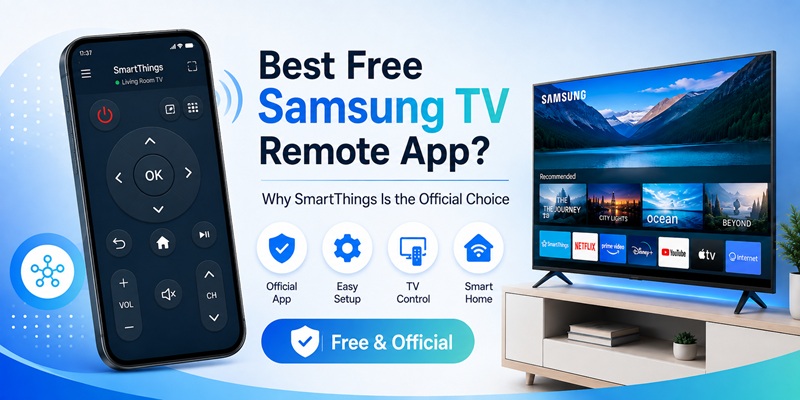
For most compatible Samsung Smart TVs, SmartThings is the best first free samsung tv remote app android option because it is published by Samsung and designed to connect directly with Samsung devices.
The official Google Play listing identifies the package as SmartThings from Samsung Electronics. Samsung describes the app as a single place to connect, monitor, and control Samsung Smart TVs, appliances, speakers, and many supported smart-home products.
SmartThings may provide:
- Power controls
- Directional navigation and touchpad control
- Volume and mute
- Channel control and Guide access
- Home and Back
- Input or source selection
- App and content access
- Number and color keypad
- Voice-command access on supported models
- TV routines and smart-home automation
Samsung’s current mobile-remote instructions describe volume, channels, touchpad navigation, Home, Back, the 123 keypad, and microphone controls. The exact layout can change by television and software version.
A free samsung tv remote app android installation can also become more than a replacement controller. SmartThings can organize the TV in a room, connect it with soundbars or lights, and create routines.
Samsung states that the app itself has no download charge or subscription fee, although compatible hardware, accounts, networks, and regional availability still matter.
An independent samsung tv remote control app free product may offer a simpler interface, widgets, or infrared support. However, the official app should be tested first because it provides clearer developer verification, current Samsung support instructions, and deeper account integration.
The best free samsung tv remote app android choice is not necessarily the app with the largest number of buttons. A second free samsung tv remote app android download is unnecessary when SmartThings already handles the essential controls.
The best option is the app that reliably finds the television, reconnects after standby, and provides the controls your household uses.
📖 Read More Samsung TV Guides: Download the Samsung TV Remote App: Control Your Samsung TV From Your Phone
3. How to Download the Official Samsung Remote App Safely
To install a free samsung tv remote app android option safely, use Google Play or the Galaxy Store rather than an unknown APK website.
Follow these steps:
- Open Google Play.
- Search for SmartThings.
- Confirm the developer is Samsung Electronics Co., Ltd.
- Check that the package is com.samsung.android.oneconnect.
- Review the permissions and current compatibility information.
- Tap Install.
- Open the app and sign in with a Samsung account.
The official Google Play page says SmartThings connects and controls Samsung Smart TVs and other smart devices. Samsung also directs users to download SmartThings through the Galaxy Store, Play Store, or Apple App Store.
Samsung’s current regional support information lists Android 10 or later and at least 3 GB of RAM for the Australian SmartThings setup page, while another Samsung regional guide lists Android 8 or later.
These requirements can vary by app version and region, so the Google Play listing on your phone should be treated as the final compatibility check.
Avoid apps that use names such as “Smart Things for Samsung TV” but are published by unrelated developers. Similar names and icons do not prove that an app is official.
Before accepting a trial for another free samsung tv remote app android product, check:
- Whether the developer is Samsung
- Whether power and volume require payment
- The renewal price
- Requested permissions
- Supported TV years and models
- Whether the app uses Wi-Fi or infrared
- Recent user reviews
- The cancellation process
A legitimate free samsung tv remote app android setup should not require contacts, call logs, text messages, or permanent access to unrelated files for basic TV control.
Verify Samsung Electronics as the developer, install SmartThings, and avoid modified APK files or “premium unlocked” remote apps.
4. How to Connect SmartThings to Your Samsung TV
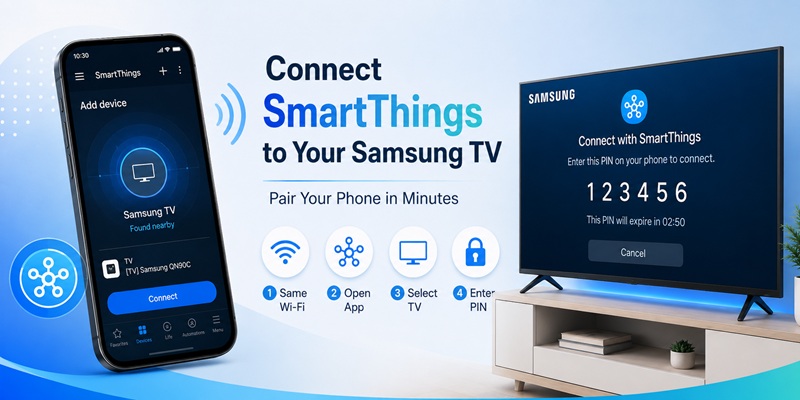
After installing the free samsung tv remote app android option, add the television to SmartThings.
Samsung’s current setup flow is:
- Turn on the television.
- Connect the phone and TV to the same Wi-Fi network.
- Open SmartThings.
- Tap Add or the plus icon.
- Select Add device.
- Choose TV.
- Choose Samsung.
- Select the television from the available devices.
- Approve the request or enter the PIN displayed on the TV.
- Choose the room and finish registration.
Samsung documents different approval methods by TV generation. Some models ask the user to select OK or Allow on the screen, while others show a PIN that must be entered on the phone.
Once the TV has been registered, open SmartThings, select Menu or Devices, choose All devices, and tap the television.
Samsung says an on-screen remote should appear, with available options varying by device.
The free samsung tv remote app android connection can fail if the phone is using mobile data while the television is on Wi-Fi, if the router isolates devices, or if the TV is registered to another SmartThings location.
For the cleanest setup:
- Use the same private Wi-Fi network.
- Disable a VPN temporarily.
- Keep Bluetooth enabled during discovery.
- Place the phone close to the TV.
- Update SmartThings and the TV software.
- Sign in with the intended Samsung account.
- Accept the prompt on the television quickly.
After setup, close and reopen the app. A stable free samsung tv remote app android connection should display the TV without requiring a new registration every time.
Test the free samsung tv remote app android setup again after the TV wakes from standby.
💡 Discover Helpful Guides
Control Samsung Soundbar With TV Remote: Complete Guide
5. How to Use the Mobile Remote for Everyday TV Control
After registration, the free samsung tv remote app android interface can replace many physical remote functions.
Samsung’s current instructions describe opening the TV device card and selecting the mobile Remote icon. Users can expand the interface and access power, volume, channel, touchpad, number pad, Back, Home, and microphone controls.
Navigate the TV
Swipe on the touchpad or use directional controls to move through apps and menus. Tap once to select.
Depending on the current SmartThings interface, a double tap or Back control may return to the previous screen.
Adjust Volume and Channels
Use VOL to raise or lower sound and mute the TV. Use CH to move through channels or open Guide-related options on supported models.
Return Home or Go Back
The Home icon opens the TV’s main interface. Back moves to the previous screen.
Open the Number and Color Pad
Tap the 123 icon to access numbers and color buttons. This is useful for channel entry, PINs, or context-specific television functions.
Search and Use Voice
The phone keyboard can make searches and logins easier than the physical remote. Microphone access may also be available for Bixby on supported models and regions.
Control Apps and Content
Current Samsung support pages describe content search, Remote, Apps, and power options from the SmartThings TV card.
A free samsung tv remote app android option is especially helpful for typing long email addresses or passwords. It can also remain available when the SolarCell remote is charging.
The phone does not replace every specialist function. Gaming shortcuts, service menus, some accessibility combinations, and initial factory setup may still require a compatible physical controller.
Use the free samsung tv remote app android solution for daily actions, while keeping the original remote or a low-cost replacement as an offline backup.
This keeps the free samsung tv remote app android option convenient without making it your only recovery method.
Get the Free Android Remote🔵 Read More Samsung TV Guides: Button on Samsung TV: Complete Control and Remote Guide
6. Free Samsung Remote App Cannot Find the TV? Try These Fixes
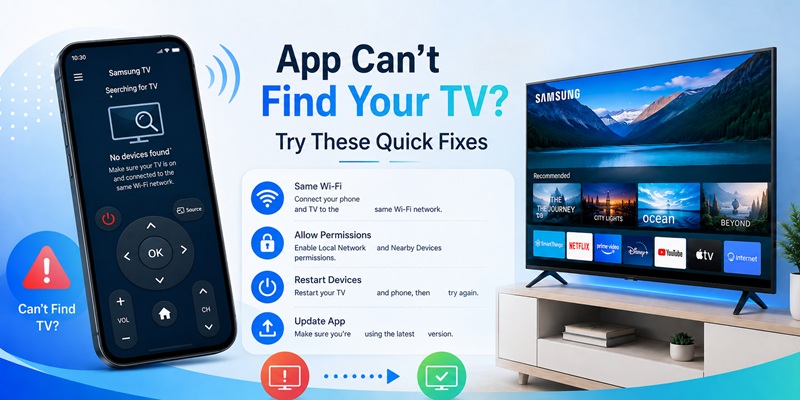
If the free samsung tv remote app android option cannot detect the television, do not immediately install another app.
Most discovery failures come from the network, permissions, account, or TV state.
Check the Same Wi-Fi
Samsung’s registration guidance requires the phone and TV to use the same Wi-Fi during setup. Compare the complete network name on both devices.
Avoid guest Wi-Fi because it can block communication between connected devices.
Turn On Bluetooth and Nearby Permissions
Keep Bluetooth enabled during discovery. On Android, allow Nearby Devices, Location, or network permissions when SmartThings requests them.
Disable VPN and Mobile-Data Switching
A VPN or automatic switch to mobile data can interrupt local discovery. Disable these features temporarily while adding the television.
Restart the Devices
Use this order:
- Close SmartThings.
- Restart the Android phone.
- Power-cycle the Samsung TV.
- Restart the router.
- Wait for the TV to reconnect.
- Open SmartThings and scan again.
Remove Old Device Records
If the TV appears offline or duplicated, remove the old device card and register it again. Check that you are using the correct SmartThings location and Samsung account.
Update Software
Update the SmartThings app and the TV firmware. Samsung includes outdated app or firmware among the causes of power and connection problems.
Test the Physical TV Button
Turn the TV on manually. The free samsung tv remote app android solution may not find a television that is fully offline or disconnected from Wi-Fi.
Confirm the same Wi-Fi, enable permissions, restart the devices, and scan again before downloading another remote.
A correctly configured free samsung tv remote app android connection should return after these checks.
📘 Find the Right Guide: Samsung TV Remote Control Not Working: Complete Fix Guide
7. Can the App Turn On a Samsung TV That Is Off?
A free samsung tv remote app android option can turn on some compatible Samsung televisions, but the feature depends on the model, network standby behavior, registration, and settings.
Samsung’s 2026 support guidance says users should add the TV to SmartThings and enable Power On with Mobile under the television’s Mobile & Remote Control settings.
Samsung also lists same-Wi-Fi connection, current software, and a properly linked TV as requirements for troubleshooting this feature.
The general process is:
- Turn the TV on with the physical remote or TV Controller.
- Open the TV settings.
- Navigate to General or Connection.
- Open Network or Mobile & Remote Control.
- Enable Power On with Mobile.
- Confirm that the TV is registered in SmartThings.
- Turn the TV off normally.
- Test the power button in the mobile remote.
Menu names vary by TV model and software version.
A free samsung tv remote app android setup may fail to wake the television when:
- Power On with Mobile is disabled.
- The TV disconnects from Wi-Fi in deep standby.
- The router changed.
- The TV is unplugged.
- SmartThings lost the device registration.
- The model does not support mobile wake.
- The phone is using a different account or location.
If the app controls the TV after someone turns it on manually, the pairing is probably working. The remaining problem is mobile power-on or network standby.
Do not rely on the free samsung tv remote app android option as the only method of powering on the television.
Keep access to the physical TV Controller button or another remote for network failures and factory resets.
💡 Discover Helpful Guides: Control Samsung TV With Phone: Complete iPhone and Android Guide
8. Official SmartThings vs Third-Party Samsung Remote Apps
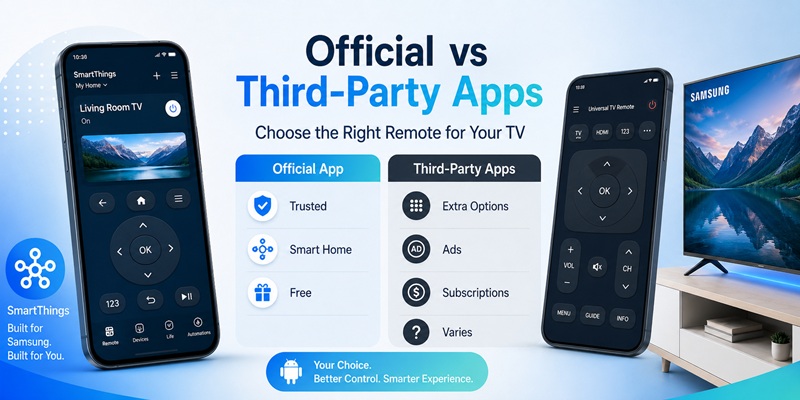
The official free samsung tv remote app android option and a third-party remote can serve different needs.
| Option | Best for | Main limitation |
| SmartThings | Official TV control and smart-home integration | Requires compatible Samsung TV and account setup |
| Third-party Wi-Fi remote | Alternative layout or quick controls | Compatibility and subscriptions vary |
| Infrared remote app | Older TVs and offline control | Phone must have an IR blaster |
| Physical replacement remote | Reliable offline control | Must match the TV model |
SmartThings has the advantage of official Samsung support, TV registration, power and remote controls, routines, and integration with other devices.
Samsung states that the app itself does not require a subscription fee.
A third-party samsung tv remote control app free option may offer widgets, Wear OS controls, or an interface that opens faster. However, many “free” products use ads, limit essential buttons, or begin an automatically renewing trial.
An infrared app can work without Wi-Fi, but only if the Android phone has a real IR blaster. Software cannot add infrared hardware to a phone.
Before installing another free samsung tv remote app android product, ask:
- Does SmartThings already provide the required control?
- Is the TV compatible with the third-party app?
- Does the app require a subscription for volume or power?
- Does the phone have infrared hardware?
- Is the developer trustworthy?
- Are the permissions related to TV control?
Use SmartThings first. Add another application only when it solves a specific problem that the official free samsung tv remote app android option does not solve.
This keeps the free samsung tv remote app android setup simple and avoids duplicate subscriptions.
Get the Free Android Remote9. What Can You Do Without Wi-Fi or a Working Physical Remote?
Most free samsung tv remote app android functions depend on a network connection. If the TV is offline, SmartThings may be unable to discover or control it.
Use these recovery options:
Physical TV Controller
Samsung televisions include a built-in controller, commonly underneath the bottom center or lower-right area.
Use it to power on the TV and access basic menu, source, or volume options, depending on the model.
Ethernet
Connect the TV to the router with an Ethernet cable when the television has a LAN port.
Once the TV and phone are on the same local network, SmartThings may detect it.
Android Phone With IR Blaster
Some Android phones include infrared hardware.
A compatible infrared remote app may control basic power, input, volume, and navigation without Wi-Fi.
USB Keyboard
Selected Samsung TVs accept a USB keyboard for menu navigation and text entry. Compatibility differs by model.
Replacement Remote
Samsung says original and third-party replacement controllers are available, and the phone can also be used for compatible Smart TVs.
A free samsung tv remote app android solution cannot perform the initial setup of every factory-reset television. The TV may require physical approval before accepting a new phone.
A general remote TV app should therefore be treated as part of a backup plan, not the only control method.
Record the TV model number, locate the physical Controller button, and keep a replacement option available.
Then the free samsung tv remote app android option remains a convenient backup rather than a single point of failure.
This preparation makes the free samsung tv remote app android setup more reliable during real emergencies.
📘 Find the Right Guide: Samsung TV Remote App: Best Free Option for iPhone and Android
10. Download the Right App and Start Controlling Your Samsung TV
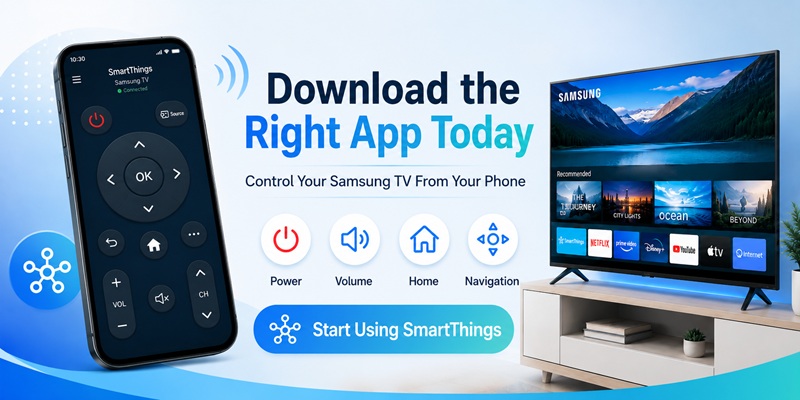
The fastest free samsung tv remote app android process is straightforward:
- Install SmartThings from Google Play or the Galaxy Store.
- Confirm Samsung Electronics is the developer.
- Turn on the Samsung TV.
- Connect the phone and TV to the same Wi-Fi.
- Sign in to SmartThings.
- Add the television under TV > Samsung.
- Approve the request or enter the PIN.
- Open All devices and select the TV.
- Open the on-screen remote.
- Test power, volume, channels, Home, Back, and navigation.
Samsung’s current support instructions confirm that selecting a registered TV in SmartThings opens an on-screen remote, although controls vary by model.
Use the free samsung tv remote app android option for everyday control, keyboard entry, content access, and routines.
Keep a physical remote or the TV Controller available for offline recovery.
If SmartThings cannot find the TV, fix the network and permissions before testing another app. If the TV cannot be powered on from the phone, enable Power On with Mobile when supported.
The best free samsung tv remote app android option is the one that connects reliably and solves the lost-remote problem without hidden fees.
Keep the free samsung tv remote app android setup updated so compatibility and security fixes can be installed.
For most compatible Samsung Smart TVs, SmartThings is the logical first download because it is official, free to use, and supported by Samsung.
Connect your Android phone to your Samsung TV over Wi-Fi and enjoy a full-featured remote with touchpad navigation, keyboard input, app shortcuts, and media controls.
Get the Free Android Remote💡 Discover Helpful Guides: Samsung TV Remote Control Online: Safe Control Guide