
Button on Samsung TV: Complete Control and Remote Guide
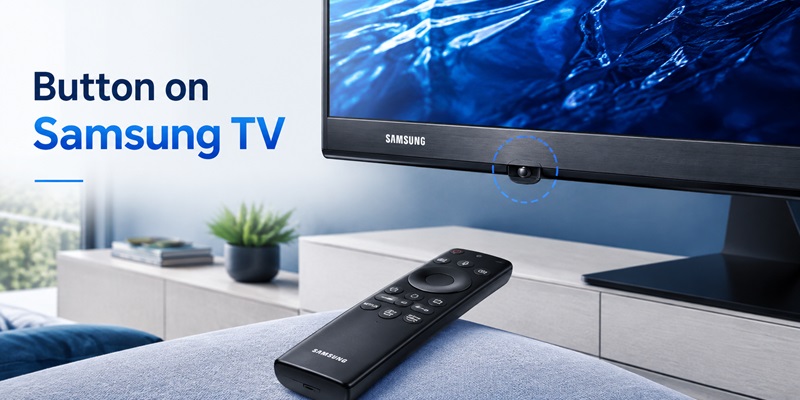
Finding a button on samsung tv models can be surprisingly difficult. Modern televisions have thin bezels, minimalist frames, hidden sensors, and compact remotes with fewer labeled controls. The power control may be underneath the center of the screen, behind the lower-right edge, or combined with a small multidirectional controller.
The remote can be equally confusing. Instead of separate number, volume, source, and menu keys, a Samsung Smart Remote may use rockers, an on-screen number pad, shortcut combinations, and one Home key that opens the complete smart interface.
This guide explains where to find every important button on samsung tv hardware and how to use the corresponding remote controls. It covers power, volume, channels, input selection, Home, Smart Hub, Return, 123, playback, accessibility, and The Frame’s Art Mode.
Samsung confirms that the physical TV Controller is generally located at the bottom center or bottom-right area of the television, although some models place the control stick behind the lower-right corner. Pressing the controller while the screen is on opens a Control menu for essential functions.
The exact appearance of a button on samsung tv depends on the model and production year. Therefore, always compare the instructions with the model-specific e-Manual before forcing, holding, or repeatedly pressing an unfamiliar control.
1. Where Is the Button on Samsung TV Models?
The most common location for a physical button on samsung tv models is underneath the television’s lower frame. It may be centered below the Samsung logo or positioned closer to the lower-right corner.
The controller can feel like a small plastic nub, joystick, toggle, or single push button. On some models, it shares a housing with the remote-control sensor, microphone switch, motion sensor, or standby light.
Samsung currently documents three common areas:
- Under the bottom-center section of the front frame
- Under the bottom-right edge of the screen
- On the rear panel near the lower-right corner
The shape and exact location vary by model. Samsung recommends checking the bottom-center and bottom-right areas first, then looking behind the television near the right-hand corner.
When users search samsung tv where are the buttons, they often expect several visible controls. Recent televisions may provide only one multifunctional TV Controller instead of a separate row of power, input, volume, and channel keys.
Use a flashlight and look upward beneath the frame. Do not confuse the button on samsung tv with the microphone switch, remote sensor, or standby indicator. A microphone switch usually slides between positions, while the TV Controller presses inward or moves in several directions.
If the screen is off, press or hold the center of the controller to turn it on. If the screen is already on, a short press normally displays a Control menu. Samsung’s instructions state that the menu appears after the TV Controller is pressed while the television is operating.
The user manual remains the best source when the physical button on samsung tv is hidden behind a decorative cover, mounted close to a wall, or incorporated into an unusual product design.
>>> Explore Articles: Samsung Remote Control Volume: How to Use It and Fix Common Problems
2. Which Physical Button Layout Does Your Samsung TV Use?
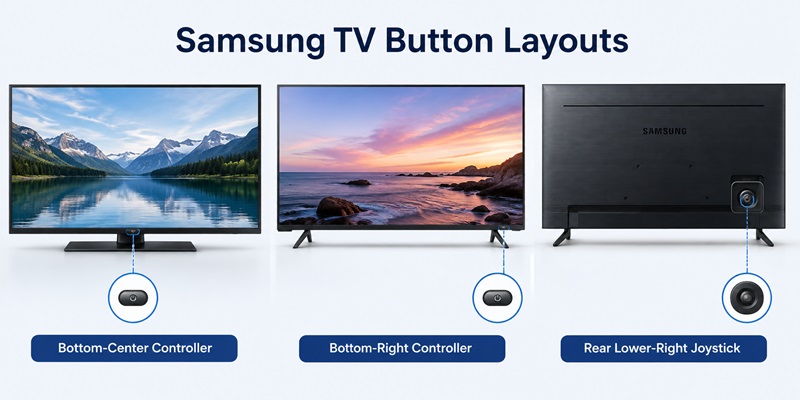
Not all samsung buttons on tv models work in the same way. Samsung has used several controller designs across LED, QLED, OLED, Crystal UHD, Neo QLED, and The Frame televisions.
Single-Button Controller
A single-button design normally uses repeated short presses to move through on-screen options. A longer press selects the highlighted option.
The available Control menu may include:
- Power Off
- Channel Up or Down
- Volume Up or Down
- Source
- Home or Menu
Samsung’s current 2025 controller guidance says the button can be pressed to move and held to select, though behavior can differ by model.
Joystick or Control Stick
A joystick-style button on samsung tv moves upward, downward, left, and right. Pressing the center opens or confirms a selection.
Samsung describes a common rear-mounted controller that toggles in four directions and displays menu options when the middle is pressed.
This design can provide faster access to volume, channels, source, and power than a one-direction single button.
Button Cluster
Some older sets have several clearly separated samsung tv buttons. These may include Power, Source, Menu, Channel, and Volume.
The controls may be physical push buttons or touch-sensitive areas on the lower bezel. A touch-sensitive panel may not move when pressed, so look for printed symbols or faint labels.
Hidden or Minimalist Controls
When owners report no buttons on samsung tv, the controls are usually hidden rather than completely absent. They may be:
- Under the center edge
- Behind the right side
- Integrated with the remote sensor
- Flush with the frame
- Accessible only from the rear
Do not repeatedly press the standby light or microphone switch. Locate the exact button on samsung tv using the model’s e-Manual when the physical design is unclear.
3. How to Use the TV Controller for Power, Volume, and Input
The physical button on samsung tv is intended mainly for essential control when the remote is missing, unpaired, or out of power.
Turn the TV On
With the television connected to power, press or long-press the center of the controller. Samsung states that pressing the Controller button can power on supported televisions without the remote.
Turn the TV Off
While the television is on:
- Press the button on samsung tv to open the Control menu.
- Move through the available options.
- Highlight Power Off.
- Press and hold or select according to the controller design.
Avoid unplugging the television as the normal power method because this bypasses the on-screen shutdown process.
Adjust the Volume
The volume button on samsung tv may be available through joystick movement or the Control menu. Move the controller left or right, or navigate to Volume Up and Volume Down.
The physical control is useful when the sound is unexpectedly loud and the remote cannot be found. However, it may control the TV speakers rather than a soundbar if the external audio system is not correctly configured.
Change the Input
An input button on samsung tv is usually represented by Source in the Control menu. Open the menu, move to Source, and select the HDMI, TV, USB, or connected-device input.
The samsung tv input button may not be a dedicated physical key. On minimalist models, Source is only one option inside the TV Controller menu.
If a connected HDMI device does not appear, turn it on and reconnect the HDMI cable. Input availability depends on the equipment connected to the television.
Open Home or Menu
Some TV Controller layouts include Home or Menu. This can help when the remote is lost, but physical navigation is slower than using a Smart Remote or SmartThings.
The button on samsung tv is best treated as a recovery controller rather than a complete replacement for every remote function.
>>> Explore Articles: Samsung 4K Remote: Setup, Compatibility, and Replacement Guide
4. Samsung Smart TV Remote Buttons Explained
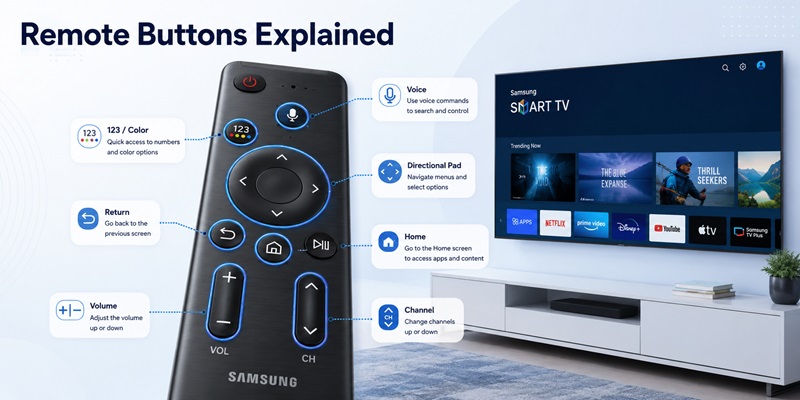
The phrase samsung tv remote buttons explained can refer to several remote layouts. Samsung televisions may include a traditional full-button remote, a compact Smart Remote, or a rechargeable SolarCell Remote.
Samsung notes that remote-control styles vary by model. The e-Manual can be opened from Smart Hub to view model-specific guidance.
Power Button
The power key is normally located at the top. On compatible The Frame models, a short press may switch between TV and Art Mode, while a longer press turns the screen fully off.
Directional Pad and Select
The circular directional pad moves through menus. Pressing the center Select button opens, confirms, or chooses the highlighted item.
Samsung’s Smart TV design guidance describes Select as the center button inside the four navigation directions.
Home
Home opens Smart Hub or the television’s main smart interface. From there, users can access apps, settings, connected devices, Gaming Hub, and other features.
Return
The Return key goes back to the previous screen. Holding it may close the current application or return to normal viewing, depending on the TV and app.
Play/Pause
The Play/Pause key opens media controls. On supported televisions, holding it in Game Mode can open Game Bar. Samsung describes these shortcut functions in its Smart Remote guide.
Voice Assistant
Hold the microphone or Voice Assistant button and speak a supported command. Voice availability depends on model, assistant, country, language, network connection, and account setup.
Settings or 123/Color
Compact Smart Remotes often combine the number pad, color buttons, and quick settings into one key. Pressing it opens controls on the screen instead of providing many physical buttons.
A samsung tv remote buttons explained pdf may be included within the downloaded user manual, but the built-in e-Manual is usually more directly matched to the television’s software and remote generation.
>>> Explore Articles: Samsung Remote Control Smart: Connected Device Hub Guide
5. How to Use the Home, Smart Hub, and Return Buttons
The Home key is one of the most important controls on a Samsung Smart Remote.
Pressing the samsung remote home button opens Smart Hub or the current Home interface. Samsung’s official remote guide states that Home provides access to streaming services, connected devices, TV settings, and other smart features.
The terms Home and Smart Hub are closely related. On newer televisions, Home opens the interface where Smart Hub features are organized.
A samsung remote smart hub button on an older full-size remote may have a house, multicolored cube, or Smart Hub label. On current compact remotes, the smart hub button on samsung remote is generally the Home button with a house icon.
Use the samsung tv remote home button to:
- Open installed apps
- Move between media and connected devices
- Access Settings
- Launch Search
- Open Samsung TV Plus
- Reach Gaming Hub on supported TVs
- Return to the main interface from an app
The home button on samsung tv remote should not be confused with Return. Return goes back one step, while Home exits the current navigation path and opens the primary TV interface.
The return button on samsung remote usually displays a curved arrow. Use it when you opened the wrong menu, need to dismiss a panel, or want to move back through an application.
When there is no home button on samsung tv remote, check for a house icon rather than the word “Home.” On some older or replacement remotes, the key may be labeled Smart Hub or Menu instead.
A third-party controller might provide basic power and volume but omit a dedicated home button samsung remote function. In that case, look for Menu, Smart Hub, or a button described as Home in the replacement remote’s documentation.
The physical button on samsung tv may also provide a Home option through the Control menu, but availability varies. When Home is unavailable physically, use SmartThings or a compatible remote.
Turn your smartphone into a Samsung Remote Control in just a few taps. Connect over Wi-Fi and enjoy smooth navigation, volume control, channel switching, and media playback without the original remote.
Download Samsung Remote Control6. What Does the 123 and Color Button Do?
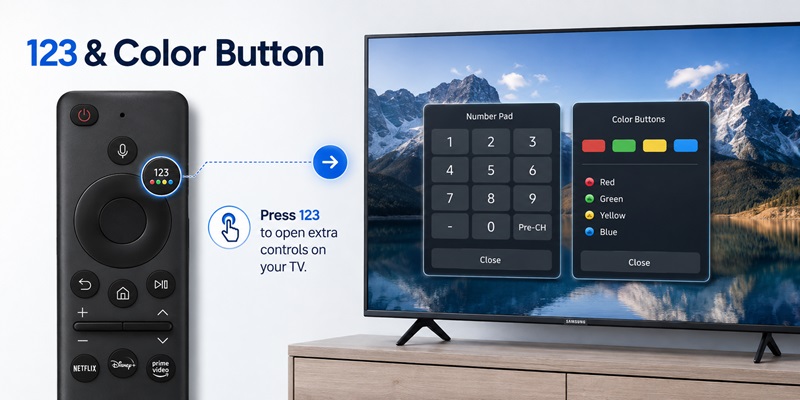
The samsung remote 123 button replaces the full physical number pad on many compact Smart Remotes.
Pressing it normally opens an on-screen number pad. You can then enter a channel number, PIN, code, or other numeric information using the directional pad and Select.
Depending on the remote generation, the same button may also open:
- Color buttons
- Quick settings
- Virtual keypad
- Additional functions
- Context-sensitive controls
The samsung tv remote 123 button may display “123,” four colored dots, or both. The icon design varies by year and market.
To use it:
- Press the 123/Color key.
- Wait for the virtual keypad to appear.
- Move with the directional pad.
- Select numbers or colored functions.
- Press Return to close the panel.
A short press and a long press may perform different actions on certain models. Follow the on-screen labels because the available functions can change based on whether you are watching broadcast TV, using an app, or controlling an external device.
The 123 key can also help when an app asks for a parental-control PIN or an external set-top box requires number entry. Compatibility with external devices depends on HDMI-CEC and Universal Remote Setup.
Do not assume the button on samsung tv itself can reproduce the virtual keypad. Physical TV controls usually cover only basic menu movement, volume, channels, source, and power.
7. How to Use the Samsung Volume and Channel Rockers
The Smart Remote’s volume and channel controls are often rockers rather than ordinary push buttons.
Move the samsung tv remote volume button upward to raise volume and downward to lower it. Pressing the rocker inward normally activates Mute.
Samsung’s current Smart Remote instructions state that moving the volume button adjusts sound, pressing it mutes the sound, and holding it for more than two seconds can open Accessibility Shortcuts.
The samsung remote volume button therefore supports three different actions:
- Move up: Volume Up
- Move down: Volume Down
- Press inward: Mute
Holding the volume control can open accessibility options such as Voice Guide, Audio Description, High Contrast, or caption-related functions, depending on model and region.
The channel rocker works similarly:
- Move up: Next channel
- Move down: Previous channel
- Press inward: Open Guide
- Hold: Open Channel List on supported models
Samsung documents pressing the channel control to open Guide and holding it to display Channel List.
When the volume rocker does not respond, check whether audio is being routed through a soundbar or receiver. The remote may be controlling the wrong audio output or may need Universal Remote Setup.
The physical button on samsung tv can provide emergency volume control, but it will not feel identical to the rocker. Open the Control menu or move the joystick in the direction assigned to volume.
8. How Buttons Work Differently on Samsung The Frame
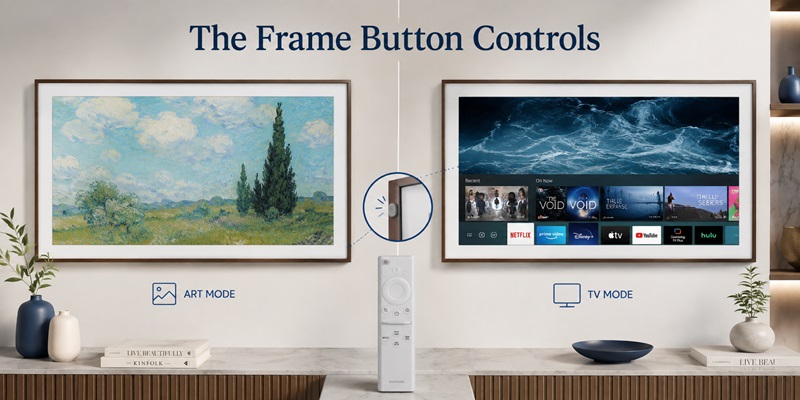
The samsung frame tv buttons can behave differently because The Frame supports both TV Mode and Art Mode.
On compatible models:
- A short press of Power while watching TV can enter Art Mode.
- A short press while in Art Mode may return to Media Home or TV operation.
- Holding Power turns the television fully off.
Samsung describes this special Power behavior in its Smart Remote navigation guide.
The physical button on samsung tv also changes behavior between modes. Samsung’s controller documentation explains that pressing the TV Controller in Art Mode can switch to TV Mode, while controls in normal TV Mode are used to move through and select Control menu options.
The Frame may combine the button on samsung tv with:
- Remote-control sensor
- Motion sensor
- Microphone switch
- Standby indicator
Because the front design is intended to resemble framed artwork, these components can be less visible than on a conventional television.
When using The Frame:
- Confirm whether the screen is in Art Mode or fully off.
- Use a short or long Power press deliberately.
- Check the bottom area for the TV Controller.
- Avoid covering the motion or remote sensors.
- Consult the e-Manual for the specific Frame generation.
Do not assume the television has no buttons on samsung tv simply because the frame appears seamless. The controller is normally positioned underneath the frame or integrated with the sensor module.
9. What to Do When You Cannot Find or Use the TV Buttons
When the button on samsung tv cannot be found, begin with a visual and tactile inspection.
Check:
- Under the bottom-center edge
- Under the lower-right edge
- Behind the lower-right corner
- Around the Samsung logo
- Near the standby light or remote sensor
Use the phone camera or a small mirror to inspect the underside if the television is wall-mounted. Do not pull the screen away from the wall or apply force to the bezel.
If the button on samsung tv is physically damaged, SmartThings may provide temporary control when the television is already connected to Wi-Fi.
Samsung says a phone can be used through SmartThings after the TV is registered. If approval is required, the television’s own Control menu may be used to accept the phone connection.
A phone-based remote TV app can provide navigation, volume, channels, input selection, and other functions on supported models. It remains dependent on the network, permissions, Samsung account, and television registration.
When the remote is not responding:
- Charge or replace its batteries.
- Restart the television.
- Reset the Smart Remote if required.
- Hold Return and Play/Pause to pair it again.
Samsung’s current pairing guidance instructs users to hold Return and Play/Pause for at least three seconds; some troubleshooting pages recommend holding the combination longer until the connection message appears.
If the button on samsung tv and every remote-control method fail, unplug the TV, wait briefly, reconnect it, and test the physical controller again. Contact Samsung support if the control is loose, stuck, or unresponsive.
10. Why Switch From Physical TV Buttons to a Remote TV App?
The physical buttons on a Samsung TV are useful in an emergency, but they are not designed to replace a full remote for everyday use. On many modern Samsung TVs, the controls are hidden underneath the frame or behind the lower-right edge, and one small TV Controller may need to handle power, volume, channels, input, and menu navigation through repeated presses or joystick movements.
That becomes inconvenient when you regularly switch inputs, browse streaming apps, adjust settings, or move through Smart Hub. A physical TV button can help you recover control when the remote is missing, but it is much slower than using a full remote interface.
The physical remote has its own weaknesses. It can be lost, damaged, unpaired, or run out of battery, and compact Samsung Smart Remotes may place several functions behind rockers, long presses, or on-screen menus. The article already shows that even simple functions such as volume, Source, Home, and the 123 keypad can behave differently depending on the remote model.
Use Your Phone as a Samsung TV Remote
For a compatible Samsung Smart TV that is already connected to the network, a Remote TV App gives you another way to handle everyday controls without relying on the physical controller.
Depending on TV compatibility, you can use your phone for common functions such as:
- Volume and mute
- Home and menu navigation
- Channel switching
- Playback controls
- Input selection
- App and smart-TV navigation
This is especially useful when the original remote is unavailable or when the TV’s physical controller is difficult to reach, such as on a wall-mounted television.
A phone is also something you already keep nearby, so setting up a remote app in advance means you have a backup ready before the physical remote stops working.
Instead of relying on hidden TV buttons or searching for a missing remote, keep essential Samsung TV controls on your phone.
11. Frequently Asked Questions and Final Button Checklist
Where Is the Power Button on a Samsung TV?
The physical button on samsung tv is commonly under the bottom-center or bottom-right edge. Some models place a joystick controller behind the lower-right corner.
Why Can I Find Only One Button?
Many modern televisions use one multifunction TV Controller. A short press opens or moves through the Control menu, while a longer press selects an option.
How Do I Change the Input Without a Remote?
Press the button on samsung tv, open the Control menu, move to Source, and select the required HDMI or TV input.
What Is the Samsung Input Button on the Remote?
On standard remotes it may be labeled Source. On Smart Remotes, open Home or Connected Devices and choose the required input. Some generations provide a dedicated source shortcut.
What Does the Home Button Do?
The samsung smart tv home button opens Smart Hub or Media Home, giving access to apps, settings, search, connected devices, and supported gaming features.
Is Smart Hub the Same as Home?
Home is the button used to open Samsung’s main smart interface. Smart Hub describes the collection of smart-TV services and features organized within that interface.
What Does Return Do?
Return goes back one screen or closes the current panel. Holding it can produce a broader exit action in certain apps or menus.
Why Does the Volume Button Open Accessibility?
Holding the volume rocker for more than two seconds is an accessibility shortcut on supported remotes. A normal up, down, or inward press controls volume and mute.
What Does 123 Mean?
The 123 button opens a virtual number pad and, depending on the model, color or additional function controls.
Can I Download a Button Diagram?
Use the TV’s e-Manual or download the model-specific manual from Samsung support. Samsung notes that button layouts differ across remote models.
Final Checklist
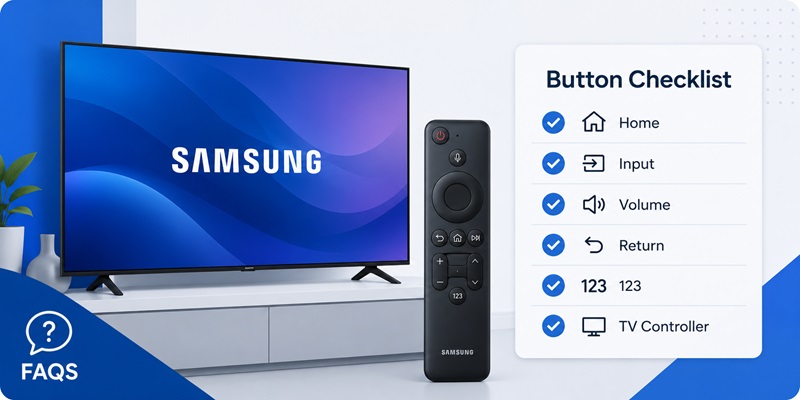
When trying to identify or use a button on samsung tv, follow this checklist:
- Check beneath the bottom-center edge.
- Check beneath and behind the lower-right corner.
- Distinguish the TV Controller from the microphone switch.
- Press once to open the Control menu.
- Press repeatedly or move the joystick to navigate.
- Press and hold to select when required.
- Use Source to change inputs.
- Use Home to open Smart Hub.
- Use Return to go back.
- Press 123 for the virtual keypad.
- Move the volume rocker up or down.
- Press the volume rocker inward to mute.
- Hold volume for Accessibility Shortcuts.
- Pair the Smart Remote with Return and Play/Pause.
- Use SmartThings when the physical remote is unavailable.
- Open the e-Manual for exact model instructions.
The most important point is that each button on samsung tv can have several functions based on whether it is pressed, held, or moved. Once you identify the physical controller and understand the Smart Remote shortcuts, the television becomes much easier to operate without searching through every menu.
No need to buy a replacement. Use the Samsung Remote Control app to power your TV, browse apps, adjust settings, and enjoy convenient control from your phone.
Download Samsung Remote Control
