
Samsung TV Remote Control Not Working: Complete Fix Guide
A samsung tv remote control not working can interrupt even the simplest task. You may be unable to open an app, change the volume, select an HDMI source, or return to the Home screen. In some cases, the Power button still works while every other button appears unresponsive. In others, the remote functions normally except for voice commands or soundbar volume.
These symptoms do not always mean the remote is permanently damaged. Samsung remotes can communicate through infrared, Bluetooth, Wi-Fi-connected services, and HDMI device-control systems. A failure in one control path may affect only certain buttons.
For example, Power may work through infrared even after Bluetooth pairing is lost. The TV may display its volume bar correctly while an external soundbar fails to respond. Voice recognition may stop because the TV is offline even though navigation remains available.
This guide approaches samsung tv remote control not working problems by symptom. It begins with low-risk checks, moves through pairing and device settings, and ends with model-specific troubleshooting and replacement decisions.
Samsung currently advises users with pairing problems to restart the television, stand close to the TV, and hold Return and Play/Pause until the on-screen connection message appears. Exact button combinations and reset procedures can vary by remote generation, so the television model and remote type should be identified before performing an advanced reset.
Before beginning, record the TV model code and inspect the remote. Determine whether it uses replaceable batteries, a rechargeable SolarCell panel, or a traditional infrared-only design. This prevents instructions for one remote generation from being applied incorrectly to another.
1. Why Is Your Samsung TV Remote Control Not Working?
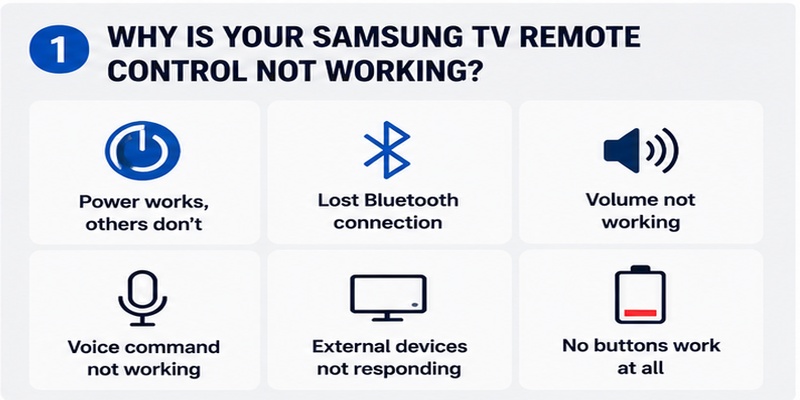
The phrase samsung tv remote control not working can describe several different failures. The fastest way to identify the cause is to observe exactly which controls still respond.
Do not begin by factory-resetting the television. First separate the problem into power, pairing, button, audio, voice, external-device, or network categories.
Identify the exact symptom
Use the following table as a starting point:
| Symptom | Most likely area | First action |
| No buttons respond | Battery, charging, physical damage | Restore power to the remote |
| Power works, but Home and navigation do not | Bluetooth pairing | Re-pair the Smart Remote |
| Remote works only when pointed at the TV | Bluetooth connection | Check battery and pairing |
| Volume graphic appears, but sound does not change | Sound Output or external audio | Test TV Speaker |
| Only one button fails | Dirt or internal switch damage | Clean around the button |
| Voice button opens, but commands fail | Network, account, assistant, microphone | Check internet and voice settings |
| SmartThings controls the TV, but remote does not | Physical remote issue | Reset or replace the remote |
| Neither SmartThings nor remote works | TV or network issue | Restart the TV and router |
| External player ignores the remote | Anynet+ or Universal Remote Setup | Check HDMI-CEC |
This symptom-based approach is more useful than repeatedly pressing random button combinations.
Why Power can work when other buttons fail
Many Samsung Smart Remotes use both infrared and Bluetooth. The Power command may continue through infrared even if the Bluetooth connection has been lost.
Therefore, when a samsung tv remote control not working issue affects Home, Back, navigation, microphone, or app controls but not Power, the first suspicion should be pairing rather than complete hardware failure.
Stand close to the TV and try the standard pairing process described in Section 3.
Check whether the problem follows the remote or the TV
Try another control method:
- Use the TV Controller button located on the television.
- Open SmartThings on a previously connected phone.
- Try another compatible Samsung remote.
- Test a supported USB keyboard.
- Use the remote with another compatible Samsung TV, when practical.
If the phone controls the TV correctly, the television is probably responding normally. Focus on the physical remote.
If no control method works, the issue may be with the television, its network, a frozen software process, or an external device.
Look for recent changes
Ask what changed immediately before the samsung tv remote control not working problem began:
- Were the batteries replaced?
- Was the remote dropped?
- Was liquid spilled?
- Was a soundbar installed?
- Was an HDMI device added?
- Did the TV update?
- Was the television factory-reset?
- Did the Wi-Fi network change?
- Was the SmartThings account changed?
- Did the remote remain unused in a dark location?
Recent changes often identify the correct troubleshooting path.
Restart before making major changes
Turn off the TV and disconnect its power for approximately 30 to 60 seconds. Reconnect it and wait for the television to complete startup.
Samsung’s current remote troubleshooting instructions recommend unplugging the TV for 30 seconds before attempting pairing again.
A restart can clear a temporary software or communication error. It does not delete applications, accounts, or picture settings.
If the samsung remote for tv not working problem disappears after a power cycle but returns frequently, continue investigating batteries, pairing stability, connected devices, and software updates.
Explore Articles: How to Control a Samsung TV With Your Phone Without WiFi
2. How to Check Batteries, SolarCell Charging, and Remote Buttons
Power is the first control layer to verify when a samsung tv remote control not working problem affects every button.
Samsung has used traditional battery remotes, Bluetooth Smart Remotes, and rechargeable SolarCell models. The correct test depends on the controller.
Check a replaceable-battery remote
Follow these steps:
- Open the battery compartment.
- Remove both batteries.
- Inspect the positive and negative markings.
- Check for residue, corrosion, or bent contacts.
- Insert a fresh matching pair.
- Close the compartment fully.
- Test Power, Home, navigation, and Volume.
Do not mix old and new batteries. Do not combine different battery chemistries or brands in the same remote.
If corrosion is visible, stop using leaking batteries. Avoid scraping contacts with sharp metal objects. Severe battery leakage may require professional cleaning or replacement.
Reset residual power in a battery remote
For certain battery-powered remotes, Samsung troubleshooting guidance recommends removing the batteries and holding the Power button for several seconds before reinstalling them. This can discharge residual power and restart the controller’s electronics. Remote procedures vary, so check the instructions for the exact model.
A safe general sequence is:
- Remove the batteries.
- Hold Power for about eight seconds.
- Release Power.
- Insert fresh batteries.
- Test the remote.
- Pair it again if smart functions remain unavailable.
Charge a SolarCell Remote correctly
A SolarCell Remote usually has a solar panel on the rear and may also include a USB-C charging port.
Place the remote panel-side up in a well-lit indoor area when it is not being used. Avoid storing it face-up in a dark drawer for long periods.
If the remote includes USB-C charging, use a suitable charging cable and a standard compatible power source. Inspect the charging port for dust or damage before connecting it.
Samsung’s SolarCell guidance states that supported controllers can be recharged using the rear solar panel, while specific charging and reset features vary by model.
Do not assume that a few minutes of light will restore a fully discharged remote. Give it sufficient charging time before concluding that the samsung tv remote control not working issue is caused by hardware failure.
Check the remote’s charge level on the TV
On supported paired models, the TV may show the remote battery level inside Settings.
Possible locations include:
- Settings → All Settings → General & Privacy → Remote Control
- Settings → General & Privacy → Power and Energy Saving
- Settings → Support → Device Care
Menu paths vary by television generation and region. The battery display may also be unavailable while the remote is disconnected.
Inspect the buttons
Press and release every affected button gently.
A healthy rocker or key should move freely and return to its normal position. Look for:
- A Volume rocker that stays tilted
- A Power button pressed below the casing
- Dirt around the directional pad
- Sticky residue
- A cracked remote body
- Loose parts inside the remote
- Damage near the charging port
Use a clean microfiber cloth and a soft, dry brush. Do not spray cleaner directly into the remote. Apply a small amount to the cloth only when necessary, keeping moisture away from openings.
Test infrared output with a phone camera
Some phone cameras can display infrared light:
- Open the phone camera.
- Point the remote emitter toward the lens.
- Press Power repeatedly.
- Look for a flashing light on the screen.
This test has limitations because some phone cameras filter infrared. Compare it with a known working infrared remote before drawing a conclusion.
A visible flash shows that the remote is transmitting an infrared command, but it does not confirm Bluetooth pairing or correct button mapping.
Consider physical damage
If the samsung remote tv not working problem started after a drop or liquid spill, do not continue charging or pressing buttons aggressively.
Watch for:
- Heat
- Swelling
- Odor
- Cracks
- Liquid inside the battery compartment
- A damaged USB-C port
A swollen rechargeable battery or overheating device should not be used. Replace or professionally service the remote rather than opening it casually.
Explore Articles: Samsung TV Remote Control Online: Safe Control Guide
3. How to Reset and Pair a Samsung Smart Remote Step by Step
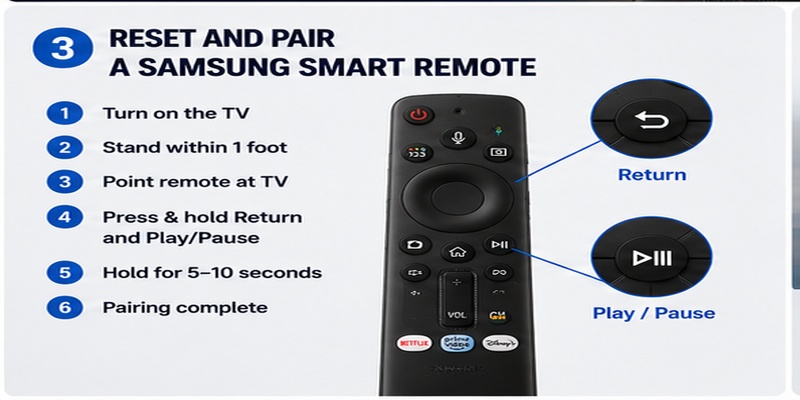
Pairing is the most important fix when Power works but smart controls do not.
Samsung Smart Remotes typically use Bluetooth for navigation, voice, and other advanced features. When pairing is lost, the controller may behave like a limited infrared remote.
Standard Samsung Smart Remote pairing method
For many recent models:
- Turn on the Samsung TV.
- Stand within approximately one foot of the television.
- Point the remote toward the TV.
- Press and hold Return and Play/Pause simultaneously.
- Keep holding for at least five seconds, or until a pairing message appears.
- Release the buttons when the TV confirms the connection.
- Test Home, navigation, Volume, and the microphone.
Samsung’s current US instructions use this process when a remote will not pair. Samsung’s One Remote page also describes holding Return and Play/Pause when automatic SolarCell pairing fails.
The on-screen message may say “Connecting,” “Pairing,” or “Pairing Complete.”
If pairing does not begin
Perform this sequence:
- Charge the remote or insert fresh batteries.
- Unplug the TV for 30 seconds.
- Reconnect and turn on the TV.
- Remove other Bluetooth devices from the immediate area when practical.
- Stand close to the television.
- Repeat Return and Play/Pause.
- Hold the buttons until the TV responds.
Do not repeatedly tap the two buttons. They normally need to be held together.
Reset a SolarCell Remote
Samsung publishes different reset combinations for different remote generations and regions.
Recent Samsung support guidance for certain SolarCell models describes holding Return and Enter, the center of the directional pad, for at least ten seconds. After the reset, the remote must be paired again.
Other Samsung documentation describes a different button near Return on some Smart Remote generations.
Because the combinations vary, identify the remote model before resetting. A samsung tv remote control not working guide should not claim that one reset works for every Samsung controller.
Why the pairing process can fail
Common causes include:
- Insufficient battery charge
- Excessive distance from the TV
- A temporary TV software problem
- Physical remote damage
- Wireless interference
- An incompatible replacement remote
- A remote already associated with another device
- An incorrect button combination
- A malfunctioning Bluetooth component
If another compatible remote pairs successfully, the original remote is the likely cause.
Test functions separately after pairing
Do not test only Power. Check:
- Home
- Directional pad
- Select
- Back
- Volume
- Channel
- Play/Pause
- Microphone
- App shortcuts
- External-device control
If navigation works but voice does not, pairing may be successful and the problem is more likely related to voice settings, network connectivity, or the microphone.
Avoid factory-resetting the TV too early
A television reset may erase:
- Wi-Fi settings
- Samsung account sessions
- App sign-ins
- Channel configuration
- SmartThings registration
- Picture and audio adjustments
- Connected-device settings
Factory reset should come after batteries, charging, restart, pairing, remote reset, SmartThings testing, and software updates.
If the samsung smart tv remote is not working after all low-risk steps, Samsung Support can help determine whether a TV reset or repair is appropriate.
Forget missing remotes and enjoy instant access to your Samsung TV. Our app makes it easy to power your TV, switch channels, adjust settings, and control entertainment from anywhere in the room.
Get Samsung TV Remote4. How to Fix Samsung Remote Volume and External Audio Problems
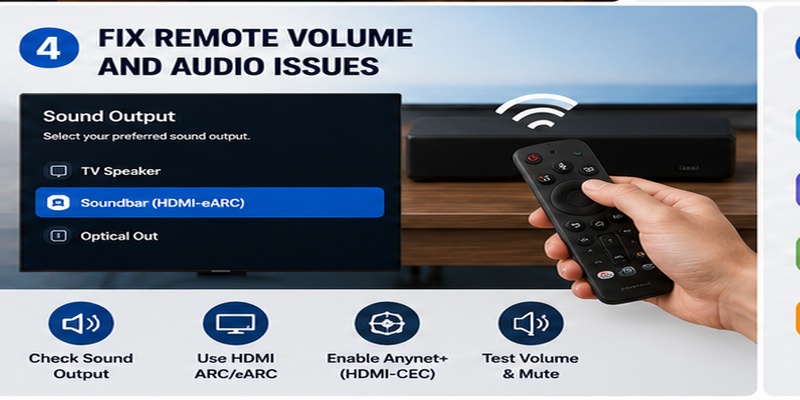
A samsung tv remote control not working issue may affect only sound. This is especially common when a soundbar, receiver, Bluetooth speaker, or optical device handles the audio.
The first question is whether the TV receives the command.
Watch the volume indicator
Press the Volume rocker upward and downward.
There are two important outcomes:
No indicator appears:
Focus on the remote’s power, Volume button, pairing, and Bluetooth connection.
The indicator appears, but the sound does not change:
The remote is probably sending the command. Focus on Sound Output and the external audio system.
This distinction prevents unnecessary remote replacement.
Test the TV speakers
Use this diagnostic process:
- Open Settings.
- Select Sound.
- Open Sound Output.
- Choose TV Speaker.
- Test the Volume rocker.
- Test Mute.
- Switch back to the soundbar or receiver afterward.
If the TV speakers respond normally, the samsung remote control volume not working issue is likely in the external audio path.
Check HDMI ARC or eARC
For integrated soundbar control, connect the soundbar to the television’s HDMI port labeled ARC or eARC.
Check:
- The TV uses its ARC/eARC HDMI port.
- The soundbar uses its TV ARC/eARC port.
- The HDMI cable is fully inserted.
- The cable supports the required connection.
- The soundbar is selected under Sound Output.
- Anynet+ is enabled.
- HDMI-CEC is enabled on the audio device.
Samsung identifies damaged or unsuitable HDMI cables, disabled Anynet+, outdated firmware, and incorrect sound output as common causes of ARC connection problems.
Enable Anynet+
A common menu path is:
Settings → All Settings → Connection → External Device Manager → Anynet+ (HDMI-CEC)
Menu names vary by year. Samsung’s 2026 Anynet+ guidance notes that 2022 models may place the option under General & Privacy before Connection and External Device Manager.
After enabling Anynet+:
- Turn off the TV and soundbar.
- Disconnect power briefly.
- Reconnect HDMI.
- Start the soundbar.
- Start the television.
- Select the soundbar under Sound Output.
- Test Power, Volume, and Mute.
Check the soundbar’s TV Remote setting
Some Samsung soundbars include a setting that allows a television remote to control their volume.
Samsung currently advises users with supported soundbars to hold the WOOFER button until “ON – TV REMOTE” appears. Models without a WOOFER button may use another procedure, so check the soundbar manual.
Do not apply this combination to unrelated soundbar brands.
Understand optical limitations
Optical audio carries sound but does not provide the same standardized HDMI-CEC communication path.
Depending on the equipment, the TV remote may not control external-device volume through optical. Samsung notes that external volume adjustment can be limited when a device uses optical rather than HDMI control.
Use the soundbar remote or switch to HDMI ARC/eARC when supported.
Remove duplicate audio paths
Using HDMI and optical simultaneously can produce confusing behavior.
Choose one primary audio path. Then restart the TV and sound system.
If a remote control for samsung tv not working complaint applies only to sound, do not reset unrelated picture, account, or network settings.
Explore Articles: Remote Samsung Smart TV: Complete Control Guide
5. How to Fix Samsung TV Voice Command and Microphone Problems
When navigation works but voice does not, the remote may still be paired correctly.
A voice command on samsung tv not working problem can be caused by the internet connection, microphone switch, voice assistant, Samsung account, language, permissions, or remote hardware.
Use the microphone button correctly
On most Smart Remotes:
- Press and hold the microphone button.
- Speak while holding it.
- Release the button after finishing.
- Wait for the on-screen response.
Do not tap and release the button before speaking unless the model instructions specifically support that interaction.
Samsung’s voice-recognition guidance advises repeating the command while pressing the microphone button when the first request is not recognized.
Check the internet connection
Voice processing usually requires a working network connection.
Open:
Settings → Network → Network Status
Confirm that the TV can open a streaming app or another online service.
If the TV is offline:
- Restart the router.
- Restart the television.
- Reconnect to Wi-Fi.
- Confirm the correct date and time.
- Test voice again.
Recent Samsung guidance states that voice recognition requires a stable network connection.
Check the television microphone switch
Certain Samsung TVs have a physical microphone switch on the television.
Its position varies by model. It may be located underneath the panel, near the lower edge, or around the rear controls.
Samsung states that voice input features require the microphone to be enabled on supported televisions and that not every product supports these features.
Do not confuse the TV microphone switch with the remote’s push-to-talk microphone.
Check the selected assistant
Open Voice or Voice Assistant settings and confirm that the expected assistant is enabled.
Depending on the TV, region, and software, available options may include Bixby or other supported assistants.
Bixby commonly requires:
- Internet access
- A Samsung account
- Supported language and region
- Voice setup
- Microphone permission
- A paired Smart Remote
Samsung’s current Bixby setup guidance says users should connect to Wi-Fi, sign into a Samsung account, and hold the microphone button to activate the assistant.
Test whether the voice button opens anything
Press and hold the microphone button.
Voice interface appears:
The button and pairing are probably working. Investigate network, account, assistant, and language settings.
Nothing appears:
Check pairing, remote power, button damage, and the remote microphone.
Reduce recognition problems
Try these improvements:
- Lower the TV volume temporarily.
- Speak at a normal pace.
- Move closer to the remote.
- Keep fingers away from the microphone opening.
- Select the correct voice language.
- Use simple device names.
- Avoid unsupported symbols or complicated names.
- Restart the assistant setup.
Samsung notes that certain symbols, number combinations, and unsupported phrases may not be recognized correctly.
If voice remains unavailable while every other function works, the microphone button or internal microphone may require service.
Download Samsung TV Remote6. How to Control a Samsung TV Without the Original Remote
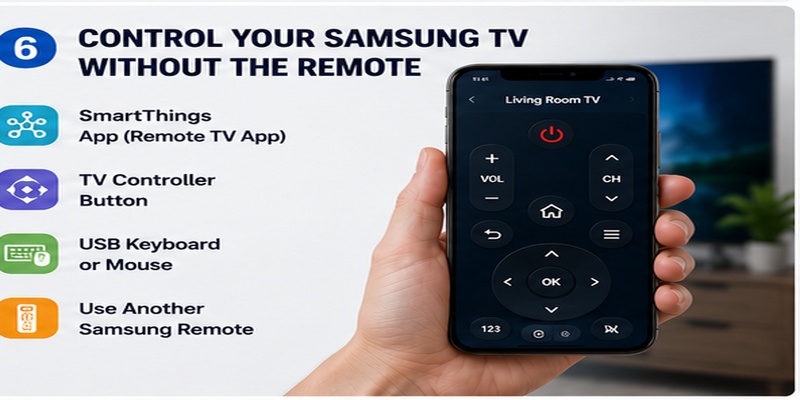
When samsung tv remote control not working prevents access to menus, a temporary controller can help diagnose the system and restore basic operation.
The main alternatives are SmartThings, the physical TV Controller, another compatible Samsung remote, and supported USB input devices.
Use SmartThings as a mobile remote
SmartThings can display an on-screen television controller after a compatible TV has been added.
Typical setup:
- Connect the phone and TV to the same Wi-Fi network.
- Open SmartThings.
- Sign into a Samsung account.
- Select Devices or All Devices.
- Choose the television.
- Approve the connection request on the TV.
- Open the mobile remote.
- Test Home, navigation, Volume, and Source.
Samsung’s updated guidance confirms that SmartThings can adjust TV volume through the phone controller.
A trusted remote TV app is especially useful for text entry, source selection, and testing whether the television responds correctly.
Use the mobile remote as a diagnostic tool
If SmartThings works but the physical remote does not:
- The television is probably functioning.
- The network connection is active.
- The volume system may be working.
- The physical remote may need charging, pairing, repair, or replacement.
If SmartThings also fails, check the television’s power, network, account, and software.
Limitations of a phone controller
A phone may not help when:
- The TV is offline.
- The TV has been factory-reset.
- The phone is on a guest network.
- Pairing approval cannot be completed.
- The TV has not been added to SmartThings.
- The Samsung account is incorrect.
- The model lacks the required support.
Configure SmartThings before an emergency whenever possible.
Use the TV Controller
Samsung televisions include physical controls for basic operation.
Depending on the model, the controller may be:
- Under the center of the TV
- Under the lower-right edge
- On the rear panel
- Near the power indicator
- A single joystick-style button
- A group of individual buttons
Samsung’s current guidance recommends the TV’s Controller buttons when the physical remote is missing or not functioning.
The controller may support Power, Volume, Channel, Source, and basic menu navigation.
Try another compatible remote
Many Samsung remotes can perform basic infrared actions across several television models.
However, advanced compatibility varies. Voice control, Bluetooth pairing, SolarCell functions, app shortcuts, and external-device control may require the correct remote model.
Samsung advises searching for the original remote using the television model number because similar-looking controllers can have important differences.
Try a USB keyboard or mouse
Some Samsung Smart TVs accept supported USB keyboards and mice.
These devices may help with:
- Menu navigation
- Text entry
- App selection
- Network setup
They may not provide every remote function, including Power, voice, Volume, or specialist shortcuts.
Explore Articles: Download the Samsung TV Remote App: Control Your Samsung TV From Your Phone
7. Advanced Troubleshooting, Model-Specific Advice, and Replacement Decisions
When basic fixes fail, proceed carefully. A persistent samsung tv remote control not working problem can involve remote hardware, television Bluetooth, firmware, HDMI conflicts, or model-specific behavior.
Disconnect external devices
An HDMI device can sometimes create control conflicts.
Use this isolation process:
- Turn off the TV.
- Disconnect nonessential HDMI devices.
- Restart the television.
- Test the Samsung remote with the TV alone.
- Connect the soundbar first.
- Test Volume and Power.
- Reconnect streaming players one at a time.
- Test after each connection.
If the remote begins failing only after one device is attached, investigate that device’s HDMI-CEC settings.
Install official updates
Open the television’s Software Update menu and check for available firmware.
Also update:
- SmartThings
- The phone operating system
- Soundbar firmware
- Streaming-device software
- Router firmware when appropriate
Do not disconnect power during a television update.
Model-specific note for Q60B owners
The samsung q60b 4k qled smart tv with solar remote belongs to Samsung’s 2022 QLED generation. Samsung’s Q60B support pages include resources for charging and using the SolarCell Remote.
For a Q60B remote issue:
- Charge the SolarCell Remote.
- Restart the television.
- Stand close to the TV.
- Hold Return and Play/Pause to pair.
- Test Home, Volume, and voice.
- Check the TV’s network for voice problems.
- Use SmartThings as a comparison.
- Check the Q60B model-specific manual before applying another reset combination.
Do not assume instructions for a later SolarCell generation are identical.
Decide whether the problem is the remote or the TV
The remote is the more likely cause when:
- SmartThings controls the TV normally.
- Another Samsung remote works.
- One button is physically stuck.
- The casing is damaged.
- The remote was exposed to liquid.
- The remote will not charge.
- Pairing repeatedly fails with only that controller.
- The infrared output test shows no activity while another remote does.
The television may be the cause when:
- No compatible remote pairs.
- SmartThings also fails.
- The TV Controller does not work.
- The television freezes or restarts.
- Bluetooth devices repeatedly disconnect.
- Menus do not respond to any input.
- The problem began after a major TV failure.
Do not open hidden service menus
A normal samsung tv remote control not working problem does not require technician settings.
Hidden service menus can expose panel configuration, regional values, calibration, and hardware options. Incorrect changes may create display, sound, network, or startup problems.
Use only standard Settings menus unless directed by trained Samsung support.
Do not disassemble a SolarCell Remote casually
Rechargeable remotes may contain delicate clips, a built-in battery, microphone hardware, Bluetooth components, and a solar charging system.
Replace or professionally repair the controller when it has:
- Battery swelling
- Heat
- Cracked casing
- Liquid damage
- A broken charging port
- A damaged internal button
- Persistent pairing failure after verified troubleshooting
When to buy a replacement
Consider replacement after completing this checklist:
- Batteries or charging confirmed
- TV restarted
- Remote paired again
- Model-appropriate remote reset completed
- SmartThings tested
- Buttons cleaned externally
- Software updated
- External-device conflicts isolated
- Another remote tested
- Samsung Support consulted when appropriate
Search using the full TV model code and original remote part number. Test Power, navigation, Volume, voice, and app shortcuts before discarding the packaging.
Frequently Asked Questions
Why is my Samsung remote not working even with new batteries?
The remote may have lost Bluetooth pairing, a button may be stuck, the TV may require a restart, or the replacement remote may be incompatible. Restart the TV and hold Return plus Play/Pause to pair supported Smart Remotes.
Why does the Samsung remote turn the TV on but do nothing else?
Power may work through infrared while Home, navigation, and voice require Bluetooth. Re-pair the remote close to the television.
How do I reset a Samsung SolarCell Remote?
On certain models, hold Return and Enter for at least ten seconds, then pair the remote again. Reset combinations vary, so verify the procedure for the remote generation.
Why is my Samsung TV remote volume not working?
Check whether the on-screen volume indicator appears. If it appears, test TV Speaker and review the soundbar, ARC/eARC, Anynet+, and Sound Output settings. If it does not appear, investigate remote power, the Volume button, and pairing.
Why is voice control not working?
Confirm that the TV is online, the remote is paired, the microphone is enabled, the correct assistant is selected, and the Samsung account is signed in.
Can I control the TV from my phone?
Yes, on compatible models. Add the TV to SmartThings and open its mobile controller. The TV generally needs to be online and may require on-screen approval.
Should I factory-reset the TV?
Not initially. Try batteries or charging, restart, pairing, remote reset, SmartThings, software updates, and device isolation first.
Final Recommendations
When samsung tv remote control not working, avoid treating every symptom as the same failure.
Begin with the exact behavior. If no buttons work, check power. If only Power works, investigate Bluetooth pairing. If the volume graphic moves without changing sound, examine the audio output. If voice fails while navigation works, check the network, account, assistant, and microphone.
Use this final order:
- Identify the TV and remote model.
- Charge the SolarCell Remote or install fresh batteries.
- Inspect and clean the buttons externally.
- Restart the television.
- Pair the remote using Return and Play/Pause.
- Apply only the model-supported reset.
- Test TV Speaker for volume problems.
- Check ARC/eARC and Anynet+ for soundbars.
- Verify network and microphone settings for voice.
- Test SmartThings or the physical TV Controller.
- Disconnect HDMI devices to isolate conflicts.
- Install official updates.
- Avoid the hidden service menu.
- Replace the remote only after confirming hardware failure.
Most samsung tv remote control not working cases can be traced to power, pairing, audio configuration, or network-dependent voice features. A systematic diagnosis is safer and usually faster than resetting the entire television or immediately buying a replacement.
Everything you need to operate your Samsung TV is right on your phone. Connect in seconds and enjoy smooth navigation, quick access to your favorite content, and effortless control every day.
