
Samsung Remote TV: Complete Guide to Setup, Use, Fix, and Control Your Samsung TV
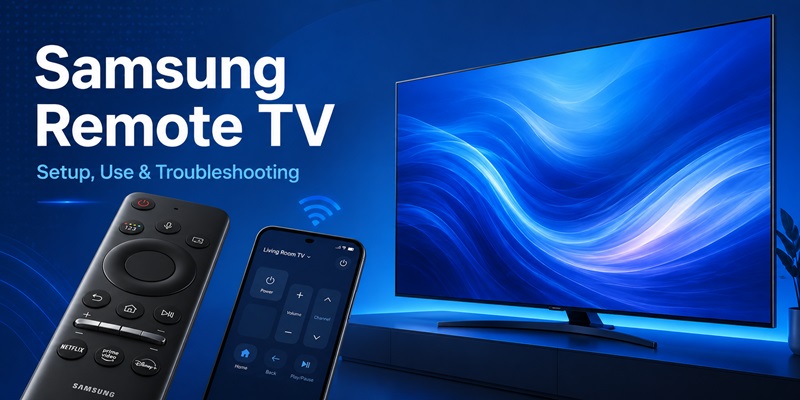
Using a modern Samsung television becomes much easier when you understand how the remote works. Whether you have recently purchased a new Smart TV, replaced your original remote, or simply want to control your television from a phone, learning how to configure a Samsung remote tv can save a lot of time.
Samsung TVs may come with different types of controllers. Some models include traditional remotes with number buttons, while newer televisions often use simplified smart remotes with fewer physical buttons. The exact layout depends on the TV series and production year, but the essential functions remain similar.
A Samsung remote tv can normally control power, channels, volume, navigation, apps, connected devices, and television settings. Some models also support voice commands or wireless pairing.
This guide explains the complete process, from initial setup and pairing to troubleshooting and controlling your television from a smartphone. You will also learn how to manage soundbars, find physical TV controls, and choose an alternative remote solution when the original controller is unavailable.
1. What Is a Samsung Remote TV and How Does It Work?
A Samsung remote tv is the controller used to operate compatible Samsung televisions. Depending on your TV model, the remote may communicate through infrared, Bluetooth, or a combination of wireless technologies.
Traditional television remotes normally use infrared signals. When you press a button, the remote sends a signal toward the television’s infrared receiver. Because infrared generally requires a relatively clear path between the controller and the TV, objects blocking the sensor can sometimes prevent commands from working correctly.
Many newer Samsung Smart TVs use smart controllers that can communicate wirelessly after pairing. This allows you to use the remote without pointing it directly toward the television for every command.
Traditional Samsung remotes
Traditional remotes usually include buttons for:
- Power
- Numbers
- Channel selection
- Volume
- Menu
- Source
- Navigation
- Back
- Home
- Playback
These controllers are useful for users who prefer having a dedicated button for most common television functions.
Samsung Smart Remote
A modern Samsung remote tv may have a much smaller number of buttons. Instead of providing dozens of controls, the Smart Remote relies heavily on Samsung’s on-screen interface.
Searches such as remote samsung smart or samsung remote control smart often refer to this simplified style of controller.
You typically use the directional pad to move around the Smart TV interface, open applications, switch inputs, or change settings.
Some versions also include a microphone button for supported voice functions.
Infrared and wireless control
A Samsung remote tv may use infrared for basic commands such as switching on the television while using a paired wireless connection for advanced functions.
The exact behavior varies by model.
This is why two Samsung controllers that look similar may behave differently with different TVs. Compatibility should always be checked before purchasing a replacement remote.
If your existing controller suddenly stops responding, it does not automatically mean the remote has failed. Batteries, pairing, sensor obstruction, television software, or a temporary connection problem can all cause similar symptoms.
📖 Read More Guides: Remote Samsung Smart TV: Complete Control Guide
2. How to Set Up a Samsung Remote TV
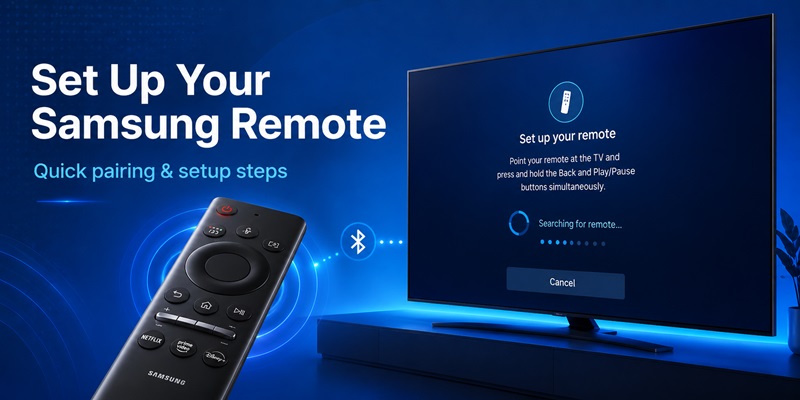
Setting up a Samsung remote tv is usually straightforward. In many cases, the remote included with the television works immediately after the TV is powered on.
However, smart controllers may need to establish a wireless connection with the television.
Step 1: Prepare the remote
Before trying to pair your Samsung remote tv, confirm that it has enough power.
For a battery-powered remote:
- Open the battery compartment.
- Insert batteries according to the positive and negative markings.
- Close the compartment securely.
If you have a rechargeable controller, make sure it has sufficient charge before troubleshooting the connection.
Weak power can cause inconsistent performance. For example, buttons may respond slowly or the remote may disconnect unexpectedly.
Step 2: Turn on the television
Press the remote’s power button while facing the television.
If the TV does not respond, you can usually turn it on using the physical button on samsung tv.
Its location differs between models. Common locations include underneath the center of the television, underneath one side of the frame, or on the rear panel.
Once the television is running, you can attempt the pairing process.
Step 3: Stay close to the TV
Stand relatively close to the television during initial setup.
A Samsung remote tv may need a stronger wireless connection during pairing than during normal operation.
Avoid placing large objects between yourself and the TV.
Step 4: Follow on-screen instructions
When compatible Samsung Smart Remotes are detected, the television may display a pairing or connection message automatically.
Follow the prompts shown on the screen.
If the connection succeeds, test several functions:
- Home
- Navigation
- Volume
- Back
- Source
You can also consult the samsung remote control manual supplied with your television or controller because button combinations may vary among product generations.
Step 5: Test basic functions
Once setup is complete, check whether your Samsung remote tv can reliably control the television.
Open the Home screen, adjust volume, navigate through settings, and launch an app.
If everything works correctly, the remote is ready for normal use.
Download TV Remote APP3. How to Pair a Samsung Remote TV With a Smart TV
Pairing is one of the most important steps when setting up a wireless Samsung remote tv.
A controller that has lost its wireless connection may still perform certain infrared functions while other smart features stop responding.
Try automatic pairing first
Turn on the television and position the Samsung remote tv near the TV.
On compatible models, the controller may automatically attempt to connect.
Wait for the connection notification to appear.
If pairing is successful, test navigation and volume controls.
Manually initiate pairing
On many Samsung Smart Remote generations, pairing can be initiated using a specific combination of buttons.
Because Samsung has released multiple controller designs, you should confirm the correct combination for your model instead of assuming every remote uses identical controls.
The television typically displays a message indicating that it is searching for or connecting to the controller.
Keep the Samsung remote tv close to the TV until the process finishes.
Why pairing may fail
If your remote refuses to pair, there are several possible explanations.
Low power
A controller with weak batteries may not maintain a stable wireless connection.
Replace or recharge the power source before trying again.
Incorrect remote
Not every Samsung controller is compatible with every Samsung television.
This becomes especially important when buying an aftermarket replacement or samsung 4k remote.
Check the listed TV series or model compatibility.
Temporary connection problem
Both the television and controller can occasionally experience temporary communication problems.
Restarting the TV before pairing again can often help.
Nearby interference
Wireless devices close to the television may sometimes affect connectivity.
Temporarily move unnecessary wireless equipment away while testing.
Test the connection after pairing
A successfully paired Samsung remote tv should provide responsive navigation.
Try moving through the TV menus from different positions in the room.
If commands only work when the remote is pointed directly at the television, some functions may be relying on infrared instead of the expected wireless connection.
Repeating the pairing procedure may resolve the issue.
📖 Read More Guides: Free Samsung TV Remote App Android: Download and Control Your TV
4. Understanding Samsung Remote Buttons and Functions
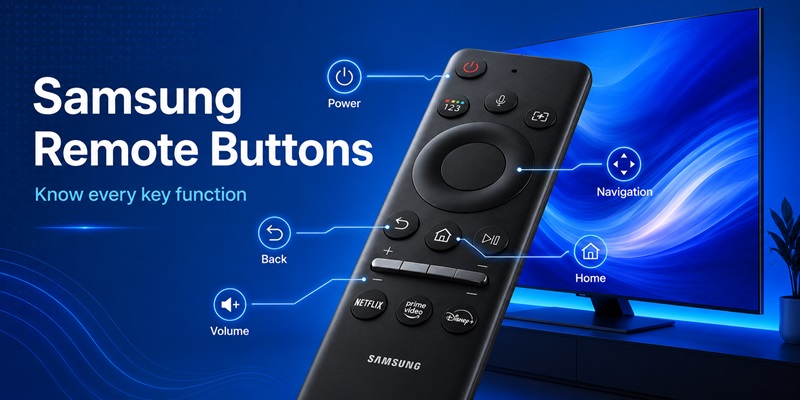
Learning the controller layout makes a Samsung remote tv much faster and more convenient to use.
Button arrangements vary, but most Samsung remotes provide similar core functions.
Power button
The power control switches the television on or off.
It is usually located near the top of the controller.
If the power button does not respond, check the batteries and make sure the television itself has power.
Home button
The Home button opens the Smart TV interface.
From here you can typically access apps, connected devices, television settings, and other features.
For many users, Home is the most frequently used control on a modern Samsung remote tv.
Directional controls
Use the directional pad to move through menus.
Press the center button to confirm your selection.
This simple control system replaces many dedicated buttons found on older remotes.
Back button
The Back command returns to the previous screen.
Holding or repeatedly pressing the button may behave differently depending on the active application.
Play and pause controls
Playback controls are useful when watching streaming content or media files.
Some smart controllers hide additional playback options behind a dedicated button or on-screen menu.
Number controls
Traditional remotes generally include a complete numeric keypad.
A modern Samsung remote tv may instead provide access to an on-screen number panel.
This allows Samsung to reduce the physical size of the controller.
Source control
The Source menu allows you to switch between connected equipment, such as:
- Game consoles
- Streaming devices
- Media players
- Computers
- Set-top boxes
On some models, connected devices can also be selected directly from the Home interface.
Physical television controls
If you lose your Samsung remote tv, the television itself usually provides at least basic physical controls.
Finding the button on samsung tv can therefore be useful during emergencies.
Depending on the model, this button may allow you to turn the television on, adjust volume, change channels, or open a basic control menu.
5. How to Control Samsung TV Volume and Audio
Volume is one of the functions users interact with most frequently on a Samsung remote tv.
Depending on your controller design, the volume control may use traditional plus and minus buttons or a rocker-style switch.
Adjusting basic television volume
Press or move the volume control in the appropriate direction to increase or decrease sound.
Some Smart Remote designs also allow you to press the same control to mute audio.
If you are unfamiliar with the mechanism, search your TV documentation for samsung remote control volume instructions.
Why volume controls sometimes stop responding
If every other remote function works but volume does not, check the television’s audio output settings.
For example, sound may be routed through an external audio device rather than the television speakers.
Open:
Settings → Sound → Sound Output
The exact menu terminology may differ by model.
Check which device currently handles audio.
Using external speakers
A Samsung remote tv may also control compatible sound systems when the TV and audio equipment are configured correctly.
Depending on your setup, volume commands may be sent through HDMI control features or another supported connection.
If your television is connected to a soundbar, confirm that the correct audio output is selected.
Muting your TV
On traditional controllers, simply press the mute button.
On simplified controllers, mute may be integrated into the volume rocker.
If pressing the volume control does not mute the television, consult the instructions for your specific controller.
Preventing extremely different volume levels
Different applications and sources may seem louder or quieter than others.
This does not necessarily indicate a problem with your Samsung remote tv.
Audio processing, content mastering, source devices, and television sound settings can all influence perceived volume.
Check the TV’s audio options before replacing the remote.
6. What to Do When a Samsung TV Remote Is Not Working
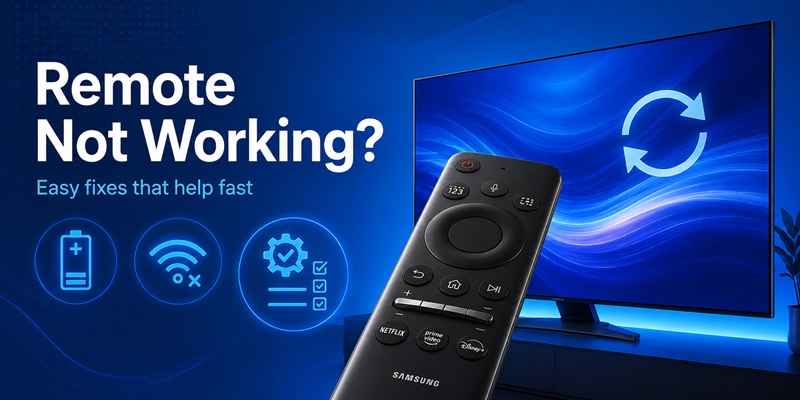
A non-responsive controller can be frustrating, but many Samsung remote tv problems can be solved without buying a replacement.
If you are searching for samsung tv remote control not working, follow the troubleshooting sequence below.
Check the remote power
Start with the simplest possibility.
Replace the batteries with a known working pair or recharge the remote if it uses an internal rechargeable system.
Then test the Samsung remote tv again.
Check for blocked sensors
If your controller uses infrared, make sure nothing is covering the TV’s remote sensor.
Objects commonly causing problems include:
- Decorations
- Speakers
- Consoles
- Furniture
- Accessories placed in front of the TV
Move these objects and test again.
Restart the television
Televisions are computers with operating systems, apps, wireless connections, and background processes.
A temporary software problem can affect remote communication.
Restart the TV completely and then test your Samsung remote tv.
Re-pair the controller
If power works but navigation does not, the remote may have lost its wireless pairing.
Run the pairing process again using the instructions appropriate for your television model.
After the connection is restored, test several controls.
Test individual buttons
Sometimes the remote itself works, but one physical button becomes damaged.
Test:
- Power
- Home
- Volume
- Navigation
- Back
If only one or two controls fail consistently, the issue may be mechanical rather than wireless.
Clean the remote carefully
Dirt can collect around buttons after extended use.
Use a soft, dry cloth to clean the exterior.
Avoid pouring liquid cleaners directly onto the controller.
Check whether the TV responds to another controller
If available, try a compatible replacement controller or smartphone remote.
If another controller works normally, the original Samsung remote tv is probably the source of the problem.
If nothing can control the television, investigate the TV’s software, network connection, or hardware instead.
Consider a replacement
If troubleshooting fails, you can choose an original replacement, compatible third-party controller, universal remote, or phone-based remote application.
Make sure any replacement specifically supports your Samsung television model.
📖 Read More Guides: Control Samsung TV With Phone: Complete iPhone and Android Guide
7. How to Control a Samsung TV Without the Original Remote
Losing your Samsung remote tv does not necessarily prevent you from using your television.
There are several alternatives.
Use the TV’s physical control
Most Samsung televisions provide an integrated control button or small control panel.
Depending on the model, it may be located:
- Under the center frame
- Under the lower-right edge
- Behind the TV
- Near the rear input panel
The control may let you power the television on and navigate a limited menu.
This is especially useful when you need to connect the TV to Wi-Fi before setting up another control method.
Use a compatible replacement remote
Replacement controllers are widely available.
Before choosing one, identify your television model number and compare it against the remote’s compatibility information.
A replacement Samsung remote tv may provide either the full smart feature set or only traditional infrared controls.
Use an online or browser-based controller carefully
Users sometimes search for samsung tv remote control online when they want to control a television without installing another physical device.
However, a browser page cannot automatically control every television. The TV and controlling device need a supported communication method.
Avoid websites that claim they can instantly control any television without pairing, network access, or compatible hardware.
Use a universal TV controller
Universal remotes are another option.
Basic models can provide:
- Power
- Volume
- Channel control
- Input switching
Advanced smart functionality may depend on compatibility.
Use a smartphone
For many Smart TV owners, a phone is one of the most convenient alternatives to a lost Samsung remote tv.
Once your television and smartphone are connected properly, your phone can provide navigation and common television controls.
This method is particularly useful because most people already keep their smartphone nearby.
Download TV Remote APP8. How to Use Your Phone as a Samsung TV Remote
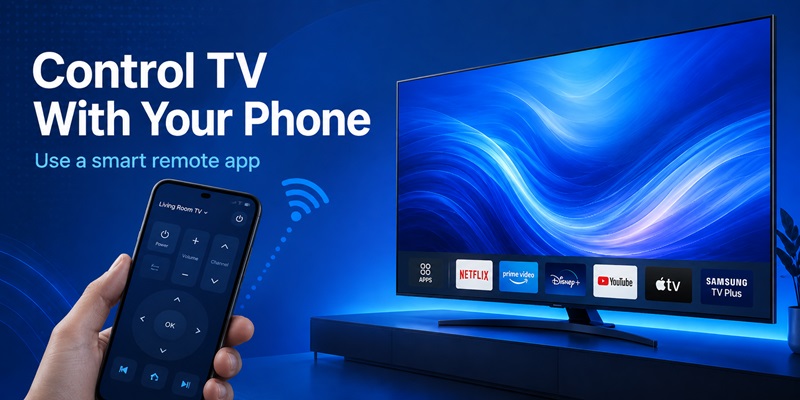
If you frequently lose the physical controller, learning how to control samsung tv with phone can make everyday viewing much easier.
A phone-based controller can also provide a useful backup when your Samsung remote tv is damaged or its batteries run out.
Connect both devices to the network
For many smart remote solutions, the smartphone and television need to communicate through the same local network.
Confirm that:
- Your Samsung television is connected to Wi-Fi.
- Your smartphone is connected to the same network.
- Network access is stable.
Install a compatible application
Samsung provides mobile ecosystem options for compatible Smart TVs, while third-party television remote applications are also available.
Users searching for a samsung tv remote app should check compatibility with their television before installing an app.
Android users may also search for a free samsung tv remote app android.
When selecting software, consider:
- Device compatibility
- Privacy
- Advertisements
- Connection method
- Available controls
- App reliability
A good Remote TV App should make basic television commands easy to access without creating unnecessary setup complexity.
Connect the application to the television
Open the app and allow it to search for televisions on your local network.
Select your Samsung television.
The TV may display a confirmation request or pairing code.
Approve the connection directly on the television.
After authorization, the smartphone should function similarly to a Samsung remote tv for supported commands.
Test phone controls
Try:
- Power controls, where supported
- Directional navigation
- Volume
- Home
- Back
- Input selection
- Media playback
If the app cannot find your TV, confirm again that both devices are connected to the same network.
Advantages of a mobile remote
Using a phone provides several benefits.
You do not need to search for a physical Samsung remote tv, and some applications offer convenient touch navigation.
A smartphone keyboard can also make entering search queries, usernames, or other text easier than selecting letters one at a time with a traditional remote.
9. Using a Samsung Remote With Soundbars and Other Devices
Modern televisions rarely operate completely alone. Many users connect soundbars, streaming devices, game consoles, and media players.
A properly configured Samsung remote tv may simplify the setup by controlling several functions from one controller.
Controlling a Samsung soundbar
Many users want to control samsung soundbar with tv remote so they do not need to switch between two controllers every time they adjust the sound.
Start by connecting the soundbar using a supported connection method.
HDMI connections designed for TV audio control often provide a convenient way for compatible devices to communicate.
Then open your television’s audio settings and select the soundbar as the sound output.
Test the volume controls on your Samsung remote tv.
If the soundbar responds, the setup is complete.
What if volume does not change?
First make sure audio is actually being sent to the soundbar.
If the TV speakers are still selected, the remote may continue controlling television volume instead.
Check the sound output menu and your soundbar connection.
You should also confirm that the television and soundbar support the control features used by your specific connection.
Controlling connected HDMI devices
Some Samsung televisions can detect supported HDMI equipment and provide basic control through the television interface.
This can reduce the need for multiple remotes.
For example, you may be able to navigate basic menus or control playback on compatible connected devices using your Samsung remote tv.
Results vary depending on the connected hardware.
Set-top boxes and media players
Traditional Samsung remote tv configurations may also work with certain external boxes after device setup.
Look in the television’s connected-device settings for available configuration options.
Follow the on-screen prompts and test:
- Power
- Navigation
- Channel controls
- Playback
Do not assume every command will work with every device.
Game consoles
Game consoles are generally operated using their own controllers, but the Samsung remote tv can still be useful for selecting the console input and managing TV settings.
Some compatible HDMI devices may also support limited TV-based control.
10. Tips for Getting the Best Experience From a Samsung Remote TV
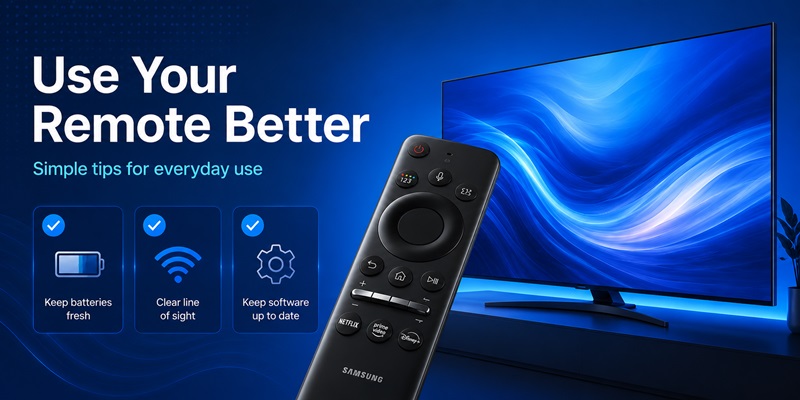
After your Samsung remote tv has been configured correctly, a few simple habits can make it easier to use and reduce future problems.
Learn the essential controls first
You do not need to memorize every remote function immediately.
Start with:
- Home
- Back
- Navigation
- Volume
- Source
- Power
These controls cover most everyday activities.
Once you are comfortable with them, explore shortcuts and additional features.
Keep the remote powered
Weak batteries are responsible for many avoidable remote issues.
If your Samsung remote tv begins responding slowly or inconsistently, check its power source before changing television settings.
Rechargeable models should also be charged regularly.
Keep the TV sensor clear
Even smart controllers may rely on infrared for certain commands.
Do not permanently place objects directly in front of the television’s sensor area.
A clear signal path improves reliability.
Keep a phone remote ready
Setting up a phone-based controller before you actually need it can save time later.
If your physical Samsung remote tv disappears under the couch or suddenly stops responding, your smartphone can provide immediate access to common TV functions.
A reliable mobile remote is particularly helpful in homes where several people use the same television.
Understand your specific model
Samsung has produced many generations of television controllers.
A tutorial for one model may not exactly match another.
For this reason, always check the model-specific documentation when instructions involve special pairing combinations, advanced buttons, voice functions, or device compatibility.
Do not replace the remote too quickly
When a Samsung remote tv stops working, users sometimes immediately assume the controller is broken.
Instead, test:
- Power
- Batteries or charging
- Infrared visibility
- TV restart
- Wireless pairing
- Individual buttons
- A phone remote or alternative controller
This approach helps identify whether the actual problem comes from the remote or the television.
Choose replacement remotes carefully
If you eventually need a new controller, do not choose one based only on appearance.
Two remotes may look nearly identical while supporting different television generations.
Confirm the model compatibility before purchasing.
If you only need power, channels, and volume, a basic replacement may be sufficient.
If you use voice control, Smart TV navigation, or wireless features regularly, look for a replacement that supports those functions as well.
Keep the controller protected
A Samsung remote tv is handled every day and can easily fall from a couch, table, or bed.
Repeated impacts can eventually damage internal components or buttons.
Store the controller in a consistent place and keep liquids away from it.
A simple habit such as placing the remote next to the television or in a dedicated organizer can also reduce the amount of time spent searching for it.
Use the Smart TV interface efficiently
Modern Samsung televisions are designed around the Home screen.
Rather than trying to find a dedicated button for every function, become familiar with on-screen menus.
Using the Home interface effectively can make a simplified Samsung remote tv feel much more powerful.
You can usually access applications, connected sources, settings, and content from one central interface.
Create a backup control option
A physical controller can fail unexpectedly.
Preparing an alternative in advance is useful.
Possible backups include:
- A compatible spare remote
- Universal controller
- Smartphone app
- Physical television controls
Having at least one backup method means a missing Samsung remote tv will not prevent you from using the television.
Final Thoughts
A Samsung remote tv is more than a simple device for changing channels. On a modern Smart TV, it acts as the primary navigation tool for apps, settings, external devices, audio equipment, and entertainment sources.
Understanding how to set up and pair the controller is therefore essential.
When installing a new Samsung remote tv, begin by checking the power source, turn on the television, and complete any required pairing process. After the connection is established, test Home, navigation, volume, and source controls.
If the controller stops responding, do not immediately replace it. Check batteries or charging, remove anything blocking the television sensor, restart the TV, and attempt pairing again. These simple steps can resolve many common Samsung remote tv problems.
Download TV Remote APP