
Samsung Remote Control Manual: Setup, Buttons, and Fixes
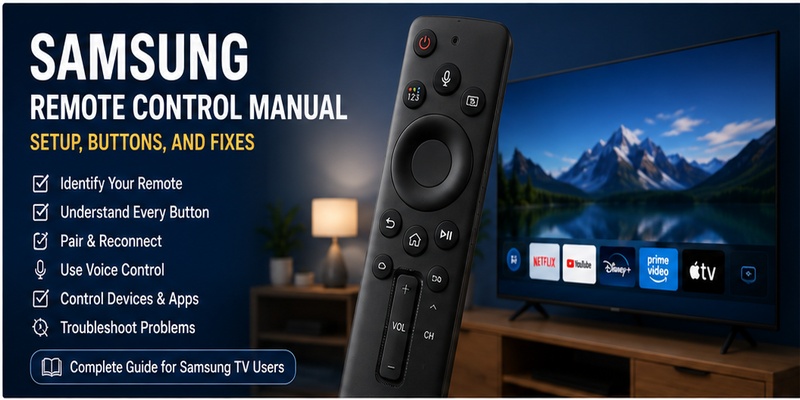
A Samsung television may come with a compact Smart Remote, a rechargeable SolarCell Remote, or a traditional infrared controller with many dedicated buttons. Although these devices perform similar basic tasks, their layouts, charging systems, pairing methods, voice functions, and connected-device features can be different.
That is why a useful samsung remote control manual should begin with identification rather than button pressing. Instructions written for one remote generation may not apply to another. A pairing combination that works on a current Smart Remote may be irrelevant to an older infrared model, while a menu path shown for one TV generation may have a different name after a software update.
Samsung also warns that remote images, buttons, functions, and menu options can vary by television model and country. This variation is important because advice should be matched to the exact equipment rather than presented as a universal rule.
This guide provides a practical samsung remote control manual for normal household use. It covers remote identification, button functions, pairing, voice commands, SmartThings, soundbars, HDMI devices, and systematic troubleshooting.
It does not recommend entering a hidden service menu or changing technician-level values. Those settings are not required for normal remote setup, and an incorrect change can affect the television’s operation.
Before following any advanced instruction, write down the full TV model code and inspect the remote for a part number. Samsung says the television model code can be found on the rear label or inside the TV menu, commonly under Settings, Support, and About TV.
Use this samsung remote control manual as a structured starting point, then compare any model-specific difference with Samsung’s official support page or the user manual supplied for your television.
1. How to Identify the Correct Samsung Remote Control Manual for Your TV
The first step is determining which remote you actually own. Samsung has used several controller styles across its televisions, monitors, projectors, regions, and model years.
A generic image search may show a remote that looks similar but uses a different connection method. Two controllers can share the same basic shape while supporting different voice assistants, charging systems, shortcuts, or pairing procedures.
Find the Samsung TV model code
The most reliable samsung remote control manual is the one associated with the exact television model.
Check the label attached to the back or side of the television. Look for “Model,” “Model Code,” or a similar label. Do not confuse the model code with the serial number. The model code identifies a product type and configuration, while the serial number identifies an individual unit.
Samsung also provides a menu-based method on many TVs:
- Turn on the television.
- Open Settings or All Settings.
- Select Support.
- Open About TV, About This TV, or About TV/Projector.
- Record the complete model code and software version.
Samsung confirms that the model code and serial information may be available through the television menu or on the product label.
Use the complete code when searching Samsung Support. Regional suffixes can matter because features, broadcast systems, applications, and included accessories may differ.
Identify the remote type
Most household Samsung controllers fit into one of these broad groups:
| Remote type | Typical connection | Common features | Main limitation |
| Traditional infrared remote | Infrared | Number pad, channels, volume, source, menu | Usually requires line of sight |
| Samsung Smart Remote | Bluetooth and infrared | Smart Hub, voice, compact controls, device integration | Must be paired for full functionality |
| SolarCell Remote | Bluetooth and infrared | Smart features, voice, rechargeable battery, solar panel | Charging and button layout vary by generation |
| SmartThings mobile controller | Wi-Fi and Samsung account | Navigation, volume, text entry, routines | Initial TV setup may still require physical control |
A traditional infrared controller normally has separate number, volume, channel, source, and menu buttons. It sends commands toward the television’s infrared sensor.
A Samsung Smart Remote is more compact. It often has a circular directional pad, a center Select button, Home, Back, Play/Pause, microphone, and rocker-style Volume and Channel controls.
A SolarCell Remote can be identified by the solar panel on the rear. Samsung describes current SolarCell remotes as light-powered controllers that can charge from indoor or outdoor light, with supported models also offering model-dependent charging options.
Check the remote part number
Open the battery cover if the remote uses replaceable batteries and the cover is designed to be removed. Look for a label inside the compartment or on the rear casing.
Do not open the remote body itself. You only need the printed product information.
For a SolarCell model, inspect the rear and lower edges without removing the casing. Photograph the label so it can be compared with a replacement listing or official support document.
Why one manual cannot cover every model perfectly
Samsung changes interfaces over time. Button combinations, menu paths, voice assistants, battery displays, and external-device features can vary.
For example, Samsung’s recent support pages show more than one reset procedure depending on the remote generation. One official guide describes resetting certain 2021-or-newer SolarCell remotes by holding Return and Enter for ten seconds, while other regional guides describe a Return and Voice reset for particular models.
This does not mean one page is necessarily incorrect. It means the correct procedure depends on the device.
A trustworthy samsung remote control manual should therefore identify its scope, explain likely variations, and avoid claiming that every Samsung remote uses one universal reset combination.
2. Samsung Remote Control Manual: Buttons, Symbols, and Core Functions
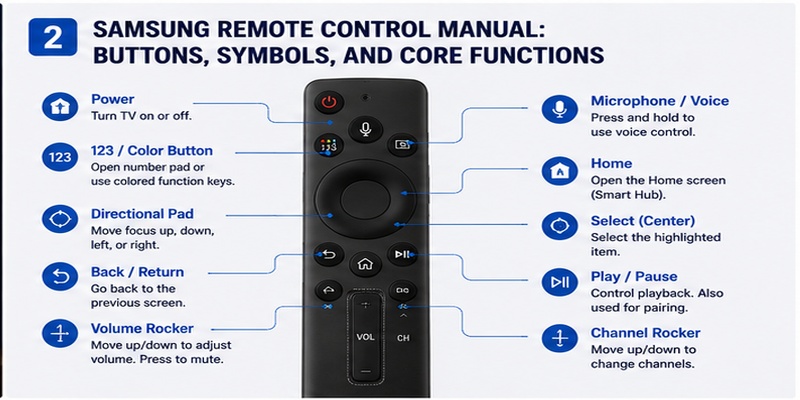
Once the remote type is known, learn the everyday controls before changing pairing or system settings.
The exact design varies, but most Samsung Smart Remotes organize several actions around a small number of multifunction buttons.
Power button
Press Power once to turn the television on or place it in standby.
On many Smart Remotes, Power can still use infrared even when Bluetooth pairing is unavailable. This explains a common symptom: the remote turns the TV on, but Home, navigation, or voice control does not work.
In that situation, do not assume the remote is fully connected. The infrared command may be working while the Bluetooth connection has been lost.
Directional pad and Select
The circular directional pad moves the on-screen focus up, down, left, or right.
Press the center button to select the highlighted application, menu item, setting, or source. In some contexts, holding Select may open additional information or options, but this behavior depends on the interface.
A practical samsung remote control manual should encourage users to watch the highlighted on-screen item rather than repeatedly pressing buttons. This reduces accidental purchases, setting changes, and application launches.
Home button
Home opens Samsung’s main smart interface, often called the Home screen or Smart Hub.
From there, you can usually access:
- Installed streaming applications
- Connected HDMI sources
- Live television
- Settings
- Search
- Gaming features
- Connected devices
The exact Home screen varies by TV year and region.
Back or Return button
Press Back or Return once to move to the previous screen. Holding it may close an application or return to the current broadcast or source on some models.
Avoid pressing it repeatedly without watching the screen. Certain applications interpret Back differently from Samsung’s system menus.
Volume rocker
Many Smart Remotes use a vertical rocker labeled VOL.
Move the rocker upward to increase the sound. Move it downward to reduce the sound. Press it inward once to mute or unmute.
On supported models, pressing and holding the Volume button inward may open Accessibility Shortcuts. This behavior can surprise users who expect it to lower the volume.
If an accessibility menu appears, release the button and move the rocker up or down instead of pressing it inward.
Channel rocker
The CH rocker normally changes channels when the television is using a compatible broadcast or set-top-box source.
Move it upward or downward to change channels. Pressing it inward may open the channel list or guide on supported models.
Channel controls may not perform the same action inside streaming applications.
Play/Pause button
Play/Pause controls compatible video applications, recordings, and external devices.
It also forms part of a common pairing combination. Samsung’s official pairing guidance for many Smart Remotes instructs users to point the remote toward the television and hold Return and Play/Pause together for at least three seconds.
Do not use this pairing combination unless the remote is failing to connect or the model instructions tell you to reconnect it.
Microphone or voice button
Press and hold the microphone button while speaking a supported command. Release it after finishing the request.
Voice availability depends on the television, region, language, network connection, account configuration, and selected assistant.
Voice control is covered in detail in Section 4 of this samsung remote control manual.
123 or numeric button
Compact Smart Remotes may replace a physical number pad with a button labeled 123, “123/Color,” or a similar symbol.
Pressing it can display a virtual number pad on the television. This is useful for entering channels, PINs, or numeric values.
The same button may expose colored function keys used by certain broadcast services or applications.
Settings button
Some remotes have a dedicated Settings button. Others place settings inside Home or a quick-settings panel.
Quick Settings usually provides access to common controls such as:
- Picture mode
- Sound output
- Sleep timer
- Network
- Accessibility
- Connected devices
For advanced changes, open All Settings rather than relying only on the quick panel.
App shortcut buttons
Some Samsung remotes include branded application buttons. Availability differs by region and remote version.
These shortcuts may open installed services directly. They cannot always be reassigned, and their presence does not guarantee that the service is available in every country.
SolarCell panel and USB-C charging
Do not cover the rear solar panel for long periods. Place the remote panel-side up in suitable indoor light when it is not being used.
Some SolarCell models can also charge through USB-C. Samsung’s current documentation notes that charging features and remote menus vary by model.
The safe rule in any samsung remote control manual is to check the port and official instructions for the exact controller before connecting a cable.
Explore Articles: Button on Samsung TV: Complete Control and Remote Guide
3. How to Pair, Reset, and Reconnect a Samsung Smart Remote
A Smart Remote needs a working connection to provide its full set of functions.
New remotes often pair automatically during initial setup. If automatic pairing fails, use a model-appropriate manual procedure.
Standard Smart Remote pairing procedure
For many modern Samsung Smart Remotes:
- Turn on the Samsung television.
- Stand close to the TV.
- Point the remote toward the television’s remote sensor.
- Press and hold Return and Play/Pause simultaneously.
- Continue holding for at least three seconds.
- Release the buttons when a pairing or connection message appears.
- Test Home, navigation, Volume, and voice control.
Samsung’s current pairing page describes this Return and Play/Pause combination for supported Smart Remotes.
Do not worry if your remote does not look exactly like the support-page image. Compare the symbols and read the model-specific documentation.
How to recognize a lost Bluetooth pairing
Typical signs include:
- Power works, but Home does not.
- Volume or navigation responds inconsistently.
- Voice control does not open.
- The TV displays a remote connection message.
- The remote only works when pointed directly at the sensor.
- Controls become delayed or repeatedly disconnect.
Power may still work because many Samsung remotes use infrared for that command.
Restart the TV before resetting the remote
A temporary television process can sometimes cause remote delays.
Use this low-risk sequence:
- Turn off the television.
- Disconnect it from power.
- Wait about one minute.
- Reconnect the power.
- Turn the television on.
- Test the remote again.
If the television is wall-mounted and the outlet is inaccessible, use a supported cold-boot method described in the TV’s own manual.
Reset a battery-powered remote
Samsung’s troubleshooting guidance for certain battery-powered remotes recommends:
- Remove the batteries.
- Hold the Power button for approximately eight seconds.
- Reinstall a fresh matching pair.
- Test the remote.
- Pair it again if necessary.
Do not combine old and new batteries or mix different battery types.
Reset a SolarCell Remote
The reset procedure varies more than the standard pairing procedure.
Samsung’s US troubleshooting page says certain 2021-or-newer SolarCell controllers can be reset by holding Return and Enter, the center of the navigation pad, for ten seconds. The remote must then be paired again.
Other current regional pages describe a Return and Voice combination for particular models.
Because these instructions differ, identify the model before resetting. Do not try random combinations from unrelated videos.
Check the remote battery level
On supported paired remotes, the television may display the remaining battery status inside Settings.
A recent Samsung path is:
Settings → All Settings → General & Privacy → Remote Control
However, menu paths can vary, and the Remote Control menu may appear only while the controller is paired.
Other models place the information under Power and Energy Saving.
Check for an infrared signal
A phone camera can sometimes show whether an infrared remote is transmitting:
- Open the phone camera.
- Point the remote’s front emitter toward the camera.
- Press a button.
- Look for a flashing light on the phone screen.
Some phone cameras filter infrared, so no visible flash is not absolute proof of failure. Test another known infrared remote if possible.
Explore Articles: Button on Samsung TV: Complete Control and Remote Guide
When not to factory-reset the TV
Do not factory-reset the television as the first remote troubleshooting step.
A TV reset can remove network settings, accounts, channel configuration, application sessions, picture adjustments, SmartThings registration, and connected-device settings.
The correct order in this samsung remote control manual is:
- Check charging or batteries.
- Restart the television.
- Re-pair the remote.
- Use the supported remote reset.
- Test another control method.
- Update software.
- Contact Samsung Support.
- Consider a TV reset only when justified.
No need to buy a replacement. Use the Samsung Remote Control app to power your TV, browse apps, adjust settings, and enjoy convenient control from your phone.
Download Samsung Remote Control4. Samsung Remote Control Voice Instructions and Privacy Settings
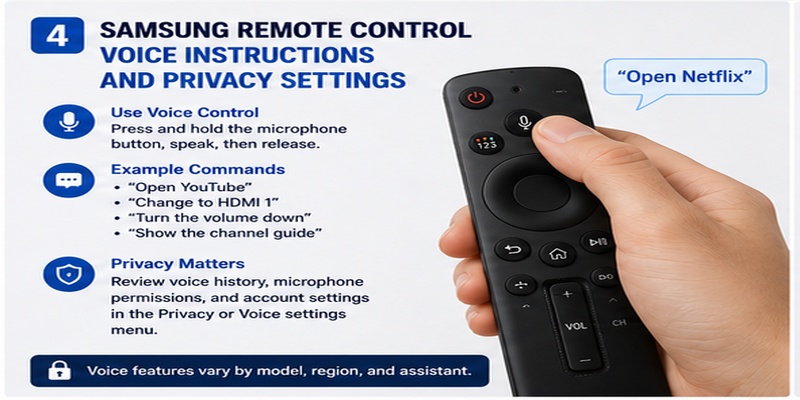
Voice control can reduce the number of menu steps required for common television actions.
However, voice functions are not identical across every Samsung TV. Available assistants, commands, languages, and smart-home integrations depend on the model, software, region, and account.
How to use the voice button
The basic samsung remote control voice instructions are:
- Connect the television to the internet.
- Pair the Smart Remote.
- Complete the TV’s voice-assistant setup.
- Press and hold the microphone button.
- Speak clearly at a normal volume.
- Release the button after completing the request.
- Wait for the on-screen response.
Push-to-talk is different from an always-listening wake phrase. With push-to-talk, the microphone request begins when the user intentionally holds the button.
Useful command categories
Supported commands may include:
- “Open YouTube.”
- “Open Settings.”
- “Go to HDMI 1.”
- “Turn the volume down.”
- “Mute the TV.”
- “Search for comedy movies.”
- “Show the channel guide.”
- “Turn on subtitles.”
- “Open accessibility settings.”
- “Turn off the living room light.”
The exact wording and smart-home controls depend on the configured assistant and compatible SmartThings devices.
Do not write account passwords, personal PINs, or payment information into a voice command.
Improve recognition
Voice control performs best when:
- The television has a stable internet connection.
- The remote is paired and charged.
- The microphone opening is not blocked.
- Background audio is reduced.
- Device names are short and distinct.
- The selected language matches the spoken language.
- The assistant account is signed in correctly.
Names such as “Living Room TV” and “Floor Lamp” are easier to distinguish than several devices called “TV” or “Light.”
Voice control limitations
Voice should be treated as a convenient input method, not the only way to operate the television.
It may fail during:
- Internet outages
- Account sign-outs
- Assistant-service interruptions
- Microphone restrictions
- Regional limitations
- Unsupported application screens
- Remote pairing problems
- Loud background noise
Keep manual controls available.
Review microphone settings
Open the television’s privacy, voice, or assistant settings and review:
- Selected assistant
- Voice wake-up
- Voice history
- Personalized recommendations
- Account access
- Microphone permissions
- SmartThings device control
Menu names vary. Some televisions or accessories may include physical microphone switches, while others provide software controls.
Protect shared household accounts
A television may be used by children, guests, roommates, or several family members. Voice access should not bypass purchase confirmations or account protections.
Use PIN controls for purchases and sensitive settings when available. Remove accounts and voice profiles that are no longer needed.
A responsible samsung remote control manual should explain privacy alongside convenience. A command may be easy to issue, but users still need to understand which account, cloud service, and connected device receives it.
About the unusual keyword
The phrase samsung remote control Interest does not describe a standard Samsung feature and appears to be a malformed search term. It should not be interpreted as a remote button, service, or official product name.
For accurate instructions, rely on the model code, remote part number, and documented feature names instead of an unclear search phrase.
Explore Articles: Samsung TV Remote Control Online: Safe Control Guide
5. How to Control Apps, Inputs, Soundbars, and HDMI Devices
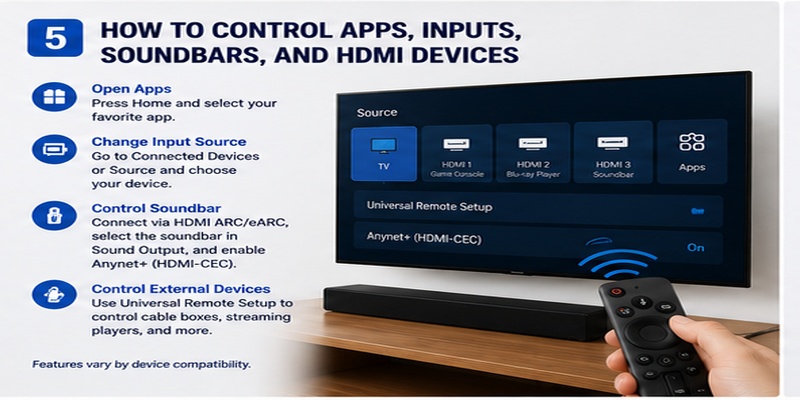
A Samsung remote can control more than the television itself, but external-device operation depends on the connection method.
The main technologies are HDMI-CEC, called Anynet+ by Samsung, and Universal Remote Setup.
Open applications
Press Home and navigate to the application row. Highlight an installed service and press Select.
To make frequently used applications easier to reach:
- Open Home.
- Highlight the application.
- Open its options.
- Choose Move when supported.
- Place it near the beginning of the application row.
Application layout and editing options vary.
Change the input source
Open Home or Connected Devices, then select the source connected to the desired equipment.
Rename generic inputs such as HDMI 1 and HDMI 2 when the TV supports source editing. Names such as “Game Console,” “Cable Box,” and “Streaming Player” reduce confusion and improve voice commands.
Understand Anynet+
Anynet+ is Samsung’s name for HDMI-CEC. It allows compatible HDMI devices to exchange selected commands through the HDMI connection.
Samsung explains that Anynet+ can let the television remote control compatible HDMI-connected equipment.
Depending on the equipment, supported actions can include:
- Power synchronization
- Source switching
- Navigation
- Play and pause
- Soundbar volume
- Standby commands
Not every HDMI device supports every command.
Enable Anynet+
A common menu path is:
Settings → All Settings → Connection or General → External Device Manager → Anynet+ (HDMI-CEC)
Menu wording varies by television year. After enabling it, also enable HDMI-CEC on the external device. Manufacturers use different names for the same standard.
Restart both devices after changing CEC settings.
Control a soundbar
For the strongest integration, connect a compatible soundbar to the TV’s HDMI port labeled ARC or eARC. Connect the other end to the soundbar’s HDMI output or TV ARC/eARC port.
Then:
- Open Settings.
- Select Sound.
- Open Sound Output.
- Select the connected soundbar.
- Enable Anynet+ if required.
- Test Volume, Mute, Power, and standby.
Samsung says selecting the connected soundbar as Sound Output can allow the TV remote to adjust its volume and mute state.
Samsung’s ARC guide also instructs users to connect the soundbar’s HDMI OUT to the television’s HDMI ARC port and activate Anynet+ for integrated control.
Optical audio limitations
An optical cable can carry digital sound but does not provide the same standardized HDMI-CEC control path.
Some Samsung soundbars can still be configured to respond to a TV remote through model-specific features, but results vary. If integrated power and volume are important, HDMI ARC or eARC is generally the more direct setup when both devices support it.
Control streaming players and set-top boxes
Samsung TVs can detect some connected devices automatically. For incomplete control, open Universal Remote Setup.
A typical process is:
- Connect the device to HDMI.
- Open Connected Devices or Source.
- Select Universal Remote Setup.
- Choose the device type.
- Select the brand.
- Confirm the HDMI port.
- Follow the power and control tests.
- Test navigation, playback, channels, Guide, and Power.
Samsung provides official instructions for controlling compatible external devices through the TV remote.
Keep the original device remote until all essential actions have been verified.
Game-console limitations
HDMI-CEC may power on a console, select its input, or support media navigation. It does not replace the game controller during gameplay.
Automatic input switching can also be inconvenient if a console wakes for an update. Disable the console’s CEC power option if it repeatedly interrupts viewing.
Why only some buttons work
Different commands may use different paths:
- Infrared
- Bluetooth
- HDMI-CEC
- A Universal Remote profile
- Wi-Fi
- Application-specific controls
For example, Power may work through infrared while directional commands require Bluetooth. Soundbar volume may travel through HDMI-CEC, while a set-top-box Guide button depends on the correct Universal Remote profile.
This layered explanation is more useful than treating every failure as a broken remote.
6. How to Use a Phone When the Samsung Remote Is Missing
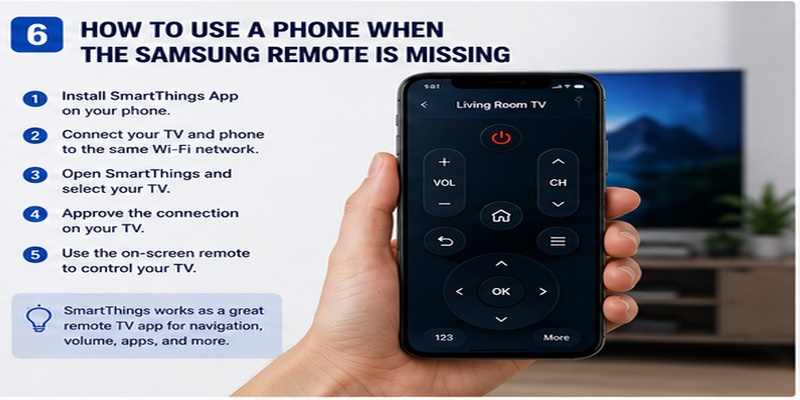
A compatible phone can function as a companion or temporary replacement controller through SmartThings.
Samsung’s instructions say to open SmartThings, select Menu, choose All devices, and select the TV or projector. An on-screen controller then appears, with available controls varying by device.
Requirements
For initial setup, you generally need:
- A compatible Samsung Smart TV
- A phone with SmartThings installed
- A Samsung account
- A working home network
- The television connected to that network
- Local-network and nearby-device permissions
- Approval of the connection request on the TV
SmartThings compatibility and operating-system requirements can change, so confirm the current application requirements in the official store listing.
Set up the phone controller
Follow these steps:
- Connect the phone to the home Wi-Fi network.
- Confirm that the television is connected to the same network.
- Open SmartThings.
- Sign in to the intended Samsung account.
- Select Add Device if the television is not already listed.
- Choose Samsung and then TV.
- Select the detected television.
- Approve the request displayed on the TV.
- Assign the TV to the correct SmartThings home and room.
- Open the device page to access the controller.
The available remote TV app controls may include navigation, Volume, Mute, Home, Back, Channel, Source, application shortcuts, and keyboard entry.
Best uses for the phone
A phone is especially useful for:
- Typing long searches
- Entering account names
- Selecting applications
- Changing sources
- Adjusting volume
- Running SmartThings routines
- Controlling the TV when the physical remote is across the room
- Diagnosing whether a physical remote is defective
If SmartThings controls the television correctly but the physical remote does not, the TV and audio system are probably capable of responding. Focus troubleshooting on the remote’s battery, charging, buttons, or pairing.
When a phone cannot solve the problem
SmartThings may not help when:
- The TV is not connected to a network.
- The television has been factory-reset.
- The phone is on an isolated guest network.
- The connection request cannot be approved.
- The TV is signed into another SmartThings location.
- The television is fully offline.
- The model does not support the required control features.
A phone cannot always complete the earliest setup stage after a factory reset.
Recovery options without a remote
Try these options in a safe order:
- Use the physical TV Controller button.
- Connect the TV to the router with Ethernet.
- Use a compatible Samsung replacement remote.
- Try another compatible Samsung remote for basic control.
- Connect a supported USB keyboard or mouse.
- Contact Samsung Support.
The TV Controller is commonly located under the center of the television or near a lower edge, but the location varies by model.
Do not depend on only one control method
The strongest setup includes:
- A working physical remote
- SmartThings configured in advance
- Access to the television’s physical controller
- The TV model code recorded
- Original remotes for specialist external devices
This combination provides a recovery path during Wi-Fi outages, pairing failures, and account problems.
Download Samsung Remote Control
7. Samsung Remote Troubleshooting, Safety, and Expert Recommendations
Troubleshooting is more effective when each control layer is tested separately.
Avoid replacing the remote immediately. First determine whether the failure comes from power, pairing, the television, audio output, HDMI control, the network, or physical damage.
Symptom-based troubleshooting table
| Symptom | Likely area | First checks |
| No buttons work | Power or physical damage | Charge remote or replace batteries |
| Power works but Home does not | Bluetooth pairing | Pair the Smart Remote again |
| Volume graphic moves but sound does not | Audio output | Check TV Speaker, soundbar, ARC/eARC |
| Remote works only when pointed at TV | Bluetooth connection | Re-pair and check battery |
| Voice does not respond | Pairing, network, account, microphone | Test navigation, internet, voice settings |
| External device does not respond | HDMI-CEC or Universal Remote profile | Enable Anynet+ and repeat device setup |
| SmartThings cannot find TV | Network or account | Use same network and correct location |
| Remote disconnects repeatedly | Battery, interference, software, hardware | Charge, update, restart, and re-pair |
Start with the remote’s power
For replaceable-battery remotes:
- Install a fresh matching pair.
- Match the positive and negative markings.
- Do not mix old and new batteries.
- Clean visible battery contacts with a dry cloth.
- Replace leaking batteries safely.
For a SolarCell Remote:
- Place the panel in suitable light.
- Use a supported USB-C charging method if the model provides one.
- Check the battery status through the TV menu when available.
- Do not use a damaged cable or wet charging port.
Inspect the buttons externally
Press and release each affected button gently.
A stuck rocker may feel uneven or remain partially depressed. Use a microfiber cloth and a soft, dry brush around the edges.
Do not spray cleaning liquid directly into the controller. Do not insert blades, pins, or metal objects into the gaps.
Restart before changing settings
Restart the TV and connected equipment. HDMI and Bluetooth communication can become temporarily unstable.
For an audio problem, restart in this order:
- Turn off the TV and soundbar.
- Disconnect power.
- Check the HDMI ARC/eARC cable.
- Reconnect the soundbar.
- Reconnect the TV.
- Start the TV.
- Select the soundbar in Sound Output.
- Test Volume.
- Add other HDMI devices afterward.
Reconnect one device at a time
When several HDMI devices are connected, one device can create CEC conflicts.
Disconnect all nonessential HDMI devices. Confirm that the TV remote works with the television alone. Reconnect the audio system first, then streaming boxes and consoles one at a time.
Test after every connection.
Check for software updates
Samsung notes in current remote-support documentation that available television software updates may contain fixes for remote-related problems.
Use the television’s official Software Update menu. Keep the TV powered and connected during the process.
Do not enter the service menu
A consumer samsung remote control manual should not direct ordinary users into a hidden service menu.
Service controls can expose calibration, panel, region, hospitality, network, and hardware-level values. Changing an unfamiliar setting can produce new problems or complicate warranty support.
Use standard menus for:
- Picture
- Sound
- Network
- Channels
- Accessibility
- SmartThings
- External devices
- Software updates
Contact trained support for anything beyond those controls.
Do not disassemble a SolarCell or Smart Remote casually
Modern controllers may contain:
- Rechargeable batteries
- Solar charging components
- Microphones
- Bluetooth hardware
- Compact circuit boards
- Delicate clips
- Internal ribbon connections
Opening the case can damage the remote or battery. Begin with external cleaning, charging, pairing, and official resets.
Replace or professionally service the remote if it has liquid damage, a swollen battery, a cracked case, or a broken internal switch.
When to replace the remote
Replacement is reasonable when:
- A fresh charge or battery does not restore operation.
- Another compatible remote controls the TV correctly.
- SmartThings works but the physical controller does not.
- A button remains physically stuck.
- The case is cracked.
- The remote has liquid damage.
- It repeatedly loses pairing after official troubleshooting.
- Samsung Support identifies a hardware failure.
Match the replacement to the complete television model and original remote part number. A visually similar controller may provide only basic infrared functions.
Final expert checklist
Before concluding that the remote is defective:
- Confirm the TV model code.
- Identify the remote type and part number.
- Check battery or charging status.
- Restart the TV.
- Test Power, Home, navigation, and Volume separately.
- Pair the remote using the model-appropriate method.
- Reset it only with supported instructions.
- Test the television through SmartThings.
- Check Sound Output for volume failures.
- Enable Anynet+ for compatible HDMI devices.
- Reconnect external devices one at a time.
- Install official software updates.
- Avoid the hidden service menu.
- Contact Samsung Support before disassembly.
8. Frequently Asked Questions
How do I pair a Samsung Smart Remote?
For many modern models, point the remote toward the television and hold Return and Play/Pause simultaneously for at least three seconds. Release the buttons when the pairing message appears. Check the exact model instructions because combinations can differ.
Why does the Power button work but nothing else does?
Power may be transmitted through infrared while navigation and smart functions depend on Bluetooth. Charge the remote or replace its batteries, restart the television, and pair the controller again.
How do I use the Samsung volume rocker?
Move the VOL rocker upward to increase the volume and downward to decrease it. Press it inward once to mute or unmute. Holding it inward may open Accessibility Shortcuts on supported models.
Can I use my phone as a Samsung TV remote?
Yes, on compatible televisions. Add the TV to SmartThings and open its device page to display an on-screen controller. The television generally needs a valid network connection and may require approval during setup.
Can one Samsung remote control a soundbar?
Yes, when the soundbar and television support a compatible connection. HDMI ARC or eARC with Anynet+ usually provides integrated power, volume, and mute control. Select the soundbar under Sound Output.
Can a Samsung remote control a streaming player?
It may control compatible HDMI devices through Anynet+ or Universal Remote Setup. Supported commands vary by player, television, and remote.
Should I factory-reset the TV when the remote stops working?
Not initially. Check the battery, restart the TV, pair the remote, use the supported remote reset, test SmartThings, and update the television first.
Final Thoughts
The best samsung remote control manual is not simply a diagram of buttons. It should help the user identify the exact controller, understand which communication method is active, and troubleshoot without creating additional problems.
Start with the TV model code and remote part number. Learn the basic controls before changing settings. Pair the Smart Remote only when necessary, and use the reset procedure documented for that generation.
Use voice commands for convenient, repeatable actions while reviewing microphone and account permissions. Use Anynet+ for compatible HDMI equipment, Universal Remote Setup for devices that require a profile, and SmartThings as a companion controller.
Most importantly, keep the system recoverable. Maintain a physical control option, record important device information, avoid hidden service settings, and reconnect external equipment one device at a time.
Following this samsung remote control manual provides a safer path to controlling the television, soundbar, streaming player, applications, and smart-home features without relying on guesswork or unsupported button combinations.
No need to buy a replacement. Use the Samsung Remote Control app to power your TV, browse apps, adjust settings, and enjoy convenient control from your phone.
Download Samsung Remote Control