
Download Remote TV Android: How to Install and Set Up a TV Remote App
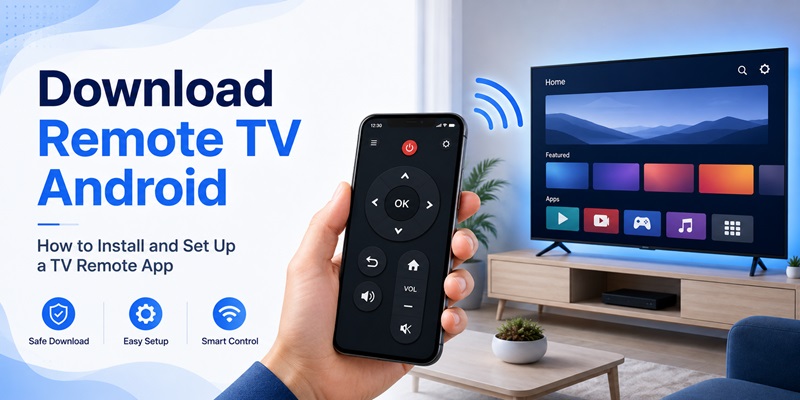
If your television remote is missing, damaged, or simply too far away, using an Android phone as a replacement can be one of the fastest solutions. For users searching download remote tv android, the most important part is not simply finding an app. You also need to choose the correct remote technology, install the application safely, connect it to your television, and configure the controls correctly.
Modern television remote applications can communicate through Wi-Fi, Bluetooth, or infrared depending on the TV and smartphone. Once connected, your phone may control volume, channels, playback, menu navigation, input sources, and sometimes even text entry.
This guide focuses specifically on how to download remote tv android, complete the installation, pair your television, and troubleshoot problems step by step.
Before You Download a Remote TV App on Android
Before searching for an application, take a minute to identify what type of television you have. This can prevent you from installing several incompatible apps.
Check Your TV Brand and Platform
Start by finding the television brand and model number. Then check which Smart TV platform it uses.
Your TV might run:
- Android TV
- Google TV
- Fire TV
- Roku TV
- Samsung Smart TV software
- LG Smart TV software
- Hisense or another proprietary platform
When you download remote tv android, compatibility with the television operating system is often more important than the appearance of the app.
A universal remote may support several brands, while another application may only work with one TV ecosystem.
Check Whether Your TV Uses Wi-Fi or Infrared
Most newer Smart TVs allow network-based remote control.
In this setup, the television and Android phone usually need to be connected to the same Wi-Fi network.
Older televisions may instead require infrared.
Some Android phones include an IR blaster, but many newer models do not. If your phone lacks infrared hardware, downloading an infrared-only remote application will not make it compatible.
Therefore, before you download remote tv android, determine which communication method your television supports.
Download TV Remote APPHow to Download Remote TV Android Apps Safely
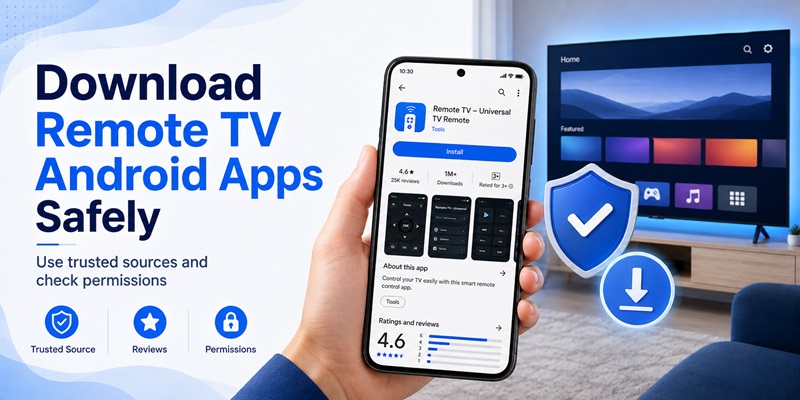
The easiest installation method is usually through the official application store available on your Android phone.
Step 1: Open the App Store
Open Google Play or another trusted store provided on your device.
Tap the search bar and search for terms related to television remote control.
You may see applications described as:
- Smart TV remote
- Universal TV remote
- Android TV remote
- Wi-Fi remote
- Remote TV App
Instead of choosing the first result, compare compatibility details.
Step 2: Check Supported TV Brands
Open the app description and look for your television brand or platform.
For example, if you own an Android TV device, make sure the application explicitly supports Android TV.
If you own a Fire TV device, you may instead need a compatible free fire tv remote app for android.
When users download remote tv android without checking compatibility, device discovery problems are one of the most common results.
Step 3: Check Permissions
Before installing, review the application’s requested permissions.
A network-based TV remote may need permission to discover nearby devices or communicate over your local network.
However, you should be cautious if a simple TV remote requests access that seems unrelated to remote-control functionality.
Step 4: Install the App
Tap Install.
After the installation finishes, open the application.
At this point, you have completed the basic download remote tv android process, but the phone still needs to connect to your television.
📖 Read More Guides: Download a Remote TV App for Android: Control Your TV With Your Phone
How to Install and Open the Remote TV App
The first launch usually includes a short setup flow.
Grant Necessary Permissions
Depending on your Android version, the application may ask for permissions related to:
- Nearby devices
- Local network access
- Bluetooth
- Notifications
Only grant permissions that are relevant to the functionality you intend to use.
An android tv remote service app may rely on background or network services to maintain communication between devices.
Select Your TV Type
Many universal applications ask you to choose a brand before scanning.
For example:
Samsung
Sony
LG
Roku
Hisense
Android TV
Google TV
Fire TV
Choose the platform that matches your television.
If you are unsure, open your television’s Settings > About or Device Information screen.
When you download remote tv android, selecting the correct TV type at this stage can significantly improve device detection.
Download TV Remote APPHow to Connect an Android Phone to Your TV
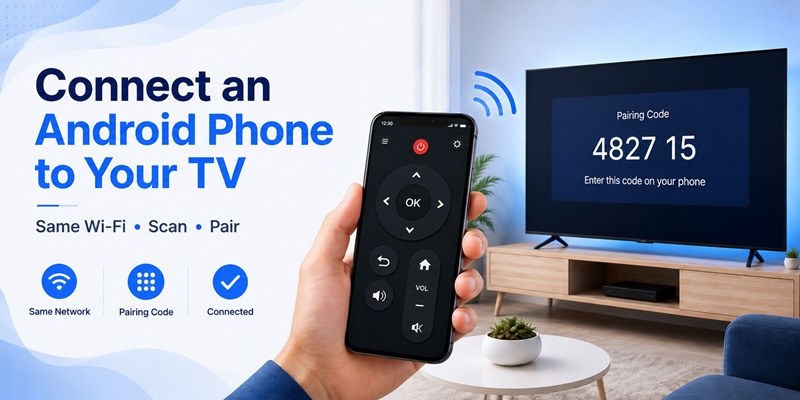
Once the application is installed, the next step is pairing.
Step 1: Connect Both Devices to the Same Wi-Fi
For most Smart TV remote applications, your Android device and TV need to share the same Wi-Fi network.
For example:
Phone: Home_WiFi
TV: Home_WiFi
If the phone is connected to Home_WiFi but the TV is connected to Guest_WiFi, they may not see each other.
This is the first thing to check after you download remote tv android.
Step 2: Start Device Scanning
Open the remote application and tap an option such as:
- Find TV
- Scan Devices
- Connect TV
- Add Device
Wait several seconds.
Compatible televisions should appear in a list.
Step 3: Select Your Television
Tap the correct television name.
If you have several devices, check the model number or room name.
Your television may immediately display a pairing request.
Step 4: Confirm Pairing
Choose Allow, Accept, or Pair on the TV screen.
Some televisions display a numerical pairing code instead.
Enter this number into the Android application.
Once accepted, the phone should become an authorized remote controller.
You generally only need to complete this process once. After you download remote tv android and finish pairing, the application should remember the television for future sessions.
How to Set Up the Remote Controls
After connecting, test the most important buttons before changing any advanced settings.
Test Navigation
Start with:
- Up
- Down
- Left
- Right
- OK
- Back
- Home
If these work, your phone is successfully communicating with the television.
Test Volume Controls
Press volume up and down.
Then test mute.
Some streaming devices cannot directly control television volume unless HDMI control or another supported connection method is enabled.
Therefore, if navigation works but volume does not, the download remote tv android setup may still be correct.
Test Media Playback
Open a video and try:
- Play
- Pause
- Rewind
- Fast-forward
Applications designed specifically for Smart TVs may also offer a touchpad.
Try Keyboard Input
One major advantage of smartphone control is text entry.
Search for a movie or YouTube video and check whether the Android keyboard appears.
Typing on a phone can be much faster than navigating a television keyboard with arrow buttons.
For many users, this alone makes it worthwhile to download remote tv android instead of relying entirely on the original controller.
📖 Read More Guides: Roku TV Remote App for Android: Complete Setup and Troubleshooting Guide
How to Download and Install a Remote TV APK
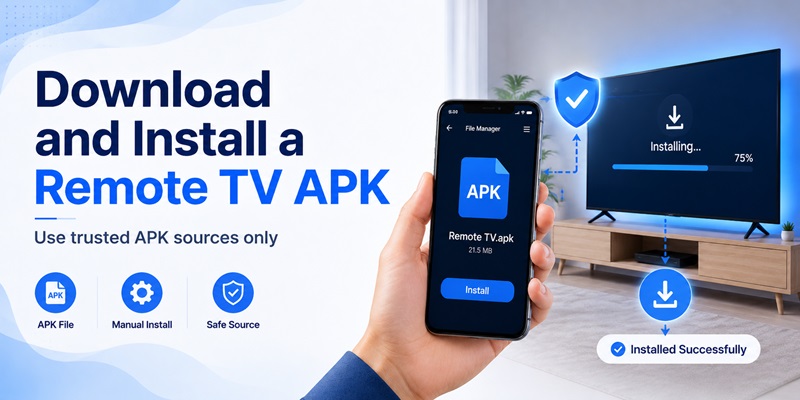
Some users search for an android remote tv apk when an application is unavailable in their normal app store.
An APK is an Android application installation package.
Understand the Difference Between Store Apps and APKs
When you install an application from Google Play, the store manages downloading and installation automatically.
With an APK file, installation is performed manually.
You may also encounter searches such as android tv remote service apk, especially when looking for older remote-control components or applications.
However, manually installing APK files introduces additional security considerations.
Prefer Trusted Sources
If you need an APK, obtain it directly from the application developer or another source you trust.
Avoid random download pages that:
- Promise unlimited premium features
- Ask you to install additional software
- Redirect through several download buttons
- Provide modified packages with unknown changes
For most people looking to download remote tv android, an official store installation is the simpler and safer option.
Keep Applications Updated
Store-installed applications normally receive automatic updates.
A manually installed APK may not.
This matters because TV manufacturers frequently change software, network protocols, and device behavior through firmware updates.
An outdated remote application may eventually stop connecting.
Should You Use Premium or MOD APK Versions?
Users looking for more features sometimes search phrases such as android tv remote premium apk or android remote tv mod apk.
Modified APKs should be treated differently from normal application packages.
What Is a MOD APK?
A MOD APK is a version of an Android application that has been altered from the original release.
You may also see search terms such as:
- android remote control mod apk
- android remote tv box remote mod apk
These files may claim to unlock premium features or remove advertising.
However, because the software has been modified by a third party, it can be difficult to know exactly what else has been changed.
Why Official Versions Are Usually Better
When you download remote tv android, reliability matters.
A remote application interacts directly with devices connected to your home network. Using an unknown modified package can introduce unnecessary privacy and security risks.
The official free version may already provide the basic controls most people need.
If premium features are genuinely useful, upgrading through the official application is generally a more predictable approach.
📖 Read More Guides: Free TV Remote App Android: Free Setup and Usage Guide
How to Fix a Remote TV App That Cannot Find Your TV
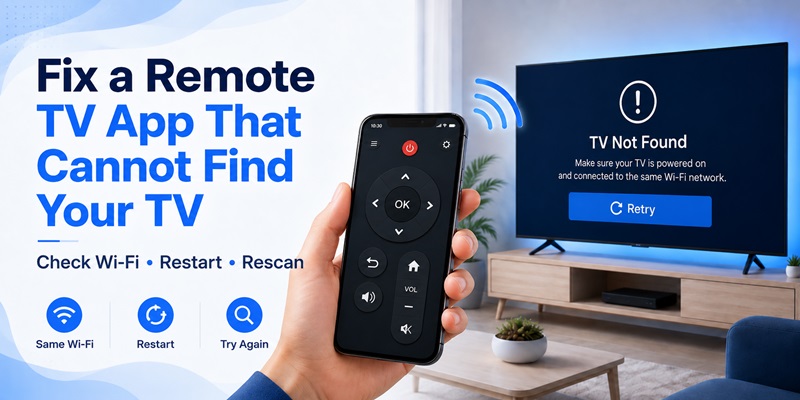
The most common problem after installation is an empty device list.
Fortunately, this is usually easy to troubleshoot.
Check the Wi-Fi Network
Make sure your phone and television use exactly the same network.
Guest Wi-Fi networks can prevent connected devices from communicating with each other.
Switch both devices to your main home Wi-Fi.
Then reopen the application and scan again.
Turn Off Mobile Data Temporarily
If your phone is using mobile data at the same time, temporarily disable it.
Leave Wi-Fi enabled.
Restart the remote app and scan again.
This can help determine whether network routing is interfering with your download remote tv android setup.
Restart the TV
Turn the television off and restart it.
Wait until its network connection is restored.
Then scan again.
Restart Your Android Phone
A phone restart can also resolve temporary Wi-Fi or Bluetooth discovery issues.
Check TV Remote Permissions
Some televisions have settings for external controllers.
Look under areas such as:
Settings > Network
Settings > Devices
Settings > External Device Manager
Settings > Mobile Device Control
The exact menu differs between manufacturers.
Make sure remote-control access is enabled.
How to Fix Buttons, Volume, and Power Controls
Sometimes the application finds the television but individual controls fail.
Navigation Works but Volume Does Not
This can happen when the app is controlling a streaming device rather than the television itself.
For example, a streaming box may receive directional commands while volume must still be handled by the television.
Check whether your remote application has separate device profiles.
Power Button Does Not Turn the TV On
When a television is completely powered off, its network connection may also enter standby.
As a result, the remote application cannot reach it.
Check your television settings for features such as:
- Network standby
- Quick start
- Remote start
- Mobile TV on
- Power on with network
The names vary by brand.
This behavior does not necessarily mean your download remote tv android installation failed.
Buttons Are Delayed
Slow controls are usually related to network performance.
Try moving closer to the Wi-Fi router.
Also check whether the TV is experiencing network delays when streaming.
If every action is delayed, restart the router and reconnect both devices.
Choosing the Right Remote TV App for Your Device
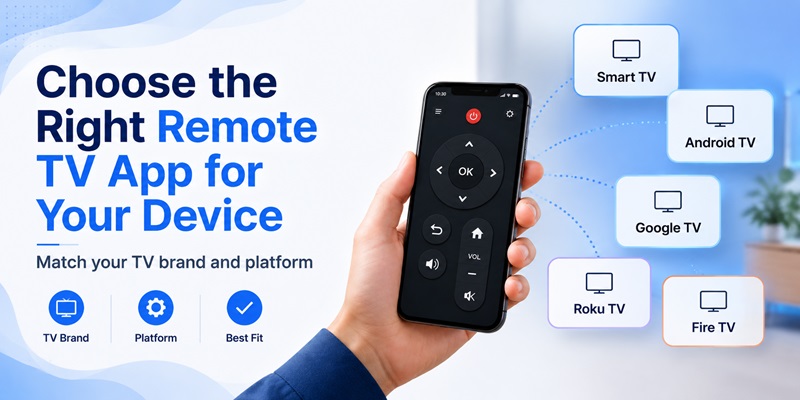
There are many remote applications available, so selection should begin with your hardware.
Choose Based on TV Platform
If you have Android TV or Google TV, choose software that supports those platforms directly.
If your television runs Fire TV, search specifically for Fire TV compatibility.
If you own several television brands, a universal remote may be more useful.
Decide Whether You Need a Free App
Many users searching for the best free tv remote app for android simply need essential functions.
Prioritize:
- Device discovery
- Volume control
- Navigation
- Playback
- Keyboard
- Multiple saved TVs
A large list of unnecessary features does not automatically make an application better.
Check the Interface
A remote should be easy to use while looking primarily at the television.
Buttons should therefore be large and clearly separated.
The most frequently used controls should be accessible immediately.
When you download remote tv android, avoid choosing based only on screenshots or marketing claims. Reliability and compatibility matter much more.
Final Checklist After Installing a Remote TV App
Once the setup is complete, use this checklist.
Confirm the Connection
Verify that:
- Phone and TV use the same Wi-Fi
- The correct TV is saved
- Pairing has been approved
- Navigation works
- Volume works when supported
- Media controls respond
- Keyboard input works if available
Save Your Television
If the app allows device names, rename your television.
Examples:
Living Room TV
Bedroom TV
Office TV
This is especially useful if you use the application with several televisions.
Keep the App Installed as a Backup
Even if you eventually find your physical remote, keeping the phone application configured can save time later.
You do not need to wait until the controller disappears before you download remote tv android.
Setting everything up while the original controller is still available is actually easier because some television settings may initially require physical remote access.
Conclusion
The process to download remote tv android is straightforward when you approach it in the right order.
First identify your television platform. Then choose a compatible application from a trusted source. Connect your phone and television to the same network, authorize pairing, and test navigation, volume, playback, and text entry.
If the television does not appear, check Wi-Fi first. Most discovery problems are caused by devices being connected to different networks or by settings that prevent local communication.
Users considering APK files should also distinguish between legitimate installation packages and modified software. A normal APK can be useful in specific situations, but unknown MOD versions create unnecessary uncertainty.
For most households, the best approach is simple: download remote tv android from a reputable source, configure it before the original remote goes missing, and keep it available as a convenient backup.
Once installed correctly, a smartphone remote can do more than replace a lost controller. It can simplify searching, provide faster keyboard input, manage multiple televisions, and make everyday entertainment control much easier.
Download TV Remote APP