
Download Remote TV for Android: Control Your TV With a Phone
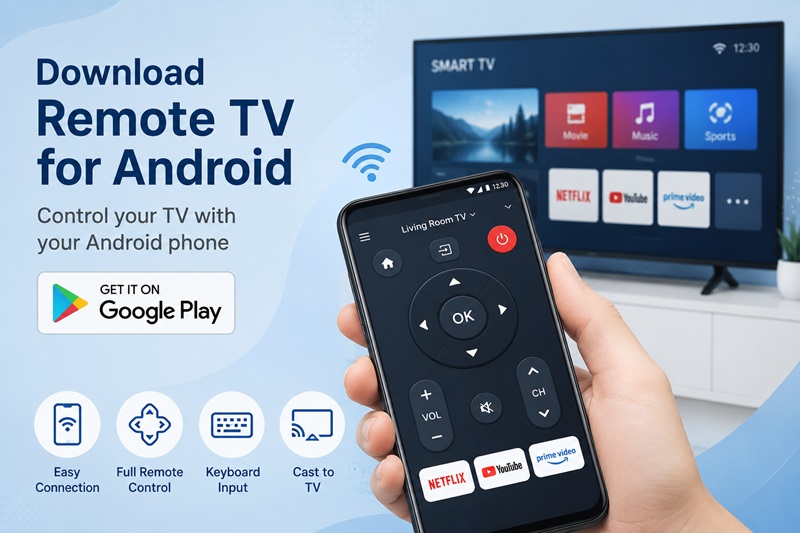
Losing the physical TV remote can quickly interrupt movie night, gaming, or your favorite show. Fortunately, you can download remote tv for android and turn a compatible smartphone into a convenient remote control. This solution is useful when the original remote is missing, broken, out of batteries, or buried somewhere in the couch.
The basic setup is simple. Open Google Play, install a compatible remote application, connect the phone and Smart TV to the same Wi-Fi network, and select the television inside the app. Once connected, your phone may control volume, channels, playback, menu navigation, streaming apps, and text entry.
This guide explains how to download remote tv for android, connect it to your television, review device compatibility, and solve common connection problems. You will also learn when a Remote TV App can fully replace a physical controller and when your TV may still require infrared hardware.
1. Can You Download a TV Remote on an Android Phone?
Yes. You can download remote tv for android on most modern Android phones and use it with many Smart TVs and streaming devices. The exact controls depend on the app, television model, operating system, and connection method.
Most Android remote apps use one of three technologies:
- Wi-Fi: Common for Smart TVs, Roku, Fire TV, Android TV, and Google TV.
- Bluetooth: Available on selected TVs and streaming boxes.
- Infrared: Designed for traditional TVs when the phone includes an IR blaster.
A Wi-Fi remote normally requires the Android phone and television to be connected to the same local network. The app searches for compatible devices and sends commands through the router.
People asking how to download tv remote on my phone should first identify whether their television is smart. A traditional TV without Wi-Fi usually needs infrared control. Installing an infrared remote app will not work unless the phone contains the required IR transmitter.
Before you download remote tv android software, check the app’s supported brands, user rating, developer information, subscription terms, recent updates, and requested permissions. A free app may include advertising, premium controls, or an optional subscription.
Not every app offers every feature. Some applications provide only navigation and volume, while others add streaming shortcuts, casting, voice search, or keyboard input.
2. How to Download Remote TV for Android
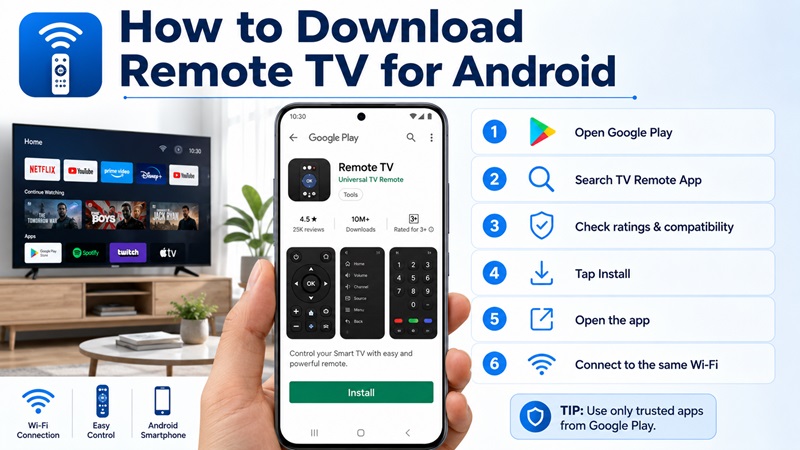
The safest way to download remote tv for android is through the Google Play Store. Avoid downloading APK files from unknown websites, especially when the application requests access to nearby devices, local networks, photos, or videos.
Download the App From Google Play
Follow these steps:
- Unlock your Android phone.
- Open the Google Play Store.
- Tap the search bar.
- Search for “Universal TV Remote Control”, “TV Remote App”, or the official app for your TV brand.
- Open the application listing.
- Review the developer, screenshots, rating, supported devices, in-app purchases, and privacy information.
- Tap Install.
- Wait for the installation to finish.
- Tap Open.
This is the standard way to download tv remote for android without installing files from an unverified source.
When comparing options for a tv remote app download for android, check whether the application supports the television platform rather than only the brand name. For example, a Roku remote app controls Roku devices, while an LG-specific app may be designed for webOS televisions.
Check Compatibility Before Installing
Before completing the download remote tv for android process, review these details:
- Supported television brands
- Supported TV operating systems
- Wi-Fi or infrared requirements
- Android version requirements
- Advertising and subscription terms
- Casting availability
- Keyboard support
- Power-on compatibility
- Multi-device support
Do not assume that an application is official simply because its title includes a television brand. Confirm the developer and read the full Google Play description.
Allow the Necessary Permissions
After installation, the application may request access to:
- Nearby Devices
- Bluetooth
- Wi-Fi information
- Local network devices
- Location on some Android versions
- Photos and videos for casting
Permission names can vary by Android version and phone manufacturer. Grant only the permissions needed for the features you plan to use.
If you are completing a download tv remote app for android, Nearby Devices or local network permission may be essential for finding a Smart TV.
Keep the television powered on before launching the app for the first time.
3. How to Connect the TV Remote App to Your Television
After you download remote tv for android, the phone and TV need a shared connection. Most Smart TV remote apps communicate through the local Wi-Fi network.
Connect Both Devices to the Same Wi-Fi
On the television:
- Open Settings.
- Select Network or Wi-Fi.
- Check the connected network name.
On the Android phone:
- Open Settings.
- Select Wi-Fi or Network & Internet.
- Connect to the same network shown on the TV.
Do not rely on similar-looking network names. Networks called “Home WiFi,” “Home WiFi 5G,” and “Home WiFi Guest” may be separate.
Guest Wi-Fi often prevents connected devices from discovering each other. Move the phone and television to the router’s main network.
Mobile data does not normally replace local Wi-Fi for Smart TV control. Temporarily disable mobile data if the phone keeps leaving the Wi-Fi network during setup.
Let the App Detect Your TV
Open the app and look for a button such as:
- Add Device
- Connect TV
- Scan
- Select TV
- Choose Device
Wait while the app searches for nearby televisions. Select your TV when its name appears.
Some televisions display a confirmation request or pairing PIN. Approve the request or enter the code shown on the screen.
If you download remote tv android software that supports several TV platforms, select the correct brand or operating system before scanning.
Test the Main Controls
Once connected, test:
- Power, when supported
- Volume up and down
- Mute
- Channel controls
- Home
- Back
- Direction pad
- OK or Select
- Input
- Playback controls
If a button does not respond, verify that the correct television is selected inside the app.
Can the App Turn On the TV?
Some applications can wake supported televisions over the network. The TV may need a setting such as:
- Network Standby
- Quick Start
- Mobile TV On
- Wake-on-LAN
- Power On With Wi-Fi
This feature does not work on every TV. If the television disables Wi-Fi when powered off, use its physical power button before opening the app.
After you download remote tv for android, review your TV’s power and network settings if phone-based power-on control is important.
4. What Can an Android TV Remote App Do?
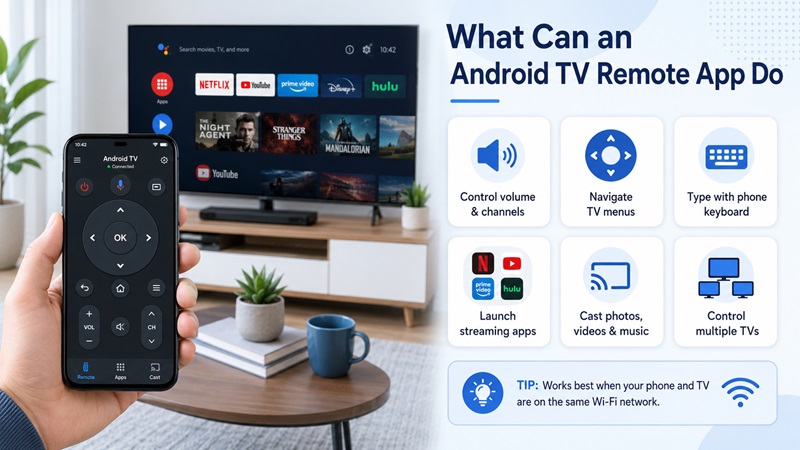
When you download remote tv for android, the application may provide more than a digital version of the physical remote.
Control Volume, Channels, and Playback
Basic controls may include:
- Volume up and down
- Mute
- Channel changes
- Play and pause
- Rewind
- Fast-forward
- Stop
These controls can provide a quick replacement when the original remote is unavailable.
Navigate TV Menus
A digital direction pad can help you:
- Open the home screen
- Browse settings
- Select an input
- Move through streaming apps
- Return to the previous screen
- Confirm a selection
Some remote apps also provide a touchpad. This may feel faster than repeatedly pressing directional buttons.
Type With the Phone Keyboard
Typing movie names or email addresses with a physical TV remote can be frustrating. A phone keyboard may allow faster text entry.
Keyboard support depends on the TV and application. Some password fields or protected apps may block remote text entry.
Launch Streaming Services
Supported shortcuts may open applications such as Netflix, YouTube, Prime Video, or Disney+.
The service usually needs to be installed on the television before the shortcut can open it.
Cast Photos, Videos, and Music
Selected apps can share media from your phone with a compatible TV. You may be able to:
- Display gallery photos
- Play personal videos
- Stream music
- Present content on a larger screen
- Share vacation memories with family
Casting availability depends on the TV platform, network, file format, and app version.
Control Multiple Televisions
A universal app may save several televisions and streaming devices. You can switch between a living-room TV, bedroom TV, or media player from one interface.
For users who download tv remote for android because they are tired of switching between controllers, multi-device support can reduce clutter.
A reliable Remote TV App can also make frequently used tools easier to reach than on a traditional remote.
5. Which TV Brands Can You Control With the App?
Before you download remote tv for android, confirm that the application supports your television or streaming platform.
Universal remote applications may support devices such as:
- Samsung Smart TV
- LG Smart TV
- Roku TV
- Android TV
- Google TV
- Fire TV
- Sony
- TCL
- Hisense
- Philips
- Vizio
- Roku players
- Android TV boxes
- Fire TV devices
Support varies by application. One remote app may connect to Samsung and LG televisions but not Roku. Another may specialize in streaming devices.
Smart TVs Connected Through Wi-Fi
Wi-Fi remote apps are designed primarily for network-connected televisions. The phone and TV usually need to share the same network, and the television may require approval before accepting commands.
A tv remote app download for android can use a different connection process for every platform. Roku, Fire TV, Android TV, and webOS do not use exactly the same control system.
Older TVs With Infrared
An older television without Wi-Fi normally requires infrared control. The Android phone must contain an IR blaster.
Many modern smartphones do not include this hardware. An infrared app cannot add an IR transmitter to a phone that does not have one.
Streaming Devices
Some applications also control Roku players, Fire TV Sticks, Android TV boxes, and Google TV devices. The available controls may differ from the TV remote interface.
When you download remote tv for android for multiple platforms, test all important buttons rather than assuming every device offers identical features.
6. What to Do When the TV Remote App Cannot Find Your TV
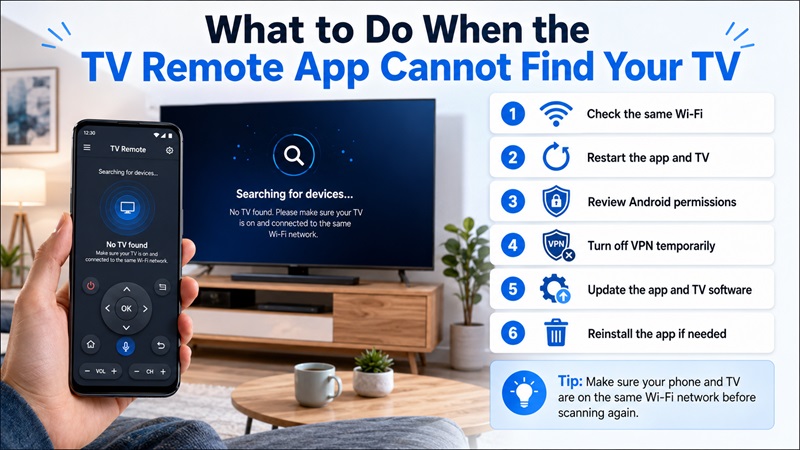
A discovery problem does not always mean the application is incompatible. After you download remote tv for android, complete the following checks before changing apps.
Confirm the Wi-Fi Network
Verify that the phone and TV use the exact same network name.
Avoid:
- Guest Wi-Fi
- Public Wi-Fi
- Hotel networks
- Isolated device networks
- Different routers in the same home
Some routers use client isolation to prevent devices from communicating. Use the primary trusted network or contact the network administrator.
Restart the App and Devices
Force-close the app and reopen it. If the TV still does not appear:
- Restart the Android phone.
- Turn the television off and on.
- Restart the router.
- Wait for the TV to reconnect.
- Open the remote app.
- Scan again.
Review Android Permissions
Open the application’s information screen and review permissions for:
- Nearby Devices
- Bluetooth
- Local network access
- Location, when requested
- Photos and videos for casting
A denied permission may prevent the app from finding the TV even when both devices are connected correctly.
Temporarily Disable VPN or Private DNS
A VPN, firewall, proxy, or Private DNS service can interfere with local device discovery.
Temporarily disable the service, reconnect the phone to Wi-Fi, and scan again. Restore the privacy or security service after testing.
Update the App and TV
Open Google Play and install any available application update. Then check the television for a system or firmware update.
A newer app may not communicate correctly with an outdated television platform.
Remove and Reconnect the TV
Delete the saved television from the app, restart both devices, and run a new scan.
Approve any connection message displayed on the TV screen.
Confirm App Compatibility
People asking how to download tv remote on my phone sometimes install the first app shown in search results. Recheck the supported brand, TV operating system, and model requirements.
If the television is not smart, Wi-Fi control may be unavailable. Use infrared mode only when the Android phone contains an IR blaster.
Reinstall the Application
When other fixes fail:
- Uninstall the app.
- Restart the phone.
- Reopen Google Play.
- Complete the download tv remote app for android process again.
- Grant the required permissions.
- Connect both devices to the same Wi-Fi.
- Scan for the television.
Reinstallation can clear corrupted settings or an incomplete first-time setup.
7. Use a Remote TV App When the Physical Remote Is Missing
A missing or damaged controller is one of the main reasons to download remote tv for android. Your phone can restore access to basic controls while you search for the original remote or decide whether to buy a replacement.
The complete setup usually involves:
- Open Google Play.
- Find an application compatible with your TV.
- Install and launch it.
- Connect the phone and television to the same Wi-Fi.
- Select the TV.
- Approve the connection request.
- Test volume, navigation, input, and playback.
A universal app may also provide keyboard input, streaming shortcuts, touchpad navigation, voice tools, and casting on supported TVs.
This approach is particularly useful in a home with multiple TV brands. Rather than keeping a separate controller beside every screen, one phone may manage several compatible devices.
However, an app cannot solve every situation. Older TVs may need infrared hardware, while some Smart TVs disable network control when powered off. Features and subscription terms also differ between applications.
Choose a Remote TV App that clearly lists your TV platform, explains its pricing, receives regular updates, and requests only appropriate permissions.
When the television is compatible and the Wi-Fi connection is stable, choosing to download remote tv for android can help you regain control quickly, reduce remote clutter, and search for content more efficiently.
