
Apple TV Remote Download: Complete Guide to Control Apple TV From Your Phone
When your Apple TV remote is lost, damaged, or unavailable, your iPhone can become a convenient replacement controller. Many users search for apple tv remote download because they want to control Apple TV without buying a new physical remote.
However, the download process is different from a normal app installation. On modern iPhones, Apple TV Remote is already integrated into Control Center, meaning you usually do not need to install a separate application from the App Store.
Instead, you can add the Remote control, connect your iPhone to Apple TV, and use your phone for navigation, playback, searching, and other functions.
This guide explains how apple tv remote download works, how to set it up step by step, how to use Apple TV Remote, what alternatives are available, and how to solve common connection problems.
1. Do You Need to Download Apple TV Remote? Understanding Your Options
Before searching for apple tv remote download, it is important to understand whether you actually need a separate application.
Many users expect Apple TV Remote to appear as an App Store download, but Apple has changed how this feature works on newer iOS versions.
Is Apple TV Remote a Separate App?
On modern iPhones, Apple TV Remote is not usually a standalone application.
Instead, it is built into:
- Control Center.
- iOS system controls.
- Apple TV connectivity features.
This means users searching how do i download apple tv remote usually do not need to install anything.
The correct process is:
- Open Control Center.
- Add Apple TV Remote.
- Select your Apple TV.
- Enter the pairing code.
- Start controlling your device.
The built-in option is the official Apple solution and provides the main features most users need.
Why Do Users Search for Apple TV Remote Download?
The keyword apple tv remote download is commonly searched because people want a quick replacement when:
- The Siri Remote is missing.
- Remote batteries are empty.
- Buttons stop responding.
- They want faster text input.
- They want to control Apple TV from another room.
The iPhone Remote provides:
- Touch navigation.
- Keyboard typing.
- Siri access.
- Playback controls.
- Menu navigation.
How Does Apple TV Remote Work?
Apple TV Remote does not work like traditional infrared controllers.
Instead, it uses wireless communication:
- Wi-Fi.
- Bluetooth.
- Local network connection.
The connection works like:
iPhone → Wi-Fi Network → Apple TV
Requirements:
- iPhone and Apple TV should be on the same network.
- Apple TV must be powered on.
- Both devices should support the feature.
This is why many apple tv remote download problems are actually caused by network connection issues.
Is Apple TV Remote IR?
Many users ask is apple tv remote ir because traditional TV remotes commonly use infrared.
The answer is no.
Apple TV Remote on iPhone does not send infrared signals.
| Technology | Apple TV Remote Support |
| Infrared (IR) | No |
| Wi-Fi | Yes |
| Bluetooth | Yes |
| Local Network | Yes |
A traditional universal remote may use IR, but Apple’s iPhone solution relies on network communication.
When Should You Use Another Remote App?
Although Apple’s built-in Remote is enough for most users, some people prefer a third-party Remote TV App.
A different app may be useful when you need:
- Multiple TV brand support.
- Universal remote functions.
- Additional customization.
- Smart home integration.
- Extra device compatibility.
Before choosing an alternative, check:
- Supported devices.
- Reviews.
- Subscription fees.
- Required permissions.
No more searching for a lost remote. Download the Apple TV Remote app and enjoy smooth navigation, quick text input, volume control, playback controls, and instant access to your Apple TV from your phone.
2. How to Download Apple TV Remote on iPhone Step by Step
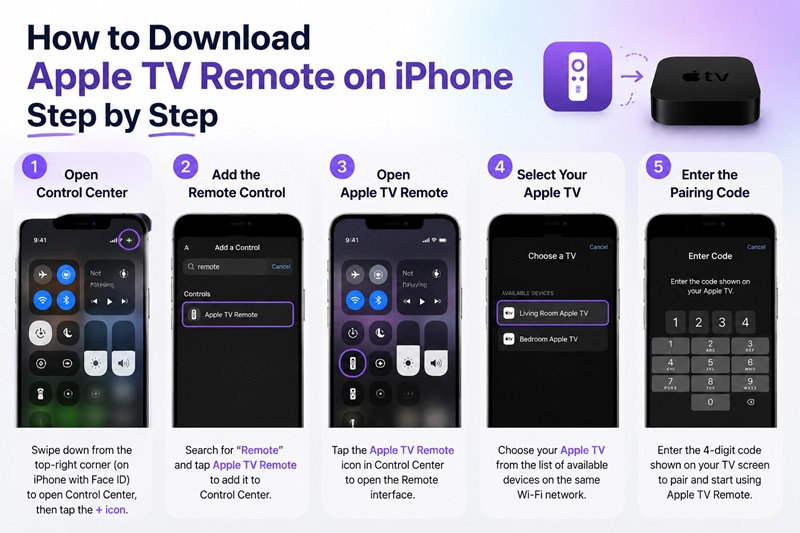
Many users search how to download apple tv remote on iphone because they cannot find a dedicated app.
The important point is that modern iPhones usually do not require a separate download.
Add Apple TV Remote to Control Center
Follow these steps:
- Open Control Center.
- Tap the Add Control option.
- Search for Remote.
- Select Apple TV Remote.
- Add it to your Control Center.
After completing these steps, the Remote icon will appear whenever you open Control Center.
How to Download Apple TV Remote on iPhone
For users searching how to download apple tv remote on iphone, the process is:
- Check that your iPhone is updated.
- Open Control Center.
- Add the Remote control.
- Select your Apple TV.
- Complete pairing.
You do not normally need to search the App Store for an official Apple TV Remote application.
How Do I Download Apple TV Remote?
The question how do i download apple tv remote is common because users expect a traditional app.
The answer depends on your device:
- Modern iPhone: Add Remote from Control Center.
- Older iOS versions: Enable the feature through settings.
- Third-party apps: Download from the App Store if you need extra functions.
What If Apple TV Remote Is Missing?
If you cannot find the Remote option:
Try these solutions:
- Update iOS.
- Restart your iPhone.
- Check Control Center settings.
- Add Remote manually.
- Restart Apple TV.
If the built-in option still does not work, a third-party Remote TV App can be considered.
Read More Guides: How to Reset Apple TV Remote: Pairing, Volume, and No-Remote Fixes
3. How to Connect and Set Up Apple TV Remote After Download
After completing the apple tv remote download setup process, you need to connect your iPhone with Apple TV.
A correct connection allows your phone to replace most functions of the physical Siri Remote.
Prepare Your Devices Before Pairing
Before connecting:
- Turn on Apple TV.
- Turn on your television.
- Connect iPhone to Wi-Fi.
- Connect Apple TV to the same network.
- Enable Bluetooth.
- Update software if available.
A different Wi-Fi network is one of the most common reasons the iPhone cannot find Apple TV.
Connect Apple TV Remote Step by Step
Follow these instructions:
Step 1: Open Apple TV Remote
Open:
Control Center → Apple TV Remote
Step 2: Select Apple TV Device
Tap the device selector at the top.
Choose your Apple TV from the available list.
Step 3: Enter Pairing Code
A four-digit code may appear on your TV screen.
Enter this code on your iPhone.
Step 4: Test Remote Functions
Try:
- Swipe navigation.
- Select button.
- Back button.
- Play/Pause.
- Menu controls.
If all controls work, your setup is complete.
Connect Multiple Apple TVs
If you own several Apple TV devices:
- Open Apple TV Remote.
- Tap the device selector.
- Choose another Apple TV.
You can switch between devices without repeating the entire setup process.
Fix Connection Problems After Setup
If your apple tv remote download solution does not connect, check:
| Problem | Possible Cause | Fix |
| Apple TV not found | Different Wi-Fi networks | Connect both devices to the same network |
| Pairing code missing | Temporary connection issue | Restart Apple TV and iPhone |
| Remote disconnects | Network problem | Restart router |
| Buttons do not respond | Software issue | Update devices |
4. How to Use Apple TV Remote and Its Main Features
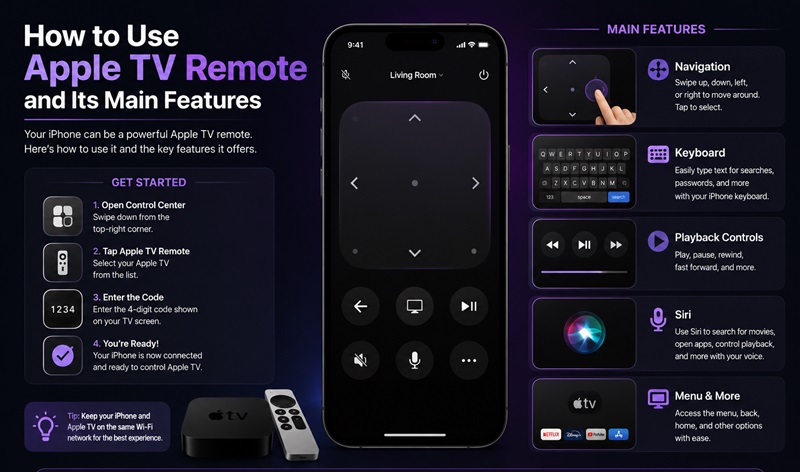
After completing the apple tv remote download setup process, your iPhone can replace many functions of the physical Siri Remote. The interface is designed to provide faster navigation, easier searching, and convenient text input.
Learning how to use the Remote properly helps you get the most out of your Apple TV without carrying an additional controller.
Navigate Apple TV With Touch Controls
The iPhone Remote uses a touch area similar to the clickpad on a physical Apple TV Remote.
You can:
- Swipe left and right to move between options.
- Swipe up and down to scroll menus.
- Tap to select an item.
- Hold buttons for additional actions.
This makes browsing apps, settings, and streaming services easier than using traditional directional buttons.
Use the iPhone Keyboard for Faster Typing
One of the biggest advantages of an apple tv remote download solution is faster text input.
When Apple TV displays a search box or login field, your iPhone can show a keyboard.
You can use it for:
- Searching movies.
- Entering passwords.
- Typing usernames.
- Finding apps.
Typing on an iPhone is usually much faster than selecting letters individually with a physical remote.
Control Playback and Media
The iPhone Remote provides playback controls for supported applications.
You can:
- Play content.
- Pause videos.
- Skip forward.
- Rewind.
- Navigate playback menus.
Available controls may vary depending on the streaming app.
Use Siri Voice Features
Compatible iPhones allow users to use Siri-related features when controlling Apple TV.
Voice control can help with:
- Searching for movies.
- Opening applications.
- Finding shows.
- Controlling supported functions.
This makes the iPhone Remote more flexible than many traditional controllers.
Apple TV Remote vs Physical Remote
| Feature | iPhone Apple TV Remote | Physical Siri Remote |
| Touch navigation | Yes | Yes |
| Keyboard typing | Yes | No |
| Siri control | Available | Available |
| Requires phone battery | Yes | No |
| Easy replacement | Yes | Requires purchase |
| Always available | Depends on phone | Yes |
For many users, the iPhone Remote is a convenient backup, while the physical remote remains useful for everyday viewing.
5. Apple TV Remote Download Alternatives: Apps and Universal Remotes
Although the built-in iPhone solution is usually enough, some users search for an apple tv remote download alternative because they need additional features.
Third-party apps and universal controllers can provide extra flexibility.
Download Apple TV Remote Control Alternatives
Users searching for download apple tv remote control options may want:
- Universal TV control.
- Multiple device support.
- Extra shortcuts.
- Custom remote layouts.
Third-party remote applications may support:
- Apple TV.
- Smart TVs.
- Streaming devices.
- Home entertainment systems.
Before installing any alternative, check whether it supports your exact device.
Apple TV Remote App Download Options
The search term apple tv remote app download is often used by users looking for a standalone application.
When choosing an app, check:
- Developer information.
- User reviews.
- Subscription pricing.
- Device compatibility.
- Required permissions.
Some apps are free with limited features, while others require premium subscriptions for advanced controls.
Download Apple TV Remote App From the App Store
If you choose a third-party solution and search for download apple tv remote app, follow these steps:
- Open the App Store.
- Search for Apple TV remote applications.
- Review ratings and descriptions.
- Install the application.
- Allow required permissions.
- Connect it to your Apple TV or television.
Avoid applications that request unnecessary access to personal information.
Is There a Better Remote for Apple TV?
Many users ask is there a better remote for apple tv because they want more features than the standard controller provides.
The answer depends on your needs.
| Remote Option | Best For |
| iPhone Remote | Quick replacement and keyboard input |
| Siri Remote | Official Apple experience |
| Universal Remote | Multiple entertainment devices |
| Smart Home Remote | Advanced automation |
A universal remote may be better if you want to control:
- Apple TV.
- Television.
- Sound system.
- Streaming devices.
However, the official Apple solution usually provides the best compatibility with Apple TV features.
Download Remote for Apple TV Alternatives
Users searching download remote for apple tv may be looking for a replacement controller app.
Alternative options include:
- Universal remote applications.
- Smart home controllers.
- Physical universal remotes.
A Remote TV App can be useful if you want one application to control several devices instead of only Apple TV.
6. Apple TV Remote Not Working After Download: Problems and Fixes
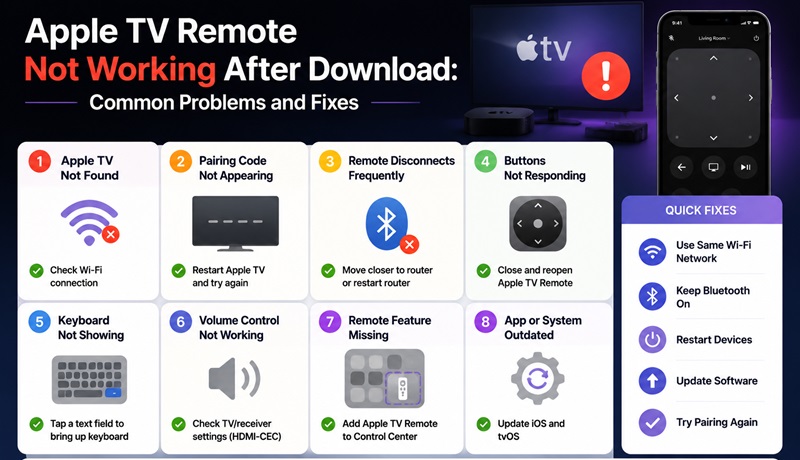
Even after completing an apple tv remote download setup, connection problems can still happen.
Most issues are related to:
- Network connection.
- Software versions.
- Pairing problems.
- Device settings.
Use this troubleshooting table to identify the issue.
| Problem | Possible Cause | Solution |
| Apple TV does not appear | Different Wi-Fi networks | Connect iPhone and Apple TV to the same network |
| Pairing code does not appear | Temporary connection issue | Restart both devices |
| Remote disconnects frequently | Weak network | Restart router |
| Buttons do not respond | Software problem | Update iPhone and Apple TV |
| Keyboard does not appear | Text field not active | Select a text input area |
| Volume control does not work | Audio setup limitation | Check TV or speaker compatibility |
| Remote feature missing | Control not added | Add Remote to Control Center |
Check Wi-Fi Connection
The most common reason an apple tv remote download solution fails is network mismatch.
Check:
- iPhone Wi-Fi.
- Apple TV network.
- Router connection.
Both devices must communicate through the same local network.
Restart iPhone and Apple TV
A simple restart can fix temporary problems.
Restart:
- iPhone.
- Apple TV.
- Router if needed.
After restarting, open Apple TV Remote again and try pairing.
Update Software
Outdated software may cause:
- Connection failures.
- Missing Remote features.
- Pairing problems.
Update:
- iOS.
- tvOS.
- Third-party remote applications.
Check Volume Control Compatibility
The iPhone Remote does not control every TV volume setup.
Volume features depend on:
- Compatible audio equipment.
- HDMI settings.
- Speaker configuration.
Some users may still need the original TV remote or a universal controller.
7. How to Download Apple TV Remote on Different Devices
The process of completing an apple tv remote download depends on the device you are using.
Apple provides the best integration on iPhone and iPad, while other platforms usually require alternative solutions.
Download Apple TV Remote on iPhone
For iPhone users, no separate download is normally required.
Steps:
- Open Control Center.
- Add Apple TV Remote.
- Select your Apple TV.
- Enter the pairing code.
- Start controlling your device.
This is the official way to complete an apple tv remote download setup on iPhone.
Download Apple TV Remote on iPad
The process is similar:
- Open Control Center.
- Add Remote.
- Select Apple TV.
- Pair the device.
The larger iPad screen can make navigation and typing easier.
Download Remote for Apple TV on Android
Android users looking for download remote for apple tv should know that Apple does not provide the same built-in Remote feature available on iPhone.
Instead, Android users can use:
- Third-party remote applications.
- Universal remote apps.
- Smart home controllers.
Compatibility depends on the application and Apple TV setup.
Can You Use a Universal Remote Instead?
Yes.
A universal remote can be a good choice if you want to control:
- Apple TV.
- Television.
- Receiver.
- Soundbar.
This is especially useful for home theater systems with multiple devices.
Conclusion
Completing an apple tv remote download is easier than many users expect because modern iPhones already include Apple TV Remote inside Control Center. Instead of installing a separate application, you can add the Remote feature, connect your iPhone to Apple TV, and start controlling your device.
For users who need more functions, third-party apps, universal remotes, and a Remote TV App can provide additional options. The best choice depends on whether you need simple Apple TV control or a complete entertainment system remote.
If your Remote does not connect, check Wi-Fi, update your devices, restart Apple TV, and verify pairing settings. With the correct setup, your iPhone can become a reliable replacement for the physical Apple TV remote.
Turn your phone into a smart Apple TV remote. Connect over Wi-Fi, browse menus with ease, launch apps, adjust volume, and control playback—all from one simple app. Compatible with most Apple TV devices.
Author

Apple TV Remote Download: Complete Guide to Control Apple TV From Your Phone
When your Apple TV remote is lost, damaged, or unavailable, your iPhone can become a convenient replacement controller. Many users search for apple tv remote download because they want to control Apple TV without buying a new physical remote.
However, the download process is different from a normal app installation. On modern iPhones, Apple TV Remote is already integrated into Control Center, meaning you usually do not need to install a separate application from the App Store.
Instead, you can add the Remote control, connect your iPhone to Apple TV, and use your phone for navigation, playback, searching, and other functions.
This guide explains how apple tv remote download works, how to set it up step by step, how to use Apple TV Remote, what alternatives are available, and how to solve common connection problems.
1. Do You Need to Download Apple TV Remote? Understanding Your Options
Before searching for apple tv remote download, it is important to understand whether you actually need a separate application.
Many users expect Apple TV Remote to appear as an App Store download, but Apple has changed how this feature works on newer iOS versions.
Is Apple TV Remote a Separate App?
On modern iPhones, Apple TV Remote is not usually a standalone application.
Instead, it is built into:
- Control Center.[ez-toc]
- iOS system controls.
- Apple TV connectivity features.
This means users searching how do i download apple tv remote usually do not need to install anything.
The correct process is:
- Open Control Center.
- Add Apple TV Remote.
- Select your Apple TV.
- Enter the pairing code.
- Start controlling your device.
The built-in option is the official Apple solution and provides the main features most users need.
Why Do Users Search for Apple TV Remote Download?
The keyword apple tv remote download is commonly searched because people want a quick replacement when:
- The Siri Remote is missing.
- Remote batteries are empty.
- Buttons stop responding.
- They want faster text input.
- They want to control Apple TV from another room.
The iPhone Remote provides:
- Touch navigation.
- Keyboard typing.
- Siri access.
- Playback controls.
- Menu navigation.
How Does Apple TV Remote Work?
Apple TV Remote does not work like traditional infrared controllers.
Instead, it uses wireless communication:
- Wi-Fi.
- Bluetooth.
- Local network connection.
The connection works like:
iPhone → Wi-Fi Network → Apple TV
Requirements:
- iPhone and Apple TV should be on the same network.
- Apple TV must be powered on.
- Both devices should support the feature.
This is why many apple tv remote download problems are actually caused by network connection issues.
Is Apple TV Remote IR?
Many users ask is apple tv remote ir because traditional TV remotes commonly use infrared.
The answer is no.
Apple TV Remote on iPhone does not send infrared signals.
| Technology | Apple TV Remote Support |
| Infrared (IR) | No |
| Wi-Fi | Yes |
| Bluetooth | Yes |
| Local Network | Yes |
A traditional universal remote may use IR, but Apple’s iPhone solution relies on network communication.
When Should You Use Another Remote App?
Although Apple’s built-in Remote is enough for most users, some people prefer a third-party Remote TV App.
A different app may be useful when you need:
- Multiple TV brand support.
- Universal remote functions.
- Additional customization.
- Smart home integration.
- Extra device compatibility.
Before choosing an alternative, check:
- Supported devices.
- Reviews.
- Subscription fees.
- Required permissions.
2. How to Download Apple TV Remote on iPhone Step by Step
Many users search how to download apple tv remote on iphone because they cannot find a dedicated app.
The important point is that modern iPhones usually do not require a separate download.
Add Apple TV Remote to Control Center
Follow these steps:
- Open Control Center.
- Tap the Add Control option.
- Search for Remote.
- Select Apple TV Remote.
- Add it to your Control Center.
After completing these steps, the Remote icon will appear whenever you open Control Center.
How to Download Apple TV Remote on iPhone
For users searching how to download apple tv remote on iphone, the process is:
- Check that your iPhone is updated.
- Open Control Center.
- Add the Remote control.
- Select your Apple TV.
- Complete pairing.
You do not normally need to search the App Store for an official Apple TV Remote application.
How Do I Download Apple TV Remote?
The question how do i download apple tv remote is common because users expect a traditional app.
The answer depends on your device:
- Modern iPhone: Add Remote from Control Center.
- Older iOS versions: Enable the feature through settings.
- Third-party apps: Download from the App Store if you need extra functions.
What If Apple TV Remote Is Missing?
If you cannot find the Remote option:
Try these solutions:
- Update iOS.
- Restart your iPhone.
- Check Control Center settings.
- Add Remote manually.
- Restart Apple TV.
If the built-in option still does not work, a third-party Remote TV App can be considered.
3. How to Connect and Set Up Apple TV Remote After Download
After completing the apple tv remote download setup process, you need to connect your iPhone with Apple TV.
A correct connection allows your phone to replace most functions of the physical Siri Remote.
Prepare Your Devices Before Pairing
Before connecting:
- Turn on Apple TV.
- Turn on your television.
- Connect iPhone to Wi-Fi.
- Connect Apple TV to the same network.
- Enable Bluetooth.
- Update software if available.
A different Wi-Fi network is one of the most common reasons the iPhone cannot find Apple TV.
Connect Apple TV Remote Step by Step
Follow these instructions:
Step 1: Open Apple TV Remote
Open:
Control Center → Apple TV Remote
Step 2: Select Apple TV Device
Tap the device selector at the top.
Choose your Apple TV from the available list.
Step 3: Enter Pairing Code
A four-digit code may appear on your TV screen.
Enter this code on your iPhone.
Step 4: Test Remote Functions
Try:
- Swipe navigation.
- Select button.
- Back button.
- Play/Pause.
- Menu controls.
If all controls work, your setup is complete.
Connect Multiple Apple TVs
If you own several Apple TV devices:
- Open Apple TV Remote.
- Tap the device selector.
- Choose another Apple TV.
You can switch between devices without repeating the entire setup process.
Fix Connection Problems After Setup
If your apple tv remote download solution does not connect, check:
| Problem | Possible Cause | Fix |
| Apple TV not found | Different Wi-Fi networks | Connect both devices to the same network |
| Pairing code missing | Temporary connection issue | Restart Apple TV and iPhone |
| Remote disconnects | Network problem | Restart router |
| Buttons do not respond | Software issue | Update devices |
4. How to Use Apple TV Remote and Its Main Features
After completing the apple tv remote download setup process, your iPhone can replace many functions of the physical Siri Remote. The interface is designed to provide faster navigation, easier searching, and convenient text input.
Learning how to use the Remote properly helps you get the most out of your Apple TV without carrying an additional controller.
Navigate Apple TV With Touch Controls
The iPhone Remote uses a touch area similar to the clickpad on a physical Apple TV Remote.
You can:
- Swipe left and right to move between options.
- Swipe up and down to scroll menus.
- Tap to select an item.
- Hold buttons for additional actions.
This makes browsing apps, settings, and streaming services easier than using traditional directional buttons.
Use the iPhone Keyboard for Faster Typing
One of the biggest advantages of an apple tv remote download solution is faster text input.
When Apple TV displays a search box or login field, your iPhone can show a keyboard.
You can use it for:
- Searching movies.
- Entering passwords.
- Typing usernames.
- Finding apps.
Typing on an iPhone is usually much faster than selecting letters individually with a physical remote.
Control Playback and Media
The iPhone Remote provides playback controls for supported applications.
You can:
- Play content.
- Pause videos.
- Skip forward.
- Rewind.
- Navigate playback menus.
Available controls may vary depending on the streaming app.
Use Siri Voice Features
Compatible iPhones allow users to use Siri-related features when controlling Apple TV.
Voice control can help with:
- Searching for movies.
- Opening applications.
- Finding shows.
- Controlling supported functions.
This makes the iPhone Remote more flexible than many traditional controllers.
Apple TV Remote vs Physical Remote
| Feature | iPhone Apple TV Remote | Physical Siri Remote |
| Touch navigation | Yes | Yes |
| Keyboard typing | Yes | No |
| Siri control | Available | Available |
| Requires phone battery | Yes | No |
| Easy replacement | Yes | Requires purchase |
| Always available | Depends on phone | Yes |
For many users, the iPhone Remote is a convenient backup, while the physical remote remains useful for everyday viewing.
5. Apple TV Remote Download Alternatives: Apps and Universal Remotes
Although the built-in iPhone solution is usually enough, some users search for an apple tv remote download alternative because they need additional features.
Third-party apps and universal controllers can provide extra flexibility.
Download Apple TV Remote Control Alternatives
Users searching for download apple tv remote control options may want:
- Universal TV control.
- Multiple device support.
- Extra shortcuts.
- Custom remote layouts.
Third-party remote applications may support:
- Apple TV.
- Smart TVs.
- Streaming devices.
- Home entertainment systems.
Before installing any alternative, check whether it supports your exact device.
Apple TV Remote App Download Options
The search term apple tv remote app download is often used by users looking for a standalone application.
When choosing an app, check:
- Developer information.
- User reviews.
- Subscription pricing.
- Device compatibility.
- Required permissions.
Some apps are free with limited features, while others require premium subscriptions for advanced controls.
Download Apple TV Remote App From the App Store
If you choose a third-party solution and search for download apple tv remote app, follow these steps:
- Open the App Store.
- Search for Apple TV remote applications.
- Review ratings and descriptions.
- Install the application.
- Allow required permissions.
- Connect it to your Apple TV or television.
Avoid applications that request unnecessary access to personal information.
Is There a Better Remote for Apple TV?
Many users ask is there a better remote for apple tv because they want more features than the standard controller provides.
The answer depends on your needs.
| Remote Option | Best For |
| iPhone Remote | Quick replacement and keyboard input |
| Siri Remote | Official Apple experience |
| Universal Remote | Multiple entertainment devices |
| Smart Home Remote | Advanced automation |
A universal remote may be better if you want to control:
- Apple TV.
- Television.
- Sound system.
- Streaming devices.
However, the official Apple solution usually provides the best compatibility with Apple TV features.
Download Remote for Apple TV Alternatives
Users searching download remote for apple tv may be looking for a replacement controller app.
Alternative options include:
- Universal remote applications.
- Smart home controllers.
- Physical universal remotes.
A Remote TV App can be useful if you want one application to control several devices instead of only Apple TV.
Looking for an easier way to control your Apple TV? Download the Apple TV Remote App and turn your iPhone into a convenient remote in just a few taps. Navigate menus, adjust the volume, enter text faster with your keyboard, and enjoy seamless control without searching for your physical remote. Get started today and make controlling your Apple TV simpler than ever.
6. Apple TV Remote Not Working After Download: Problems and Fixes
Even after completing an apple tv remote download setup, connection problems can still happen.
Most issues are related to:
- Network connection.
- Software versions.
- Pairing problems.
- Device settings.
Use this troubleshooting table to identify the issue.
| Problem | Possible Cause | Solution |
| Apple TV does not appear | Different Wi-Fi networks | Connect iPhone and Apple TV to the same network |
| Pairing code does not appear | Temporary connection issue | Restart both devices |
| Remote disconnects frequently | Weak network | Restart router |
| Buttons do not respond | Software problem | Update iPhone and Apple TV |
| Keyboard does not appear | Text field not active | Select a text input area |
| Volume control does not work | Audio setup limitation | Check TV or speaker compatibility |
| Remote feature missing | Control not added | Add Remote to Control Center |
Check Wi-Fi Connection
The most common reason an apple tv remote download solution fails is network mismatch.
Check:
- iPhone Wi-Fi.
- Apple TV network.
- Router connection.
Both devices must communicate through the same local network.
Restart iPhone and Apple TV
A simple restart can fix temporary problems.
Restart:
- iPhone.
- Apple TV.
- Router if needed.
After restarting, open Apple TV Remote again and try pairing.
Update Software
Outdated software may cause:
- Connection failures.
- Missing Remote features.
- Pairing problems.
Update:
- iOS.
- tvOS.
- Third-party remote applications.
Check Volume Control Compatibility
The iPhone Remote does not control every TV volume setup.
Volume features depend on:
- Compatible audio equipment.
- HDMI settings.
- Speaker configuration.
Some users may still need the original TV remote or a universal controller.
7. How to Download Apple TV Remote on Different Devices
The process of completing an apple tv remote download depends on the device you are using.
Apple provides the best integration on iPhone and iPad, while other platforms usually require alternative solutions.
Download Apple TV Remote on iPhone
For iPhone users, no separate download is normally required.
Steps:
- Open Control Center.
- Add Apple TV Remote.
- Select your Apple TV.
- Enter the pairing code.
- Start controlling your device.
This is the official way to complete an apple tv remote download setup on iPhone.
Download Apple TV Remote on iPad
The process is similar:
- Open Control Center.
- Add Remote.
- Select Apple TV.
- Pair the device.
The larger iPad screen can make navigation and typing easier.
Download Remote for Apple TV on Android
Android users looking for download remote for apple tv should know that Apple does not provide the same built-in Remote feature available on iPhone.
Instead, Android users can use:
- Third-party remote applications.
- Universal remote apps.
- Smart home controllers.
Compatibility depends on the application and Apple TV setup.
Can You Use a Universal Remote Instead?
Yes.
A universal remote can be a good choice if you want to control:
- Apple TV.
- Television.
- Receiver.
- Soundbar.
This is especially useful for home theater systems with multiple devices.
Conclusion
Completing an apple tv remote download is easier than many users expect because modern iPhones already include Apple TV Remote inside Control Center. Instead of installing a separate application, you can add the Remote feature, connect your iPhone to Apple TV, and start controlling your device.
For users who need more functions, third-party apps, universal remotes, and a Remote TV App can provide additional options. The best choice depends on whether you need simple Apple TV control or a complete entertainment system remote.
If your Remote does not connect, check Wi-Fi, update your devices, restart Apple TV, and verify pairing settings. With the correct setup, your iPhone can become a reliable replacement for the physical Apple TV remote.