
How to Connect Universal Remote to Smart TV: Complete Setup Guide
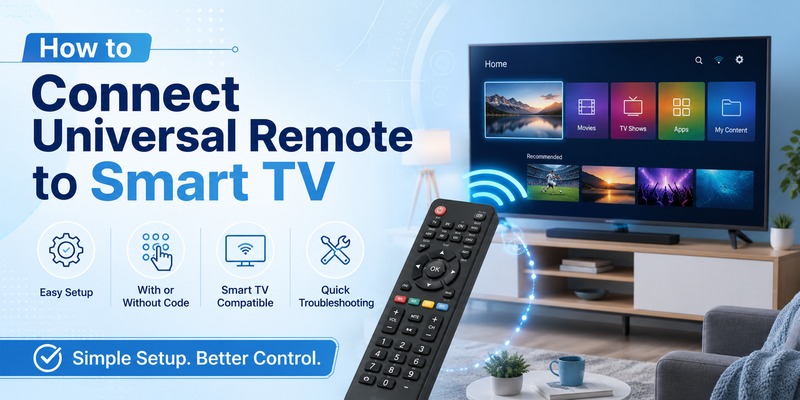
Universal remotes are a convenient solution when your original TV remote is lost, damaged, or simply no longer practical. Instead of purchasing an exact replacement, you can often program a universal controller to operate your television within a few minutes.
The key is understanding how to connect universal remote to smart tv correctly. Most universal remotes communicate with televisions through infrared signals, although newer models may also use Bluetooth, Wi-Fi, or a companion hub.
The setup process usually involves one of two methods: entering a manufacturer code manually or using an automatic code-search function. Both approaches can work well, but the exact steps vary depending on the brand of your universal remote and television.
If you have ever asked how do you connect a universal remote to a tv, the process is generally simpler than it first appears. You turn on the TV, place the remote in programming mode, select the television device type, and then either enter a code or let the controller search its internal database.
This guide explains how to connect universal remote to smart tv using the most common methods and also covers popular TV brands such as Vizio, Hisense, Sony, Insignia, and Kogan.
1. What You Need Before Connecting a Universal Remote
Before learning how to connect universal remote to smart tv, prepare a few basic pieces of information.
First, identify the brand and model of your universal remote. Look on the back of the controller, inside the battery compartment, or on the original packaging.
Universal remotes from different manufacturers may use completely different programming procedures. A code that works with one remote may not work with another.
Second, identify your television brand and model number. You can usually find the TV model on a sticker on the back of the television or inside the Settings or Support menu.
Third, install fresh batteries in the universal controller. Low batteries can interrupt programming and make it appear as if the code is incorrect.
When users search how to connect universal remote to tv, one of the most overlooked steps is making sure the remote has a clear line of sight to the television’s infrared sensor.
During setup:
- Stand a few feet from the television.
- Point the universal remote directly toward the TV.
- Remove objects blocking the infrared receiver.
- Keep the television powered on.
- Avoid pressing unrelated buttons during programming.
You should also locate the code list supplied with your universal remote. If you no longer have the manual, automatic code search may be the easiest solution.
Once these basics are ready, you can begin the process of how to connect universal remote to smart tv.
Download LG TV Remote2. How to Connect Universal Remote to Smart TV With a Code
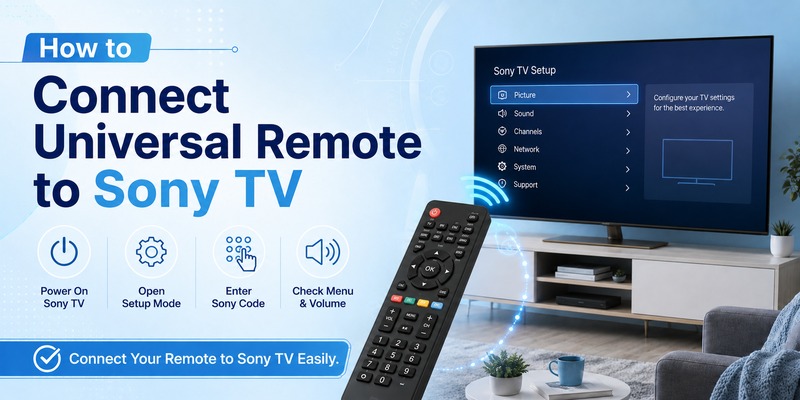
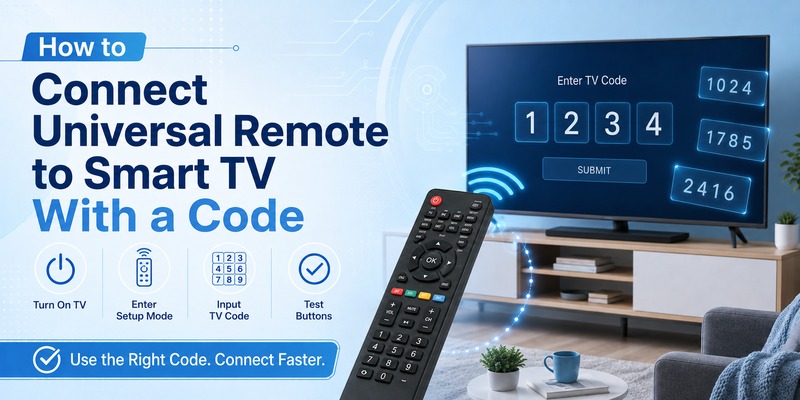
Manual code entry is usually the fastest method if you already know the programming code for your television.
The general procedure for how to connect universal remote to smart tv is similar across many universal remote brands.
Step 1: Turn on the television
Use the TV’s physical power button or the original remote to turn it on.
Your television should remain powered on during programming because this allows you to test whether the universal remote has accepted the correct command profile.
Step 2: Enter programming mode
Press and hold the Setup, Set, Code Search, Program, or similar button on your universal remote.
The indicator light may turn on, flash, or remain illuminated.
Some remotes require you to hold Setup until the LED changes from blinking to solid.
Step 3: Select TV mode
Press the TV device button.
This tells the universal controller that you want to program the television rather than a DVD player, cable box, soundbar, or other device.
Step 4: Enter the code
Use the number pad to type the programming code associated with your television brand.
When learning how to connect universal remote to smart tv, remember that there may be several valid codes for the same TV manufacturer.
The remote’s LED may flash or turn off when the code is accepted.
Step 5: Test the connection
Point the remote toward the TV and press Power.
If the television turns off, turn it back on and test:
- Volume Up
- Volume Down
- Mute
- Input
- Channel controls
- Menu
- Navigation buttons
If only some functions work, try another code.
This is particularly important when someone asks how do i connect a universal remote to my tv and finds that Power works while other buttons do not. That situation usually means the code is partially compatible.
Repeat the process until you find the code that provides the best functionality.
3. How to Connect Universal Remote to Smart TV Without a Code
You do not necessarily need a code list to learn how to connect universal remote to smart tv.
Many remotes include an automatic or manual code-search function that cycles through available command profiles.
Turn on the television manually.
Next, hold the Setup or Code Search button until the remote’s indicator light remains illuminated.
Press TV to select the television device.
Then activate code search. Depending on your remote, this may involve pressing Power repeatedly, pressing Channel Up, or using a dedicated Search button.
Keep the controller pointed directly toward the TV.
The universal remote will send different power commands until the television responds.
As soon as the TV turns off, stop the search.
Press Enter, OK, Setup, or another button specified by your remote manufacturer to save the active code.
This method is useful when you are wondering how to connect my universal remote to my tv but no longer have the original programming manual.
After saving the code, switch the TV back on and test every important button.
Although automatic search may take longer than direct code entry, it is one of the most reliable solutions for how to connect universal remote to smart tv when the correct numerical code is unknown.
📘 Find the Right Guide: Universal TV Remote Control App: Download, Setup, TV Codes, and Troubleshooting Guide
4. How Automatic Code Search Works
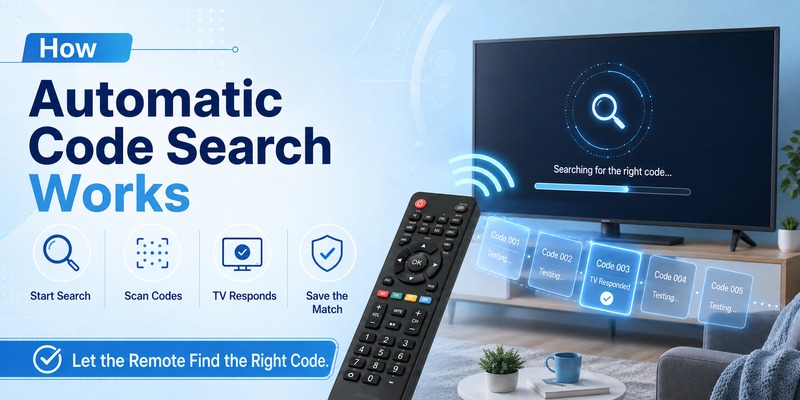
Automatic code search makes how to connect universal remote to smart tv easier because the remote checks its built-in device library for you.
Universal remotes contain databases of infrared command profiles. Each profile corresponds to a television manufacturer, model family, or command protocol.
When code search begins, the remote sends a different Power signal each time you press the search button or Channel Up.
Your TV remains on until one of those signals matches its infrared protocol.
When the television turns off, the universal remote has found a compatible command set.
Saving the code prevents the controller from continuing to the next profile.
This explains why timing matters. If your television turns off and you continue pressing the search button, you may move past the correct code.
For people searching how to connect your universal remote to your tv, automatic search is especially useful when:
- The remote manual is missing.
- The TV model is older.
- Several codes are listed.
- The brand is supported but the exact model is unknown.
- Manual codes fail.
Automatic search is not always instant. Some universal remotes store hundreds of profiles, so the process can require many button presses.
However, once the correct profile is found, the result is usually the same as manual programming.
5. How to Connect an RCA Universal Remote to a Smart TV
If you need to know how to connect an rca universal remote to a tv, you can normally use either direct code entry or RCA’s code-search procedure.
Start by turning on your television.
Press and hold the TV button on the RCA remote.
While continuing to hold the TV button, press and hold the Power button until the Power light remains illuminated.
Release both buttons when the light stays on.
Point the remote at your television and begin the code-search procedure supported by your RCA model.
If you already know the TV code, use RCA’s direct-entry method instead.
Once the television responds, save the code.
Testing is an important part of how to connect universal remote to smart tv with an RCA controller. Press Volume, Mute, Input, and Menu in addition to Power.
If the remote turns the TV on and off but cannot control other features, repeat programming and try another code.
Different RCA universal remote models may use slightly different sequences, so your remote’s printed guide should always take priority.
📘 Find the Right Guide: LG Universal Remote TV Codes: Codes, Setup and Pairing Guide
6. How to Connect a Universal Remote to a Vizio TV
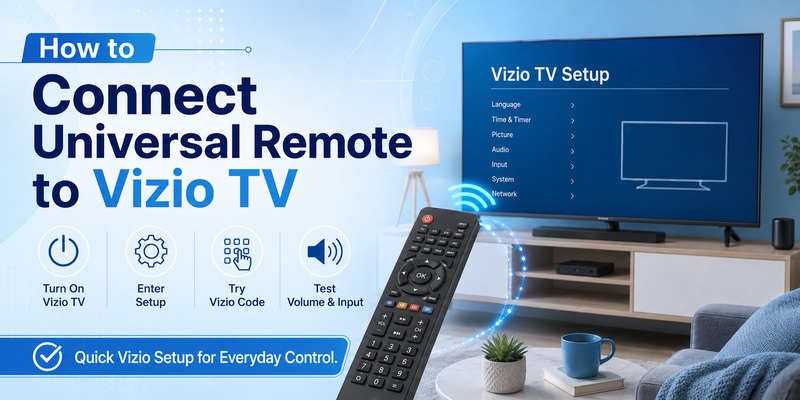
The process for how to connect universal remote to vizio tv is usually straightforward because Vizio televisions commonly support standard infrared control.
Turn on your Vizio TV manually.
Place the universal remote in programming mode by holding Setup, Code Search, or the appropriate button.
Select TV mode.
Enter a compatible Vizio programming code from your universal remote manufacturer’s code list.
Point the controller at the Vizio television and press Power.
If the TV responds, test Volume, Mute, Input, and navigation.
If the first code does not work, try the next Vizio code.
You can also use automatic search if your universal remote supports it.
The important thing to remember about how to connect universal remote to smart tv is that universal remote codes are determined by the remote manufacturer. A Vizio code used on one brand of universal remote may not be valid on another.
7. How to Connect a Universal Remote to a Hisense TV
Learning how to connect universal remote to hisense tv follows the same basic principles.
Turn on the Hisense television.
Activate programming mode on your universal controller.
Press the TV device button and enter one of the Hisense codes supplied with the universal remote.
After the code is accepted, test Power and other important controls.
Some Hisense Smart TVs use Roku TV, Google TV, VIDAA, or other smart platforms. Basic infrared commands may still work even if your universal remote cannot reproduce every smart feature.
This is an important distinction when researching how to connect universal remote to smart tv. Successful programming does not always mean the universal controller can duplicate voice commands, app shortcuts, or Bluetooth-specific features.
For basic TV operation, however, Power, Volume, Mute, Input, and navigation are often sufficient.
If no manual code works, run automatic code search.
📘 Find the Right Guide: 4 Digit Universal Remote Codes for Roku TV
8. How to Connect a Universal Remote to a Sony TV
For how to connect universal remote to sony tv, start by confirming that your remote manufacturer lists Sony as a supported TV brand.
Power on the television.
Hold the programming button until the indicator light enters setup mode.
Press TV and enter the Sony code recommended by your remote manufacturer.
Test the Power button.
If the television responds, check Volume, Input, Mute, Home, Menu, and navigation.
Sony televisions may support additional control technologies beyond infrared, especially on newer smart models.
However, traditional universal remotes can still be useful for everyday functions.
When deciding how to connect universal remote to smart tv, do not assume the first successful Power command is the best possible code. Try another Sony code if the current one lacks navigation or input control.
9. How to Connect a Universal Remote to an Insignia TV
The setup process for how to connect a universal remote to an insignia tv depends partly on whether the television uses Fire TV, Roku TV, or another Insignia platform.
For standard programming, turn the TV on first.
Put the universal remote into code-entry mode.
Select TV.
Enter an Insignia code listed by the universal remote manufacturer.
Test the controller.
If direct entry fails, use code search.
Basic infrared functions such as Power and Volume may work even if smart-platform shortcuts do not.
This is why how to connect universal remote to smart tv should always include a functionality test after pairing.
A code can be technically compatible while still missing advanced features.
📘 Find the Right Guide: Samsung Universal Remote TV Codes: Complete Codes and Setup Guide
10. How to Connect Kmart and Kogan Universal Remotes
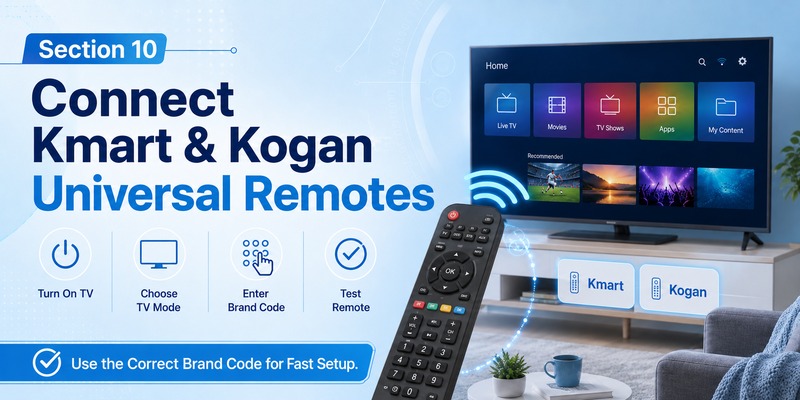
Australian users may specifically search how to connect kmart universal remote to tv or how to connect universal remote to kogan tv.
The exact procedure depends on the specific remote model.
For a Kmart universal remote, check the manual supplied with the controller for the programming button and TV codes.
Typically, you will:
- Turn on the television.
- Hold the Setup or Set button.
- Select TV.
- Enter the manufacturer code.
- Test the Power button.
- Repeat with another code if needed.
Kogan televisions can also work with compatible universal remotes when the correct command profile is available.
If you are trying to understand how to connect universal remote to smart tv with a Kogan television, start with the code list supplied by the remote manufacturer rather than using random codes found for unrelated remote brands.
Automatic search can be particularly useful if the listed codes do not work.
11. How to Test Your Universal Remote After Setup
Programming is only half of how to connect universal remote to smart tv.
You should verify that the selected code provides enough functionality for everyday use.
Start with Power.
Then test Volume Up and Volume Down.
Press Mute to confirm audio control.
Switch between TV inputs using Input or Source.
Try the directional buttons and OK key.
If you watch regular television channels, test Channel Up and Channel Down.
For Smart TVs, test Home or Menu.
Some universal remotes may also support:
- Back
- Exit
- Guide
- Number keys
- Playback controls
- Subtitle controls
- App shortcuts
If only Power and Volume work, you may have a partially compatible code.
Repeat the setup process and try another command profile.
The best approach to how to connect universal remote to smart tv is to choose the code that supports the greatest number of useful functions, not simply the first code that powers off the television.
Explore Related Articles: LG TV Remote Volume Button Not Working? 12 Practical Fixes to Restore Volume Control
12. Why Your Universal Remote Is Not Connecting
Sometimes the normal how to connect universal remote to smart tv procedure does not work.
Several common issues can cause connection problems.
Incorrect programming code
The most common cause is an incompatible code.
Try every code listed for your television brand.
Remote is not in TV mode
Multi-device remotes can control several devices.
Make sure the remote is set to TV rather than DVD, AUX, CBL, or another device.
Weak batteries
Programming requires reliable infrared output.
Replace the batteries even if the remote’s indicator light still works.
Infrared sensor is blocked
Move objects away from the lower front edge of the television.
A soundbar placed directly in front of the TV may sometimes block the infrared receiver.
Wrong universal remote database
Not every remote supports every television.
If your TV model is newer than the controller, the universal remote may not contain the required command profile.
Bluetooth-only functions
Some original Smart TV remotes use Bluetooth for voice commands or advanced navigation.
A basic infrared universal remote may not reproduce these features.
Code was not saved
During automatic search, you usually need to confirm the working profile.
If you forget to save it, the remote may lose the result.
Troubleshooting these issues usually resolves most problems with how to connect universal remote to smart tv.
Can You Use a Remote TV App Instead?
A smartphone can sometimes replace a physical universal remote.
A compatible remote TV app may communicate with your Smart TV through Wi-Fi rather than infrared.
This can be useful if your universal controller is lost, damaged, or temporarily unavailable.
Many television brands provide official mobile applications, while some smart platforms also offer their own remote-control apps.
The TV and phone usually need to be connected to the same Wi-Fi network.
After opening the application, select your television and confirm the pairing request shown on the TV screen.
A mobile app is not exactly the same as how to connect universal remote to smart tv, because it uses network pairing instead of traditional universal remote programming.
However, it is a useful backup.
Physical universal remotes still have advantages. They do not usually require a Wi-Fi connection, they are faster for simple controls, and infrared remotes can often turn the TV on even when network connectivity is unavailable.
Tips for Better Universal Remote Compatibility
A few simple practices can make how to connect universal remote to smart tv more successful.
First, use the code list designed specifically for your universal remote model.
Do not assume codes are interchangeable between brands.
Second, test more than one programming code.
If two codes operate the television, choose the one that supports the greatest number of buttons.
Third, keep the universal remote manual.
Write down the successful code once setup is complete.
Fourth, replace batteries before troubleshooting.
Fifth, remember that Smart TV features vary.
A basic controller may provide excellent Power and Volume control but lack voice search, motion control, Bluetooth pairing, or dedicated streaming-app keys.
Sixth, choose a universal remote designed for Smart TVs if you want more advanced control.
Understanding these limitations makes how to connect universal remote to smart tv much less frustrating.
📘 Find the Right Guide
How to Control Cable Box With LG Magic Remote: Complete Setup Guide
FAQs About Connecting a Universal Remote to a Smart TV
Can any universal remote connect to any Smart TV?
No. A universal remote must contain a compatible command profile for your television.
Most major TV brands are widely supported, but compatibility varies by remote model.
When researching how to connect universal remote to smart tv, check the remote manufacturer’s supported-device list.
How long does universal remote setup take?
Manual code entry can take less than a minute when you already know the correct code.
Automatic code search may take several minutes because the remote must cycle through multiple profiles.
Why does the universal remote turn my TV on but not control Volume?
The programmed code may offer partial compatibility.
Try another code for the same television manufacturer.
Can I connect a universal remote without the original TV remote?
Yes.
You can usually turn the TV on with its physical Power button and then follow the normal how to connect universal remote to smart tv procedure.
Do Smart TVs still work with infrared universal remotes?
Many do.
Modern televisions may use Bluetooth for advanced features while continuing to accept infrared commands for basic functions.
How do I know when the correct code has been found?
During automatic search, the television usually powers off or responds to another command.
Save the profile immediately and test multiple buttons.
Should I buy a universal remote or an original replacement?
A universal remote is useful if you want one controller for several devices or need an affordable replacement.
An original remote may be better if you depend heavily on voice commands, special smart buttons, or manufacturer-specific features.
Can one universal remote control multiple TVs?
Some universal remotes support multiple device profiles, but the number of televisions that can be stored depends on the controller.
Why did my universal remote stop working after changing batteries?
Some controllers lose stored programming when batteries are removed for an extended period.
If that happens, repeat the how to connect universal remote to smart tv steps and enter the saved code again.
Is automatic code search better than manual setup?
Manual entry is faster when you know the correct code.
Automatic search is better when the code list is unavailable or multiple codes have failed.
Both are valid methods of how to connect universal remote to smart tv.
Final Thoughts
Learning how to connect universal remote to smart tv is usually straightforward once you understand the basic programming process.
Start by identifying your universal remote model and television brand. Install fresh batteries, power on the television, and make sure the controller is pointed toward the TV’s infrared receiver.
If you have the correct programming code, manual entry is normally the fastest option.
Put the remote into setup mode, select TV, enter the code, and test the controller.
If you do not know the code, automatic search can scan through the remote’s internal database until the television responds.
The same general how to connect universal remote to smart tv process applies to many major brands, including Vizio, Hisense, Sony, Insignia, Kogan, and others.
The most important step is testing the remote after programming. Power alone does not guarantee full compatibility. Check Volume, Mute, Input, navigation, Home, and any other buttons you regularly use.
If one code provides only limited functionality, try another.
Also remember that a traditional infrared universal remote may not reproduce every feature of an original Smart TV controller. Voice search, Bluetooth functions, touch controls, and dedicated smart-platform shortcuts may require the original remote or a compatible mobile application.
For basic everyday operation, however, a properly programmed universal controller is often an inexpensive and practical replacement.
Once you know how to connect universal remote to smart tv, save the successful programming code somewhere accessible. That way, if the controller is reset or its memory is cleared later, you can restore your setup quickly without repeating the entire search process.
Download LG TV Remote