
How to Pair New Roku Remote Without Old One
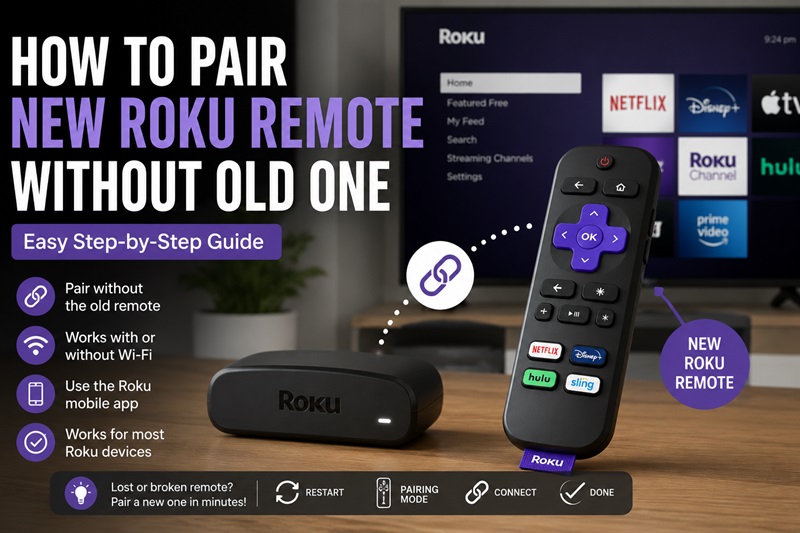
Losing or breaking your original Roku controller does not prevent you from setting up a replacement. In most cases, you can learn how to pair new Roku remote without old one by restarting the Roku device and putting the replacement remote into pairing mode.
The correct process depends on which type of remote you own. A Roku Simple Remote uses infrared and does not need to be paired. A Roku Voice Remote connects wirelessly and must enter pairing mode. Voice models may have a physical pairing button, while newer versions may use a button combination instead.
To pair new Roku remote without old remote, install fresh batteries or fully charge the replacement, restart the Roku player or TV, and keep the new remote nearby. Hold the pairing button for about five seconds. On a compatible Voice Remote without that button, hold Back and Home together until the status light flashes. Roku’s current instructions support both pairing methods.
This guide explains how to pair new Roku remote without old one, identify your remote type, connect without Wi-Fi, troubleshoot failed pairing, and use a Remote TV App as a temporary controller.
Identify Your New Roku Remote Before Pairing
Before attempting how to pair new Roku remote without old one, identify whether your replacement is a Simple Remote or Voice Remote. The two types connect differently.
Step 1: Look for a voice button
Check near the directional pad for a button displaying:
- A microphone icon
- A magnifying-glass icon
- Another voice-control symbol
Roku states that all Roku Voice Remotes include a voice button near the directional pad. A controller without a voice button is generally a Roku Simple Remote.
Step 2: Check for a pairing button
Open the battery compartment if the remote uses removable batteries. The pairing button may be located:
- Inside the battery compartment
- On the back of the remote
- Near the charging port on selected rechargeable models
Some newer Voice Remotes do not have a dedicated pairing button. They enter pairing mode through the Back and Home buttons.
Step 3: Identify a Simple Remote
A Roku Simple Remote normally:
- Has no voice button
- Has no pairing button
- Uses infrared
- Must point toward the Roku sensor
- Does not require pairing
Insert batteries and point it directly toward the Roku device or Roku TV. Roku’s setup instructions confirm that a Simple Remote works through infrared rather than wireless pairing.
| Remote Type | Voice Button | Pairing Required | Connection |
| Roku Simple Remote | No | No | Infrared |
| Voice Remote with pairing button | Yes | Yes | Wireless |
| Voice Remote without pairing button | Yes | Yes | Wireless |
| Roku mobile app | On phone | Network connection | Wi-Fi |
This distinction is essential when researching how to sync Roku remote without pairing button. A buttonless Voice Remote must be synchronized, while a Simple Remote does not pair at all.
How to Pair New Roku Remote Without Old One
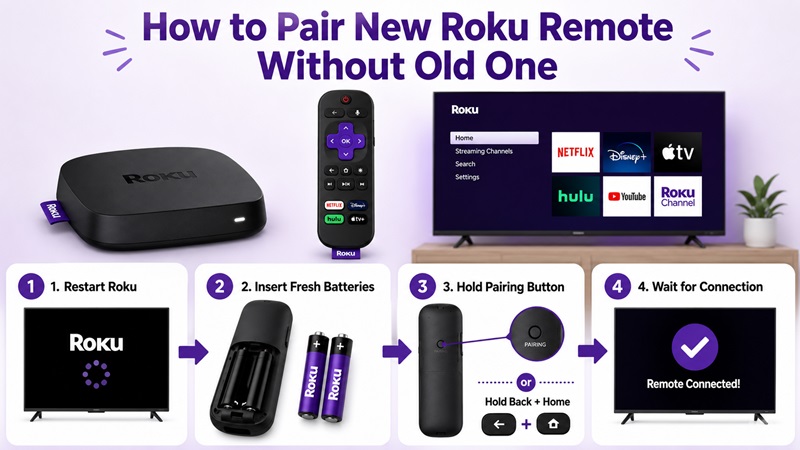
You do not need the original controller to complete how to pair new Roku remote without old one. Restarting the Roku device allows it to detect a compatible replacement.
Step 1: Prepare the new remote
For a battery-powered model:
- Open the battery cover.
- Insert a fresh matching pair of batteries.
- Confirm that the positive and negative ends are positioned correctly.
- Leave the battery cover open if the pairing button is inside.
For a rechargeable model:
- Connect the charging cable.
- Allow the battery to charge sufficiently.
- Disconnect the cable unless the model can pair while charging.
Weak batteries are a common cause of delayed or failed pairing.
Step 2: Restart the Roku device
- Turn on the television.
- Unplug the Roku player from power.
- Wait at least five to ten seconds.
- Reconnect the Roku.
- Select the correct HDMI input if necessary.
- Wait for the startup screen to appear.
For a Roku TV, unplug the television itself, wait briefly, and reconnect it.
Restarting is useful because it allows you to begin how to connect new Roku remote without old remote without navigating Roku Settings first.
Step 3: Place the remote close to the Roku
Keep the replacement within a few feet of the Roku player or TV.
Avoid placing it:
- Behind furniture
- Inside a cabinet
- Next to equipment creating wireless interference
- Far across the room
Step 4: Start pairing mode
If your Voice Remote has a pairing button:
- Press and hold the pairing button.
- Continue holding it for approximately five seconds.
- Release it when the status light starts flashing.
If your Voice Remote has no pairing button:
- Press and hold Back.
- Press and hold Home at the same time.
- Keep both buttons pressed for about five seconds.
- Release them when the status light flashes.
Roku documents both methods for placing compatible Voice Remotes into pairing mode.
Step 5: Wait for confirmation
Keep the remote close to the device while Roku searches for it. Do not repeatedly press other buttons.
Pairing may take several seconds. When complete, the television may display an on-screen confirmation.
Step 6: Test the controls
Test:
- Home
- Directional navigation
- OK
- Back
- Play and Pause
- Voice search
- Volume and TV power, when supported
These steps cover the main process for how to pair new Roku remote without old one and do not require an existing paired controller.
How to Pair a Roku Remote Without a Pairing Button
The phrase how to pair new Roku remote without pairing button can refer to two different devices. First determine whether the remote is a Simple Remote or a buttonless Voice Remote.
Case 1: You have a Roku Simple Remote
A Simple Remote does not need to be paired.
Follow these steps:
- Open the battery compartment.
- Insert fresh batteries.
- Confirm the battery direction.
- Point the controller directly at the Roku sensor.
- Remove objects blocking the signal.
- Press Home or an arrow button.
- Move closer if the Roku does not respond.
A Simple Remote needs a clear line of sight. Roku specifically recommends checking for objects blocking the front of the player when troubleshooting this type.
If your Roku player is hidden behind the TV, a basic infrared controller may not be suitable.
Case 2: You have a Voice Remote without a pairing button
Follow these steps for how to sync new Roku remote without pairing button:
- Install fresh batteries or charge the remote.
- Restart the Roku player or TV.
- Keep the remote close to the Roku.
- Hold Back and Home simultaneously.
- Continue holding for approximately five seconds.
- Release the buttons when the status light flashes.
- Wait for the pairing confirmation.
The Home button has a house icon. Back is normally represented by a curved arrow.
How to tell the two cases apart
- Voice button present: Voice Remote that requires pairing
- No voice button: normally a Simple Remote
- Flashing pairing light: Voice Remote behavior
- Requires direct line of sight: Simple Remote behavior
Once you identify the controller, how to connect new Roku remote without pairing button becomes straightforward: use Back and Home for a Voice Remote, or simply point and use a Simple Remote.
How to Pair a New Roku Voice Remote Without the Old Remote
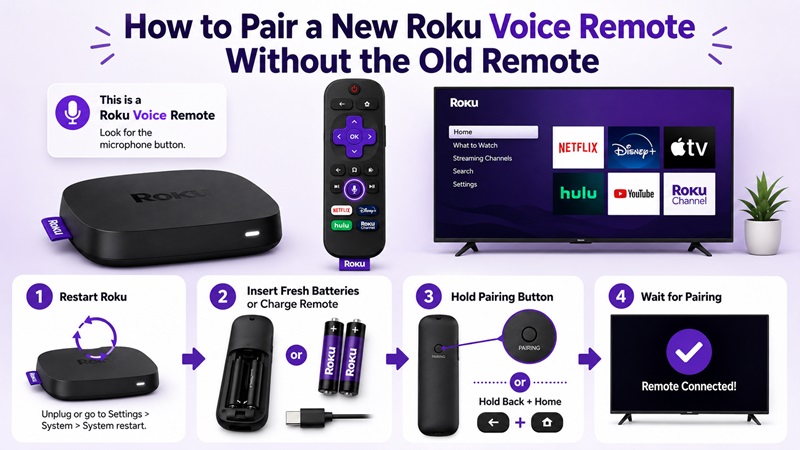
A Voice Remote supports wireless navigation and voice search, so it must connect directly to the Roku device.
Follow these steps for how to pair new Roku remote without old one when the replacement is a Voice Remote:
- Install fresh batteries or fully charge the controller.
- Turn on the television.
- Select the Roku HDMI input.
- Disconnect the Roku player from power.
- Wait at least five seconds.
- Reconnect the device.
- Wait for the Roku startup screen.
- Hold the physical pairing button for about five seconds.
- On a buttonless model, hold Back and Home instead.
- Keep the controller close to the Roku.
- Wait for the on-screen confirmation.
- Test navigation and voice search.
After pairing, you may need to configure the controller for television power and volume.
Use this menu:
Settings > Remotes & devices > Remotes
Select the newly connected Voice Remote, then choose Set up remote for TV control. Roku provides this path for configuring supported TV controls after initial device setup.
The Voice Remote can remain paired even if you later change the Roku’s internet connection because its basic connection is not the same as the home Wi-Fi network.
How to Connect a New Roku Remote Without Wi-Fi
The answer to how to connect new Roku remote without WiFi depends on the remote type, but internet access is not normally required for basic remote pairing.
Connect a Voice Remote without Wi-Fi
- Turn on the television and Roku device.
- Restart the Roku by disconnecting its power.
- Reconnect the device.
- Wait for the startup screen.
- Hold the pairing button for five seconds.
- Use Back and Home for a buttonless model.
- Wait for the controller to connect.
- Use the paired remote to open Network Settings.
Once the remote works, connect Roku to Wi-Fi through:
Settings > Network > Set up connection > Wireless
Choose your home network and enter the password. Roku lists this as its standard network setup path.
Use a Simple Remote without Wi-Fi
A Simple Remote uses infrared, so it does not require internet access.
- Insert batteries.
- Point the controller toward the Roku sensor.
- Open Settings.
- Navigate to Network.
- Select Set up connection.
- Choose the Wi-Fi network.
- Enter the password.
Why the phone app may not help
The Roku mobile app normally requires the phone and Roku device to be connected to the same network. Therefore, a Remote TV App usually cannot control a Roku that is offline or connected to a network your phone cannot access.
Pair the physical replacement first, then use it to restore the network connection.
Can You Pair a Different Roku Remote?
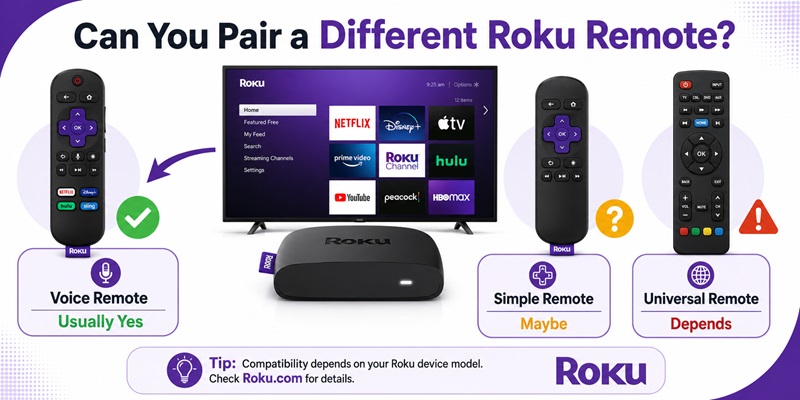
Can you pair a different Roku remote? Yes, many compatible replacements can work with another Roku player or Roku TV. However, not every remote works with every model.
Check the following factors before buying or pairing:
Remote type
Determine whether it is:
- Simple infrared remote
- Voice Remote
- Rechargeable Voice Remote
- Remote designed specifically for a Roku TV
- Third-party universal controller
Device type
Identify whether you own:
- Roku streaming player
- Roku Streaming Stick
- Roku TV
- Roku Streambar
- Another Roku-powered device
A Simple Remote may work with a visible Roku player but may not control a Streaming Stick hidden behind the television because infrared requires line of sight.
Supported features
A compatible remote may provide basic navigation but not necessarily:
- Voice search
- Headphone listening
- Rechargeable functionality
- Lost-remote finder
- Hands-free voice
- TV power and volume
- Personal shortcut buttons
| Situation | Expected Result |
| Compatible Voice Remote with Roku player | Usually pairs |
| Compatible Voice Remote with Roku TV | Usually pairs |
| Simple Remote with visible Roku player | May work without pairing |
| Simple Remote with hidden Streaming Stick | Usually unsuitable |
| Remote from another platform | Generally incompatible |
| Universal remote with Roku support | Model-dependent |
Check the remote and Roku device documentation rather than relying only on appearance.
How to Pair an Old Roku Remote With a New Roku Device
It may also be possible to pair old Roku remote with new Roku hardware when the two products are compatible.
Step 1: Identify the old remote
Check for:
- Voice button
- Pairing button
- Status light
- Infrared-only operation
- Rechargeable battery
Step 2: Confirm compatibility
A newer Voice Remote may work with several Roku players and TVs, but older or specialized models may have limitations.
Step 3: Prepare the remote
- Replace the batteries or charge it.
- Press any stuck buttons several times.
- Keep the remote near the new device.
Step 4: Restart the new Roku
- Disconnect the Roku from power.
- Wait five to ten seconds.
- Reconnect it.
- Wait for the startup screen.
Step 5: Connect the old remote
For a Voice Remote:
- Hold the pairing button for about five seconds, or
- Hold Back and Home if it has no pairing button
For a Simple Remote:
- Insert batteries
- Point it directly at the Roku
- Test Home and navigation
Step 6: Test all features
Test navigation, voice, playback, power, and volume. Basic operation may work even if selected advanced features do not.
What to Do When the New Roku Remote Will Not Pair
If how to pair new Roku remote without old one does not work on the first attempt, move through these troubleshooting steps.
Step 1: Check the power source
For removable batteries:
- Remove both batteries.
- Check for dirt or corrosion.
- Insert a fresh matching pair.
- Confirm the positive and negative ends.
For a rechargeable remote:
- Connect it to a reliable charging source.
- Allow sufficient charging time.
- Try pairing again.
Step 2: Restart the Roku and remote
- Remove the batteries from the remote when possible.
- Unplug the Roku device.
- Wait at least ten seconds.
- Reconnect the Roku.
- Wait for the startup screen.
- Reinsert the batteries.
- Start pairing mode again.
Roku also recommends restarting the device as part of network and remote troubleshooting.
Step 3: Use the correct method
- Voice Remote with pairing button: hold the button
- Buttonless Voice Remote: hold Back and Home
- Simple Remote: no pairing process
Trying to pair an infrared Simple Remote will not produce a flashing status light.
Step 4: Move closer
Keep the remote within a few feet of the Roku during setup. Temporarily move wireless routers, headphones, game controllers, or other equipment that may create interference.
Step 5: Check line of sight
For a Simple Remote:
- Make sure the Roku sensor is visible
- Open cabinet doors
- Remove decorations or soundbars blocking the sensor
- Point the controller directly at the front of the device
Step 6: Verify compatibility
A remote may operate the television’s power button while remaining incompatible with the Roku player. TV control and Roku navigation can use different systems.
Step 7: Add it through Settings
When another controller or phone app is available, open:
Settings > Remotes & devices > Add devices > Remote
Then place the replacement Voice Remote into pairing mode.
This method can help when automatic setup fails, but it still requires the new remote to be compatible.
Use a Remote TV App to Pair a New Roku Remote
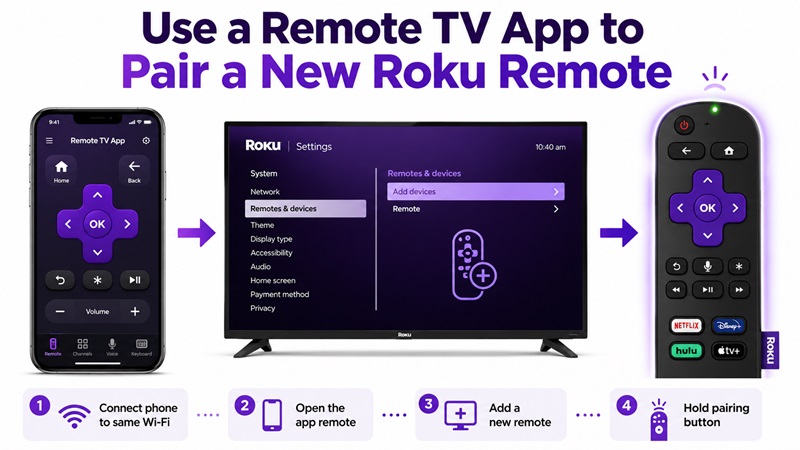
A Remote TV App is useful when the Roku still has a working network connection but the physical controller is missing.
The official Roku mobile app includes a virtual controller, keyboard input, voice search, private listening, and other supported functions.
Step 1: Confirm the network connection
The app method works when:
- Roku is already connected to Wi-Fi
- The phone uses the same network
- Mobile-app control is enabled
- The Roku device appears in the app
Step 2: Install the app
Download the official Roku mobile app from your phone’s app store.
Open it and sign in when required.
Step 3: Connect to the Roku device
- Open the device list.
- Select your Roku player or TV.
- Wait for the connection.
- Open the Remote tab.
Step 4: Navigate to remote settings
Using the phone interface:
- Press Home.
- Open Settings.
- Select Remotes & devices.
- Choose Add devices.
- Select Remote.
- Choose Continue.
Step 5: Activate the replacement remote
- Keep the new remote close to the Roku.
- Hold its pairing button for five seconds.
- For a buttonless model, hold Back and Home.
- Wait for the status light.
- Confirm that the new controller appears on screen.
This process allows you to pair new Roku remote without old remote while the phone temporarily replaces the missing controller.
When the app cannot connect
Check:
- Phone and Roku use the same Wi-Fi
- Guest network isolation is disabled
- Roku remains online
- Mobile control is allowed
The relevant Roku setting is:
Settings > System > Advanced system settings > Control by mobile apps
Roku advises checking both this setting and the shared network when its mobile app cannot connect.
The app will usually not help if Roku is completely offline. In that case, use a physical Voice Remote or compatible infrared controller first.
Final Pairing Checklist
Before finishing how to pair new Roku remote without old one, confirm the following:
- You identified Simple or Voice Remote
- The batteries are fresh or the remote is charged
- The Roku device has been restarted
- A Simple Remote has a clear line of sight
- A Voice Remote is close to the Roku
- You used its pairing button when available
- You used Back and Home on a buttonless Voice Remote
- The status light flashed
- Home and navigation work
- Voice search works when supported
- TV power and volume have been configured
- Roku has been reconnected to Wi-Fi
- The phone app is available as a backup
A Simple Remote does not need synchronization. A Voice Remote does. Restarting Roku means you can complete how to pair new Roku remote without old one even when the original controller is lost or unusable.
Lost the old controller? Restart Roku, put the replacement into pairing mode, or use a Remote TV App to add the new remote from your phone.
