
How to Reset VIZIO Smart TV Without Remote
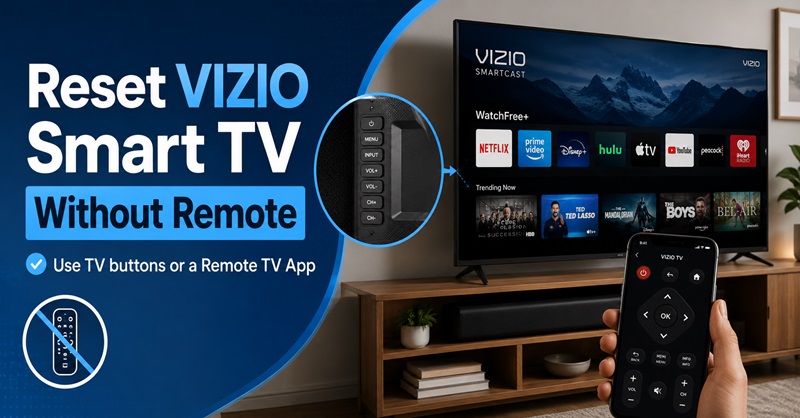
Losing the controller does not always mean you are locked out of your television. You may still be able to reset VIZIO Smart TV without remote by using the physical controls on the TV, performing a power cycle, connecting a replacement controller, or using a compatible phone app.
Start with a simple restart whenever possible. It can resolve frozen apps, delayed menus, sound problems, or a blank screen without deleting your settings. A factory reset is more serious because it returns the television to its original setup state and removes saved preferences.
To reset VIZIO Smart TV without remote, first identify the buttons available on your exact model. Some TVs include Power, Input, and Volume controls, while others provide only one multifunction button. If the television remains connected to Wi-Fi, a Remote TV App may offer the easiest way to open the reset menu.
What to Know Before You Reset a VIZIO Smart TV
Before you reset VIZIO Smart TV without remote, decide whether you need a restart or a complete factory reset.
A restart, sometimes called a soft power cycle, reloads the TV’s operating system without removing personal data. It should be your first choice when:
- An app is frozen
- The interface is slow
- The Home screen will not load
- The picture or sound temporarily fails
- The television is not responding normally
A factory reset erases more information. It may remove your Wi-Fi connection, streaming-account access, picture settings, sound preferences, paired devices, and other custom options.
On current VIZIO software, the official reset path generally runs through All Settings > Admin & Privacy > Reset to Factory Settings. Older VIA televisions may instead show System > Reset & Admin > Clear Memory/Factory Defaults.
People searching “how to reset my VIZIO smart TV without remote” should therefore begin with a restart. Use a factory reset only when basic troubleshooting fails or when you deliberately want to erase the television.
Restart vs. Factory Reset: Which One Do You Need?
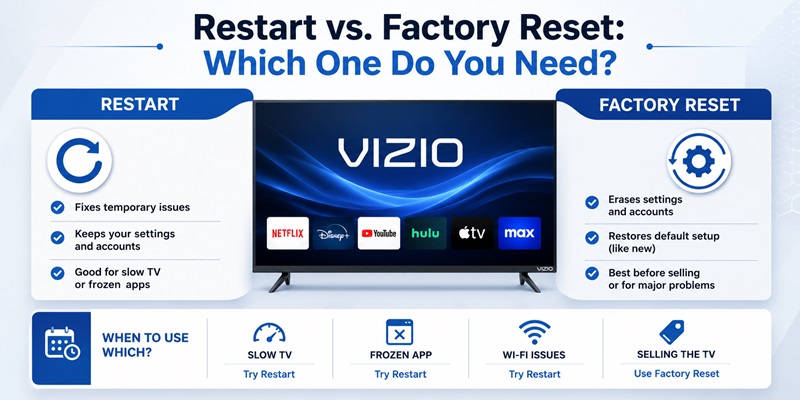
A restart and a factory reset solve different problems.
| Situation | Restart First | Factory Reset May Help |
| TV is running slowly | Yes | If the issue continues |
| Streaming app is frozen | Yes | Rarely |
| Home screen is not loading | Yes | Possibly |
| Wi-Fi repeatedly disconnects | Yes | Possibly |
| Selling or giving away the TV | No | Yes |
| Settings are badly misconfigured | Maybe | Yes |
| TV is stuck during setup | Yes | Possibly |
To restart without the controller:
- Turn off the TV using its physical Power button.
- Unplug the power cable.
- Wait at least 30 seconds.
- Hold the physical Power button for about 10 seconds while the TV is unplugged, if the model has one.
- Reconnect the power cable.
- Turn the television back on.
VIZIO recommends a restart or soft power cycle as an early troubleshooting step before performing a full reset for many software and app problems.
When researching how to reset VIZIO TV without remote, try this method first. It is faster and does not force you to repeat the entire TV setup.
How to Reset VIZIO Smart TV Without Remote
The exact process depends on the physical controls built into your model. Look along the bottom edge, back panel, or side of the television, often near the HDMI ports or VIZIO logo.
Possible buttons include:
- Power
- Input
- Volume Up
- Volume Down
- Menu
- A single multifunction control
1. Locate and test the buttons
Turn on the TV and press each button once. Watch for an input menu, quick-control menu, or settings interface.
Do not assume that a button combination shown for another VIZIO TV will work on yours. Controls and shortcuts vary between models and years.
2. Perform a power cycle
Unplug the TV, wait, reconnect it, and turn it on. This is the least destructive way to reset VIZIO Smart TV without remote and may immediately fix temporary errors.
3. Open the local menu if supported
Some TVs allow limited navigation with the physical controls. If you can open Settings, look for one of these options:
- Restart TV
- Soft Power Cycle
- Reset TV
- Reset to Factory Settings
- Clear Memory
- Factory Defaults
4. Read the warning before confirming
A restart keeps your settings. A factory reset removes them. Keep the TV connected to power during the process and wait for it to restart fully.
This model-aware approach is the safest answer to how to reset a VIZIO smart TV without remote, because there is no single physical-button procedure that can be guaranteed for every television.
How to Factory Reset VIZIO Smart TV Without Remote
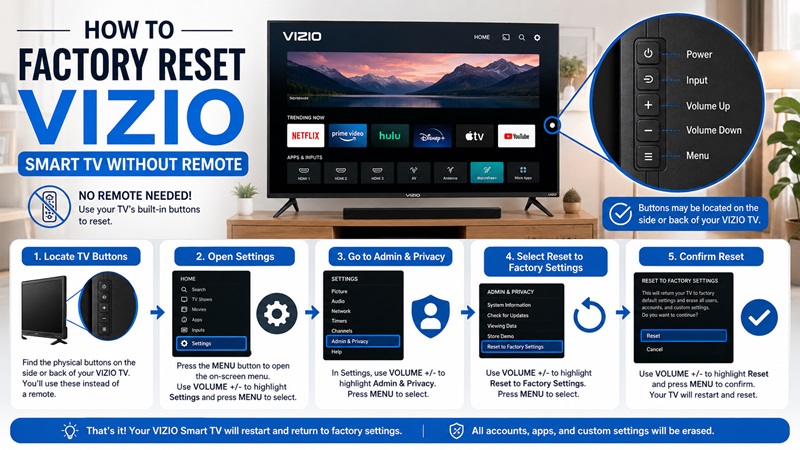
A factory reset is appropriate when a restart does not fix a persistent system problem, the TV is stuck during setup, or you are preparing it for another owner.
For a model that supports menu navigation through its local controls:
- Turn on the TV.
- Open its physical control menu.
- Navigate to All Settings or System.
- Select Admin & Privacy or Reset & Admin.
- Choose Reset to Factory Settings, Reset TV, or Clear Memory/Factory Defaults.
- Confirm the warning.
- Wait while the television restarts.
- Complete the initial setup again.
VIZIO states that a confirmed factory reset returns the TV to its first-time setup process. Older VIA models may display different menu names than current VIZIO OS or SmartCast televisions.
The query how to factory reset a VIZIO TV without remote often produces model-specific button combinations. Only use one when it matches your exact model number and official manual.
If your TV does not provide enough physical controls to navigate the menu, use a compatible replacement remote or a phone app that is already able to connect to the TV.
How to Reset VIZIO TV Without Remote or Wi-Fi
When the TV is offline, a Wi-Fi remote app usually cannot find it. That makes how to reset VIZIO TV without remote or Wi-Fi a physical-control issue.
Begin with a power cycle:
- Turn off the TV.
- Unplug it from the wall.
- Wait at least 30 seconds.
- Hold the physical Power button briefly, if available.
- Reconnect the TV.
- Turn it on and test the picture, sound, menus, and inputs.
If the problem was temporary, no further action may be necessary.
For a factory reset, check whether the TV’s physical controls can open and navigate a local menu. If they cannot, a replacement infrared remote is usually the practical solution.
VIZIO notes that its IR television remotes use the same basic signals, although the button layout and advanced functions may vary.
Remember that a factory reset will not repair:
- A failed router
- An incorrect Wi-Fi password
- A home internet outage
- Guest-network isolation
- Weak wireless coverage
After you reset VIZIO Smart TV without remote, you will still need to reconnect it to Wi-Fi during setup.
How to Reset VIZIO TV With One Button Without Remote
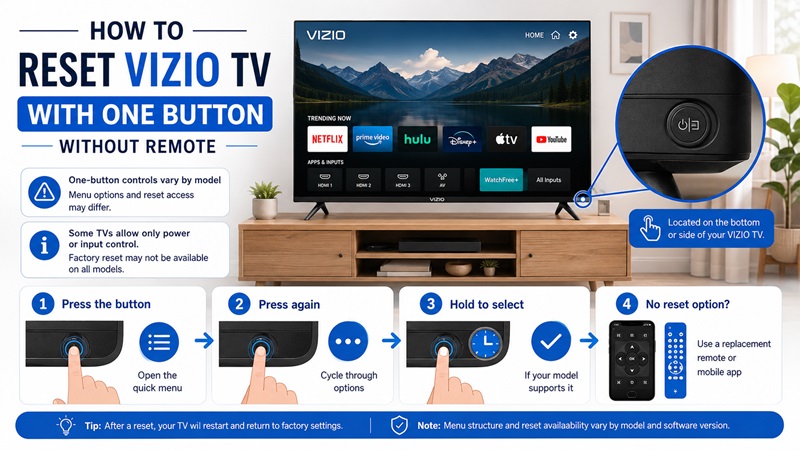
Some models provide only one multifunction button. It may control power, input selection, or a basic on-screen menu.
The answer to how to reset VIZIO TV with one button without remote depends on what that button supports.
Try these safe checks:
- Press the button once and watch for an on-screen menu.
- Press it again to see whether the highlighted option changes.
- Hold it only if the official guide for your model describes a long-press action.
- Stop if the screen does not display clear controls.
On some televisions, short presses cycle through options and a longer press selects one. On others, the button controls only power or input.
A one-button VIZIO TV may not offer enough navigation to complete a factory reset. In that case, use a compatible replacement controller or pair a mobile app while the television is still connected to the network.
Avoid repeatedly holding random combinations. Find the full model number on the back label and consult the matching manual first.
How to Reset or Restart VIZIO Smart TV With a Remote
When a working controller becomes available, resetting through the menu is much easier.
For a restart:
- Press Menu or the Gear icon.
- Open All Settings.
- Select System or Admin & Privacy.
- Choose Restart TV or Soft Power Cycle, when available.
- Confirm the action.
For a factory reset:
- Press Menu or the Gear icon.
- Open All Settings.
- Select Admin & Privacy.
- Choose Reset to Factory Settings.
- Select Reset TV and confirm.
This is the standard approach for how to reset VIZIO smart TV with remote on current software. Older VIA TVs may use Menu > System > Reset & Admin > Clear Memory/Factory Defaults.
For how to restart VIZIO smart TV with remote, choose a restart or soft power cycle rather than the factory-reset option. It reloads the system without removing accounts and preferences.
How to Reset a VIZIO Smart TV Remote
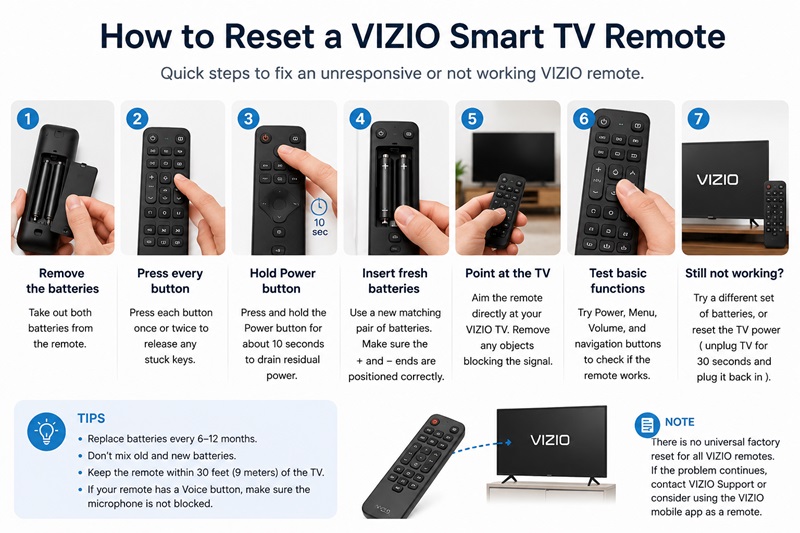
The controller may be the real problem. Before you reset VIZIO Smart TV without remote, try refreshing the remote.
- Remove the batteries.
- Press every button once to release any stuck keys.
- Hold the Power button for several seconds.
- Insert a fresh matching pair of batteries.
- Point the remote directly at the TV.
- Test Power, Menu, Volume, and navigation.
- Remove anything blocking the TV’s sensor.
VIZIO’s remote troubleshooting guidance recommends removing the batteries and pressing all the buttons to confirm none are stuck.
This process is commonly what users mean by how to reset a VIZIO smart TV remote or how to reset VIZIO smart TV remote. It is more accurately described as refreshing or power-draining the remote because a standard infrared controller may not have a separate factory-reset mode.
VIZIO also documents a different Input-and-Mute procedure for certain Voice Remote problems. Use that method only for a supported Voice Remote model.
If the controller still fails, test a replacement remote or use the VIZIO mobile app.
What Happens After a VIZIO TV Factory Reset?
After you reset VIZIO Smart TV without remote to factory defaults, the TV returns to the initial setup screen.
You may need to:
- Choose a language and region
- Reconnect to Wi-Fi
- Accept terms and privacy settings
- Sign in to a VIZIO account
- Scan for antenna channels
- Sign back in to streaming services
- Reconnect soundbars and other devices
- Restore picture and sound preferences
- Pair your phone or remote again
VIZIO provides a dedicated guide for setting up a television after a factory reset.
A factory reset cannot be undone. Write down important configuration details before starting, especially custom picture settings, accessibility options, or external audio configurations.
Reset VIZIO Smart TV With a Remote TV App
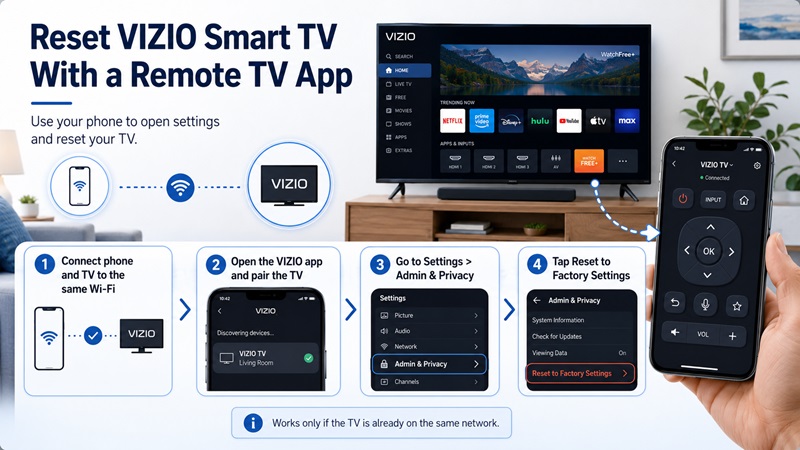
A Remote TV App is often the easiest final option when the physical controller is missing but the television remains connected to Wi-Fi.
The VIZIO mobile app can act as a controller for compatible devices on the same home network. VIZIO’s instructions say to select the television in the app and enter the PIN shown on the TV during pairing.
Pair your phone with the TV
- Connect the phone to the same Wi-Fi network as the television.
- Open the VIZIO mobile app.
- Select the TV from the available devices.
- Enter the PIN displayed on the television.
- Open the remote interface.
- Test Home, navigation, volume, and Settings.
Open the factory-reset menu
Once your phone works as a controller:
- Open Settings.
- Select All Settings.
- Open Admin & Privacy.
- Choose Reset to Factory Settings.
- Confirm Reset TV.
- Keep the TV powered until it restarts.
This method lets you reset VIZIO Smart TV without remote while using the normal on-screen interface. It is safer than guessing at physical-button combinations because you can read the warning and select the correct menu option.
The app method will not work if the television is no longer connected to the same network. Once the factory reset starts, the phone may also lose control until Wi-Fi is configured again.
For users searching how to factory reset VIZIO smart TV without remote, how to reset your VIZIO TV without a remote, or how to reset a VIZIO smart TV without remote, a paired mobile controller is usually the most convenient solution.
No physical remote nearby? Use a Remote TV App to open Settings, confirm the reset, and control your VIZIO TV from your phone.
Control Your Smart TV with One Powerful App
Say goodbye to lost remotes and enjoy effortless TV control with Remote TV App. Designed to replace your physical remote, the app gives you everything you need in one intuitive interface.
Why Choose Remote TV App?
- Instant TV Remote Control – Power your TV on or off, adjust the volume, switch channels, mute audio, and access settings with a single tap.
- Touchpad & Navigation – Swipe naturally to navigate menus, apps, and streaming services just like using your original remote.
- Built-in Keyboard – Type passwords, search for movies, and enter text much faster than using on-screen keyboards with a traditional remote.
- Quick Access to Streaming Apps – Launch popular apps like Netflix, YouTube, Prime Video, Disney+, and more in seconds.
- Screen Mirroring – Cast photos, videos, presentations, and other content from your phone directly to your TV.
- Media Casting – Stream local videos, music, and images from your mobile device to the big screen without extra hardware.
- Universal Smart TV Support – Compatible with many leading TV brands, including Samsung, LG, Sony, TCL, Hisense, Roku TV, Fire TV, Android TV, Google TV, and more.
- Fast Wi-Fi Connection – Connect your phone and TV over the same Wi-Fi network for a stable, responsive experience—no additional devices required.
- Simple & User-Friendly Interface – Clean controls make it easy for anyone to use, whether you’re watching TV, streaming movies, or giving presentations.
Download Remote TV App Today
Experience a smarter way to control your TV with just your smartphone. Whether you need a replacement remote, want to cast content, or simply prefer the convenience of mobile control, Remote TV App has everything you need in one app.
Download now and transform your phone into the ultimate Smart TV remote.
