
Roku Remote App Not Connecting to TV? How to Fix It
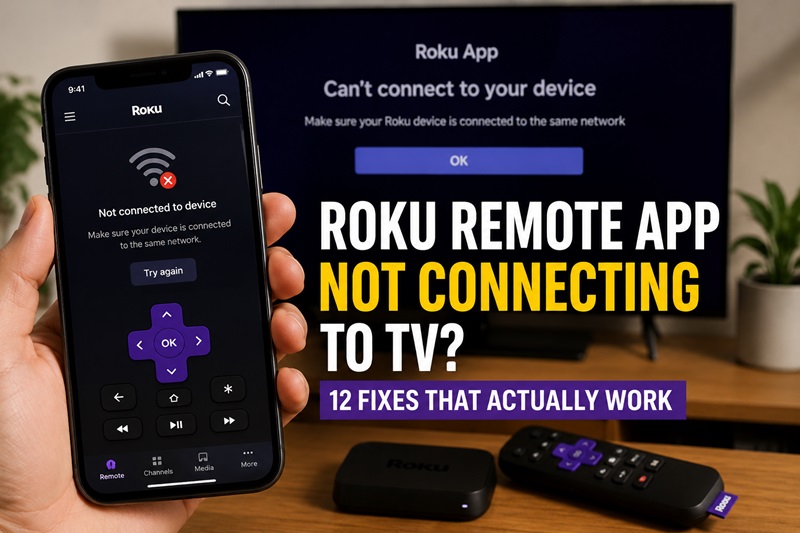
When the roku remote app not connecting to tv problem appears, your phone may show no Roku devices, display the player as offline, or open a remote that does not respond. This is especially frustrating when the original remote is missing, damaged, or out of batteries.
In most cases, the problem is caused by the phone and Roku using different networks. Other common causes include guest Wi-Fi, disabled mobile-app control, missing Local Network permission, weak Wi-Fi, outdated software, or a VPN that blocks local device discovery.
To fix the roku remote app not connecting to tv issue, first place the phone and Roku on the same Wi-Fi network. Then enable mobile-app control on Roku, check the phone’s local-network permissions, restart both devices, and reopen the app. Roku’s current support instructions also recommend confirming that both devices share a network and that mobile-app control is enabled.
This guide explains the fastest checks, 12 detailed fixes, no-remote solutions, and what to do when the Roku device cannot connect to Wi-Fi.
Why Is the Roku Remote App Not Connecting to Your TV?
If you are asking, why isn’t my roku app connecting to my tv, the app is probably unable to communicate with the Roku over your local network. The mobile remote does not normally send commands through mobile data or a remote internet connection. It needs a direct path to the Roku on the same home network.
The most common causes of the roku remote app not connecting to tv problem include:
- The phone and Roku are connected to different Wi-Fi networks.
- One device is using the guest network.
- The router has client isolation enabled.
- The Roku device is offline.
- Mobile-app control is disabled in Roku settings.
- The Roku app does not have Local Network permission.
- A VPN or privacy service is interfering with discovery.
- The phone is switching between Wi-Fi and mobile data.
- The app or Roku OS needs an update.
- The wrong application has been installed.
- The Roku is connected to a different router or mesh node.
- Wi-Fi signal strength is too weak.
People searching why won’t my roku remote app connect to my tv sometimes assume that signing into the same Roku account is enough. It is not. The phone still needs to discover and reach the Roku device over the local network.
A similar question is why isn’t my roku remote connecting to my tv. If you are referring to the physical remote rather than the phone app, that may involve batteries, pairing, infrared visibility, or remote compatibility. This guide focuses primarily on the mobile app.
Roku officially states that your phone and Roku must be on the same network and that mobile-app control must be allowed in the Roku settings.
Quick Checks Before Troubleshooting the Roku App
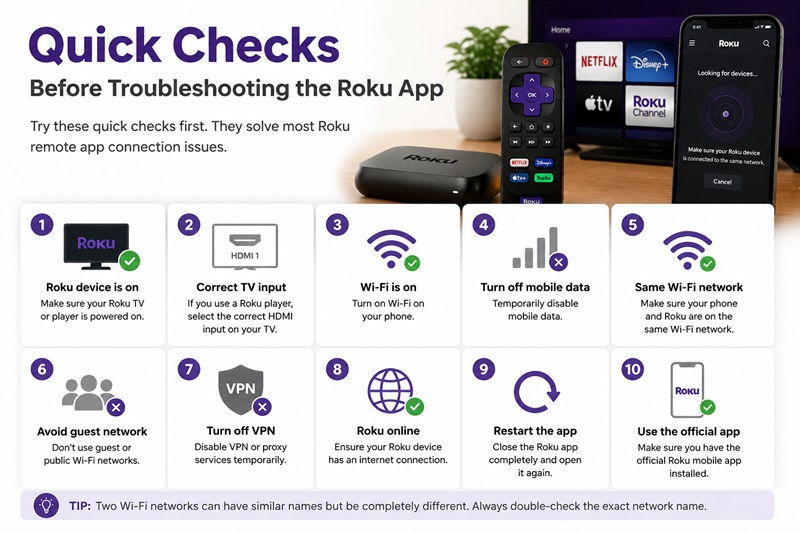
Before changing router settings or reinstalling anything, complete these basic checks. They often solve the roku remote app not connecting to tv issue in less than a minute.
- Make sure the Roku TV or player is powered on.
- If you use a Roku player, select its correct HDMI input on the television.
- Turn on Wi-Fi on the phone.
- Temporarily turn off mobile data.
- Confirm that the phone and Roku use the same Wi-Fi name.
- Move both devices away from a guest network.
- Temporarily disable any VPN.
- Close the Roku mobile app completely.
- Reopen the app and select Devices.
- Confirm that you installed the official Roku mobile app rather than the Roku Smart Home app.
The official Roku mobile app is available for compatible iOS and Android devices and includes a phone-based remote, keyboard, voice features, media sharing, and other tools.
When you can’t connect roku app to tv, check whether the Roku itself can stream content. If streaming services also fail, the underlying problem is likely the Roku’s network connection rather than the phone app.
For anyone asking why won’t my roku app remote connect, the most important rule is simple: both devices must be visible to each other on the same local network.
Important: Two Wi-Fi names can look nearly identical while belonging to different networks. Check the complete network name on both devices.
12 Ways to Fix the Roku Remote App Not Connecting to TV
Work through these fixes in order. Start with network matching and permissions before attempting a factory reset or buying another remote.
1. Connect the Phone and Roku to the Same Wi-Fi
The first solution for roku remote app not connecting to tv is to verify the network on both devices.
On the Roku, open:
Settings > Network > About
Note the network name and IP address. Then open Wi-Fi settings on your phone and connect it to that exact network.
Roku’s connection instructions recommend checking the network information on Roku and comparing it with the network used by the phone.
This step is particularly important when the roku remote app not connecting to roku tv issue starts after:
- Installing a new router
- Changing the Wi-Fi password
- Adding a mesh network
- Connecting to a range extender
- Moving the Roku to another home
- Switching the phone to guest Wi-Fi
If you are wondering why won’t my roku tv connect to my phone remote, a network mismatch should be the first thing you check.
2. Stop Using a Guest Wi-Fi Network
Guest networks are designed to keep connected devices separated. Your phone may have internet access while being unable to see the Roku.
Move the phone and Roku to the router’s main network. Avoid networks labeled:
- Guest
- Visitor
- Public
- Hotel
- Community
- IoT, unless local control is allowed
If you manage the router, look for settings such as client isolation, AP isolation, wireless isolation, or device isolation. These features can block communication between devices.
Do not weaken network security on a school, hotel, apartment, or shared network that you do not manage. Contact the network administrator instead.
3. Enable Control by Mobile Apps
A roku remote app not connecting to tv problem can occur when network control is restricted on the Roku.
Using a working physical remote, navigate to:
Settings > System > Advanced system settings > Control by mobile apps
Review the available network-access option and choose the level that allows trusted apps on your home network to control the Roku.
Roku currently lists this menu path in its official troubleshooting instructions.
After changing the setting:
- Return to the Roku home screen.
- Close the Roku app on the phone.
- Reopen it.
- Select Devices.
- Wait for the Roku to appear.
This is a useful fix when the roku remote app not working with tv even though both devices are already connected to the same Wi-Fi.
It can also resolve a roku remote app not pairing with tv problem because the app may be finding the Roku but lacking permission to control it.
4. Restart the Roku Device
Restarting clears temporary network and software problems without deleting your apps or settings.
Open:
Settings > System > Power > System restart
Some Roku devices do not display the Power menu. On those models, use:
Settings > System > System restart
When you cannot access the menu, unplug the Roku from power, wait approximately 10 seconds, and reconnect it. Roku also recommends restarting the device when troubleshooting Wi-Fi failures.
Wait until the Roku home screen loads and reconnects to Wi-Fi before opening the mobile app.
Avoid pressing the physical reset button unless you intentionally want to factory-reset the device. A factory reset removes network settings and can make the situation harder when no physical remote is available.
5. Restart the Phone and Router
If restarting Roku does not solve the roku remote app not connecting to tv issue, restart the rest of the local network.
Follow this order:
- Close the Roku app.
- Restart the phone.
- Unplug the router.
- Wait about 30 seconds.
- Reconnect the router.
- Wait until Wi-Fi is fully available.
- Confirm that Roku reconnects.
- Connect the phone to the same network.
- Reopen the Roku app.
Restarting the router can refresh local IP addresses and resolve temporary communication errors. Roku also advises restarting both the router and Roku when investigating Wi-Fi issues.
6. Allow Local Network Access on the Phone
The app may be installed correctly but blocked from scanning your home network.
On an iPhone or iPad:
- Open Settings.
- Scroll to Apps or find Roku in the app list.
- Select Roku.
- Turn on Local Network.
Roku’s official iPhone instructions specifically identify Local Network permission as necessary for device discovery.
On Android:
- Press and hold the Roku app icon.
- Open App info.
- Select Permissions.
- Allow relevant permissions such as Nearby Devices, Local Network, or Location when requested.
Permission names vary by Android version and phone manufacturer.
After changing permissions, force-close the app and open it again.
7. Temporarily Disable VPN and Privacy Services
A VPN can route phone traffic away from the local network, preventing the Roku app from discovering nearby devices.
Temporarily disable:
- VPN applications
- Corporate security tunnels
- DNS-filtering apps
- Firewall apps
- Network privacy tools
Reconnect the phone to Wi-Fi and reopen the Roku app.
On Apple devices, privacy-routing features can occasionally complicate troubleshooting. Temporarily switching them off can help determine whether they are involved, but you can enable them again after testing.
Do not leave important security tools disabled permanently. The purpose of this step is only to identify the cause.
8. Update the Roku Mobile App
An outdated app can cause discovery errors, crashes, or controls that fail to respond.
On iPhone:
- Open the App Store.
- Search for Roku.
- Tap Update if available.
On Android:
- Open Google Play.
- Search for Roku.
- Tap Update.
After updating, restart the app and scan for devices again.
Only install the application through a trusted official store. Avoid modified APKs or unofficial download pages because they may be outdated or unsafe.
9. Update Roku OS
A software mismatch may contribute to the roku remote app not connecting to tv issue.
Using a working controller, go to:
Settings > System > Software update > Check now
Allow the device to download and install any available update. It may restart automatically.
Once the home screen returns:
- Confirm that Wi-Fi is connected.
- Open the Roku app.
- Select Devices.
- Choose the Roku.
- Open Remote.
Updating is especially helpful when the app stopped working after a phone operating-system update.
10. Check the Roku Network Connection
The phone app cannot control a Roku that has dropped off the network.
Open:
Settings > Network > Check connection
Roku’s official support page identifies this path as the way to test network connectivity.
If the check fails:
- Confirm the Wi-Fi password.
- Restart the Roku and router.
- Move the Roku closer to the router.
- Remove objects blocking the signal.
- Reconnect to Wi-Fi.
- Test the same network with another device.
- Inspect the Ethernet cable if using a wired connection.
Roku lists incorrect passwords, weak signal, and router problems among the common causes of Wi-Fi connection failures.
11. Try a Manual IP Connection
When the roku remote app not finding tv, a manual connection may help if the version of the app provides that option.
First, find the Roku IP address at:
Settings > Network > About
Then open the Roku app’s device screen and look for a manual connection or IP-address option. Enter the address exactly as shown.
This only works when the phone and Roku are on the same reachable local network. It will not bypass:
- Guest-network isolation
- Different routers
- A disconnected Roku
- A VPN that blocks local traffic
- Incorrect IP information
If you can’t connect roku remote app to tv after entering the IP address, return to the network and permission checks.
12. Reinstall the Roku App
Reinstallation can clear corrupted app data or a broken permission state.
- Delete the Roku app.
- Restart the phone.
- Reinstall the official app from the App Store or Google Play.
- Open it.
- Allow Local Network and nearby-device permissions.
- Select Devices.
- Wait for the Roku to appear.
- Open the remote interface.
You may need to sign in again, but device discovery still depends mainly on the local network.
If reinstalling does not solve the roku remote app not connecting to tv problem, test the app on another phone connected to the same Wi-Fi. If the second phone works, the original phone’s settings are probably responsible. If neither phone works, focus on Roku or router settings. Try a Remote TV App
How to Connect the Roku Remote App Without a Physical Remote
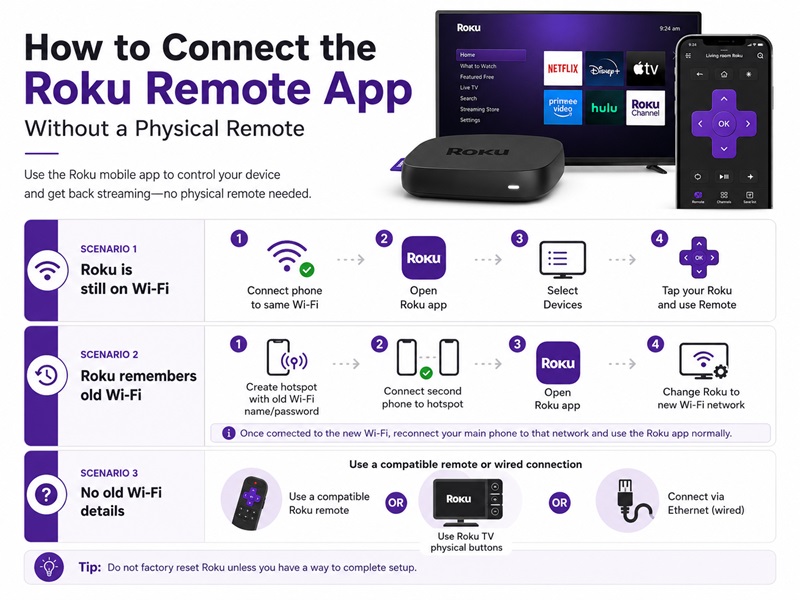
A missing physical remote makes the roku remote app not connecting to tv problem more complicated, but the best solution depends on whether Roku is still online.
When Roku Is Still Connected to Wi-Fi
Connect the phone to the same network and open the Roku app.
- Select Devices.
- Choose the Roku TV or player.
- Tap Remote.
- Wait for the controls to load.
- Use the phone as the replacement remote.
The official Roku app is designed to control compatible Roku players and TVs from a phone or tablet.
If roku app not connecting to tv no remote describes your situation, confirm that the phone is not using mobile data or guest Wi-Fi.
When Roku Remembers an Old Wi-Fi Network
You may be able to recreate the previous network using a hotspot.
You will generally need two phones:
- On Phone A, create a hotspot.
- Give it the exact name and password of the previous Wi-Fi.
- Restart Roku.
- Wait for Roku to connect to the recreated network.
- Connect Phone B to Phone A’s hotspot.
- Open the Roku app on Phone B.
- Select the Roku and open the remote.
- Navigate to Settings > Network > Set up connection.
- Connect Roku to the new home Wi-Fi.
- Move Phone B to the new Wi-Fi.
This can answer why isn’t my roku app connecting to my tv after a router replacement: Roku may still be searching for the old network while the phone is already using the new one.
When You Do Not Know the Old Network Details
Try one of these alternatives:
- Borrow a compatible Roku remote.
- Purchase a suitable replacement remote.
- Use the physical controls on a Roku TV, if available.
- Connect through Ethernet if the Roku model supports it.
- Use a compatible Ethernet adapter when officially supported.
Do not factory-reset Roku unless you have a reliable way to complete setup afterward.
Can You Connect the Roku Remote App to TV Without Wi-Fi?
The phrase connect roku remote app to tv without wifi can refer to two different situations.
No Internet, but the Router Still Works
A local Wi-Fi network can continue operating even when the internet service is down. In this situation, the phone may still discover and control Roku because both devices are connected to the same router.
However, streaming content and account-dependent features may not work until internet access returns.
No Wi-Fi or Local Network at All
Without a shared local network, the Roku mobile app normally has no path for sending remote commands to the Roku. Mobile data alone does not make the phone a direct Roku remote.
A phone hotspot can create a network, but Roku must first be connected to that hotspot. If you have no remote and Roku does not already recognize the hotspot credentials, you may need a second phone or a physical remote.
Roku’s current setup instructions describe connecting a Roku device to a phone hotspot through the normal wireless-network menu.
When the roku app not connecting to tv no remote issue occurs outside the home, the practical choices are:
- Recreate a previously saved network.
- Use two phones.
- Connect through Ethernet where supported.
- Obtain a compatible physical remote.
Therefore, the roku remote app not connecting to tv issue cannot usually be solved through cellular data alone.
What to Do When the Roku App Cannot Find or Pair With Your TV
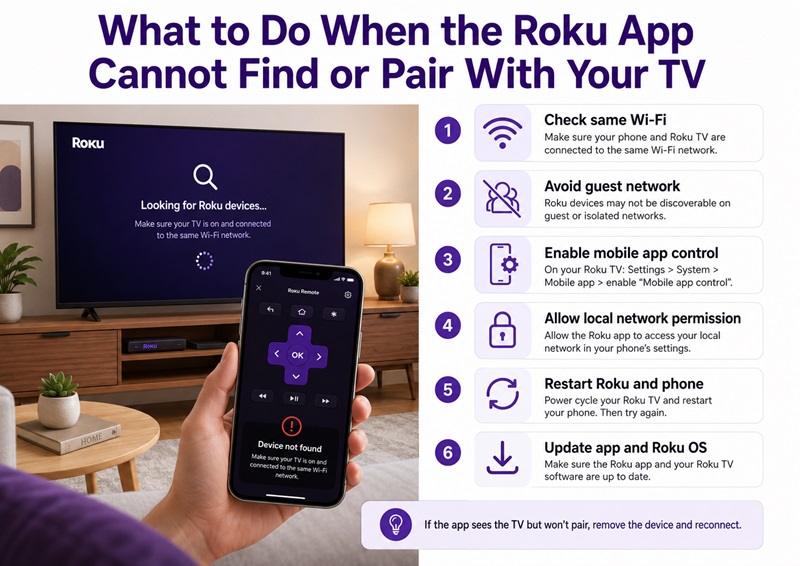
Different symptoms point to different causes.
The App Cannot Find Any Roku Device
When the roku remote app not finding tv, check:
- Same Wi-Fi network
- Main network instead of guest Wi-Fi
- Local Network permission
- Mobile-app control settings
- Roku network status
- VPN settings
- Router isolation
- Wi-Fi signal strength
Start with the phone and Roku network names. Then restart both devices.
The App Finds Roku but Cannot Open the Remote
When the app displays the Roku but the remote remains unavailable:
- Tap the device and wait several seconds.
- Close the remote screen.
- Return to Devices.
- Select Roku again.
- Force-close and reopen the app.
- Restart Roku.
- Check the mobile-control setting.
- Update both the app and Roku OS.
This is a common form of the roku remote app not pairing with tv issue. Unlike a physical voice remote, the mobile app does not pair through a hardware pairing button. It establishes a network connection.
The App Connects and Disconnects
Repeated disconnections usually point to unstable Wi-Fi.
- Move the phone and Roku closer to the router.
- Restart the router.
- Avoid switching between Wi-Fi and mobile data.
- Check whether the phone is moving between mesh access points.
- Test the Roku connection.
- Try the app on another phone.
Roku Appears Offline
If Roku appears offline, test its connection from Settings > Network > Check connection. If the test fails, reconnect the Roku before troubleshooting the app.
These steps help explain why won’t my roku remote app connect to my tv even when the app worked previously.
Why Roku 3 Is Not Connecting to the TV or Mobile App
The keyword roku 3 not connecting to tv can describe either a video problem or a mobile-app problem. Treat them separately.
Roku 3 Does Not Display on the Television
Check the physical setup:
- Confirm that Roku 3 has power.
- Select the correct HDMI input.
- Disconnect and reconnect the HDMI cable.
- Try another HDMI port.
- Test another HDMI cable.
- Restart Roku 3 and the TV.
- Look for a status light on the player.
If the television displays “No Signal,” the problem is probably HDMI, power, or input selection rather than the Roku mobile app.
Roku 3 Does Not Appear in the App
When you can’t connect roku app to tv while using Roku 3:
- Confirm that Roku 3 is online.
- Put the phone on the same network.
- Restart Roku 3 and the router.
- Review mobile-app control settings.
- Check Local Network permission.
- Try Ethernet, since Roku 3 includes wired-network support.
- Update Roku software if an update is available.
Older hardware does not automatically mean the device has failed. Network configuration, router changes, software, or power problems are more useful places to begin.
Roku App vs. LG TV Remote App: Do You Have the Right App?
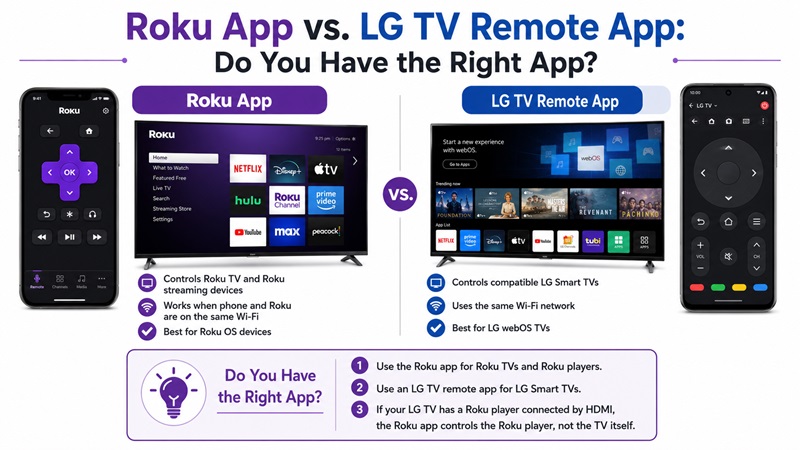
The official Roku mobile app controls Roku TVs and Roku streaming players. It does not directly control every television simply because the Roku player is connected to it.
For example, an LG television running webOS and a Roku player connected through HDMI are two separate devices:
- The Roku app controls the Roku player interface.
- An LG-compatible remote app controls the LG TV itself.
- HDMI-CEC may allow limited power or volume control when correctly configured.
If the lg tv remote app not working, confirm that the application supports your exact LG TV model and that the TV and phone are on the same network.
Similarly, an lg tv remote app not connecting issue should be troubleshot through LG or the specific remote app, not through Roku’s mobile-control settings.
LG states that its ThinQ app can control compatible LG Smart TVs, launch applications, and share content from a phone.
A third-party Remote TV App may support multiple brands, but compatibility and available controls can differ. Check the supported TV systems, developer information, subscription terms, and privacy permissions before installing.
When using a Roku player with an LG TV, you may need both Roku control and LG TV control unless HDMI-CEC provides the functions you need.
Use a Remote TV App When the Original Remote Is Missing
The fastest order for resolving the roku remote app not connecting to tv issue is:
- Put the phone and Roku on the same Wi-Fi.
- Leave guest Wi-Fi.
- Enable Control by mobile apps.
- Allow Local Network access.
- Disable VPN temporarily.
- Restart Roku, the phone, and the router.
- Update or reinstall the app.
- Test the Roku network connection.
If the roku remote app not working with tv after all these steps, test another phone on the same network. This helps determine whether the problem belongs to the phone or the Roku.
When no physical remote is available, use the app only if Roku is already reachable on the network. If Roku remembers an old network, recreate it with a hotspot and use a second phone. If Roku is completely offline and you do not know the old credentials, a compatible replacement remote or wired connection may be necessary.
A reliable Remote TV App can also be useful in a multi-TV home, but it should clearly support the television platform you want to control.
In most cases, the roku remote app not connecting to tv problem is not a permanent device failure. Matching the networks, restoring permissions, and restarting the connection usually brings the phone remote back online.
