
Roku TV Remote Headphone Jack Compatibility Guide
By the Remote TV App Team
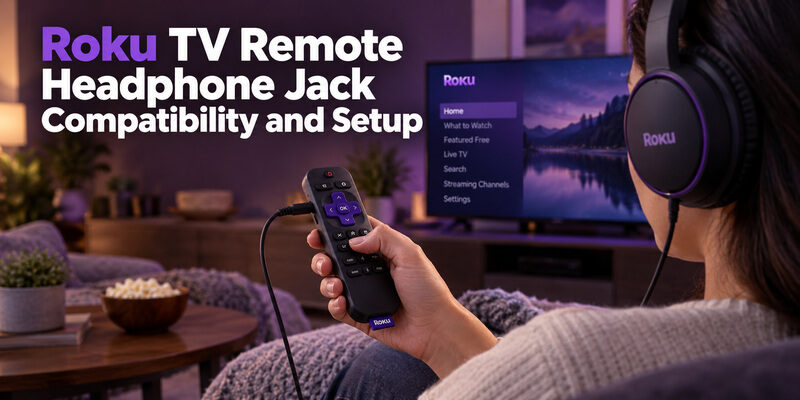
Short answer: Only select Roku remotes have a headphone jack, including the first-generation Voice Remote Pro.
The second-generation Voice Remote Pro does not include that socket, so buying the newer model is not automatically the right upgrade for wired headphones. Roku also offers phone-based Headphone Mode, which sends supported audio to headphones connected to your phone rather than to a jack on the handset.
A Roku TV remote headphone jack search therefore starts with the exact remote model and the listening route you want. This guide compares the options, explains a first listening session, and shows how to investigate missing sound without confusing headphone volume, television speakers, and remote pairing.
Choose the Right Roku TV Remote Headphone Jack Option
Roku’s official TV User Guide, version 15.0, distinguishes the first and second editions of Voice Remote Pro. The first edition has a headphone jack; the second edition does not. Other Roku remote models also vary, so check the specific hardware instead of relying on the word “voice.”
| Listening route | Where headphones connect | What to verify |
|---|---|---|
| Compatible remote with jack | Socket on the remote | Exact remote model and host compatibility |
| First-generation Voice Remote Pro | Remote headphone socket | Product identity and condition |
| Second-generation Voice Remote Pro | No remote headphone socket | Use another supported listening route |
| Roku mobile app Headphone Mode | Phone’s wired or wireless audio connection | Supported device, content, and network setup |
| Direct Bluetooth Headphone Mode | Supported Roku host | Explicit host support for Bluetooth audio |
A newer remote can omit a feature you need. Before choosing a Roku TV remote upgrade, decide whether you specifically require a cable plugged into the handset or simply want quiet listening without TV speakers.
A Roku TV remote headphone jack is a physical socket, not a software feature that can be added to any remote. A headphone symbol in a phone app does not establish that the handheld controller has the same hardware.
Inspect the Exact Remote Before You Buy
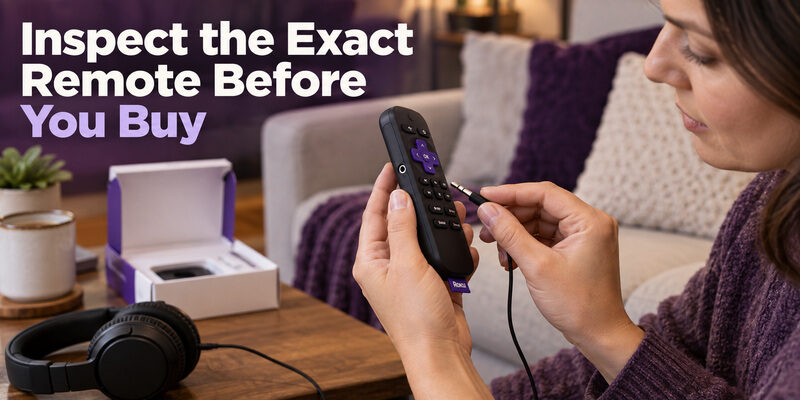
Check product identity and photographs together
Read the complete product name, generation, and model information. Compare the listing’s side photographs with the manufacturer’s specification. A seller may use a familiar product name while showing pictures from a different revision.
For a Roku TV remote headphone jack purchase, ask the seller to confirm that the actual supplied handset has the socket. A photograph of packaging alone can leave the most important detail unresolved. Save the compatibility statement and return terms before opening the product.
Separate condition from compatibility
An older or used remote may have the desired hardware but a worn battery, damaged socket, or missing cable. Those are condition questions, separate from whether the model is designed to work with your television.
Require evidence for both model and condition. Whether a Roku TV remote for sale is listed by a large retailer, a marketplace seller, or a local shop, use the same checks. Searching for a Roku TV remote Target listing does not eliminate the need to inspect the exact generation and contents.
Confirm the Television and Remote Can Work Together
Identify the Roku host rather than only its brand
A TCL, Hisense, or JVC television may use the Roku platform, but the brand name by itself is not proof. Confirm that it is actually a Roku TV and obtain its model information before checking the remote’s supported-device list.
The same rule applies to Roku TV remote Hisense and Roku TV remote JVC searches. A controller for a different smart-TV platform does not become compatible because the television manufacturer also sells Roku models.
Check replacement support for the exact hardware
Use Roku’s current remote compatibility guidance for the candidate model. Do not assume that an older remote advertised for a player will support every television function merely because both products carry the Roku name.
The jack and the control connection must both be suitable. A Roku TV remote headphone jack can be intact while the remote is unpaired, incompatible, or unable to communicate with the selected device. Establish normal navigation before troubleshooting headphone audio.
If a listing is unclear, ask for the specific remote model and supported host rather than accepting “works with Roku” as the entire answer. This is especially useful when buying an older jack-equipped model for a newer installation.
Pair the Remote Before Connecting Headphones
Establish a normal remote session
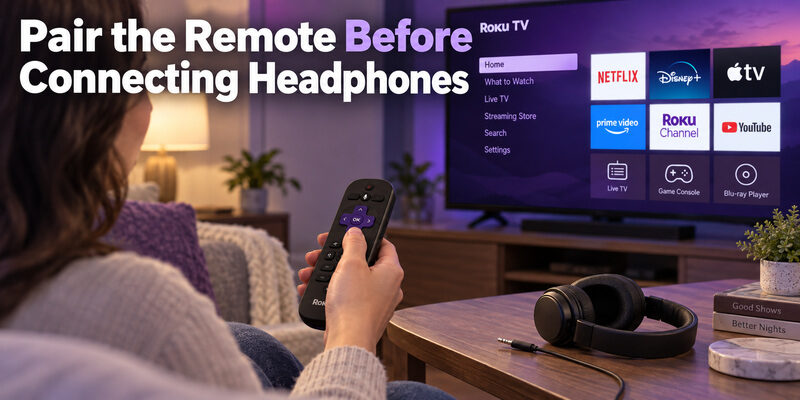
Power the television and follow the pairing procedure for the actual voice remote. Roku’s official pairing instructions distinguish remotes with a pairing button from supported models that use a button combination. Follow that hardware-specific procedure rather than applying it to a simple infrared handset.
For Roku TV remote how to pair questions, the test is straightforward: confirm that Home, direction, and selection commands move the TV interface. Do this with headphones disconnected so audio routing does not complicate the initial result.
Interpret the indicator in context
A Roku TV remote green light flashing during a documented pairing procedure can indicate that the remote is attempting to connect. Observe the television’s confirmation and the eventual control response instead of judging success from the light alone.
Pairing is a control task before it is an audio task. Once navigation works, a Roku TV remote headphone jack can be tested independently. If the remote repeatedly loses all commands, resolve its power or connection problem before treating silence as a damaged headphone socket.
Start a Wired Listening Session
Connect at a low volume
Roku’s official instructions for using a remote for Headphone Mode recommend reducing volume before listening and seating the headphone plug firmly. Use headphones suitable for the remote’s socket and avoid forcing an incompatible connector.
- Start ordinary playback: Choose content supported by the listening mode on your device.
- Lower the listening level: Begin quietly before putting the headphones on.
- Seat the plug fully: Insert it into the remote’s headphone socket without excessive force.
- Check the screen indication: Look for the Headphone Mode response where the device displays one.
- Raise volume gradually: Use the remote’s controls until the sound is comfortable.
A Roku TV remote headphone jack is useful because the cable stays near the viewer. Keep enough slack that moving your hand does not pull the plug sideways or drag the remote from the sofa.
Confirm the room speakers are quiet
Roku’s TV guide explains that the TV speakers or attached sound system are muted during the supported remote headphone session. Verify the actual result in your setup, especially when an external receiver has its own active source.
Listen and observe before assuming privacy. A Roku TV remote headphone jack should not be judged solely by an on-screen icon. Confirm that sound is reaching the headphones and that the expected room output has stopped.
Understand Which Volume the Buttons Now Adjust
Adjust the active listening output
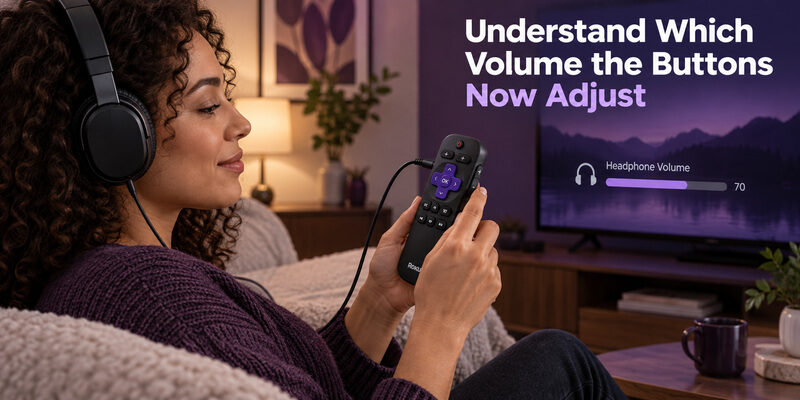
When headphones are connected in the supported mode, the remote’s volume controls adjust headphone listening level. This differs from ordinary Roku TV remote volume behavior when the television speakers or an external sound system are active.
If a volume indicator changes but the room remains quiet, first check whether the headphones are still connected. A forgotten plug can make normal speaker operation appear broken. Unplug it when the private listening session has ended.
Separate mute from connection failure
For Roku TV remote volume not working, identify which output you expect to hear. Check playback, mute, and listening level before pairing again or changing unrelated television audio settings.
The expected output is part of the diagnosis. A Roku TV remote headphone jack changes the listening route; it does not mean every soundbar button or receiver setting now controls the headphones. Test one output at a time so a quiet source is not mistaken for a failed remote.
Use the Roku Mobile App When the Remote Has No Jack
Connect headphones to the phone
Roku’s mobile app offers Headphone Mode for supported devices and content. In this route, headphones connect to the phone using an appropriate wired connection or supported phone Bluetooth audio, while the app communicates with the Roku device over its required network.
A Roku TV remote for phone can therefore provide quiet listening without a physical Roku TV remote headphone jack. Check the official app’s device requirements, connect to the intended television, and activate the headphone control in the app.
Treat phone audio as its own setup
First verify that the headphones play ordinary audio from the phone. Then test the Roku app’s listening session. This separates a phone-to-headphone problem from a phone-to-TV connection problem.
A phone app does not add a socket to the remote. It offers a different audio path, with the phone’s charge level, network connection, and audio settings involved. Keep the phone nearby during playback and check its output selection if sound goes to the wrong headphones.
If you mainly want a Roku TV remote on your phone for navigation or a Roku TV remote keyboard for searches, test those functions separately. Working text entry does not establish that every audio source supports Headphone Mode.
Check Content and Bluetooth Limits Before Troubleshooting
Verify the source you are watching
Headphone support can depend on the Roku device, listening method, and content source. Do not assume that a successful streaming-app test proves identical behavior for an antenna channel or every external HDMI device.
When evaluating a Roku TV remote headphone jack, start with a supported streaming source as a controlled test, then check the source you actually intend to watch against the relevant Roku guidance. Record where it works and where it does not.
Distinguish direct Bluetooth from phone Bluetooth
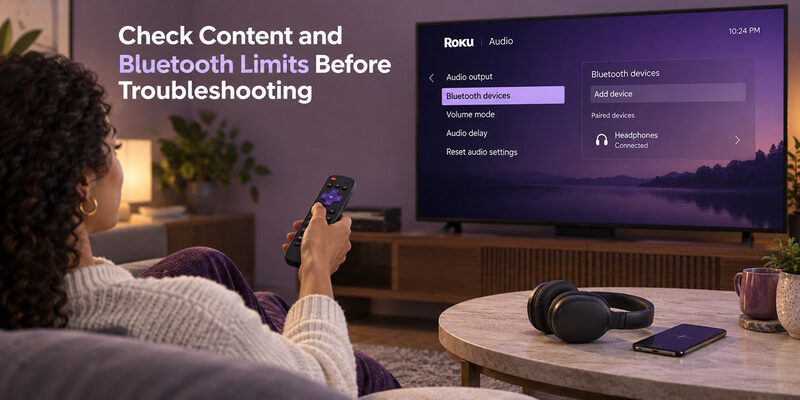
Roku’s direct Bluetooth Headphone Mode is supported only by specified hosts. Bluetooth headphones connected to a phone running the Roku app use a different route. These two options should not be described as interchangeable support for every Roku TV.
Check the host’s explicit feature list. If the television does not support direct Bluetooth headphones, purchasing a voice remote does not necessarily add that feature. A Roku TV remote headphone jack, phone listening, and direct Bluetooth each have their own hardware requirements.
Diagnose Silence Dropouts and Socket Problems
Work from the headphones back toward the TV
Test the headphones with another suitable source, then reseat their plug in the remote. Inspect for obvious damage without inserting tools into the socket. Try another compatible pair if available, keeping the same TV content and volume conditions.
For a Roku TV remote headphone jack that produces intermittent audio, note whether sound changes when the cable moves. This is useful evidence of a cable or contact problem, but do not repeatedly bend the connector to force a temporary result.
| Symptom | First comparison | Useful next step |
|---|---|---|
| No headphone sound | Headphones on another source | Confirm plug seating, playback, and volume |
| Sound cuts when cable moves | Another compatible headphone cable | Inspect connector or socket condition |
| Remote commands also fail | Normal navigation without headphones | Check remote power and pairing |
| Only one source is silent | Known supported content | Verify source support for that listening mode |
| Phone listening drops out | Phone audio and local network separately | Isolate the failing connection |
Check remote power and repeat one controlled test
Roku’s Headphone Mode troubleshooting includes checking batteries on applicable remotes. Use the correct power arrangement for the model; rechargeable remotes and replaceable-cell remotes require different maintenance.
Change one variable at a time. A Roku TV remote headphone jack fault is easier to describe when you can say that two headphone pairs failed on the same supported content while ordinary remote navigation remained reliable.
Describe the failure before requesting a replacement
If the checks do not resolve the problem, record the remote model, television model, listening method, content source, and the result with another headphone pair. Include whether ordinary navigation still works and whether the issue begins immediately or only after moving the cable.
A Roku TV remote headphone jack report that says “two working headphone pairs are silent while Home and volume indicators respond” is more useful than “the remote is broken.” It narrows the question without pretending to establish an internal hardware diagnosis from the outside.
Compare a replacement with the phone route
Before buying another older handset, try the official mobile listening option if your setup supports it. Keep the television and content source the same. If phone listening works, you have a practical interim solution even though it does not identify the exact fault inside the original remote.
Whether a Roku TV remote headphone jack is worth replacing depends on how you watch. Someone who dislikes keeping a phone nearby may prefer a compatible physical model. Another viewer may find phone-connected headphones easier to manage and no longer need the socket on the handheld remote.
Avoid treating the two tests as technically identical. The phone uses its own audio connection and power supply, so success there does not prove that a Roku TV remote headphone jack is electrically sound. Use the comparison to choose a working route while keeping the remaining hardware question clear.
Finish the Session and Plan Your Backup
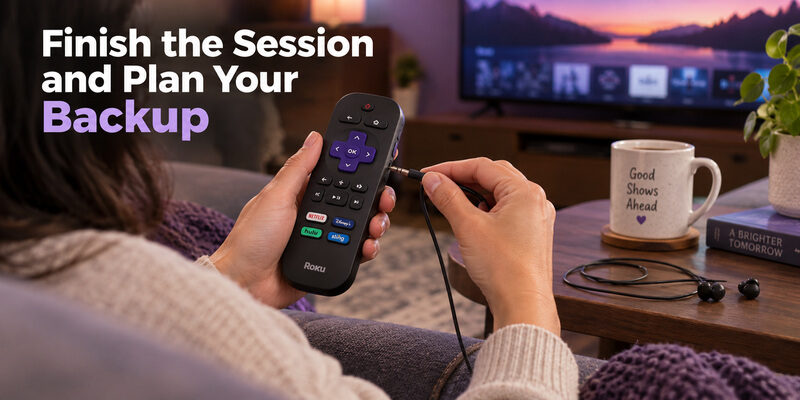
Disconnect the headphones when you finish. Roku notes that leaving them connected can continue to use remote battery power. Check that the expected television or sound-system output resumes before handing the controller to another viewer.
Keep the cable loosely stored and avoid leaving the plug under pressure between sofa cushions. A Roku TV remote headphone jack is a small physical connection, so careful storage can prevent an otherwise avoidable cable or socket problem.
For general television navigation on supported models, can be considered as a separate phone-control backup. Do not assume that a third-party remote app includes Roku Headphone Mode unless its current documentation explicitly confirms the feature for your setup.
If ordinary handset controls also fail, the guide addresses that broader issue. A check may also be relevant to a compatible TCL remote with replaceable cells.
Questions Before Choosing a Listening Remote
Does every Roku voice remote have a headphone jack?
No. Features differ by model and generation. Roku’s TV guide identifies a jack on the first-generation Voice Remote Pro and no jack on the second generation. Confirm the specific remote specification and seller’s actual item before purchasing.
Can I add a headphone socket with a software update?
No. A Roku TV remote headphone jack requires physical hardware. Software cannot create a missing connector. Consider a compatible jack-equipped remote or a supported phone-based listening route if wired headphones are essential to your viewing routine.
Does using Bluetooth on my phone mean the TV supports it?
No. The phone can provide its own Bluetooth audio connection while the Roku app handles the TV session. Direct headphone pairing to a Roku host is a separate capability supported only on specified devices, so check the host documentation.
Should I buy the newest remote for private listening?
Not automatically. Match the listening route before the generation. A newer remote may improve other controls while omitting the physical socket. Compare wired remote listening, mobile Headphone Mode, and any supported direct Bluetooth option against your actual needs.
Final Thoughts
Choose a Roku TV remote headphone jack by exact hardware model, then confirm compatibility with your Roku host. Pair the remote, connect headphones at a low level, and verify both headphone sound and the expected muting of room speakers.
Keep the three listening routes distinct: a jack on the remote, headphones connected to a phone, and direct Bluetooth on supported hosts. That distinction makes buying, setup, and troubleshooting much clearer than assuming every Roku controller offers the same audio features.
