
VIZIO SmartCast App Won’t Connect to TV? How to Fix It
When the vizio smartcast app won’t connect to tv problem appears, your phone may fail to find the television, display the TV as unavailable, or stop during the pairing process. You may also see VIZIO Home refusing to load, streaming apps freezing, or the television repeatedly disconnecting from Wi-Fi.
These problems are often connected. The mobile app needs a reliable local network to discover and control the television. If the phone and TV use different Wi-Fi networks, the app lacks local-network permission, or the TV is offline, pairing cannot be completed.
The vizio smartcast app won’t connect to tv issue can also be caused by temporary app data, router isolation, outdated software, a VPN, a weak wireless signal, or a pairing record that is no longer valid.
This guide explains how to identify the cause, complete the fastest checks, fix the mobile connection step by step, restore VIZIO Home, reconnect the TV to Wi-Fi, and solve problems with built-in TV apps. It also covers using a Remote TV App when the official mobile connection remains unavailable.
1. Why Won’t the VIZIO SmartCast App Connect to Your TV?
The vizio smartcast app won’t connect to tv issue usually begins because the phone cannot discover or communicate with the television over the local network.
The most common causes include:
- The phone and TV are connected to different Wi-Fi networks.
- One device is using guest Wi-Fi.
- The television has lost its internet or local-network connection.
- Local Network or Nearby Devices permission is disabled.
- A VPN or private networking tool blocks device discovery.
- The router separates connected devices.
- The mobile application needs an update.
- The TV software needs an update.
- An old pairing record is interfering with a new connection.
- The pairing PIN has expired.
- The Wi-Fi signal is too weak near the television.
- VIZIO Home is temporarily frozen.
- The phone is switching between Wi-Fi and mobile data.
- The television and phone are connected to different routers or mesh networks.
If my vizio tv won’t connect to smartcast, first determine whether the TV itself has a working network connection. Try opening an online app or loading VIZIO Home. If the television cannot access online content, fix its Wi-Fi connection before troubleshooting the phone.
A smartcast vizio not connecting problem can also occur when the television is connected by Ethernet but the phone is on Wi-Fi from a different router. A wired television and wireless phone can communicate, but both connections must belong to the same local network.
When vizio won’t connect to smartcast, avoid factory resetting the TV immediately. Network matching, permission checks, restarts, and fresh pairing solve most problems without deleting your settings.
2. Quick Checks Before Troubleshooting VIZIO SmartCast
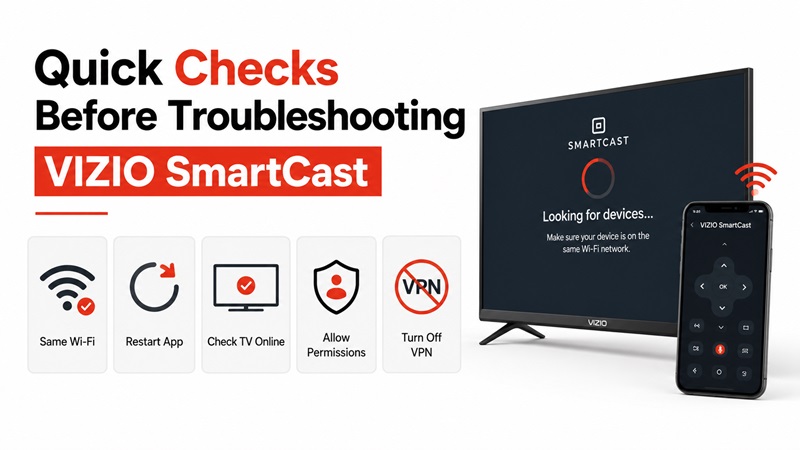
Before changing advanced network settings, complete the following checks. They can often resolve the vizio smartcast app won’t connect to tv issue in a few minutes.
| Symptom | Likely cause | First fix to try |
| App cannot find the TV | Different Wi-Fi networks | Connect both devices to the same network |
| TV appears but pairing fails | Expired PIN or saved pairing error | Restart and pair again |
| VIZIO Home does not load | TV software or network issue | Power cycle the television |
| Built-in apps will not open | Platform or internet problem | Restart TV and check Wi-Fi |
| TV has no internet | Wrong password or router issue | Reconnect the TV to Wi-Fi |
| Connection repeatedly drops | Weak signal or network instability | Restart the router |
| App works only when VPN is off | VPN blocks local discovery | Keep VPN off while pairing |
| TV works with its remote but not the app | Missing phone permission | Allow Local Network access |
Complete this checklist:
- Turn on the VIZIO TV.
- Wait for the Home Screen to load.
- Make sure Wi-Fi is enabled on the phone.
- Compare the complete network name on both devices.
- Leave any guest network.
- Temporarily disable mobile data.
- Close the VIZIO app completely.
- Reopen it and scan for devices.
- Confirm that the TV can open online content.
- Test the television with its physical remote.
When the vizio smartcast app not finding tv, pay particular attention to the network name. Networks such as “Home,” “Home 5G,” and “Home Guest” may be separated even when they come from the same router.
Also confirm that you installed the official VIZIO mobile application rather than an unrelated app using “SmartCast” in its name.
3. How to Fix the VIZIO SmartCast App Not Connecting to TV
Work through these solutions in order. Start with the network and app before making major changes to the television.
1. Connect the Phone and TV to the Same Wi-Fi
The first fix for vizio smartcast app won’t connect to tv is to verify that both devices share the same local network.
On the television:
- Open the TV menu.
- Select Network.
- View the connected Wi-Fi name.
- Confirm that the connection is active.
On the phone:
- Open Wi-Fi settings.
- Find the network used by the television.
- Connect to that exact network.
- Turn off mobile data temporarily.
- Reopen the VIZIO app.
- Scan for the TV.
If the TV uses Ethernet, connect the phone to the Wi-Fi network from the same router.
2. Stop Using Guest Wi-Fi
Guest networks commonly prevent connected devices from seeing one another. This security feature can cause the vizio smartcast app not connecting to tv problem even when both devices have internet access.
Move the phone and TV to the router’s main network.
Avoid networks labeled:
- Guest
- Visitor
- Public
- Community
- Hotel
- Isolated devices
If you manage the router, review settings named client isolation, wireless isolation, or AP isolation. These options may block local device discovery.
3. Force-Close and Reopen the Mobile App
Temporary app errors can interrupt device scanning or pairing.
On Android:
- Open the recent-apps screen.
- Swipe the VIZIO app away.
- Open App Info.
- Select Force Stop if necessary.
- Reopen the app.
On iPhone:
- Open the app switcher.
- Swipe the VIZIO app upward.
- Return to the Home Screen.
- Open the app again.
Wait for the device list to refresh before selecting the TV.
4. Restart the Phone
Restarting the phone can clear temporary network, Bluetooth, and app-discovery errors.
After restarting:
- Connect to the correct Wi-Fi.
- Confirm that VPN is off.
- Open the app.
- Allow any requested permissions.
- Search for the television again.
5. Power Cycle the VIZIO TV
A power cycle reloads the TV system without deleting personal settings.
- Turn off the television.
- Unplug it from the power outlet.
- Wait approximately 30 seconds.
- Press the physical Power button briefly if accessible.
- Plug the TV back in.
- Turn it on.
- Wait for the Home Screen.
- Reopen the mobile app.
- Try the connection again.
This can fix temporary discovery problems, frozen menus, and situations where vizio smartcast won’t connect after the TV has remained in standby for a long time.
6. Restart the Router
A router restart can refresh local addresses and restore communication between the phone and TV.
- Close the mobile app.
- Turn off the television.
- Unplug the router.
- Wait approximately 30 seconds.
- Reconnect the router.
- Wait for Wi-Fi to become available.
- Connect the TV first.
- Connect the phone to the same network.
- Open the app and scan again.
Do not press the router’s Reset button. That may erase its network settings.
7. Allow Local-Network Permissions
The application may have Wi-Fi access but still be blocked from discovering nearby devices.
On iPhone:
- Open Settings.
- Select Privacy & Security.
- Open Local Network.
- Enable access for the VIZIO app.
- Check Bluetooth permission if requested.
On Android:
- Press and hold the app icon.
- Select App Info.
- Open Permissions.
- Allow Nearby Devices.
- Allow Local Network or Location if requested.
- Reopen the application.
Permission names vary by phone and operating-system version.
8. Disable VPN or Private Networking Temporarily
A VPN can route traffic away from the local network, preventing the application from finding the TV.
Temporarily disable:
- VPN apps
- Corporate network profiles
- Private DNS
- Firewall apps
- Network filtering tools
- Privacy routing services
Reconnect to Wi-Fi and test the app. Restore your security tools after determining whether they caused the problem.
9. Update the VIZIO Mobile App
An outdated application may have discovery, compatibility, or login errors.
- Open the App Store or Google Play.
- Search for the VIZIO mobile application.
- Select Update if available.
- Restart the phone.
- Open the updated app.
- Scan for the television.
Only use a trusted app-store listing from the correct developer.
10. Update the VIZIO TV Software
TV software updates may improve network performance, VIZIO Home, built-in applications, and mobile control.
The menu name varies, but the update option may appear under:
- System
- Admin & Privacy
- Check for Updates
- System Information
Install any available update and allow the TV to restart.
After the update:
- Confirm the TV is connected to Wi-Fi.
- Open the mobile app.
- Select the television.
- Complete pairing again.
11. Reinstall the Mobile Application
If the vizio smartcast app won’t connect to tv after an update, reinstall it.
- Delete the application.
- Restart the phone.
- Open the official app store.
- Reinstall the app.
- Open it.
- Allow Local Network access.
- Sign in if needed.
- Select the TV.
- Enter the pairing PIN.
Reinstallation clears saved app data that may be causing the connection to fail.
12. Remove the TV and Pair It Again
A saved device record can become outdated after a router change, TV reset, or network update.
Inside the app:
- Remove or forget the saved television.
- Return to the device-selection screen.
- Select Add Device or Select a Device.
- Choose the correct VIZIO TV.
- Wait for a PIN to appear on the television.
- Enter the new PIN in the app.
- Wait for the connection to complete.
- Test the remote screen.
Do not reuse a PIN from an earlier attempt.
4. How to Fix VIZIO SmartCast Home Not Available or Not Loading
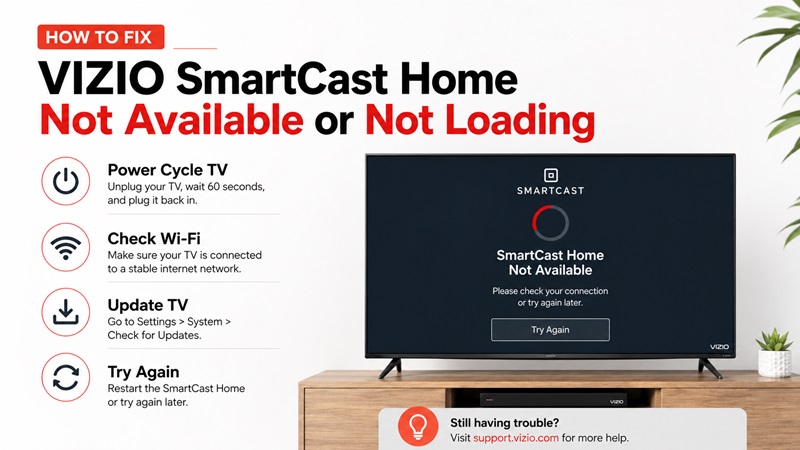
A vizio smartcast won’t load problem may prevent the mobile application from connecting normally because the television platform itself is not responding.
Perform a Soft Power Cycle
Some VIZIO TVs provide a software power-cycle option.
- Open the TV menu.
- Select System or Admin & Privacy.
- Select Soft Power Cycle when available.
- Wait for the TV to restart.
- Open VIZIO Home again.
When the menu is unavailable, use the unplugging method described earlier.
Check the TV Network
If you are researching how to fix vizio tv smartcast home not available, confirm that the TV can access the internet.
- Open Network settings.
- Check the network status.
- Re-enter the Wi-Fi password.
- Restart the router.
- Test another online application.
- Try a mobile hotspot temporarily.
If the television works on a hotspot but not on the home network, the router or internet connection is probably responsible.
Change the Menu Language Temporarily
On selected models, changing the system language may refresh the Home interface.
- Open the TV menu.
- Select System settings.
- Change the menu language.
- Return to VIZIO Home.
- Wait for it to load.
- Restore the original language.
This is a troubleshooting step rather than a permanent configuration.
Check Regional Availability
Some content and Home features can depend on the television’s supported region. Confirm that the TV location and account region are correct.
A vizio smart tv won’t load smartcast problem after moving the television to another country may be connected to regional availability rather than a failed remote app.
Factory Reset Only as a Last Resort
When smartcast won’t work on vizio tv after network checks, updates, and power cycling, a factory reset may be considered.
A factory reset can remove:
- Wi-Fi details
- Accounts
- Personalized settings
- Picture adjustments
- App preferences
- Device pairings
Prepare the information needed to set up the TV again before continuing.
5. What to Do When a VIZIO SmartCast TV Won’t Connect to Wi-Fi
The mobile application cannot control a television that has dropped off the network. Fix the TV connection first when smartcast won’t connect to wifi.
Reconnect the TV Step by Step
- Turn on the television.
- Press the Menu or Settings button.
- Select Network.
- Choose the correct Wi-Fi network.
- Enter the password carefully.
- Wait for confirmation.
- Return to the Home Screen.
- Test an online application.
- Open the mobile app again.
Check the Password
Wi-Fi passwords are case-sensitive. Check for:
- Uppercase and lowercase letters
- Number substitutions
- Extra spaces
- Incorrect network selection
- Recently changed router credentials
Forget the network and reconnect if that option is available.
Restart the TV and Router
If vizio smartcast won’t connect to wifi, restart both devices instead of repeatedly entering the same password.
Wait until the router has fully restarted before reconnecting the television.
Improve the Wireless Signal
A weak signal may cause the vizio smartcast tv won’t connect to wifi issue or repeated app disconnections.
Try:
- Moving the router closer
- Removing large obstacles
- Moving the router out of a cabinet
- Testing the 2.4 GHz network
- Disconnecting unused devices
- Using Ethernet when supported
The 2.4 GHz band is often slower but can provide better range through walls.
Test a Mobile Hotspot
Create a temporary hotspot and connect the TV to it.
If the television connects successfully, the home router or network settings may be the cause.
If the vizio smartcast tv will not connect to wifi or any hotspot, the television may have a software or hardware problem.
Try Ethernet
When the TV includes a LAN port:
- Connect an Ethernet cable from the router to the television.
- Open Network settings.
- Select the wired connection if necessary.
- Test VIZIO Home.
- Connect the phone to Wi-Fi on the same router.
- Open the mobile application.
A wired TV and wireless phone can still communicate when they share the same router.
6. What to Do When VIZIO SmartCast TV Apps Are Not Working
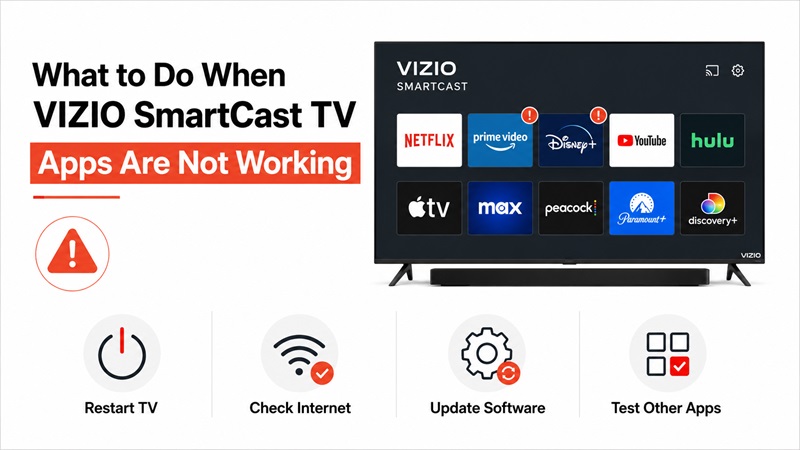
If the phone connects but vizio smartcast tv apps not working remains a problem, troubleshoot the television applications separately.
Restart the TV
Begin with a power cycle. This clears temporary application and memory errors.
Test More Than One App
Open several services.
If only one service fails, the problem may belong to that application or its online service.
If every app fails, check:
- TV network connection
- VIZIO Home
- TV software
- Router status
- Internet service
Check for TV Updates
Install available system updates and restart the television.
An update may correct application crashes, blank screens, and Home-loading errors.
Confirm Internet Access
Try:
- Opening another application
- Loading VIZIO Home
- Testing a wired connection
- Connecting to a hotspot
- Restarting the router
When vizio smart tv won’t load smartcast and every app remains offline, the network is more likely to be responsible than a single application.
Remove and Re-add Apps When Supported
Some VIZIO interfaces allow you to manage or reorganize applications. Available options depend on the TV model and software version.
Remove and re-add an app only when the TV provides that option.
Reset the TV as a Final Step
Use a factory reset only after:
- Power cycling
- Checking Wi-Fi
- Restarting the router
- Installing updates
- Testing other apps
- Trying another network
7. How to Pair the VIZIO Mobile App With Your TV Again
Fresh pairing can resolve the vizio smartcast app won’t connect to tv problem after a router change, app reinstall, or television reset.
Follow these steps:
- Turn on the VIZIO television.
- Connect it to Wi-Fi.
- Connect the phone to the same network.
- Open the VIZIO mobile application.
- Select Get Started, Add Device, or Select a Device.
- Wait for the TV list.
- Choose the correct television.
- Wait for a pairing PIN to appear on the TV.
- Enter the PIN on the phone.
- Wait for connection confirmation.
- Open the remote interface.
- Test navigation, Volume, Home, and playback.
When the vizio smartcast app not finding tv:
- Refresh the device list.
- Restart the app.
- Check Local Network permission.
- Confirm the exact Wi-Fi name.
- Turn off VPN.
- Restart the television.
- Restart the router.
If the PIN is rejected, wait for a new code and begin pairing again.
A vizio smart tv won’t connect to smartcast after repeated fresh pairing may indicate that the TV is still offline or that local device communication is blocked by the router.
8. Use a Remote TV App When VIZIO SmartCast Still Won’t Connect
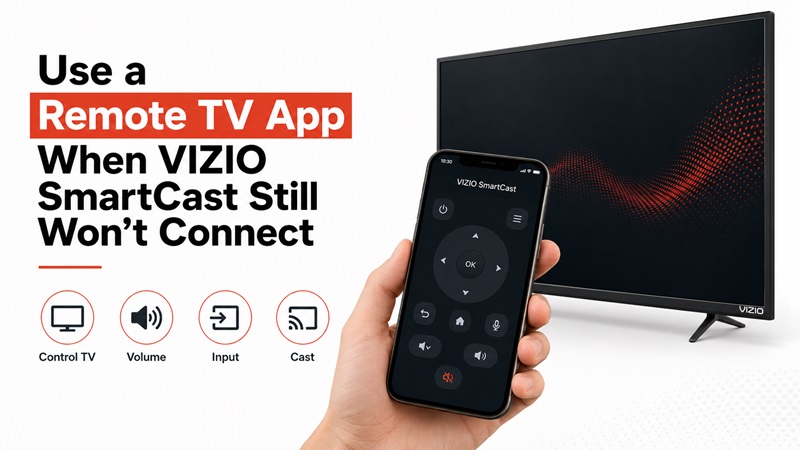
When the vizio smartcast app won’t connect to tv, use this troubleshooting order:
- Connect the phone and TV to the same Wi-Fi.
- Leave guest mode.
- Restart the mobile application.
- Restart the phone.
- Power cycle the television.
- Restart the router.
- Allow Local Network access.
- Disable VPN temporarily.
- Update the app and TV.
- Reinstall the application.
- Remove and pair the TV again.
A universal Remote TV App may provide an alternative interface when it supports your VIZIO model. Possible features include:
- Volume control
- Directional navigation
- Home and Back
- Playback controls
- Keyboard input
- Input selection
- Casting
However, a Wi-Fi-based application still requires the television to be online and reachable on the local network. It cannot repair a failed Wi-Fi component or bypass router isolation.
If vizio smartcast won’t connect because the TV is completely offline, use:
- The physical VIZIO remote
- Buttons on the television
- A compatible universal remote
- Ethernet
- Technical support when network hardware fails
Most cases of vizio smartcast app won’t connect to tv are caused by network mismatches, permissions, temporary software errors, or outdated pairing information. Restoring the shared network and pairing the TV again usually returns mobile remote control.
📲 CTA BUTTON: Download Remote TV App
