
Download Remote TV LG: Control Your TV From Your Phone
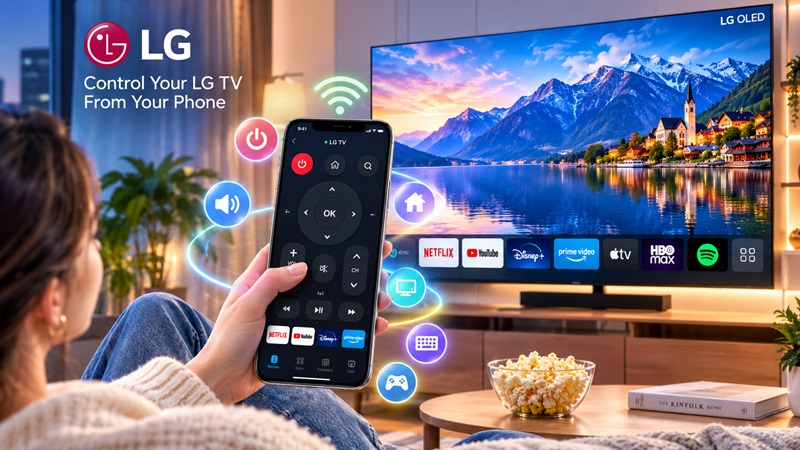
A missing, damaged, or unresponsive television remote can make even a simple task frustrating. You may be unable to adjust the volume, switch HDMI inputs, search for a movie, or open your favorite streaming service. Fortunately, a compatible phone app can provide many of the controls found on a physical LG remote.
To download remote TV LG software, open Google Play on an Android device or the Apple App Store on an iPhone or iPad. Search for an app that supports your LG television, confirm the developer and compatibility details, and install it from the official store. After installation, connect your phone and TV to the same Wi-Fi network, choose the television inside the app, and approve the pairing request.
The best app depends on your LG TV model, webOS version, mobile device, and the features you need. Some apps focus specifically on LG televisions, while others work as universal controllers for several brands.
This guide explains how to download remote TV LG apps safely, connect a phone to your television, compare available options, and use your mobile device as a convenient everyday controller.
What Is an LG TV Remote App?
An LG TV remote app is mobile software that turns a smartphone or tablet into a virtual television controller. Instead of pressing buttons on a physical remote, you use an on-screen interface that sends commands to a compatible LG TV.
Most modern apps communicate with the television through the home Wi-Fi network. After the phone and TV are paired, the mobile interface may provide controls for:
- Power
- Volume
- Mute
- Channels
- Input selection
- Menu navigation
- Home and Back
- Video playback
- Streaming apps
Some controllers also include a phone keyboard. This can make it easier to enter a Wi-Fi password, search for a movie, sign in to an account, or type inside supported TV apps.
Other possible features include touchpad navigation, favorite buttons, voice search, media casting, screen mirroring, and saved profiles for multiple televisions. Availability varies by app and TV model.
Users searching for an app remote TV LG solution usually have three main choices:
- An official or LG-focused controller
- An app designed for compatible webOS televisions
- A universal Remote TV App supporting several brands
An LG-focused app may provide deeper integration with the television. A universal controller can be more convenient when the household contains TVs from different manufacturers.
Before you download remote TV LG software, check the complete model number of your television. Two LG TVs can look similar while using different webOS generations, network features, or mobile-control protocols.
How to Download Remote TV LG on Android and iPhone
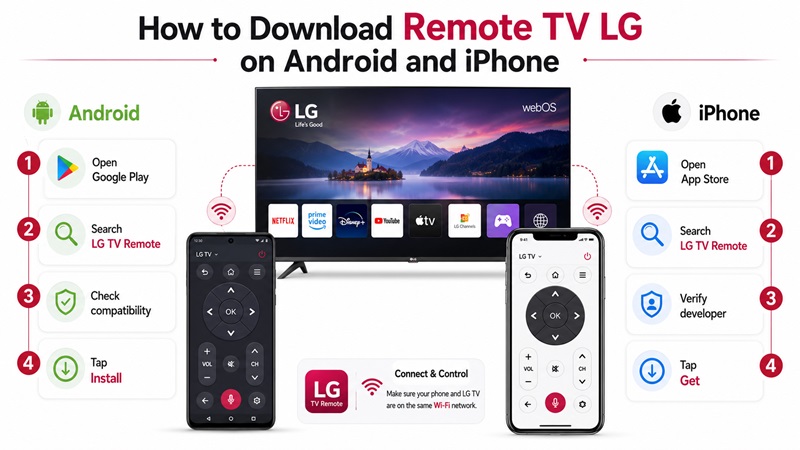
The safest installation method is to use the official app store built into your phone. Avoid unknown websites, modified installation files, and pages that imitate well-known TV brands.
Download an LG TV remote on Android
To complete an LG TV remote download on an Android phone or tablet:
- Open Google Play.
- Tap the search field.
- Search for an LG TV remote or universal television controller.
- Open the app listing.
- Review the developer name.
- Read the compatibility description.
- Check recent ratings and user feedback.
- Review advertisements, subscriptions, and in-app purchases.
- Tap Install.
- Open the app after installation.
The app may request access to nearby devices, Bluetooth, the local network, or notifications. Permission wording differs between Android versions and phone manufacturers.
Allow only the permissions needed for the features you plan to use. A Wi-Fi controller may need local device access, but basic remote functionality should not require unrelated access to contacts, messages, or personal files.
Download an LG TV remote on iPhone or iPad
To download remote TV LG software on an Apple device:
- Open the Apple App Store.
- Search for a compatible LG Smart TV remote.
- Review the app name and developer.
- Confirm that your iOS or iPadOS version is supported.
- Read the description for LG TV or webOS compatibility.
- Check the listed in-app purchases.
- Tap Get.
- Open the app.
- Allow Local Network access when prompted.
Local Network permission is important because it allows the app to discover compatible televisions connected to your home Wi-Fi.
Check compatibility before installing
Before completing an LG TV remote app download, review:
- Supported LG TV models
- Supported webOS versions
- Required Android or iOS version
- Wi-Fi or Bluetooth requirements
- Available remote buttons
- Keyboard or touchpad support
- Subscription conditions
- Regional availability
Do not rely only on screenshots. They may show features that work with selected televisions but not with every model.
Avoid unsafe download sources
When people search how to download LG TV remote apps, they may find unofficial APK websites and download pages outside Google Play. These sources can contain outdated, modified, or potentially unsafe files.
Avoid an app when:
- The developer identity is unclear
- The page imitates LG branding without explanation
- Subscription pricing is hidden
- It promises compatibility with every television
- It requests unrelated permissions
- It requires payment before showing supported models
- The listing has many recent complaints about unexpected billing
Using a verified store gives you access to app updates, permission controls, payment management, and a clearer uninstall process.
How to Connect the LG Remote App to Your TV
After you download remote TV LG software, the next step is pairing the phone with the television.
Check the TV first
Turn on your LG TV and confirm that it is connected to your home network. You can normally find network information inside the TV’s Settings menu.
Also identify:
- Full TV model number
- webOS version
- Network name
- TV device name
- Mobile-control settings, when available
Keeping this information nearby makes it easier to determine whether the selected app supports your television.
Connect both devices to the same Wi-Fi
Your phone and LG TV should normally use the same home network.
Check that:
- Wi-Fi is enabled on the phone
- The television shows an active network connection
- Both devices use the same network name
- The phone is not relying only on mobile data
- Neither device is isolated on a guest network
Some routers separate connected devices for privacy. When device isolation is active, the app may not be able to discover the television even though both products have internet access.
Open the app and scan for the TV
Launch the app and choose an option such as:
- Add Device
- Find TV
- Scan
- Select Television
- Connect a Device
Allow Local Network, Nearby Devices, or Bluetooth access when required. Wait while the app searches for compatible televisions.
When your LG TV appears, tap its name.
Approve the pairing request
The television may display a connection notification, PIN, or pairing code. Approve the request with the physical TV controls or original remote when necessary, then enter the displayed code into the phone.
After pairing, give the television a recognizable name such as:
- Living Room LG TV
- Bedroom TV
- Office Display
Test the essential controls
Once connected, test:
- Power
- Volume Up and Down
- Mute
- Home
- Back
- Directional navigation
- Input selection
- Playback
- Keyboard
Testing each control helps confirm whether the app provides full or partial compatibility with your LG television.
A successful connection means your download remote TV LG setup is complete. You can now use your phone for common TV functions without searching for the physical remote.
What Can You Control With an LG TV Remote App?
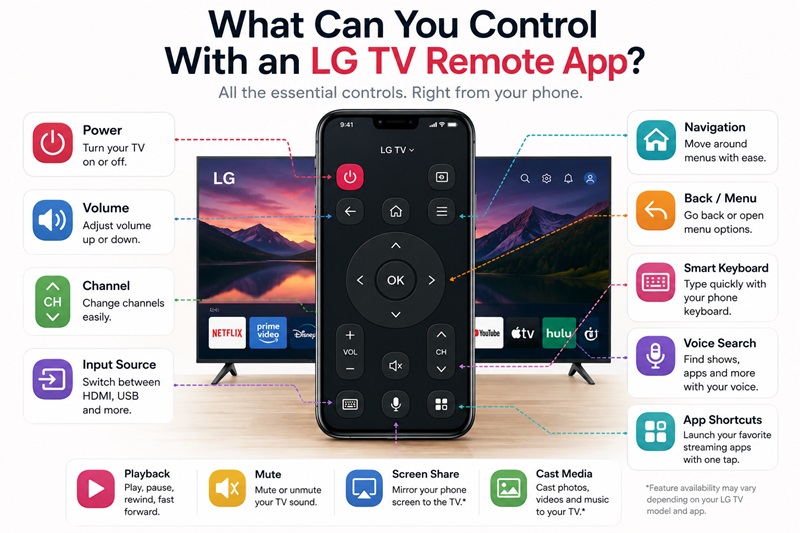
A compatible controller may cover most everyday television actions.
Power and sound controls
Many apps provide:
- Power on or off
- Volume adjustment
- Mute and unmute
- Sound-output shortcuts
Power-on support varies. A television may disconnect from the network when fully turned off, preventing the phone from reaching it. Selected models offer settings that keep limited network functions active during standby.
Channel and input selection
Depending on the television and app, you may be able to:
- Change channels
- Enter channel numbers
- Open the channel list
- Switch between HDMI ports
- Select live TV
- Open a connected game console
- Switch to a streaming device
Smart TV navigation
An app can replace the directional pad on a physical remote. Typical controls include:
- Up, Down, Left, and Right
- OK or Select
- Home
- Back
- Settings
- Exit
- Play, Pause, Rewind, and Fast Forward
Some apps use a touchpad instead. You swipe across the phone screen to move around the webOS interface.
Phone keyboard
Typing is one of the biggest reasons to download remote TV LG software. A mobile keyboard can simplify:
- Movie and show searches
- App-store searches
- Wi-Fi passwords
- Account names
- Email addresses
- Web addresses
- Supported login fields
Keyboard input may be unavailable in protected fields or third-party apps that do not accept external text commands.
Streaming shortcuts and media features
A compatible app may show shortcuts to installed services or allow you to create favorite buttons. Some controllers also include casting, photo sharing, or screen mirroring.
These features should not be assumed to work on every television. Support depends on the app, phone platform, LG model, webOS version, and local network.
Official LG Remote App vs. Universal Remote TV App
Before you download remote TV LG software, decide whether you prefer an LG-focused option or a universal controller.
LG-focused remote apps
An official or LG-focused app is designed around LG televisions or the webOS platform.
Possible advantages include:
- Stronger LG model compatibility
- More reliable device discovery
- Better integration with webOS
- Access to TV-specific functions
- Support documentation focused on LG products
- Better handling of LG menus and installed apps
Possible limitations include:
- Limited support for other TV brands
- Different support across webOS generations
- Reduced compatibility with older LG televisions
- Need for another app to control a second brand
An LG-focused app is a sensible starting point when you own one LG television and want the closest possible integration.
Universal remote apps
A universal Remote TV App aims to support multiple television brands, streaming devices, or smart monitors from one interface.
Possible advantages include:
- One app for several TV brands
- Consistent button layout
- Quick switching between rooms
- Saved device profiles
- Less app clutter
- Support for mixed-brand households
Possible limitations include:
- Advanced LG settings may not be available
- Voice features may vary
- Some buttons may work only on selected models
- Subscriptions may be required
- Compatibility can differ between TV generations
| Feature | LG-Focused App | Universal App |
|---|---|---|
| LG TV compatibility | Usually stronger | Model-dependent |
| Multiple brands | Limited | Often supported |
| Basic remote controls | Usually | Usually |
| Advanced LG features | More likely | Varies |
| Unified multi-device control | Limited | Often better |
| Interface consistency | LG-oriented | Same across brands |
Choose an LG-focused controller when model-specific features are important. Choose a universal solution when you want one phone to manage several televisions.
Neither type should be described as compatible with every LG model. Always verify support before completing a download remote TV LG installation.
How to Choose the Best Remote App for LG TV
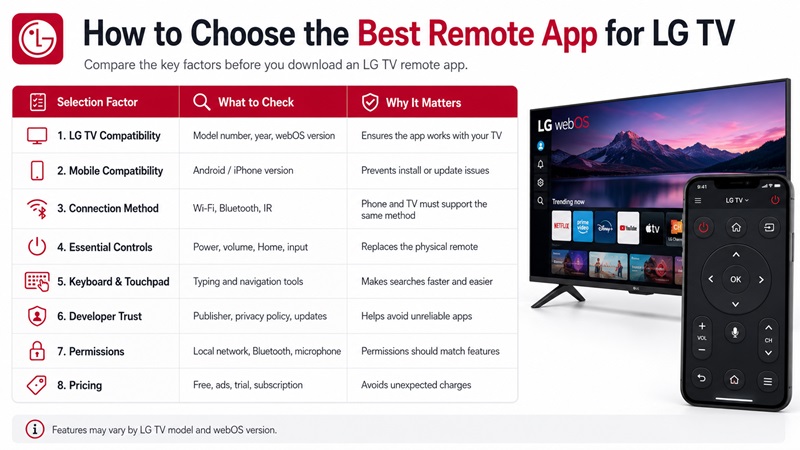
A good remote app should be reliable, understandable, and compatible with the controls you use regularly.
Confirm your LG TV details
Check:
- Model number
- Manufacturing year
- webOS version
- Network support
- Mobile-control capability
- Country or region
This information is often available on the label behind the TV or inside Settings.
Prioritize essential controls
At minimum, look for:
- Power
- Volume
- Mute
- Navigation
- Home
- Back
- Input
- Playback
Channel buttons and a numeric keypad are especially useful for viewers who watch live television.
Compare convenience features
Optional tools may include:
- Phone keyboard
- Touchpad
- Voice search
- Streaming shortcuts
- Favorite buttons
- Multiple device profiles
- Custom layouts
- Widgets
- Haptic feedback
- Casting or mirroring
Do not pay for an advanced feature until you have confirmed that it works with your television.
Review the developer and permissions
Before you download remote TV LG software, examine:
- Developer identity
- Privacy policy
- Data collection
- Requested permissions
- Recent update history
- Recent reviews
- Customer support
- Subscription terms
A TV controller usually needs access to the local network. It may also request Bluetooth or microphone access for optional features. Be cautious when it asks for permissions unrelated to TV control.
Understand the payment model
The app may be:
- Free
- Ad-supported
- Freemium
- A one-time purchase
- A monthly subscription
- An annual subscription
Check whether essential buttons are free or locked behind payment. Confirm the price and renewal schedule before starting a free trial.
The safest LG TV remote download choice is one that clearly explains compatibility, permissions, costs, and supported controls before installation.
Download a Remote TV App for LG TV
The final setup process can be completed in a few minutes when you know your TV model and use a trusted app store.
1. Identify your LG television
Find the full model number and webOS version. Confirm that the TV is connected to Wi-Fi and supports mobile control.
2. Select the right app type
Choose among:
- An LG-focused remote
- A webOS-compatible controller
- A universal Remote TV App
For one LG television, begin with the most compatible LG-focused option. For several TV brands, a universal controller may be more convenient.
3. Install from a trusted source
To download LG Smart TV remote software safely, use Google Play or the Apple App Store. Verify the developer, read the compatibility description, and review payment terms before installing.
4. Connect and pair
After installation:
- Connect the phone and LG TV to the same Wi-Fi.
- Open the remote app.
- Allow the necessary network permission.
- Select the television.
- Approve the pairing request.
- Enter the displayed code, when required.
- Save the TV profile.
5. Test the remote
Test power, volume, mute, navigation, Home, Back, input selection, playback, and keyboard entry.
If the main controls respond correctly, your download remote TV LG process is complete. Keep the physical controller as a backup, but use the phone for faster typing, easier searches, and convenient everyday access.
A mobile controller can also reduce remote clutter and help when the original LG remote is lost, damaged, or out of batteries.
Download a trusted LG TV remote app, connect your television, and control your LG Smart TV directly from your phone.
