
Free Roku Remote Control App: Best Options and Setup
By the Remote TV App Team
Last updated: September 2026
Quick answer: The official Roku mobile app is a free Roku remote control app for compatible iPhone and Android devices, and it is the safest place to start when your Roku is already connected to your home network.
You do not need to buy a replacement remote just to regain everyday navigation, playback, search, or text entry. The official app can control a Roku TV or streaming player over the same local Wi-Fi network, while some TV-specific controls depend on the Roku device you own. Roku confirms that its mobile app is free and requires the phone and Roku to be on the same Wi-Fi network for remote control.
Third-party remote apps also exist, but their pricing, permissions, feature limits, and security model vary. The most useful approach is to start with the official Roku app, understand when a phone remote cannot help, and only then consider another app if you need a different interface or multi-brand control.
1. Free Roku Remote Control App Options Compared
If your physical remote is lost or unavailable, there are three practical paths: the official Roku app, a third-party mobile remote, or a physical replacement remote.
| Option | Cost | Best for | Main limitation |
|---|---|---|---|
| Official Roku mobile app | Free | Most Roku users | Roku must be reachable over the network |
| Third-party Roku remote app | Free or freemium varies | Alternative layouts or multi-brand control | Pricing, permissions, and features vary |
| Physical replacement remote | Varies | Offline setup and network recovery | Requires compatible hardware |
For most users searching for a free Roku remote control app, the official Roku option should be the first test. It is published by Roku, documented by Roku Support, and built specifically around the Roku platform.
A third-party app can still be useful when it offers a specific benefit, such as one interface for several compatible TV brands. The important point is to verify what is actually included before assuming that “free download” means every feature is free. A free Roku remote control app is only useful if the controls you need remain accessible after installation.
If the Roku itself is offline, however, switching between phone apps will not solve the underlying problem. A mobile remote needs a working network path to the Roku device before it can send commands.Download TV Remote App
2. What Is Actually Free in the Official Roku App?
The official Roku mobile app is free to download for supported iOS and Android devices. Roku states that the app can turn a phone or tablet into a remote control for a Roku streaming player or Roku TV when both devices are connected to the same Wi-Fi network. For that reason, it is the most straightforward free Roku remote control app to verify against Roku’s own documentation.
Everyday Remote Controls
For normal use, the app can provide navigation, playback control, search, voice features, and phone-keyboard text entry. It can also launch apps installed on the connected Roku device.
The exact buttons shown depend on the Roku hardware. Roku currently notes that volume controls are available on Roku TVs and Roku Streambars, while the mobile-app power button is available on Roku TVs. That means a Roku player connected to a separate television should not be treated as identical to a Roku TV.
This distinction matters when judging whether an app is “fully free.” A free Roku remote control app should not be criticized for lacking a TV-specific function that the Roku device itself does not expose in that configuration.
Headphone Mode and Other Extras
Roku also supports Headphone Mode through the official mobile app on compatible devices and sources. Wired headphones can be connected to the phone, and supported Bluetooth headphones can also be used through the mobile device.
Headphone Mode is useful for late-night viewing, but it should not be presented as a universal feature of every third-party Roku remote. If private listening is important to you, verify that feature separately instead of assuming any remote app includes it.
3. The Official Roku App
The official Roku app is the most direct free Roku remote control app, and it’s worth knowing what it offers before looking at alternatives.
Core Remote Features
The official app provides a full on-screen remote: directional pad, back, home, playback, and search. Everything you’d use the physical remote for is present, at no cost, making it a complete free roku remote control app for daily use.
Because it’s made by Roku itself, it tends to stay compatible with new Roku features and platform updates faster than third-party options.
Bonus Features
Beyond basic control, it adds private listening through headphones plugged into your phone, a keyboard for fast text entry, and the ability to cast personal media. These extras are free and go beyond what many physical remotes offer.
Private listening in particular is a standout — plugging headphones into your phone lets you watch late at night without disturbing anyone, something few physical remotes can match.
4. The Remote TV App as a Free Alternative
If you want a clean, straightforward free Roku remote control app, the Remote TV App is a strong alternative to the official one.
What It Offers Free
The Remote TV App covers power, volume, navigation, and app launching over Wi-Fi at no cost. It’s a genuine roku tv remote for free, with a simple interface that’s easy to pick up immediately.
There’s no trial period or feature countdown; the core controls simply work from the first launch.
Multi-Brand Convenience
One advantage is that it works across TV brands, so if your household has more than one type of smart TV, a single free app can control them all. as a free roku remote control app that also covers your other TVs.
For a home with a mix of Roku, and other smart TVs, that consolidation into one app is a genuine day-to-day time-saver.
5. How to Set Up a Free Roku Remote App
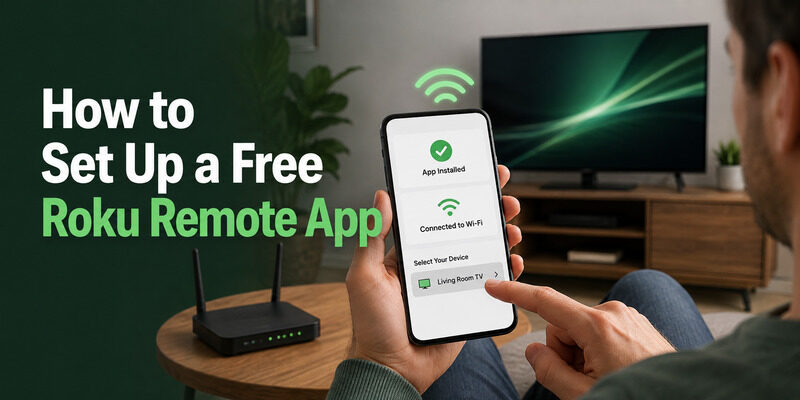
The setup is simple when the Roku is already online. The important requirement is local network communication, not just internet access on both devices. Any free Roku remote control app still depends on that connection path to discover and control the Roku.
Step 1: Install the App
Download your chosen free Roku remote control app from your phone’s official app store. Avoid unofficial download sites, since a roku remote free download from an unverified source can carry security risks — the legitimate apps are free in the official stores anyway.
Installation is the same as any other app — search the store, tap install, and open. No account is required just to use the basic remote in most cases.
Step 2: Connect to the Same Network
Make sure your phone and the Roku are on the exact same Wi-Fi network. This is the single most important step, since a network mismatch is the top reason a free app can’t find the TV.
If your router splits its 2.4GHz and 5GHz bands into separate names, make sure both devices sit on the same one, since they can otherwise behave like different networks.
Step 3: Select Your Roku
Open the app and let it scan for devices. Select your Roku when it appears, and the on-screen remote is ready within seconds. From there, your free Roku remote control app works just like the physical remote.
If more than one Roku appears, the app usually labels them by room or device name so you can pick the right one.
6. What Features Work — and What Depends on Your Roku Device?
A useful free Roku remote control app should be judged by the functions your Roku setup actually supports, not by an unrealistic promise that every button works on every device.
| Feature | Official Roku app | What to know |
|---|---|---|
| Navigation | Yes | Core remote function |
| Playback controls | Yes | Available for normal Roku navigation and playback |
| Phone keyboard | Yes | Useful for supported text fields |
| Voice control | Supported | Availability can vary |
| App launching | Yes | Can open installed Roku apps |
| Volume | Device-dependent | Roku TVs and Roku Streambars support mobile volume controls |
| Power | Device-dependent | Mobile power control is available on Roku TVs |
| Headphone Mode | Supported on compatible setups | Device and source limitations apply |
These feature differences are documented by Roku, particularly for power, volume, keyboard, voice controls, and Headphone Mode.
If you are looking for a roku tv remote for free, identify whether you have a Roku TV or a Roku streaming player first. That one detail explains many differences in power and volume behavior.
The same principle applies across TV brands. A Hisense television that runs Roku OS is a different control target from a Hisense model that runs another platform. A free Roku remote control app is intended for the Roku platform, not every television made by a Roku TV partner.
7. Free App vs. Physical Remote
A phone app and a physical remote solve different problems. Neither should be presented as better in every situation.
| Situation | Better choice | Why |
|---|---|---|
| Lost remote, Roku still online | Phone app | Immediate network-based control |
| Searching or typing | Phone app | Phone keyboard is faster |
| Headphone Mode | Official app on supported setup | Private listening through phone |
| Wi-Fi outage | Physical remote | Does not depend on the local network |
| First-time setup | Physical remote | Roku may not be online yet |
| Factory-reset recovery | Physical remote | Useful before network setup is restored |
| Tactile control | Physical remote | Physical buttons are easier without looking at a screen |
For many households, keeping both is the most resilient setup. Use the free Roku remote control app when network control is convenient, but keep the physical remote available for setup, outages, and recovery. A free Roku remote control app works best as part of that two-option setup rather than as the only way to control the TV.
If you are still deciding whether phone control fits your situation, the can i use my phone as a roku remote guide covers that question directly.
8. Do Any Roku Remote Features Cost Money?
It’s fair to wonder whether anything about Roku control costs money. For the remote apps themselves, core control is free across reputable options, and there’s no subscription required to change channels or adjust volume.
Some apps offer optional paid extras — ad removal, themes, or advanced macros — but these are add-ons, not requirements. A capable free Roku remote control app never charges for the fundamentals. And a related note: even free 4 digit universal remote codes for roku tv exist for physical universal remotes, so cross-brand control doesn’t require paying either.
9. Why a Free App Is Worth Keeping Installed
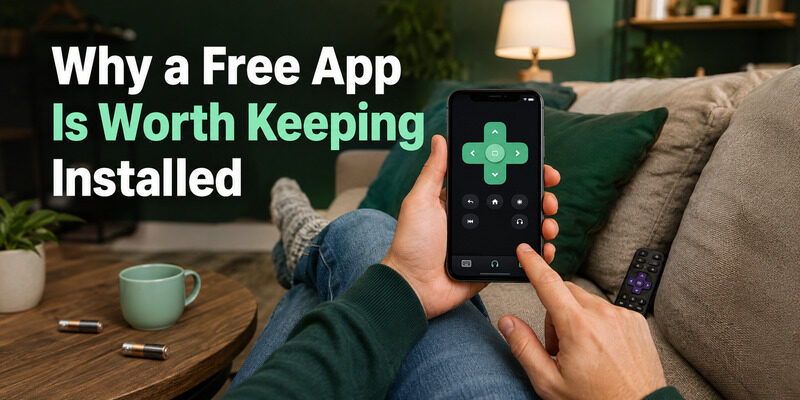
Even if your physical remote works perfectly, keeping a free Roku remote control app installed is smart. It’s free insurance plus everyday convenience.
The day your remote’s batteries die or it slips behind the couch, a pre-installed app means you lose nothing — you just open your phone and keep watching. Add the keyboard and private-listening perks, and a free app earns its place even alongside a working remote.
Think of a free Roku remote control app as a permanent safety net that also happens to make daily control more convenient.
10. Free App Features Compared to Paid Remotes
It’s worth seeing how a free app measures up against buying a physical replacement remote, since both solve the same lost-remote problem.
On balance, a free Roku remote control app matches or beats a paid physical remote on almost every axis except tactile feel and offline use.
Cost
This is the clearest difference. A free app costs nothing, while even a basic physical replacement remote has a price and often shipping time. For a lost remote, the app is the instant zero-cost fix while a physical remote is an ongoing expense if you keep losing them.
Convenience
The app is always with you, since it lives on the phone you already carry. There’s nothing to misplace in the couch cushions, which is a quiet but real advantage over any physical remote, free or paid.
Feel and Reliability
A physical remote wins on tactile feel and works without a network. The app depends on Wi-Fi. For most people the trade-off favors the app for its features and cost, with a physical remote kept as a network-independent backup.
11. Troubleshooting a Free Roku App That Won’t Connect
If a free app can’t reach your TV, the cause is almost always the network. These steps resolve the vast majority of connection issues.
Once connected, a free Roku remote control app is very stable, so these steps are usually a one-time fix rather than something you’ll repeat often.
Confirm the Same Network
Double-check that your phone and Roku are on the identical Wi-Fi network. Guest networks and extenders that create a separate network name are the most common culprits behind a free app failing to find the TV.
Restart Both Devices
Close and reopen the app, then unplug the Roku for 10 seconds and let it reboot. A stale connection on either side clears with a fresh start, which fixes a large share of sudden drops.
Check Router Isolation Settings
Some routers block devices on the network from talking to each other via a client-isolation setting. If nothing else works, disabling that feature usually restores the connection between your phone and the Roku.
12. Get a Free Roku Remote Control App Now
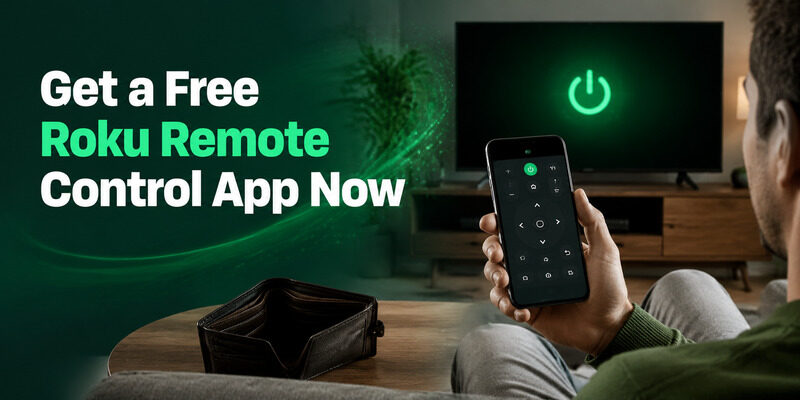
If you want a reliable, genuinely free option, the Remote TV App covers full Roku control over Wi-Fi at no cost — power, volume, navigation, and app launching, with a clean interface and multi-brand support.
It’s the fastest way to turn your phone into a Roku remote without spending anything or hunting for the physical remote. to control your Roku TV for free.
13. FAQs About a Free Roku Remote Control App
Is there really a free Roku remote app?
Yes. The official Roku app is free and full-featured, and reputable third-party apps like the Remote TV App are free for core control. Neither requires payment to change channels or adjust volume.
Does the Roku remote app cost money?
No, the core remote features are free in reputable apps. Some apps offer optional paid extras like ad removal or themes, but the fundamentals — navigation, volume, power — cost nothing.
Where should I download a free Roku remote app?
Always use your phone’s official app store. Avoid unofficial download sites, since they can carry security risks, and the legitimate free apps are available in the official stores anyway.
Do free Roku remote apps work with all Roku TVs?
Yes. A free Roku remote app works with any Roku TV regardless of brand, since they all run the Roku platform. The Remote TV App also works across other TV brands.
What do I need for a free Roku app to work?
Your phone and the Roku must be on the same Wi-Fi network. Once connected, the free app controls the TV over Wi-Fi with no codes, no purchase, and no extra hardware.
Final Thoughts
A free Roku remote control app is easy to find and genuinely free — the official Roku app and trusted alternatives like the Remote TV App both cover full control at no cost. Just avoid apps that paywall the basics or come from unofficial download sites.
Setup takes under a minute once your phone and Roku share a network. Keep a free app installed as both a backup and a daily upgrade over the physical remote, and a lost or dead remote stops being a problem entirely.
Download TV Remote App