
How to Connect Roku Remote to TV: Full Pairing Guide
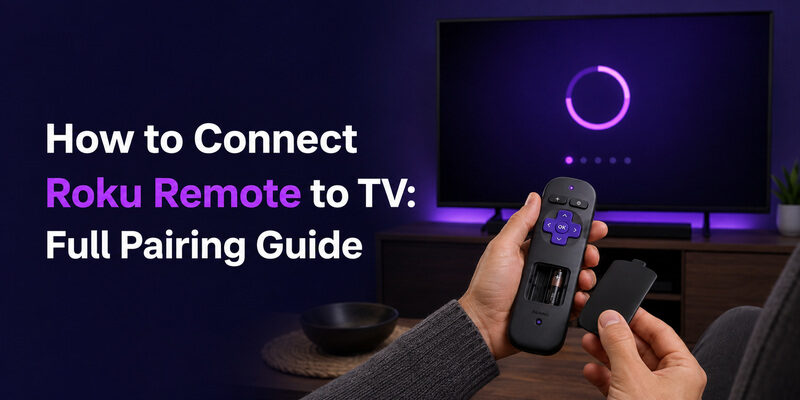
To connect a Roku remote to your TV, press and hold the pairing button inside the battery compartment for about five seconds until the remote’s light flashes, then wait for the on-screen pairing confirmation.
That covers enhanced “point-anywhere” Roku remotes, which are the most common type. Simple infrared remotes don’t pair at all — they just need batteries and line of sight — and a few remotes without a visible pairing button need a slightly different approach.
This guide explains how to connect Roku remote to TV for every remote type, including how to set up volume and power control, how to reprogram a remote to a different TV, and how to pair third-party remotes like Xfinity and Xumo to a Roku TV.
If you’re setting up a brand-new remote, replacing a lost one, or moving a remote between TVs, the right steps are all below.
Before You Start: Identify Your Roku Remote Type
Knowing which remote you have determines how to connect Roku remote to TV, because the two types pair in completely different ways — or, in one case, don’t pair at all.
Enhanced (Point-Anywhere) Remotes
Enhanced remotes connect over a wireless signal and work without pointing directly at the TV. They have a pairing button, usually inside the battery compartment, and often include a voice button, headphone jack, or TV power and volume buttons.
These are the remotes that actually pair, so the pairing-button steps below apply to them.
Because these connect wirelessly, they’re the remotes that genuinely pair, and they offer the fullest control once connected.
Infrared (IR) Remotes
IR remotes are simpler and need a clear line of sight to the TV. They have no pairing button and don’t pair in the wireless sense. For these, how to connect Roku remote to TV really just means inserting working batteries and pointing the remote at the set.
If your remote has no pairing button anywhere, it’s an IR remote and the pairing sequence doesn’t apply — skip to the no-pairing-button section below.
For these, how to connect Roku remote to TV is less about pairing and more about making sure the signal path to the TV is clear.
Download TV Remote AppHow to Connect Roku Remote to TV With the Pairing Button
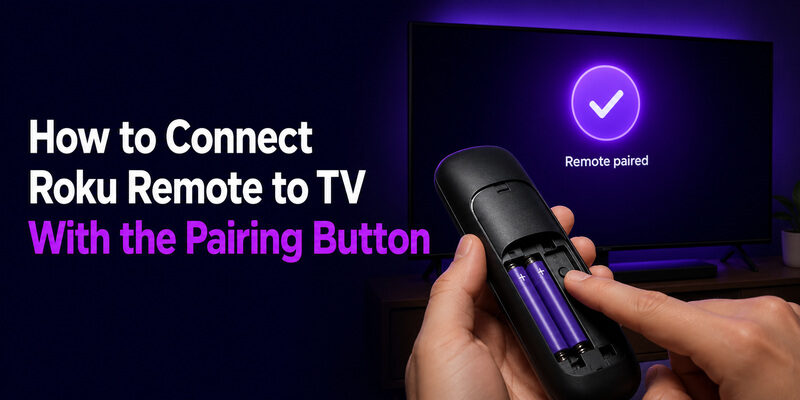
This is the standard method for enhanced remotes and the answer most people are looking for. The full process to connect Roku remote to TV takes under a minute once you find the button.
Step 1: Power On the TV
Turn on the Roku TV or the TV connected to your Roku device and let it reach the home screen. Pairing works best when the system is fully booted, so give it a few seconds after powering on before starting.
A fully booted system is the reliable starting point for how to connect Roku remote to TV, so resist the urge to start pairing while the Roku logo is still loading.
Step 2: Insert Fresh Batteries
Open the battery compartment and insert two fresh batteries. Weak batteries are the most common reason pairing fails partway, so don’t reuse questionable ones when you’re trying to connect Roku remote to TV for the first time.
Treat fresh batteries as step zero of how to connect Roku remote to TV; skipping them is the most common reason an otherwise-correct pairing sequence stalls.
Step 3: Hold the Pairing Button
Press and hold the pairing button inside the battery compartment for about five seconds until the light on the remote starts flashing. A brief tap won’t work — hold it until you see the flash, which confirms the remote entered pairing mode.
The flashing light is the single most important cue in the whole process — without it, the remote never entered pairing mode and the connection can’t complete.
Step 4: Wait for On-Screen Confirmation
Within 30 seconds, an on-screen message appears showing the remote is pairing. Once it completes, the remote is connected and every button should respond. If it times out, remove and reinsert the batteries and repeat from Step 3.
Patience matters here; the confirmation can take the full 30 seconds, and interrupting it early forces you to restart how to connect Roku remote to TV from the pairing-button step.
A successful pairing is usually permanent — you won’t need to repeat these steps unless the batteries die completely, the TV firmware resets the pairing, or you move the remote to a different set. For everyday use, once connected stays connected.
How to Connect a Roku Remote to TV Without a Pairing Button
Some remotes have no visible pairing button, which is a common source of confusion. The answer to how to connect Roku remote to tv without pairing button depends on the remote type.
If there’s genuinely no pairing button and no compartment button, the remote is almost certainly an infrared model. IR remotes don’t need pairing — they work as soon as you install batteries and point them at the TV. If an IR remote isn’t working, the fix is batteries, line of sight, or a hardware check, not pairing.
For enhanced remotes where the button is just hard to find, check under the battery cover carefully, since the pairing button is sometimes recessed or unlabeled. Once located, follow the standard pairing steps above.
Confirming You Have an IR Remote
Point the remote at a phone camera and press any button. If you see a faint light on the camera screen, it’s an IR remote working normally — no pairing needed. This quick test settles whether you’re dealing with a pairing question or a simple line-of-sight one.
This test also tells you whether how to connect Roku remote to TV even involves pairing for your model, or whether batteries alone will do it.
Using the Roku App as a No-Button Alternative
If you can’t pair a physical remote at all, the Roku mobile app connects over Wi-Fi without any pairing button. It’s a practical way to control the TV immediately while you sort out the hardware remote.
How to Set Up Volume and Power Control
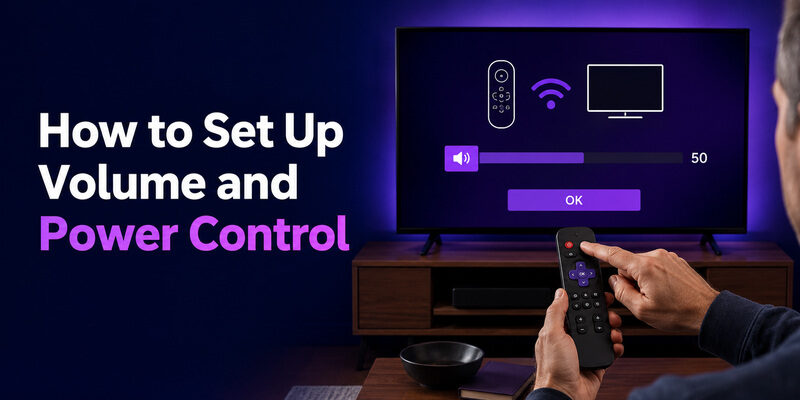
Enhanced Roku remotes can control your TV’s volume and power directly, but this sometimes needs a quick setup step beyond the initial pairing. Getting this right is part of fully learning how to connect Roku remote to TV, since a paired remote that can’t change volume feels only half-connected.
On most Roku TVs, volume and power control work automatically once the remote is paired. On Roku streaming devices connected to a separate TV, the remote may need to learn your TV’s volume and power commands through a short guided setup in the Roku settings menu.
If the remote turns the TV on and off but nothing else, or controls navigation but not volume, the setup below resolves the mismatch.
Automatic Setup on Roku TVs
On a Roku TV, the remote and TV are integrated, so volume and power work the moment pairing completes. No extra step is usually required, and pairing the volume to the TV happens as part of the connection.
Guided Setup on Roku Streaming Devices
On a Roku stick or box connected to a separate TV, go to Settings, then Remotes & devices, then set up remote for TV control. The guided steps teach the remote your TV’s volume and power signals, which is how you connect Roku remote to TV volume control specifically.
Completing this guided setup is the final piece of how to connect Roku remote to TV volume and power on a streaming device.
When Only Power Works
If the remote turns the TV on and off but nothing else, it’s usually a pairing that didn’t fully complete or a remote that only sent power via HDMI-CEC. Re-pairing from scratch typically restores full control, including volume and navigation.
How to Reprogram a Roku Remote to a Different TV
Moving a remote to another TV is common when you upgrade sets or rearrange rooms. A Roku remote can be reprogrammed to a different TV, though the process depends on the remote type.
An enhanced remote paired to a specific Roku TV is tied to that TV’s internal Roku system, so using it on a different Roku TV means pairing it fresh to the new set using the same pairing-button steps. An IR remote, by contrast, can control any compatible Roku device within line of sight without reprogramming.
So when people ask whether you can reprogram a Roku remote to a different TV, the answer is yes for enhanced remotes via re-pairing, and effectively automatic for IR remotes.
One thing to note: pairing a remote to a new TV doesn’t require unpairing it from the old one first. The new pairing simply overwrites the old connection, so there’s no separate reset step to worry about before you begin.
In short, moving a remote between sets is just how to connect Roku remote to TV performed again on the new TV, which keeps the process reassuringly familiar.
Connecting Third-Party Remotes to a Roku TV
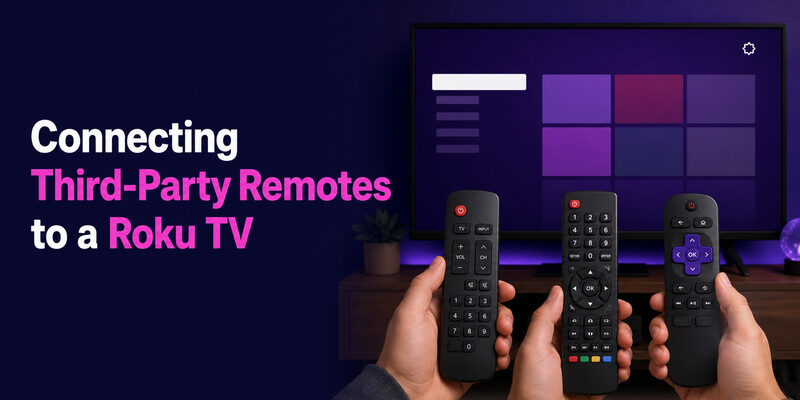
Beyond the official Roku remote, several third-party remotes can control a Roku TV. Each connects differently, so here’s how the common ones work.
None of these third-party options fully replace the native experience, so they’re best seen as supplements to, not substitutes for, the standard how to connect Roku remote to TV process.
Pairing an Xfinity Remote to a Roku TV
To pair an Xfinity remote to a Roku TV, put the Xfinity remote into setup mode and enter the code for your Roku TV brand, then test power and volume. This programs basic control but not full Roku navigation, so it complements rather than replaces the Roku remote.
Think of it as a partial answer to how to connect Roku remote to TV — useful for basic control, but not a full replacement.
Pairing a Xumo Remote to a Roku TV
A Xumo remote is designed for Xumo devices, so how to pair xumo remote to roku tv is limited to basic functions the two share, typically via infrared power and volume. It won’t drive Roku’s menus, which need a Roku remote or the Roku app.
Using a Universal Remote
A universal remote programmed with a Roku TV code covers power, volume, input, and channel. Universal remote codes for Roku TVs are widely available, and a related code guide is in .
Troubleshooting a Roku Remote That Won’t Connect
If pairing keeps failing, work through these common causes before concluding the remote is faulty. Most connection failures trace back to one of them.
| Problem | Likely Cause | Fix |
| Pairing light won’t flash | Button not held long enough or dead batteries | Hold five full seconds; install fresh batteries |
| Pairs then disconnects | Weak batteries under load | Replace both batteries with fresh alkalines |
| No pairing message on screen | TV not fully booted | Restart the TV, then retry pairing |
| Only power works after pairing | Incomplete pairing or CEC-only link | Re-pair from scratch to restore full control |
| No pairing button exists | It’s an IR remote | Skip pairing; use batteries and line of sight |
What to Do When Pairing Succeeds but Buttons Don’t Respond
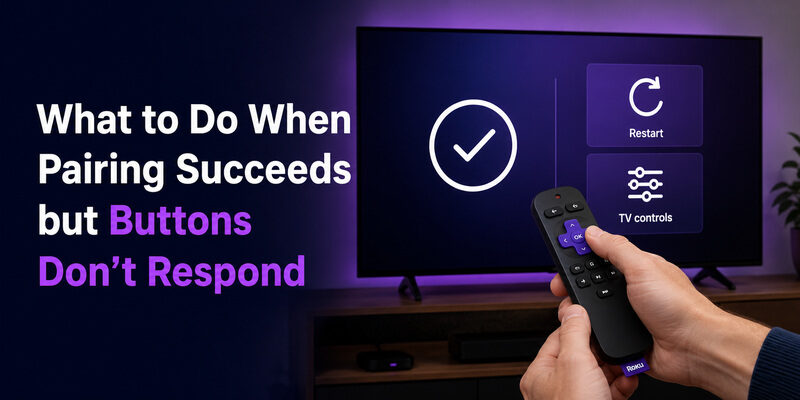
Occasionally the on-screen message confirms pairing, yet some buttons still do nothing. This is a distinct problem from a failed pairing, and it has its own set of fixes worth knowing as part of how to connect Roku remote to TV completely rather than partially.
The usual causes are a pairing that registered but didn’t fully sync, a firmware state that needs a restart, or — for volume and power specifically — a TV-control setup step that hasn’t run yet on a streaming device.
Restart After Pairing
If navigation works but a few buttons lag or miss, restart the Roku device once after pairing. A fresh boot often finalizes a connection that paired but didn’t fully take, completing how to connect Roku remote to TV in the cases where the first pass came up short.
Re-Run TV Control Setup
When only volume or power misbehaves on a streaming device, re-run the remote’s TV-control setup in Settings. This re-teaches the TV commands and usually clears a half-working state without a full re-pair.
Tips for a Smooth First-Time Connection
A few small habits make the first pairing go cleanly and reduce the odds of having to repeat how to connect Roku remote to TV later.
Pair From Close Range
Even though enhanced remotes don’t need line of sight, staying within a few feet of the TV during the initial pairing gives the strongest signal for the handshake. You can move back to the couch once it’s connected.
Use New Batteries, Not Salvaged Ones
Starting with a genuinely fresh set removes the single biggest variable in any pairing problem. It’s cheap insurance against a stalled connection and worth doing every time you connect Roku remote to TV for the first time.
Keep the Roku App Handy
Having the Roku app or a phone remote app ready means that if the physical pairing hiccups, you can still control the TV and even complete some setup steps from your phone while troubleshooting.
Can a Remote TV App Connect Instead?
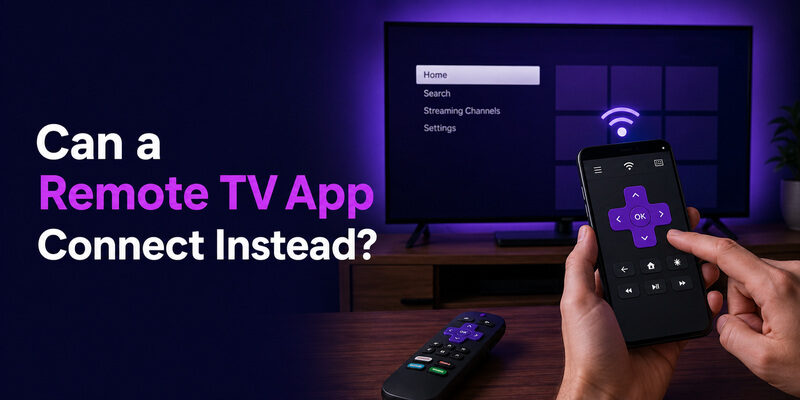
If pairing a physical remote is proving difficult, a phone app is often the fastest path to a working TV. The Remote TV App connects to a Roku TV over Wi-Fi with no pairing button and no code, covering power, volume, navigation, and app launching.
It’s a strong alternative when you’re struggling with how to connect Roku remote to TV using the hardware remote, since it sidesteps pairing entirely. Many people keep it installed as a permanent backup for the moments a physical remote goes missing or won’t pair. It’s also handy during setup itself: you can use the app to navigate menus while you work through pairing the physical remote in parallel. to control your Roku TV without touching the pairing button.
FAQs About Connecting a Roku Remote
How do I connect my Roku remote to my TV for the first time?
Insert fresh batteries, power on the TV, then hold the pairing button inside the battery compartment for five seconds until the light flashes. Wait for the on-screen confirmation to complete pairing.
How do I connect a Roku remote to my TV without a pairing button?
If there’s no pairing button, it’s an infrared remote that doesn’t pair — just install batteries and point it at the TV. For enhanced remotes, check carefully under the battery cover, as the button can be recessed.
How do I get my Roku remote to control TV volume?
On a Roku TV, volume works automatically after pairing. On a Roku streaming device, run Settings > Remotes & devices > set up remote for TV control to teach the remote your TV’s volume commands.
Can I reprogram a Roku remote to a different TV?
Yes. Pair an enhanced remote to the new Roku TV using the pairing-button steps. IR remotes work on any compatible Roku device within line of sight without reprogramming.
Why does my Roku remote turn on the TV but nothing else?
This usually means pairing didn’t fully complete or the remote is only sending power over HDMI-CEC. Re-pairing from scratch typically restores full navigation and volume control.
Final Thoughts
Knowing how to connect Roku remote to TV comes down to two paths: enhanced remotes pair with a five-second hold of the pairing button, while infrared remotes need only batteries and line of sight.
From there, setting up volume control, reprogramming to a new TV, and connecting third-party remotes all follow predictable steps. And whenever pairing is more trouble than it’s worth, the Remote TV App connects over Wi-Fi with no pairing button at all — a reliable backup that keeps your Roku TV controllable no matter what happens to the physical remote.
Download TV Remote App