
How to Turn On a Sony TV Without a Remote: Full Guide
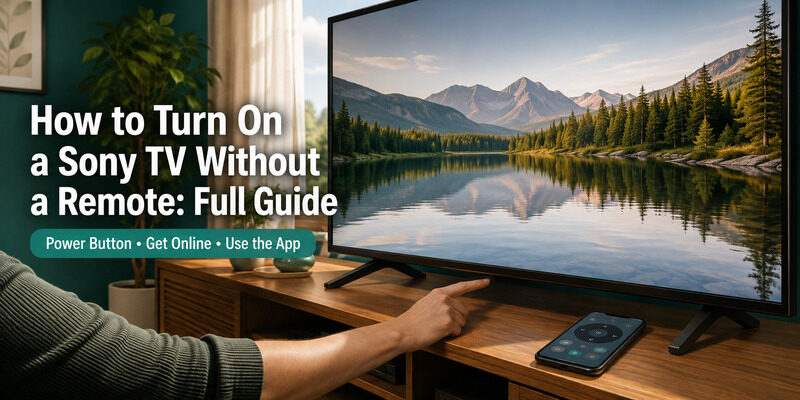
To turn on a Sony TV without a remote, press the physical power button on the TV — usually on the back, bottom edge, or underside — then finish control from the Sony TV app once the TV is on your Wi-Fi network.
Sony TVs handle this differently depending on whether they run Android TV, Google TV, or an older system, but the first step is always the same: find the physical power button. After that, an app takes over almost everything.
This guide covers how to turn on a Sony TV without a remote using the button, then walks through connecting to Wi-Fi, changing the input, reaching settings, and even zooming — all without a physical remote.
Whether your Sony remote is lost or broken, there’s a way to regain full control below.
By the end, how to turn on a Sony TV without a remote will feel less like a workaround and more like a normal way to use the TV once the app is set up.
Quick Reference: No-Remote Sony TV Tasks
Each common task has a best method depending on whether the TV is already on your network. This table maps them; details follow below.
The single biggest factor in how to turn on a Sony TV without a remote and every task below is whether the TV is already on your Wi-Fi network, so that column is the one to check first.
| Task | If TV Is on Wi-Fi | If TV Is Not on Wi-Fi |
| Turn TV on | Physical button or app | Physical power button |
| Connect to Wi-Fi | Already done | Button navigation or wired Ethernet |
| Change input | Sony app | Physical button menu |
| Reach settings | Sony app | Button navigation |
| Full control | Sony app | Button menu, then app |
How to Turn On a Sony TV Without a Remote Using the Button
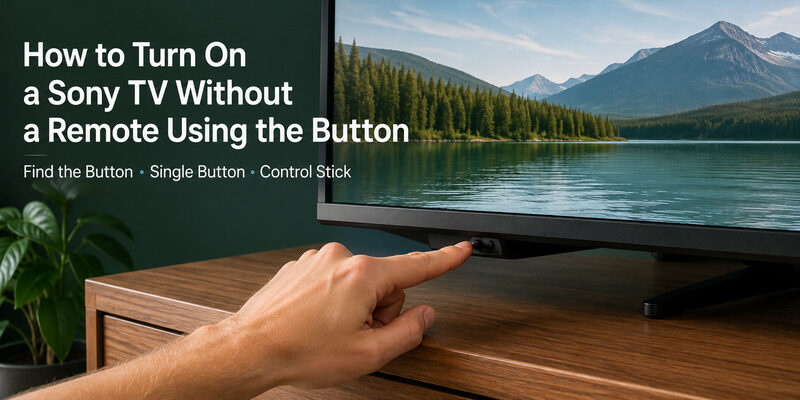
The physical power button is the reliable first step. Every Sony TV has one, though its location and type vary by model and year.
Finding the Power Button
Look in three places: the back panel toward the center or one side, the bottom edge below the screen, and the underside near the ports. On many Sony TVs the control is a single recessed button, so feel for it if you can’t see it clearly.
Knowing where it is makes every no-remote task easier, since you’ll often need it to power on before an app can take over. This is the true starting point for how to turn on a Sony TV without a remote.
Locating it is the true first step in how to turn on a Sony TV without a remote, since every other no-remote task assumes the TV is already on.
Single Button vs. Control Stick
A single button powers the TV on and off with a short press. Some Sony models use a small control stick that can also navigate menus when pushed in different directions, which helps when you need to change input or reach settings without a remote.
If your Sony TV only has a single power button, you’ll rely on the app for anything beyond power, so getting it onto Wi-Fi quickly matters most.
Where a stick exists, how to turn on a Sony TV without a remote extends naturally into full menu control without any extra hardware.
How to Connect a Sony TV to Wi-Fi Without a Remote
Getting the TV online is the key step, because it unlocks the Sony app for everything else. There are a few routes depending on your TV and phone.
Wired Ethernet Connection
If your Sony TV has an Ethernet port, plugging in a cable from your router is the fastest way to get it online with no menu navigation at all. A wired connection usually connects automatically, which solves how to connect Sony TV to wifi without remote instantly.
For anyone approaching how to turn on a Sony TV without a remote on a model with a LAN port, Ethernet is the shortcut that skips password entry altogether.
Control Stick Navigation
If your TV has a control stick, you can navigate to the network settings and enter your Wi-Fi password using the on-screen keyboard. It’s slow but works, and it’s the most direct route on models that support stick navigation.
Using a USB Keyboard or Mouse
Many Sony Android TVs accept a USB or Bluetooth keyboard or mouse. Plugging one in lets you navigate menus and enter your Wi-Fi details, which is a handy workaround for how to control Sony TV without remote on button-only models.
This is one of the most underrated tricks for how to turn on a Sony TV without a remote, since a spare keyboard makes menu entry far faster than a control stick.
How to Change Input on a Sony TV Without a Remote
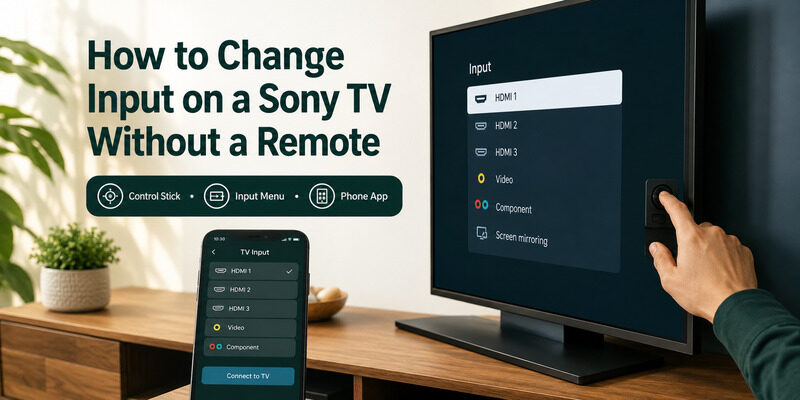
Switching inputs is a frequent need, and there are two ways to do it without a remote. On a control-stick Sony TV, pushing the stick often brings up a menu that includes input selection, letting you handle a sony tv change input without remote directly.
On any networked Sony TV, the app is the easier route. Once the TV is on Wi-Fi, the Sony app switches inputs with a tap, which is far simpler than counting stick nudges. This covers how to change input reliably regardless of your TV’s physical controls.
None of this is as daunting as it sounds once you treat how to turn on a Sony TV without a remote as a sequence: power on, get online, then let the app do the rest.
How to Reach Settings on a Sony TV Without a Remote
Getting into the settings menu without a remote depends on your controls. On a control-stick model, navigate to the menu and into Settings one nudge at a time.
On a networked TV, the Sony app reaches settings far more easily. Either way, how to get to settings on Sony TV without remote comes down to either stick navigation or the app, and the app is the smoother option once the TV is online. The same applies to how to zoom out on Sony TV without remote, which lives in the picture or display settings the app can reach.
Like most menu tasks, reaching settings flows naturally out of how to turn on a Sony TV without a remote once the app is connected and doing the navigating for you.
Using the Sony App for Full No-Remote Control
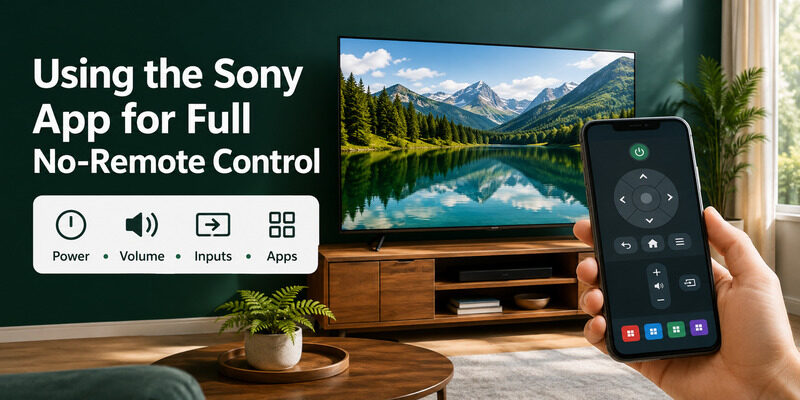
Once your Sony TV is on the network, the Sony app becomes the complete answer to controlling the TV without a remote. It restores nearly every function the physical remote offered.
For households that stream almost everything, the app quickly becomes the primary controller, and how to turn on a Sony TV without a remote is only relevant for that very first power-on after a full shutdown.
What the App Controls
The app handles power on networked TVs, volume, navigation, input switching, settings, and app launching. For most people this is a full replacement, and it’s more capable than the basic physical button in every way except the cold power-on.
This is why getting online matters so much for how to turn on a Sony TV without a remote: the app turns a barely-controllable set into a fully usable one.
Connecting the App
Install the Sony app or the Remote TV App, ensure your phone is on the same Wi-Fi network as the TV, and select the TV when it appears. Control is available within seconds, which is why getting the TV online is the priority when you turn on a Sony TV without a remote.
Can You Turn On a Sony TV Without the Remote At All?
Yes — the physical power button always turns the TV on, regardless of remote or network status. The common worry behind can you turn on a Sony TV without the remote is usually about doing everything else afterward, not the power-on itself.
The honest limitation is the very first power-on of a fully-off TV: no app can wake a TV that isn’t listening on the network yet, so the physical button is required for that one moment. After that, the app takes over. There’s always a way to turn on a Sony TV without a remote, and it starts with that button.
Common Problems When Controlling a Sony TV Without a Remote
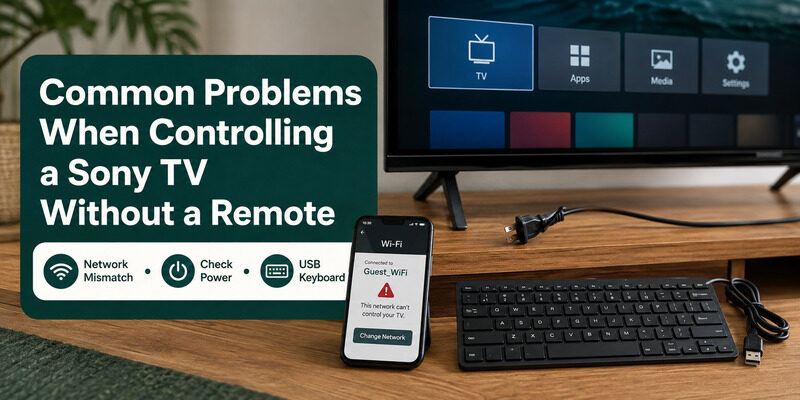
A few recurring issues come up. Knowing them ahead of time makes how to turn on a Sony TV without a remote and everything after it go more smoothly.
The App Can’t Find the TV
This is nearly always a network mismatch. The phone and the Sony TV must be on the exact same Wi-Fi network — not a guest network, and not opposite frequency bands treated as separate networks. Fixing this restores app control instantly.
The TV Won’t Power On At All
If the physical power button does nothing, the problem is power, not the remote. Reseat the power cord at both ends and test a different outlet before assuming the button is faulty. A dead outlet mimics a broken TV surprisingly often, and it has nothing to do with how to turn on a Sony TV without a remote.
Button-Only TV With No Wi-Fi Yet
The hardest case is a single-button Sony TV that has never been on your Wi-Fi. Here a wired Ethernet connection or a plugged-in USB keyboard is often the only path to get it networked so the app can take over.
Keep Your Sony TV Fully Usable With a Remote TV App
For anyone whose Sony remote is lost or broken, the Remote TV App turns a phone into a complete replacement over Wi-Fi, covering power, volume, navigation, input, and app launching once the TV is online.
It pairs perfectly with the button-first approach: use the physical power button to turn on a Sony TV without a remote, then let the app handle everything from there. to control your Sony TV entirely from your phone.
FAQs About Turning On a Sony TV Without a Remote
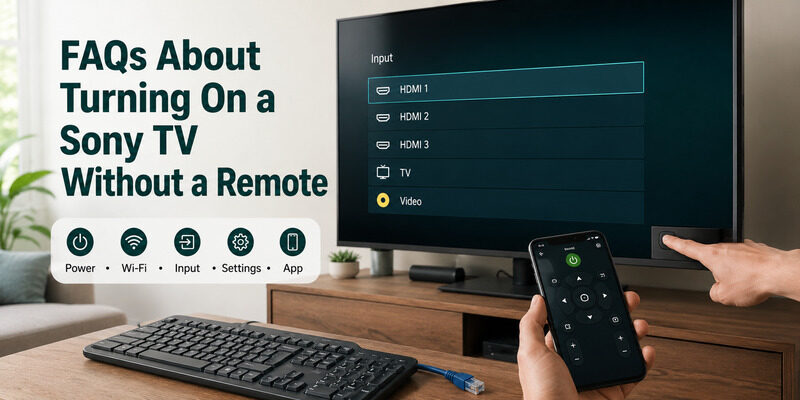
Can I turn on a Sony TV without a remote?
Yes. The physical power button on the TV turns it on regardless of whether you have a remote. It’s usually on the back panel, bottom edge, or underside near the ports.
How do I connect a Sony TV to Wi-Fi without a remote?
Use a wired Ethernet cable for automatic connection, navigate with the control stick if your model has one, or plug in a USB keyboard or mouse to enter your Wi-Fi details on an Android-based Sony TV.
How do I change the input without a Sony remote?
On a control-stick model, push the stick to bring up a menu with input options. On a networked TV, the Sony app switches inputs with a tap once the TV is on Wi-Fi.
How do I reach settings on a Sony TV without a remote?
Use the control stick to navigate into Settings, or use the Sony app once the TV is on Wi-Fi. The app is the easier route and also handles display options like zoom.
Does the Sony app fully replace the remote?
For daily use, yes — once the TV is on Wi-Fi. The only thing it can’t do is the cold power-on of a fully-off, un-networked TV, which needs the physical power button.
Final Thoughts
Knowing how to turn on a Sony TV without a remote starts with the physical power button and quickly moves to getting the TV onto Wi-Fi, because that’s what unlocks the Sony app for everything else.
Input, settings, volume, and even zoom are all achievable without a physical remote once you understand which method fits your TV’s controls and network status. Keep the Remote TV App installed, get the TV networked, and a missing remote becomes a minor detail rather than a dealbreaker.
Download TV Remote App