
LG ThinQ App Not Finding TV: Complete Fix Guide
Quick answer: If LG ThinQ cannot find your TV, first confirm that the TV supports ThinQ, then connect the phone and TV to the same Wi-Fi network and check Local Network/Nearby Devices permissions. If the TV appears but fails after you enter the PIN, focus on the LG account, region, network stability, or an old registration rather than repeating the discovery steps.
When the lg thinq app not finding tv issue occurs, the cause is usually a network, permission, compatibility, or pairing problem rather than a broken TV.
LG recommends connecting the phone and TV to the same Wi-Fi network during setup. Once the TV appears in ThinQ, select it, enter the PIN shown on screen, and complete registration.
To fix the lg thinq app not finding tv error efficiently, check compatibility first, then Wi-Fi, app permissions, and old pairing records before reinstalling the app or resetting network settings.
This guide covers the main fixes for Android, iPhone, LG webOS TVs, routers, and the TV On With Mobile feature.
Start with your symptom:
| What happens? | Start here |
|---|---|
| TV never appears: | Wi-Fi + phone permissions |
| TV appears but PIN fails: | Account + region + old registration |
| Worked before changing router: | Reconnect TV + re-register |
| Works on Android but not iPhone: | Local Network + Location permissions |
| App controls TV but won’t turn it on: | TV On With Mobile / standby settings |
| No phone can detect the TV: | Model support + router isolation |
1. Why Is the LG ThinQ App Not Finding TV?
The lg thinq app not finding tv message means the application cannot discover, identify, or complete communication with the television. Discovery normally happens through the local network, so both devices must be reachable from each other during initial registration.
Common causes include:
- The phone and TV are connected to different Wi-Fi networks.
- One device is using guest Wi-Fi or a network with client isolation.
- The router separates devices in a way that blocks local discovery.
- Mobile data, a VPN, or automatic network switching interrupts setup.
- Local Network, Location, Bluetooth, or Nearby Devices permission is disabled.
- The television is turned off, offline, or too far from the router.
- The TV model does not support ThinQ registration.
- The app region does not match the television’s sales region.
- An outdated app, webOS version, or saved pairing record is causing a conflict.
When users say lg thinq app not connecting to tv, they may be describing two different stages. The app may fail to see the television at all, or it may find the TV but fail after the PIN is entered. The first situation usually involves discovery or permissions. The second is more likely to involve the network, account, region, or an existing registration.
The phrase lg thinq not finding tv can also describe a temporary connection loss after the TV was previously added. In that case, confirm that the television has not changed Wi-Fi networks and that the router has not been replaced. LG notes that changing a router can require updating the registered network for connected products.
Treat the lg thinq app not finding tv issue as a local communication problem first. This approach solves many lg thinq app not finding tv cases without changing picture or account settings. Do not factory-reset the television until simpler network and permission checks have failed.
2. Check Whether Your LG TV Supports ThinQ
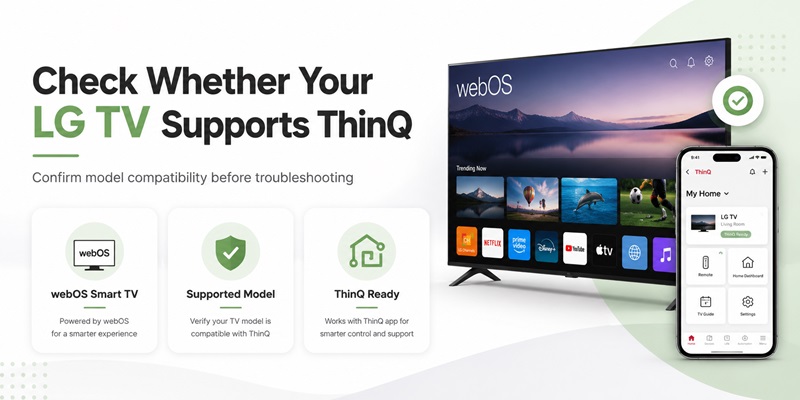
Before spending time on router settings, verify that the television supports the required ThinQ functions. Compatibility is the first check in any lg thinq app not finding tv diagnosis. The lg thinq app not finding tv problem cannot be fixed through software if the model does not support ThinQ registration.
LG’s current registration guidance says TV support generally applies to products released in 2017 or later, while also warning that some models may still not support the feature. This makes the complete model number more useful than screen size or the general description “LG Smart TV.”
Find the model number on:
- The label on the rear of the TV
- The original box or receipt
- Settings > Support > TV Information
- Settings > General > Devices or About This TV, depending on webOS version
Next, check whether the television has a recent webOS interface, Wi-Fi settings, an LG account option, or the ThinQ or AI Home Dashboard features. Menu names vary by year and region, so the location may not exactly match screenshots from another model.
Also check the country or region selected in the ThinQ app. LG explains that the same model can offer different functions by region, and an incorrect registered region can prevent a product from appearing.
If the lg thinq app not finding tv issue began after moving to another country, changing the TV location, or creating a new LG account, sign out and verify the app region before attempting another registration.
3. Fix Wi-Fi and Router Problems First
Wi-Fi is the most common reason for lg thinq app not finding tv. Network alignment should therefore be the first practical lg thinq app not finding tv fix. During setup, the phone and television should use the same local network. LG’s official setup instructions specifically recommend the same 2.4 GHz network for the Wi-Fi connection process.
Follow this sequence:
- Open Network settings on the LG TV and note the Wi-Fi name.
- Open Wi-Fi settings on the phone.
- Connect the phone to the exact same network name.
- Temporarily turn off mobile or cellular data.
- Disable any VPN, private relay, or network-security app for the test.
- Move the phone and TV closer to the router.
- Restart the router if discovery still fails.
LG’s newer registration guide also advises disabling mobile data and connecting the phone to the same Wi-Fi as the television. It notes that weak signal strength can cause delays or registration failures.
If your router combines 2.4 GHz and 5 GHz, temporarily place both devices on a dedicated 2.4 GHz network when lg thinq app not finding tv continues. Avoid guest or captive-portal Wi-Fi because these networks can block local-device discovery.
If lg thinq app won’t connect to tv after the television appears in the list, restart the router and remove any duplicated network profiles from the TV. Then reconnect the television, reopen ThinQ, and perform registration again.
4. Check Phone Permissions and Mobile Settings
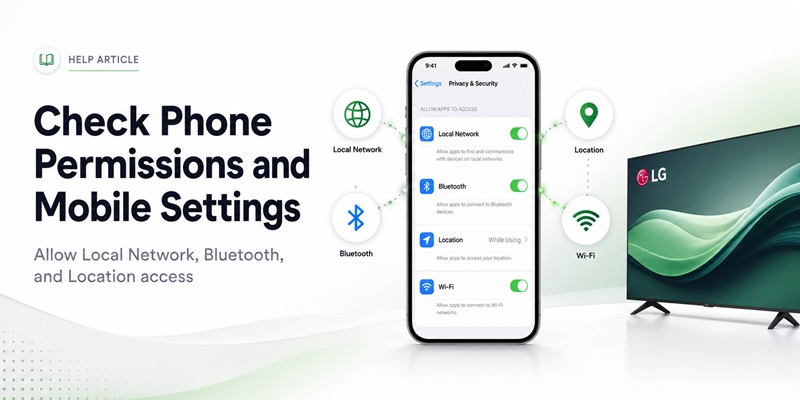
The lg thinq app not finding tv problem may come from the phone rather than the television. Permission review is essential when lg thinq app not finding tv starts after an OS update. Modern mobile operating systems restrict local-device discovery unless the user grants the necessary permissions.
On iPhone
Open Settings, find LG ThinQ, and verify:
- Local Network is enabled.
- Location access is allowed while using the app or as required by the current app version.
- Precise Location is enabled when available.
- Bluetooth is enabled for pairing and nearby-device functions.
- Cellular Data is temporarily disabled during troubleshooting.
LG specifically states that iPhone users who cannot add products should enable Local Network access, allow Location permission, and turn on Precise Location to help the app find products more accurately.
This permission check is especially important when the lg app can’t find tv problem started after reinstalling ThinQ, updating iOS, restoring a backup, or selecting “Don’t Allow” during the first launch.
On Android
Open Settings > Apps > LG ThinQ > Permissions and review:
- Nearby Devices
- Location
- Bluetooth
- Wi-Fi or network access
- Notifications, if needed for pairing prompts
Exact names vary by Android version and phone manufacturer. Also disable automatic mobile-data switching, Wi-Fi Assist-style features, or “switch to mobile data when Wi-Fi is weak” during setup. LG has published connection guidance that recommends turning off mobile-data auto switching when the product’s Wi-Fi connection is not reaching the internet correctly.
If lg thinq app not finding my tv continues, force-close ThinQ after changing permissions, reopen it, and begin a new device scan. Permission changes do not always affect a scan that was already running.
>>> Explore Articles: Universal Remote Codes for LG TVs: Complete Setup Guide
5. Register Your LG TV in ThinQ Step by Step
Once compatibility, Wi-Fi, and permissions are confirmed, repeat the official registration flow. A fresh registration often clears the lg thinq app not finding tv state. A clean registration can resolve lg thinq app not finding tv without requiring a television reset.
- Download or update LG ThinQ from Google Play or the Apple App Store.
- Open the app and sign in with an LG account.
- Tap Add a Device.
- Choose Select Device.
- Select TV from the product list.
- Turn on the television.
- Confirm that the phone and TV use the same Wi-Fi.
- Select the TV when it appears.
- Enter the PIN shown on the television.
- Complete registration and return to the ThinQ home screen.
LG’s official registration instructions use this sequence and state that the TV should appear in the device list before the PIN is entered.
If lg thinq app not finding tv occurs before the list appears, return to the Wi-Fi and permission sections. If the television appears but registration fails after the PIN, verify the LG account, app region, internet access, and any previously registered copy of the same TV.
After successful registration, selecting the TV in ThinQ should open a remote-style control screen. LG lists controls such as input selection, volume, channel, pointer movement, scrolling, arrow buttons, and OK, although available controls can differ by model and software version.
If lg thinq app won t find tv only when scanning automatically, try selecting TV manually from the product list rather than relying on a general nearby-device scan. Also keep the television on its home screen during pairing instead of leaving it inside a streaming app or another input source.
A correct registration should prevent the lg thinq app not finding tv message from returning every time the application opens. Test the lg thinq app not finding tv fix by closing and reopening ThinQ. If the TV repeatedly disappears, continue with the reset steps below.
6. Reset the ThinQ App, TV, and Network Connection
Temporary cache, account, or network records can keep the lg thinq app not finding tv issue active even after the original problem has been corrected.
Restart the ThinQ app, phone, television, and router in that order. Reconnect the phone and TV to the same Wi-Fi before scanning again. On Android, clearing the app cache can help, but avoid deleting all app data unless you are prepared to sign in and register devices again.
Remove and Add the TV Again
If the TV remains listed but cannot be controlled, remove the device from ThinQ and perform registration again. Also check the TV’s connected-device or mobile-app settings for old phone registrations.
The lg thinq app not finding tv problem may also follow a router replacement or changed Wi-Fi password. LG explains that products may need their registered network changed after a router is replaced.
If the problem started immediately after changing the router, reconnect the television to the new network first. Then remove the stale device record from ThinQ and add it again.
Reinstall the app only after these steps. Reinstallation should be a late-stage lg thinq app not finding tv fix, not the first response. When reinstalling, grant Local Network, Location, Bluetooth, and Nearby Devices permissions instead of quickly dismissing the prompts.
A fresh installation cannot fix lg thinq app not finding tv if the phone and TV remain separated by router isolation or incompatible networks.
>>> Explore Articles: Download the Free LG TV Remote Control App: Complete Setup Guide
7. Fix LG ThinQ When It Cannot Turn On the TV
Discovery and power-on are separate functions. Solving lg thinq app not finding tv does not automatically enable wake-from-standby. You may solve lg thinq app not finding tv while still finding that the application cannot wake the television from standby.
LG states that televisions with webOS 3.5 and later can be turned on and off through ThinQ, while older webOS versions may support only power-off. LG also says Android phones can use Wi-Fi or Bluetooth for power-on, whereas iPhones use Wi-Fi.
If lg thinq app can’t turn on tv, first turn on the television manually and open the relevant mobile-power setting. On a webOS 6.0 television, LG provides this path:
All Settings > Devices > External Devices > TV On With Mobile
Enable both Turn On via Wi-Fi and Turn On via Bluetooth when those options are available.
Menu paths can differ on other webOS versions. Search settings for:
- TV On With Mobile
- Turn On via Wi-Fi
- Mobile TV On
- Quick Start+
- Network standby options
If lg thinq app not turning on tv continues:
- Confirm that the TV remains connected to Wi-Fi while in standby.
- Enable Quick Start+ if required by your model.
- Make sure energy-saving settings are not disabling network standby.
- On Android, enable Bluetooth and test again.
- On iPhone, confirm Wi-Fi and Local Network access.
- Re-register the TV after enabling mobile power-on.
The phrase lg thinq app can’t turn on tv does not always indicate a failed pairing. If the application controls the TV after someone turns it on manually, the remaining issue is wake-on-network support or standby configuration.
Older televisions may never support mobile power-on even if they can be turned off through the app. In that case, use the physical remote, the TV’s power button, or a compatible infrared controller.
Download LG TV RemoteHaving trouble connecting with the LG ThinQ app? Download a smart LG TV remote app to navigate menus, adjust volume, switch channels, and control playback with ease.
8. Check webOS Version, Region, Account, and Model Issues
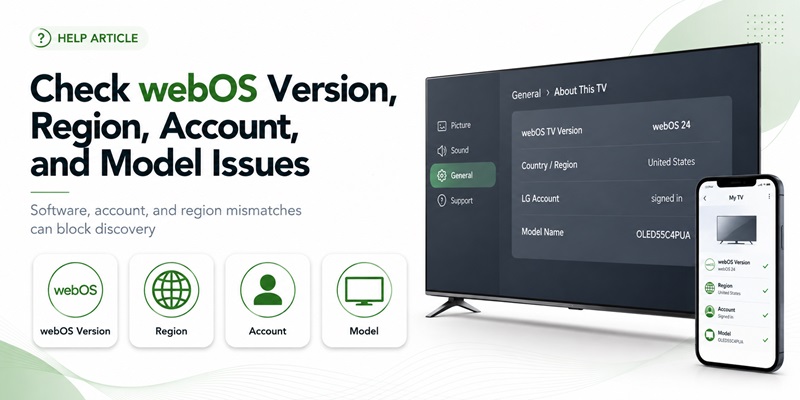
When basic troubleshooting fails, the lg thinq app not finding tv problem may relate to software or account configuration. These checks matter when the lg thinq app not finding tv error returns after every restart.
Update webOS and LG ThinQ, then sign out and back in to the LG account. If multiple household members registered the same television, remove conflicting device records before pairing again.
Check the Region
LG notes that functions can differ by region and that an incorrectly selected registration region may prevent a product from appearing.
This may explain cases where lg thinq not finding my tv happens after importing a television, moving countries, using a VPN during account creation, or selecting a different country in the ThinQ app.
Confirm Model Support
LG’s registration guide says support generally applies to 2017-or-later products, with some models excluded.
If lg thinq app not finding tv affects an older television, check the model’s manual or LG support page rather than assuming that every webOS television supports the current ThinQ app.
A model can also support ThinQ remote control without supporting every feature. This distinction explains some recurring lg thinq app not finding tv reports. Power-on, voice integration, content sharing, pointer movement, and remote access can differ by webOS version and region.
9. Advanced Fixes When LG ThinQ Still Cannot Detect the TV
If the lg thinq app not finding tv issue remains after normal setup, inspect the network more closely. Advanced router settings can preserve the lg thinq app not finding tv problem even when internet access works.
Disable AP or Client Isolation
Router settings named AP Isolation, Wireless Isolation, Client Isolation, Guest Isolation, or IoT Isolation can prevent local devices from seeing one another.
Disable isolation for the network used by the phone and TV, or move both devices to a normal private network.
Separate Combined Bands Temporarily
Create a dedicated 2.4 GHz Wi-Fi name and connect both devices to it. LG’s setup page recommends the same 2.4 GHz network during pairing.
Temporarily disable VPNs, private relay, firewall apps, and custom network filters for one test, then restore them after pairing.
Check Signal Quality
LG warns that distance from the router can cause latency or registration problems. Move the router or use an appropriate access point when the signal is weak.
Test ThinQ on another compatible phone. If the second phone finds the TV, focus on permissions and settings on the first phone. If neither phone detects it, forget and reconnect the TV’s Wi-Fi before considering a factory reset.
If the lg thinq app not finding tv error persists after testing another phone and router, contact LG with the full model number, webOS version, app version, phone model, and a description of where registration stops.
These details are more useful than simply reporting that the lg thinq app won t find tv.
10. Frequently Asked Questions and Final Checklist
Why Is LG ThinQ Not Finding My TV Even Though Both Devices Have Internet?
Internet access does not prove that the phone and TV can communicate locally. They may be on different Wi-Fi names, a guest network, isolated router segments, or different bands with blocked local discovery.
Connect both devices to the same normal network and retry.
Why Does the TV Appear but Fail After I Enter the PIN?
This version of lg thinq app not finding tv is usually a registration problem rather than initial discovery.
Check the LG account, app region, internet access, existing device records, and network stability. LG’s official flow requires selecting the TV and entering the PIN displayed on the screen.
Does ThinQ Require 2.4 GHz Wi-Fi?
LG’s TV setup instructions recommend connecting both the phone and TV to the same 2.4 GHz network during ThinQ setup.
Why Can ThinQ Turn Off My TV but Not Turn It On?
Power-on support depends on the webOS version and standby settings. LG says webOS 3.5 and later can support power on and off, while older versions may support only power off.
Enable TV On With Mobile and the available Wi-Fi or Bluetooth wake options.
Why Is the LG ThinQ App Not Finding My TV on iPhone?
Check Settings > LG ThinQ and enable Local Network, Location, Precise Location, and Bluetooth as required.
LG specifically recommends these permissions when an iPhone cannot add a product.
What Should I Do When LG ThinQ App Won’t Connect to TV After Changing Routers?
Reconnect the TV to the new Wi-Fi, remove the old device entry if necessary, and register it again.
LG notes that a router replacement may require changing the registered product network.
Final Checklist
When lg thinq app not finding tv occurs, complete these checks in order. This final lg thinq app not finding tv checklist covers the most common causes:
- Confirm that the TV model supports ThinQ.
- Turn on the TV and router.
- Connect the phone and TV to the same Wi-Fi.
- Use the same 2.4 GHz network during setup when possible.
- Disable mobile data, VPN, and guest-network isolation temporarily.
- Enable Local Network, Location, Bluetooth, and Nearby Devices permissions.
- Update ThinQ and webOS.
- Add the TV manually and enter the displayed PIN.
- Restart the phone, TV, and router.
- Remove the TV and register it again.
- Enable TV On With Mobile for power-on problems.
- Verify the ThinQ account region and television model support.
The lg thinq app not finding tv issue is usually resolved before a factory reset is necessary.
When the lg thinq app not finding tv problem continues after every step, collect the model number, webOS version, app version, router model, and phone operating system before contacting LG support. This information helps separate a compatibility problem from a network or account problem.
If the LG ThinQ app isn’t detecting your TV, try a reliable remote app for quick pairing and seamless control. Connect over Wi-Fi and enjoy full access to your TV from your smartphone.
Download LG TV Remote