
Roku iPhone Remote: How to Control Your Roku from iOS
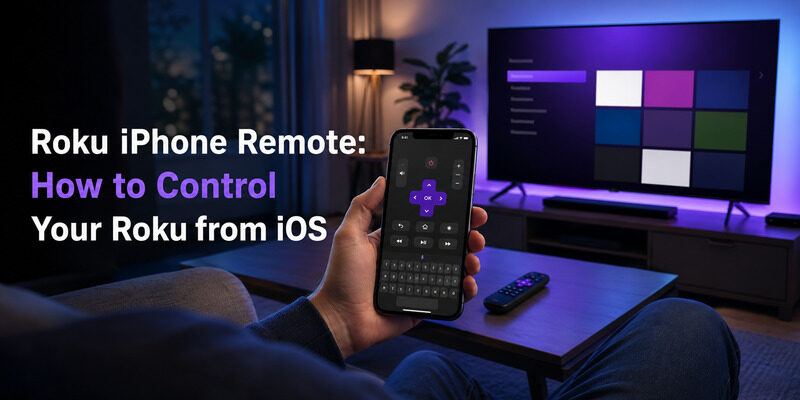
To use your iPhone as a Roku iPhone remote, install a Roku remote app from the App Store, connect your iPhone to the same Wi-Fi network as your Roku, and select the device to control it from your screen.
It’s one of the most popular ways to control a Roku, and for good reason — your iPhone is always nearby, the on-screen keyboard makes searching fast, and there’s nothing extra to buy.
This guide walks through setting up a Roku iPhone remote step by step, covers connecting specific iPhone models to a Roku TV, explains the free options, and answers the common questions people have about iOS Roku control.
Whether your physical remote is lost or you just prefer your phone, an iPhone makes an excellent Roku remote.
Can You Use an iPhone as a Roku Remote?
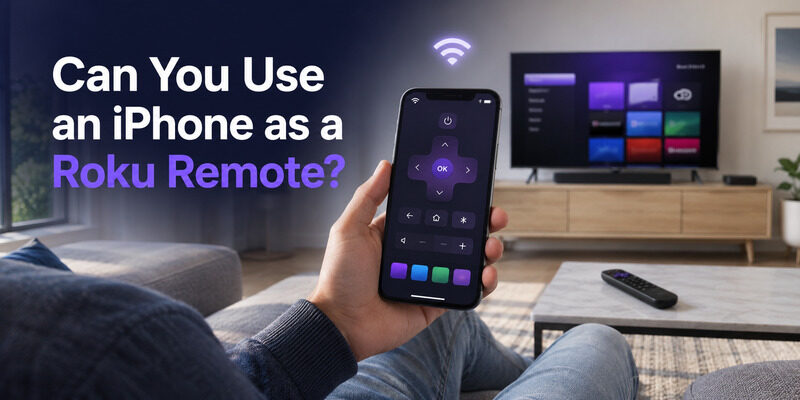
The short answer to can i use my iphone as a roku remote is yes. Apple’s App Store offers a roku iphone remote app, and reputable third-party apps work too, all controlling the Roku over your home Wi-Fi.
The app covers power, volume, navigation, and app launching, and often adds features the physical remote lacks, like a keyboard and private listening. For most people it’s a complete replacement for daily use, and the answer to can you download roku remote on iphone is a straightforward yes from the App Store.
Download TV Remote AppHow to Set Up a Roku iPhone Remote
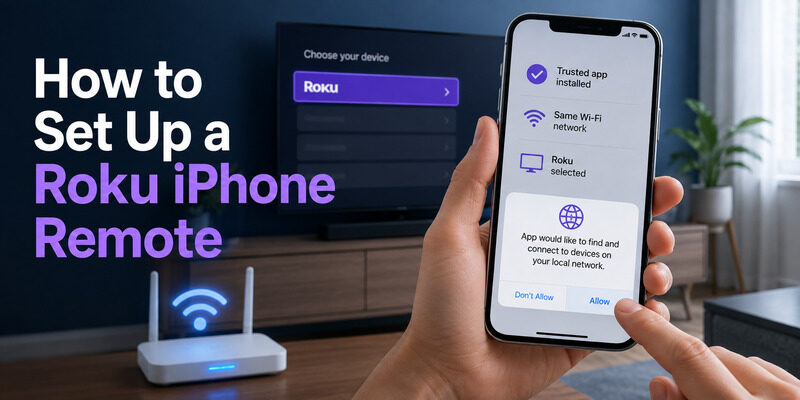
Setting up a Roku iPhone remote takes about a minute. The key requirement is that your iPhone and Roku share the same Wi-Fi network.
Step 1: Download the App
Open the App Store and download a roku iphone remote app — the official Roku app or a trusted alternative like the Remote TV App. Both are free, so there’s no need to look for a paid option or download from anywhere but the App Store.
Step 2: Join the Same Wi-Fi Network
Make sure your iPhone is on the same Wi-Fi network as the Roku. This is the most important step, since a network mismatch is the top reason the app can’t find the TV.
Step 3: Open the App and Select Your Roku
Launch the app and let it scan for devices. Select your Roku when it appears, and the on-screen remote is ready in seconds. From there, it works just like the physical remote, plus extras.
Step 4: Grant Local Network Permission
iOS may ask for permission to find devices on your local network the first time you open the app. Allow this — the app needs local network access to communicate with the TV, and denying it prevents it from connecting.
Using the Roku iPhone Remote Day to Day
Once set up, the app is intuitive, but a few features make it more capable than the physical remote.
Navigation and Playback
The on-screen directional pad, back, home, and playback controls mirror the physical remote exactly. Many apps also support swipe gestures, so scrolling through long lists is faster than pressing a directional pad repeatedly.
The controls are laid out to mirror a real remote, so there’s almost no learning curve — the directional pad sits where your thumb naturally rests.
Fast Text Entry
The biggest advantage of controlling a Roku from your phone is typing. Instead of pecking out searches with a directional pad, you use the iPhone keyboard, which makes finding shows and entering passwords dramatically quicker.
Anyone who has spent a minute spelling out a movie title one letter at a time with a physical remote will appreciate how much faster the phone keyboard is.
Private Listening
The official app supports private listening: plug headphones into your iPhone, or use AirPods, and the TV’s audio streams to them over Wi-Fi. It’s a genuinely useful feature for late-night watching.
It works with wired headphones, AirPods, or other Bluetooth earbuds paired to the phone, giving flexibility in how you listen privately.
Connecting Specific iPhone Models to a Roku TV
The setup is the same across iPhone models, but people often search for their exact phone. The good news: any modern iPhone works as a roku iphone remote.
iPhone 7 and iPhone 8
How to connect iphone 7 to roku tv and how to connect iphone 8 to roku tv follow the identical steps as any other model: install the app, join the same Wi-Fi network, and select the Roku. Older iPhones like the 7 and 8 work fine as a roku iphone remote as long as they run a supported iOS version. There’s nothing about the hardware age that limits the app, only the iOS version it can run.
The main thing to check on an older phone is that it still runs a supported iOS version, since very old iOS releases can eventually fall outside an app’s compatibility.
Newer iPhone Models
Newer iPhones work exactly the same way, with the same one-minute setup. There’s no model-specific step — the experience is consistent whether you’re on an older or the latest iPhone.
If anything, newer iPhones connect and respond a touch faster thanks to improved Wi-Fi hardware, though the difference is minor in everyday use.
iPad Compatibility
The same iOS apps generally work on iPad too, giving a larger on-screen roku remote. The setup and features match the iphone version, so an iPad makes a fine secondary controller.
The larger screen makes on-screen buttons bigger and easier to hit, which some people find more comfortable than a phone for extended navigation.
Is the Roku iPhone Remote App Free?
A common question is whether the iOS app costs anything. The official roku ios app is free, and trusted alternatives like the Remote TV App are free too.
So an iPhone Roku remote won’t cost you anything for core control — power, volume, navigation, and app launching are all free. Some apps offer optional paid extras, but the fundamentals of an ios roku remote app are free across reputable options.
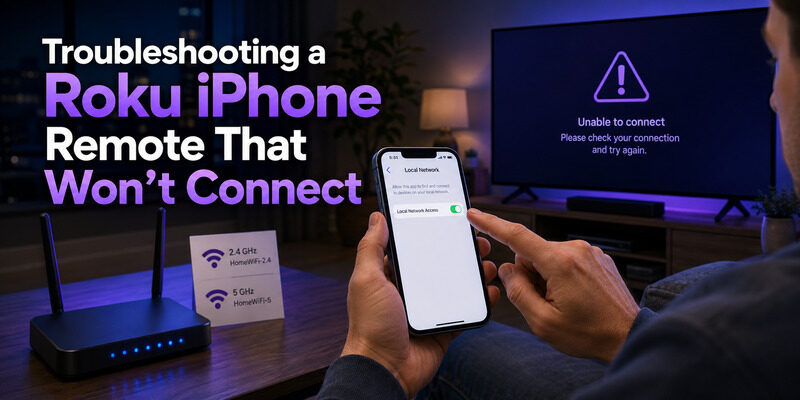
Troubleshooting a Roku iPhone Remote That Won’t Connect
If the app can’t find the TV, the cause is almost always the network or a permission setting. Work through these in order.
Check the Wi-Fi Network
Confirm your iPhone and Roku are on the exact same network. Guest networks, and 2.4GHz versus 5GHz bands treated as separate networks, are the most common reasons the app fails to connect.
This single check resolves the large majority of connection problems, so it’s always the first thing to verify.
Enable Local Network Access
Go to iPhone Settings, find the app, and make sure Local Network access is enabled. Without it, the app can’t discover the TV even on the right network. This is a frequent and easily-missed cause.
iOS is strict about this permission for privacy reasons, which is why it’s such a common stumbling block on a first setup.
Restart the App and Roku
Close and reopen the app, then unplug the Roku for 10 seconds and let it reboot. A stale connection clears with a fresh start, restoring the link in most cases.
Roku iPhone Remote vs. Physical Remote
A roku iphone remote and the physical remote each have strengths. The iPhone wins for text entry, private listening via AirPods, and being a free instant replacement when the physical remote is lost.
The physical remote wins when your network is down, since it doesn’t need Wi-Fi, and for the first cold power-on of a fully-off TV. Most people use the iPhone app as their primary controller and keep the physical remote as a backup for those specific cases.
Why an iPhone Makes a Great Roku Remote
Beyond simply working, an iPhone has real advantages as a Roku controller that a physical remote can’t match.
Always Within Reach
Your iPhone is almost always nearby, which means a roku iphone remote is never lost in the couch cushions the way a physical remote is. For households that constantly misplace remotes, this alone is a compelling reason to switch.
It also means guests can control the TV from their own phones if you share the app, without hunting for a single household remote.
No Batteries to Replace
A roku iphone remote draws on your phone’s battery rather than needing its own AAA cells. There’s nothing to swap out and no moment where the remote dies mid-show because its batteries ran flat.
Over a year, that quietly saves both the cost and the hassle of buying and swapping remote batteries.
Familiar Touch Interface
Tapping and swiping on a screen you already use all day feels natural, and the layout is easy to learn. Most people are comfortable with an iPhone Roku remote within a single evening of use.
Getting the Most From Your Roku iPhone Remote
A few habits help a roku iphone remote run smoothly over the long term.
Keep the App Updated
Update the app when new versions appear so it stays compatible with Roku platform changes. An outdated app is the occasional cause of a remote that suddenly stops connecting after a Roku firmware update.
Stay on a Stable Network
Since a roku iphone remote works over Wi-Fi, a stable home network keeps control responsive. If the app feels laggy, a router restart occasionally clears congestion on a busy network.
Keep a Backup Option
Even with a reliable roku iphone remote, it’s worth knowing where the physical remote or TV power button is for the rare cold-start situation the app can’t cover. Having both means you’re never stuck.
The Best Free Roku iPhone Remote Option
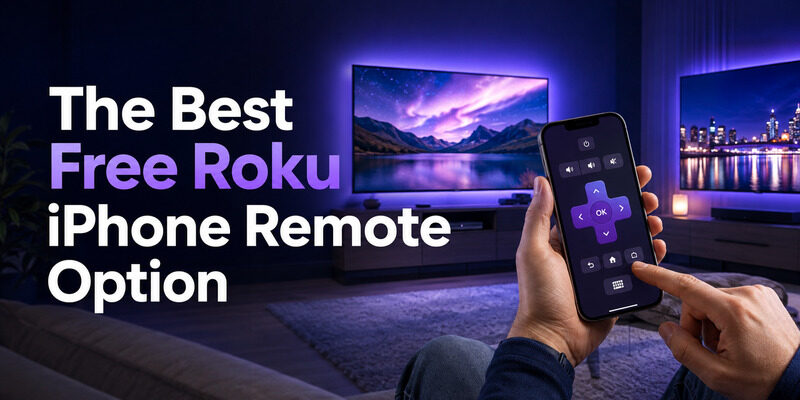
If you want a clean, free roku iphone remote that also works across other TV brands, the Remote TV App is a strong choice. It connects over Wi-Fi, covers full control, and has a simple interface that’s easy to use immediately.
It turns your iPhone into a complete Roku remote at no cost, with fast keyboard text entry and no physical remote to lose. to use your iPhone as a Roku remote for free.
FAQs About the Roku iPhone Remote
Can I use my iPhone as a Roku remote?
Yes. Install a Roku remote app from the App Store, join the same Wi-Fi network as your Roku, and select the device. Your iPhone then controls power, volume, navigation, and app launching.
Is the Roku iPhone remote app free?
Yes. The official Roku iOS app is free, and reputable alternatives like the Remote TV App are free too. Core control costs nothing; only optional extras in some apps are paid.
How do I connect my iPhone to a Roku TV?
Install a Roku remote app, ensure your iPhone and Roku are on the same Wi-Fi network, open the app, and select the TV. Grant local network permission when iOS prompts for it.
Why won’t my iPhone find my Roku?
Usually a network mismatch or a disabled Local Network permission. Confirm both devices are on the same Wi-Fi, and enable Local Network access for the app in iPhone Settings.
Does the iPhone Roku remote work on older models like the iPhone 7?
Yes. An iPhone 7, 8, or any model running a supported iOS version works as a Roku remote using the same setup steps. There’s no model-specific requirement.
Final Thoughts
A Roku iPhone remote is one of the easiest and most capable ways to control a Roku — free, always in your pocket, and better than the physical remote for typing and private listening. Setup takes a minute: install the app, share a Wi-Fi network, and grant local network access.
Any iPhone model works, from the iPhone 7 to the latest, and the Remote TV App makes a clean free option that also covers your other TVs. Keep it installed and your iPhone becomes a Roku remote you’ll never misplace.
Download TV Remote App