
Roku Remote Control Reset: Complete Setup and Troubleshooting Guide
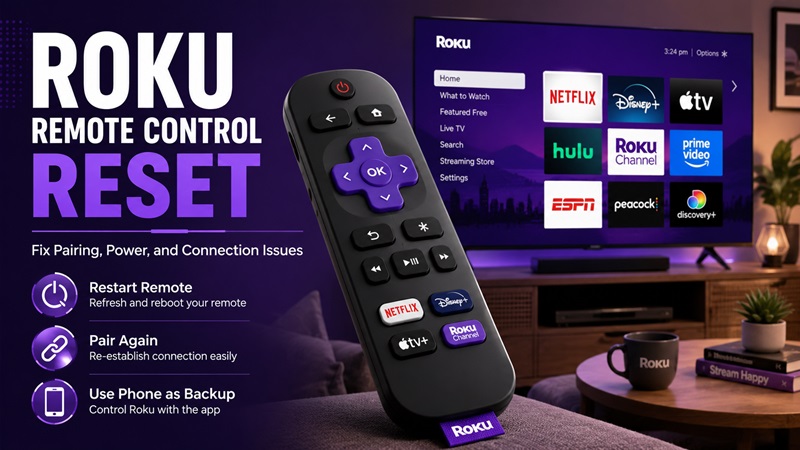
A remote that stops responding can make a Roku TV or streaming player feel unusable, even when the device itself is working normally. The problem may come from weak batteries, a lost wireless connection, a blocked infrared signal, incomplete TV-control setup, or a temporary Roku OS issue. In many situations, a roku remote control reset restores normal control without deleting apps or account information.
Before choosing a solution, identify whether you have a Roku simple remote or a Roku voice remote. A simple remote uses infrared and requires a clear line of sight to the device. A voice remote connects wirelessly, includes a voice button, and may need to be paired again.
This guide explains the correct roku remote control reset method for both types. It also covers restarting and factory-resetting Roku TV, pairing replacement remotes, configuring power and volume controls, understanding the main buttons, and using a phone when the physical remote is unavailable.
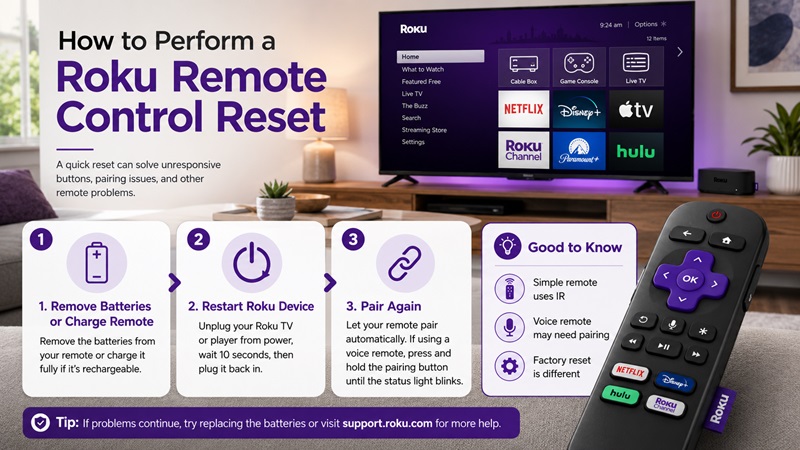
1. How to Perform a Roku Remote Control Reset
The correct roku remote control reset depends on the controller you own. Roku identifies a voice remote by the microphone, magnifying-glass, or voice button located near the directional pad. A controller without a voice button is generally a Roku simple remote.
Reset a Roku Simple Remote
A Roku simple remote does not store a wireless pairing connection. It sends infrared commands directly to a compatible Roku player or Roku TV, so there is no pairing record to erase.
For this type of controller, a roku remote control reset is primarily a battery refresh, device restart, and infrared signal check.
Follow these steps:
- Remove the batteries from the remote.
- Unplug the Roku player or Roku TV from power.
- Wait approximately 30 seconds.
- Reconnect the Roku device.
- Wait until the Home screen appears.
- Insert new batteries in the correct direction.
- Point the remote directly at the Roku device.
- Test Home, Back, OK, and the directional pad.
Make sure nothing is blocking the infrared receiver. A Roku player hidden behind the television, placed inside a closed cabinet, or positioned away from the remote may not receive commands. Roku’s simple-remote troubleshooting focuses on battery condition, direct aim, and an unobstructed path because an infrared remote does not pair wirelessly.
You can test whether the remote is sending an infrared signal by pointing its front at a smartphone camera and pressing a button. Some phone cameras may display a flashing light from the remote. However, this test is not supported equally by every camera.
Reset a Roku Voice Remote
A Roku voice remote connects wirelessly and can control the Roku device without direct line of sight. When it disconnects, the roku remote control reset process usually involves restarting Roku and putting the remote into pairing mode.
For a voice remote with replaceable batteries:
- Remove the battery cover.
- Take out both batteries.
- Disconnect the Roku TV or player from power.
- Wait approximately 30 seconds.
- Reconnect the Roku device.
- Wait for the startup screen.
- Reinsert the batteries.
- Press and hold the pairing button for about five seconds, if the remote has one.
- Release the button when the status light begins flashing.
- Keep the remote close to the Roku device until pairing is complete.
Some newer voice remotes do not have a traditional pairing button. In that case, use the pairing method provided for your model or access the pairing menu with another working remote or the Roku mobile app.
The current Roku menu route is:
Settings > Remotes & devices > Add devices > Remote > Continue
Follow the instructions shown on the television.
Reset a Rechargeable Roku Voice Remote
Do not attempt to remove the internal battery from a rechargeable voice remote. Connect it to a compatible charger and allow it to charge before restarting the Roku device and repeating the pairing process.
If the remote does not charge:
- Try another compatible cable.
- Try another USB adapter or power source.
- Inspect the charging port for dirt or physical damage.
- Leave the remote connected long enough to recover from a fully discharged battery.
A successful roku remote control reset should restore menu navigation. Power and volume buttons may still require separate TV-control setup because those commands are configured for the television rather than only for the Roku player.
Roku Remote Reset vs. Factory Reset
The phrase roku remote tv reset is sometimes confused with factory-resetting a Roku device. These actions have very different effects:
- Restarting the remote restores its connection.
- Pairing connects a voice remote to Roku.
- A system restart reloads Roku OS without erasing personal information.
- A network reset removes saved network settings.
- A factory reset removes preferences, apps, network details, and the Roku account link.
Do not factory-reset the entire television simply because the remote has weak batteries or lost pairing. Start with the least disruptive roku remote control reset, then restart Roku if necessary.
2. How to Reboot or Reset Roku TV With the Remote
Restarting Roku TV does not erase data. A factory reset, however, returns the device to its original setup state and removes personal settings.
How to Reboot Roku TV With Remote
For users searching how to reboot roku tv with remote, use this menu path:
- Press Home.
- Scroll to Settings.
- Select System.
- Select Power if the submenu appears.
- Select System restart.
- Confirm Restart.
Some Roku devices do not display a Power submenu. If you do not see it, select System restart directly from the System menu. Roku states that the device should restart and return to normal operation after a short period.
A system restart may help when:
- The Roku interface is slow.
- A streaming app is frozen.
- Video and audio are out of sync.
- Menus do not load correctly.
- A newly paired remote behaves inconsistently.
- The Roku device cannot complete an update.
Restarting does not remove downloaded apps, disconnect your Roku account, or undo a completed roku remote control reset.
If the menus cannot be opened, unplug the Roku TV or player, wait approximately 30 seconds, and reconnect the power. For a Roku TV that repeatedly restarts or remains stuck on the logo screen, Roku provides additional model-specific troubleshooting.
How to Reset Roku TV With Remote
You may need how to reset roku tv with remote when selling the television, transferring ownership, or resolving a serious software or account problem.
To perform a factory reset:
- Press Home.
- Open Settings.
- Select System.
- Select Advanced system settings.
- Select Factory reset.
- Choose Factory reset everything.
- Enter the code displayed on the screen.
- Confirm the reset.
A factory reset removes personal preferences, disconnects the Roku account, resets the network connection, and returns the device to the initial guided setup.
After the reset, you will need to:
- Select a language.
- Reconnect to Wi-Fi.
- Link the device to a Roku account.
- Download or sign in to streaming apps again.
- Reconfigure picture, audio, and remote settings.
When Should You Factory-Reset Roku?
Consider a factory reset only when:
- You are selling or giving away the device.
- Roku cannot complete the initial setup.
- Persistent system problems remain after a restart.
- Network and software-update troubleshooting have failed.
- Roku Support recommends a full reset.
If the only symptom is an unresponsive controller, repeat the roku remote control reset, install new batteries, and pair the remote again before erasing the device.
3. Roku Remote Control Setup and Pairing Instructions
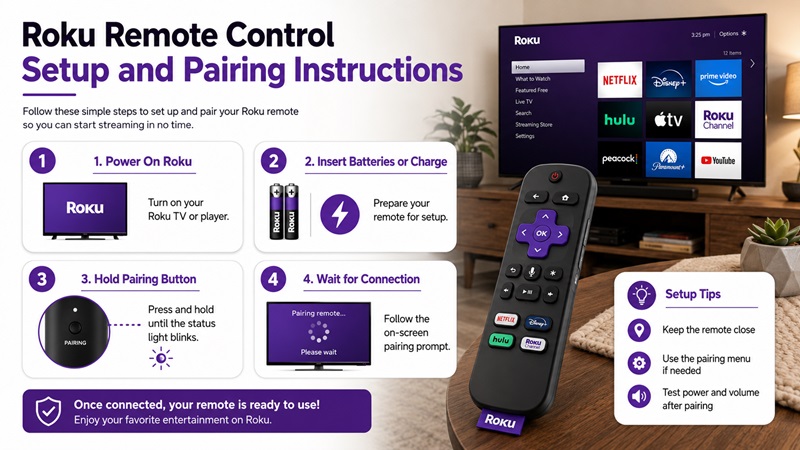
A proper roku remote control setup is required when installing a new Roku player, replacing a lost voice remote, or connecting a compatible remote that was previously used with another device.
Set Up a New Roku Voice Remote
During initial Roku setup, install batteries or charge the remote and keep it close to the player or television. Roku may detect and pair it automatically.
If pairing does not begin, follow the onscreen roku remote control instructions for the remote model.
You can also add a voice remote manually:
- Press Home on a working remote or in the Roku mobile app.
- Open Settings.
- Select Remotes & devices.
- Select Add devices.
- Select Remote.
- Select Continue.
- Follow the onscreen prompts.
This is the official roku remote tv setup route for adding a compatible voice remote from the Roku settings menu.
Pair a Replacement Remote Without the Original Remote
When no physical remote works, restart the Roku device to activate its pairing process. Place the replacement voice remote into pairing mode and keep it close to Roku during startup.
If pairing fails:
- Replace or recharge the batteries.
- Move the remote closer to Roku.
- Restart the Roku device.
- Remove possible sources of interference.
- Confirm that the remote supports your Roku model.
- Use the Roku mobile app to access Add devices when Roku is already connected to Wi-Fi.
A fresh roku remote control reset may be required if the replacement remote was previously connected to another Roku device.
Set Up Power and Volume Controls
Pairing allows the remote to navigate Roku, but television power and volume may require another setup process.
Use these steps:
- Press Home.
- Open Settings.
- Select Remotes & devices.
- Select Remotes.
- Choose your voice remote.
- Select Set up remote for TV control.
- Complete the onscreen sound test.
Roku may play music and ask whether you can still hear it. Answer accurately so Roku can identify a compatible television code. Roku currently uses this same menu for configuring power and volume controls after the initial setup.
If physical volume buttons work but voice power or volume commands fail, verify that HDMI-CEC is enabled in the TV settings. Roku explains that voice commands use CEC, while physical remote buttons may use infrared.
Follow the Correct Manual
A roku remote control manual should match the remote and device type. Instructions for an infrared simple remote will not solve wireless pairing problems. Likewise, Voice Remote Pro features do not apply to every Roku controller.
When following roku tv remote instructions, identify:
- Whether the controller has a voice button.
- Whether it has a pairing button.
- Whether it uses removable or rechargeable batteries.
- Whether it includes side volume controls.
- Whether it has programmable shortcut buttons.
Checking these features prevents you from repeating the wrong roku remote control reset process.
4. How to Use a Roku TV Remote and Its Main Features
For anyone searching roku tv remote how to use, the main controls are easy to understand once the remote is paired and television control is configured.
Roku Remote Button Guide
Common Roku remote buttons include:
- Power: Turns a compatible television on or off.
- Home: Returns to the Roku Home screen.
- Back: Returns to the previous screen.
- Directional pad: Moves through menus.
- OK: Opens or confirms the selected item.
- Star or Options: Opens settings related to the current screen.
- Replay: Jumps back briefly when supported.
- Play/Pause: Controls playback.
- Rewind and Fast Forward: Moves through supported content.
- Volume and Mute: Controls a configured TV or audio system.
- Voice: Starts voice search or voice commands.
- Channel shortcuts: Opens the streaming service printed on the button.
Roku simple remotes provide core navigation and channel shortcuts. Compatible voice remotes may add voice search, TV controls, rechargeable batteries, lost-remote features, hands-free commands, or personal shortcuts.
Everyday Roku TV Remote Instructions
Press Home whenever you want to leave an app and return to Roku’s main interface. Use the directional pad to highlight an app, setting, input, or content item, then press OK.
The Star button changes function depending on where it is pressed. It may open picture, sound, accessibility, channel, or playback options supported by the Roku device and current app.
The roku tv remote manual supplied by the TV manufacturer may list extra controls such as:
- Input selection
- Sleep timer
- Live TV channel controls
- Numeric buttons
- Picture settings
- Closed-caption shortcuts
Roku notes that the simple remote included with a Roku TV can have additional TV-related buttons that are not found on standard player remotes.
How to Zoom Out on Roku TV With Remote
People searching how to zoom out on roku tv with remote may be describing different display problems. There is no single Roku button that universally zooms out every app and television model.
Try these options:
- Press Star during video playback and look for Picture size or Aspect ratio.
- Open the television’s picture settings.
- Check whether the current HDMI input uses an incorrect display mode.
- Disable accessibility magnification if menus also appear enlarged.
- Review the streaming app’s playback settings.
- Confirm that the source video itself is not cropped.
Do not repeatedly perform a roku remote control reset for an image-size issue unless the remote buttons are also failing. A cropped picture is usually caused by display, aspect-ratio, input, or content settings.
Does Roku TV Come With Remote?
The answer to does roku tv come with remote is generally yes when purchasing a new retail Roku TV system. The exact controller depends on the television brand and series.
Some Roku TVs include a simple infrared remote. Other models include a voice remote that needs to be paired during setup. Roku-branded Select, Plus, and Pro television series also ship with different remote types.
Does Roku Have Its Own Remote?
For users asking does roku have its own remote, Roku supports multiple official simple and voice remote designs. Compatibility varies, so verify the Roku device model before purchasing a replacement.
The availability of several controller designs is also why one generic roku remote control manual may not apply to every Roku TV or streaming player.
5. Common Roku Remote Problems and Solutions
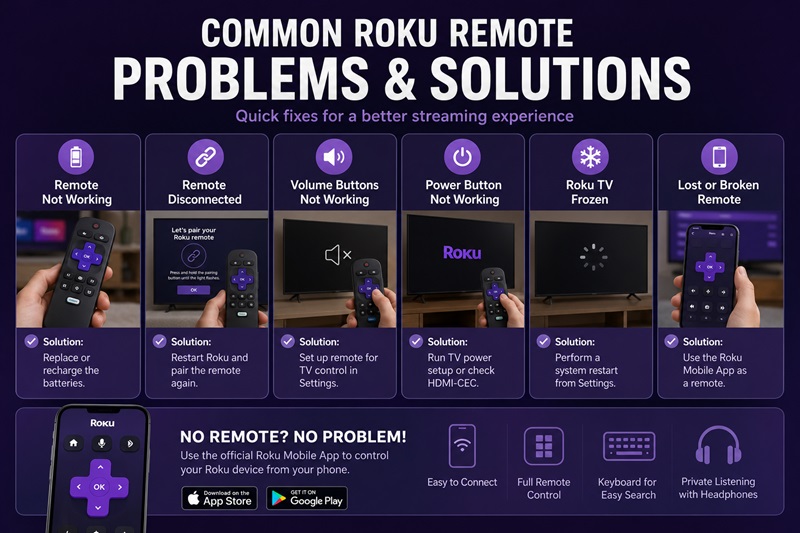
A roku remote control reset solves many connection problems, but the best fix depends on the exact symptom.
| Problem | Likely Cause | Recommended Solution |
| No buttons respond | Empty batteries or lost pairing | Replace or charge the batteries, restart Roku, and pair again |
| Simple remote works inconsistently | Blocked infrared path | Point directly at Roku and remove obstacles |
| Voice remote is disconnected | Wireless pairing was lost | Place the remote in pairing mode near Roku |
| Power button fails | TV-control setup is incomplete | Run Set up remote for TV control again |
| Volume buttons fail | Incorrect TV code or audio setup | Repeat TV setup and check the active audio device |
| Pairing light does not flash | Weak battery or remote fault | Replace batteries, charge the remote, or test another cable |
| Roku interface is frozen | Temporary Roku OS problem | Perform a system restart |
| Only one button fails | Worn, dirty, or damaged button | Test it on the Home screen and inspect the remote |
| Remote responds slowly | Weak connection or interference | Move closer and restart Roku |
| Phone cannot find Roku | Different networks or app control disabled | Use the same Wi-Fi and enable mobile app control |
| Remote connects to another Roku | Several nearby devices | Pair beside the intended device |
| Problems continue after reset | Possible hardware failure | Test a compatible replacement remote |
Fix Power and Volume Problems
A successful roku remote control reset does not automatically recreate the television’s power and volume configuration.
Update Roku OS, then open:
Settings > Remotes & devices > Remotes > Your remote > Set up remote for TV control
Roku recommends repeating this setup when power or volume buttons stop working.
Use a Remote TV App as a Backup
The official Roku mobile app can turn an iPhone or Android phone into a remote. Install it from the official app store, connect the phone and Roku device to the same Wi-Fi network, open the app, select the Roku device, and tap Remote.
The app includes navigation and playback controls, although available features may vary by device.
A Remote TV App is useful when the physical controller is lost, damaged, or temporarily disconnected. However, the phone normally cannot discover a Roku device that is offline or connected to another Wi-Fi network.
Mobile-control permissions can be reviewed under:
Settings > System > Advanced system settings > Control by mobile apps
Roku recommends its official mobile application and advises users to be cautious with third-party remote apps. For the most reliable backup following a roku remote control reset, begin with the official Roku app.
When to Replace the Remote
Consider replacing the physical controller when:
- New batteries and charging do not help.
- The remote has liquid or impact damage.
- Multiple buttons are stuck.
- A compatible voice remote repeatedly fails to pair.
- The charging port is damaged.
- The remote disconnects after every restart.
The search phrase roku remote control Interest commonly reflects a need to reset, pair, replace, or control Roku using a phone. Similarly, roku remote control user Interest focuses on quick instructions, compatibility, TV-control setup, and solutions that do not erase the whole device.
Identifying the remote type first is the best way to satisfy those needs and choose the correct troubleshooting process.
6. Frequently Asked Questions About Roku Remotes
Does a Roku Remote Have a Reset Button?
Most Roku remotes do not have a separate factory-reset button. A voice remote may have a pairing button, but that button starts wireless pairing. A simple infrared controller does not require pairing.
The normal roku remote control reset involves batteries, a Roku restart, and pairing when applicable.
Will Resetting the Roku Remote Delete My Apps?
No. Restarting or pairing the controller does not remove apps, account information, or Wi-Fi settings. Only factory-resetting the Roku TV or player removes the device setup.
Can I Use Any Roku Remote With Roku TV?
No. Compatibility depends on whether the device supports infrared, a wireless voice remote, or both. It also depends on whether the replacement controller supports Roku TV.
Consult the matching roku tv remote manual or official compatibility information before purchasing a new remote.
Why Does My Roku Remote Keep Disconnecting?
Possible causes include:
- Weak or depleted batteries
- Incomplete charging
- Wireless interference
- Excessive distance
- A temporary Roku OS issue
- Hardware damage
Perform a roku remote control reset, move the remote closer, update Roku OS, and pair it again.
Can I Reset Roku Without the Original Remote?
Yes, provided the Roku device is already online and discoverable. Use the Roku mobile app to navigate to System restart or Factory reset. A compatible replacement controller is another option.
The mobile device and Roku normally need to be connected to the same Wi-Fi network.
How to Jailbreak Roku TV With Remote?
There is no supported answer to how to jailbreak roku tv with remote because the controller does not contain a hidden button combination that jailbreaks Roku OS.
Avoid websites or videos requesting unknown software, account credentials, or unsupported system modifications. Use Roku’s official app installation, screen-mirroring, casting, and approved development features instead.
Where Can I Find Roku Remote Instructions?
Use Roku Support and identify your exact controller type first. The correct roku remote control instructions depend on whether you have:
- A Roku simple remote
- A Roku voice remote
- A Roku Voice Remote Pro
- A Roku TV-specific controller
- A rechargeable remote
- A tabletop voice remote
What Is the Difference Between Restarting and Resetting Roku?
Restarting reloads Roku OS and keeps the existing setup. A factory reset removes the account link, network information, preferences, and downloaded apps.
A roku remote control reset affects communication with the controller rather than data stored on the Roku device.
What Should I Do After Resetting the Remote?
Test these controls:
- Home
- Back
- Directional pad
- OK
- Play and pause
- Power
- Volume
- Mute
If navigation works but TV power and volume do not, repeat Set up remote for TV control. If nothing responds, try the official mobile app or another compatible remote before factory-resetting Roku.
Conclusion
A roku remote control reset should begin with identifying whether the controller uses infrared or a wireless connection. Replace or charge the batteries, restart the Roku device, and pair a voice remote again when necessary.
If only television power or volume fails, repeat the TV-control configuration instead of resetting the whole television. Use a system restart for temporary Roku OS problems and reserve a factory reset for ownership changes or serious issues that remain after normal troubleshooting.
When the physical controller is unavailable, the official Roku mobile app offers a practical backup as long as the phone and Roku device use the same network.
Following this order makes a roku remote control reset faster, safer, and less likely to erase settings unnecessarily.
