
Roku Remote TV: Complete Guide to Setup, Pairing, Apps, Fixes, and Replacement
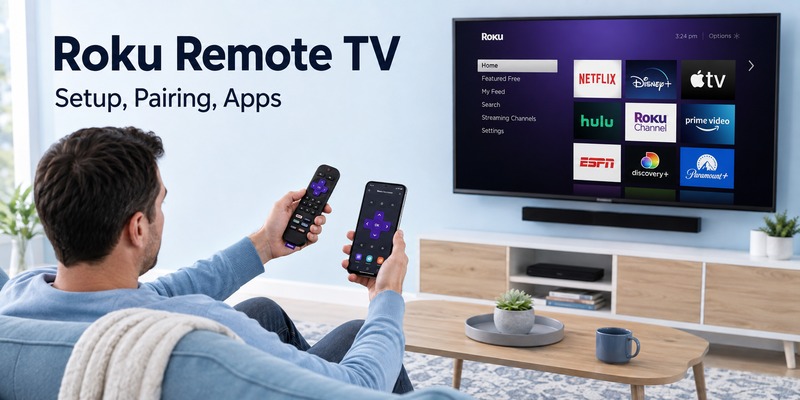
A Roku Remote TV setup can be controlled with a compatible physical Roku remote or a phone-based remote app, depending on the Roku TV or streaming device you use.
If your original controller is lost, stops responding, refuses to pair, or has broken volume buttons, you usually do not need to replace the television. Roku offers both infrared and wireless remote systems, while smartphones can also provide many common navigation functions when the phone and Roku device are connected to the same network.
This pillar guide explains the entire Roku Remote TV ecosystem: remote types, setup, pairing, batteries, reset methods, volume control, smartphone options, replacement remotes, Roku Stick compatibility, and troubleshooting.
1. What Is a Roku Remote TV and How Does It Work?
Roku Remote TV generally refers to the controller used to operate a Roku TV system or Roku streaming device. Although Roku remotes look similar, they do not all communicate with the television in the same way.
The most important distinction is between infrared and wireless models.
A basic Roku simple remote sends infrared commands. Like a traditional television remote, it normally needs a clear line of sight between the remote and the compatible Roku device.
A Roku voice remote connects wirelessly after pairing. Because it does not depend solely on infrared for navigation, you usually do not need to aim it directly at the Roku player.
According to Roku’s official support documentation, simple remotes do not require a pairing process. Users normally insert working batteries and point the controller toward the device. Voice remotes, by contrast, go through a wireless pairing process.
This difference is important when troubleshooting Roku Remote TV problems. Trying to “pair” an IR-only remote will not solve anything because there is no wireless pairing process to complete.
Roku TV system
A television running Roku OS has the Roku platform built into the TV. Its compatible controller may include:
- Power
- Volume up/down
- Mute
- Home
- Back
- Directional pad
- Playback controls
- Streaming shortcut buttons
Roku streaming player
A Roku Express, Streaming Stick, Ultra, or similar device connects to a separate television. The remote primarily controls the Roku player, although compatible voice remotes can also be configured for certain TV power and volume functions.
Understanding which Roku Remote TV type you have should always come before resetting, pairing, or buying another controller.
Download TV Remote App2. Roku Simple Remote vs. Roku Voice Remote
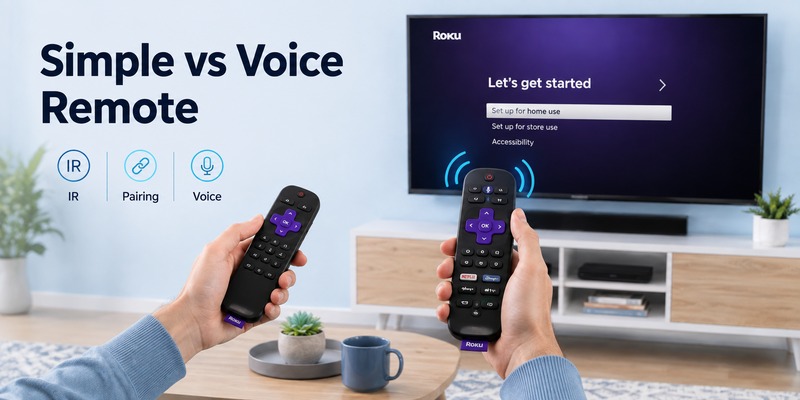
Not every Roku Remote TV should be diagnosed in the same way.
Roku currently distinguishes simple remotes from voice remotes. A practical way to identify a voice model is to look for a voice button near the directional pad. Roku’s support documentation says voice remotes contain either a microphone or voice/search-style button, while simple remotes do not.
| Remote type | Connection | Pairing required? | Line of sight | Common features |
| Roku Simple Remote | Infrared | No | Usually yes | Navigation, playback, shortcuts |
| Roku TV Simple Remote | Infrared | No | Usually yes | Navigation, power, volume, mute |
| Roku Voice Remote | Wireless | Yes | No | Voice, navigation, compatible TV controls |
| Roku Voice Remote Pro | Wireless | Yes | No | Advanced voice features and model-dependent extras |
| Phone remote | Local network | App connection | No | Navigation, keyboard, voice and other supported controls |
For a simple Roku Remote TV, obstructions matter. A soundbar, cabinet door, decoration, or poorly positioned Roku box can block the infrared signal.
For a voice remote, wireless connectivity and pairing become more important.
This is also why advice found online can appear contradictory. One guide may tell you to press a pairing button, while another tells you to simply replace the batteries and point the controller at the television.
Both can be correct—they are describing different Roku remote technologies.
Before following any troubleshooting sequence, first identify whether your Roku Remote TV is simple or voice-enabled.
💡 Discover Helpful Guides: Roku Remote Quit Working? Here’s How to Fix It
3. How to Connect a Roku Remote to a TV
People searching how to connect roku remote to tv should first determine whether the controller is an IR simple remote or a wireless voice remote.
A simple remote does not need traditional pairing.
Insert fresh batteries, make sure the battery polarity is correct, and point the remote toward the Roku device. Roku says its simple remote should be ready to use without pressing a pairing button.
A voice remote requires a different process.
Pair a Roku voice remote with a pairing button
Restart the Roku TV or streaming player if necessary.
When the Roku Home screen appears:
- Locate the pairing button, often inside or near the battery compartment.
- Press and hold it for about five seconds.
- Watch for the remote’s status light to begin flashing.
- Keep the remote near the Roku device.
- Wait for the pairing notification on the TV.
One common mistake is tapping the pairing button rather than holding it long enough. Roku’s current instructions specify approximately five seconds to enter pairing mode.
Pair a Roku voice remote without a pairing button
Some Roku Remote TV models enter pairing mode through a button combination.
Press and hold:
Back + Home
for around five seconds until the remote’s status light begins flashing.
The Roku device and remote must be ready for pairing at the same time.
If you already have another working controller or phone remote, Roku also provides an option through:
Settings > Remotes & devices > Add devices > Remote
A successful connection should restore normal navigation. Test Home, Back, directional controls, playback, and any supported TV controls before assuming the setup is complete.
4. What to Do When a Roku Remote Quits Working
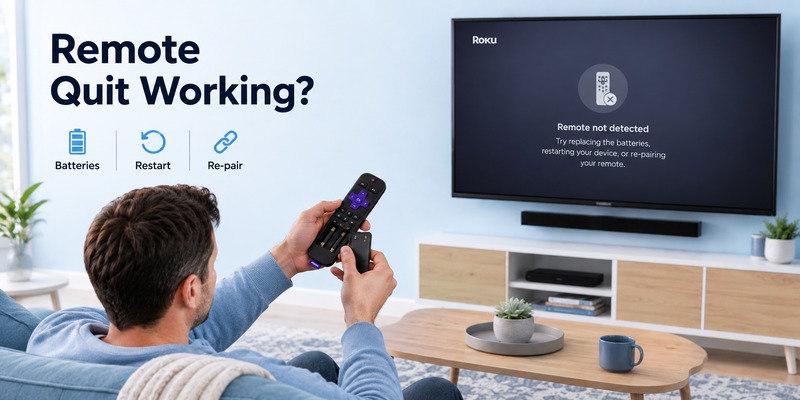
If your roku remote quit working, avoid immediately buying another one.
First determine whether every button has stopped responding or only one function is affected.
A completely dead Roku Remote TV often points to batteries, power, IR obstruction, pairing, or wireless communication. A remote where navigation still works but volume does not usually requires a different diagnosis.
| Symptom | Likely cause | First action |
| Nothing works | Battery or connection problem | Replace/recharge batteries |
| Simple remote works only nearby | IR blockage or weak batteries | Clear line of sight |
| Voice remote stopped responding | Pairing/wireless issue | Restart and re-pair |
| Volume fails but navigation works | TV-control setup issue | Reconfigure TV controls |
| Buttons work intermittently | Battery/contact/button issue | Inspect batteries and contacts |
| Phone app works but remote does not | Physical remote issue | Reset/re-pair or replace remote |
Start by removing the batteries from replaceable-battery models. Inspect the contacts for corrosion, dust, or a battery that has shifted out of position.
Install a matched fresh set rather than combining one old battery with one new battery.
Next, restart the Roku device. Unplug the Roku player or TV from power, wait several seconds, reconnect it, and allow the Home screen to load.
For a Roku Remote TV voice model, repeat the pairing process after the restart.
Roku’s official troubleshooting guidance also recommends checking or replacing batteries and restarting the streaming device when the remote is unresponsive.
For a simple IR remote, stand directly in front of the device and remove objects blocking the infrared receiver.
If the smartphone remote works perfectly while the physical controller continues failing after fresh batteries and reconnection attempts, the physical remote becomes the primary suspect.
🗺️ Browse How-To Guides: How to Connect Roku Remote to TV: Full Pairing Guide
5. How to Reset a Roku Remote Control
A roku remote control reset is useful when a wireless Roku voice remote remains paired incorrectly or behaves unpredictably.
Resetting the remote should not be confused with factory-resetting your entire Roku TV. A remote reset affects the controller relationship; a factory reset can remove account and device configuration.
For many voice remotes, Roku’s troubleshooting process includes holding the pairing control for an extended period before re-pairing.
Reset a remote with a pairing button
If supported by your model:
- Remove the Roku device from power.
- Locate the remote pairing button.
- Hold the pairing button for about 20 seconds.
- Release it after the status behavior changes.
- Reconnect the Roku device.
- Wait for the Home screen.
- Put the Roku Remote TV back into pairing mode by holding the pairing button for roughly five seconds.
Reset a remote without a pairing button
Models without the dedicated button may use Back and Home.
Roku’s current troubleshooting documentation advises holding Back + Home for approximately 20 seconds for the remote-reset process, then using the shorter five-second combination when placing the controller back into pairing mode.
Do not continuously repeat resets if the controller has obvious physical damage.
If the remote was dropped into liquid, has corroded battery contacts, drains fresh batteries unusually quickly, or has several mechanically damaged buttons, replacement is often more practical than repeated software troubleshooting.
💡 Discover Helpful Guides: Replacement Remote for Roku TV: Options and Buying Guide
6. Roku TV Remote Batteries: Types, Replacement, and Battery Problems
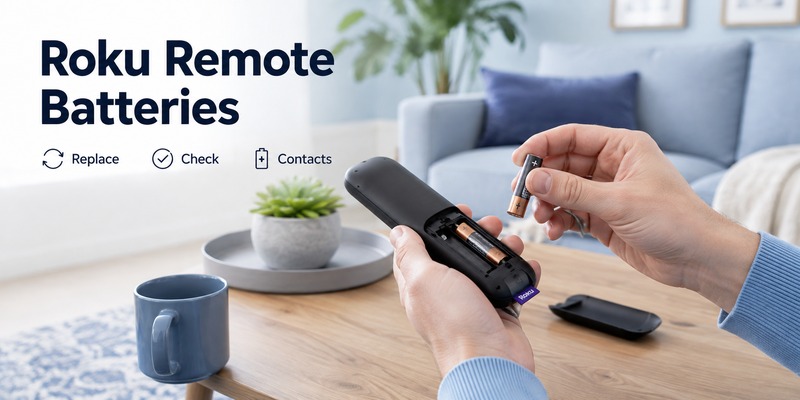
Problems with roku tv remote batteries can imitate pairing or hardware failures.
Battery requirements vary by remote model, so inspect the battery compartment before buying a replacement pack. Do not assume every Roku Remote TV uses exactly the same battery configuration.
Some models use replaceable batteries, while certain rechargeable Roku remotes contain an internal rechargeable battery.
For a replaceable-battery remote:
- Remove the rear battery cover.
- Check the battery size printed inside the compartment or on the existing cells.
- Remove both batteries.
- Inspect the metal contacts.
- Install a matching fresh pair.
- Confirm positive and negative orientation.
- Replace the cover.
- Test the controller.
Avoid mixing different battery brands, chemistry types, or charge levels.
If a Roku Remote TV works only after you press the cover firmly, the problem may be contact pressure rather than battery capacity.
Why batteries may appear to drain quickly
Unexpected battery drain can result from:
- Aging batteries
- Stuck buttons
- Poor battery contacts
- Frequent voice-feature use
- Remote hardware problems
- Repeated connection attempts
- Batteries stored for a long period before use
If your voice remote allows battery information to be viewed through Roku settings, checking that status can help distinguish low power from other communication problems.
Searches for roku tv remote size can refer either to the physical dimensions of the remote or battery size. Both vary by model, so checking the exact product or battery compartment is more reliable than assuming a universal measurement.
📘 Find the Right Guide: Roku TV Remote Size: Dimensions, Types, and Layout
7. How Roku Remote Volume and Power Controls Work
roku remote control volume problems are especially confusing because navigation and TV audio control can rely on different functions.
A Roku Remote TV can therefore navigate menus successfully while refusing to change television volume.
Some Roku TV remotes directly control the integrated television. Compatible Roku voice remotes used with streaming players can also support TV power, volume, and mute after appropriate configuration.
Roku notes that available mobile and physical remote controls depend on the Roku device in use.
If volume stops working but Home and navigation still respond, try these checks:
- Confirm the remote actually supports TV controls.
- Restart the Roku player.
- Replace or recharge the remote batteries.
- Reconfigure TV-control settings if your Roku model provides them.
- Test volume directly with the television’s own controls.
- Check whether your audio is being routed through a soundbar or AV receiver.
Do not perform a full factory reset simply because volume is missing.
First establish which device controls the sound.
If audio comes from a separate receiver, the remote may be communicating correctly with the Roku platform but not with the component handling audio output.
For Roku streaming players, Roku’s mobile-app documentation also references TV power and volume control settings under supported configurations.
A Roku Remote TV should therefore be diagnosed feature by feature instead of treating every failed button as a complete remote failure.
📖 Read More Guides: Roku iPhone Remote: How to Control Your Roku from iOS
8. How to Turn On Roku TV Without a Remote
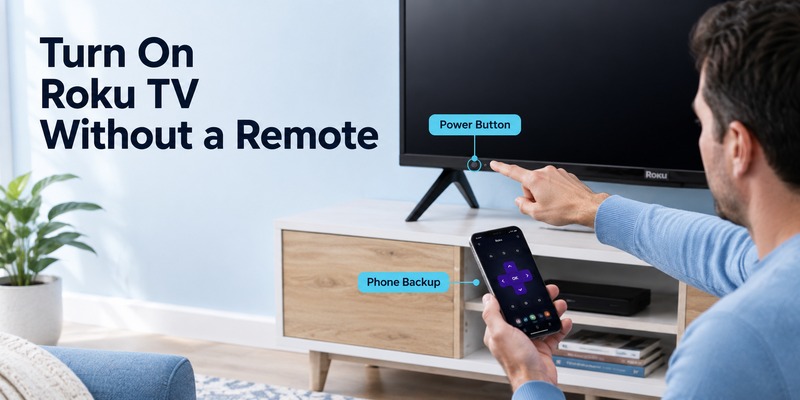
The simplest answer to how to turn on roku tv without remote is to use the physical power control on the TV or a compatible phone remote when network conditions allow it.
Most televisions have a hardware power button somewhere on the cabinet. Its exact location depends on the manufacturer and model.
Check:
- Under the center of the TV
- Along the lower bezel
- Behind the left or right edge
- On the rear panel
Once the Roku TV is powered on, a phone app can be much more convenient for navigation.
However, there is an important limitation.
A phone-based Roku Remote TV generally needs the smartphone and Roku device to communicate across the same local network.
Roku confirms that the official mobile app can control a Roku TV or streaming player when the phone and Roku device are connected appropriately. If the Roku device is not already connected to Wi-Fi, the app may not be able to discover it.
This becomes especially important after:
- Changing routers
- Changing the Wi-Fi password
- Factory-resetting the TV
- Moving the TV to another home
- Setting up a new Roku device
If the television has forgotten the network and you have no compatible physical Roku Remote TV, a phone app alone may not solve the setup problem.
In that case, temporarily obtaining a compatible physical remote is often the cleanest solution.
📖 Read More Guides: Hisense Roku TV Remote App: Setup and Free Options
9. Can You Use Your Phone as a Roku Remote?
Yes. For users asking can i use my phone as a roku remote, a compatible smartphone app can control a Roku TV or Roku streaming player over the local network.
Roku provides its own official application for iOS and Android. The company states that its mobile app includes a free remote function and can provide navigation, keyboard input, voice features, and other controls depending on the Roku device.
The basic process is:
- Connect your phone to the same Wi-Fi network as the Roku device.
- Open your compatible Roku remote application.
- Allow local-network access if requested.
- Select the Roku device.
- Open the remote interface.
- Test navigation.
A phone-based Roku Remote TV has several advantages over a conventional controller.
Text entry is often faster because you can use the smartphone keyboard. This is particularly useful for searches, usernames, and other text fields.
A phone also provides an immediate fallback when the physical Roku Remote TV disappears between sofa cushions or stops responding.
There are limitations.
A phone remote depends on network availability and battery power. It may not help during initial setup if the Roku device has not yet joined the same network.
For that reason, smartphone control is an excellent backup but should not always be treated as a complete replacement for every physical-remote scenario.
📘 Find the Right Guide: Will a Roku TV Remote Work With a Roku Stick?
10. Roku Remote Apps for iPhone and Android
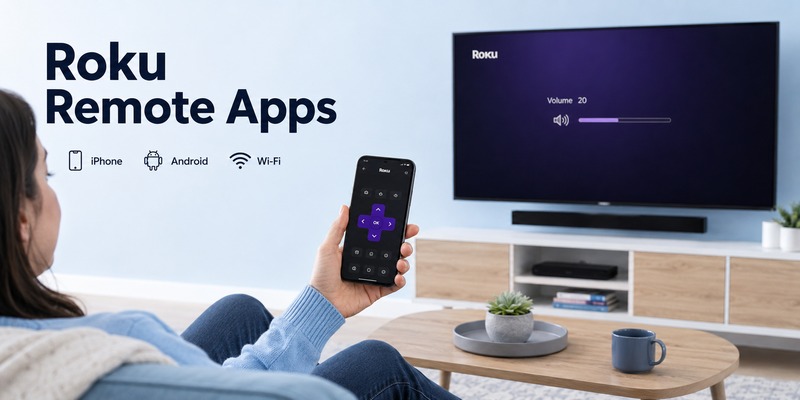
A free roku remote control app can be one of the fastest ways to restore control when a physical remote is missing.
The official Roku mobile app is available for supported iOS and Android devices and includes a remote interface. Roku currently describes the application itself as free to download and use, although individual streaming subscriptions or premium content may still cost money.
Using an iPhone
A roku iphone remote works through the Roku mobile app or another compatible remote solution over the local network.
With the official app:
- Install the Roku app on the iPhone.
- Connect the iPhone to the same Wi-Fi network as the Roku.
- Open the app.
- Select the Roku device.
- Choose Remote.
Roku currently states that its mobile app supports iPhone and iPad and requires a supported iOS version; requirements can change, so the current App Store listing should be checked before installation.
Using Android
The principle is the same.
Connect both devices to the same local network, choose the Roku player or TV, then open the remote controls.
Using Remote TV App as an alternative
A remote tv app can also be useful if you prefer to manage television controls from a phone rather than keep another physical controller nearby.
For a Roku Remote TV replacement workflow, prioritize:
- Fast device discovery
- Clear navigation controls
- Simple connection instructions
- Useful keyboard input
- Stable local-network communication
A phone remote is particularly convenient as a backup controller, even if you ultimately keep a physical Roku remote for everyday use.
🗺️ Browse How-To Guides: Roku TV Remote Price: What It Costs and Cheaper Options
11. Using a Roku Remote Control Online
The phrase roku remote control online can describe several different things.
Some users mean a browser-based remote. Others simply want a digital Roku controller instead of buying physical hardware.
For most households, a smartphone app is the more practical option because a Roku Remote TV needs a way to discover and communicate with the Roku device.
Browser-based remote services should be evaluated carefully.
Avoid entering Roku account credentials into unknown remote-control websites. A basic remote generally should not need your Roku password simply to provide local navigation.
Before using any third-party digital controller, consider:
- Who publishes the service?
- Does it explain why each permission is required?
- Does it work locally or require an account?
- Does it display excessive advertising?
- Does it ask for unnecessary payment information?
- Does it request access unrelated to remote control?
The official Roku mobile app provides a known option for Roku devices and includes a free remote feature.
A third-party phone-based Roku Remote TV solution may still be attractive when you want a particular interface or broader television support, but permissions and privacy should be reviewed first.
For occasional control, an app is usually easier to maintain than relying on an unfamiliar web page that may change or disappear.
12. Replacement Remotes for Roku TV
A replacement remote for roku tv should be selected by compatibility, not appearance alone.
Two Roku remotes can look almost identical while supporting different connection methods or features.
Before buying, identify:
- Whether you have a Roku TV or external Roku player.
- The Roku device model.
- Whether the original remote is simple or voice-enabled.
- Whether you need volume and power buttons.
- Whether voice control matters.
- Whether you want a rechargeable model.
| User need | Best starting option | Main consideration |
| Basic navigation | Compatible simple remote | IR/device compatibility |
| Voice commands | Roku voice remote | Wireless compatibility |
| TV power and volume | Compatible TV-control remote | TV support |
| Temporary replacement | Phone app | Same-network requirement |
| Advanced features | Higher-tier compatible Roku remote | Device/model support |
Roku’s current documentation says voice support is available on many Roku devices, but compatibility still depends on the specific player and remote. Roku recommends identifying the device model through Settings > System > About when checking compatibility.
Searches for roku tv remote price should therefore be treated carefully. The cheapest controller is not automatically the best value if it lacks voice, power, volume, or compatibility with your device.
Before ordering, compare the listing against the actual Roku model rather than relying only on a seller’s phrase such as “universal Roku remote.”
If the old Roku Remote TV has obvious corrosion, liquid damage, broken battery terminals, or repeated pairing failures that another compatible controller does not reproduce, replacement is reasonable.
🗺️ Browse How-To Guides: Roku Remote Control Reset: Complete Setup and Troubleshooting Guide
13. Will a Roku TV Remote Work With a Roku Stick?
For anyone asking will a roku tv remote work with a roku stick, the answer is: sometimes, but compatibility depends on the remote technology and the specific Roku Stick model.
A remote supplied with a Roku TV should not automatically be assumed compatible with every Roku streaming player.
The key distinction again is IR versus wireless communication.
A simple infrared Roku TV remote is designed around compatible infrared control. A Streaming Stick is commonly installed behind the television, where line-of-sight infrared control can be unsuitable.
Wireless Roku voice remotes are better suited to streaming players that support them because they communicate without needing to be aimed directly at the device.
Roku’s current compatibility documentation lists numerous Roku Streaming Stick generations among devices that support voice remotes, while exact features differ by model.
Before trying to reuse a Roku Remote TV with a Stick:
- Find the Roku Stick model number.
- Identify the remote type.
- Check whether the player supports that remote family.
- Pair the voice remote if required.
- Test navigation before configuring extra TV controls.
If the controller cannot be paired and is not an appropriate IR remote for that player, repeated battery changes will not fix the underlying compatibility issue.
For a temporary solution, a compatible phone remote may control the Roku Stick once it is connected to the same network.
🗺️ Browse How-To Guides: Roku Remote Control Volume: How to Fix and Set It Up
14. Roku Remote Compatibility With Hisense and Other Roku TVs
Roku TV software is used by televisions sold under multiple hardware brands, which can make remote compatibility seem more complicated than it actually is.
A hisense roku tv remote app, for example, is usually intended to control a Hisense television running Roku TV rather than every Hisense smart television platform.
That distinction matters.
A Hisense Roku TV and a Hisense Google TV may be made by the same television manufacturer but use different software ecosystems and remote-control requirements.
When choosing a Roku Remote TV for Hisense, TCL, or another Roku TV manufacturer, verify both:
- TV brand
- Operating platform/model
Do not shop by brand alone.
If the television starts with the Roku interface and identifies itself as a Roku TV system, a compatible Roku controller or Roku phone-control solution is relevant.
If it runs another platform, a Roku-specific remote may not provide the intended navigation.
The same rule applies to remote apps.
Before installing an app, check whether it specifically supports Roku devices or provides broader smart-TV compatibility.
A good Roku Remote TV backup strategy is to keep one confirmed physical controller and one phone-based control method ready. That gives you an alternative when batteries fail or the physical remote is temporarily lost.
For households with several TV brands, a broader remote-control app can also reduce the need to keep multiple physical controllers on the coffee table.
💡 Discover Helpful Guides: How to Turn On Roku TV Without Remote: Complete Guide
15. FAQ About Roku Remote TV
Can I use my phone instead of a Roku remote?
Yes. A compatible phone can function as a Roku Remote TV when the phone and Roku device can communicate over the same local network. Roku’s official mobile app provides remote controls for supported iOS and Android devices.
Why is my Roku remote not pairing?
First confirm that it is actually a voice remote. Roku simple IR remotes do not pair. For a voice remote, restart the Roku device and place the remote into pairing mode. Models with a pairing button generally require holding it for about five seconds; supported models without one can use Back + Home.
Is there a free Roku remote app?
Yes. Roku offers an official free roku remote control app for supported iOS and Android devices. Its remote function includes navigation and additional device-dependent features without requiring you to purchase a physical controller.
Can I turn on Roku TV when the remote is lost?
Yes. Use the physical power button on the television first. A phone-based Roku Remote TV may then control the television when the TV remains connected to the same network. App control may not work if the Roku device has lost its Wi-Fi configuration.
Do all Roku remotes use the same batteries?
No. Battery configuration depends on the Roku Remote TV model. Some remotes use replaceable batteries, while rechargeable models use an internal battery. Check the remote’s battery compartment or product documentation before buying batteries.
Should I buy an original Roku remote or use an app?
It depends on your usage. A compatible physical remote is usually more convenient for daily TV watching, while a phone app is an excellent backup. If you frequently lose remotes, enter text, or control multiple TVs, keeping a remote tv app available on your phone is especially useful.
📘 Find the Right Guide: How to Turn On Roku TV Without Remote: Complete Guide
16. Final Thoughts
A Roku Remote TV problem does not automatically mean you need a new remote.
The first step is identifying whether the controller is a simple infrared remote or a wireless voice remote. A simple remote normally needs working batteries, line of sight, and no pairing. A voice remote depends on a wireless pairing process and may require restarting and re-pairing when communication fails.
If a Roku Remote TV stops responding, test batteries and power before moving into reset procedures. If only volume or TV power fails, troubleshoot those functions separately instead of assuming the entire controller is broken.
When the physical remote is lost, your smartphone can provide one of the fastest alternatives. Roku’s official app supports remote control over the local network, while a compatible Remote TV App can provide another convenient phone-based control option depending on your setup.
Replacement hardware makes sense when the original controller has physical damage, persistent battery problems, or repeated failures that survive correct troubleshooting.
Most importantly, check compatibility before buying anything. Roku TVs, Roku streaming players, simple remotes, voice remotes, and phone controllers may all belong to the same ecosystem, but they are not interchangeable in every configuration.
Once you know the Roku device model and remote type, choosing, connecting, troubleshooting, or replacing your Roku Remote TV becomes much simpler.
Download TV Remote App