
Roku Remote Control Online: Free Apps and How to Use Them
Quick Answer: If you lost your Roku remote, the fastest free replacement is usually the official Roku mobile app on your phone. Your Roku device must already be powered on and connected to Wi-Fi, and your phone must be connected to the same local network.
A “Roku remote control online” is therefore usually a network-based phone remote rather than a website that controls your TV from anywhere.
The official Roku mobile app is free for iOS and Android and includes remote navigation, mobile keyboard input, voice features, and Headphone Mode on supported devices.
However, a phone remote will not solve every lost-remote situation. If your Roku has been factory-reset, is being set up for the first time, or is no longer connected to your home Wi-Fi, the app cannot discover it.
Can a Roku Phone Remote Solve Your Problem?
| Your situation: | Will a phone remote help? | Best next step: |
|---|---|---|
| Physical remote is lost, Roku is still online: | Yes | Use the Roku mobile app |
| Remote batteries are dead: | Yes | Use the app temporarily |
| Roku was factory-reset: | No, not initially | Use a compatible physical remote for setup |
| You changed your router or Wi-Fi password: | Not until Roku reconnects | Restore the Roku network connection |
| Phone and Roku are on different networks: | No | Connect them to the same local network |
| App sees Roku but cannot connect: | Maybe | Check mobile-app control settings |
| You own a TCL/Hisense/Onn Roku TV: | Usually | Use a Roku-compatible remote app |
| Your Hisense TV uses VIDAA instead of Roku OS: | No | Use a remote designed for VIDAA |
| Home Wi-Fi is down: | No | Use a physical remote or TV controls |
This distinction matters because installing more remote apps will not fix a Roku device that is offline.
What “Roku Remote Control Online” Actually Means
It’s worth clearing up a common misconception first. When people search for a Roku remote control online, they usually picture a website that controls their TV from anywhere. That isn’t how Roku works.
A Roku remote control online is really a phone or tablet app that connects to your Roku over your local Wi-Fi network. The “online” part refers to the network connection between your phone and the TV, not remote access over the public internet.
This local-network design is deliberate. It keeps control secure — only devices on your own Wi-Fi can command the TV — while still giving you full remote functionality from a device you already carry.
Download TV Remote AppThe Official Roku Mobile App
The official Roku app is the most direct way to get a Roku remote control online, and it’s free on both major mobile platforms.
What the Official App Offers
The official Roku app provides a full on-screen remote with directional pad, back, home, and playback controls. It also adds features the physical remote may lack, such as private listening through headphones plugged into your phone and a keyboard for faster text entry.
For most people, this app is the baseline Roku remote control online experience and covers everyday navigation completely.
Beyond the remote itself, the official app includes a few extras: it can show what’s playing, let you browse the Roku channel store, and cast personal photos or music from your phone to the TV screen. These aren’t essential to basic control, but they round out the app into more than just a button replacement.
Setting Up the Official App
Install the app, make sure your phone is on the same Wi-Fi network as the Roku, open the app, and let it scan for devices. Select your Roku when it appears, and the on-screen remote is ready to use within seconds.
If the app can’t find your Roku, a network mismatch is almost always the cause — confirm both devices are on the identical Wi-Fi network, not a guest network or a different band treated as separate.
Some routers separate the 2.4GHz and 5GHz bands into what act like two different networks. If your Roku is on one band and your phone is on the other, the app may not see the TV even though both are technically on your home Wi-Fi. Putting both on the same band resolves this common snag.
💡 Discover Helpful Guides
Roku Remote TV: Complete Guide to Setup, Pairing, Apps, Fixes, and Replacement
Free Third-Party Roku Remote Apps
Beyond the official option, several third-party apps offer a Roku remote control online, and many are completely free. These can be worth trying if you want a different interface or extra features.
When people ask is there a free Roku remote app, the answer is yes on multiple fronts: the official app is free, and reputable third-party apps like the Remote TV App are free as well. A dedicated overview of free options is available in .
What to Look for in a Third-Party App
Choose an app with strong reviews, a clear privacy policy, and active updates. A good third-party Roku remote control online should connect over your local network without demanding unnecessary permissions or account sign-ups just to change the channel.
The Remote TV App Option
The Remote TV App works as a free Roku remote control online, connecting over Wi-Fi to handle power, volume, navigation, and app launching. It’s a solid alternative if you want a clean interface or a single app that works across multiple TV brands. to control your Roku from your phone.
💡 Discover Helpful Guides: Roku Remote Quit Working? Here’s How to Fix It
Brand-Specific Roku TV Remote Apps
Roku powers TVs from many brands, and while any Roku remote app works with any Roku TV, people often search for their specific brand. The good news: the same app handles all of them, because they all run the Roku platform underneath.
TCL Roku TV Remote App
A tcl roku tv remote app is simply a Roku remote app connected to a TCL-branded Roku TV. There’s no TCL-exclusive app required — the official Roku app or a free third-party app controls it fully, and a tcl roku tv remote app free option covers all the basics.
TCL is one of the most common Roku TV brands, so if you own one, rest assured that every mainstream Roku remote app supports it out of the box with no special setup.
Hisense Roku TV Remote App
The hisense roku tv remote app works the same way on a Hisense Roku TV. Any Roku-compatible app connects over Wi-Fi, and a hisense roku tv remote app free choice is readily available. A dedicated page on this is .
Just make sure your Hisense set is actually a Roku TV and not a VIDAA model, since the two use different platforms and therefore different apps.
Onn, Philips, and Element Roku TV Apps
An onn roku tv remote app, philips roku tv remote app, or element roku tv remote app all follow the identical pattern. Because these are Roku TVs, the platform — not the brand — determines compatibility, so any Roku remote control online app works across all of them without a brand-specific download.
This is genuinely convenient for households with more than one Roku TV brand: a single app on your phone can control every Roku set in the house, switching between them from within the app.
Roku Remote Control Download and Availability
Getting the app is straightforward. A roku remote control download is available free from your phone’s app store, whether you want the official app or a trusted third-party option.
For Android users specifically, a roku tv remote app for android is available in the same way, and a dedicated guide is at . There’s no separate paid tier required to get a functional Roku remote control online — the core remote features are free across the reputable apps.
Downloading Safely
Always download from your device’s official app store rather than a random APK site. A roku tv remote apk from an unverified source can carry security risks, and the legitimate apps are free in the official stores anyway, so there’s no reason to sideload.
Keeping the App Updated
Keep the app current so it stays compatible with Roku platform updates. An outdated Roku remote control online app is the occasional cause of a remote that suddenly stops connecting after a TV firmware update.
📘 Find the Right Guide: Roku iPhone Remote: How to Control Your Roku from iOS
How to Use Your Phone as a Roku Remote
Setup is usually straightforward when your Roku is already connected to the network.
Step 1: Make Sure the Roku Is Online
The Roku must already be connected to your home network.
If the device was reset or has never completed initial network setup, the phone app cannot act as the setup remote because it cannot discover an offline Roku. Roku explicitly documents this limitation.
Step 2: Connect Your Phone to the Same Wi-Fi
Check the Roku network under:
Settings → Network → About
Then compare that network with the Wi-Fi name shown on your phone.
They should be part of the same local network.
Important: 2.4 GHz versus 5 GHz is not automatically a problem. Many routers bridge both bands into the same LAN.
The real question is:
Can the two devices communicate locally?
Guest networks, VLAN separation, AP isolation, and other router configurations can prevent that communication even while both devices still have internet access.
Step 3: Open the Roku App
Open the mobile app and allow it to search for nearby Roku devices.
Select your Roku when it appears.
Then open:
Remote
Roku’s current setup instructions use this same basic process: install the app, connect both devices to the same Wi-Fi, select the Roku, and open the remote interface.
Step 4: Test the Essential Controls
Before relying on the phone as your replacement remote, test:
- Home: Does Roku return to the home screen?
- Directional controls: Can you move through menus?
- OK/select: Can you launch an app?
- Keyboard: Does text entry work?
- Volume: Does it appear and work on your device?
- Power: If you have a Roku TV, can the app wake/control it as expected?
If basic navigation works but a TV-specific control does not, do not immediately assume the app is broken. The available buttons depend on whether you are controlling a Roku TV, Roku player, or another supported Roku product.
🗺️ Browse How-To Guides: Free Roku Remote Control App: Best Options and Setup
Will the Same Remote App Work With TCL, Hisense, Onn, Philips, and Element Roku TVs?
In most cases, the operating system matters more than the brand printed on the TV.
A TCL Roku TV and a Hisense Roku TV are different hardware products, but both run Roku’s TV platform.
| TV type: | Roku-compatible mobile remote? | What to verify: |
|---|---|---|
| TCL Roku TV: | Yes | Confirm it actually runs Roku OS |
| Hisense Roku TV: | Yes | Don’t confuse it with a Hisense VIDAA/Google TV |
| Onn Roku TV: | Yes | Confirm local-network access |
| Philips Roku TV: | Yes | Check Roku OS and network connection |
| Element Roku TV: | Yes | Confirm Roku platform |
| TCL Google TV: | No | Use a Google TV-compatible solution |
| Hisense VIDAA TV: | No | Use a VIDAA-compatible solution |
This is more useful than searching for a separate app for every television brand.
TCL Roku TV
If the TCL television clearly identifies itself as a Roku TV, use a Roku-compatible remote solution.
You do not need an app simply because it has “TCL” in the title.
Hisense Roku TV
The important word here is Roku.
Hisense also sells televisions running other platforms, including VIDAA and Google TV. A Roku remote app is intended for the Roku version, not every Hisense television.
Onn, Philips, and Element Roku TVs
The same principle applies.
Check the TV platform first, brand second.
That one check prevents many unnecessary app downloads.
Troubleshooting a Roku Remote App That Won’t Connect
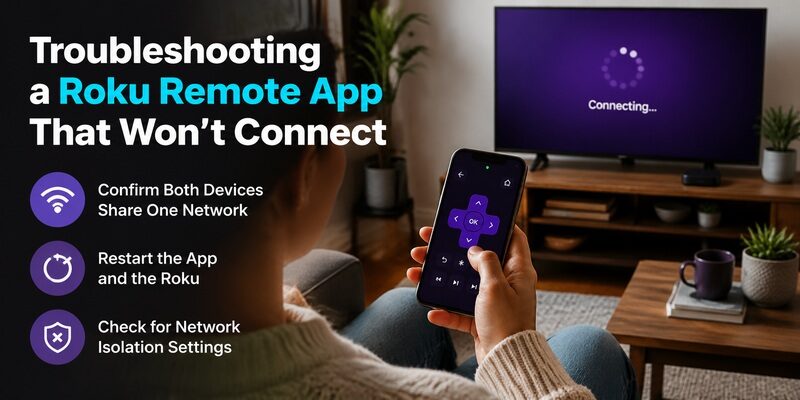
If your app can’t reach the TV, the fix is almost always network-related. Work through these in order before assuming the app is broken.
Confirm Both Devices Share One Network
This is the number-one cause of connection failure. Your phone and the Roku must be on the exact same Wi-Fi network. Guest networks, extenders that create a separate network name, and split frequency bands all break the connection even though everything looks connected.
Restart the App and the Roku
Close the app fully and reopen it, then restart the Roku by unplugging it for 10 seconds. A stale connection on either side is cleared by a fresh start, and this resolves a large share of sudden connection drops.
Check for Network Isolation Settings
Some routers have a client isolation or AP isolation feature that blocks devices on the network from talking to each other. If your app still can’t find the Roku after everything else, this router setting is a likely culprit and needs to be disabled. A related fix guide is .
📖 Read More Guides: How to Turn On Roku TV Without Remote: Complete Guide
Why an App Is Worth Keeping Even If Your Remote Works
Even people with a perfectly functional physical remote benefit from installing a remote app. It’s not just a backup for emergencies — it adds capabilities the hardware remote doesn’t have.
The keyboard, private listening, and content search features genuinely improve daily use, and having the app already set up means that the day your physical remote’s batteries die or it goes missing under the couch, you lose nothing. It’s a small, free bit of insurance that also happens to be useful every day.
That’s the real case for a Roku remote control online: it costs nothing, works everywhere on your network, and quietly makes the TV easier to use whether or not the physical remote is around.
Get a Free Roku Remote Control Online With the Remote TV App
If you want a single, free, well-designed app to use as your Roku remote control online, the Remote TV App is a strong pick. It connects over Wi-Fi, covers every daily control, and works across Roku TVs from any brand.
It’s especially handy as a permanent backup: install it once, and a lost or dead physical remote never leaves you stuck. to turn your phone into a full Roku remote at no cost.
FAQs About Roku Remote Control Online
Is there a free Roku remote app?
Yes. The official Roku app is free, and reputable third-party apps like the Remote TV App are free too. All connect to your Roku over your home Wi-Fi network at no cost.
Can I control my Roku from a website?
No. There’s no official browser-based remote that works over the open internet. A Roku remote control online means a phone or tablet app connected over your local Wi-Fi, not a website you log into remotely.
Does the app work for TCL, Hisense, Onn, and other Roku TVs?
Yes. Any Roku remote app works with any Roku TV regardless of brand, because they all run the Roku platform. There’s no need for a brand-specific download.
Can a Roku remote app turn on my TV?
Usually only if the TV supports network wake and has been configured for it. For a fully-off TV that isn’t listening on the network, you’ll need the physical power button for the first power-on.
Do I need to pay for a Roku remote control online?
No. The core remote features are free in the reputable apps. Some apps offer optional paid extras, but changing channels, adjusting volume, and navigating menus don’t cost anything.
🛠️ Learn with Step-by-Step Guides: How to Connect Roku Remote to TV: Full Pairing Guide
Final Thoughts
A Roku remote control online is simply a free phone app connected to your Roku over Wi-Fi — not a website, but just as convenient once you understand the distinction. The official app and trusted free options like the Remote TV App both cover everyday control fully.
Brand-specific searches for TCL, Hisense, Onn, Philips, and Element all point to the same answer, since any Roku app works on any Roku TV. Keep one installed as a backup, and a missing physical remote stops being a problem for good.
Download TV Remote App