
Sony TV Factory Reset Without Remote: Step-by-Step
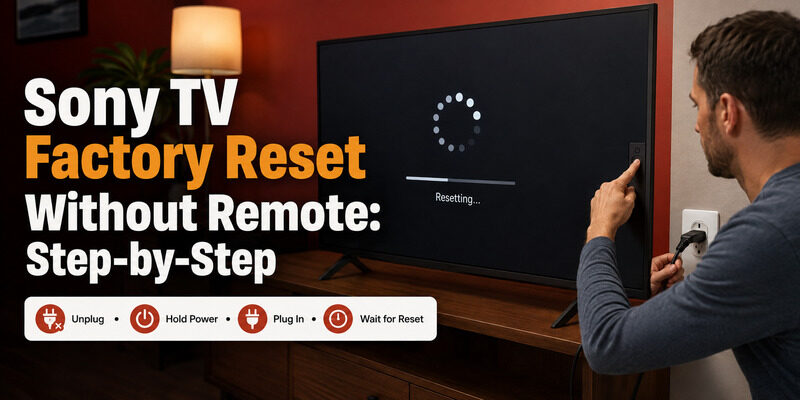
To do a Sony TV factory reset without remote, use the physical power button reset method: unplug the TV, then hold the power button while plugging it back in until the reset screen appears, or use the button menu to reach the reset option.
A factory reset wipes the TV back to out-of-box condition, so it’s a last resort for persistent problems — but it’s fully possible without a remote using the TV’s physical controls or a phone app once the TV is networked.
This guide covers how to do a Sony TV factory reset without remote step by step, the difference between a reset and a restart, how to turn off demo mode without a remote, and how the process differs when you do have a remote.
Only reset when smaller fixes have failed, since it erases all your accounts and settings.
Before You Reset: Is a Factory Reset Really Needed?
A full factory reset should be a last resort, because it erases every account, app, and setting on the TV. Before attempting a Sony TV factory reset without remote, it’s worth confirming a reset is actually what you need.
Many problems that seem to require a reset are fixed by a simple restart instead. If your TV is frozen or sluggish rather than deeply broken, try the restart method further below first — it’s far less disruptive than a full reset and often solves the same issues.
Download TV Remote AppHow to Factory Reset a Sony TV Without a Remote
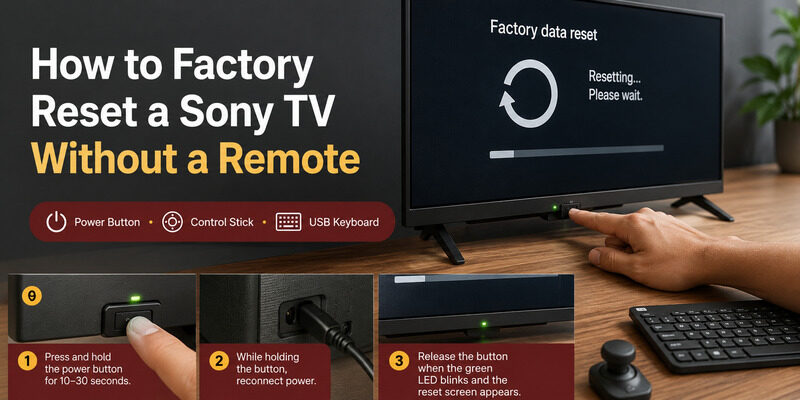
When a reset is genuinely needed and you have no remote, the physical power button is the route. The exact steps vary slightly by model, but the button method is the core approach.
The Power Button Reset Method
Unplug the Sony TV from power. Then press and hold the physical power button while plugging the TV back in, keeping it held for around 10 to 30 seconds until the green LED blinks or a reset screen appears. This triggers the recovery or reset process on many Sony models, making a Sony TV factory reset without remote possible with nothing but the button.
The hold time varies by model, so if nothing happens at 10 seconds, keep holding toward 30 before letting go. Watch the LED closely, since a change in its blinking pattern is your signal the process has started.
Using the Control Stick Menu
If your Sony TV has a control stick rather than a plain button, push it to open a menu and navigate to Settings, then to the reset option. This is the more guided way to do a Sony TV factory reset without remote on models that support stick navigation.
The stick doubles as a directional control once a menu is open, so you can move through the settings just as you would with a remote’s arrow keys, only more slowly.
Using a USB Keyboard
Many Sony Android TVs accept a USB or Bluetooth keyboard. Plugging one in lets you navigate the menus to the factory reset option directly, which is a reliable way to reach a Sony TV factory reset without remote on button-only models.
Arrow keys, Enter, and Escape on the keyboard map to the remote’s navigation, back, and select functions, which makes menu work surprisingly comfortable.
If the Reset Screen Doesn’t Appear
If the power-button method doesn’t produce a reset screen, the timing or hold duration is usually the issue. Fully unplug the TV, wait a moment, and try again while holding the button a little longer. On models where the button only powers the TV, switch to the control-stick or USB-keyboard route instead, since not every Sony model supports a button-triggered reset.
How to Reset a Sony Bravia TV Without a Remote
The Bravia line follows the same principles. How to reset Sony Bravia TV without remote uses the identical button or control-stick methods, since Bravia TVs share the physical reset approach with other Sony models.
On a Bravia with a control stick, navigate to Settings and the reset option; on a button-only Bravia, use the power-button reset method or a plugged-in USB keyboard. The process for a Sony TV factory reset without remote is consistent across the Bravia range.
Bravia With a Control Stick
On a Bravia with a control stick, push it to open a menu and navigate to Settings, then the reset option. This mirrors the process on any Sony control-stick model and is the cleanest route where the stick exists.
If you’re unsure whether your Bravia has a stick, feel along the lower edge and back panel — it’s usually a small nub distinct from a plain button.
Button-Only Bravia Models
On a button-only Bravia, use the power-button reset method or plug in a USB keyboard to reach the reset option. Either way, a Sony TV factory reset without remote works the same on Bravia as on other Sony sets.
For these models, a USB keyboard is often the least fiddly route, since it turns slow button navigation into ordinary menu control.
Factory Reset With the Remote (For Comparison)
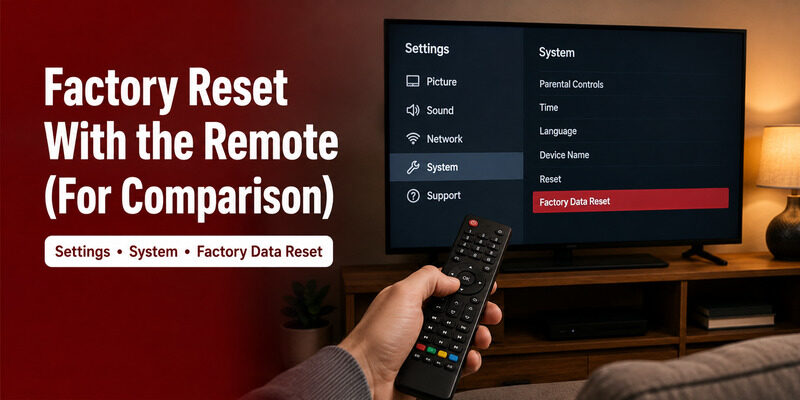
If you do have a remote, the process is simpler, and it’s worth knowing for comparison. How to factory reset Sony TV with remote runs through the menu: go to Settings, then System, then a reset or Storage & reset option, then Factory data reset.
The remote method is the same reset, just reached through on-screen menus rather than the physical button. Whether you use a remote or do a Sony TV factory reset without remote, the end result — a TV wiped to factory condition — is identical.
Restart vs. Factory Reset: Know the Difference
These two are often confused, but they’re very different in impact. Choosing the right one saves you from erasing everything unnecessarily.
What a Restart Does
A restart simply reboots the TV’s software without erasing anything. How to restart Sony TV with remote is done via Settings, or without a remote by unplugging the TV for 30 seconds. It clears temporary glitches and freezes, and it’s the first thing to try before any reset.
Because it changes nothing permanent, a restart is completely safe to try as often as you like, and it’s the fix for the majority of everyday freezes and slowdowns.
What a Factory Reset Does
A factory reset erases all accounts, apps, and settings, returning the TV to out-of-box condition. A Sony TV factory reset without remote should only be used when a restart and smaller fixes haven’t solved a persistent problem, since you’ll have to set everything up again afterward.
Plan for a fresh setup afterward: reconnecting Wi-Fi, signing into streaming apps, and adjusting picture settings all have to be redone from scratch.
How to Turn Off Demo Mode on a Sony TV Without a Remote
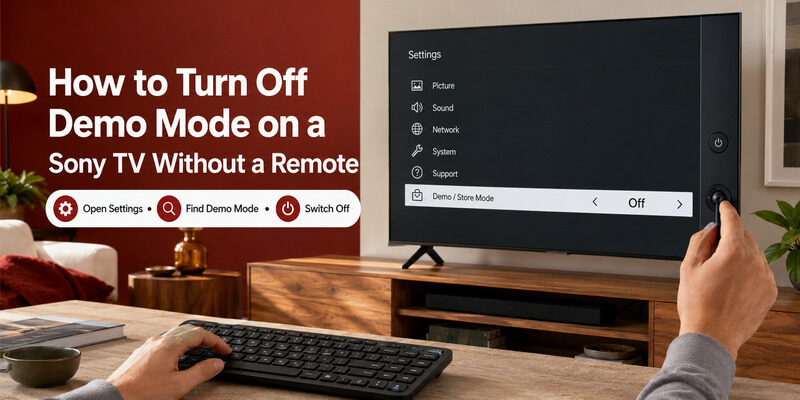
Demo or store mode, which shows looping promotional content, sometimes turns on by accident. Turning off demo mode without a remote is a common companion task to a reset, and it doesn’t always require a full reset.
Toggling Demo Mode Off
On a control-stick or USB-keyboard-equipped Sony TV, navigate to Settings and look for a retail, demo, or store mode toggle to switch off. This is the targeted fix that avoids a full wipe.
When a Reset Clears It Instead
If you can’t reach the toggle, a Sony TV factory reset without remote clears demo mode too, since it wipes all settings — though that’s a heavier solution for a simple mode change.
After the Reset: Setting Up Again
Once a Sony TV factory reset without remote completes, the TV restarts into the initial setup screens as if brand new. You’ll need to reconnect to Wi-Fi and sign back into your streaming accounts.
This is where a phone app helps enormously: with no remote, you can use a phone app to navigate the setup screens and enter details, provided the TV can get onto the network. Having your Wi-Fi password and account logins ready before you start makes the post-reset setup much smoother.
After Resetting: Avoiding a Repeat
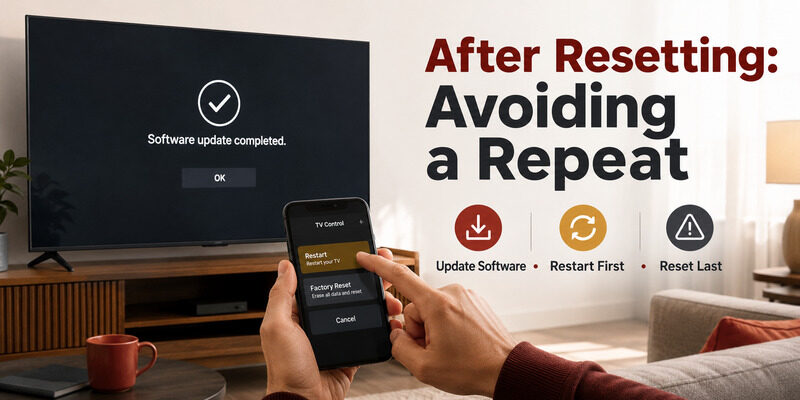
Once your TV is reset and set back up, a little care reduces the odds of needing another reset. Most issues that push people toward a reset are actually software glitches a restart would have cleared.
Keep the TV’s software current, since outdated firmware causes many of the freezes people mistake for reset-worthy faults. And try a restart first whenever the TV misbehaves, saving a full wipe for genuinely persistent problems.
Control Your Sony TV Without a Remote Using an App
Whether you’re doing a reset or setting the TV back up afterward, the Remote TV App keeps the TV controllable without a physical remote. It connects over Wi-Fi and handles navigation, settings, volume, and app launching.
It’s especially useful after a Sony TV factory reset without remote, when you need to navigate setup screens with no remote in hand. to control your Sony TV from your phone.
FAQs About Sony TV Factory Reset Without Remote
How do I factory reset a Sony TV without a remote?
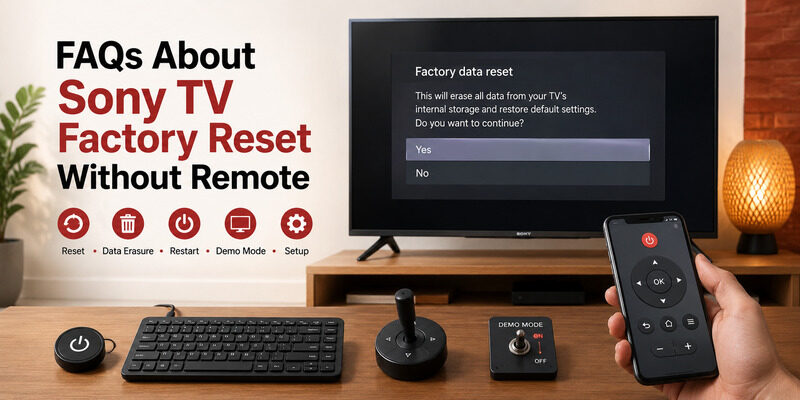
Unplug the TV, then hold the power button while plugging it back in until a reset screen appears. Or use a control stick or plugged-in USB keyboard to navigate to the reset option in Settings.
Will a factory reset without a remote erase everything?
Yes. A factory reset wipes all accounts, apps, and settings back to out-of-box condition, whether done with or without a remote. Use it only as a last resort after a restart hasn’t helped.
How is a restart different from a factory reset?
A restart reboots the software without erasing anything and fixes most glitches. A factory reset erases everything. Always try a restart first, since it’s far less disruptive.
How do I turn off demo mode without a remote?
Navigate to Settings via a control stick or USB keyboard and switch off retail, demo, or store mode. A factory reset also clears demo mode, but that’s a heavier fix for a simple toggle.
How do I set up the TV after a reset with no remote?
Use a phone app to navigate the setup screens once the TV can reach your network. Have your Wi-Fi password and streaming logins ready before starting to make it smoother.
Final Thoughts
A Sony TV factory reset without remote is fully possible using the power-button reset method, a control stick, or a plugged-in USB keyboard — the same reset you’d do with a remote, just reached differently. Bravia models follow the same approach.
Try a restart first, since it solves most problems without erasing anything, and keep the Remote TV App installed to navigate setup afterward. With these methods, a missing remote never blocks you from resetting or reconfiguring your Sony TV.
Download TV Remote App