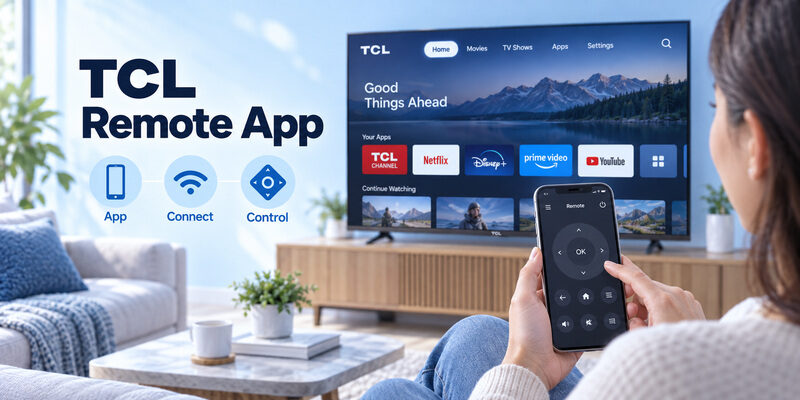
TCL Remote Control App: Choose, Pair and Fix Your Setup
By the Remote TV App Team
Short answer: Choose Google TV, Roku, or Fire TV according to the operating system built into your TCL television.
A TCL remote control app works through a supported connection to the television, so the brand name alone is not enough to select one. A Google TV set and a Roku TV can carry the same TCL logo while requiring different phone software. The television also needs to be reachable during setup.
This guide helps you identify that platform, establish a working phone connection, and decide which controls an alternative app must provide. Start with an official platform option, test your usual viewing routine, and keep a physical controller available for network recovery or initial setup.
Choose a TCL Remote Control App by TV Platform
Identify the system already on the screen
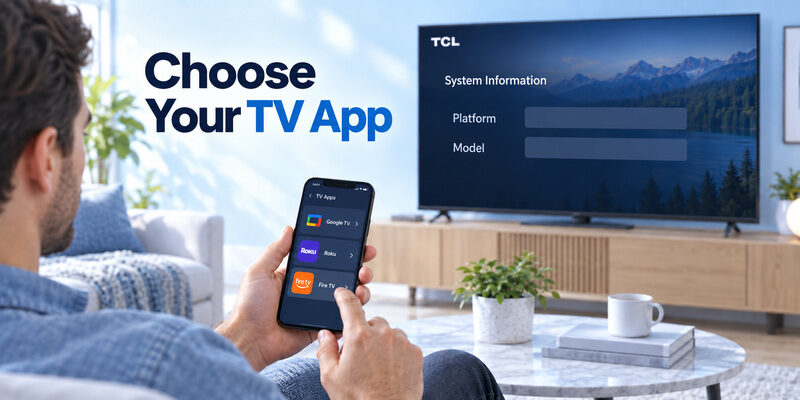
Open the television’s system information or consult its exact model documentation. Look for Google TV, Android TV, Roku TV, or Fire TV. A connected streaming stick can display its own home screen, so distinguish the device on HDMI from the operating system inside the television.
For a TCL remote control app, that distinction determines which device appears in the app’s selector. Controlling an attached player does not automatically give you the television’s settings, input menu, or sound controls. Write down the TV model before installing anything.
Start with the appropriate official controller
Google’s Android TV help directs Android users to the Google TV app. Roku supplies its own mobile app, while TCL’s Fire TV support points to Amazon’s Fire TV app. Follow the current instructions for your phone and selected platform rather than an old tutorial with a similar app name.
Platform compatibility comes before interface preference. A TCL remote control app with attractive buttons is useful only if those buttons communicate with your actual television. After the official route works, you have a baseline for evaluating a different layout or additional supported function.
Download TV Remote AppCompare Official and Alternative Control Options
Compare the connection rather than the name
These are starting points, not a promise that every app reproduces every button on the supplied handset. Confirm the television model, phone requirements, and current app listing before relying on a particular feature.
| TV platform | First app to investigate | Main check |
|---|---|---|
| Google TV or supported Android TV | Google TV | Device discovery and television pairing code |
| Roku TV | Roku mobile app | Correct Roku device on the required network |
| Fire TV | Amazon Fire TV | Device selection and on-screen approval |
| Other or older TCL platform | Model-specific TCL guidance | Whether phone control is supported at all |
| Supported model with another app | Publisher’s compatibility list | Actual navigation and required functions |
Evaluate alternatives against a working baseline
A third-party TCL remote control app may suit someone who prefers larger controls or manages several supported televisions. Test the specific benefit rather than assuming a longer feature list means a better connection. Free installation, an unpaid remote, and a temporary trial are different offers.
Compare the same viewing tasks in each app. Open your usual service, return Home, select an item, and adjust sound. If both products do that equally well, presentation and purchase terms become the useful comparison rather than an unsupported claim of broader compatibility.
Prepare the Television and Phone for Discovery
Put both devices on the required network
The official phone routes normally depend on local network access. Confirm the actual Wi-Fi name on both devices; a phone using mobile data may browse the internet while remaining unable to discover the television. A guest network can also separate devices from one another.
Before blaming a TCL remote control app, check whether the TV is awake and already configured. An app cannot reliably find a television that has lost the network needed for their communication. Preserve a working physical controller until phone setup has passed a real test.
Allow the access needed for this function
Where the phone requests local-network access, relate that permission to discovering the TV. Microphone access is a separate matter for supported voice input; it should not be confused with basic directional navigation. Read the publisher’s explanation if a request seems unrelated to the function you selected.
Device discovery and account sign-in are separate stages. A TCL remote control app may open successfully without having found your set. Keep the television screen visible so that you can read a pairing code or approval request when the correct device appears.
Pair Google TV on a Supported TCL Television
Follow the phone’s current device selector
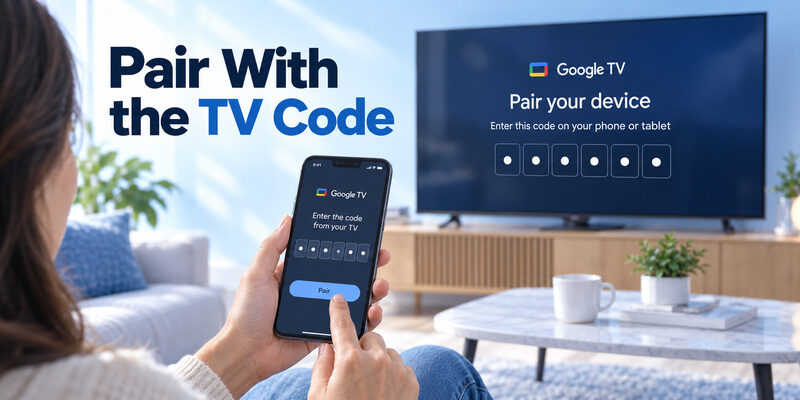
Google’s official Android instructions use this short sequence. Labels can differ on another phone platform or app release, so use the matching help page when your interface does not show the same control.
- Open Google TV: Use the official app on the Android phone.
- Select Connect TV: Choose the television you intend to control.
- Read the television code: Enter the code currently displayed by that TV.
- Confirm Pair: Wait for the remote controls to become available.
The code belongs to this connection attempt. It is not a universal handset programming code, a Wi-Fi password, or an account password. Selecting a nearby television by mistake can make an otherwise valid code appear to fail.
Verify a simple command immediately
Use Home or a direction control and watch the intended screen respond. Then select one familiar item. A TCL remote control app has completed a useful first connection only when commands affect the correct television, not merely when the phone shows a remote-shaped interface.
Keep the TV code visible until pairing finishes. If the attempt fails, confirm the selected device and current code before changing unrelated television settings. The same physical handset can remain available while you establish this separate phone connection.
Connect to Roku TV or Fire TV Instead
Use the Roku route for a Roku television
Open the Roku mobile app and choose the correct device before entering its remote screen. Roku’s official guidance distinguishes a connected Roku TV from a streaming player. If several devices appear, use their names and the visible screen response to confirm the intended target.
A TCL remote control app chosen for Google TV should not be expected to operate Roku just because the television is made by TCL. Save the working device with a recognizable name where supported, especially when several rooms contain similar sets.
Follow Fire TV approval on the television
TCL’s official mobile-control instructions for Fire TV specify the same Wi-Fi network, selecting an available device, and following the on-screen prompt. Complete that approval before testing navigation or keyboard input. If no device appears, return to network and power checks first.
Use one platform procedure from start to finish. Mixing a Google TV code screen with a Fire TV tutorial introduces unnecessary confusion. Once your chosen TCL remote control app works, record which platform and app produced the successful connection for future reference.
Test Keyboard Sound and Daily Navigation
Try a genuine text field
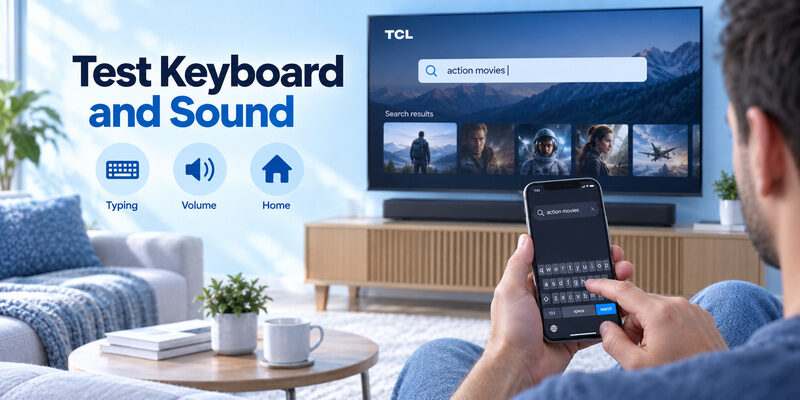
A TCL TV keyboard remote search usually reflects frustration with entering long titles one character at a time. Open a supported search field and try a short phrase. Text input can depend on the receiving TV app, so success in one field does not establish universal keyboard support.
Treat TCL TV remote keyboard functionality as a task to verify. If navigation works but typing does not, try another supported text field before concluding that the entire TCL remote control app connection is broken. Preserve the working controls while narrowing the limitation.
Listen to the actual speaker output
TCL TV remote volume control may affect the television, a soundbar, or another configured audio path. A moving volume indicator does not necessarily mean the speaker you hear has changed. Identify the output and compare the phone with the original handset under the same conditions.
For TCL TV remote control sound bar questions, determine whether the soundbar uses its own controller or supported television integration. Volume, navigation, and text entry need separate tests. A TCL remote control app can support one function while another depends on the TV’s audio configuration.
Understand Voice and Physical Remote Differences
A TCL remote control with voice can use a microphone in the physical handset and a supported wireless connection to the television. A phone feature uses the phone’s own input path and app implementation. One working route does not prove that the other microphone or pairing is healthy.
If your TCL smart TV remote with voice control handles Power but not speech, consult the handset’s model-specific pairing instructions. Installing a TCL remote control app does not program that physical controller. It may provide temporary navigation while you investigate the failed voice function.
An old TCL TV remote may rely on infrared, whereas ordinary phone apps communicate over a network. A smartphone without compatible infrared hardware does not acquire a transmitter by displaying a remote keypad. Likewise, an app’s microphone icon does not establish support for every television assistant feature.
A phone controller is an additional control path. Keep the original handset for tasks the phone cannot perform in the current state, including initial setup on some models. Treat an app as a tested convenience rather than a guarantee of complete hardware replacement.
Diagnose a Missing Device or Partial Response
Identify the stage that actually failed
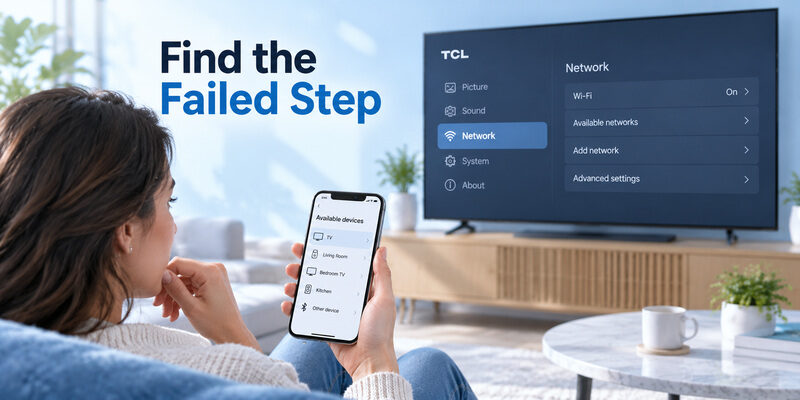
Separate downloading, discovering, approving, and sending commands. Repeating installation will not solve a television that is disconnected from the required network. Conversely, a TV that appears but rejects approval needs a different check from one absent from the device list.
| Observed result | Focused next check | Evidence to retain |
|---|---|---|
| No television appears | Platform, power, network, permission | TV network name and app publisher |
| Device appears but pairing fails | Correct television and current approval | Exact screen or error message |
| Home works but typing fails | Supported receiving text field | Which TV app accepts text |
| Volume changes visually only | Speaker output and audio setup | Which speaker actually plays |
| Connection fails after standby | Supported wake behavior | Whether manual power restores access |
Change one condition and repeat one command
For TCL remote control not working searches, first decide whether the symptom concerns the phone or the physical handset. Replace or charge a handset’s batteries only when investigating that device. Check app permissions or network access when investigating phone discovery.
A working function is useful evidence. If the TCL remote control app still navigates, avoid erasing the television just because sound behaves differently. Repeat the failed task after one relevant adjustment, and keep a note of the result if support becomes necessary.
Check Offline Limits Before Depending on the App
A website described as TCL remote control online is not automatically a controller for a television on your home network. The service must provide a documented, supported control route. A web page with button graphics alone tells you nothing about whether commands can reach your TV.
A TCL remote control app cannot dependably restore a network connection that the television no longer has. If the router changes, first recover access to the TV’s network settings using a supported physical method. Reinstalling several phone apps does not bypass that missing prerequisite.
Once phone control works, let the television enter normal standby and attempt the supported wake action. If manual power restores discovery, investigate model-specific standby networking instead of immediately assuming the app subscription expired or the TV needs resetting.
Test the state you will actually use tomorrow. A TCL remote control app that works while the screen is awake may not wake every television. Keep the physical power-button location and a compatible handset available for that predictable difference.
Decide When to Keep an App or Buy a Replacement
Choose based on the interrupted task
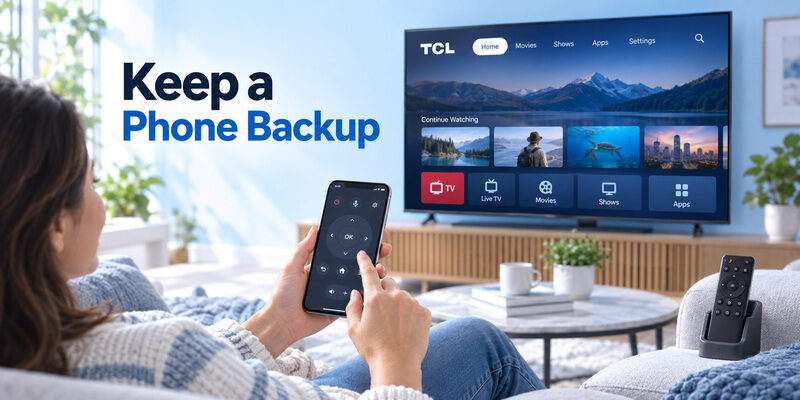
If only the physical controller is missing, an already tested app may restore viewing immediately. If the TV is offline or awaiting initial setup, a correctly matched TCL remote control replacement can be more useful than another download. Identify what must work before spending money.
The guide explains model matching. Check the TCL remote control manual for the supplied handset rather than buying by shell shape, dimensions, or a familiar microphone symbol alone.
Evaluate a supported alternative during normal use
For supported models, offers another phone-control option when the physical handset is unavailable. Check compatibility and current terms, then test your required navigation and sound controls before making it your daily fallback.
Keep the option that completes your viewing routine. A TCL remote control app should help you open content and recover from an incorrect selection without repeated setup. Save the app publisher and successful connection method alongside the television model so another viewer can repeat it.
Handle an unfamiliar replacement model without guessing
A listing that names TCL TV remote RC813 or another accessory identifier is a lead for physical hardware, not an app compatibility guarantee. Match the television and supplied controller through the relevant documentation. A phone app does not need to resemble that handset’s dimensions to provide a supported control route.
If you are comparing a TCL remote control app with a replacement purchase, photograph or record the old controller’s label before discarding it. Keep the successful phone setup separate from that hardware record. This avoids ordering an unrelated remote simply because its picture matches an app’s virtual keypad.
Compare interruption and recovery during normal use
Try leaving the app briefly to read a message, then return and send one ordinary command. Observe whether the app reconnects automatically, asks you to select the TV again, or requires a fresh approval. This practical interruption test reflects how a TCL remote control app will be used on a phone that also handles everyday tasks.
Do the same after another household member uses the physical handset. The useful result is that both control routes remain understandable, without accidental selection of another television. Save a short note if the app uses a device name that differs from the label shown in the TV’s settings.
A TCL remote control app should earn its place through these normal interruptions as well as its first successful pairing. Keep the physical remote within reach until the phone has resumed reliably after reopening, ordinary viewing, and the standby state you plan to use.
Questions About Choosing a TCL Phone Controller
Can one phone app control every TCL television?
No. TCL televisions use different platforms, and older models may have different capabilities. Select software according to the actual television system and verify its supported functions. The TCL logo or an app title alone does not prove a compatible connection.
Will phone control fix my physical remote?
No. It can provide a separate control route while you investigate the handset. Battery condition, infrared operation, wireless pairing, and microphone faults remain hardware-specific questions. Keep successful phone navigation as evidence that the television itself still accepts some commands.
Is a free download enough to guarantee free controls?
No. Installation cost and access to functions can differ. Read the current listing and any in-app offer. Test the unpaid controls you need before accepting a trial or subscription, and distinguish entertainment purchases from the app’s remote-control features.
Should I remove the original remote after setup?
No. Retain it if available. A network change, initial setup screen, unsupported button, or standby limitation can require physical control. A reliable phone backup is most useful alongside a recovery method that does not depend on that phone connection.
Final Thoughts
Choose a TCL remote control app by the television’s platform, connect it through the appropriate official procedure, and verify the commands used in ordinary viewing. Navigation, keyboard entry, sound, and wake behavior should each earn your confidence through an actual response.
Keep compatibility and recovery in the decision. An app is a practical alternative when it reaches the TV and provides your required controls; a matched physical handset remains valuable when those prerequisites are missing. Preserve both working routes whenever that makes daily use simpler.