
App Remote TV Sony: Control Your Sony TV From Your Phone
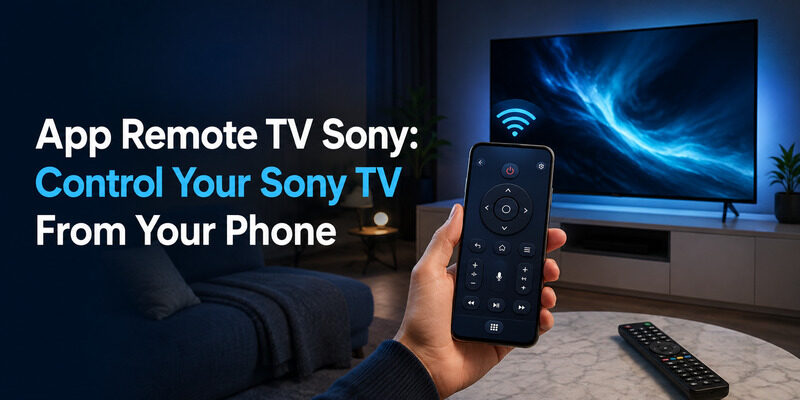
To use an app remote TV Sony setup, install a Sony TV remote app on your phone, connect it to the same Wi-Fi network as your Sony TV, and control the TV from your screen.
Sony smart TVs, including the Bravia line, support control from a phone over Wi-Fi, and there are both official and free third-party apps that do the job. It’s the easiest fix when your Sony remote is lost, broken, or just out of reach.
This guide covers the best app remote TV Sony options, how to set one up, which apps work with Bravia and Android-based Sony TVs, and what to do when the app can’t connect.
Whether you want the official app or a free alternative, controlling a Sony TV from your phone takes only a minute to set up.
App Remote TV Sony Options Compared
Several apps can control a Sony TV. This table compares the main routes so you can choose before reading the detail below.
| App | Cost | Best For |
| Official Sony app | Free | Deep Bravia integration |
| Remote TV App | Free | Clean interface, multi-brand support |
| Android TV remote features | Free | Built-in control on Android-based Sony TVs |
| Physical remote | Comes with TV | No network needed |
Can You Use an App as a Sony TV Remote?
Yes. An app remote TV Sony setup works because modern Sony smart TVs connect to your home network, letting a phone app send commands over Wi-Fi. This covers power, volume, navigation, and app launching.
Sony’s smart TVs, especially the Bravia range running Android TV or Google TV, are designed to work with a sony tv remote control app. So whether you want the official option or a free third-party sony remote tv app, controlling the TV from your phone is fully supported.
The Official Sony TV Remote App
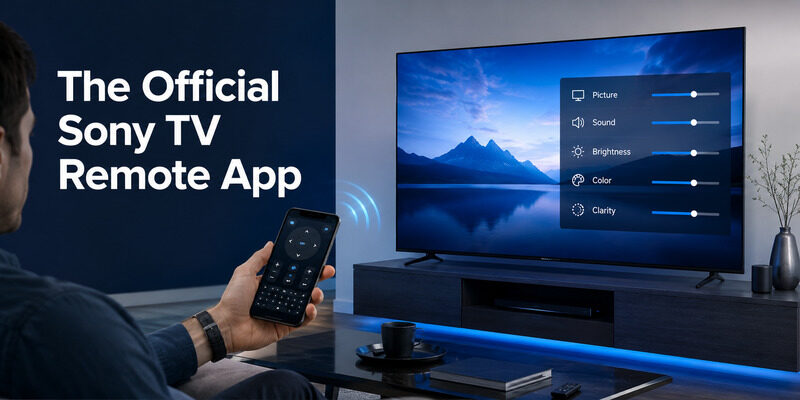
Sony offers its own app for controlling compatible TVs, and it’s a natural starting point for an app remote TV Sony setup.
What the Official App Offers
The official sony tv remote original app provides a full on-screen remote with directional pad, playback, volume, and often a keyboard for text entry. On Bravia models it integrates closely with the TV’s features, making it a capable option.
Because it’s made by Sony, it tends to expose TV-specific features and stay compatible with new Bravia capabilities faster than generic alternatives.
Android TV Built-In Control
Many Sony TVs run Android TV or Google TV, which support the Google-provided remote features built into Android phones and the Google TV app. This gives phone control without a separate download on some devices.
For anyone with a recent Sony TV, this built-in route is often the quickest to try, since much of the setup is already handled by the phone’s operating system.
Free Third-Party Sony TV Remote Apps
Beyond the official option, free third-party apps offer an app remote TV Sony experience, sometimes with a cleaner interface or cross-brand support.
What to Look For
Choose a sony tv remote app free option with strong reviews, a clear privacy policy, and active updates. A good third-party app should connect over your local network without demanding unnecessary permissions or sign-ups.
Reading the recent reviews is the fastest way to gauge reliability, since connection issues and hidden paywalls both tend to show up there quickly.
The Remote TV App
The Remote TV App works as a free app remote TV Sony, connecting over Wi-Fi to control power, volume, navigation, and app launching. It also works across other TV brands, so one app can control your whole household. to control your Sony TV from your phone.
For a home with a Sony TV plus other brands, consolidating everything into one app is a real day-to-day convenience.
How to Set Up an App Remote for Your Sony TV
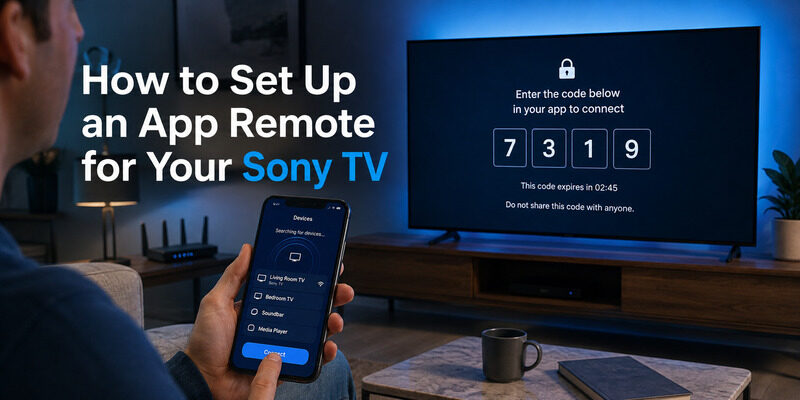
Setting up an app remote TV Sony takes about a minute. The main requirement is that your phone and Sony TV share the same Wi-Fi network.
Step 1: Install the App
Download a sony tv remote mobile app from your phone’s official app store — the official Sony app, the Google TV app for Android-based models, or a free alternative like the Remote TV App. Avoid unofficial download sites.
The install itself is the same as any app — search, tap install, and open — and no account is usually required just to use the basic remote.
Step 2: Join the Same Network
Connect your phone to the same Wi-Fi network as the Sony TV. This is the most important step, since a network mismatch is the top reason the app can’t find the TV.
If your router splits its 2.4GHz and 5GHz bands into separate names, keep both the phone and the TV on the same one to avoid a silent mismatch.
Step 3: Select Your Sony TV
Open the app, let it scan for devices, and select your Sony TV. You may need to confirm a code shown on the TV screen the first time. Once linked, the app is ready to use.
This one-time code confirmation is a security measure, ensuring only devices you approve can control the TV.
App Remote for Sony Bravia TVs
The Bravia line is Sony’s flagship smart TV range, and a sony bravia tv remote app is one of the most searched app remote TV Sony topics.
Bravia TVs running Android TV or Google TV work seamlessly with phone control. The official app, the Google TV app, or a free third-party sony smart tv remote app all connect over Wi-Fi and cover full control. Because Bravia is so widely supported, phone control on these models is especially smooth.
Bravia With Google TV
Newer Bravia models run Google TV, which pairs naturally with the Google TV app and Android’s built-in remote. This makes phone control setup nearly automatic on these TVs.
The tight integration means features like voice search and app shortcuts often carry over to the phone, not just basic navigation.
Older Bravia Models
Older Bravia TVs on earlier Android TV versions still support app control. A sony tv remote app for android connects to them over Wi-Fi the same way, so even older Bravia sets remain phone-controllable.
So even a Bravia that’s several years old doesn’t get left behind — phone control keeps it fully usable if its remote is lost.
Using the App Day to Day
Once set up, an app remote TV Sony is intuitive, and a few features make it more useful than the physical remote.
Navigation and Volume
The on-screen directional pad, back, home, and volume controls mirror the physical remote. Everything you’d normally press is present in the app’s interface, usually with swipe support for faster scrolling.
After a short adjustment from physical buttons to a touchscreen, most people navigate just as quickly as they did with the remote.
Fast Text Entry
The biggest advantage is typing. Searching for shows or entering passwords on your phone keyboard is far faster than a directional pad, which is a standout benefit of the app over the physical remote.
This is especially welcome when signing into streaming services, where long passwords are painful to enter with a directional pad.
Troubleshooting an App Remote That Won’t Connect
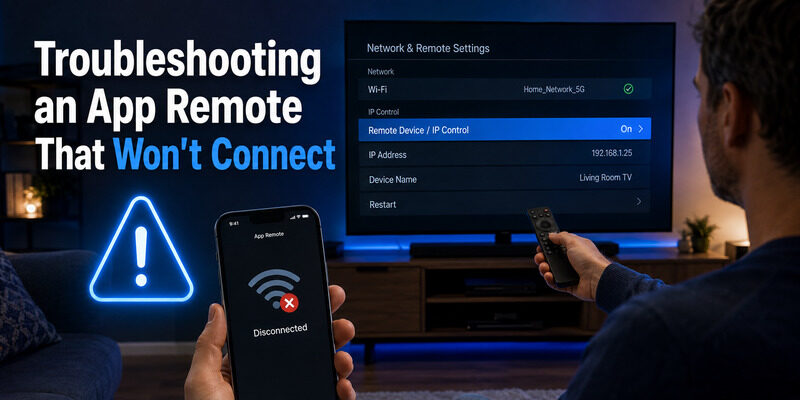
If the app can’t find the TV, the cause is almost always the network. Work through these in order.
Check the Wi-Fi Network
Confirm your phone and Sony TV are on the exact same network. Guest networks and separate frequency bands are the most common reasons the app fails to connect.
It’s the single most productive thing to verify first, since it resolves the large majority of connection failures on its own.
Enable Remote Control in TV Settings
Some Sony TVs require enabling a ‘remote device’ or ‘IP control’ setting before an app can connect. Check the TV’s network or remote settings if the app can’t link on the right network.
Restart the App and TV
Close and reopen the app, then restart the TV. A fresh start clears a stale connection, which restores the link in most stubborn cases.
App vs. Physical Sony Remote
An app remote TV Sony and the physical remote each have strengths. The app wins for text entry, being a free instant replacement when the remote is lost, and always being on the phone in your pocket.
The physical remote wins when your network is down, since it doesn’t need Wi-Fi, and for the very first power-on of a fully-off TV. Most people use the app as their primary controller and keep the physical remote as a backup for those cases.
Why Keep an App Remote Installed?
Even with a working physical remote, keeping an app remote TV Sony installed is worth it. It’s free insurance plus daily convenience.
The day your Sony remote’s batteries die or it slips behind the couch, a pre-installed app remote TV Sony means you lose nothing — you just open your phone and keep watching. Add the faster keyboard typing and the fact that your phone is always nearby, and an app remote TV Sony earns its place even alongside a remote that works fine.
Get a Free App Remote for Your Sony TV
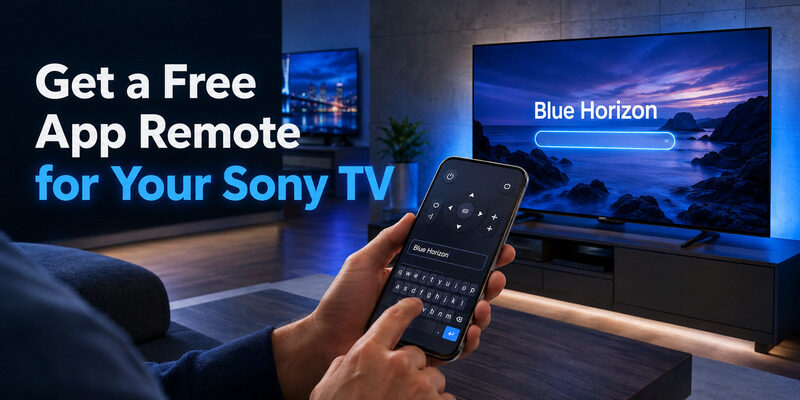
If you want a clean, free app remote TV Sony that also works with your other TVs, the Remote TV App is a strong choice. It connects over Wi-Fi, covers full control, and has a simple interface that’s easy to use right away.
It turns your phone into a complete Sony TV remote at no cost, with fast text entry and nothing to lose. to control your Sony TV from your phone.
FAQs About App Remote TV Sony
Is there a free app to control a Sony TV?
Yes. The official Sony app and reputable alternatives like the Remote TV App are free. Android-based Sony TVs also support the free Google TV app and built-in phone remote features.
How do I connect my phone to my Sony TV?
Install a Sony TV remote app, ensure your phone and TV are on the same Wi-Fi network, open the app, and select the TV. Confirm the on-screen code the first time if prompted.
Does the app work with Sony Bravia TVs?
Yes. Sony Bravia TVs running Android TV or Google TV work with the official app, the Google TV app, and free third-party apps over Wi-Fi for full control.
Why won’t the app find my Sony TV?
Usually a network mismatch or a disabled remote-control setting on the TV. Confirm both devices share a Wi-Fi network and enable IP or remote-device control in the TV’s settings.
Can I use the app instead of the physical Sony remote?
Yes, for daily use. The app covers power, volume, navigation, and app launching. You’ll only need the physical remote for a network outage or the first cold power-on.
Final Thoughts
An app remote TV Sony setup is free, quick, and works over Wi-Fi on modern Sony smart TVs, including the Bravia line. The official app, the Google TV app on Android-based models, and free alternatives like the Remote TV App all cover full control.
Setup takes a minute once your phone and TV share a network. Keep an app installed as both a backup and a daily upgrade over the physical remote, and a lost Sony remote stops being a problem for good.
Download TV Remote App