
Download Remote for Insignia TV: Control Your TV With a Phone
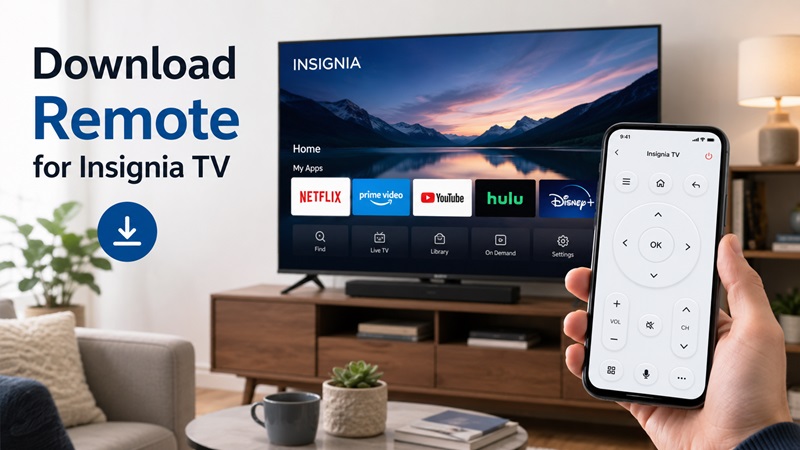
Losing an Insignia TV remote can stop you from changing inputs, opening streaming services, adjusting the volume, or navigating the settings menu. Fortunately, you can download remote for insignia tv models and use a compatible Android phone or iPhone as a temporary or everyday controller.
The correct application depends on the operating system inside the television. Many Insignia Smart TVs use Amazon Fire TV, while some older models use Roku TV. A traditional Insignia television without smart features may require an infrared remote or a physical universal remote instead of a Wi-Fi app.
The basic process is straightforward: identify your TV platform, install the matching application, connect the phone and television to the same Wi-Fi network, and select the TV inside the app. Once connected, the phone may provide navigation, keyboard input, voice search, playback control, and other useful tools.
This guide explains how to download remote for insignia tv devices, choose the right application, complete the connection, use the main features, and fix common discovery problems.
1. Is There an App for an Insignia TV Remote?
Many people ask, is there an app for insignia tv remote control when the original controller is lost or damaged. The answer is yes, but the correct app depends on the software platform running on the television.
For an Insignia Fire TV, the Amazon Fire TV mobile app is generally the first option to try. It is designed to control compatible Fire TV televisions and streaming devices over the local Wi-Fi network.
For an Insignia Roku TV, use the official Roku mobile app. The app includes a remote interface for compatible Roku players and Roku-powered televisions.
A third-party Remote TV App may also support Insignia televisions. Universal applications are useful when you own TVs from multiple brands or want one interface for several rooms. However, support can vary by model, operating system, and available features.
A non-smart Insignia TV may not accept commands over Wi-Fi. In that case, your options include:
- An Android phone with a built-in IR blaster
- A compatible infrared remote application
- A replacement Insignia remote
- A programmable universal remote
- The physical buttons on the television
Before beginning an insignia tv remote download, check the app developer, ratings, supported TV platforms, in-app purchases, and requested permissions. A free installation may still include advertising, premium features, or a subscription.
2. Identify Your Insignia TV Platform Before Downloading an App
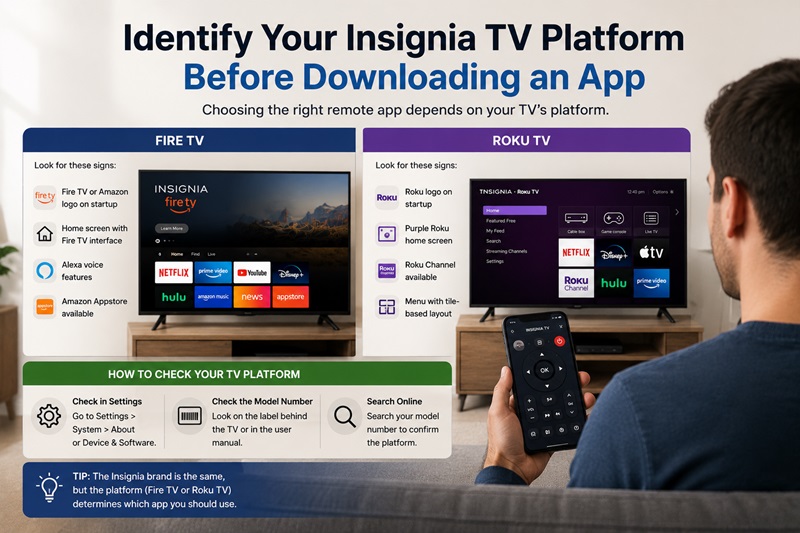
A successful download remote for insignia tv setup begins with identifying the television’s operating system. The Insignia brand name alone does not tell you which mobile app to install.
How to Identify an Insignia Fire TV
Your television probably uses Fire TV if you see:
- Fire TV or Amazon branding during startup
- An Amazon account during initial setup
- Alexa voice features
- The Amazon Appstore
- Fire TV navigation and content recommendations
- Settings labeled Device & Software or My Fire TV
Many current Insignia Smart TV models use the Fire TV platform. The Amazon Fire TV app is designed to provide phone-based navigation for compatible devices.
How to Identify an Insignia Roku TV
Your television may use Roku TV if it has:
- A Roku logo during startup
- A tile-based home screen
- Roku Channel access
- Inputs displayed as home-screen tiles
- A Roku account connected to the television
- A menu path such as Settings > System > About
In this case, the Roku mobile app is the appropriate starting point for the insignia tv remote download.
Find the Exact Model Number
You can find the model number:
- On the label behind the TV
- On the original packaging
- In the television’s About menu
- On a receipt or order history
- In the owner’s manual
Searching the model number can help confirm whether the TV uses Fire TV, Roku TV, or no smart operating system.
Do not select an application based only on screen size. Two 55-inch Insignia TVs can use completely different platforms and require different remote apps.
Important: Insignia is the TV brand, but the operating system usually determines which mobile remote app you need.
3. How to Download a Remote for Insignia TV
The safest way to download remote for insignia tv use is through Google Play or the Apple App Store. Avoid modified APK files and websites that do not clearly identify the application developer.
Download the Amazon Fire TV App on Android
For an Insignia Fire TV:
- Open the Google Play Store.
- Search for Amazon Fire TV.
- Open the official application listing.
- Verify the developer.
- Review the app permissions and compatibility.
- Tap Install.
- Open the application.
- Sign in if required.
- Allow Nearby Devices or local network access when requested.
- Connect the phone and television to the same Wi-Fi network
This is usually the best method for users searching for an insignia tv remote app for android free download when they own an Insignia Fire TV.
Download the Amazon Fire TV App on iPhone
- Open the Apple App Store.
- Search for Amazon Fire TV.
- Confirm that you selected the correct app.
- Tap Get.
- Open the application.
- Allow Local Network access.
- Make sure the iPhone uses the same Wi-Fi as the television.
- Select the Insignia Fire TV when it appears.
Download the Roku App for an Insignia Roku TV
For a Roku-powered model:
- Open Google Play or the Apple App Store.
- Search for The Roku App.
- Check that the application is published by Roku.
- Tap Install or Get
- Open the app
- Select Devices
- Choose your Insignia Roku TV
- Open the Remote tab
When you download insignia remote software, use the official application for the TV platform whenever possible. Official apps are generally more likely to support platform-specific features and receive appropriate updates.
Download a Universal Remote App
A universal application can be helpful when:
- You own several TV brands
- You want one app for several rooms
- You need a consistent remote interface
- You want keyboard or casting features
- The official platform app lacks a control you need
Before installing one, check whether it explicitly supports Insignia Fire TV, Insignia Roku TV, or infrared control.
Download Remote TV App by Begamob
If you want a more convenient alternative to a physical remote, Remote TV App by Begamob lets you use your phone as a remote for compatible smart TVs. Instead of relying on a controller that can be lost, damaged, or run out of battery, you can keep everyday TV controls on a device you already carry with you.
After installing the app, connect your phone and supported TV to the same Wi-Fi network, open Remote TV App, and select your television when it appears. Depending on the TV model and platform, you may be able to use functions such as volume control, navigation, playback, input switching, and other common remote commands.
Remote TV App can be particularly useful for households with several supported TV brands because it provides a more centralized remote-control experience instead of keeping a separate physical controller for every television. Internal Remote TV content also positions the app as a practical phone-based alternative when the original remote is unavailable.
How to Get Started
- Download Remote TV App by Begamob.
- Connect your phone and TV to the same Wi-Fi network.
- Open the app and allow the permissions required for local device discovery.
- Select your compatible TV.
- Complete pairing if prompted.
- Test the main controls before relying on the app as your primary remote.
Keep your TV remote on your phone and ready whenever you need it.
Avoid Unverified APK Files
Third-party download sites may offer an Insignia remote APK, but installing files outside Google Play can increase security and compatibility risks.
An unverified APK may be:
- Outdated
- Modified
- Incompatible with your Android version
- Missing security updates
- Designed to request unnecessary permissions
- Falsely labeled as an official Insignia app
For a reliable download remote for insignia tv experience, use a trusted app store and review the developer before installation.
4. How to Connect the Remote App to Your Insignia TV
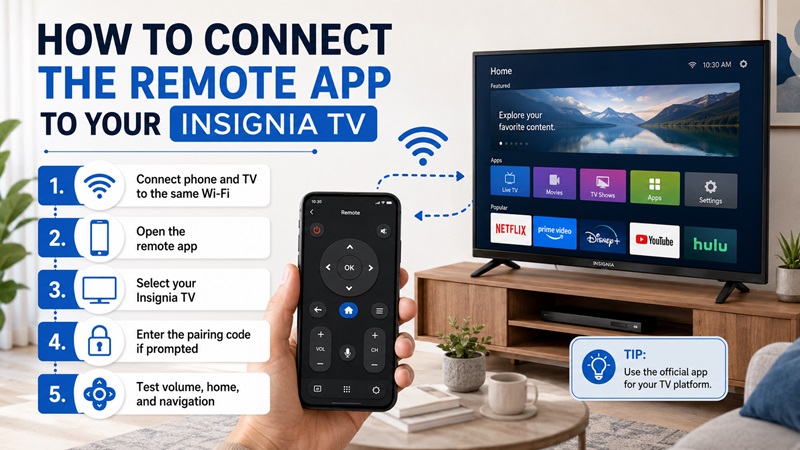
After completing the download remote for insignia tv process, the next step is to connect the phone and television.
Connect Both Devices to the Same Wi-Fi
Turn on the television and check its connected network.
On an Insignia Fire TV, open the Network section in Settings. On a Roku TV, use Settings > Network > About.
Then connect the phone to the exact same network.
Avoid:
- Guest Wi-Fi
- Public Wi-Fi
- Hotel networks
- Different routers
- Isolated smart-device networks
Guest networks commonly prevent connected devices from communicating with each other. The phone may have internet access while remaining unable to discover the TV.
Temporarily disable mobile data or a VPN if the app keeps losing the local Wi-Fi connection.
Connect an Insignia Fire TV
- Open the Amazon Fire TV app.
- Wait for nearby Fire TV devices to appear.
- Select the Insignia Fire TV.
- Watch the television for a connection code.
- Enter the code on the phone.
- Wait for the remote interface to open.
- Test Home, Back, Select, and directional controls.
If the television does not appear, restart both devices and confirm they use the same network.
Connect an Insignia Roku TV
- Open the Roku mobile app.
- Tap Devices.
- Wait for the Insignia Roku TV to appear.
- Select the television.
- Wait for the status to show that it is connected.
- Open Remote.
- Test navigation and playback.
The Roku mobile app usually discovers compatible devices automatically when the phone and television share the same local network.
Test the Main Controls
After pairing, test:
- Power, when supported
- Volume up and down
- Mute
- Home
- Back
- Directional navigation
- OK or Select
- Playback controls
- Keyboard input
- Voice search
- Input control, when available
Some apps cannot turn on a television that has completely disabled its network connection. Network standby, Quick Start, or an equivalent setting may be needed.
5. What Can an Insignia TV Remote App Do?
Once the download remote for insignia tv setup is complete, your phone can provide more than basic navigation.
Basic Navigation
Most compatible apps include:
- Directional controls
- Select or OK
- Home
- Back
- Menu
- Play and pause
- Rewind and fast-forward
These controls are useful when the physical remote is missing, broken, or out of batteries.
Phone Keyboard
Entering text with a television remote can be slow. A mobile keyboard can help you type:
- Movie titles
- Search phrases
- Email addresses
- App names
- Login information
Keyboard availability depends on the TV platform and the field displayed on the television. Some secure password screens may not accept mobile text input.
Voice Search
On supported Fire TV devices, the mobile app may offer voice features for searching content or opening applications.
Voice availability can depend on:
- TV model
- App version
- Account settings
- Language
- Region
- Supported content services
Playback and Streaming Controls
A remote app may let you:
- Pause or resume a video
- Rewind or fast-forward
- Return to the home screen
- Open installed applications
- Navigate recommendations
- Search for shows
Private Listening and Media Features
For an Insignia Roku TV, the Roku mobile app may provide private listening on supported configurations. Audio is sent to headphones connected to the phone.
Some universal apps also advertise casting for photos, videos, or music. Casting support varies and may not be available for protected streaming content.
An insignia tv remote app for android free download may include basic navigation at no cost while placing voice, casting, or premium layouts behind a purchase. Review the pricing page before starting a trial.
6. Can You Control an Insignia TV Without Wi-Fi?
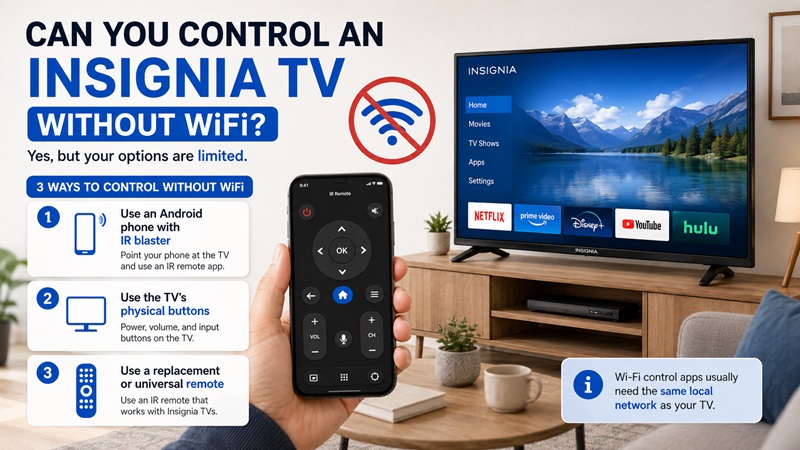
Most mobile apps used after a download remote for insignia tv require the phone and television to share a local network. However, the answer depends on what “without Wi-Fi” means.
The Router Works but the Internet Is Down
A router can still create a local network when internet service is unavailable.
In this case, the phone may continue to control the television because both devices can communicate through the router. Streaming services and online search may remain unavailable.
There Is No Local Wi-Fi Network
Without a shared network, the Fire TV or Roku mobile app normally has no path for sending commands to the television.
Mobile data alone does not create a local connection between the phone and TV.
A hotspot may work if:
- The television already knows the hotspot name and password
- You have another way to connect the TV to the hotspot
- You use a second phone as the remote
- The TV remains connected to the temporary network
Use an Android Phone With an IR Blaster
Some Android phones contain an infrared transmitter. With compatible hardware and an infrared remote app, the phone can send commands directly to the television without Wi-Fi.
This requires:
- A phone with a real IR blaster
- An app with compatible Insignia infrared codes
- A clear line of sight
- A TV that accepts infrared commands
Installing an infrared app does not add IR hardware to a phone that does not already have it.
Other Options
When an app cannot work, try:
- The physical buttons on the TV
- A replacement Insignia remote
- A compatible universal remote
- Ethernet, where supported
- A remote borrowed from a compatible device
Choosing to download insignia remote software is useful when the TV remains connected to a local network. A replacement controller is often the better option when the television is completely offline.
7. What to Do When the Insignia Remote App Cannot Find the TV
Discovery problems can happen even after a correct download remote for insignia tv installation. Work through the following checks before trying another application.
Confirm You Installed the Correct App
Use:
- Amazon Fire TV app for Insignia Fire TV
- Roku mobile app for Insignia Roku TV
- A compatible IR app for a non-smart TV and IR-capable phone
- A verified universal app for supported platforms
The Amazon Fire TV app cannot directly control an Insignia Roku TV, and the Roku app cannot control a Fire TV interface.
Check the Network
Compare the complete Wi-Fi name on the phone and TV.
Make sure:
- Both devices use the same router
- Neither device is on guest Wi-Fi
- The television is online
- The phone is not switching to mobile data
- A VPN is not blocking local traffic
Review Phone Permissions
On Android, review:
- Nearby Devices
- Bluetooth
- Local network permissions
- Location when required
On iPhone, enable:
- Local Network
- Bluetooth when required
If local network access is denied, the app may not detect the television.
Restart the Devices
Follow this order:
- Force-close the app.
- Restart the phone.
- Restart the television.
- Restart the router.
- Wait for the TV to reconnect.
- Connect the phone to the same Wi-Fi.
- Open the app.
- Scan again.
Update the App and Television
Install available updates for:
- Amazon Fire TV app or Roku app
- The phone operating system
- Fire TV or Roku TV software
- Router firmware, when appropriate
An outdated application can have discovery or compatibility problems.
Remove and Reconnect the TV
Delete the saved television from the app and pair it again. Watch the TV screen for a new code or connection request.
Reinstall the Application
When other solutions fail:
- Uninstall the app.
- Restart the phone.
- Repeat the insignia tv remote download from the official store.
- Allow the required permissions.
- Connect both devices to the same network.
- Pair the television again.
8. Which Remote App Should You Use for an Insignia TV?
The right application depends on the operating system, connection method, and features you need.
| Insignia TV type | Recommended starting app | Connection | Key consideration |
| Insignia Fire TV | Amazon Fire TV app | Same Wi-Fi | Best starting option for most current Insignia Smart TVs |
| Insignia Roku TV | Roku mobile app | Same Wi-Fi | Use when the television runs Roku OS |
| Non-smart Insignia TV | IR app or physical remote | Infrared | The Android phone must have an IR blaster |
| Multiple TV brands | Universal Remote TV App | Wi-Fi or IR | Check compatibility, permissions, and subscription terms |
| TV completely offline | Replacement remote | Physical/IR | Does not depend on a mobile network connection |
Start with the official app for the operating system. It is usually the simplest option and is more likely to support keyboard input, voice features, and platform-specific navigation.
A universal Remote TV App may be more convenient when you have TVs from several brands. It can reduce the number of apps on your phone, but not every feature will work across every platform.
Before choosing an app, check:
- Supported television models
- Operating-system compatibility
- Developer identity
- User ratings
- Recent updates
- Subscription terms
- Privacy permissions
- Whether power-on is supported
- Whether casting is included
The answer to is there an app for insignia tv remote control is yes, but identifying the TV platform is essential. For most current Insignia Fire TV models, begin with the Amazon Fire TV application. For a Roku-powered model, use the Roku mobile app.
A successful download remote for insignia tv gives you a useful backup when the original controller is missing or broken. Connect the phone and television to the same network, approve the pairing request, test the main buttons, and keep a physical replacement option available for situations when the TV is offline.
