
Sony TV Remote Download: How to Install and Use Remote App for Sony TV
Losing a TV remote can interrupt your entertainment experience, especially when you want to adjust the volume, switch channels, open streaming apps, or search for content quickly. Instead of purchasing a replacement immediately, many users choose a sony tv remote download solution to turn their smartphone into a convenient TV controller.
A smartphone remote app allows users to manage their Sony TV directly from their phone. With features like navigation controls, keyboard input, voice search, and volume adjustment, a sony tv remote download can provide a practical alternative to a traditional remote.
This solution is especially useful for Sony Bravia TV owners who want more flexibility. Whether your physical remote is missing, damaged, or simply inconvenient to use, a remote application can help you regain control of your television in just a few steps.
In this guide, you will learn how Sony TV remote apps work, how to download and connect them, what features they provide, and how to fix common connection issues.
1. What Is Sony TV Remote Download and How Does It Work?
A sony tv remote download means installing a mobile application that allows your smartphone to work as a remote controller for a Sony TV. Instead of pressing buttons on a physical controller, users can send commands from a phone through a digital remote interface.
This type of application is designed for modern smart televisions, especially Sony Bravia models running Android TV or Google TV systems.
A remote app does not replace the original hardware inside your television. Instead, it creates a connection between your smartphone and TV, allowing your phone to perform many of the same functions as a traditional remote.
How Does a Sony TV Remote App Work?
Most Sony remote applications communicate through your home network.
The basic process is:
Smartphone → Remote App → Wi-Fi Network → Sony TV
When you tap a button inside the app, the command is transferred through the network and processed by your television.
Depending on the device model, a remote application may use:
- Wi-Fi connection.
- Bluetooth pairing.
- Infrared technology on supported smartphones.
Modern Sony Bravia TVs usually rely on Wi-Fi because it allows more advanced features, including:
- Full menu navigation.
- Keyboard input.
- Voice search.
- Streaming app control.
Before starting a sony tv remote download, users should confirm that their TV supports mobile remote control features.
What Can You Do With a Sony Remote App?
A Sony remote app provides many functions beyond basic channel switching.
Common features include:
Power Control
Users can turn their TV on or off without searching for the physical remote.
Navigation Control
A virtual remote allows users to:
- Move through TV menus.
- Open settings.
- Select applications.
- Browse streaming services.
Volume and Playback Control
Users can adjust:
- Volume level.
- Playback controls.
- Input sources.
Smartphone Keyboard Input
One of the biggest advantages of a remote app is faster typing.
Instead of using the TV remote to type one letter at a time, users can use their smartphone keyboard for:
- Searching YouTube videos.
- Entering passwords.
- Finding movies.
- Browsing applications.
Which Sony TVs Support Remote Apps?
Most recent Sony smart TVs support remote applications, including:
- Sony Bravia Android TV.
- Sony Bravia Google TV.
- Sony smart TVs with network connectivity.
Older models may have limited support, so checking your TV model before completing a sony tv remote download is recommended.
2. Sony TV Remote Download: Best Apps to Control Your Sony TV
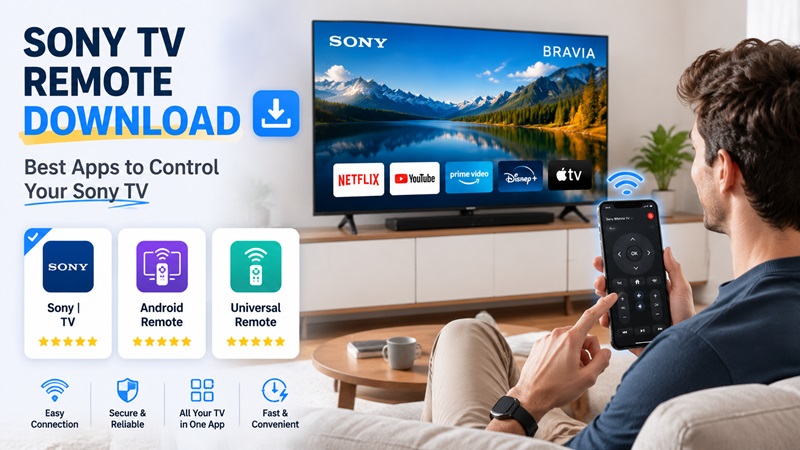
Choosing the right application is an important step when looking for a sony tv remote download solution. Different apps provide different levels of compatibility, features, and connection methods.
Generally, users choose between official Sony solutions, Android remote applications, and universal remote apps.
Official Sony Remote Solutions
Official Sony remote applications are designed specifically for Sony Bravia televisions.
Their advantages include:
- Better compatibility.
- More reliable connection.
- Support for Sony-specific features.
- Easier device detection.
For users who own Sony Bravia TVs, official solutions are usually the safest choice.
Android Remote Applications
Many Android users search for sony tv remote app for android free download because they want a simple way to replace their physical remote.
Android remote apps usually provide:
- Virtual buttons.
- Touch navigation.
- Volume control.
- Keyboard input.
- Media controls.
These apps are useful when:
- The original remote is lost.
- The remote battery is empty.
- Users want faster control.
A good Android remote application can make daily TV usage more convenient without requiring additional hardware.
Universal Remote TV Apps
A Universal Remote TV App is another popular option for Sony TV owners.
Unlike brand-specific apps, universal remote applications can control multiple devices, including:
- Sony televisions.
- Other smart TV brands.
- Streaming devices.
- Entertainment systems.
This makes them useful for households with multiple devices.
Comparison Table: Sony Remote Solutions
| Remote Solution | Compatibility | Connection | Best For |
| Sony Official Remote App | Sony Bravia TV | Wi-Fi | Best compatibility |
| Android Remote App | Sony Smart TVs | Wi-Fi/Bluetooth | Android users |
| Universal Remote TV App | Multiple brands | Wi-Fi/IR | Multiple devices |
| Physical Remote | Specific models | Infrared/Bluetooth | Traditional control |
What Should You Check Before Downloading?
Before completing a sony tv remote download, check these factors:
TV Model
Different Sony models support different remote features.
Operating System
Confirm whether your TV uses:
- Android TV.
- Google TV.
- Sony Smart TV system.
Smartphone Compatibility
Make sure your phone supports the application.
Network Connection
Most modern remote apps require your smartphone and TV to connect to the same Wi-Fi network.
3. How to Download Sony TV Remote App Step by Step
Many users search how to download sony tv remote because they need a quick way to install a replacement controller.
The installation process is simple when your phone and Sony TV are prepared correctly.
Step 1: Check Your Sony TV Model
Before installing any application, identify your Sony TV model.
You can find this information:
- On the TV label.
- In system settings.
- In your product documentation.
This helps you choose a compatible remote application.
Step 2: Open Your App Store
For Android users:
- Open Google Play Store.
- Search for Sony TV remote applications.
- Review compatibility information.
For iPhone users:
- Open App Store.
- Search for compatible Sony remote apps.
- Install the preferred option.
Step 3: Search for Sony Remote App
Use search terms such as:
- Sony TV remote.
- Bravia remote.
- Sony remote control.
Users looking for sony tv remote app download should check:
- App rating.
- Supported TV models.
- Required permissions.
Step 4: Install the Application
Tap the install button and wait until the download finishes.
After installation, open the application and prepare it for pairing.
Step 5: Connect Your Phone and TV
Before pairing:
- Turn on your Sony TV.
- Connect both devices to the same Wi-Fi network.
A stable network connection is required for most modern remote applications.
Step 6: Pair Your Smartphone With Sony TV
Complete these steps:
- Open the remote application.
- Allow required permissions.
- Select your Sony TV.
- Confirm pairing.
- Enter a code if requested.
After successful pairing, your smartphone becomes a functional remote controller.
Step 7: Test Remote Functions
Check:
- Power button.
- Volume control.
- Navigation.
- Keyboard input.
- Voice features.
If everything works correctly, your sony tv remote download setup is complete.
4. How to Connect Sony Remote App to Your Bravia TV
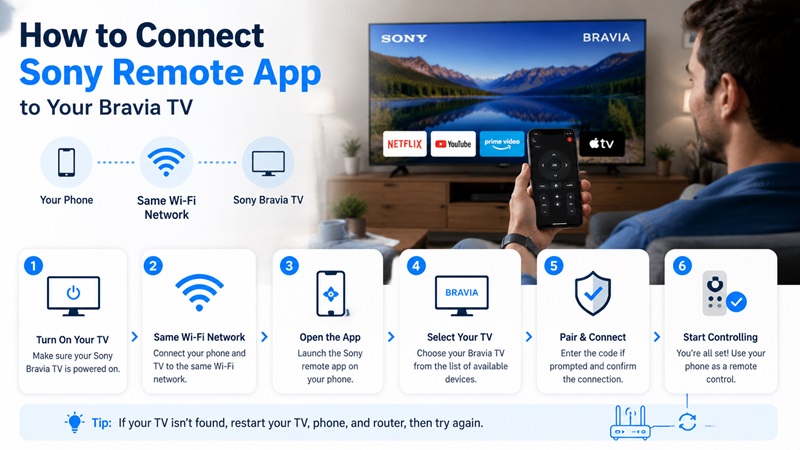
After completing the sony tv remote download process, the next step is connecting your smartphone with your Sony Bravia TV. Many users successfully install a remote application but experience problems because the phone and TV are not properly connected.
A correct setup allows your smartphone to control important TV functions, including navigation, volume adjustment, app launching, and content searching.
Most modern Sony Bravia TVs connect with remote applications through Wi-Fi. Therefore, both devices need to communicate through the same home network.
Step-by-Step Guide to Connect Sony Remote App
Follow these steps to connect your phone with your Sony Bravia TV:
Step 1: Turn On Your Sony Bravia TV
Make sure your TV is powered on before opening the remote application.
If your Sony TV is completely disconnected from power or offline, the application may not detect the device.
Step 2: Connect Your Phone and TV to the Same Wi-Fi Network
Check that both devices are connected to the same network.
For example:
- Smartphone → Home Wi-Fi.
- Sony Bravia TV → Same Home Wi-Fi.
If your phone uses mobile data while your TV uses Wi-Fi, the connection may fail.
Step 3: Open the Remote Application
Launch the application installed during the sony tv remote download process.
Allow permissions if requested.
Some applications may require access to:
- Local network.
- Bluetooth.
- Nearby devices.
These permissions allow the app to detect compatible Sony TVs.
Step 4: Select Your Sony TV
The app will scan for available devices.
When your Sony Bravia TV appears:
- Select the TV name.
- Confirm the connection request.
- Enter the pairing code if required.
After successful pairing, your phone should display the remote interface.
Step 5: Test All Remote Functions
Test common controls:
- Direction buttons.
- Home button.
- Back button.
- Volume control.
- Keyboard input.
If everything works correctly, your smartphone can now replace your physical remote.
Why Can’t My Phone Find Sony TV?
Sometimes users complete a sony tv remote app download but cannot connect their smartphone to the TV.
The most common causes include:
Different Wi-Fi Networks
This is the most frequent problem.
For example:
- Phone connected to guest Wi-Fi.
- TV connected to home Wi-Fi.
Both devices need to be on the same network.
Sony TV Network Problems
Your TV may not appear because:
- Wi-Fi is disconnected.
- Network settings are incorrect.
- The TV has not completed startup.
Check your TV network settings before trying again.
Missing App Permissions
Some smartphones block device discovery.
Make sure the application has permission to access:
- Local network.
- Nearby devices.
- Bluetooth.
Outdated TV Software
Older Sony TV software versions may create compatibility issues.
Updating your TV firmware can improve:
- Connection stability.
- Device discovery.
- Remote performance.
How to Fix Sony Remote Connection Problems
If your sony tv remote download setup does not work correctly, try these solutions:
Restart Your Devices
Restart:
- Sony TV.
- Smartphone.
- Wi-Fi router.
Temporary network errors are often solved after restarting.
Reconnect the Application
Remove the TV from the application and pair again.
This refreshes the connection between your phone and TV.
Update the Remote App
An outdated application version may cause:
- Connection failures.
- Missing features.
- Slow response.
Install the latest version from your app store.
5. Sony TV Remote App for Android Free Download: Features and Benefits
Many Android users search for sony tv remote app for android free download because smartphones provide a faster and more flexible way to control Sony televisions.
Compared with a traditional remote, a smartphone-based controller provides additional convenience, especially for users who frequently stream content or use multiple applications.
A well-designed remote application can transform your Android phone into a complete Sony TV controller.
Control Your Sony TV From Your Smartphone
The main advantage of a sony tv remote download solution is convenience.
Your smartphone can replace many functions of a physical remote, including:
- Turning the TV on or off.
- Adjusting volume.
- Changing inputs.
- Opening applications.
- Navigating menus.
Because most people keep their smartphone nearby, a remote app can be easier to access than a small physical controller.
Faster Text Input With Smartphone Keyboard
Typing with a traditional TV remote can be slow and inconvenient.
A smartphone remote app allows users to type directly using their phone keyboard.
This is especially helpful when:
- Searching YouTube videos.
- Entering account information.
- Finding movies.
- Browsing streaming platforms.
For users who frequently search content, smartphone keyboard support is one of the biggest advantages of using a remote app.
Voice Search Support
Some Sony remote applications support voice features.
Instead of typing manually, users can search by speaking commands.
Voice search can help users:
- Find movies faster.
- Open applications.
- Search online content.
This feature creates a more convenient smart TV experience.
Multiple Device Management
Some universal remote applications allow users to control multiple entertainment devices from one smartphone.
For example:
- Sony Bravia TV.
- Streaming devices.
- Sound systems.
- Other smart home products.
This is why many users choose a Remote TV App instead of managing several physical remotes.
Sony TV Remote App vs Physical Remote
| Feature | Remote App | Physical Remote |
| Availability | Usually always with your phone | Can be misplaced |
| Battery | Uses smartphone battery | Requires remote batteries |
| Typing | Smartphone keyboard | Slow button input |
| Setup | Requires pairing | Usually instant |
| Extra features | Voice, keyboard, smart controls | Basic controls |
A remote app is especially useful for users who want a backup solution when their physical remote is unavailable.
6. Sony Bravia TV Remote Download: Control Your TV Without a Physical Remote
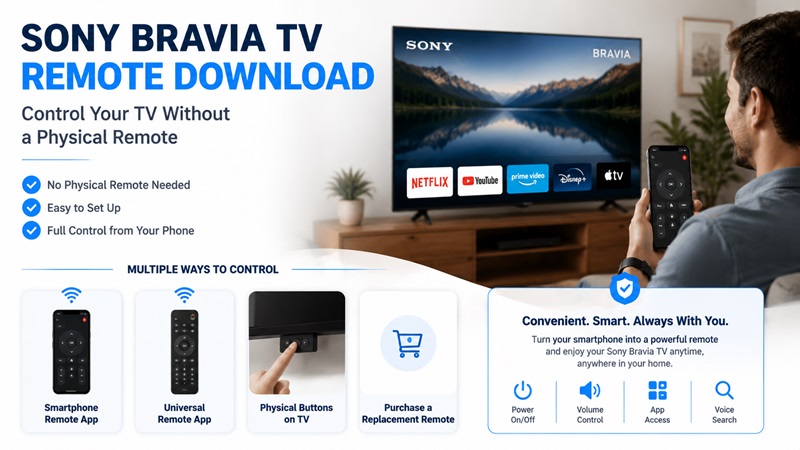
A missing remote does not mean you have to stop using your Sony television. With the right application, you can continue controlling your TV without the original controller.
A sony bravia tv remote download solution provides access to essential functions directly from your smartphone.
This is useful when:
- The original remote is lost.
- Remote batteries are empty.
- Buttons are damaged.
- You want faster control.
Can You Control Sony TV Without Remote?
Yes. There are several ways to control a Sony TV without the physical remote.
Use a Smartphone Remote Application
The easiest option is installing a compatible remote app.
You can use it to:
- Navigate menus.
- Open streaming services.
- Change volume.
- Search content.
- Control playback.
Use a Universal Remote TV App
A universal Remote TV App can provide control for Sony TVs and other devices.
This option is useful for homes with:
- Multiple TVs.
- Streaming devices.
- Entertainment systems.
Use Physical Buttons on the TV
Most Sony televisions include basic physical buttons.
Depending on the model, these buttons may allow users to:
- Turn the TV on.
- Adjust volume.
- Change input source.
Purchase a Replacement Remote
If you prefer a traditional controller, purchasing a replacement remote is another option.
Before buying one, check:
- Sony TV model.
- Remote compatibility.
- Required features.
Can Sony Remote App Work Without Wi-Fi?
Most modern Sony remote applications require Wi-Fi because they communicate through the local network.
However, some smartphones with infrared hardware may control certain TVs without Wi-Fi.
This depends on:
- Smartphone model.
- Remote application.
- Sony TV compatibility.
For most Sony Bravia users, Wi-Fi remains the easiest and most reliable connection method.
Download Sony Bravia TV Remote for Easier Control
Many users searching download sony bravia tv remote are looking for a quick replacement after losing their physical controller.
A remote application provides several advantages:
- No additional hardware required.
- Faster setup.
- Convenient smartphone control.
- Always available backup option.
Whether you need emergency access or want a smarter way to manage your TV, a remote app can make Sony Bravia control easier.
Download the ultimate Remote TV App and control your favorite smart TVs with ease. Whether you use LG, Sony, Samsung, TCL, Hisense, Philips, Roku TV, Android TV, Google TV, or many other popular brands, our app lets you turn your smartphone into a powerful TV remote in seconds. Enjoy quick setup, an intuitive interface, and convenient features like touchpad navigation, keyboard input, volume control, channel switching, and more.
Download the Remote TV App today and take full control of your TV—no physical remote required.
Get Your TV Remote App