
Sony TV Remote for iPhone: Control Your Sony TV on iOS
To use a Sony TV remote for iPhone, install a Sony TV remote app from the App Store, connect your iPhone to the same Wi-Fi network as your TV, and control the TV from your screen.
iPhones make excellent Sony TV remotes — the setup is quick, the on-screen keyboard speeds up searching, and there’s nothing extra to buy. It’s the easiest fix when your Sony remote is lost, broken, or across the room.
This guide explains how a Sony TV remote for iPhone works on iOS, which apps to use, how to set one up, and the specifics for Bravia TVs and older iPhone models.
Whether you’re on the newest iPhone or an older one, your phone can control a Sony TV in about a minute.
Can an iPhone Work as a Sony TV Remote?
Yes. A Sony TV remote for iPhone works because modern Sony smart TVs connect to your home network, letting an iOS app send commands over Wi-Fi. This covers power, volume, navigation, and app launching.
Sony’s smart TVs, especially the Bravia range, are designed to work with a sony tv remote app for iphone. So whether you want the official option or a free third-party sony tv remote ios app, controlling the TV from your iPhone is fully supported.
How a Sony TV Remote for iPhone Works
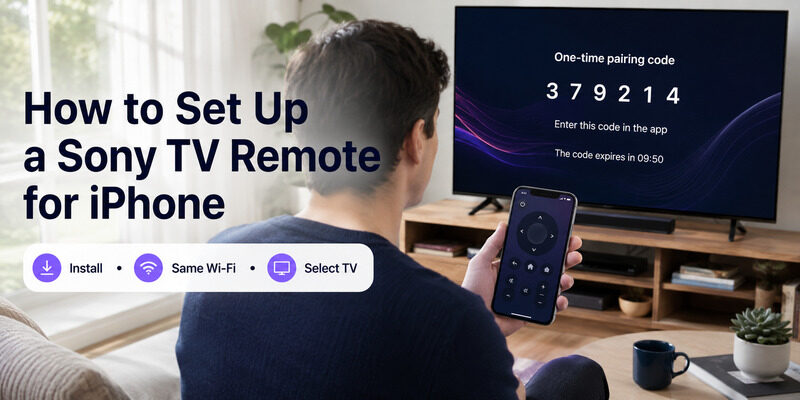
A Sony TV remote for iPhone communicates over your local Wi-Fi network rather than infrared. Your iPhone sends commands to the TV across the network, and the TV responds just as it would to its physical remote.
This is why the one firm requirement is that your iPhone and Sony TV share the same Wi-Fi network. It also means you don’t need line of sight — the app works from anywhere in the room, unlike a basic infrared remote that must be pointed at the TV.
Wi-Fi, Not Infrared
Because the app uses Wi-Fi, you never point your iPhone at the TV. This is a genuine upgrade over the infrared remote, letting you control the TV from any angle or even the next room.
For anyone who has fought with an old infrared remote that only works when aimed precisely, this alone is a noticeable quality-of-life improvement.
The Local Network Permission
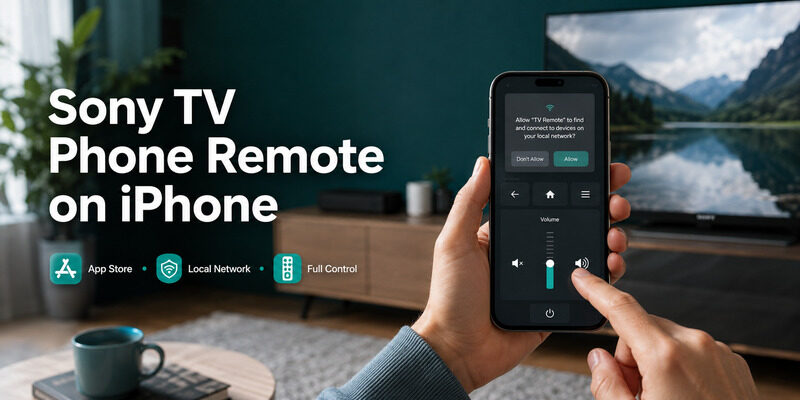
iOS asks for permission to find devices on your local network the first time you open a remote app. Allow this — the app needs local network access to reach the TV, and denying it prevents the connection.
iOS is deliberately strict about this permission for privacy reasons, which is why it’s such a common stumbling block on a first setup.
Choosing a Sony TV Remote App for iPhone
Several apps turn an iPhone into a Sony remote. The choice is between the official Sony option and free third-party apps, all available on the App Store.
The Official Sony App
The official app is a direct sony tv remote for iphone, offering full navigation, volume, and often a keyboard for text entry. On Bravia models it integrates closely with the TV’s features, making it a capable choice.
Because Sony maintains it, the app tends to expose TV-specific features and stay current with new Bravia capabilities.
The Remote TV App
The Remote TV App is a free sony tv remote iphone app with a clean interface that also works across other TV brands. If your household has more than one type of smart TV, one app can control them all. to use your iPhone as a Sony TV remote.
For a home with a Sony TV plus other brands, that consolidation into one app is a real everyday convenience.
How to Set Up a Sony TV Remote for iPhone
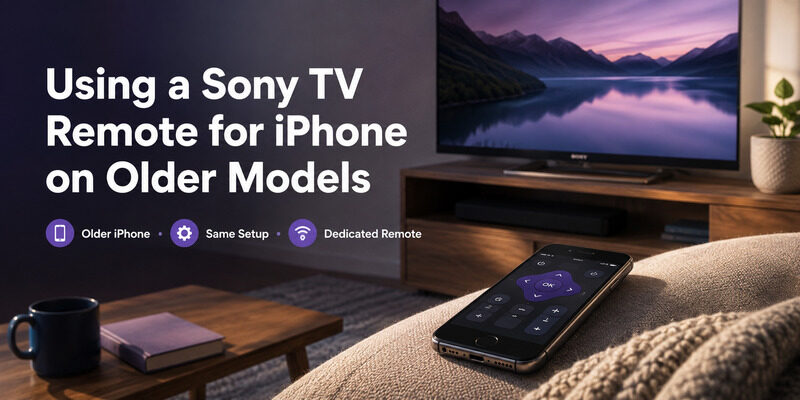
Setting up a Sony TV remote for iPhone takes about a minute. The key requirement is that your iPhone and Sony TV share the same Wi-Fi network.
Step 1: Install from the App Store
Download a sony tv remote app ios from the App Store — the official Sony app or a free alternative. Avoid unofficial sources; the App Store screens apps and the good ones are free anyway.
The install is the same as any other App Store download, and no account is usually needed just to use the basic remote.
Step 2: Join the Same Wi-Fi Network
Make sure your iPhone is on the same Wi-Fi network as the Sony TV. A network mismatch is the top reason the app can’t find the TV, so this step matters most.
If your router splits its 2.4GHz and 5GHz bands into separate names, keep both the iPhone and the TV on the same one.
Step 3: Select Your TV and Grant Permission
Open the app, allow local network access when prompted, and select your Sony TV. Confirm the on-screen code the first time if asked, and the remote is ready to use.
The one-time code confirmation is a security step, ensuring only devices you approve can control the TV.
Download TV Remote AppSony TV Remote for iPhone With Bravia TVs
The Bravia line is Sony’s flagship smart TV range and works seamlessly with a Sony TV remote for iPhone. Bravia models running Android TV or Google TV connect over Wi-Fi and support full control from an iPhone.
Because Bravia is so widely supported, the sony tv remote app for iphone experience on these models is especially smooth, with everything from navigation to volume available on the phone screen.
In short, a Sony TV remote for iPhone and a Bravia TV are a natural match, with no extra configuration beyond the standard setup.
Using a Sony TV Remote for iPhone on Older Models
You don’t need the latest iPhone. Phone control works on older models too, as long as they run a supported iOS version.
The setup is identical across iPhone generations — install the app, join the same Wi-Fi network, grant local network access, and select the TV. Older iPhones make perfectly good Sony remotes, so an aging phone in a drawer can become a dedicated TV controller.
So even a spare, older handset can serve as a dedicated Sony TV remote for iPhone, kept by the couch just for the TV.
What Your iPhone Does Better Than the Remote
An iPhone remote isn’t just a fallback — it adds real capabilities. The standout is text entry: typing searches and passwords on the iPhone keyboard is far faster than a directional pad.
Your iPhone is also always with you, so there’s nothing to lose in the couch cushions, and it draws on the phone’s battery rather than needing its own. These perks are why many people, once they set it up, stick with it over the physical remote.
Taken together, these advantages are why a Sony TV remote for iPhone often becomes the primary controller rather than a backup.
Troubleshooting a Sony TV Remote for iPhone
If the app can’t connect, the cause is almost always the network or a permission. Work through these in order.
Check the Wi-Fi Network
Confirm your iPhone and Sony TV are on the exact same network. Guest networks and separate frequency bands are the most common reasons the app fails to connect.
This single check resolves the large majority of connection problems, so always verify it first.
Enable Local Network Access
Go to iPhone Settings, find the app, and enable Local Network access. Without it, the app can’t discover the TV even on the right network — a frequent, easily-missed cause.
It takes only a few taps in Settings, and it’s worth checking before assuming anything more serious is wrong.
Enable Remote Control on the TV
Some Sony TVs require enabling a remote-device or IP control setting before an app can connect. Check the TV’s network settings if the app still can’t link.
This setting is usually under the TV’s network or connected-devices menu, and only needs to be enabled once.
Get a Free Sony TV Remote for iPhone
If you want a clean, free Sony TV remote for iPhone that also covers your other TVs, the Remote TV App is a strong choice. It connects over Wi-Fi, handles full control, and is easy to use right away.
It turns your iPhone into a complete Sony TV remote at no cost, with fast text entry and nothing to lose. to control your Sony TV from your iPhone.
FAQs About Sony TV Remote for iPhone
Can I use my iPhone as a Sony TV remote?
Yes. Install a Sony TV remote app from the App Store, join the same Wi-Fi network as your TV, grant local network permission, and select the TV. Your iPhone then controls it fully.
Is the Sony TV remote for iPhone free?
Yes. The official Sony app and reputable alternatives like the Remote TV App are free for core control. Only optional extras in some apps are paid.
Why won’t my iPhone find my Sony TV?
Usually a network mismatch or a disabled Local Network permission. Confirm both devices share a Wi-Fi network and enable Local Network access for the app in iPhone Settings.
Does it work with Sony Bravia TVs?
Yes. Bravia TVs running Android TV or Google TV work seamlessly with a Sony TV remote for iPhone over Wi-Fi, covering full navigation and volume control.
Does the app work on older iPhones?
Yes. Any iPhone running a supported iOS version works as a Sony TV remote using the same setup steps. An older iPhone makes a fine dedicated remote.
Final Thoughts
A Sony TV remote for iPhone is free, quick to set up, and often better than the physical remote for typing and everyday convenience. Install an app, share a Wi-Fi network, grant local network access, and select your TV.
It works on any iPhone from older models to the latest, and especially well with Bravia TVs. Keep the Remote TV App installed and your iPhone becomes a Sony TV remote you’ll never misplace.
Download TV Remote App