
Sony TV Remote App iOS: How to Control Sony BRAVIA From an iPhone
A compatible sony tv remote app ios can turn an iPhone into a network-based remote without requiring an infrared transmitter.
Instead of sending infrared signals like a traditional remote, most modern apps communicate with the television through your home network.
Google confirms that the Google TV app for iPhone and iPad can control compatible Google TV and Android TV devices, with functions including power, volume, media playback, Google Assistant, and text entry.
Sony also recommends smartphone control through Sony | BRAVIA Connect or Google TV on compatible televisions.
For someone searching can i use my phone as a sony tv remote, the key question is therefore not whether an iPhone can work as a remote. It usually can.
The more important question is:
Which app is compatible with your particular Sony TV?
Which Sony TV Remote App Should You Use on iPhone?
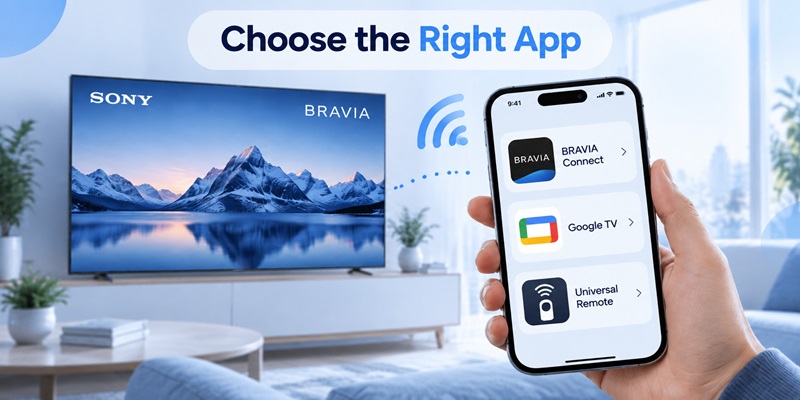
There are three main approaches worth considering.
Sony | BRAVIA Connect
For supported newer Sony BRAVIA models, Sony | BRAVIA Connect is Sony’s own mobile-control solution.
The app can provide a virtual remote interface and lets users navigate compatible televisions using touchscreen gestures.
Sony explains that users can swipe on the app’s touchpad to move around the television interface and tap to select an item.
Best for: newer compatible BRAVIA televisions.
Google TV App
If your Sony television runs Google TV or Android TV, Google’s mobile application is often one of the easiest remote options.
The Google TV virtual remote can provide:
- Power control
- Volume control
- Directional navigation
- Media playback
- Google Assistant
- Text input
This makes it a strong sony google tv remote app for iphone option.
Best for: Sony Google TV and compatible Android TV models.
💡 Discover Helpful Guides: Google TV Remote iOS: How to Control Google TV from Your iPhone or iPad
Universal Remote TV App
A universal Remote TV app can be more convenient if your home has several television brands.
For example, instead of maintaining separate apps for a Sony TV, Samsung TV, LG TV, and Roku TV, a universal remote can provide a single interface for multiple compatible devices.
Best for: multi-brand households.
In short:
BRAVIA Connect → Sony ecosystem
Google TV → Google TV and Android TV ecosystem
Universal remote → multi-brand convenience
How to Use iPhone as Remote for Sony TV
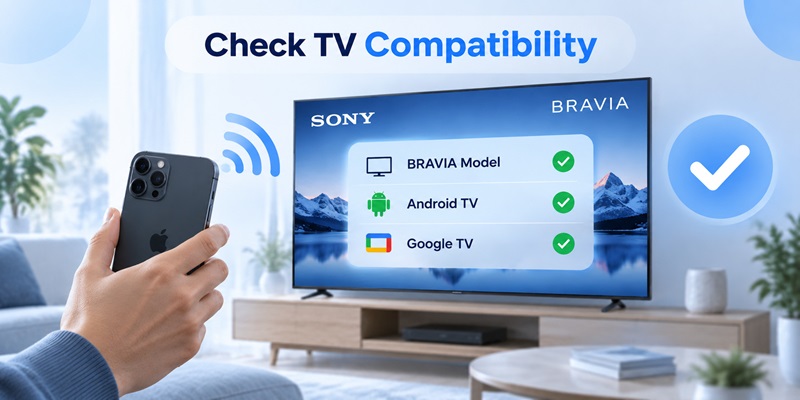
Before installing an app, identify your television platform.
On many Sony TVs, open:
Settings → System → About
or:
Settings → Device Preferences → About
The menu varies by model.
Look for information such as:
- Google TV
- Android TV
- Sony BRAVIA model number
Once you know the platform, choose the corresponding remote app.
Quick Setup for a Sony Google TV
For a compatible television:
- Connect the Sony TV to your home Wi-Fi.
- Connect the iPhone to the same Wi-Fi network.
- Install Google TV on the iPhone.
- Open the app.
- Select the option for nearby TVs.
- Choose your Sony BRAVIA.
- Enter the code shown on the TV.
- Tap Pair.
- Open the mobile remote.
This is one of the easiest answers to how to use iphone as remote for sony tv.
Check Local Network Permission First
On iPhone, also check:
Settings → Privacy & Security → Local Network
Make sure your remote application is allowed to access the local network.
Apple explains that apps need permission before discovering and communicating with devices on the user’s local network.
Therefore, if a sony tv remote app iphone can access the internet but cannot detect the television sitting in the same room, Local Network permission should be one of the first things you inspect.
📘 Find the Right Guide: iOS Remote Control: Turn Your iPhone or iPad Into a Smart TV Remote
How to Use Sony BRAVIA Connect as a Remote
Sony | BRAVIA Connect has become an important option for newer Sony televisions.
Sony’s 2026 compatibility information lists support across several recent BRAVIA families, including models from the BRAVIA 3, BRAVIA 5, BRAVIA 7, BRAVIA 8, and BRAVIA 9 ranges, although exact availability can differ by region and software version.
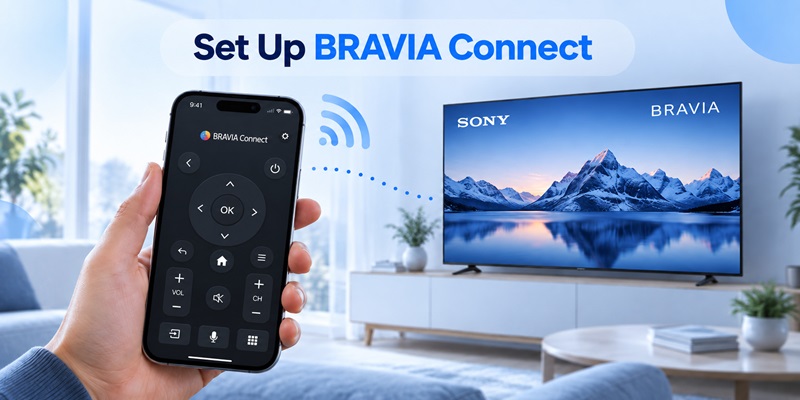
Set Up BRAVIA Connect
The general process is:
- Install Sony | BRAVIA Connect on the iPhone.
- Turn on Wi-Fi and Bluetooth.
- Open the app.
- Sign in when required.
- Follow the device-registration instructions.
- Select your television.
- Open the Remote section.
Once connected, the phone becomes a sony bravia remote app iphone controller.
Use the Touchpad
Sony’s mobile interface can use a touchpad-style control.
Instead of repeatedly pressing four separate arrows:
- Swipe left or right to move horizontally.
- Swipe up or down to move vertically.
- Tap to select an item.
This can feel more natural when navigating streaming-service interfaces with large rows of content.
Know the Limitations
BRAVIA Connect does not necessarily reproduce every function of the original physical remote.
Sony notes that some functions, including certain long-press actions, may not be available from the mobile interface.
Sony also states that the microphone control has limitations in the BRAVIA Connect remote.
Therefore:
An iPhone remote is useful, but keeping the original Sony remote is still recommended.
📖 Explore Articles: Fire TV Remote iOS: How to Control Fire TV and Fire Stick From iPhone
How to Use Google TV App With Sony BRAVIA
For many Sony television owners, Google TV is the most practical sony tv remote app ios solution.
Google officially supports using an iPhone or iPad as a remote for compatible Google TV and Android TV devices.
Install Google TV
Download the Google TV app from Apple’s App Store.
Verify that the developer is Google LLC before installing.
Connect Both Devices to the Same Wi-Fi
Your configuration should look like:
Sony TV → Home Wi-Fi
iPhone → Home Wi-Fi
Avoid using:
Sony TV → Home Wi-Fi
iPhone → Guest Wi-Fi
Guest networks can isolate connected devices, which means the television and iPhone may both have internet access while still being unable to discover each other.
Pair the Sony TV
Open Google TV and select your television.
A pairing code should appear on the Sony TV.
Enter that code on the iPhone.
Once paired, open the virtual remote.
Use the Remote Controls
Google’s virtual remote can support features such as:
- Power
- Volume
- Navigation
- Playback controls
- Google Assistant
- Text input
The ability to type from the iPhone is particularly useful.
Instead of using the physical remote to enter:
“Stranger Things Season 5”
one character at a time, you can use the iPhone keyboard.
For many users, this alone makes an ios sony tv remote more convenient than the physical controller for search.
💡 Discover Helpful Guides: Samsung TV Remote iOS: How to Control Your Samsung TV From an iPhone
Which Sony TVs Work With iPhone Remote Apps?
Not every Sony television supports the same mobile-control system.
This is one of the most important things to understand before downloading a sony tv remote app ios.
Recent BRAVIA Models
Some recent BRAVIA models support Sony | BRAVIA Connect.
Compatibility can depend on both the television model and installed software.
Sony Google TV Models
Sony TVs running Google TV are typically the easiest to use with the Google TV app.
The phone and television pair through the network.
Sony Android TV Models
Many Sony Android TV models can also use Google’s remote functionality.
However, available features can differ from newer Google TV models.
Older Sony Smart TVs
An older Sony television may have network features without supporting the same remote protocol as a current Google TV.
Therefore, do not assume that every Sony Smart TV is compatible merely because an App Store application contains “Sony Remote” in its title.
Non-Smart Sony TVs
If the television has no compatible network-control functionality, an ordinary Wi-Fi remote app may not work.
In that case, you may still need:
- The original remote
- A replacement remote
- A compatible universal physical remote
- An external IR solution
Always check the exact model number before assuming compatibility.
Best Free Sony TV Remote App for iPhone
People searching free sony tv remote app for iphone are often trying to avoid buying a replacement physical controller.
There are several free-to-download options, but “free download” and “all remote features are free” are different claims.
BRAVIA Connect
Sony | BRAVIA Connect is currently available as a free download for compatible devices.
For a supported modern Sony TV, it is one of the first apps worth trying.
Google TV
Google TV is another free-to-download option for compatible Sony Google TV and Android TV models.
For many users searching sony tv remote app free iphone, this is enough for common remote-control tasks.
Third-Party Remote Apps
Third-party applications may be:
- Completely free
- Free with ads
- Free with limited functionality
- Subscription-based
- Free during a trial period
Before installing a sony tv remote app for iphone free, check the App Store’s In-App Purchases section.
Do not assume an app has no cost simply because the download button says “Get.”
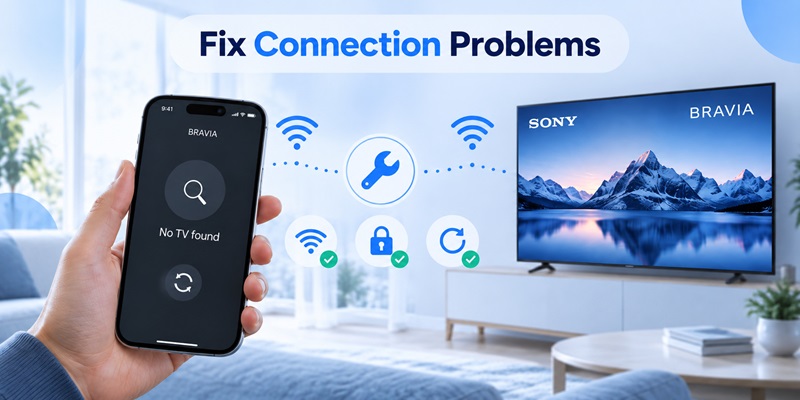
Download TV Remote AppSony TV Remote App iOS Not Finding TV: 9 Fixes
If your sony tv remote app ios cannot find the TV, troubleshooting should start with the connection rather than immediately reinstalling the application.
1. Check the Wi-Fi Network
Make sure both devices are connected to the same network.
For example:
TV: MyHomeWiFi
iPhone: MyHomeWiFi
If the names differ, reconnect one of the devices.
2. Enable Local Network Access
Open:
Settings → Privacy & Security → Local Network
Enable access for Google TV, BRAVIA Connect, or your chosen remote app.
This is one of the most important iPhone-specific fixes.
3. Turn On Bluetooth for BRAVIA Connect
Sony’s BRAVIA Connect troubleshooting guidance recommends checking both Wi-Fi and Bluetooth.
If Google TV works differently from BRAVIA Connect, that is normal because the two apps do not use exactly the same setup workflow.
4. Keep the TV Powered On During Pairing
Initial registration should generally be performed while the TV is on.
Watch the television screen for:
- Pairing codes
- Permission requests
- Registration prompts
5. Check Remote Start Settings
If the remote works after the TV is switched on but cannot wake the television, look for a Remote Start or related network standby setting.
Depending on the television, the menu may appear under network, system, or power settings.
If everything works except power-on, do not immediately re-pair the entire app.
📘 Find the Right Guide: Apple TV Remote Reconnect: How to Restore a Stable Remote Connection
6. Restart the Sony TV
A restart can clear temporary network discovery problems.
For Google TV troubleshooting, Google recommends disconnecting the device from power briefly before reconnecting it and trying again.
7. Restart the iPhone
Restart the phone if the problem appeared after:
- An iOS update
- Router changes
- Changing Wi-Fi networks
- Updating the remote app
Reconnect to the same Wi-Fi after restart.
8. Update the App and TV Software
Check for updates on both devices.
TV support can change through firmware updates, particularly for connected services.
A television being the correct model does not always mean that its software is current enough for every mobile-control feature.
9. Troubleshoot the Specific Button That Fails
If navigation works but volume does not, the entire remote connection is probably not broken.
Check:
- HDMI-CEC settings
- Audio-output configuration
- Volume-control settings
- Soundbar configuration
A single failed feature and a completely undiscoverable television are two different problems.
What Can You Control From an iPhone?
The exact features depend on the television and app, but a modern sony tv remote app ios can handle most everyday tasks.
Power
Compatible televisions may support power on and off.
Power-on can depend on Remote Start or network-standby configuration.
Volume
You can typically increase, decrease, or mute the sound.
Navigation
Use your phone to move through:
- Home
- Settings
- Streaming apps
- Search results
- Input menus
- Recommendations
Playback
Many remote interfaces provide:
- Play
- Pause
- Fast-forward
- Rewind
Text Input
Text input is one of the biggest usability advantages of an iphone sony tv remote app.
It is particularly useful for:
- YouTube searches
- Streaming-service searches
- Long movie titles
- Account names
Voice Features
Google’s mobile remote can provide Google Assistant functionality on compatible devices.
However, Sony’s BRAVIA Connect application has different capabilities, so do not assume that every virtual remote provides the same voice controls.
Sony iPhone Remote vs Physical BRAVIA Remote
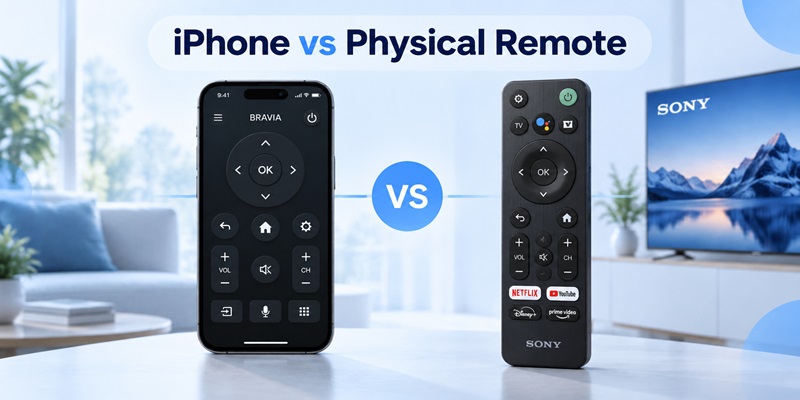
An iPhone remote can replace many daily controls, but it does not completely eliminate the need for the original controller.
| Feature | iPhone Remote | Physical BRAVIA Remote |
| Volume | Yes | Yes |
| Navigation | Yes | Yes |
| Text input | Easier | Slower |
| Useful when remote is lost | Yes | No |
| Requires network | Usually | No |
| Initial setup | Limited in some cases | Best |
| TV-specific buttons | May be missing | Yes |
| Voice functions | Depends on app | Usually available |
| Multi-brand support | Possible | Usually no |
When the iPhone Is Better
Use a sony tv remote app for iphone when:
- The physical remote is missing.
- The batteries are dead.
- You want faster typing.
- Your phone is already in your hand.
- Several household members need remote access.
- You use TVs from multiple brands.
When the Physical Remote Is Better
Keep the physical Sony remote for:
- Initial TV setup
- Factory resets
- Wi-Fi failures
- Model-specific functions
- Unsupported mobile buttons
- Troubleshooting network access
The most reliable setup is:
iPhone for everyday convenience + physical remote as backup.
Is Video & TV SideView Still the Sony Remote App?
No.
This is important because many older search results still recommend Sony’s Video & TV SideView as a sony bravia tv remote app for iphone.
Sony states that Video & TV SideView services were discontinued in October 2019.
That means current users should not rely on old SideView tutorials when choosing a modern Sony TV remote.
For supported current TVs, prioritize:
Sony | BRAVIA Connect
or:
Google TV
Outdated recommendations are one reason it is worth checking the publication date of any remote-app guide.
Is a Third-Party Sony TV Remote App Safe?
Many apps appear when you search sony remote ios, sony ios remote control, or similar phrases.
Before installing one, check several factors.
Verify the Developer
An app using “Sony” in its name does not automatically mean Sony created it.
For official applications, check the App Store developer information.
Review Local Network Permission
A network remote legitimately needs access to nearby devices because it must discover the TV.
However, review other permissions independently.
A remote app does not automatically need every permission available on your iPhone.
Check Subscription Terms
Look for:
- Weekly subscription
- Monthly subscription
- Annual subscription
- Free trial
- Automatic renewal
- One-time purchase
This is particularly important when searching sony tv remote app for iphone free.
Read the Privacy Information
Apple’s App Store provides privacy labels describing developer-reported data practices.
Check what the application says it collects and whether data is linked to your identity.
Verify TV Compatibility
The app should support your actual Sony model or television platform.
A polished screenshot is not evidence of compatibility.
Using Remote TV App With Sony TV
A universal Remote TV app can make sense when you own more than one TV brand.
Imagine a home with:
- Sony BRAVIA in the living room
- Samsung TV in the bedroom
- LG TV in another room
Using three separate manufacturer apps can be inconvenient.
A universal remote aims to provide one control interface across compatible devices.
Typical Setup
The general process is:
- Install the Remote TV App.
- Connect the iPhone and Sony TV to the same Wi-Fi.
- Allow Local Network access.
- Open device discovery.
- Select the Sony TV.
- Approve the connection if requested.
- Open the remote interface.
A universal sony tv remote ios app alternative is most useful when multi-brand control matters more than deep Sony-specific integration.
For a Sony-only household, test Sony’s or Google’s solutions first.
Frequently Asked Questions About Sony TV Remote App iOS
Can I control a Sony TV with my iPhone?
Yes. Many Sony BRAVIA TVs can be controlled with an iPhone using BRAVIA Connect, Google TV, or compatible third-party remote apps.
The appropriate option depends on your television model.
What is the official Sony remote app for iPhone?
Sony currently provides BRAVIA Connect for supported televisions.
For Sony TVs running Google TV or Android TV, Google’s Google TV application can also provide official platform-level remote functionality.
Is there a free Sony remote app for iPhone?
Yes.
BRAVIA Connect and Google TV are free to download for compatible devices.
Some third-party apps are also free to install but may include subscriptions or premium functionality.
Why can’t my Sony TV remote app find my television?
Check these items first:
Same Wi-Fi → Local Network permission → TV powered on → Bluetooth for BRAVIA Connect → app update → TV update.
Do these checks before repeatedly reinstalling the app.
Can I turn on my Sony TV from an iPhone?
Some compatible Sony televisions support network-based power-on.
If your phone controls the TV once it is running but cannot switch it on, check the TV’s Remote Start or network standby settings.
Does an iPhone need infrared to control a Sony TV?
No, not when using modern Wi-Fi-based remote control.
Compatible Sony TVs communicate with the iPhone over the local network.
Older TVs without network remote functionality may still require an infrared remote.
Do the iPhone and Sony TV need the same Wi-Fi?
For initial discovery and pairing, they generally should be connected to the same home network.
Guest networks may prevent devices from communicating even when both have internet access.
Can I type on Sony TV using my iPhone?
Yes, Google TV supports text input on compatible televisions.
This is particularly convenient for search boxes and long content titles.
Is Sony Video & TV SideView still available?
Sony discontinued Video & TV SideView services in October 2019.
Current users should choose a supported modern remote solution instead.
Final Recommendation
For most people searching sony tv remote app ios, start by identifying the exact Sony TV model and operating system.
If you own a recent compatible BRAVIA:
Try Sony | BRAVIA Connect.
If your television runs Google TV or compatible Android TV:
Try Google TV.
If your home contains several TV brands:
Consider a universal Remote TV app.
For the fastest setup:
- Put the iPhone and Sony TV on the same Wi-Fi.
- Install the app that matches the television platform.
- Enable Local Network permission on the iPhone.
- Pair the phone with the TV.
- Test power, volume, navigation, and text input.
If the sony tv remote app ios cannot find your television, first check Wi-Fi, Local Network permission, Bluetooth when required, Remote Start settings, and software updates rather than assuming either device is broken.
And keep the physical remote nearby.
The iPhone is excellent for everyday navigation, search, and text input, while the original Sony remote remains the safest fallback for initial setup, Wi-Fi problems, factory resets, and TV-specific controls.
Download TV Remote App