
Samsung TV Remote iOS: How to Control Your Samsung TV From an iPhone
You can use an iPhone as a remote for many Samsung Smart TVs by connecting the television to Samsung SmartThings or a compatible third-party TV remote app.
The quickest official method is:
- Connect the Samsung TV and iPhone to the same Wi-Fi network.
- Install Samsung SmartThings on the iPhone.
- Sign in to your Samsung account.
- Add the Samsung TV inside SmartThings.
- Approve the connection on the television.
- Open the virtual remote.
Once connected, your Samsung TV remote iOS setup can handle common controls such as power, volume, mute, channels, navigation, Guide, apps, and inputs, although available functions differ by television model.
Samsung’s current support documentation confirms that SmartThings can control a connected Samsung TV from a phone, including volume, channel and other television functions. Samsung also says that once properly configured, some connected TVs can be controlled remotely over an internet connection rather than only while the phone is physically beside the TV.
So if your original Samsung remote is under the sofa, out of batteries, charging, or simply inconvenient, your iPhone can serve as a practical backup remote.
Best Samsung TV Remote iOS Options
There is no single app that is ideal for every household. For most Samsung-only users, Samsung SmartThings should be the first option to try because it is Samsung’s official application.
Users with several television brands may prefer a universal alternative.
1. Samsung SmartThings
SmartThings is Samsung’s official samsung tv remote app ios solution.
After your television is registered, SmartThings can display a mobile remote with controls including:
- Power
- Volume
- Mute
- Channel up/down
- Home
- Directional navigation
- Guide
- Input selection
- App and content shortcuts on supported TVs
Samsung’s 2024 mobile-remote documentation specifically shows VOL, CH, power, apps, programs and inputs being accessible from the SmartThings mobile remote.
Best for: Samsung households that want the official ecosystem and deeper SmartThings integration.
Current iPhone requirement
The current Japanese App Store listing for SmartThings requires iOS 17.0 or later and identifies Samsung Electronics Co., Ltd. as the developer. Requirements can change by country and app version, so users with an older iPhone should verify the current App Store listing before installation.
That is more useful than relying on old compatibility articles that may still quote earlier iOS requirements.
2. Remote TV App
A universal Remote TV app can make more sense if your home contains a Samsung TV plus televisions from other manufacturers.
For example, Universal Remote TV Control by Begamob is available for iPhone and is designed to control multiple supported television brands over Wi-Fi. Its U.S. App Store listing currently shows a 4.7 rating from about 139,000 ratings and lists BEGAMOB GLOBAL LIMITED as the developer.
The Remote TV App website lists Samsung alongside brands such as LG, Sony, TCL, Hisense, Roku TV, Fire TV and Panasonic.
This makes a universal remote particularly useful when you do not want separate apps for every television.
Best for: multi-brand households or users who want a dedicated TV-control interface instead of a broader smart-home application.
Which Should You Choose?
For a Samsung-only setup:
Start with SmartThings.
For multiple TV brands:
A universal Remote TV App may be more convenient.
The important distinction is that SmartThings is the official Samsung solution, while universal remotes are third-party apps whose exact compatibility and available controls depend on the TV model.
Download TV Remote App💡 Discover Helpful Guides
Apple TV Siri Remote: Complete Guide to Features, Generations, Pairing, and Everyday Use
How to Set Up Samsung TV Remote on iPhone
Setting up a Samsung TV remote iOS connection normally takes only a few minutes.
Step 1: Connect the TV to Wi-Fi
On your Samsung TV, confirm that the television is online.
Depending on your model, open something similar to:
Settings → Connection → Network
or:
Settings → General → Network
The exact menu wording varies between model years.
Step 2: Put the iPhone on the Same Network
During initial setup, connect your iPhone to the same home Wi-Fi network as the Samsung television.
Samsung’s 2026 instructions specifically recommend having the mobile device and TV on the same Wi-Fi network during registration.
A common mistake is having:
- TV → home Wi-Fi
- iPhone → cellular data
or:
- TV → main Wi-Fi
- iPhone → isolated guest Wi-Fi
Guest networks can prevent local devices from seeing one another.
Step 3: Install SmartThings
Open the App Store and search for Samsung SmartThings.
Check that the developer is:
Samsung Electronics Co., Ltd.
This matters because searching for terms such as samsung remote app ios or samsung remote app for tv may display multiple third-party products.
Step 4: Sign In
Open SmartThings and sign in to your Samsung account.
Samsung recommends having both devices associated with the same Samsung account during setup.
Step 5: Add the Television
Inside SmartThings:
Devices → + → Add device → TV → Samsung
Then choose the television detected on your network.
Samsung’s June 2026 setup guide also provides a Scan option that can automatically search for nearby supported televisions.
Step 6: Approve the Connection
What happens next depends partly on the TV generation.
Samsung’s current documentation describes three useful model-year patterns:
| Samsung TV generation | Typical pairing action |
| 2020 and newer | Select OK on the TV |
| 2017–2019 | Enter the PIN shown on the TV into the phone |
| 2016 | Select Allow on the TV |
This distinction is useful when an online guide shows a pairing screen that looks different from yours.
Do not assume the setup has failed simply because your TV does not display a PIN.
Step 7: Open the Remote
Select your TV inside SmartThings and open the remote-control interface.
Your samsung remote on iphone setup is now ready.
For everyday use, you normally do not need to repeat the complete pairing process.
📖 Explore Articles: Apple remote tv app: Complete Apple TV Remote Guide for iPhone, Siri Remote, Pairing & Fixes
How to Use Your iPhone as a Samsung Smart TV Remote
After pairing, a Samsung smart TV remote iOS interface can replace many everyday buttons on the original controller.
Adjust Volume
Use the volume control to:
- Raise volume
- Lower volume
- Mute audio
This is especially useful when the physical remote is missing while a movie is already playing.
Change Channels
The SmartThings remote provides channel controls on supported Samsung televisions.
You may also be able to open the program Guide.
Samsung’s documentation confirms both VOL and CH functions in its mobile remote interface.
Navigate Samsung TV Menus
The virtual directional area works similarly to the directional pad on a Samsung remote.
You can use it to navigate:
- Settings
- Streaming apps
- Home screen
- Input menus
- Content libraries
This is one of the main reasons a samsung remote control iphone setup works well as an emergency replacement.
Launch Apps and Change Inputs
On supported TVs, SmartThings can expose apps and television inputs from the mobile remote interface.
Samsung says users can swipe within the remote controls to access apps, programs and inputs on supported 2024 models.
Available options can vary by model and software version.
Control a 2025 Samsung TV Faster
Samsung introduced additional Mobile Remote conveniences for recent models.
Its 2025 documentation says iPhone users may be able to access the Mobile Remote through Live Activities on the Lock Screen or Dynamic Island, provided the feature is enabled. Samsung lists iOS 16 or later for that specific 2025 Mobile Remote implementation, although the current SmartThings App Store package itself may require a newer iOS version.
That distinction matters:
TV feature compatibility and current app-installation requirements are not always the same thing.
For an up-to-date setup, check both your TV’s support documentation and the current App Store requirements.
💡 Discover Helpful Guides: Apple TV Remote Replacement: Buying and Setup Guide
Which Samsung TVs and iPhones Are Compatible?
Compatibility is one of the biggest areas where Samsung TV remote iOS articles become misleading.
There is no useful rule saying that every Samsung TV works identically.
Samsung TV Compatibility
Samsung says SmartThings can automatically detect and connect with most Samsung TVs manufactured from 2016 onward, although model-specific features vary.
For SmartThings registration, Samsung also provides specific instructions for:
- 2016 TVs
- 2017–2019 TVs
- 2020 and newer TVs
That makes 2016 a useful reference point, but you should still verify your exact TV model rather than assuming all 2016+ sets support every mobile feature.
Inside SmartThings, Samsung also provides a supported-device lookup:
Add Device → More options → View supported devices
iPhone Compatibility
As of September 2026, the SmartThings listing checked on Apple’s Japanese App Store requires:
iOS 17.0 or later.
The Begamob Universal Remote TV Control listing currently requires iOS 16.0 or later in the Japanese App Store.
These requirements can change as apps are updated.
If an older article tells you that SmartThings works with iOS 10, iOS 13 or iOS 15, check the current App Store listing before troubleshooting your TV. The article may simply be using an outdated minimum requirement.
📘 Find the Right Guide: Apple TV Remote iPad: How to Set Up and Control Apple TV From Your iPad
Best Free Samsung TV Remote App for iOS
People searching for a free samsung tv remote app ios often mean one of two things:
- An app that costs nothing to install.
- An app whose important remote controls can be used without a subscription.
Those are not always the same thing.
SmartThings
Samsung SmartThings is free to download from the App Store and should normally be the first choice for a Samsung Smart TV.
Its main advantage is not simply price.
It is the official Samsung application, so it is also the logical first option when checking whether the TV itself supports smartphone control.
Third-Party Remote Apps
A samsung remote app free download may offer basic functionality while reserving some features for subscriptions or in-app purchases.
Before installing one, check:
- Developer name
- Recent reviews
- App Store privacy information
- In-app purchases
- Subscription period
- Trial terms
- Supported TV brands
- Minimum iOS version
Do not choose an app only because its title contains “Samsung Remote.”
A third-party samsung remote control app for tv can be useful, but transparent pricing and verified developer information matter.
When Remote TV App Makes More Sense
Suppose your living room has a Samsung TV while another room uses LG, TCL or Roku TV.
Installing a separate manufacturer app for every television may become annoying.
In that case, a universal Remote TV app can reduce the number of apps you need.
The Begamob application is designed as a universal controller rather than a Samsung-only product, which makes it more relevant for multi-brand homes.
Use SmartThings when you want the official Samsung experience. Use a universal remote when cross-brand control is more important.
💡 Discover Helpful Guides: Apple TV Remote Buttons Explained: Home, Menu, Power, Control Center
Samsung TV Remote iOS Not Working: 8 Fixes
If your Samsung TV remote iOS app cannot find the television, start with connectivity and permissions before reinstalling everything.
1. Confirm Both Devices Are on the Same Wi-Fi
This should be the first check.
Samsung’s setup instructions repeatedly specify that the TV and mobile device should be on the same Wi-Fi network for registration.
Check the Wi-Fi name on both devices.
Avoid guest Wi-Fi during setup.
2. Enable Local Network Access on iPhone
This is one of the most useful iPhone-specific troubleshooting steps.
Since iOS 14, Apple requires apps that browse and communicate with devices on a local network to ask the user for permission.
If you previously tapped Don’t Allow, your remote app may fail to discover the television.
Check:
Settings → Privacy & Security → Local Network
Find SmartThings or your chosen TV remote app and enable access.
Apple confirms that Local Network access can be changed from this menu at any time.
If an iPhone remote app suddenly cannot find a TV that is definitely online, this permission should be near the top of your checklist.
3. Make Sure the TV Is Actually Online
Open a streaming service or check the TV’s network status.
If Netflix, YouTube or another connected service also fails, the problem may be the television’s network connection rather than the samsung tv remote app ios.
Reconnect the TV before changing remote-app settings.
4. Restart the TV, iPhone and Router
A stale local-network session can prevent device discovery.
Restart:
- Samsung TV
- iPhone
- Wi-Fi router
Then retry detection.
This is more useful than repeatedly deleting and reinstalling the app while the underlying network remains unchanged.
5. Update SmartThings
Older versions can behave differently from Samsung’s current TV software.
Open the App Store and install any available SmartThings update.
Samsung specifically recommends updating the SmartThings application and TV software when troubleshooting mobile-control problems.
6. Update Samsung TV Software
On the television, look for a software update under Settings or Support.
Samsung also advises users experiencing Smart TV problems to check for TV software updates because updates can contain fixes.
7. Remove and Re-Add the TV
If SmartThings still sees an outdated registration, remove the television from the app and pair it again.
When pairing, watch the TV screen carefully for:
- Allow prompt
- PIN
- OK confirmation
Remember that the expected prompt changes by TV generation.
8. Check “Power On With Mobile”
A common complaint is:
“My iPhone controls the TV after it is on, but cannot turn the Samsung TV on.”
This does not necessarily mean the remote is broken.
Many Samsung models have a setting called Power On with Mobile.
For 2022–2026 Samsung TVs, Samsung Australia currently documents the path approximately as:
Settings → All Settings → Connections → Network → Expert Settings → Power On with Mobile
Samsung says disabling this option prevents SmartThings from turning the television on from a mobile device.
Menus may vary by model.
If every control works except power-on, check this setting before reinstalling the app.
🗺️ Browse How-To Guides: How to Pair Apple TV Remote: Complete Pairing and Reconnection Guide
iPhone Remote vs Samsung Physical Remote
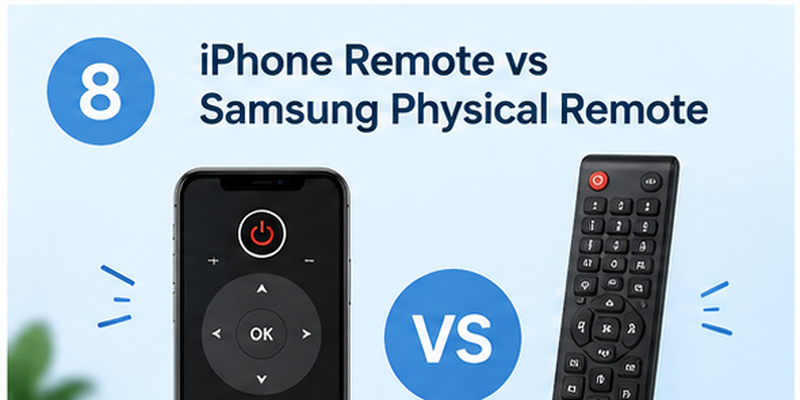
A phone remote is extremely useful, but it does not automatically make the physical Samsung remote obsolete.
| Feature | iPhone remote | Physical Samsung remote |
| Volume | Yes | Yes |
| Channels | Yes on supported models | Yes |
| Menu navigation | Yes | Yes |
| Works when physical remote is lost | Yes | No |
| Requires charged phone | Yes | No |
| Initial network setup | Usually requires TV connectivity | Easier |
| Works during Wi-Fi outage | Often limited | Yes |
| Text/search convenience | Often better | Usually slower |
| Multi-brand control | Possible with universal app | Usually no |
When the iPhone Is Better
A samsung remote app smart tv setup is especially convenient when:
- The physical remote is missing.
- Remote batteries are dead.
- Multiple people need control.
- You already have your phone with you.
- You manage several televisions.
- You prefer a touchscreen interface.
When the Physical Remote Is Better
Keep the original remote available when:
- Setting up a new television for the first time.
- Wi-Fi is unavailable.
- The TV has been factory reset.
- Smartphone pairing has not yet been approved.
- You need a model-specific button unavailable in the mobile interface.
The best setup is often not phone versus physical remote—it is having both available.
Is a Samsung TV Remote App Safe to Use?
A remote-control app needs network access for a legitimate reason: it has to discover and communicate with the TV.
But users should still review what an app requests.
Check the Developer
For SmartThings, verify:
Samsung Electronics Co., Ltd.
For third-party apps, verify the company name rather than trusting the app icon or title.
Understand Local Network Permission
Apple explains that apps interacting with nearby devices may request Local Network access and that users can enable or revoke this permission through Privacy & Security settings.
For a TV remote, local-network access makes technical sense because the phone needs to communicate with the television.
That does not mean every unrelated permission should automatically be accepted.
Review App Store Privacy Labels
Before a samsung remote tv app download, check the app’s App Privacy section.
Look for information about:
- Identifiers
- Usage data
- Diagnostics
- Location
- Tracking
- Data linked to you
Apple’s App Store currently publishes privacy details for both SmartThings and third-party remote applications.
A good rule is to grant only permissions that make sense for the feature you actually want to use.
💡 Discover Helpful Guides: Thomson TV Remote App iOS: How to Control Your Thomson TV From iPhone
Frequently Asked Questions About Samsung TV Remote iOS
Can I control my Samsung TV with an iPhone?
Yes. For compatible televisions, install SmartThings, connect the TV and iPhone, add the television and open the mobile remote.
This is the simplest official Samsung TV remote iOS method.
What is the official Samsung remote app for iPhone?
Samsung SmartThings is Samsung’s official smart-home application and includes remote controls for compatible Samsung televisions.
If you search samsung remote app ios, verify that the developer is Samsung Electronics.
Is there a free Samsung TV remote for iPhone?
Yes. SmartThings is free to download.
A third-party free samsung tv remote app ios may also be available, but check whether features are limited by subscriptions or in-app purchases.
Why won’t my Samsung TV appear on my iPhone?
The most common checks are:
same Wi-Fi → Local Network permission → TV online → pairing approval → app update → TV firmware update.
On iPhone, especially check:
Settings → Privacy & Security → Local Network
because denying that permission can stop an app from discovering devices on your network.
Can an iPhone turn on a Samsung TV?
Compatible Samsung TVs can support mobile power-on.
If your phone controls the TV only after it is already running, check Power On with Mobile in the television’s network settings. Samsung documents this feature for several recent model generations.
Does Samsung TV remote work without Wi-Fi?
For most app-based setups, the initial connection depends on network connectivity.
A standard smartphone does not replace an infrared Samsung remote simply by installing an app.
If your TV is offline and has never been paired, the original remote or the physical TV controls may still be necessary to restore network access.
Can Apple TV Remote in iPhone Control a Samsung TV?
Not generally.
The Apple TV Remote available through iPhone Control Center is designed primarily to control Apple TV hardware and compatible AirPlay television functions—not the complete Samsung television interface.
For Samsung TV menus, volume and device controls, use SmartThings or a compatible samsung remote app for smart tv.
Is SmartThings better than a universal TV remote app?
It depends on your setup.
Choose SmartThings if Samsung compatibility and official integration are your priorities.
Choose a universal app if controlling several TV brands from one interface is more important.
Does Samsung have an Android remote app too?
Yes. SmartThings is also available for Android.
Users searching for samsung tv remote app android, samsung remote app for android, or samsung remote control app for android are generally looking for the Android version of the same concept.
However, Android setup is separate from this iPhone-focused guide.
Can a Samsung TV remote app control a Samsung soundbar?
Some Samsung audio products can integrate with SmartThings, but this depends on the exact soundbar model.
A user searching specifically for a samsung remote app soundbar should check the soundbar’s model-specific SmartThings compatibility rather than assuming television remote controls will automatically control every soundbar function.
Can I use the same Samsung remote app for a Blu-ray player?
Do not assume so.
Searches for samsung remote app blu ray or samsung remote app for blu ray player involve different hardware compatibility from Samsung Smart TVs.
If your goal is specifically to control a Blu-ray player, verify the exact player model and supported control method rather than installing a TV remote app solely because it carries the Samsung name.
Final Recommendation
For most people searching for Samsung TV remote iOS, Samsung SmartThings is the best place to start.
Connect the iPhone and Samsung Smart TV to the same Wi-Fi network, install SmartThings, add the TV, approve the pairing request and open the mobile remote.
If the TV cannot be detected, do not immediately assume the television is incompatible.
Check these four things first:
- Same Wi-Fi network
2. iPhone Local Network permission enabled
3. TV pairing request approved
4. SmartThings and Samsung TV software updated
For households that use several television brands, a universal Remote TV app can be a more convenient alternative because one phone can act as a controller for multiple compatible devices.
Most importantly, choose the remote setup based on your actual TV model and use case—not simply the app with the most keywords in its App Store title.
A good Samsung TV remote iOS setup should solve the problem quickly: your television responds, the controls are easy to reach, and you no longer have to stop watching just because the physical remote has disappeared.
Download TV Remote App