
How to Connect LG Remote to TV: Complete Pairing and Recovery Guide
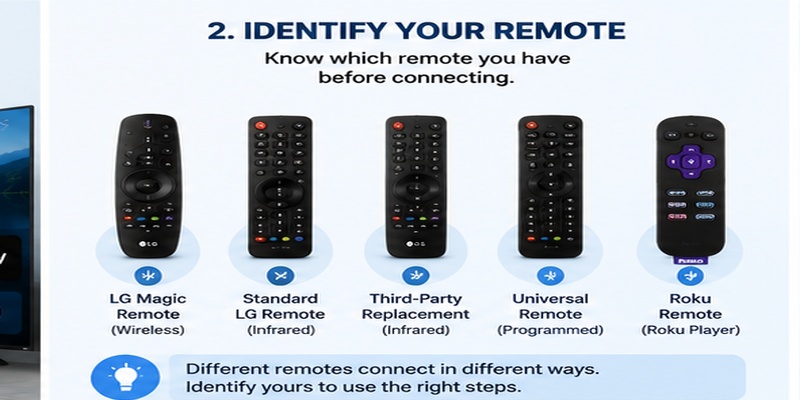
Knowing how to connect lg remote to tv begins with identifying which type of controller you actually have. An LG Magic Remote, a standard infrared LG remote, a universal replacement, a Roku Voice Remote, and the LG ThinQ mobile controller all connect in different ways.
A Magic Remote must be registered with a compatible LG television before its pointer, voice recognition, and scroll wheel work. A basic infrared controller normally requires no wireless pairing. A universal remote may need an LG code or automatic code search. A Roku remote pairs with a Roku streaming player—not directly with an LG television—before it can send selected power and volume commands to the TV.
Using the wrong instructions is one of the main reasons people believe their controller is defective. For example, holding a pairing button will not help a basic infrared remote, while repeatedly entering universal codes will not register an official Magic Remote.
LG’s current instructions say to turn on the television, wait approximately 20 seconds, point a compatible Magic Remote toward the TV, and press the center scroll-wheel button. A confirmation message should appear when registration succeeds.
This guide explains how to connect lg remote to tv using a practical decision-based process. It also covers Wi-Fi recovery without the original controller, LG ThinQ setup, universal remotes, and the commonly misunderstood Roku remote connection.
1. Identify Your Remote Before Connecting It to LG TV
Before following any pairing steps, determine which controller is in your hand.
Use this quick guide:
| Controller type | How it communicates | Does it require pairing? |
| LG Magic Remote | Wireless radio/Bluetooth-style connection plus infrared | Yes, for smart functions |
| Standard LG remote | Infrared | Usually no |
| Third-party replacement | Usually infrared; sometimes Bluetooth | Depends on model |
| Universal remote | Infrared, Bluetooth, or control hub | Usually requires programming |
| Roku Voice Remote | Pairs with a Roku player or Roku TV | Pairs with Roku, not directly with LG TV |
| LG ThinQ mobile remote | Local Wi-Fi network | TV registration required |
How to recognize an LG Magic Remote
A Magic Remote commonly includes:
- A clickable center scroll wheel
- A microphone or voice button
- Motion-pointer functionality
- Home and Back buttons
- Volume and channel rockers
- Streaming shortcuts
- A compact curved design
If the remote moves an on-screen pointer like a computer mouse, it is a Magic Remote.
How to recognize a basic infrared remote
A standard LG remote generally has:
- A full number pad
- Many dedicated buttons
- No motion pointer
- No clickable scroll wheel
- No wireless registration message
It usually starts working as soon as compatible batteries are installed and the remote is pointed toward the television.
Quick diagnosis
Use this decision path before learning how to connect lg remote to tv:
- Power works, but pointer and voice do not: re-register the Magic Remote.
- Nothing works: check batteries, TV power, compatibility, and infrared obstruction.
- Remote has no Wheel button: it may be a standard or third-party remote.
- Remote has a Roku logo: pair it with the Roku player first.
- Remote says universal: follow its manufacturer’s programming process.
- No physical controller is available: try the TV button, Ethernet, or LG ThinQ.
📚 Explore More LG TV Guides: LG TV Remote iOS: Official iPhone Setup and Control Guide
2. How to Connect an LG Magic Remote to TV
For most compatible Magic Remote models, how to connect lg remote to tv requires only one button.
Standard Magic Remote pairing steps
- Insert fresh batteries into the Magic Remote.
- Turn on the LG television.
- Wait approximately 10–20 seconds for webOS to load.
- Stand close to the television.
- Point the remote toward the TV.
- Press the center Wheel (OK) button.
- Wait for the registration message.
- Move the remote to confirm that the pointer appears.
LG’s July 2026 guidance says the remote should pair automatically after the television is turned on, the user waits about 20 seconds, and the scroll wheel is pressed.
What successful pairing looks like
After completing how to connect lg remote to tv, you should notice:
- A message confirming registration
- An on-screen pointer when the remote moves
- Wheel scrolling in menus and apps
- Voice recognition on supported models
- Wireless navigation without pointing directly at the TV
Example: new replacement Magic Remote
Suppose your original controller was damaged and you purchased a model-compatible Magic Remote.
Use this process:
- Remove the original remote’s batteries or move it away.
- Install new batteries in the replacement.
- Restart the television.
- Wait for the Home screen.
- Press the Wheel once.
- Test Home, Back, Volume, Voice, and Pointer.
Do not judge success by the Power button alone. Power may use infrared even when wireless registration has failed.
If the pointer does not appear
Try:
- Pressing the Wheel again
- Moving closer to the TV
- Replacing both batteries
- Restarting the television
- Moving the Wi-Fi router or other wireless equipment farther away
- Resetting and re-registering the remote
LG notes that wireless interference can break the Magic Remote connection and that pressing Wheel (OK) can re-register it.
3. How to Reconnect or Reset an LG Magic Remote
If the remote was previously working but stopped, repeat registration before performing a full reset.
Fast reconnection
- Turn on the TV manually.
- Wait 20 seconds.
- Point the remote toward the screen.
- Press Wheel (OK).
- Wait for the confirmation message.
This often restores the pointer and voice controls without deleting any other settings.
Common reset method
For many Magic Remote generations:
- Press and hold Home and Back together.
- Keep holding for approximately five seconds.
- Wait for the remote LED to flash.
- Release the buttons.
- Point the remote toward the TV.
- Press Wheel (OK) to register it again.
LG support documentation confirms that several models use Home and Back for unpairing, followed by Wheel for re-registration.
Important model difference
Not every generation uses the same reset combination. Some newer LG remotes may use another model-specific button combination. Use the remote’s model number and the TV’s official support page instead of holding random buttons.
When only certain buttons work
If Power and Volume work but the pointer does not, the infrared controls may still be operating while the wireless connection is lost.
If no buttons work:
- Replace both batteries.
- Clean the battery contacts.
- Confirm that the TV’s standby light is on.
- Check whether another compatible remote can operate the TV.
- Test the remote close to the screen.
- Verify that the replacement model supports the TV.
Learning how to connect lg remote to tv includes knowing when re-registration is enough and when a compatibility or hardware issue is more likely.
💡 Find More LG TV Solutions: Universal Remote Codes for LG TVs: Complete Setup Guide
4. How to Connect a Standard LG Infrared Remote
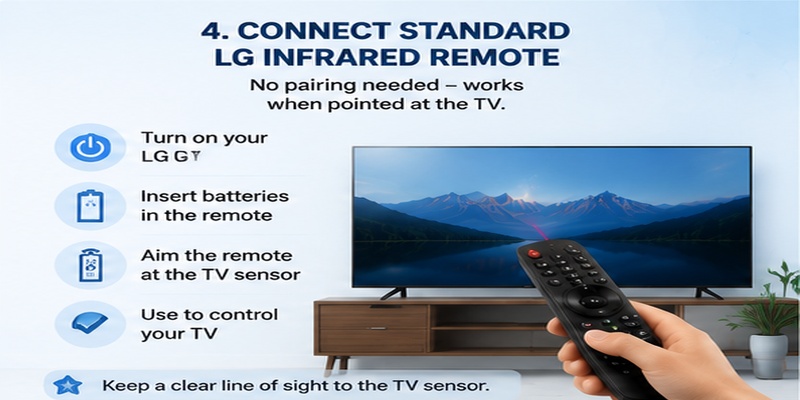
A standard LG infrared controller usually does not pair wirelessly.
To use it:
- Install the correct batteries.
- Confirm the positive and negative orientation.
- Turn on the television using its physical button if necessary.
- Point the remote at the TV’s infrared receiver.
- Press Power, Volume, or Home.
- Remove any object blocking the lower area of the television.
The infrared sensor is commonly located near the bottom edge of the television, although the precise position differs by model.
Test the infrared signal with a phone camera
Many phone cameras can show infrared light:
- Open the phone camera.
- Point the remote’s front emitter toward the camera.
- Press and hold Power.
- Look for a flashing light on the phone screen.
A visible flash suggests that the remote is transmitting. It does not guarantee that the code is compatible with the TV, but it helps separate a dead remote from a model mismatch.
Why an old LG remote may partially work
LG televisions often share basic infrared commands. An older controller may operate:
- Power
- Volume
- Channels
- Input
- Home
- Directional navigation
It may not support:
- Magic pointer
- Voice recognition
- Bluetooth registration
- Scroll wheel
- AI shortcuts
- NFC or Magic Tap features
The process for how to connect an lg remote to a tv is therefore different for infrared and Magic models. A basic infrared remote starts sending commands immediately; a Magic Remote requires registration.
If your controller has no pointer or Wheel function, install batteries and test basic infrared controls before attempting a pairing procedure.
5. How to Connect LG TV to Wi-Fi Without the Original Remote
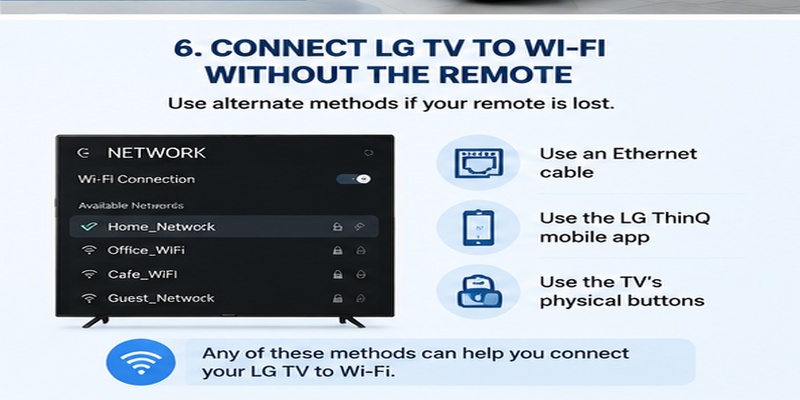
The question how to connect lg tv to wifi without remote becomes difficult when the TV is offline because LG ThinQ normally needs the television and phone on the same network during initial setup.
Use the following recovery methods in order.
Option 1: Use the physical TV Controller
Locate the button underneath or behind the lower edge of the television.
Depending on the model, it may let you:
- Turn the television on
- Open a basic control menu
- Change input
- Adjust volume
- Move through limited menu items
Minimalist LG models may provide only Power, so this method is not guaranteed to complete Wi-Fi setup.
Option 2: Connect Ethernet
If the television has a LAN port:
- Connect an Ethernet cable from the router to the TV.
- Turn on the TV.
- Wait for the wired connection to activate.
- Connect the phone to the same router.
- Open LG ThinQ.
- Add the television.
- Use the mobile remote to enter Wi-Fi settings if required.
LG documents Ethernet as an official network option by connecting the TV’s LAN port to the router.
This is often the most reliable answer to how to connect lg tv to wifi without remote because it restores network access without typing a Wi-Fi password first.
Option 3: Use a USB mouse or keyboard
Some LG televisions accept a USB mouse or keyboard for menu navigation.
Try:
- Connect a wired USB mouse.
- Wait several seconds.
- Move the mouse and check whether a pointer appears.
- Open Settings.
- Navigate to Network or Wi-Fi Connection.
- Choose the router.
- Enter the password using a USB keyboard or on-screen keyboard.
Support varies, so this should be treated as a practical recovery option rather than a guaranteed feature for every model.
Option 4: Recreate the previous Wi-Fi network
If the TV remembers an old network:
- Set a phone hotspot or replacement router to the previous Wi-Fi name.
- Use the same previous password.
- Allow the TV to reconnect automatically.
- Connect another phone to that network.
- Open ThinQ and register or control the TV.
- Change the TV to the new home network.
Only use this method with your own network credentials.
Option 5: Obtain a compatible replacement remote
A basic infrared replacement is often inexpensive and can restore full access to Settings.
📚 Explore More LG TV Guides: What Is a Magic Remote Control for LG TV? Complete Setup Guide
6. How to Use LG ThinQ as a Temporary TV Remote
LG ThinQ can become a remote TV app for compatible televisions that are already connected to the local network.
LG states that after ThinQ is configured, users can control the TV, launch apps, and share content from a mobile phone. The phone and TV should be on the same network; LG’s documented Wi-Fi setup specifically recommends the same 2.4 GHz network.
Add the TV to LG ThinQ
- Install LG ThinQ from Google Play or Apple’s App Store.
- Sign in with an LG account.
- Connect the phone and TV to the same network.
- Tap Add Device.
- Select TV.
- Choose the correct LG television.
- Enter the PIN shown on the TV.
- Open the television device card.
- Select the remote controls.
Controls may include
- Power
- Volume
- Mute
- Channels
- Input
- Home
- Directional navigation
- OK
- App launching
- Touch or pointer-style navigation
Important limitation
If the TV is not already online and ThinQ has never been registered, the mobile app may not be able to find it. Use Ethernet, a physical button, USB input, or a replacement remote first.
Creative recovery workflow
Use this sequence when the physical remote is lost:
Ethernet → ThinQ registration → mobile remote → Wi-Fi setup → remove Ethernet
This workflow solves both the network and controller problems without requiring an original Magic Remote.
After using ThinQ, you can return to how to connect lg remote to tv and register a replacement physical controller using the Wheel button.
Download on the App Store7. Can You Pair a Roku Remote Directly With an LG TV?
The search phrases how to pair roku remote to lg tv and how to connect roku remote to lg tv often describe two separate goals.
A Roku remote normally pairs with:
- A Roku streaming player
- A Roku Streambar
- A Roku TV
It does not generally pair directly with the LG TV as if it were an LG Magic Remote.
After pairing with the Roku device, selected Roku Voice Remotes can control basic LG TV functions such as power, volume, and mute through infrared or HDMI-CEC. Roku confirms that TV controls are configured from the Roku device’s Remote settings and that CEC must be enabled for some power and volume functions.
Correct Roku setup process
- Connect the Roku player to an LG TV HDMI port.
- Turn on the Roku player.
- Pair the Roku remote with the Roku player.
- On Roku, open:
Settings > Remotes & devices > Remotes - Select the Roku remote.
- Choose Set up remote for TV control.
- Follow the music and volume tests.
- Enable SIMPLINK on the LG TV if CEC control is required.
Roku identifies SIMPLINK as LG’s name for HDMI-CEC.
What the Roku remote may control
- LG TV power
- LG TV volume
- Mute
- Automatic HDMI input switching
- Roku interface navigation
What it usually will not control
- LG webOS Home navigation outside the Roku input
- Magic pointer
- LG voice assistant functions
- Complete LG Settings navigation
- Other TV apps outside Roku
Some LG models support only selected CEC commands. Roku warns that certain TVs may support volume but not power.
Therefore, the accurate answer to how to pair roku remote to lg tv is: pair the remote with the Roku player, then configure TV controls and enable LG SIMPLINK.
Download on the App Store8. How to Connect a Universal Remote to an LG TV
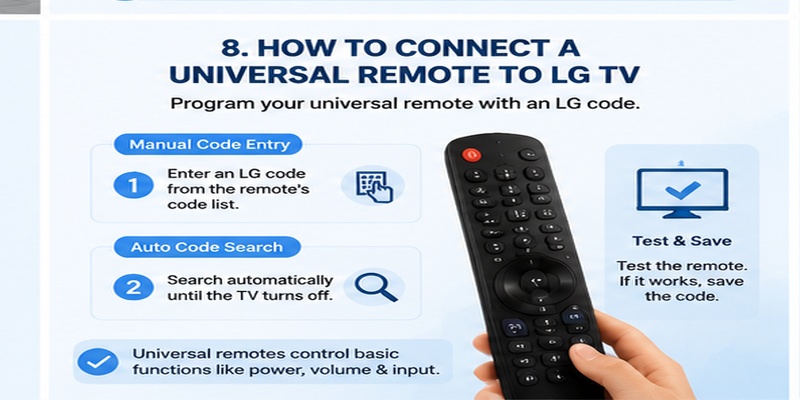
The process for how to connect a universal remote to an lg tv depends on the universal remote brand and model.
Common methods include:
- Direct LG code entry
- Automatic code search
- Brand search
- Bluetooth pairing
- Setup through a companion application or control hub
Method 1: Enter an LG code
A typical procedure is:
- Turn on the LG TV.
- Hold the universal remote’s Setup button.
- Select TV mode.
- Enter an LG code from the remote manufacturer’s code list.
- Test Power.
- Test Volume, Input, Home, and navigation.
- Save the code if required.
Do not use an arbitrary code from an unrelated remote brand. Use the manual or official support site for the specific universal controller.
Method 2: Automatic code search
If the code list is unavailable:
- Turn on the television.
- Put the universal remote into setup mode.
- Select TV.
- Start Auto Search or Code Scan.
- Keep the remote pointed toward the TV.
- Stop when the TV responds.
- Save the working profile.
- Test several functions.
Method 3: LG Universal Control through Magic Remote
If your goal is to control a set-top box or HDMI device with the LG Magic Remote, do not program the TV itself.
Open LG’s Universal Control Settings and configure the external device. LG’s current support content confirms that the location of Universal Control settings varies by model and lets users configure devices such as set-top boxes.
Expected limitations
A third-party infrared universal remote may handle:
- Power
- Volume
- Mute
- Channels
- Input
- Home
- Directional navigation
It may not reproduce:
- Motion pointer
- Scroll wheel
- Voice recognition
- Bluetooth Magic Remote functions
- NFC or AI features
Understanding these limitations is essential when learning how to connect lg remote to tv with a non-LG replacement.
9. How to Fix an LG Remote That Still Will Not Connect
If you have completed how to connect lg remote to tv and nothing works, troubleshoot by symptom.
No buttons work
Check:
- Battery direction
- Battery charge
- Dirty battery contacts
- TV power
- Remote compatibility
- Obstruction in front of the sensor
- Physical remote damage
Power works, but pointer does not
The wireless Magic Remote registration is probably missing.
- Turn on the TV.
- Wait 20 seconds.
- Press Wheel.
- Reset and re-register if necessary.
LG says a lost wireless connection can leave selected infrared buttons working while the pointer remains unavailable.
Remote pairs and disconnects repeatedly
Try:
- Moving the router at least a short distance away
- Removing nearby 2.4 GHz equipment
- Replacing batteries
- Restarting the TV
- Updating webOS
- Testing another compatible remote
Universal remote controls only Power
The selected profile may be incomplete.
Run code search again and test multiple buttons before saving a profile.
Roku remote controls Roku but not TV volume
On Roku:
- Open Settings.
- Choose Remotes & devices.
- Select the remote.
- Run TV-control setup again.
- Enable SIMPLINK on the LG television.
- Confirm the Roku device is connected by HDMI.
Roku says CEC enables Roku remotes to control compatible TV power and volume functions.
LG ThinQ cannot find the TV
Confirm:
- TV is powered on
- TV and phone share the same network
- VPN is disabled temporarily
- Local-network permission is enabled
- The TV is supported
- The router is not using guest-device isolation
- ThinQ and webOS are updated
🔍 Explore More Tips: LG ThinQ App Not Finding TV: Complete Fix Guide
10. Final Connection Checklist and Frequently Asked Questions
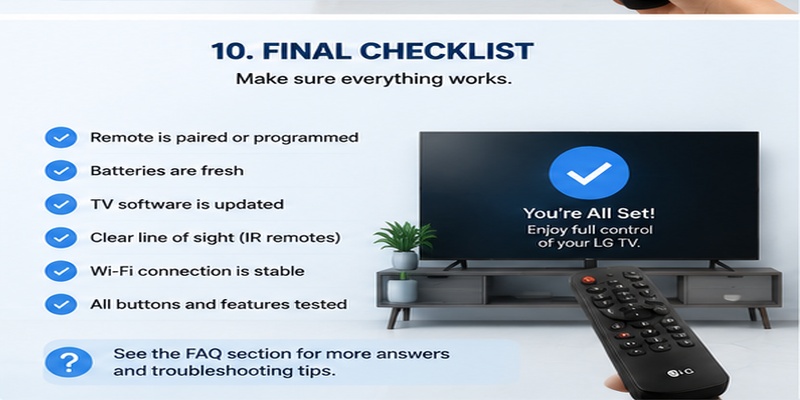
Final setup checklist
Before finishing how to connect lg remote to tv, confirm:
- The controller model is compatible with the television.
- Fresh batteries are installed.
- The TV is fully powered on.
- Magic Remote users pressed Wheel after webOS loaded.
- The pointer appears and moves normally.
- Voice works where supported.
- Basic infrared controls respond.
- Universal remote users saved the correct LG profile.
- Roku remote users paired it with the Roku player.
- SIMPLINK is enabled when Roku CEC control is needed.
- LG ThinQ is registered as a backup.
- The TV has an active network connection.
- Ethernet is available for emergency network recovery.
- The TV’s physical Controller button has been located.
How do I connect an LG Magic Remote to the TV?
Turn on the TV, wait approximately 20 seconds, point the remote at the screen, and press Wheel (OK). LG says the remote should register automatically and display a confirmation message.
How do I reconnect a Magic Remote?
Press Wheel first. If that fails, use the model-specific reset combination and then press Wheel again.
Does a normal LG remote need pairing?
A basic infrared LG remote usually does not require wireless pairing. Install batteries and point it toward the TV.
How can I connect LG TV to Wi-Fi without a remote?
Try Ethernet, the physical TV Controller, a USB mouse or keyboard, or a compatible replacement remote. Once the television is online, register LG ThinQ and use it to complete the wireless setup. LG officially supports wired Ethernet connections between the TV and router.
Can I connect a Roku remote directly to an LG TV?
Generally, no. Pair it with the Roku player first, then configure TV controls through Roku settings. Power and volume may work through infrared or HDMI-CEC/SIMPLINK.
How do I connect a universal remote to an LG TV?
Use the universal remote manufacturer’s LG code, automatic code search, brand search, or companion-app setup. The exact key sequence depends on the remote model.
Can a universal remote replace a Magic Remote?
It may replace basic TV functions but usually cannot reproduce the Magic pointer, scroll wheel, voice recognition, or advanced wireless features.
Can I use my phone as an LG remote?
Yes, on compatible network-connected televisions. LG says ThinQ can control the TV, launch apps, and share content when correctly configured.
Final recommendation
Use the simplest path for your controller:
- Magic Remote: turn on TV → wait → press Wheel.
- Standard LG remote: install batteries → point at TV.
- Universal remote: enter LG code or run Auto Search.
- Roku remote: pair with Roku player → set up TV controls → enable SIMPLINK.
- No remote: connect Ethernet → register LG ThinQ → finish Wi-Fi setup.
The key to how to connect lg remote to tv is choosing the process that matches the controller technology. Once that distinction is clear, most pairing and recovery problems can be solved without a factory reset.
Need help pairing your LG remote with your TV? Download our LG TV Remote App for a quick and convenient way to control your TV from your smartphone whenever you need it.
Download on the App StoreExplore Related Articles: How to Connect LG Remote to TV: Complete Pairing and Recovery Guide
