
What Is a Magic Remote Control for LG TV? Complete Setup Guide
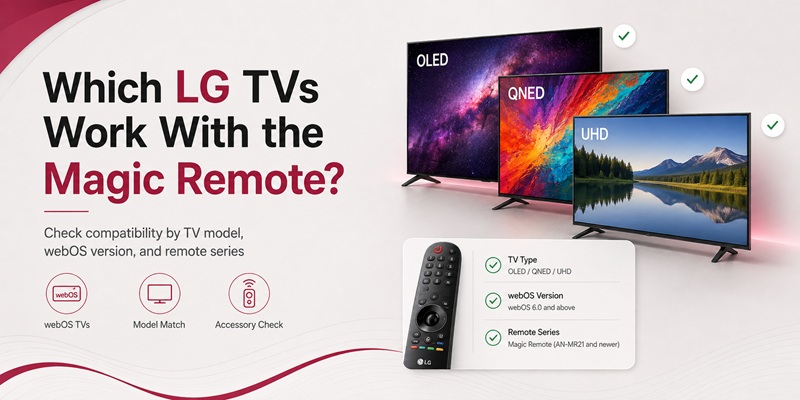
If you have recently purchased an LG Smart TV, you may have noticed that its remote behaves more like a computer mouse than a traditional television controller. Moving the remote can display a pointer on the screen, while the center wheel lets you scroll through menus, web pages, and applications.
That experience explains what is a magic remote control for lg tv: it is LG’s motion-enabled smart controller for compatible webOS televisions. It combines normal remote buttons with point-and-click navigation, a scroll wheel, voice recognition, Bluetooth communication, and Universal Control features for selected external devices.
LG describes the Magic Remote as a controller with gesture control, voice recognition, point-and-click navigation, standard directional buttons, and universal remote functionality. The pointer can be moved around the screen in a way that resembles using a computer mouse.
However, a Magic Remote is not automatically compatible with every LG television. LG says most webOS Smart TVs from 2016 and newer support a Magic Remote, but users should verify the exact television and remote model before purchasing a replacement.
This guide explains how the controller works, how to pair it, how to use its pointer and voice features, and how to configure Universal Control for a set-top box or another HDMI device. It also explains what to do if you have a generic universal remote rather than an official LG Magic Remote.
1. What Is an LG Magic Remote and How Is It Different?
A standard television remote primarily sends infrared commands. You point it toward the television, press a button, and the TV responds.
An LG Magic Remote combines this traditional control method with wireless smart features. Depending on the model, it can communicate with the TV through Bluetooth or radio-frequency technology after it has been registered.
The main differences include:
- A motion-controlled pointer
- A clickable scroll wheel
- Voice-recognition controls
- Faster webOS navigation
- Point-and-click application selection
- Universal Control for compatible HDMI devices
- Shortcut buttons for common streaming services
- Standard Home, Back, Volume, Channel, and directional controls
The simplest answer to what is a magic remote for lg tv is that it is a hybrid between a traditional TV remote, a wireless mouse, and a voice controller.
Example: Opening Netflix
With a standard remote, you may need to press the directional buttons several times to reach Netflix.
With the Magic Remote:
- Move the remote slightly to display the pointer.
- Point at the Netflix tile.
- Press the Wheel or OK button.
- Use the scroll wheel to browse rows of content.
This point-and-click method can be faster when navigating a crowded webOS Home screen.
Example: Searching for a Film
Instead of typing a title one letter at a time:
- Hold the microphone or voice button.
- Say the title, actor, or genre.
- Release the button when instructed.
- Select the result.
Voice functionality depends on the television, language, account, country, and internet connection. LG also notes that Magic Remote design and features can vary by model and region.
Check whether your current controller includes a scroll wheel, microphone button, and motion pointer. If it does, you probably have a Magic Remote rather than a standard LG remote.
🔵 Learn More About LG Smart TVs: LG TV Remote iOS: Official iPhone Setup and Control Guide
2. Which LG TVs Work With the Magic Remote?
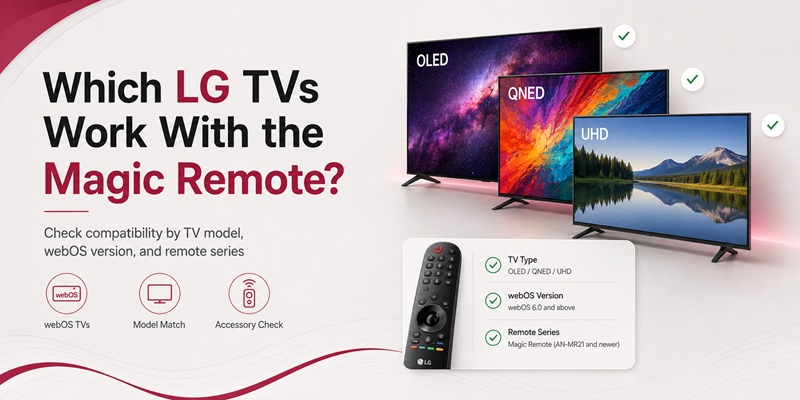
The question does lg magic remote work with all lg tv has a clear answer: no.
LG states that most LG Smart TVs from 2016 and newer that run webOS support Magic Remote functionality. This includes many OLED, QNED, NanoCell, and UHD models. Compatibility still depends on the television series, production year, region, and the specific Magic Remote model.
Some LG televisions include the remote in the box. Other entry-level or regional models may be described as “Magic Remote Ready,” meaning the television can support one even though only a standard remote is included.
Find Your LG TV Model Number
Before buying a Magic Remote, locate the complete TV model number.
You can usually find it:
- On the label behind the television
- On the original box
- On the purchase receipt
- In Settings under TV Information or About This TV
- On the television’s official LG product page
Do not rely only on screen size. Two 55-inch LG TVs may require different remote models.
Match the Remote Model
LG publishes compatibility details for official remote accessories. For example, LG’s MR23GN product page lists specific compatible OLED and UHD series rather than claiming support for every television.
Check:
- TV model number
- TV production year
- Remote model number
- webOS version
- Voice-assistant support
- NFC or Magic Tap support
- Regional language support
Standard Remote vs Magic Remote Ready
A TV may support basic infrared commands from many LG remotes while lacking full Magic Remote functionality.
Basic functions may work:
- Power
- Volume
- Channels
- Input
- Home
- Directional navigation
Advanced functions may fail:
- Pointer
- Voice recognition
- Bluetooth pairing
- Scroll wheel navigation
- Device-specific shortcuts
Before purchasing, search the official LG accessory page using the TV model number. Do not assume that a remote is compatible because it looks identical to the original.
🔵 Learn More About LG Smart TVs: How to Reset and Re-Pair Your LG TV Remote
3. How to Pair an LG Magic Remote With Your TV
A Magic Remote must be registered with the television before its pointer, voice, and wireless functions can work correctly.
LG’s current pairing instructions are straightforward: turn on the TV, wait briefly, point the remote toward the screen, and press the center Wheel or OK button. A confirmation message should appear when registration succeeds.
Standard Pairing Steps
- Insert fresh batteries or charge the remote if applicable.
- Turn on the LG TV.
- Wait approximately 10–20 seconds.
- Point the Magic Remote toward the television.
- Press the center Wheel or OK button.
- Wait for the pairing confirmation message.
- Move the remote to check whether the pointer appears.
This is the core process for anyone researching what is a magic remote control for lg tv and how to activate it.
If Pairing Does Not Start
Try these steps:
- Move closer to the TV.
- Replace the batteries.
- Remove obstacles between the remote and television.
- Restart the TV.
- Wait until webOS finishes loading.
- Press the Wheel again.
How to Unpair and Re-register
Reset combinations vary across Magic Remote generations.
LG’s general user guidance commonly instructs users to hold Home and Back together for approximately five seconds, then point the remote toward the television and press the center wheel to register it again.
LG’s July 2026 troubleshooting guide notes that certain newer models may instead use combinations involving Back and Settings, Home and Settings, or another model-specific button. Users should follow the instructions for the exact remote generation.
Because reset combinations vary, do not repeatedly hold random buttons. Consult the TV’s built-in user guide or the official support page for the remote model.
Pairing Confirmation
After successful registration:
- The pointer should appear when the remote moves.
- The Wheel should select highlighted items.
- Voice recognition should become available when supported.
- A registration message may briefly appear.
4. How to Use the Pointer, Scroll Wheel, and Voice Controls
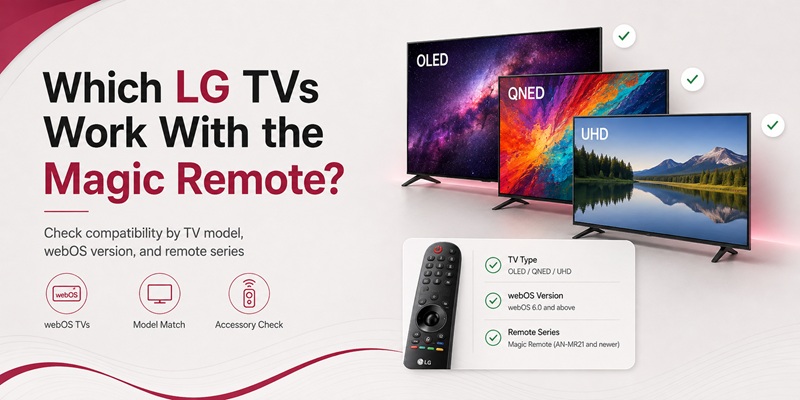
The pointer is the feature that makes the Magic Remote feel different from a conventional TV controller.
Display the Pointer
Move or gently shake the remote. A cursor should appear on the TV screen.
Point the remote toward an icon and press the Wheel or OK button to select it.
If the cursor disappears, move the remote again. It may hide automatically when you use directional buttons or leave the remote still.
Use the Scroll Wheel
The center wheel normally supports two actions:
- Rotate it to scroll
- Press it to select or confirm
You can use it to:
- Scroll through application rows
- Browse web pages
- Move through long settings menus
- Navigate streaming catalogs
- Select the item under the pointer
LG’s Magic Remote guide explains that pressing the wheel runs the selected item and that the pointer can be used like a mouse.
Adjust Pointer Settings
Depending on the webOS version, pointer settings may include:
- Pointer speed
- Pointer size
- Pointer shape
- Alignment behavior
LG’s guide describes adjusting the pointer through the Settings menu, although exact menu names may differ by software version.
Use Voice Recognition
- Hold the microphone button.
- Speak clearly.
- Release the button when prompted.
- Choose a search result or allow the TV to perform the requested action.
Example commands may include:
- “Open YouTube.”
- “Search for action movies.”
- “Turn the volume down.”
- “Show the weather.”
- “Switch to HDMI 1.”
Availability varies by region, language, TV model, account, and internet connection. LG’s newer AI Magic Remote models may also include AI-related buttons or drag-and-drop functionality.
Pointer Safety
LG recommends using the controller within the supported range and avoiding obstacles or wireless interference. Devices using the 2.4 GHz frequency can affect remote performance.
Try opening the Home screen, moving the pointer to an application, clicking it, and scrolling through its content. This is the fastest way to understand the main Magic Remote advantage.
📚 Explore More Articles: Universal Remote Codes for LG TVs: Complete Setup Guide
5. What Every Important Magic Remote Button Does
Button layouts differ, but most Magic Remotes share a group of common controls.
Power
Turns the LG TV on or off.
Home
Opens the webOS Home interface.
Use Home to access:
- Applications
- Inputs
- Home Dashboard
- Settings
- Search
- Connected devices
Back
Returns to the previous screen or closes the current menu.
Holding Back may perform a broader exit function in some apps.
Wheel or OK
- Rotate to scroll
- Press to select
- Register the remote during pairing
Directional Buttons
Move through menus when you prefer not to use the pointer.
Volume and Mute
Adjust or mute the television or connected audio output.
Channel
Changes live-TV channels or opens channel-related options.
Microphone or Voice
Starts voice recognition on compatible models.
Input
Opens the list of HDMI, antenna, USB, and connected-device sources.
Number and Color Buttons
Depending on the model, physical or on-screen number and color buttons may be available for channel entry and app-specific functions.
Streaming Shortcuts
Buttons may open services such as Netflix, Prime Video, or other regional platforms. Shortcut availability varies.
LG notes that button layouts vary across Magic Remote models, even though core Power, Home, Back, Voice, Wheel, Volume, and Mute functions are common.
Practical Example
To switch from Netflix to a game console:
- Press Input.
- Point at the HDMI port connected to the console.
- Press Wheel or OK.
- Use the television’s HDMI-CEC feature if you want the console to respond to basic remote commands.
Identify Power, Home, Back, Wheel, Voice, Input, Volume, and Channel on your remote. These eight controls handle most everyday tasks.
6. How to Use the Magic Remote as a Universal Controller
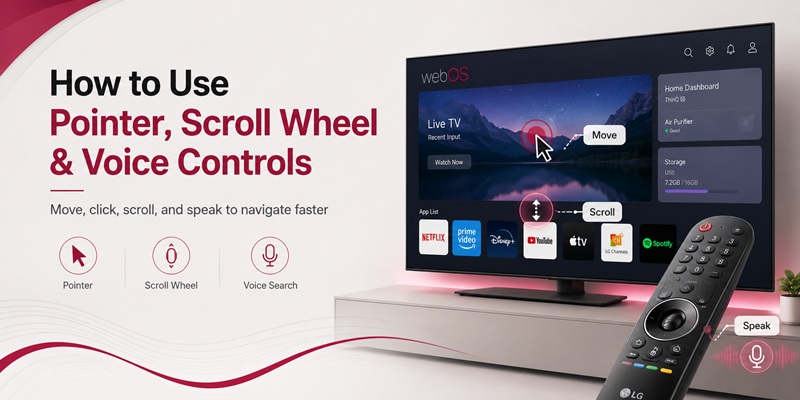
The term “universal” has two possible meanings in this context.
First, LG Magic Remote Universal Control lets the TV remote operate selected external devices connected to the television.
Second, a third-party universal remote is a separate product programmed to control an LG TV.
These are different setup processes.
LG Universal Control
LG says the Magic Remote can be configured to control a compatible set-top box or other external equipment. On many webOS versions, users open the connected HDMI input and select Universal Control Settings.
On webOS 23 and webOS 24, LG provides this general menu path:
Settings > All Settings > General > External Devices > Universal Control Settings
The process usually involves:
- Connect the external device through HDMI.
- Turn on the device.
- Open Universal Control Settings.
- Select the device type.
- Choose the manufacturer or service provider.
- Run the on-screen button test.
- Save the configuration when the device responds.
Example: Set-Top Box
- Connect the set-top box to HDMI 1.
- Open HDMI 1 on the LG TV.
- Select Universal Control Settings.
- Choose Set-Top Box.
- Select the service provider or manufacturer.
- Test Power, Channel, and Menu controls.
- Confirm the working configuration.
LG says Universal Control may be configured automatically for some devices on webOS 4.5 or later. If automatic setup fails, users can configure it manually.
HDMI-CEC and SIMPLINK
Some devices can be controlled through HDMI-CEC, which LG calls SIMPLINK.
CEC can support actions such as:
- Power synchronization
- Input switching
- Playback
- Basic menu navigation
Universal Control may use HDMI-CEC, infrared device profiles, or a combination depending on the connected equipment.
No physical remote? No problem. Use your iPhone to control your LG Smart TV in seconds with a simple and intuitive remote app.
The Best LG TV Remote App for iOS📚 Explore More Articles: Download the Free LG TV Remote Control App: Complete Setup Guide
7. How to Connect a Third-Party Universal Remote to LG TV
People searching how to connect universal remote to lg tv may be referring to a standard replacement controller rather than Magic Remote Universal Control.
A third-party universal remote may connect through:
- Infrared codes
- Automatic code search
- Brand search
- Bluetooth
- A USB or HDMI control hub
- A mobile application
The exact method depends on the remote manufacturer. LG cannot provide one universal pairing sequence for every third-party product.
Method 1: Enter a Setup Code
Many remotes use this process:
- Turn on the LG TV.
- Press and hold Setup until the indicator stays on.
- Press TV or select the TV device mode.
- Enter an LG code from the universal remote’s manual.
- Test Power, Volume, Input, and Home.
- Save the code if required.
The correct code comes from the universal remote manufacturer, not from LG’s Magic Remote documentation.
Method 2: Automatic Code Search
If the listed code fails:
- Turn on the TV.
- Enter the remote’s setup mode.
- Select TV.
- Start Auto Search or Code Scan.
- Point the remote toward the TV.
- Wait for the television to turn off or respond.
- Press Save, OK, or Enter immediately.
- Turn the TV on and test several buttons.
Method 3: Brand Search
Some remotes let you choose LG as the brand and test profiles one by one.
Important Compatibility Limit
A generic infrared universal remote may control:
- Power
- Volume
- Channels
- Input
- Home
- Basic navigation
It may not provide:
- Magic pointer
- Voice recognition
- Bluetooth pairing
- Scroll-wheel behavior
- NFC features
- AI controls
Those advanced features require a compatible LG Magic Remote or supported mobile control solution.
When researching how to pair universal remote to lg tv, first determine whether you have an official LG Magic Remote, LG Universal Control, or a third-party remote. The instructions are not interchangeable.
Find the universal remote’s model number and follow its official manufacturer manual. Test several buttons before assuming that one working Power command means complete compatibility.
8. How to Pair a Universal Remote Without Entering a Code
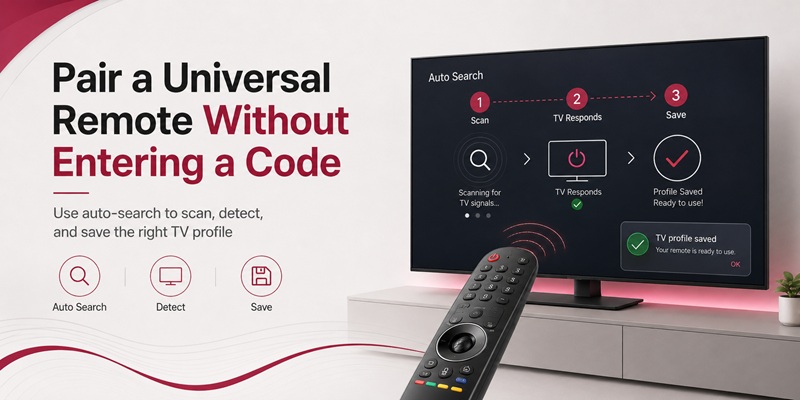
The phrase how to pair universal remote to lg tv without code usually refers to automatic code search.
It does not mean that the remote connects without any device profile. Instead, the remote scans its internal library until it finds a profile that the LG television recognizes.
Generic Auto-Search Process
The exact buttons vary, but the process often looks like this:
- Turn on the LG TV manually.
- Point the universal remote toward the TV.
- Hold Setup until the indicator changes.
- Press the TV device button.
- Start Code Search, Auto Search, Scan, or Power Search.
- Wait while the remote sends different commands.
- Stop the search as soon as the TV responds.
- Save the active profile.
- Test Power, Volume, Input, Home, and navigation.
Consult the universal remote manufacturer’s instructions for the correct key sequence.
LG Magic Remote Universal Control Without a Numeric Code
LG’s own Universal Control setup often does not require users to manually type a traditional remote code.
Instead, the TV asks for:
- Device category
- Manufacturer
- Service provider
- HDMI port
The television then sends test commands. You confirm whether the external device responded.
LG’s official support documentation describes selecting Universal Control Settings and testing the device through the on-screen setup rather than manually entering a numeric code.
This is the safest interpretation of how to pair universal remote to lg tv without code when the user is actually configuring the Magic Remote to control a set-top box.
Do Not Guess Codes Repeatedly
Random codes can create incomplete control. For example:
- Power works, but Volume fails.
- Volume works, but Input fails.
- Navigation works, but Home fails.
Continue the automatic search until you find the profile that controls the functions you need.
➡️ View More Guides: LG ThinQ App Not Finding TV: Complete Fix Guide
9. How to Fix an LG Magic Remote That Is Not Working
If the Magic Remote stops responding, determine whether the issue affects all buttons or only the smart functions.
Only Power Works
The infrared Power command may still work while Bluetooth registration has been lost.
Re-register the remote:
- Turn on the TV.
- Wait 10–20 seconds.
- Point the remote toward the screen.
- Press the Wheel or OK button.
- Wait for the confirmation message.
The Pointer Is Missing
Try:
- Move or gently shake the remote.
- Press the Wheel.
- Replace the batteries.
- Restart the TV.
- Re-register the remote.
- Move wireless equipment away from the TV.
LG says a disconnected pointer can often be restored by pressing the Wheel to register the remote again. Nearby electronic devices can also interfere.
Voice Recognition Does Not Work
Check:
- Internet connection
- Microphone button
- Voice language
- LG account
- TV region
- Remote registration
- Microphone permissions
- Background noise
The Remote Will Not Pair
LG’s July 2026 guide recommends turning on the television, waiting approximately 20 seconds, pointing the remote at the TV, and pressing the scroll wheel. It also provides model-specific reset combinations when normal pairing fails.
Reset and Re-register
Common guidance for many models:
- Hold Home and Back for five seconds.
- Wait for the LED to flash.
- Point the remote toward the TV.
- Press the Wheel or OK button.
Some newer generations use different combinations, so check the model-specific support guide.
Check the Batteries
Replace both batteries together. Do not mix old and new batteries.
Weak batteries may cause:
- Intermittent pointer movement
- Lost voice connection
- Delayed button response
- Failed registration
Test With LG ThinQ
If the physical controller fails, the LG ThinQ mobile interface may provide temporary power, navigation, volume, and input controls on supported TVs.
A remote TV app is useful as a backup, but it cannot physically repair or fully reproduce every Magic Remote feature.
Replace the batteries, restart the TV, and press the Wheel. Reset the remote only if normal re-registration fails.
10. Frequently Asked Questions and Final Recommendations
What Is a Magic Remote Control for LG TV?
The clearest explanation of what is a magic remote control for lg tv is that it is LG’s smart motion remote for compatible webOS TVs. It combines a screen pointer, scroll wheel, voice input, normal buttons, and Universal Control functions.
Does the Magic Remote Work With Every LG Television?
No. Most webOS Smart TVs from 2016 and newer support a compatible Magic Remote, but users must check the TV model and remote model before purchasing.
How Do I Pair an LG Magic Remote?
Turn on the TV, wait briefly, point the remote at the television, and press the center Wheel or OK button.
How Do I Reset It?
Many generations can be unpaired by holding Home and Back for approximately five seconds, then pressing the Wheel to re-register. Other generations use model-specific combinations.
Can a Magic Remote Control a Cable Box?
Yes, selected boxes can be configured through Universal Control Settings. Compatibility depends on the device, provider, region, HDMI connection, and available LG control profile.
Can a Normal Universal Remote Use the Magic Pointer?
Usually not. A standard infrared universal remote may control basic TV functions but cannot reproduce the Bluetooth motion pointer or voice controls.
How Do I Connect a Universal Remote to LG TV?
Use the universal remote’s LG setup code, automatic code search, or brand-search process. Follow the instructions from the remote manufacturer.
Can I Pair a Universal Remote Without a Code?
Many third-party remotes offer automatic code search. LG Magic Remote Universal Control also normally uses an on-screen device selection and test process rather than requiring a manually entered numeric code.
Can My Phone Replace the Magic Remote?
LG ThinQ can provide many everyday functions on supported televisions, including navigation, volume, channels, inputs, and other controls. The motion pointer, specialist buttons, initial setup, and offline recovery may still require a compatible physical remote.
Final Setup Checklist
- Find the LG TV model number.
- Find the Magic Remote model number.
- Verify compatibility through an official LG page.
- Install fresh batteries.
- Turn on the TV.
- Wait 10–20 seconds.
- Point the remote at the TV.
- Press the Wheel or OK button.
- Confirm the pointer appears.
- Test Home, Back, Volume, Input, and Voice.
- Configure pointer speed if needed.
- Use Universal Control Settings for HDMI devices.
- Use Auto Search for a third-party universal remote.
- Keep LG ThinQ ready as a backup.
- Do not assume all LG remotes support every smart feature.
The most important takeaway from what is a magic remote control for lg tv is that its value comes from the combination of motion navigation, scrolling, voice control, and external-device integration.
Check your LG TV model, confirm the correct Magic Remote, press the Wheel to pair it, and configure Universal Control so one controller can manage both the television and your most-used HDMI device.
Connect your iPhone to your LG TV over Wi-Fi and enjoy touchpad navigation, keyboard input, app shortcuts, and media playback controls.
The Best LG TV Remote App for iOS