
LG TV Remote iOS: Official iPhone Setup and Control Guide
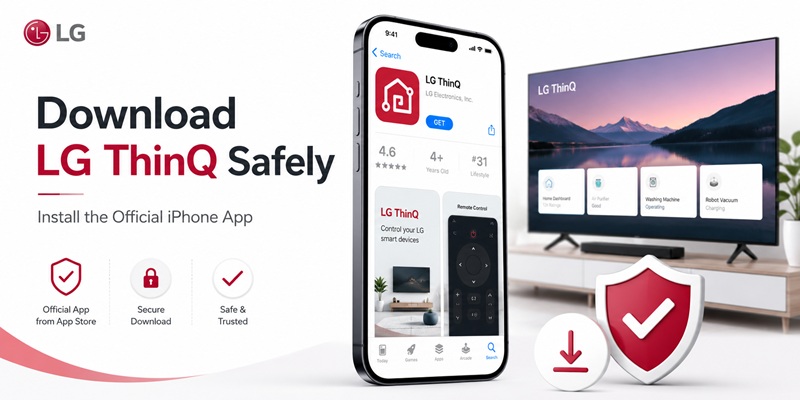
A missing Magic Remote does not have to stop you from watching television. With a compatible LG Smart TV, an iPhone can provide power, volume, channel, input, navigation, pointer, scrolling, and other everyday controls through the official LG ThinQ application. LG says that after ThinQ is configured, users can control the TV, launch applications, and share content from a mobile phone.
The safest lg tv remote ios starting point is LG ThinQ, not an unrelated application using “ThinQ,” “LG remote,” or “smart remote” in its name. Apple’s official App Store listing identifies LG Electronics, Inc. as the developer and lists LG ThinQ as a free iPhone, iPad, and Apple Watch application.
This guide is built around EEAT principles. It uses current LG documentation, identifies the official developer, explains model and regional limitations, and separates verified functions from features that depend on the television. A reliable lg tv remote ios guide should not promise that every iPhone can control every LG television.
The setup also requires more than installing an application. The television must support ThinQ registration, the phone and TV need a suitable network connection, and the user must enter the PIN displayed on the TV. LG’s July 2026 registration guide says support generally applies to products released in 2017 or later, while warning that some models may still be unsupported.
Follow the sections in order. First verify compatibility, then install LG ThinQ, connect the TV, test the mobile remote, enable mobile power when supported, and troubleshoot only after the basic setup has been completed.
➡️ View More Guides: Download the Free LG TV Remote Control App: Complete Setup Guide
1. What Is LG TV Remote iOS and Which App Should You Use?
The phrase lg tv remote ios refers to using an iPhone or iPad as a controller for a compatible LG television.
The official solution is LG ThinQ. LG’s setup documentation says the mobile controls can resemble the LG Magic Remote and may allow users to select an input, change the volume and channel, move the pointer, scroll, use directional arrows, and press OK.
This differs from screen mirroring or casting:
- A mobile remote sends navigation and control commands.
- Screen mirroring displays the iPhone screen on the TV.
- Casting sends selected media to the television.
- AirPlay shares compatible media or mirrors an Apple device.
- ThinQ can provide device control and smart-home management.
One application may include several of these features, but they should not be treated as identical.
The correct lg tv remote ios app should have a verifiable developer, current manufacturer support, clear compatibility information, and transparent pricing. LG ThinQ meets these requirements more reliably than an independent application because LG publishes both the software and its setup documentation.
The App Store contains other products with similar remote-related names. For example, an independently published application named “ThinQ TV – LG TV Remote” appears as a separate product from the official LG ThinQ listing.
An independent app is not automatically unsafe, but users should not assume that it is affiliated with LG. Always check the developer field before downloading.
The official lg tv remote ios solution is appropriate when:
- The television supports LG ThinQ registration.
- The TV is connected to the home network.
- The iPhone can install the current LG ThinQ version.
- The user can approve pairing on the TV.
- The television and iPhone can communicate over the local network.
A physical remote remains useful during factory resets, router changes, initial setup, and complete network loss. The mobile application is best treated as an everyday controller and backup rather than the only recovery method.
➡️ View More Guides:Download the Samsung TV Remote App: Control Your Samsung TV From Your Phone
2. Why LG ThinQ Is the Official iPhone Remote Option
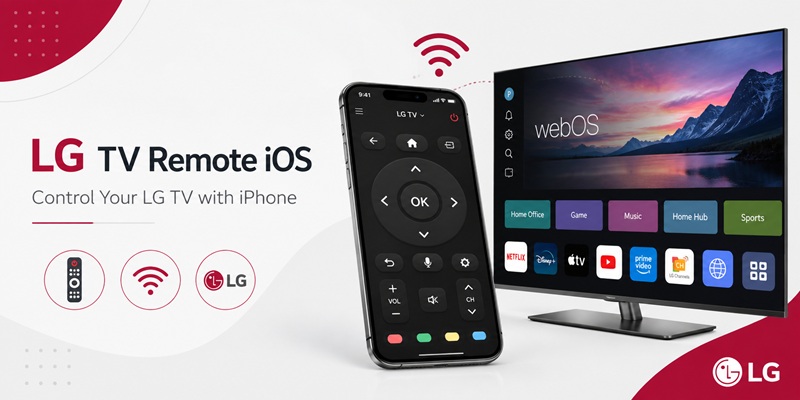
LG ThinQ is the strongest lg tv remote ios choice because its publisher and support path can be verified directly.
Apple’s App Store identifies the developer as LG Electronics, Inc., labels the application as free, and lists support for iPhone and iPad. The same listing explains that features can vary according to the connected product and the user’s country or region.
LG also publishes dedicated instructions for:
- Downloading ThinQ
- Registering an LG television
- Entering the on-screen PIN
- Opening the mobile remote
- Controlling inputs, volume, channels, pointer, and scrolling
- Enabling mobile power on supported webOS versions
These official instructions make it easier to verify whether a problem comes from compatibility, Wi-Fi, permission settings, or incorrect registration.
LG ThinQ also extends beyond the television. The application can organize compatible LG appliances and connected products, create routines, monitor supported devices, and provide product-related services. The App Store listing describes smart routines, energy monitoring, Smart Diagnosis, service requests, and product-management functions.
For users who only need an lg tv remote ios interface, these extra features may make the app appear more complex than a basic remote. However, the benefits include official account integration and manufacturer documentation.
A good EEAT assessment should also acknowledge limitations:
- Not every LG television supports ThinQ registration.
- Available remote buttons vary by TV.
- Mobile power-on depends on webOS version and settings.
- Some features differ by country or region.
- The app depends on local-network access.
- An iPhone cannot provide traditional infrared control without additional hardware.
Therefore, LG ThinQ is the best official starting point, but it is not a universal controller for every LG product ever released.
3. Which LG TVs and iPhones Are Compatible?
Before configuring lg tv remote ios, confirm the television model and iPhone compatibility.
LG’s current registration guide says ThinQ TV support is generally available on products released in 2017 or later, although certain models may still not support the feature. The same guide advises users to turn on the television and router, connect the smartphone to the same Wi-Fi, and keep the TV close enough to the router for a stable signal.
Find the television model number on:
- The rear product label
- The original packaging
- The purchase receipt
- The About This TV or TV Information menu
- The LG support page associated with the TV
Do not judge compatibility only by screen size. Two 55-inch LG televisions may use different webOS versions and mobile-control features.
A television is a stronger lg tv remote ios candidate when it includes:
- webOS
- An LG account or ThinQ option
- Wi-Fi connectivity
- Mobile TV On or TV On With Mobile settings
- A PIN prompt when the iPhone attempts to connect
- LG ThinQ or Home Dashboard integration
On the iPhone side, use Apple’s App Store as the final compatibility check. App requirements can change over time as LG updates ThinQ. The current official listing shows the supported Apple device categories and current application information.
LG’s older support documentation stated that ThinQ supported iOS 11 or higher at that time, but current users should rely on the live App Store listing rather than an older minimum requirement.
Regional compatibility also matters. The App Store listing warns that services and features may vary according to product model and country or region.
Before troubleshooting, confirm:
- The TV supports ThinQ.
- The television is updated.
- The iPhone supports the current ThinQ release.
- Both devices are in a supported region.
- The phone and TV can join the same local network.
This verification prevents users from repeatedly reinstalling an lg tv remote ios app that cannot support the television.
📖 Read More LG TV Guides: Universal Remote Codes for LG TVs: Complete Setup Guide
4. How to Download LG ThinQ Safely on iPhone
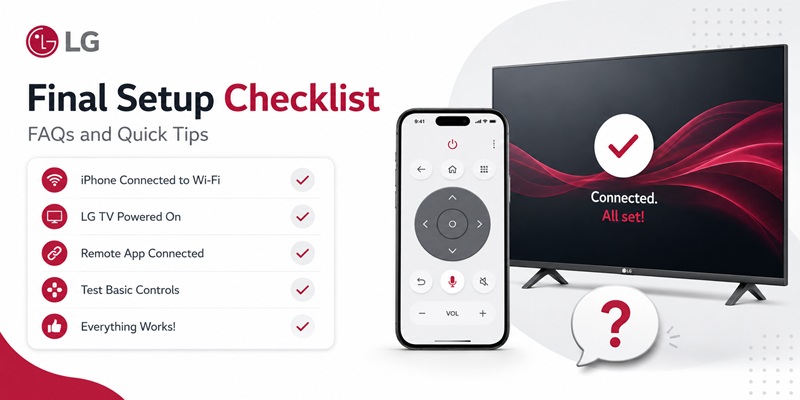
A safe lg tv remote ios installation should begin in Apple’s App Store.
Follow these steps:
- Open the App Store on the iPhone.
- Search for LG ThinQ.
- Confirm that the developer is LG Electronics, Inc.
- Confirm that the application is listed as free.
- Review the current iOS requirement.
- Tap Get.
- Authenticate the installation.
- Open LG ThinQ.
- Sign in or create an LG account.
- Allow the permissions required for the functions you intend to use.
The official App Store listing identifies LG Electronics as the developer and gives the app ID associated with LG ThinQ.
LG ThinQ may request optional permissions such as:
- Location, for nearby Wi-Fi during product registration
- Local Network, for device-connection information
- Bluetooth, for discovering nearby compatible products
- Microphone, for supported diagnosis or voice-related features
- Photos and media, for sharing content with a TV
- Notifications, for device status and alerts
LG’s official App Store information says the requested access permissions are optional, but refusing one can prevent the related service from working. It specifically lists Local Network as relevant when adding devices and Bluetooth for finding nearby products.
For the most reliable lg tv remote ios setup, enable Local Network access:
- Open iPhone Settings.
- Scroll to Apps.
- Select LG ThinQ.
- Turn on Local Network.
- Enable Bluetooth access if displayed.
- Return to LG ThinQ and repeat discovery.
Do not install an app simply because it includes LG or ThinQ in the title. Check the developer and current subscription information.
Avoid software that asks you to:
- Install an unknown configuration profile
- Disable iPhone security controls
- Pay before checking TV compatibility
- Enter an LG password on an unrelated website
- Grant unrelated access without explanation
A secure lg tv remote ios setup begins with the official store listing and a verified developer.
Connect your iPhone to your LG TV over Wi-Fi and enjoy touchpad navigation, keyboard input, app shortcuts, and media playback controls.
Download LG TV Remote for iPhone5. How to Connect an iPhone to LG TV Step by Step
Once LG ThinQ is installed, register the television.
LG’s July 2026 instructions provide this general process:
- Download and open LG ThinQ.
- Log in.
- Tap Add a Device.
- Choose Select Device.
- Turn on the LG TV.
- Connect the iPhone to the same Wi-Fi as the television.
- Select the TV from the available-device list.
- Enter the PIN displayed on the television.
- Complete registration.
- Return to the ThinQ Home screen.
For the cleanest lg tv remote ios pairing:
Step 1: Turn On the Television and Router
The TV needs to be awake and connected. If the Magic Remote is missing, use the physical power button on the television.
Step 2: Use the Same Wi-Fi
Connect the iPhone to the same Wi-Fi network shown in the television settings.
LG’s setup article recommends placing the smartphone and television on the same network and specifically references the same 2.4 GHz network for its documented Wi-Fi connection process.
LG’s newer July 2026 guide also says to disable mobile data and connect the phone to the same Wi-Fi as the TV.
Step 3: Add the Television
Open ThinQ, tap the add-device control, choose TV, and wait for the correct television name to appear.
Step 4: Enter the PIN
The TV should display a PIN. Enter it in ThinQ and continue.
LG uses this PIN to confirm that the user is pairing with the intended television.
Step 5: Test the Connection
Open the registered TV card and test:
- Power
- Volume
- Channel
- Input
- Directional arrows
- OK
- Pointer or touch control
- Scrolling
Close and reopen ThinQ. The TV should remain registered. If pairing is requested repeatedly, remove the device and complete the lg tv remote ios registration again.
📚 Explore More Articles: LG ThinQ App Not Finding TV: Complete Fix Guide
6. How to Use Every Important LG TV Remote Control
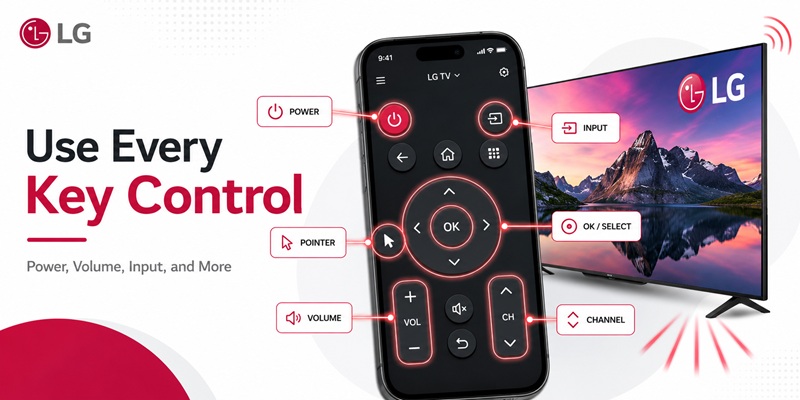
After registration, select the television in LG ThinQ to open the available controls.
LG says ThinQ controls can resemble the LG Magic Remote. Supported controls may include input selection, volume, channel changes, pointer movement, scrolling, arrows, and OK.
The exact lg tv remote ios interface can differ by model and app version, but common functions include:
Power
Turn the TV off and, on supported models, turn it on from standby.
Directional Navigation
Use arrows or a touch area to move through webOS menus, applications, settings, and connected-device screens.
OK or Select
Confirm the highlighted option.
Volume and Mute
Raise or lower the volume and mute the television or selected audio output.
When the TV uses a soundbar, the app may adjust the external system if the TV’s audio-control configuration supports it.
Channels
Change broadcast channels or navigate channel-related screens.
Input Selection
Switch between:
- Live television
- HDMI devices
- Game consoles
- Streaming boxes
- Blu-ray players
- USB sources
Pointer and Scrolling
LG’s official setup page says the ThinQ mobile controls may include pointer movement and scroll functions similar to the Magic Remote.
App Launching
LG says ThinQ can launch applications from the connected phone setup.
Content Sharing
Supported media may be shared between the iPhone and television. The App Store permissions information mentions photos, videos, media, and Apple Music access for viewing phone content on a TV.
This makes lg tv remote ios useful for more than replacing missing buttons. Text entry, application access, and touch navigation may be faster on a phone.
However, keep the physical Magic Remote for:
- Initial network setup
- Factory resets
- Certain accessibility combinations
- Service functions
- Offline recovery
- Model-specific shortcuts
A mobile remote is most dependable when used alongside another recovery method.
🛠️ Learn with Step-by-Step Guides: How to Connect LG Remote to TV: Complete Pairing and Recovery Guide
7. How to Turn an LG TV On and Off From an iPhone
LG documents mobile power support based on webOS generation.
LG says televisions with webOS 3.5 or later can be turned on and off using ThinQ. Older webOS versions may support power-off only. For iPhones, LG specifies Wi-Fi as the mobile power method.
On a documented webOS 6.0 television, LG provides this menu path:
All Settings > Devices > External Devices > TV On With Mobile
LG advises enabling:
- Turn On via Wi-Fi
- Turn On via Bluetooth
Although iPhones use Wi-Fi for the wake function, enabling the available mobile-power options can help support the broader TV configuration.
To test mobile power:
- Turn on the TV normally.
- Open the mobile-power settings.
- Enable TV On With Mobile.
- Confirm the TV is registered in ThinQ.
- Turn the TV off normally.
- Wait approximately 30 seconds.
- Keep the iPhone on the home Wi-Fi.
- Open LG ThinQ.
- Select the TV.
- Tap Power.
The lg tv remote ios power function may fail when:
- The TV uses an older webOS version.
- TV On With Mobile is disabled.
- The television disconnects from the network in deep standby.
- The router or Wi-Fi password changed.
- The iPhone is using another Wi-Fi network.
- Local Network permission is disabled.
- The TV was removed from the LG account.
- The TV is unplugged.
If the app controls the television only after it is turned on manually, registration is probably working. Focus on standby networking and TV On With Mobile rather than reinstalling the application.
Do not rely entirely on mobile power. Keep access to the television’s physical power button or a compatible remote.
💡 Discover Helpful Guides: LG Magic Remote Pointer Not Working? 10 Ways to Fix the Cursor
8. How to Fix LG ThinQ When It Cannot Find or Control the TV
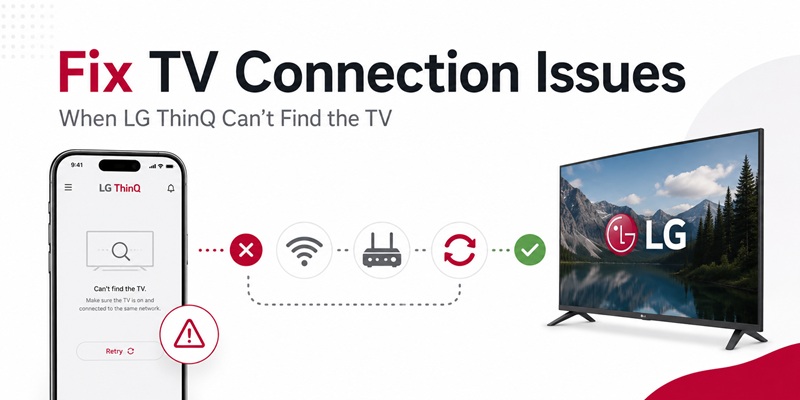
When lg tv remote ios cannot discover the television, troubleshoot in a fixed order.
Confirm Compatibility
LG’s current guide says support is generally for products released in 2017 or later, with some models excluded.
Confirm the TV Is On
Turn on the television and router before registration. LG lists this as a preconnection requirement.
Use the Same Network
Connect the iPhone and television to the same Wi-Fi. LG says registration errors occur when the smartphone and product are not on the same network.
Enable Local Network Permission
Open iPhone Settings and make sure LG ThinQ can access the Local Network. LG’s official App Store information identifies Local Network access as relevant when adding products.
Disable Cellular Data Temporarily
LG’s current registration guide recommends disabling mobile or cellular data during setup and connecting the phone to the same Wi-Fi as the TV.
Move Closer to the Router
LG warns that weak signal strength or distance from the router can create registration latency and performance issues.
Restart the System
Use this order:
- Force-close LG ThinQ.
- Restart the iPhone.
- Restart the TV.
- Restart the router.
- Wait for the TV to reconnect.
- Open ThinQ.
- Scan again.
Remove and Register Again
Delete the old TV entry from ThinQ if it appears offline or duplicated. Add the TV again and use a fresh PIN.
Check the LG Account and Region
Sign in to the correct account. Services can vary by country or region, so confirm that the account and TV settings are appropriate for the television’s location. The App Store listing warns that service availability can differ by model and region.
Update the App and TV
Install the current ThinQ version and update webOS.
If another iPhone can connect, the original phone probably has a permission, Wi-Fi, VPN, or account problem. If no phone connects, focus on the television and router.
Connect your iPhone to your LG TV over Wi-Fi and enjoy touchpad navigation, keyboard input, app shortcuts, and media playback controls.
Download LG TV Remote for iPhone📘 Find the Right Guide: LG TV Remote Volume Button Not Working? 12 Practical Fixes to Restore Volume Control
9. Official LG ThinQ vs Third-Party iOS Remote Apps
The official and third-party lg tv remote ios options can serve different purposes.
| Option | Main advantages | Main limitations |
| LG ThinQ | Official developer, LG account integration, documented controls | Compatibility and controls vary by model |
| Third-party Wi-Fi remote | Simple remote-focused interface or extra shortcuts | Ads, subscriptions, and support vary |
| AirPlay or mirroring app | Content sharing | Not a complete remote replacement |
| Physical Magic Remote | Full model-specific functions and offline use | Can be lost, damaged, or require replacement |
An independent lg tv remote app ios may provide:
- A simplified layout
- Widgets
- Apple Watch functions
- Faster access to favorite applications
- Trackpad or keyboard features
However, users should check:
- Developer identity
- Subscription price
- Trial renewal terms
- Privacy information
- Model compatibility
- Whether power and volume are paid features
- Whether the app claims official LG affiliation
The App Store includes independently published applications with LG-remote or ThinQ-related naming, separate from the official LG Electronics listing.
A general remote TV app can be useful, but it should be installed only after LG ThinQ has been tested.
EEAT requires transparency. A third-party application may work well, but its compatibility claims should come from its own developer rather than being presented as LG guarantees.
Use LG ThinQ first because:
- The publisher is verifiable.
- LG provides setup instructions.
- The app integrates with supported LG products.
- Permissions are explained in the App Store listing.
- Compatibility limitations are acknowledged.
Use a third-party app only when it provides a specific missing feature and the pricing is clear.
💡 Discover Helpful Guides: LG Magic Remote Lagging: 12 Fixes for Slow or Delayed Response
10. Frequently Asked Questions and Final Setup Checklist
What Is the Official LG TV Remote App for iPhone?
LG ThinQ is the official LG application. Apple identifies LG Electronics, Inc. as the developer.
Is LG ThinQ Free on iPhone?
The official App Store listing labels LG ThinQ as free.
Does the iPhone Need to Be on the Same Wi-Fi as the TV?
LG instructs users to connect the smartphone and television to the same network during setup and registration.
Can an iPhone Turn On an LG TV?
LG says supported webOS 3.5-or-later TVs can be turned on and off through ThinQ. iPhones use Wi-Fi for power-on.
Can LG ThinQ Replace the Magic Remote?
It can replace many normal controls, including input, volume, channels, pointer, scrolling, arrows, and OK on supported models. Initial setup, offline recovery, and certain model-specific functions may still need a physical remote.
Why Does LG ThinQ Need Local Network Permission?
The official App Store information says Local Network access is used to obtain device Wi-Fi information when adding products.
Does LG ThinQ Work With Every LG Smart TV?
No. LG’s current guide says support is generally available for products released in 2017 or later, while some models may remain unsupported.
What Should I Do If the TV Does Not Appear?
Confirm compatibility, turn on the TV and router, connect the iPhone to the same Wi-Fi, enable Local Network permission, disable cellular data temporarily, restart the devices, and repeat registration.
📘 Find the Right Guide: How to Control Cable Box With LG Magic Remote: Complete Setup Guide
The best lg tv remote ios setup is the one built around official software, verified compatibility, clear permissions, and a stable local network.
For most supported LG Smart TVs, LG ThinQ is the strongest starting point because the developer, download source, setup process, and limitations can all be verified through LG and Apple documentation.
No physical remote? No problem. Use your iPhone to control your LG Smart TV in seconds with a simple and intuitive remote app.
Download LG TV Remote for iPhone