
How to Control Cable Box With LG Magic Remote: Complete Setup Guide
Using one remote for your television, cable receiver, and audio system can make a home entertainment setup considerably easier to use. If you are searching for how to control cable box with lg magic remote, the main feature you need to understand is LG Universal Control.
LG states that Universal Control allows a Magic Remote to control both an LG TV and a connected set-top box. On supported webOS TVs, the television may even begin Universal Control setup automatically when it detects a set-top box connected through HDMI.
That means learning how to control cable box with lg magic remote usually involves three parts: connect the cable box correctly, identify the box through Universal Control Settings, and test the commands LG provides during setup.
Depending on your equipment, SIMPLINK—LG’s name for HDMI-CEC—can also help compatible HDMI devices communicate with the television. Soundbars can be incorporated into the same setup so that everyday tasks such as changing volume do not require a second remote.
The exact menus differ between webOS generations, so this guide covers both current and older LG menu paths.
1. How to Control Cable Box With LG Magic Remote: Quick Setup
For most recent LG televisions, the fastest answer to how to control cable box with lg magic remote is:
Cable box → HDMI → LG TV → Universal Control Settings → Set-top Box → Provider → Remote Test → Finish
Start with both the LG TV and cable box powered on.
Connect the cable or set-top box to an HDMI input on the television. LG’s Universal Control instructions say the set-top box should be connected to the TV through HDMI and powered on before configuration.
On webOS 23 and webOS 24, open:
Settings → All Settings → General → External Devices → Universal Control Settings
Then select Manage Settings and follow the on-screen setup process. LG’s official support documentation lists this path for webOS 23 and webOS 24.
When asked for the external device type, select the set-top box option.
LG’s setup process then asks you to verify your location, select the service provider, and complete an on-screen remote-control test.
Once the test succeeds, how to control cable box with lg magic remote becomes much simpler: select the cable box’s HDMI input and use the supported Magic Remote controls instead of constantly switching back to the original cable remote.
Fast checklist
Before troubleshooting, confirm:
- Cable box is powered on.
- HDMI cable is connected securely.
- LG TV is displaying the cable-box HDMI input.
- Magic Remote is paired with the television.
- Universal Control identifies the cable/set-top box.
- Correct provider or manufacturer has been selected.
- The on-screen command test succeeds.
If all six conditions are met, the basic how to control cable box with lg magic remote setup should be complete.
2. How LG Universal Control Works With a Cable Box
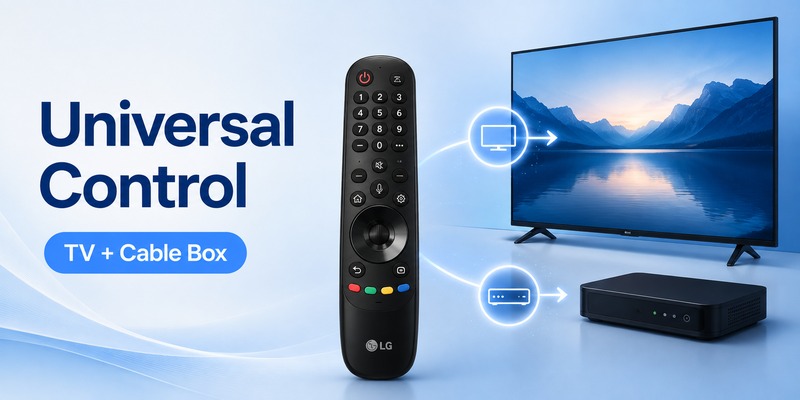
The key to understanding how to control cable box with lg magic remote is recognizing that the Magic Remote does not automatically behave like every cable company’s original remote.
LG provides an integrated Universal Control function.
According to LG, once a set-top box is paired with the Magic Remote and the integrated remote-control function is enabled, the Magic Remote can be used to control the TV and set-top box instead of requiring separate controllers.
LG also states that Universal Control can be configured for several types of peripherals, including set-top boxes, home-theater systems, and Blu-ray/DVD players.
This is the feature behind most searches for lg magic remote control set top box.
Automatic detection
LG says webOS 5.0 and newer TVs can automatically execute Universal Control setup under certain conditions.
Its installation documentation goes further, stating that when a set-top box is connected to an HDMI port, Universal Control can be automatically configured. If automatic setup does not occur, the feature can be configured manually.
So if you are trying to learn how to control cable box with lg magic remote, first connect the cable box and select its HDMI input.
The TV may already recognize enough information to simplify setup.
Universal Control is not identical on every TV
Menu names and locations changed across webOS generations.
A recent TV may place Universal Control under External Devices, while an older TV might use Device Connection Settings or Device Connector. LG documents those differences explicitly.
This is why following a tutorial written for a different TV year can make how to control cable box with lg magic remote seem more complicated than it really is.
Explore Related Articles: LG TV Remote Volume Button Not Working? 12 Practical Fixes to Restore Volume Control
3. Connect the Cable Box to the Correct HDMI Input
Before opening settings, make sure the physical connection is correct.
LG’s current Universal Control instructions specify that the set-top box should be connected to the television using HDMI and that both devices should be switched on during configuration.
A basic setup looks like this:
Cable/Satellite source → Cable Box → HDMI Cable → LG TV HDMI Input
Once connected:
- Turn on the cable box.
- Turn on the LG TV.
- Press the External Input/Input button on the Magic Remote.
- Select the HDMI port where the box is connected.
- Confirm that live TV or the cable-box interface appears.
LG’s Magic Remote documentation identifies the External Input button as the control used to change input sources.
If no cable-box picture appears, solve that problem before configuring how to control cable box with lg magic remote.
Universal Control cannot compensate for a box that is connected to the wrong input or not producing an HDMI signal.
Avoid moving HDMI ports after setup
Suppose you configure how to control cable box with lg magic remote while the box is connected to HDMI 1 and later move it to HDMI 3.
The TV’s external-device configuration may need to be updated.
A cleaner approach is to choose the final HDMI layout first and then configure Universal Control.
For example:
- HDMI 1: Cable box
- HDMI 2/eARC: Soundbar
- HDMI 3: Game console
The specific arrangement depends on your TV’s port labels and connected equipment.
Explore Related Articles: LG Magic Remote Lagging: 12 Fixes for Slow or Delayed Response
4. Set Up Universal Control on Different webOS Versions
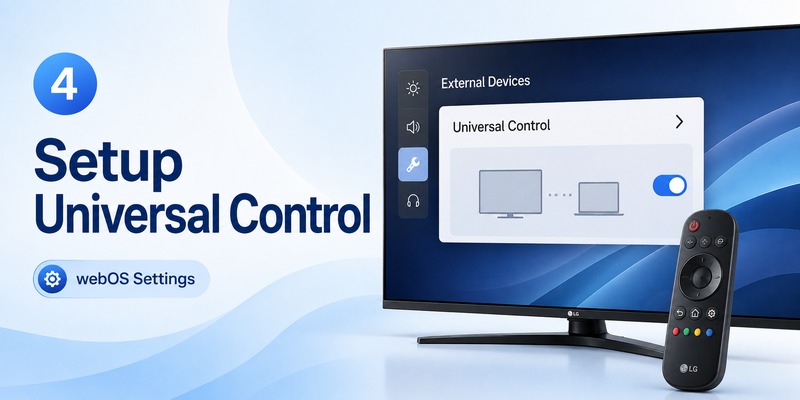
Users searching for lg universal control settings magic remote often find conflicting menu paths online because LG changed the interface between webOS generations.
Use the path that corresponds to your TV.
webOS 23 and webOS 24
LG lists:
Settings → All Settings → General → External Devices → Universal Control Settings
Then select Manage Settings.
This is the most straightforward modern path for how to control cable box with lg magic remote.
webOS 6.0 and webOS 22
LG lists:
Settings → All Settings → General → Device → External Devices → Universal Control Settings
Notice the additional Device layer.
webOS 5.0
Use:
Settings → All Settings → Connection → Device Connection Settings → Universal Control Settings
webOS 4.5
LG lists:
Settings → All Settings → Connection → Device Connector → Universal Control Settings
webOS 4.0
Press Home and select Device Connector from the app list, then follow the prompts.
Once you reach Universal Control, how to control cable box with lg magic remote follows essentially the same concept even though the interface looks different.
Select the external device, identify it as a set-top box, provide the requested location/provider information, and run the remote test.
LG notes that its support instructions cover multiple models and that the images or menu appearance can differ from the actual TV.
So focus on the menu names rather than expecting your screen to look pixel-for-pixel identical to an online guide.
Explore Related Articles: How to Connect LG Remote to TV: Complete Pairing and Recovery Guide
5. Choose Your Set-Top Box Provider and Test the Remote
The provider-selection stage is one of the most important parts of how to control cable box with lg magic remote.
LG’s current Universal Control process instructs users to:
- Open Universal Control Settings.
- Select Manage Settings.
- Start setup.
- Choose the connected set-top box.
- Verify the displayed address/location.
- Select the service provider.
- Complete the on-screen test.
- Finish setup.
If your provider does not initially appear, LG says to select More to display additional providers.
Do not simply choose a similar-looking provider to get through the menu.
The correct identification is important because Universal Control needs the appropriate commands for your particular equipment.
Run the command test carefully
When the TV asks you to test remote operation, watch the cable box rather than only watching the TV.
Try the commands presented by the setup wizard.
If the cable receiver responds correctly, confirm the result.
If it does not, continue through the available setup options rather than finishing prematurely.
Successful command testing is the point where how to control cable box with lg magic remote changes from configuration to everyday use.
What can you control?
LG describes Universal Control broadly as allowing a Magic Remote to operate connected set-top boxes and other peripherals.
The exact set of working controls can vary by external equipment.
For that reason, keep the original cable-box remote somewhere accessible even after learning how to control cable box with lg magic remote, especially if your provider has specialized buttons or functions not exposed through the LG configuration.
6. Use SIMPLINK HDMI-CEC With the Magic Remote
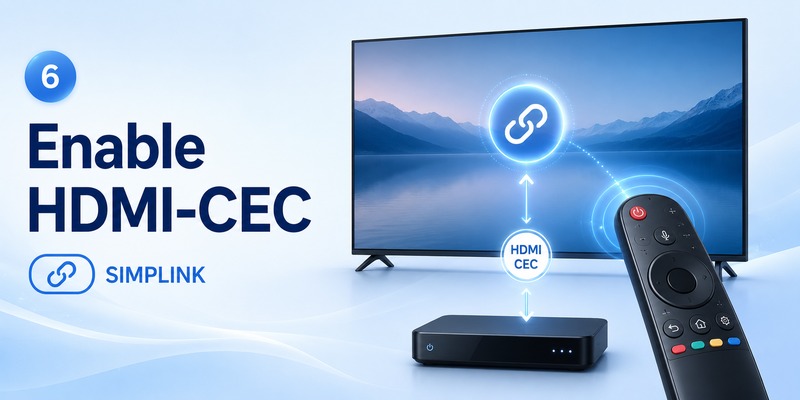
Universal Control and HDMI-CEC are related to external-device control, but they should not be treated as exactly the same feature.
LG calls its HDMI-CEC implementation SIMPLINK.
For current compatible TVs, LG’s support instructions show HDMI-CEC under the external-device HDMI settings. For example, one current path is:
Settings → All Settings → General → External Devices → HDMI Settings → SIMPLINK (HDMI-CEC) → On.
On webOS 6.0 models, LG documents:
All Settings → General → Devices → HDMI Settings → SIMPLINK (HDMI-CEC) → On.
This is the functionality users often mean when searching lg magic remote hdmi cec control.
What HDMI-CEC can help with
HDMI-CEC enables compatible HDMI devices to exchange control signals.
LG documents SIMPLINK as a feature used to control compatible connected equipment, and its soundbar support materials specifically describe HDMI-CEC/SIMPLINK as enabling some soundbar functions through the TV remote.
For how to control cable box with lg magic remote, enabling SIMPLINK can therefore be useful when the cable/set-top equipment also supports HDMI-CEC.
However, Universal Control should still be configured when your goal is explicit cable-box remote operation.
Should SIMPLINK always be on?
If your equipment supports HDMI-CEC and you want coordinated control between the TV, audio system, and HDMI devices, enabling SIMPLINK generally makes sense.
If devices begin powering on or switching inputs in ways you do not want, review their CEC settings individually.
The behavior ultimately depends on the features implemented by each connected device.
7. Control a Soundbar and Cable Box With One Magic Remote
A common extension of how to control cable box with lg magic remote is using the same controller for audio.
Users frequently want:
- Magic Remote controls LG TV
- Magic Remote changes cable channels
- Magic Remote controls soundbar volume
- One power sequence handles multiple devices
LG markets the Magic Remote as capable of controlling compatible soundbars, televisions, and other devices through its external-device features.
For lg magic remote control soundbar, HDMI ARC/eARC plus SIMPLINK is often the cleanest compatible setup.
LG explains that when an LG soundbar with SIMPLINK support is connected through HDMI, some soundbar functions can be controlled by the television’s remote.
A typical layout would be:
Cable Box → TV HDMI input
Soundbar HDMI ARC/eARC → TV HDMI ARC/eARC port
Then:
- Configure the cable box in Universal Control.
- Enable SIMPLINK where supported.
- Configure TV audio output for the connected soundbar.
- Test Magic Remote volume controls.
- Test cable-box navigation separately.
This gives how to control cable box with lg magic remote a much more useful real-world result because the same remote can handle the most common television tasks.
LG also notes in its soundbar setup materials that Magic Remote Universal Control can be used to control multiple devices, and HDMI/SIMPLINK can allow the TV remote to control compatible soundbar volume and power.
8. What to Do If the Magic Remote Cannot Control the Cable Box
If how to control cable box with lg magic remote does not work after setup, avoid repeatedly changing random TV settings.
Use a structured diagnosis.
Confirm the Magic Remote works with the TV
The pointer, Home, Settings, and TV volume controls should respond normally.
If the Magic Remote itself is disconnected, fix that pairing issue first.
LG’s current Magic Remote support instructions provide model-dependent re-registration procedures when the remote connection fails.
Confirm the correct HDMI input
Select the cable-box input and ensure its picture appears.
No picture usually indicates a connection or source issue rather than a Universal Control problem.
Run Universal Control setup again
Return to Universal Control Settings → Manage Settings and check the external-device configuration.
LG’s instructions explicitly support manually rerunning setup when automatic configuration does not occur.
For how to control cable box with lg magic remote, redo the provider stage carefully.
Verify the service provider
An incorrect provider can prevent the expected commands from working.
LG’s setup process specifically asks users to select the set-top service provider and offers a More option when the provider is not initially displayed.
Check HDMI-CEC
If you expect power or coordinated HDMI behavior, confirm SIMPLINK is enabled and that the cable box itself supports and has enabled HDMI-CEC.
LG’s current HDMI-CEC support pages place SIMPLINK inside HDMI Settings on supported webOS versions.
Remember that remote layouts changed
Some Magic Remote generations do not have the same dedicated set-top-box buttons as older models.
LG specifically notes that the dedicated set-top-box Power button was removed from the 2021 Magic Remote design and provides alternate methods after Universal Control is configured.
So a tutorial showing a physical button that your remote does not have may simply apply to another generation.
View Related Articles: LG TV Remote iOS: Official iPhone Setup and Control Guide
9. FAQs About LG Magic Remote and Cable Box Control
Can an LG Magic Remote control a cable box?
Yes, compatible set-top boxes can be configured through LG Universal Control. LG states that this feature allows users to operate the TV and set-top box using the Magic Remote.
That Universal Control feature is the core solution for how to control cable box with lg magic remote.
How do I connect my cable box to the Magic Remote?
First connect the cable box to an HDMI input.
Then open Universal Control Settings, select Manage Settings, choose the set-top box, select the appropriate service provider, and complete the remote test.
Where are LG Universal Control Settings?
For webOS 23 and 24:
Settings → All Settings → General → External Devices → Universal Control Settings.
Older versions use different paths, so the location depends on the television’s webOS generation.
Does Universal Control work automatically?
It can.
LG says TVs running webOS 5.0 or later can automatically run Universal Control setup under certain conditions, and LG’s installation guide says connecting a set-top box through HDMI can trigger automatic configuration.
If it does not, configure how to control cable box with lg magic remote manually.
Can LG Magic Remote control both cable box and soundbar?
LG supports Universal Control for external peripherals, while compatible LG soundbars can also expose controls through HDMI/SIMPLINK.
This can make one Magic Remote practical for TV, cable, and audio functions.
Does the Magic Remote use HDMI-CEC?
LG televisions support HDMI-CEC under the name SIMPLINK. Compatible HDMI devices can use it for coordinated control functions.
For how to control cable box with lg magic remote, Universal Control remains the primary cable/set-top configuration feature, while SIMPLINK can complement it on compatible equipment.
Why isn’t my cable provider listed?
LG says that if the service provider does not appear in the initial Universal Control list, select More to display additional providers.
Make sure the location information is also correct.
Why can the Magic Remote control the TV but not the cable box?
The Magic Remote may be paired correctly with the LG television without Universal Control being properly configured for the external box.
Return to Universal Control Settings, choose the correct set-top box and provider, and repeat the command test.
This is one of the most common distinctions to understand when learning how to control cable box with lg magic remote.
Do I still need the cable company’s original remote?
Possibly.
Universal Control can eliminate the need to use the original remote for many everyday operations, but available commands depend on the external device and provider.
Keep the original remote available for specialized cable-box settings that the Magic Remote does not expose.
What is the best setup order?
For the most reliable how to control cable box with lg magic remote configuration, use this order:
Connect cable box via HDMI → confirm picture → select the input → open Universal Control → choose Set-top Box → verify location → choose provider → run control test → enable SIMPLINK if appropriate → test soundbar and power functions.
LG’s own Universal Control workflow follows essentially this sequence for current webOS TVs.
Once configured correctly, how to control cable box with lg magic remote should no longer require juggling remotes for routine viewing. Universal Control handles the set-top-box configuration, while SIMPLINK HDMI-CEC can extend compatible control to other HDMI equipment.
The main point is to configure each system for its intended purpose rather than expecting the Magic Remote to recognize every device automatically.
Start with the cable box’s HDMI connection, complete LG Universal Control setup using the correct provider, and then add HDMI-CEC/SIMPLINK and soundbar controls where supported. That gives how to control cable box with lg magic remote the cleanest and most dependable setup for everyday use.
