
Panasonic TV Remote Instructions for Buttons Menus and Daily Use
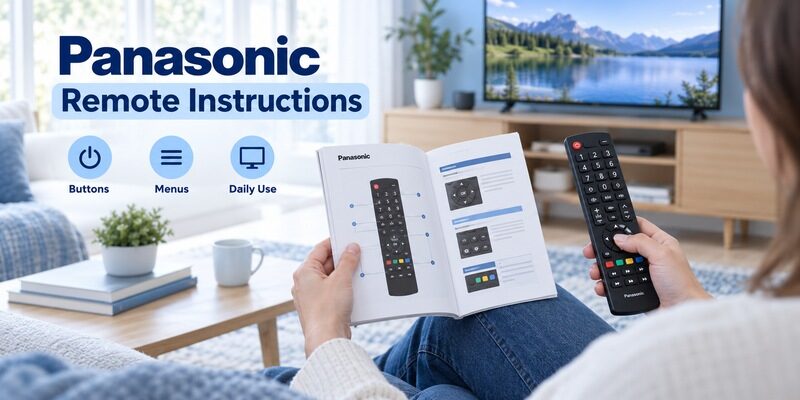
Short answer: Use the remote diagram in your exact Panasonic TV model’s operating instructions to identify each button.
Panasonic TV remote instructions differ across older VIERA sets, Android TV models, and newer Fire TV televisions. A button can also do different things in the TV menu, a streaming app, or an HDMI device. Following a random diagram without checking the model can therefore make a simple task harder.
This guide explains the everyday controls shared by many setups while identifying where you need model-specific instructions. It covers batteries, navigation, inputs, sound, captions, language, restart, and available physical TV controls. It also shows how to make a clear and concise household guide that remains useful when the original remote is replaced.
Start with the Right Panasonic TV Remote Instructions
Match the television and handset
Record the full TV model and the remote’s complete part number. Look for the remote diagram in the television operating manual, and check that its layout matches the handset in your hand. If a replacement has different labels, use its own key guide alongside the television instructions.
A familiar brand is not a complete model reference. Panasonic tv remote instructions for one VIERA generation may omit features found on another, while an external streaming remote can display a Panasonic picture without controlling the TV menus. Establish which device each handset belongs to before learning a button sequence.
Read symbols in their documented context
A house normally identifies Home on supported remotes, while a gear often points toward settings. However, physical placement and behavior vary. Use the manual’s named function rather than assuming that every similar icon opens the same screen on every Panasonic television.
If a search result describes panasonic tv remote manual content but names a recorder, audio system, or different TV, return to the correct model. A full manual is more reliable than a cropped button image because it preserves the scope and any conditions attached to the instructions.
📘 Find the Right Guide: App for Panasonic TV Remote: VIERA and Platform Options
Install Batteries and Open Only the Battery Compartment
Identify the battery requirement
Read the size, quantity, and polarity markings inside the handset. Panasonic manuals provide different examples, so do not assume that every remote uses AAA cells. A third-party replacement may also differ from the original handset supplied with the television.
For how to open panasonic tv remote, start with the cover diagram rather than the shell seam. Battery-cover removal is different from disassembly. A slide or latch should be operated in its intended direction without levering the case open with a sharp tool.
Confirm the first command
Install a matched fresh pair of the specified type and close the cover without force. Try a simple supported command with the remote directed toward the TV receiver where infrared is used. If the set remains unresponsive, check its physical power control before assuming the handset is the only problem.
Keep panasonic tv remote instructions for batteries with the handset record. If a relative maintains the television, a note with the remote model and battery size saves repeated label reading. The guide covers installation and contact checks in more detail.
💡 Discover Helpful Guides: Download the Panasonic TV Remote App: Complete Setup Guide
Learn the Navigation Keys Before Changing Settings

| Key or function | Everyday role | What to check on screen |
|---|---|---|
| Arrows | Move the current selection | Which option is highlighted |
| OK or Select | Confirm the highlighted choice | Whether the action changes a setting |
| Back or Return | Leave the current level where supported | The previous screen or prompt |
| Home | Open the platform’s main interface | How to return to the viewing source |
| Menu or Settings | Open available configuration options | Whether this is a TV or app menu |
Practice with a harmless menu
Open a normal television menu, move between two items, and leave without saving a change. This exercise teaches the relationship between arrows, confirmation, and returning. It is more useful than pressing unfamiliar buttons while a program is playing and trying to infer their purpose from partial results.
Read the highlighted item before pressing OK. Panasonic tv remote instructions should connect the button with the visible choice, especially when a confirmation could reset a setting or start setup. If your screen differs from the guide, stop and establish where you are before continuing.
Understand Home Back and Exit
Home usually takes you to a main interface on supported smart-TV platforms. Back or Return moves through navigation history or menu levels according to the active interface, while Exit may leave a television menu directly. These keys should not be treated as interchangeable without checking the model and current screen.
For panasonic tv remote how to use questions, start by teaching one dependable route back to the picture. That may involve Exit, Back, or choosing the usual HDMI source. Once a viewer can recover from an unexpected screen, exploring ordinary settings becomes much less confusing.
💡 Discover Helpful Guides: Panasonic TV Remote Universal Compatibility and Setup Guide
Turn the Television On and Understand Standby
Power on the intended device
The Power key on a TV handset may control the television, while a multi-device remote can depend on its selected mode. Confirm which screen or device changes when you press it. If a sound system switches but the TV does not, check the remote’s role before changing television settings.
Standby is not the same as unplugging the TV. Model-specific background functions can continue in standby. Panasonic tv remote instructions for modern OLED sets may also describe panel-maintenance behavior, so do not interpret every temporary indicator change as a reason to cut power immediately.
Use the physical control when needed
Locate the TV’s documented power button rather than searching by feel around connectors. A brief press and a hold can have different functions on some models. Read the operation guide displayed by the television if one appears, and avoid trying a guessed button combination intended for another model.
If both the handset and the TV’s own control fail, follow television power troubleshooting. A new remote cannot solve every no-power condition. Record whether the screen remains dark, a light is steady, or a repeated blink pattern appears so the next step is based on an actual symptom.
Select HDMI Broadcast TV and Other Sources
Match the input to the connection
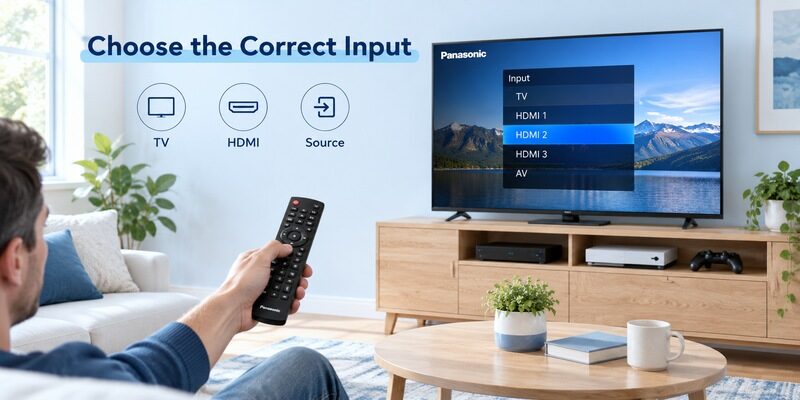
Use the source-selection key named in the model’s manual, often labelled Input, AV, or TV/Video. Select the socket used by the equipment and confirm as required. If a streaming box uses HDMI 2, choosing HDMI 1 will not display it simply because the box is powered on.
Panasonic tv remote instructions are easier to follow when the physical connections are recorded. Write down which socket serves the cable box, game console, or disc player. A visible source label can then be compared with a known connection rather than guessed from several similar menu entries.
Recognize renamed or skipped inputs
Panasonic’s input-labelling guidance describes model-dependent options for naming sources and marking unused ones. An input marked Skip or Not Used may be unavailable in the selector. Check that setting if a connected device’s socket is missing rather than repeatedly pressing the source button.
Changing the input changes the picture source, not necessarily the remote’s target. A TV handset may still control television volume while the box’s own remote handles its program menu. Keep those roles clear in any panasonic tv remote instructions you prepare for another viewer.
📖 Read More Guides: Panasonic TV Remote Replacement Buying and Compatibility Guide
Control Volume Mute and Audio Devices
Identify where the sound is playing
Before diagnosing Volume, establish whether sound comes from the TV speakers, a soundbar, headphones, or another audio system. A television volume display and an external speaker’s volume indicator may represent different controls. Recent changes to audio connections are useful clues when a familiar button behaves differently.
Use a small volume adjustment for the first test and watch the relevant device. Avoid raising an unknown audio system repeatedly while waiting for a response. If sound returns suddenly, the accumulated setting can be uncomfortable. Confirm the target before making a larger change.
Keep mute and source problems separate
If the screen has a picture but no sound, check mute and the selected audio output before concluding that the remote has failed. If only one HDMI source is silent, compare another source or the TV’s own menu sounds where available. That can narrow the issue to the source or connection.
Good panasonic tv remote instructions explain the control result, not merely the button location. A household note can identify which remote adjusts the soundbar and which one changes the television input. This is particularly helpful when a universal controller has different device modes.
Use Captions Picture Format and Context Keys

Subtitles depend on the active source
A television’s caption control may apply to broadcasts received by the TV, while an app or HDMI box manages its own subtitles. Panasonic’s CC troubleshooting guidance explicitly distinguishes captions generated by an HDMI-connected device. Open the source’s relevant menu when the television CC setting has no effect.
Start with where the subtitles are generated. Panasonic tv remote instructions that simply say “press CC” cannot cover every app and external box. Keep the task tied to the content currently playing, and avoid disabling unrelated accessibility settings while looking for the correct caption control.
Picture format changes the displayed shape
On models with a Format or Aspect key, review the available picture choices and compare the same scene after one adjustment. Zoom can crop edges or captions, so it should not be treated as a universal cure for black bars. The source can also have its own aspect setting.
Write down the original setting before experimenting. A useful panasonic tv remote instructions note explains how to restore it if the picture looks stretched or cropped. This keeps an accidental format change from becoming a reason to reset the entire television.
Colored keys follow the visible interface
Red, green, yellow, and blue keys can perform context-dependent actions. Look for matching labels on the TV or read the model’s instructions for the active feature. Do not memorize one permanent action for each color and assume it applies inside every application or guide.
When teaching how to use panasonic tv remote, demonstrate a context key only on the screen where its role is visible. If the menu changes after an update, the on-screen label remains a better guide than a remembered sequence. Stop before confirming an action whose meaning is unclear.
📖 Read More Guides: Panasonic TV Remote Viera Model Identification and Controls
Handle Voice Keyboard and Language Settings
Microphone input requires a supported setup
Voice operation needs the correct remote, television support, and relevant registration or service setup. It is distinct from spoken menu guidance, which reads information aloud. If ordinary navigation works but speech does not, diagnose voice specifically rather than treating every function as disconnected.
Use the keyboard when exact text matters. A title with unusual spelling can be easier to enter manually than to repeat aloud. Panasonic tv remote instructions for the on-screen keyboard should come from the active TV platform or app, since key placement and entry behavior can differ.
Change language through the matching model menu
A panasonic tv remote japanese to english search often concerns the television interface, not the handset’s printed labels. The available menu languages depend on the TV’s regional model and software. An imported set may not offer the same languages as a locally sold model.
Locate the language setting in the correct manual and use a camera translation aid for reading if helpful. Do not factory reset merely to search for English. A reset does not guarantee that an unsupported language will appear and can leave the TV at a setup screen you still cannot read.
If the menu is unfamiliar, photograph the current screen and identify the model before proceeding. Avoid following a memorized sequence of arrow presses from another television. A small difference in menu order can send the same presses to an unrelated setting, so visible confirmation is essential.
💡 Discover Helpful Guides: Panasonic TV Remote Not Working Troubleshooting Guide
Restart the TV Without Confusing It with Factory Reset
Use a documented restart option
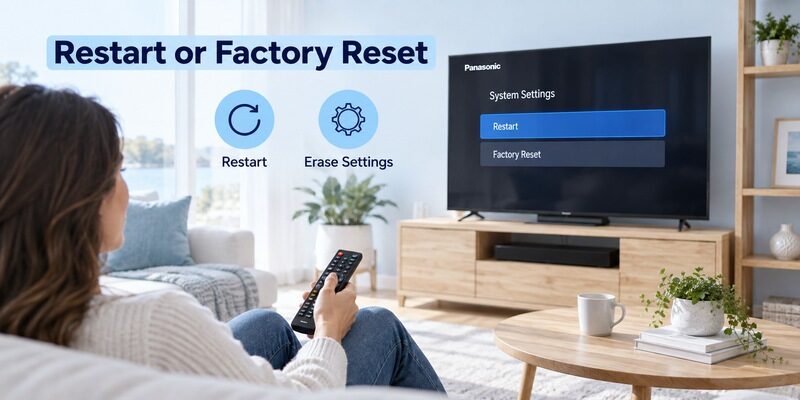
For how to restart panasonic tv with remote, look for the restart instruction in the exact platform’s manual or on-screen help. A short Power press may enter standby rather than perform a full software restart. Holding Power can also vary by remote and model, so there is no universal duration to promise.
If the television provides a visible Restart option, read its prompt before confirming. Panasonic tv remote instructions should distinguish that operation from Reset to Factory Defaults, Shipping Condition, or another setting that erases configuration. Similar wording does not mean the consequences are the same.
Protect settings before an erase operation
A factory reset can remove network settings, accounts, tuning, and personal adjustments according to the model. It is disproportionate for an isolated missing button or an uncertain replacement remote. Solve the narrower control problem first unless the manufacturer specifically recommends a reset for the diagnosed issue.
Know how you will control the TV afterward. If a reset removes the connection used by a phone remote, the phone may no longer navigate initial setup. The guide explains that access problem before any erase step is attempted.
Use the Television When the Handset Is Missing
| Available control | Potentially useful task | Limit to verify |
|---|---|---|
| TV physical button or joystick | Power input volume or local menu | Exact functions vary by model |
| Compatible replacement remote | Normal television navigation | Correct part or programmed profile |
| Supported phone remote | Network-based navigation | TV support existing connection and approval |
| External device remote | Its own interface and some linked functions | Does not guarantee TV settings access |
Check the physical operation guide
Some televisions expose several functions through a single button; others have separate controls or a joystick. Use the model’s diagram and watch the on-screen operation guide. Do not assume that the physical control includes every menu function available from the full handset.
This addresses the practical intent behind panasonic tv bina remote ke kaise chalayen: find which controls the actual set provides without its remote. Start with the accessible documented options. A universal physical-button sequence is not a reliable substitute for model-specific instructions.
Prepare a supported phone backup
Remote TV App can provide another navigation method on compatible networked setups. Review the requirements and verify a harmless command on the intended television. Initial approval or network setup may still need a working physical control.
Include that limitation in household panasonic tv remote instructions so the backup is tested in advance. A phone app cannot guarantee control of an unsupported older TV or one that no longer has the required connection. Keep a known compatible handset available for tasks the phone cannot complete.
📖 Read More Guides: Panasonic TV Remote with Voice Control Features and Everyday Use
Make a Short Guide for Everyday Viewing
Record tasks in the viewer’s order
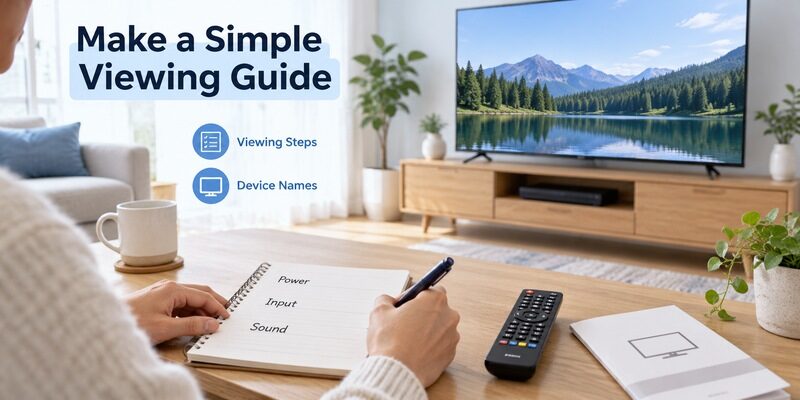
Write the sequence the household actually uses: turn on the TV, select the usual source, choose a program, adjust sound, and return to standby. Name the correct handset for each task if more than one is involved. Keep programming and factory-reset instructions out of this everyday note.
Effective panasonic tv remote instructions use visible button labels and familiar device names. Ask the regular viewer to follow the note once while you are present. Any hesitation reveals where an assumed step or unfamiliar term needs a clearer explanation.
Keep the full technical record separately
If you use a video tutorial, compare the television model, remote layout, and starting screen before following along. A panasonic tv remote control instructions youtube search can surface a clear demonstration for the wrong generation. Pause whenever the visible options differ instead of continuing the same button sequence. Panasonic tv remote instructions should remain grounded in the matching manual even when a video helps illustrate a movement or menu choice.
Share the everyday note in a place the viewer can reach without opening television settings. Keep it short enough to use during viewing, while leaving the full panasonic tv remote instructions in the separate technical record for less frequent tasks and troubleshooting.
Save the television model, handset part, battery requirement, and relevant manual with purchase information. Add the successful replacement identity if the original remote changes. This technical record makes later troubleshooting easier without cluttering the short viewing guide.
Revise the everyday note when equipment changes. A new soundbar or streaming box can alter which remote controls sound or programs. Panasonic tv remote instructions remain useful when they describe the current room setup rather than an arrangement that no longer exists.
Frequently Asked Questions
Are all Panasonic remote button diagrams the same
No. Match the complete television and handset identifiers. Panasonic tv remote instructions for a different platform can show keys or menus your set does not have. The matching manual defines the scope, and a replacement remote may also need its own key guide.
Why does the TV remote not change channels on an HDMI box
The box may manage its own program selection. Confirm which device receives the command and use the supported control arrangement. Good panasonic tv remote instructions name the correct handset for each task instead of assuming that television volume and external channels share one control path.
Can I change a Japanese TV menu to English with a new remote
A replacement remote does not add an unsupported interface language. Check the regional television model and its available language settings. Use panasonic tv remote instructions for that exact set, and avoid a factory reset merely to search for another language.
What should I learn first on an unfamiliar remote
Learn arrows, confirmation, and a reliable way back to the picture. Then practice source selection and volume. Panasonic tv remote instructions become easier to follow when you can recover from an unexpected screen without guessing a long sequence of button presses.
Final Thoughts
Follow panasonic tv remote instructions that match the complete TV model and the handset being used. Learn navigation and a reliable return-to-picture route first, then distinguish TV settings from app and HDMI-device controls.
Check the source of captions, sound, and voice behavior before changing unrelated settings. Preserve the correct manual and a clear and concise household guide, and keep a supported backup ready for occasions when the physical remote is unavailable.
Download TV Remote App