
Panasonic TV Code for Xfinity Remote and Programming Guide
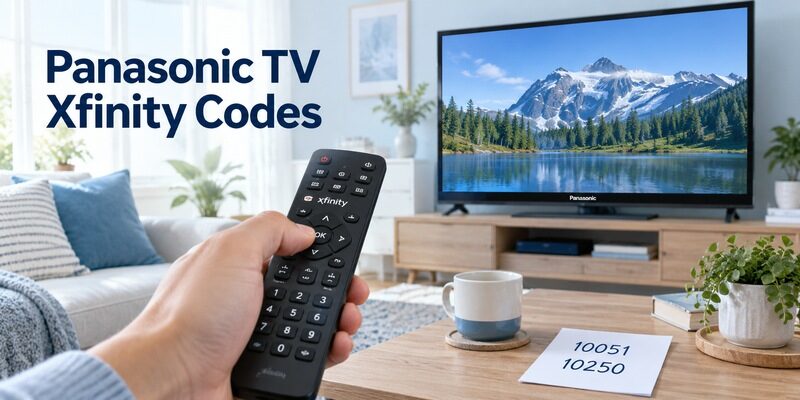
Short answer: Try 10051, then 10250 for Panasonic television control on the Xfinity XR11.
Xfinity’s official XR11 quick start guide lists those two numbers for Panasonic. The appropriate Panasonic TV code for Xfinity remote models should still be checked against the exact handset, especially when using an XR15, a different remote generation, or a television that responds to only some buttons.
Start with the reference table below, then follow the procedure for your remote. This guide separates television programming from TV Box pairing, explains the supported XR11 code search, and shows how to evaluate partial results. You do not need to reset the Panasonic television simply because one programming attempt fails.
Panasonic TV Code for Xfinity Remote Lookup
Use codes documented for the remote family you own. The following starting numbers come from Xfinity’s XR11 guide; they are not a guarantee for every Panasonic television or every Xfinity handset.
| Code or route | Try order | Supported reference |
|---|---|---|
| 10051 | First | Panasonic entry in Xfinity XR11 quick start guide |
| 10250 | Second | Second Panasonic entry in the same XR11 guide |
| Model-specific lookup | After identifying a different handset | Xfinity Remote Code Lookup tool |
| On-screen TV setup | When available through your TV Box | Xfinity guided programming workflow |
Start with the documented pair
Enter all five digits exactly as listed. Do not drop the leading digits to fit a three-digit pairing screen; that screen serves a different purpose. If the remote accepts a number, test the television before deciding the setup is complete.
A Panasonic TV code for Xfinity remote programming represents a stored command set. One accepted entry may operate Power while another offers better volume behavior. The best result is the code that reliably handles the supported functions you actually use.
Check other models through Xfinity
Locate the remote’s model identifier, often under the battery cover or on its back. Select that exact model in Xfinity’s Remote Code Lookup tool before choosing Panasonic as the television brand.
This is also the correct place to verify Xfinity Panasonic TV codes beyond the two XR11 starting entries. Avoid combining unverified lists from different remote manufacturers: identical-looking numbers may refer to different command libraries.
Keep the code source with your setup notes. A number from Xfinity’s XR11 booklet has a defined context; a number on an unlabeled screenshot may come from a completely different controller. If the handset has been replaced since the note was written, check the new model before reusing the old instructions.
The Panasonic TV code for Xfinity remote lookup should also distinguish the television from any Panasonic audio equipment in the room. A manufacturer’s TV and receiver entries are different device categories. Selecting Panasonic under an audio category does not establish a television command set.
Download TV Remote App📘 Find the Right Guide: Panasonic TV Remote: Choose, Set Up and Replace It
Enter a Code with the XR11

The XR11 has a Setup button. Use that physical identifier along with the printed model number before following this procedure.
1. Turn on the television: Use its own power control if necessary.
2. Enter programming mode: Hold Setup until the indicator changes from red to green.
3. Type the code: Enter 10051 as five digits and look for two green flashes.
4. Check television response: Test Power and volume while aiming at the set.
5. Try the next entry: Repeat with 10250 if the first code fails the practical tests.
Watch the indicator before entering digits
The XR11 guide describes holding Setup for about three seconds, but the indicator is the important confirmation. Entering the number before programming mode begins can send ordinary commands to the cable box instead.
Keep the Panasonic TV code for Xfinity remote setup visible while entering it. If you are interrupted or lose your place, restart that short programming sequence rather than adding extra digits to an uncertain entry.
Test before putting the guide away
Turn the television off and on, then change volume in small increments. Confirm Mute and Input if those functions are part of your intended use. An indicator acknowledgement establishes that the handset accepted an entry; the TV response establishes practical compatibility.
Write down which Panasonic TV code for Xfinity remote control passed those checks. Saving the working number with the handset model is more useful than saving an unlabeled screenshot containing dozens of possible codes.
If you cannot see the indicator clearly from the sofa, perform entry where the handset is easy to observe, then aim it toward the television for the command tests. You do not need to stand behind the TV or access any internal component. Keep fingers clear of adjacent number keys to avoid adding an unintended digit.
A Panasonic TV code for Xfinity remote entry should be tried as one complete attempt: correct mode, five digits, acknowledgement, then TV response. Record the first failed stage rather than describing the entire procedure as unsuccessful without knowing where it stopped.
📘 Find the Right Guide: App for Panasonic TV Remote: VIERA and Platform Options
Use the XR15 Procedure When There Is No Setup Button
Manual five-digit entry
Xfinity’s programming instructions use xfinity and Mute together for five seconds on the XR15, until its light turns green. Enter the five-digit code supplied for your TV by the model-specific lookup, then test Power, Volume, and Mute.
Do not search the XR15 keypad for a missing Setup key. A Panasonic TV code for Xfinity remote XR15 setup belongs in that handset’s own entry mode, even if a familiar number appeared in an older XR11 booklet.
Guided TV Box setup
If the XR15 is not paired with the TV Box, follow Xfinity’s pairing workflow first, including any three-digit on-screen code it supplies. Once box control works, use the prompts to configure television power and sound.
This is often clearer when you are learning how to program Xfinity remote to Panasonic TV for the first time. The guided questions also help separate television speakers from an external receiver instead of assigning every function to the wrong device.
Inspect both the label and the layout if someone else supplied the remote. An XR15-style handset, an XR16 without a number pad, and a television manufacturer’s remote can all look compact, but their setup methods are not interchangeable. Do not continue a five-digit procedure on a handset that has no number buttons.
When the Panasonic TV code for Xfinity remote instructions and the physical buttons disagree, stop entry and resolve the model mismatch. The remote model determines the sequence. This prevents ordinary keypad commands from being mistaken for programming and avoids unnecessary resets after an invalid attempt.
💡 Discover Helpful Guides: Download the Panasonic TV Remote App: Complete Setup Guide
Search for a Code on the XR11

Use the XR11 search method only on the specified handset. Do not assume an XR16 or another remote accepts the same key sequence.
1. Start with the TV on: Keep its screen visible so you can identify the first successful response.
2. Hold Setup: Wait for the red indicator to become green.
3. Enter search mode: Type 9-9-1 and check for the acknowledgement flashes.
4. Advance slowly: Press Channel Up until the television turns off.
5. Save the match: Press Setup, then check whether TV Power turns it back on.
Stop as soon as the TV responds
Xfinity documents this search as an option when a brand cannot be found. It can provide a supported alternative to guessing more numbers. Advance deliberately so you do not pass the working command set after the television switches off.
Searching for a Panasonic TV code for Xfinity remote control is not the same as scanning channels on the TV. The handset is stepping through its internal command library; the Panasonic television does not need to retune its broadcast channels.
Validate a searched match
After saving, test volume and mute as well as power. A successful power command may still represent a partial match. If the result is incomplete, consult the remote-specific lookup or guided setup before repeatedly searching through the same options.
Keep a note that the Panasonic TV code for Xfinity remote was found by search if no numeric value is displayed. Do not invent a code number based on how many times you pressed Channel Up.
Prepare a visible screen before starting the search. If the TV is already black because an HDMI source is asleep, it may be difficult to recognize the power-off response. Use a normal television menu or an active source where possible, then begin the documented search with the set on.
The Panasonic TV code for Xfinity remote found by search should be checked after it has been saved, not only at the moment the television turns off. A brief loss of picture from an external source is not sufficient evidence that the handset found the intended power command.
💡 Discover Helpful Guides: Can You Factory Reset a Panasonic TV Without a Remote?
Diagnose an Accepted Code That Does Not Work
| Observation | Likely area to investigate | Useful next test |
|---|---|---|
| No programming acknowledgement | Entry mode or batteries | Repeat the correct handset sequence |
| Accepted code but no TV response | Command set or IR path | Aim directly and try the next supported code |
| Power works but volume does not | Partial match or audio routing | Check which device produces sound |
| Cable guide works but TV power fails | Box pairing versus TV programming | Configure the television separately |
Separate entry failure from control failure
If the handset never confirms the entry, inspect its batteries and the sequence you used. Pressing the wrong button combination does not establish that the television is incompatible. Return to the printed model identifier before changing anything else.
When a Panasonic TV code for Xfinity remote is accepted but no command reaches the screen, test from a normal unobstructed position. A stored code cannot overcome a blocked infrared path. A soundbar placed in front of the TV sensor can matter.
Compare against another working control
Use the television’s original remote or physical buttons to establish whether the TV responds normally. If the TV itself is frozen or powered off at the wall, code entry on the Xfinity handset will not resolve that condition.
For an Xfinity remote Panasonic TV setup, a working cable guide proves that one part of the entertainment system responds. It does not prove the Panasonic infrared receiver has received any signal from the remote.
💡 Discover Helpful Guides: Panasonic TV Remote Instructions for Buttons Menus and Daily Use
Resolve Power Volume and Input Separately

Power and input selection
Test TV Power specifically when the remote offers both television and combined power controls. Watch whether the television, TV Box, or both turn off. A combined command can obscure which part of the setup succeeded.
After entering a Panasonic TV code for Xfinity remote control, use Input cautiously and note the cable box’s original HDMI connection. If the screen changes to No Signal, return to that input before diagnosing a new cable service problem.
Television speakers and soundbars
Determine where sound is coming from. An external soundbar may need its own equipment programming, while HDMI control can create a different route for volume commands. Check the selected audio output before trying more television codes.
Program the actual audio device when the setup asks for it. The Panasonic TV code for Xfinity remote volume control should not be expected to operate an unrelated receiver simply because it is connected to the same television.
Buttons outside basic TV control
An Xfinity handset may offer useful television power, sound, and input controls without reproducing every Panasonic settings button. Panasonic-specific picture menus, app shortcuts, or voice features can require the original or a compatible replacement remote.
Decide whether the missing button is essential. A code that reliably handles everyday cable viewing can still be a sensible result, while the Panasonic handset remains available for occasional advanced settings.
Consider a setup where the TV’s own speakers respond to Volume but a connected soundbar does not. That result narrows the issue: the television is receiving a usable command, while the audio arrangement needs its own configuration. Trying more TV codes without inspecting that arrangement may replace a working television profile with a worse one.
A Panasonic TV code for Xfinity remote evaluation should therefore include the name of the active speakers. This gives support a clear distinction between a partial television match and successful TV control with an unconfigured external sound system.
💡 Discover Helpful Guides: Panasonic TV Remote Battery Types Replacement and Common Problems
Understand TV Codes and Pairing Codes
The five-digit television command set
A Panasonic TV code for Xfinity remote entry selects commands intended for the television. It is not a Wi-Fi password, subscription activation code, or television serial number. Enter it only in the remote’s documented programming mode.
Code length helps identify a mismatch, but it is not enough by itself. Other remote manufacturers also use five-digit libraries. Match the provider and handset first rather than trusting any result that happens to contain five numbers.
The on-screen box pairing request
A TV Box pairing code is supplied by the current on-screen process and associates the handset with the box. This enables box functions such as navigation or supported voice features. It does not automatically prove television control is configured correctly.
Treat the two setup stages as separate checks. If the cable guide responds but Panasonic Power does not, continue the television programming stage. Repeating box pairing alone may leave the actual missing TV command unchanged.
A practical way to keep the stages straight is to name the result you are trying to obtain before pressing buttons. For TV programming, the result is Panasonic Power or Volume responding. For TV Box pairing, the result is reliable navigation of the Xfinity interface and its supported functions.
If the Panasonic TV code for Xfinity remote procedure changes the television but leaves the box guide unresponsive, investigate box pairing next. That is the reverse of the common situation where the guide works and TV volume does not. Both outcomes are easier to resolve when recorded separately.
💡 Discover Helpful Guides: Panasonic TV Remote Universal Compatibility and Setup Guide
Keep Other Providers and Remote Brands Separate
Sky Q belongs to another code system
A search for Sky Q remote code for Panasonic TV concerns a different provider and handset. Do not enter a Sky Q number merely because the same television brand appears beside it. Use Sky’s own remote instructions for that separate setup.
The same rule applies to generic universal controllers. A Panasonic TV code for Xfinity remote control is meaningful within Xfinity’s supported programming system; it is not a universal identifier attached to the television by Panasonic.
Manufacturer remotes may need no code entry
A compatible original-style Panasonic infrared remote may work directly without the Xfinity programming procedure. A voice handset may instead require platform-specific registration. Identify the controller before deciding that a missing code is the problem.
For a broader choice of replacement types, review . Compare the specific commands you need rather than treating every replacement as equivalent to the cable provider’s handset.
Recover Carefully When Programming Stalls
Preserve settings that already work
If cable-box navigation is reliable, start by correcting television programming. Resetting the handset can erase its existing box association and create an additional setup task. Resetting the Panasonic TV is even less relevant to a wrongly entered remote code.
Avoid a reset until the failure stage is clear. A Panasonic TV code for Xfinity remote problem usually deserves a model check, supported code retry, and function test before any factory-reset procedure is considered.
Ask support with specific results
Provide Xfinity support with the handset model, TV model, codes already tried, and exactly which buttons work. Include the indicator behavior during programming and whether the original Panasonic remote still controls the television normally.
That record makes the remaining issue concrete. If one Panasonic TV code for Xfinity remote operates Power but another operates neither Power nor Volume, report those separate outcomes rather than saying every code failed identically.
Bring the written test results when seeking a replacement handset as well. A remote with damaged number keys can fail during programming even if other buttons still work. Note any key that feels stuck, fails to register, or causes repeated input; this may be relevant to the handset rather than the television’s compatibility.
Keep the last usable Panasonic TV code for Xfinity remote result in your notes before trying a new option. If the next attempt performs worse, you have a defined configuration to return to instead of rebuilding the entire arrangement from memory.
📘 Find the Right Guide
Panasonic TV Remote in Mobile for Android and iPhone
Use a Phone for Supported Panasonic Controls
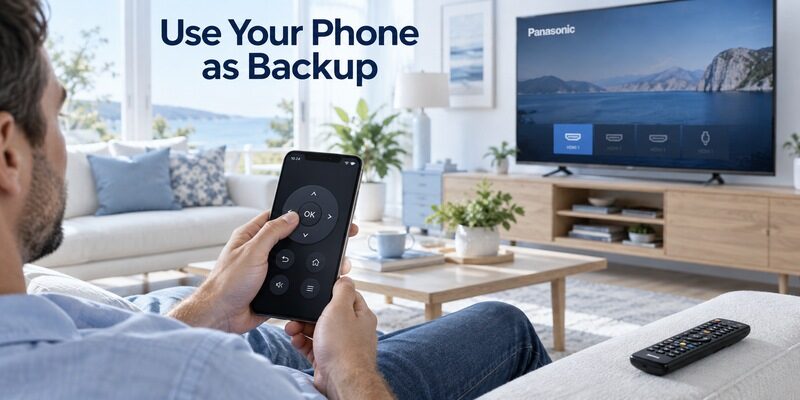
Recover TV navigation while retaining cable control
A compatible mobile remote may help with Panasonic menu access while the Xfinity handset continues to operate the TV Box. Match the app to the television’s platform and confirm the set is already reachable on the home network.
This fallback does not generate a new Panasonic TV code for Xfinity remote programming. It supplies another control path to a supported television, which can be useful when a missing Input or Settings button interrupts setup.
Check Remote TV App compatibility
Consider when its current supported-device information includes your TV. Test the required navigation functions before relying on it, and retain a physical control for network setup or approval prompts.
A phone app does not replace Xfinity box pairing. Keep provider-specific voice and cable functions in their supported workflow. For mobile setup details, the guide explains the platform differences.
Final Thoughts
Start with the documented XR11 numbers, 10051 and 10250, then use the correct instructions for your handset. The right Panasonic TV code for Xfinity remote control is the one that passes real Power, Volume, Mute, and supported Input tests on your equipment.
Save the working result alongside the handset and television model numbers. If control remains partial, investigate the infrared path and sound system separately before resetting anything. That approach preserves working cable controls and makes the next support or replacement decision much easier.
Download TV Remote App