Code for Insignia TV Remote: Complete Programming Guide
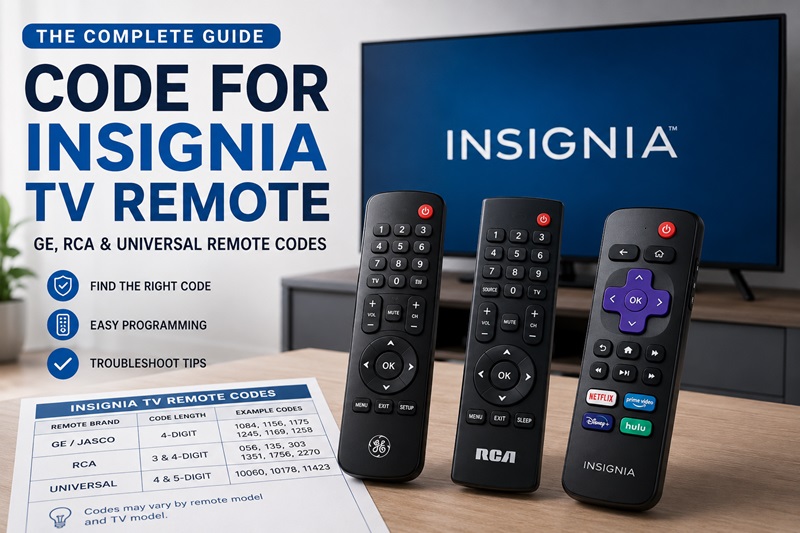
There is no single code for Insignia TV remote setups that works with every universal remote. The correct number depends on the remote brand, model, and code-list version, so the fastest approach is to identify your controller first and use codes verified for that exact code library.
For example, the One For All Essential 6 URC3660 code list includes Insignia codes such as 2049, 1780, 4487, 3227, and 1564, while GE/Jasco remotes require you to choose the correct CL3, CL4, CL5, or CL6 list before entering a four-digit code. Older Insignia manuals also published common codes for RCA, Philips, Sony, and One For All remotes.
Use the quick table below first, then follow the programming steps for your remote. If a code for Insignia TV remote control is accepted but only Power works, keep testing codes from the same verified list.
1. Insignia TV Remote Codes: Quick Lookup
Start here if you only need a code for Insignia TV remote programming. Do not treat every number below as interchangeable. A code that belongs to one remote family may not exist inside another remote’s memory.
| Remote / code list | Verified Insignia code examples | What to know |
|---|---|---|
| One For All Essential 6 URC3660 | 2049, 1780, 4487, 3227, 1564, 1641, 2184, 1892, 1423, 1660, 1963, 1463 | Use with the matching One For All code list |
| RCA, legacy Insignia manual example | 135 | Older common-code reference; verify your current RCA revision |
| Philips, legacy Insignia manual example | 0198, 0490 | Older common-code reference |
| Sony, legacy Insignia manual example | 068, 069, 078, 096, 100, 164, 168, 229, 026 | Mainly useful with compatible older code libraries |
| GE / Jasco universal remote | Varies by CL3, CL4, CL5, or CL6 | Check the CL version before choosing a code |
One For All’s Essential 6 manual lists the first row specifically for Insignia TVs. Jasco’s current GE universal-remote guidance does not give one universal Insignia number; users must identify the remote’s CL3, CL4, CL5, or CL6 version and then select the corresponding TV and brand code list. An older official Insignia owner manual published the RCA, Philips, Sony, and One For All examples shown above.
For any code for Insignia TV remote setup, the remote model matters as much as the TV brand. This is why searches for insignia remote tv codes often return several different numbers.
If you specifically need insignia tv remote codes 4 digit, use the code list for the exact universal remote model. Do not add a zero to a three-digit code or remove a digit from a five-digit code unless the remote manufacturer tells you to do so.
📘 Find the Right Guide:
Insignia TV Remote App: Free Options and How to Set Up
2. Check Your Remote Before Entering a Code
Before testing another code for Insignia TV remote control, identify the controller itself. This takes less time than entering a long list of numbers that may never be accepted.
Remove the battery cover and look for the:
- Remote brand
- Model number
- Revision number
- Code-list version
- Device mode
On GE/Jasco remotes, the important label is often CL3, CL4, CL5, or CL6. Jasco’s official instructions specifically tell users to find this version inside the battery compartment before opening the appropriate code list.
For RCA remotes, check the revision number. RCA’s current Remote Code Finder asks for Revision Number, Device Brand Name, and Device Type, which is why one list of rca insignia tv remote codes should not be assumed to work with every RCA controller.
Also identify the TV platform. A standard Insignia television, Insignia Fire TV, and Insignia Roku TV do not necessarily use the same control method.
A code for Insignia TV remote control copied from a different remote model may therefore be rejected even when the number looks valid.
Before programming:
- Install fresh batteries.
- Turn the TV on.
- Point the remote toward the TV sensor.
- Remove anything blocking the sensor.
- Select TV mode on a multi-device remote.
- Keep the correct code list nearby.
💡 Discover Helpful Guides: Insignia TV Remote Replacement: Options and Buying Guide
3. What to Check Before Entering an Insignia TV Remote Code
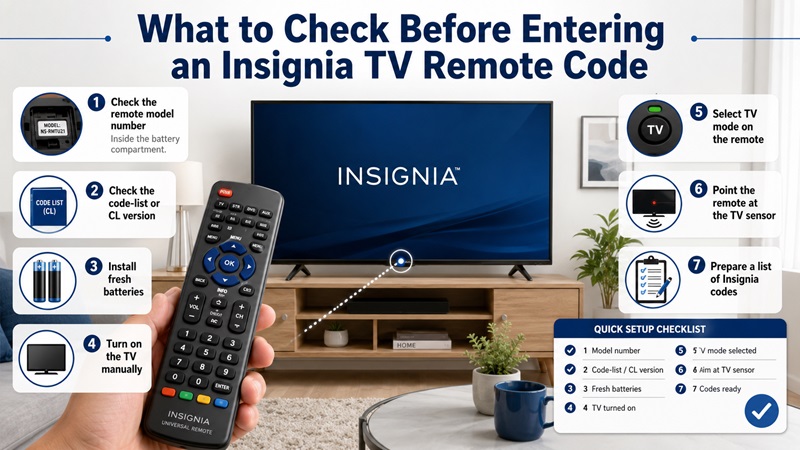
Before entering a code for insignia tv remote, identify both the universal remote and the television. This prevents you from testing numbers that are not stored in your remote.
Find the Remote Model and Code-List Version
Remove the battery cover and look for:
- Model number
- CL or code-list version
- Revision number
- Manufacturer name
- Support website
- Device capacity, such as a 4-device or 8-device remote
GE remotes supported by Jasco often display a CL version inside the battery compartment. RCA remotes may have a revision or product number printed on the label.
Two remotes can look almost identical but use different insignia tv remote codes. Always use the code list written for your exact model and version.
Identify the Type of Insignia TV
Determine whether you own:
- A standard Insignia television
- An Insignia Fire TV
- An Insignia Roku TV
- A TV connected to an external Fire TV or Roku player
The code entered into a universal remote normally controls the television itself. It may not control the separate streaming player connected through HDMI.
An Insignia Fire TV voice remote may use Bluetooth pairing for advanced features such as Alexa. A universal infrared remote may still operate basic TV commands but not voice search or all smart functions.
Prepare the Remote and TV
Before programming:
- Install fresh batteries.
- Turn the TV on with its physical power button.
- Point the remote toward the television’s sensor.
- Remove objects blocking the sensor.
- Select TV mode on the universal remote.
- Keep the correct manual or code list nearby.
- Record each code you test.
Do not use a soundbar, DVD player, cable box, or Fire TV device code when programming the television mode.
Important: A code from another GE or RCA remote may be rejected because it is not included in your remote’s internal library.
📖 Read More Guides: Insignia TV Remote Codes: Complete Programming Guide
4. Insignia TV Remote Codes by Remote Brand and Code Length
The correct code for insignia tv remote programming depends on the brand and model of the controller. The table below explains where to look and what to try when direct entry fails.
| Remote type | Common code format | How to find the correct code | Backup setup method |
| GE/Jasco universal remote | Usually four digits, depending on CL version | Check model and code-list version | Auto Code Search |
| RCA universal remote | Three, four, or five digits | Use its model-specific manual | Brand or Auto Code Search |
| One For All remote | Four or five digits | Use Setup Code Finder | Learning or code search |
| Insignia replacement remote | May be preprogrammed | Check TV and remote compatibility | Follow its setup guide |
| Fire TV replacement remote | Usually pairing instead of TV code | Follow Fire TV pairing instructions | Hold Home and re-pair |
GE Remote Codes for Insignia TV
When looking for ge remote codes for insignia tv, begin inside the remote’s battery compartment. Record the model number and CL version before opening the GE/Jasco code finder or paper manual.
A typical process is:
- Find the GE remote model.
- Find the code-list version.
- Choose TV as the device category.
- Select Insignia as the brand.
- Write down all listed codes.
- Try the codes in the displayed order.
- Test every important function.
Searches for ge universal remote codes for insignia tv frequently return mixed lists from different remote versions. A code shown online may be valid for one CL version but unavailable on another.
The same issue applies to general electric universal remote codes for insignia tv. “General Electric” and “GE” may describe the same branded remote family, but you still need the exact model and code-list version.
A ge universal remote for insignia tv often uses direct four-digit code entry. If the indicator light flashes or rejects the number, that code may not be stored in your model.
Four-Digit Insignia TV Codes
People searching for insignia tv remote codes 4 digit should not treat all four-digit numbers as interchangeable.
The code must match:
- Remote brand
- Remote model
- Code-list version
- Device category
- Insignia television command set
Do not add a zero to a three-digit code or remove a digit from a five-digit code unless the official manual specifically tells you to do so.
The phrase ge universal remote codes for insignia tv 4 digit usually refers to a GE/Jasco code list. Check the CL number first, then use only the Insignia codes shown for that version.
If one four-digit code for insignia tv remote controls Power but not Input or Volume, repeat the setup with the next Insignia code.
Three-Digit Insignia TV Codes
Some older universal, cable, or satellite remotes use insignia tv remote codes 3 digit.
A three-digit remote cannot necessarily accept a four-digit code. Likewise, a number cannot safely be shortened by deleting its first or last digit.
Use the manufacturer’s code list for that exact remote. If the manual contains no Insignia entry, use its code-search procedure rather than guessing.
Older insignia remote tv codes may support basic television functions only. Smart shortcuts, voice control, and streaming navigation may require a more modern controller or phone app.
RCA Insignia TV Remote Codes
The correct rca insignia tv remote codes depend on the RCA remote model and revision.
Some RCA controllers use Code Search, while others use Setup, TV, or a dedicated device key. Code lengths also vary across RCA models.
To find the correct list:
- Check the RCA model number.
- Find the official manual for that model.
- Locate the television code section.
- Find Insignia.
- Try each listed code.
- Test Power, Volume, Input, and Menu.
Do not assume that every RCA insignia tv remote code is compatible with every RCA remote. The code must exist inside the controller’s stored library.
💡 Discover Helpful Guides: Insignia TV Remote Not Working? How to Fix It Fast
5. How to Program a GE Universal Remote to an Insignia TV
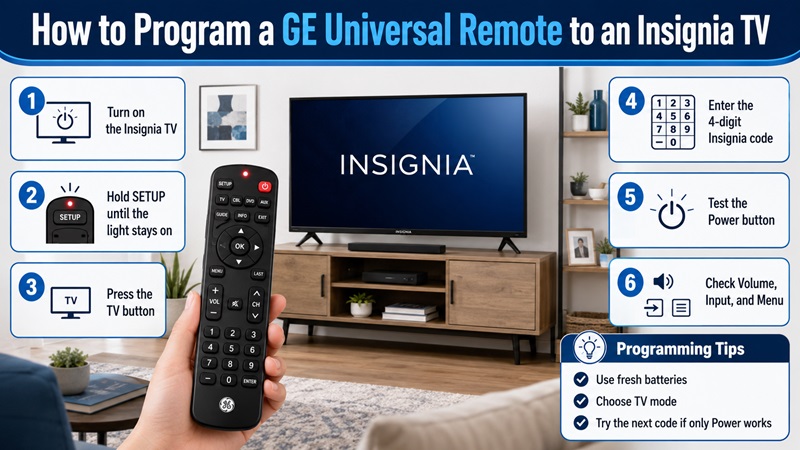
The exact instructions can vary, but the following direct-entry method applies to many GE universal remotes.
Direct Code Entry
To learn how to program ge universal remote to insignia tv, follow these steps:
- Install fresh batteries in the remote.
- Turn on the Insignia TV manually.
- Point the GE remote toward the TV.
- Press and hold Setup.
- Wait until the red indicator light remains on.
- Release Setup.
- Press the TV device button.
- Enter the four-digit Insignia code from the correct list.
- Wait for the indicator light to turn off.
- Point the remote toward the TV.
- Press Power.
If the television turns off, turn it on again and test the other controls.
The process to program ge remote to insignia tv is not complete until you test:
- Volume up and down
- Mute
- Input
- Channel
- Menu
- Directional controls
- OK
- Back
What If Only Power Works?
When the TV powers off but other buttons fail, the code is probably a partial match.
Repeat the direct-entry process with the next Insignia code in the same GE code list.
Do not reset the entire remote after every unsuccessful code. Simply return to programming mode and enter the next listed number.
Check the Device Mode
A multi-device remote can switch between TV, CBL, AUX, DVD, and other modes. Make sure the TV button is selected before testing the programmed commands.
If the remote appears to work and then suddenly controls another device, press TV again.
Use Auto Search When Direct Entry Fails
If none of the direct codes work, use the Auto Code Search method described later in this guide. This allows the ge universal remote for insignia tv to scan through all compatible TV codes stored in its memory.
🗺️ Browse How-To Guides: Insignia TV Remote Batteries: Size, Type, and Replacement
6. How to Program an RCA Remote to an Insignia TV
Programming an RCA remote requires the code list and instructions for the exact RCA model.
RCA Direct Code Entry
A common process is:
- Turn on the Insignia TV.
- Point the RCA remote at the television.
- Press and hold Code Search or Setup.
- Wait for the indicator light.
- Press the TV button.
- Enter an Insignia code from the remote’s official list.
- Wait for the light to confirm the entry.
- Press Power.
- Test the remaining controls.
If the television does not respond, repeat the procedure with the next code.
Test Full Compatibility
A successful Power command does not guarantee that the remote is fully programmed.
Check:
- Volume
- Mute
- Input
- Menu
- Channel
- Navigation
- Playback
Try another code for insignia tv remote if several important buttons do not respond correctly.
RCA Brand Code Search
Some RCA remotes include a Brand Code Search option. This method searches a smaller group of commands associated with the television brand.
The general process may involve:
- Turn on the TV.
- Hold the programming button.
- Select TV mode.
- Start Brand Code Search.
- Press Power or Play repeatedly as instructed.
- Stop when the television responds.
- Save the code.
- Test every button.
The exact sequence differs by RCA model. Use the correct manual rather than applying one RCA procedure to every remote.
💡 Discover Helpful Guides: How to Connect Insignia Remote to TV: Pairing Guide
7. How to Set Up an Insignia Remote Without a Code
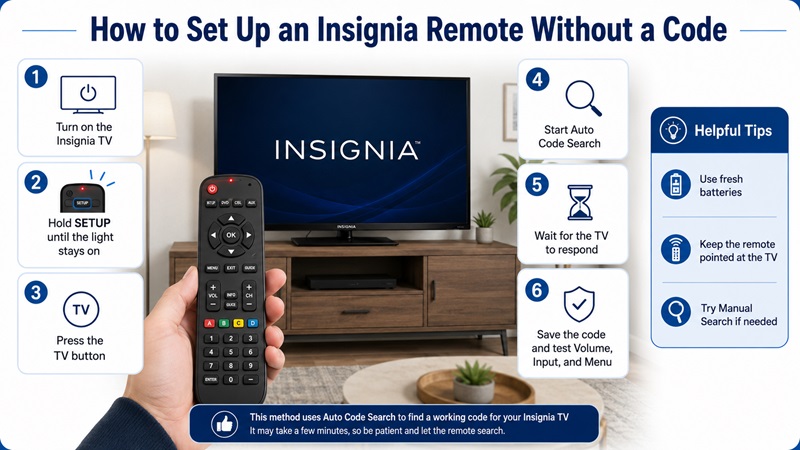
If you do not know the code for insignia tv remote, many universal remotes can search their stored libraries automatically.
Use Auto Code Search
Auto Code Search scans the television codes stored inside the remote.
A general setup process is:
- Turn on the Insignia TV.
- Point the remote at the television.
- Enter programming mode.
- Select the TV device button.
- Start Auto Code Search.
- Keep the remote pointed at the TV.
- Wait for the TV to turn off or respond.
- Save the code immediately.
- Turn the TV back on.
- Test all controls.
Auto search can take longer than direct entry because the remote may scan many brands and command sets.
Use Manual Code Search
Manual search sends commands one at a time. You may need to press Power, Channel Up, or another button repeatedly.
Stop as soon as the television responds and save the setup.
Manual search is useful when automatic scanning passes the correct code too quickly.
Use a Preprogrammed Replacement Remote
Some Insignia replacement remotes are designed for direct use with compatible TVs and may not require manual code entry.
Check whether the remote is:
- Preprogrammed for Insignia
- A general universal remote
- A Fire TV voice remote
- An Insignia Roku TV remote
- A learning remote
A Fire TV replacement remote typically needs pairing rather than an insignia tv remote universal code. Pairing may involve holding the Home button near the television.
Retrieve the Saved Code
Some universal remotes include a Code Identification feature. After Auto Code Search succeeds, use this feature to discover which number was saved.
Record it inside the battery cover or in a phone note for future reprogramming.
📖 Explore Articles: Insignia Fire TV Remote Not Working? Fixes That Work
8. What to Do When the Insignia TV Remote Code Does Not Work
If the code for insignia tv remote does not work, the cause is often the wrong code list, weak batteries, an incorrect device mode, or partial compatibility.
| Problem | Likely cause | Recommended fix |
| TV does not respond | Wrong code or device mode | Confirm TV mode and code list |
| Power works, but Volume fails | Partial code match | Try the next Insignia code |
| Remote rejects the code | Code is not stored in that model | Check model and CL version |
| Indicator light does not turn on | Weak or incorrectly installed batteries | Replace the batteries |
| Remote transmits, but TV ignores it | Blocked sensor or wrong code | Clear the sensor and try another code |
| Auto search finds nothing | Remote may not support the TV | Check compatibility |
| Fire TV responds only to basic keys | Bluetooth pairing is incomplete | Pair the original-style remote |
| Smart buttons do not work | Universal remote supports basic IR only | Use a platform app or replacement remote |
Verify the Remote Code List
Double-check:
- Manufacturer
- Model number
- CL or revision
- Device category
- Code length
A list of ge remote codes for insignia tv cannot be assumed to work with an RCA or One For All remote.
Replace the Batteries
Programming requires a reliable infrared signal. Weak batteries can cause the remote to accept the code but transmit commands inconsistently.
Install a fresh matching pair and confirm the polarity.
Try Every Insignia Code
Manufacturers list multiple insignia tv remote codes because different television models may use different command sets.
Test each number and write down which buttons work. Choose the code with the most complete control.
Check the Infrared Signal
Use a phone camera to look for a flashing light at the front of the remote while pressing a button.
Some cameras filter infrared, but a visible flash usually confirms that the remote is transmitting.
If the remote transmits but the television does not respond, clear any objects blocking the TV sensor and try another code.
Confirm the Insignia Platform
An Insignia Fire TV may need two types of control:
- Infrared for basic Power, Volume, or Input
- Bluetooth for voice, Alexa, and advanced navigation
A standard universal remote may not duplicate every original Fire TV remote feature.
An Insignia Roku TV also requires a remote compatible with Roku TV commands. A remote designed only for standard televisions may provide limited control.
📘 Find the Right Guide: Insignia TV No Remote: How to Control It Without One
9. Use a Remote TV App Instead of a Universal Remote Code
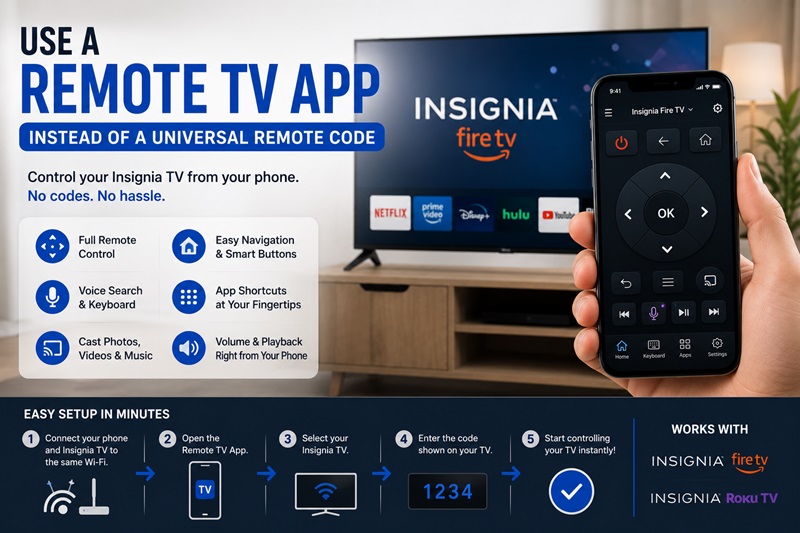
When no code for insignia tv remote provides complete control, a phone app can be a practical alternative.
For an Insignia Fire TV, use the Amazon Fire TV app. For an Insignia Roku TV, use the Roku mobile app. A universal Remote TV App may support multiple television brands and platforms.
A phone remote can provide:
- Directional navigation
- Home and Back
- Playback controls
- Keyboard input
- Voice search
- App shortcuts
- Private listening on supported Roku devices
- Media casting in selected apps
To connect:
- Turn on the Insignia TV.
- Connect the phone and TV to the same Wi-Fi network.
- Open the compatible app.
- Select the television.
- Enter or approve the temporary pairing code.
- Test the remote controls.
Unlike a physical universal remote, the mobile app normally does not need traditional three- or four-digit insignia tv remote universal code entry. The television may instead show a temporary pairing number.
A Wi-Fi app cannot usually control a television that is completely offline. In that case, use the TV’s physical buttons, a compatible replacement remote, or an infrared universal remote.
The most reliable way to find the correct code for insignia tv remote is to identify the remote model, use its official code list, and test every important button. When direct entry fails, use Auto Code Search. If a physical remote still cannot provide the smart features you need, a compatible mobile app may be the faster solution.